 Bitaigen Research
 Cryptocurrency markets consider USDT (Tether) the most mainstream stablecoin, pegged 1:1 to the US dollar, offering price stability and serving as a bridge between fiat currencies and the crypto world. Whether you are buying Bitcoin, Ethereum, or engaging in DeFi, staking, and other activities, you typically need to first convert fiat (e.g., Chinese yuan, US dollar) into USDT.
In the Binance app, you can acquire USDT directly with Chinese yuan through C2C (peer‑to‑peer) trading. The steps include downloading the app, registering and completing KYC, binding security verification, entering the C2C “Buy” interface, selecting a merchant, confirming the amount, and finalising the payment.
This article outlines the complete Binance‑app C2C workflow for purchasing USDT, covering download & installation, identity verification, merchant selection, and payment tips, together with safety reminders. Whether you are a newcomer or an experienced user, you will be able to get started quickly while avoiding common pitfalls. For a more detailed, step‑by‑step guide, keep reading.
Important localization notes:
- All fiat references have been converted to USD where appropriate; for cross‑border transfers, SEPA or SWIFT may be used.
- Users located in the United States must use Binance.US (the US‑compliant platform) instead of the global Binance website or app.
- Crypto gains may be taxable in your jurisdiction; consult a tax professional for advice.
1. Binance App Download
Android Phone App Download
Android users can open the download link directly in a browser:
https://www.bitaigen.com/binance/download
iPhone App Download
iOS users need to create a Taiwan‑region Apple ID first, then search “Binance” in the App Store to download the app. The detailed steps for creating a Taiwan Apple ID are as follows:
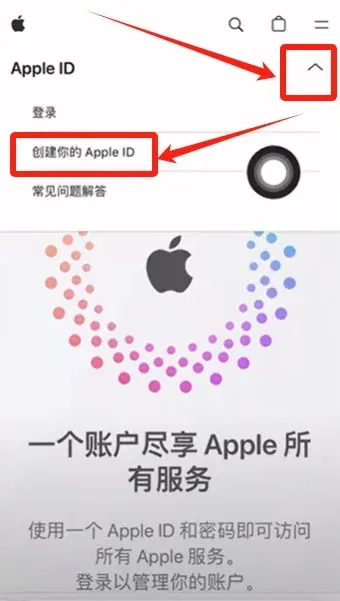
- Visit the Apple Account website, click the drop‑down arrow at the top‑right, and select “Create your Apple ID”.
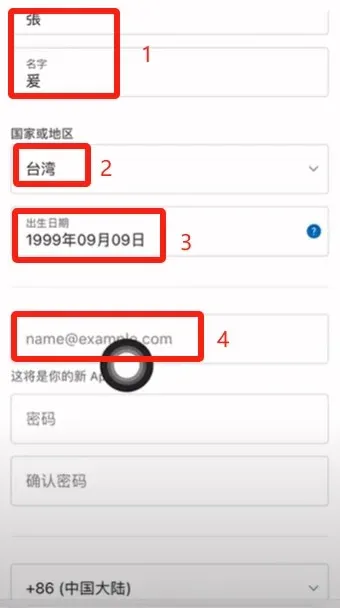
- Fill in your last name and first name, change Country/Region to Taiwan, enter any birthdate, and use an email address that has not been registered before.
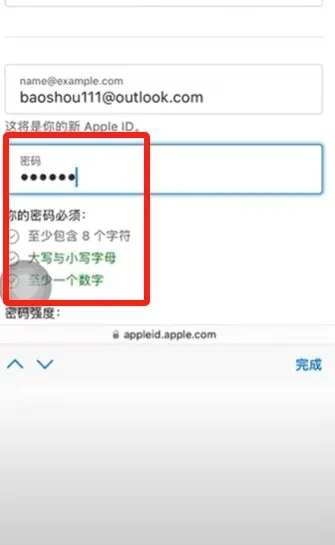
- Set a password of at least 8 characters that includes uppercase, lowercase letters, and numbers.
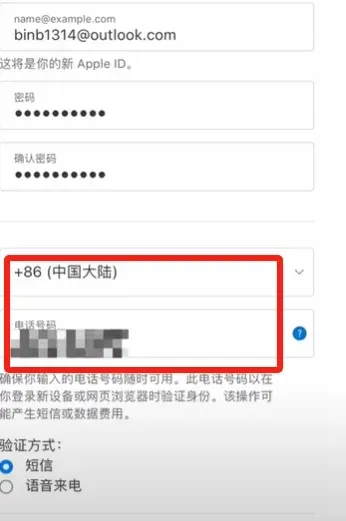
- Enter a mobile phone number to receive a verification code.
- After entering the code, tap Continue.
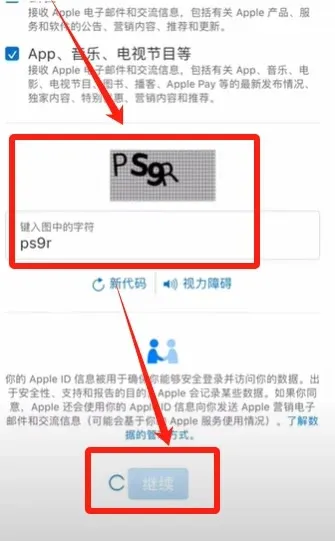
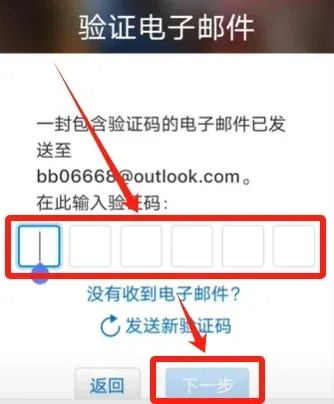
- You will receive an email verification code; input it and click Next.
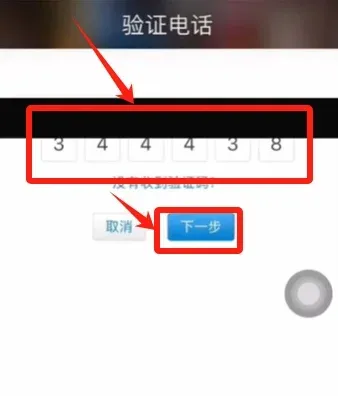
- Enter the phone verification code once more and click Next.
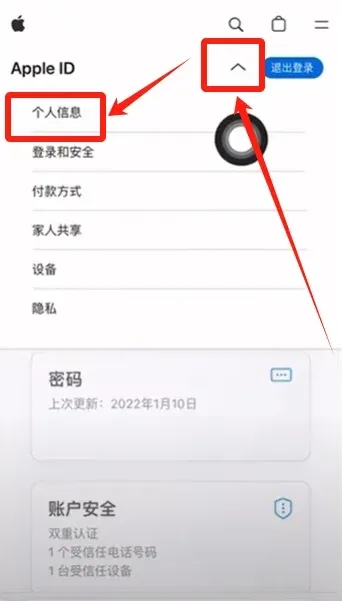
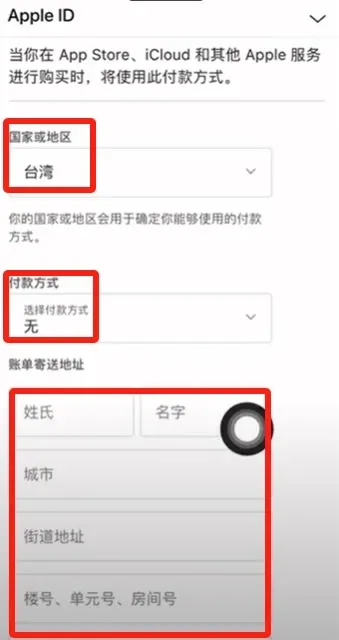
- After logging in, go to Personal Information, tap Country/Region, and select Taiwan, China. Set the payment method to None.
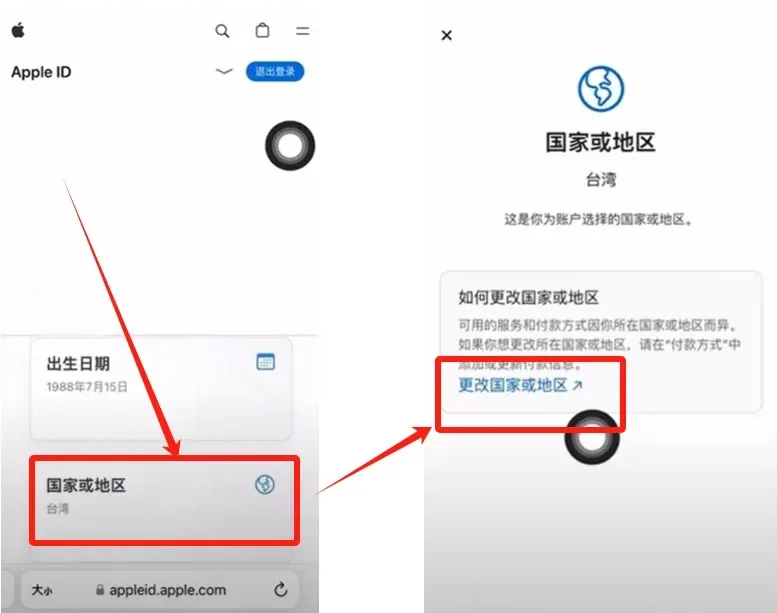
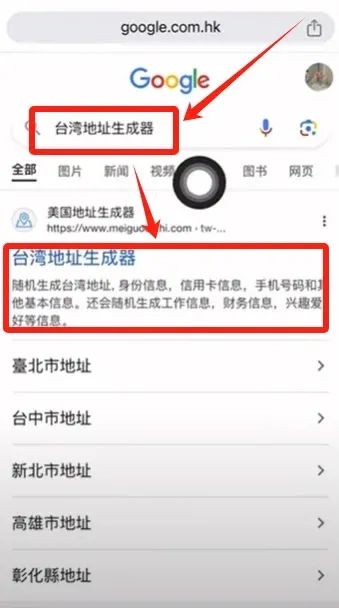
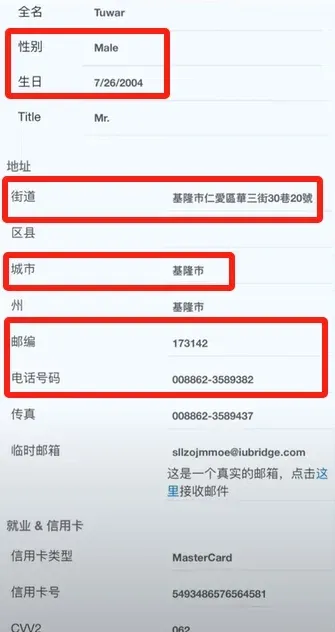
- Use a Taiwan address generator (search “Taiwan address generator”) to create a synthetic name, city, street, postal code, and country code (886). Copy these details into the billing address fields of the Apple ID.
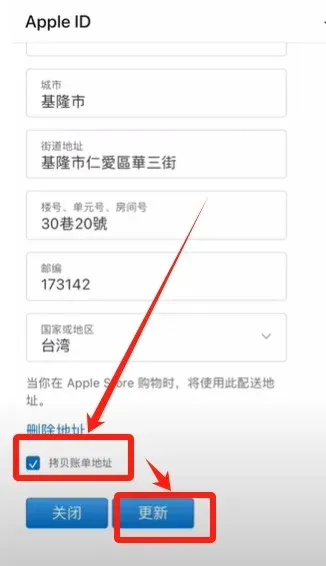
- Once completed, you now have a Taiwan‑based Apple ID that can be used to download the Binance app.
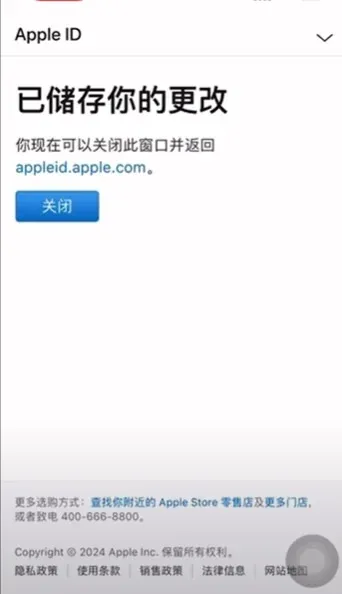
Download the Chinese‑language Binance App
- Sign out of the current Apple ID on the App Store, then log in with the newly created Taiwan Apple ID.
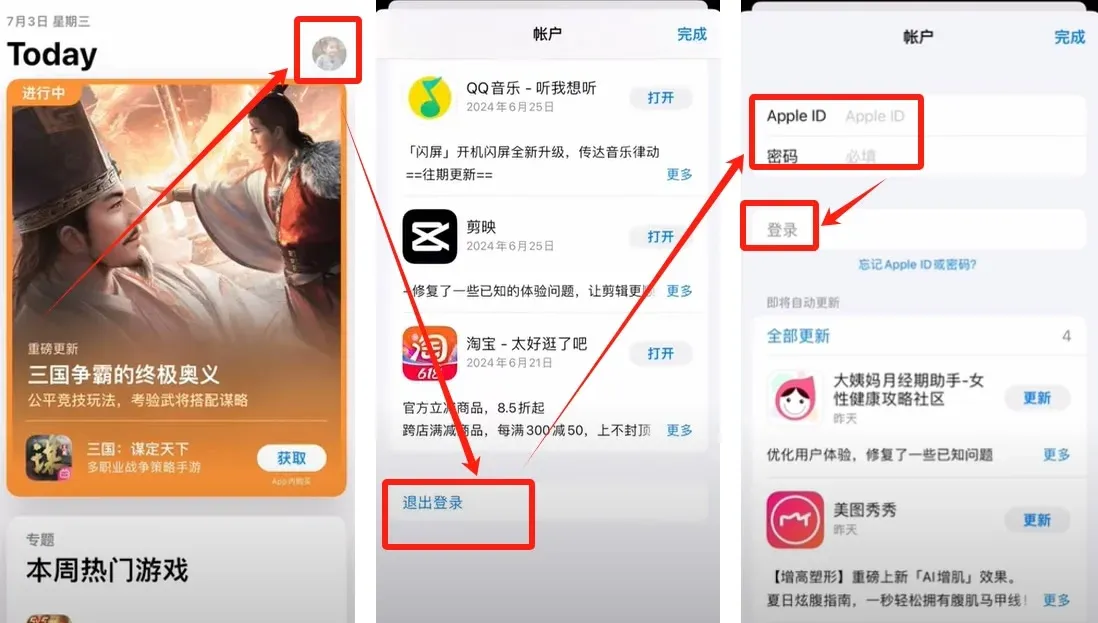
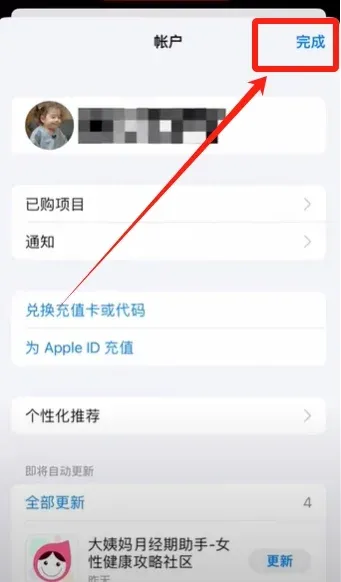
- Search for “Binance”, ignore any advertisements, download the official version, and open it.
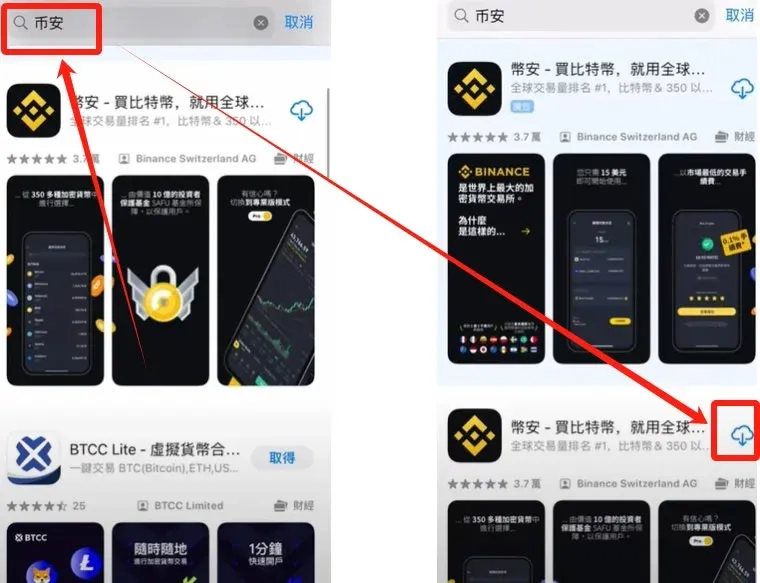
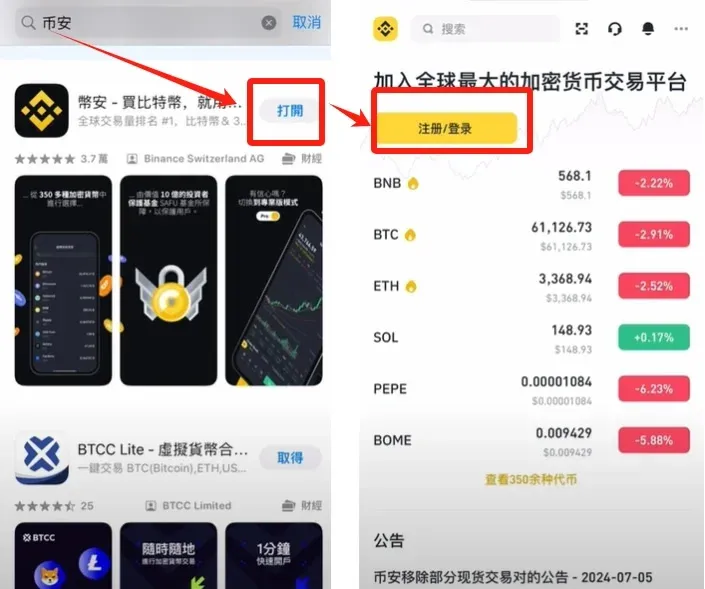
2. Binance Account Registration
- Open the Binance app, tap Register on the home screen → “Create a Binance account” → “Register with email/phone”.
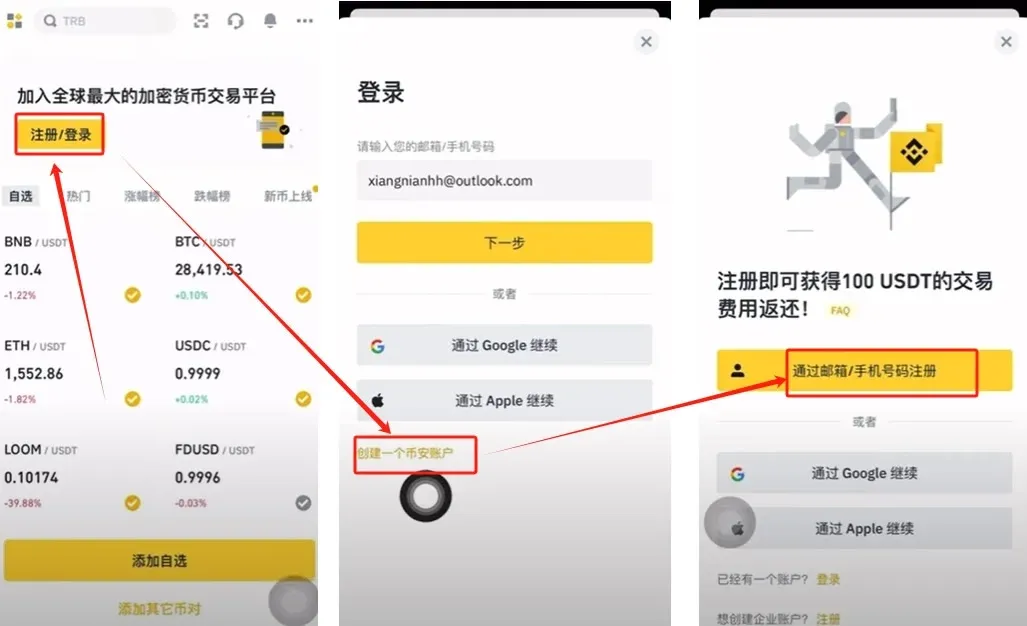
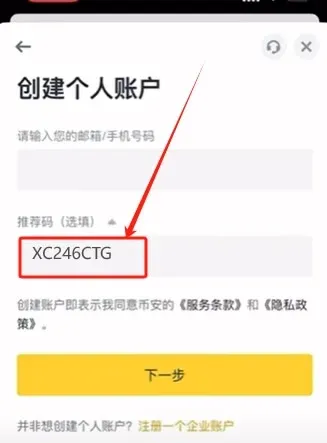
- Enter your phone number or email address. If you have a referral code, enter `B2345` to enjoy a permanent 20 % fee discount.
3. Complete KYC Identity Verification
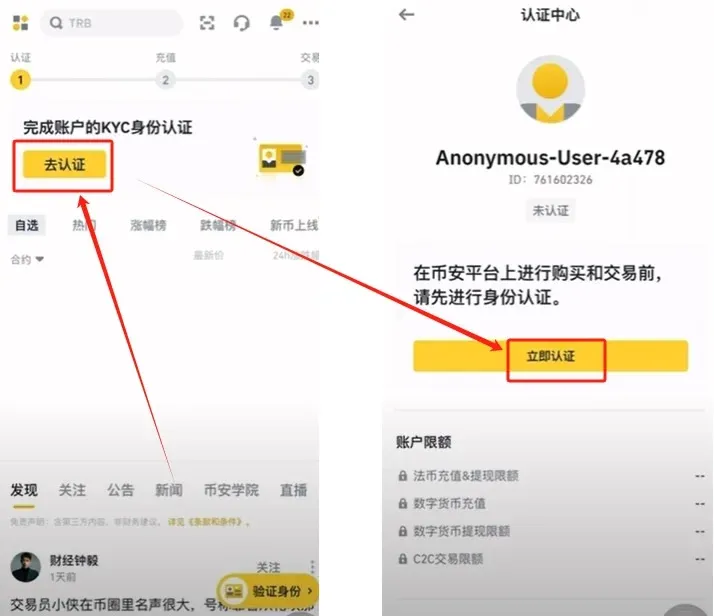
- After logging in, tap Go to verification on the home page → Verify now.
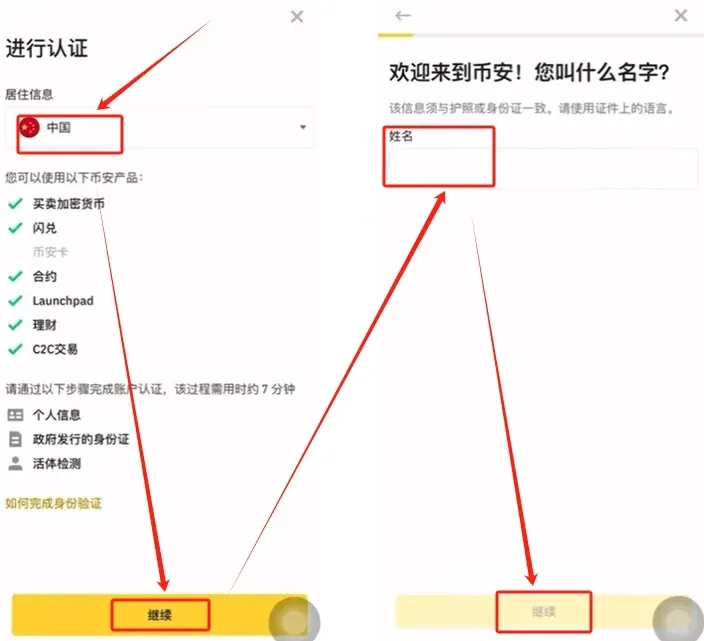
- Choose Country of residence → China, fill in your full name, and continue.
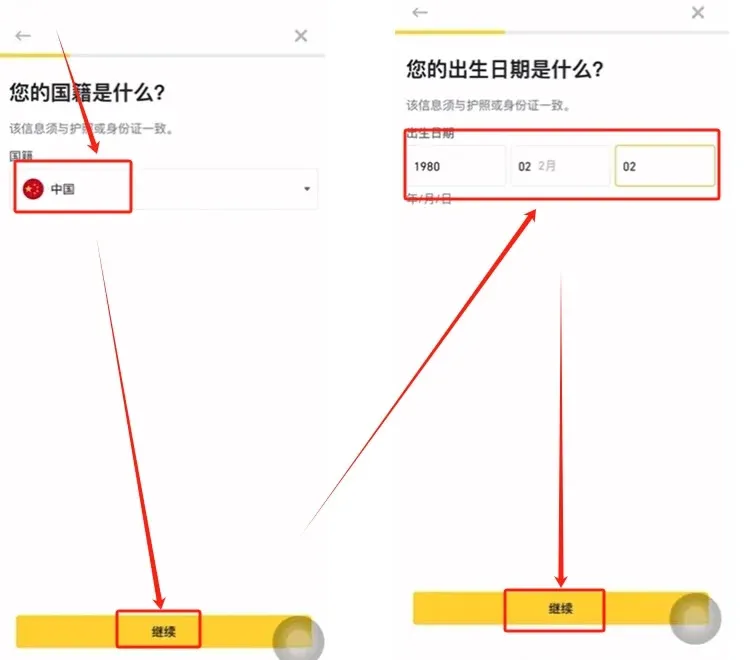
- Select Nationality → China, then input your date of birth.
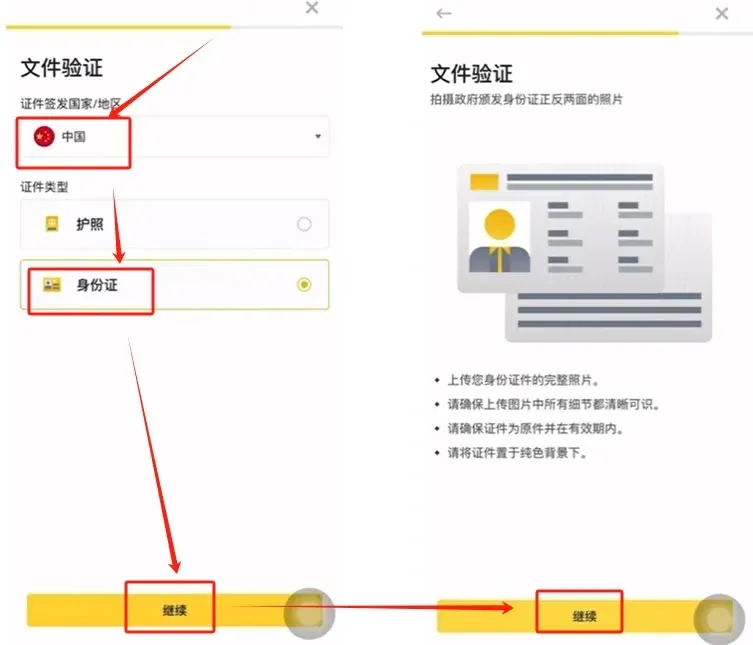
- For Document issuance country choose China, select Document type → ID card, and upload front‑ and back‑side photos of your ID.
4. Security Settings (Authenticator App)
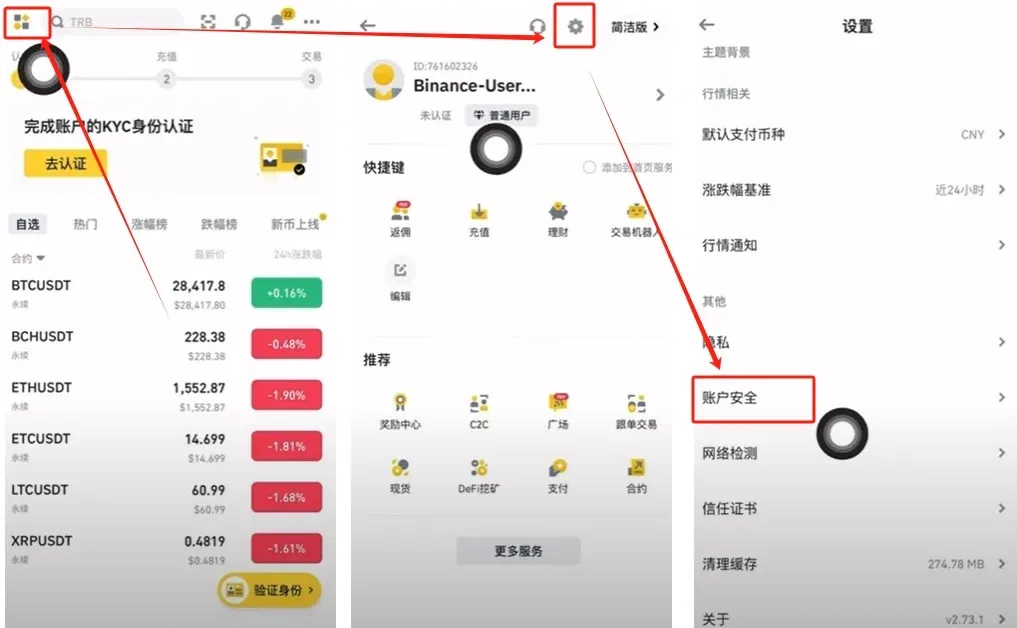
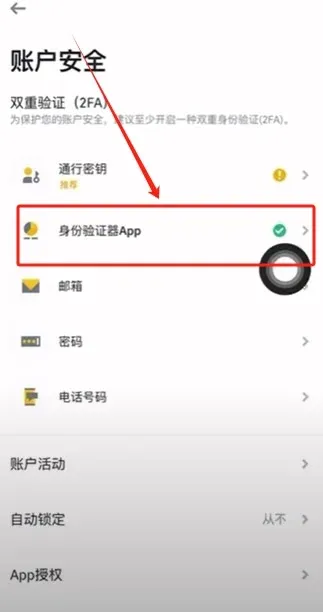
- Tap the four‑square icon in the upper‑left corner → the gear icon in the upper‑right → Account Security.
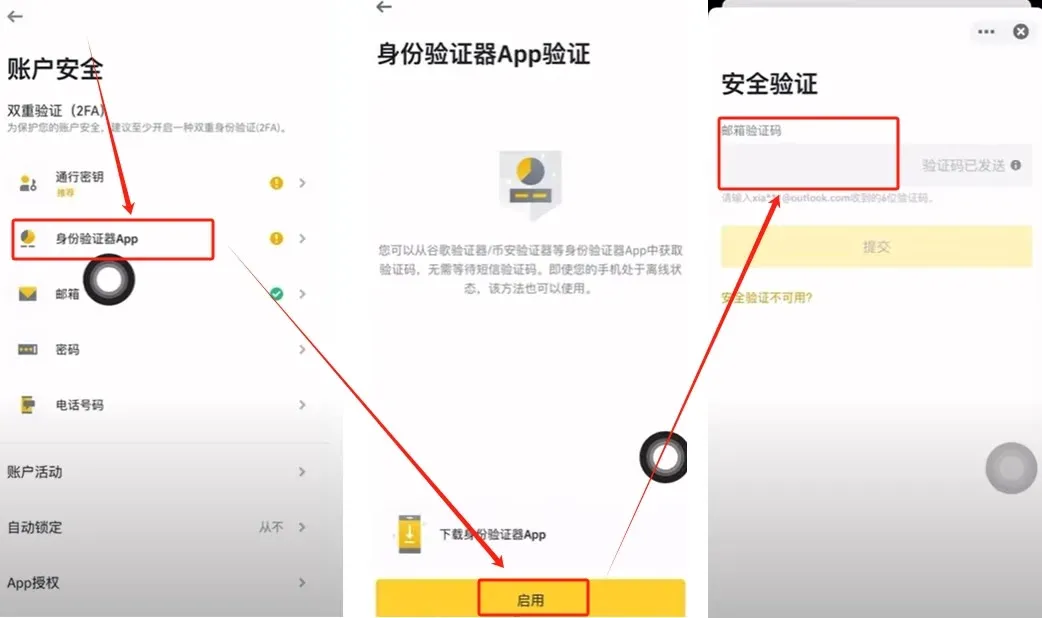
- If you registered with an email, the system automatically binds that email. You should also bind an Authenticator app: tap Enable, and the system will send an email verification code.
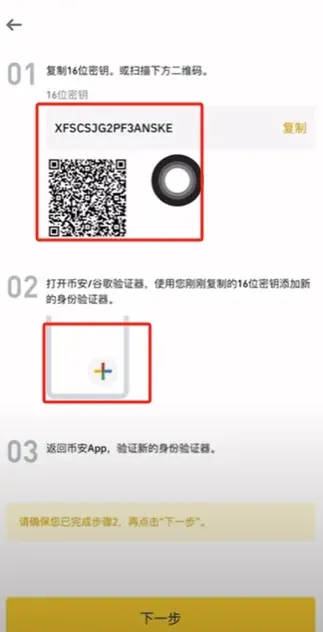
- Copy the 16‑character secret key or QR code displayed, open Google Authenticator (or any compatible authenticator), add a new account, and paste the key.
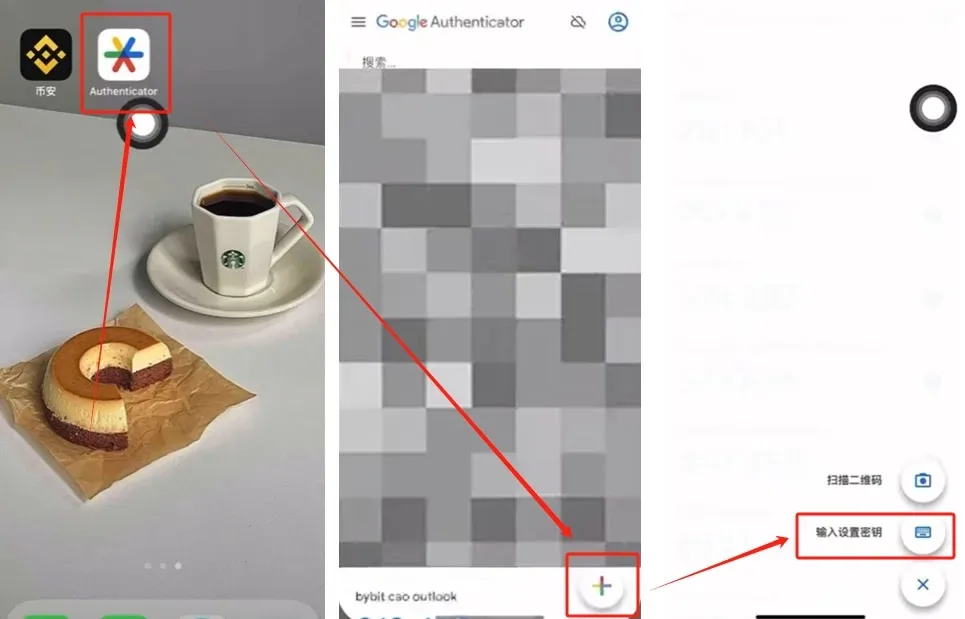
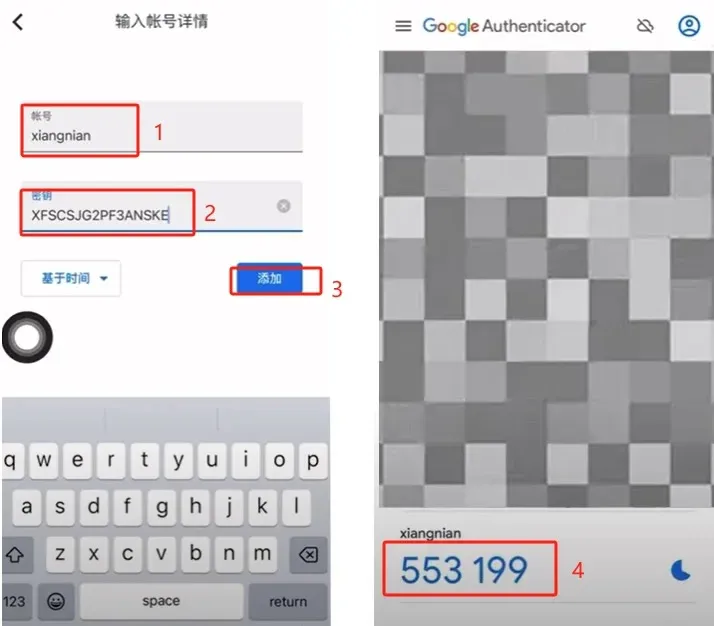
- Return to Binance, input the 6‑digit code generated by the authenticator to complete the binding.
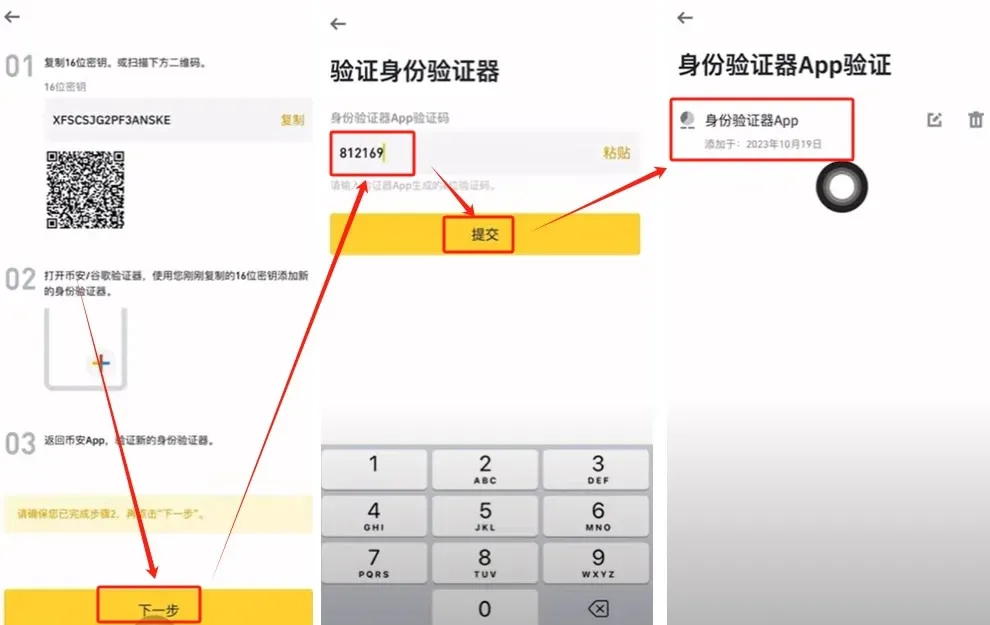
- After a successful bind, a green checkmark will appear in the security settings page.
5. Buying & Selling USDT (C2C Trading)
Buying USDT
- On the home screen tap Add Funds → C2C Trading.
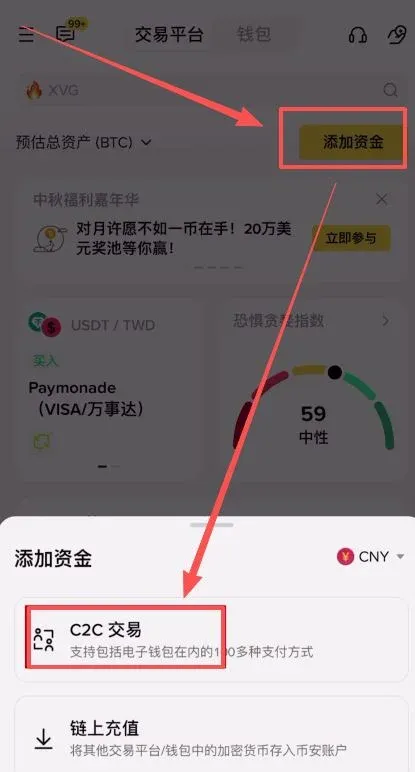
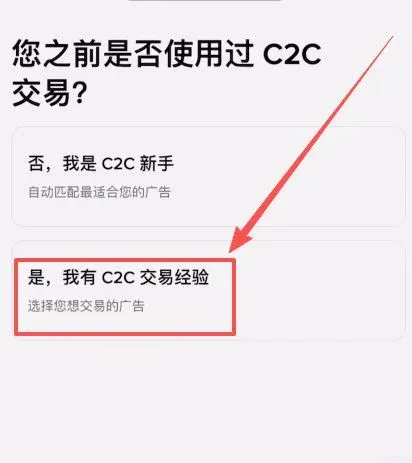
- If a beginner guide appears, select “I have experience”.
- The interface is divided into Quick, Custom, Premium, and Wholesale sections.
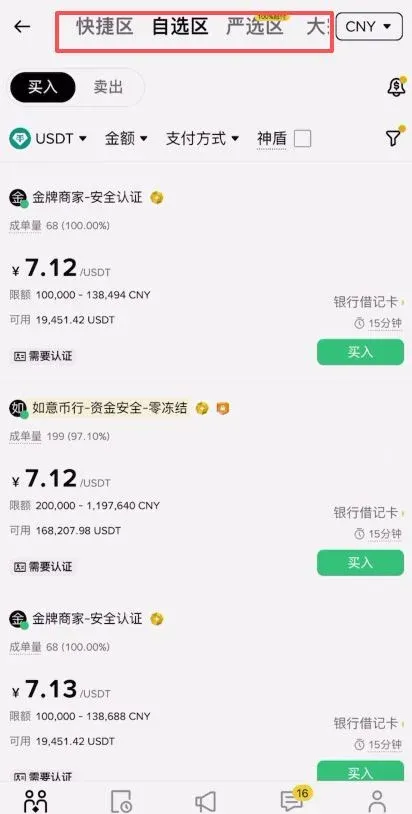
- In the Quick section,
Related Reading
- Buy USDT with USD: OKX vs Binance C2C Comparison
- How to Buy USDT on Binance: Step-by-Step Guide with Alipay & WeChat Pay
- Binance C2C & Quick Buy: USDT Purchase Guide for Beginners
💡 Register on Binance with referral code B2345 for the maximum trading fee discount. See Binance complete guide.