 Bitaigen Research
 Gate.io allows you to complete on‑chain deposits and on‑chain withdrawals via the official App or the web platform. The process includes logging in, selecting the coin and network, copying the address or QR code, and confirming the transaction.
In this article we walk you through the full on‑chain deposit and withdrawal flows for both the Gate.io App and the web version. We focus on the critical steps of logging in, choosing the coin‑network pair, obtaining the address, and confirming the transaction, so that newcomers can get started quickly and avoid common mistakes.

Introduction to the Gate.io Exchange
Gate.io (also known as “Sesame Open Door”) was founded in 2013 and has been operating for more than a decade. Founder Han Lin registered the headquarters in the Cayman Islands, and thanks to a robust compliance framework the exchange ranks 5th on Coingecko’s exchange list and has earned a perfect global Trust Score.
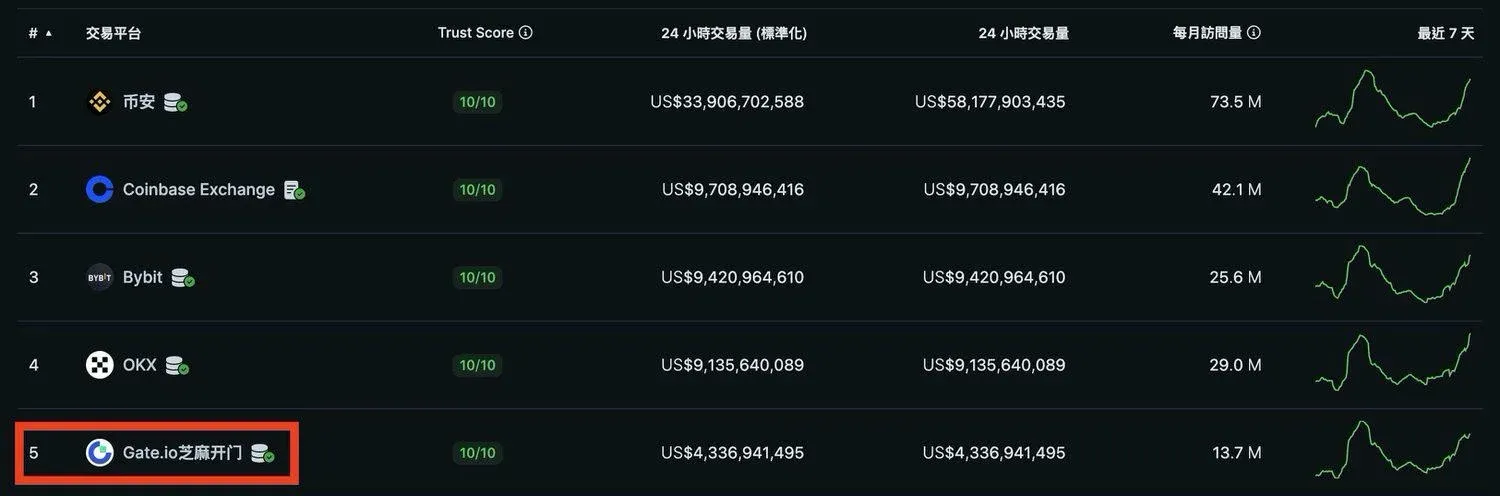
In its early days the platform was marketed to the Chinese audience under the name “比特儿”. After China banned ICOs in 2017, it re‑branded to Gate.io and shifted its focus to overseas users. In addition to the exchange business, Gate’s venture arm Gate Ventures actively invests in blockchain projects, such as the Ethereum Layer‑2 public chain Scroll and the DEX aggregator 1inch.
Performing On‑Chain Deposits and Withdrawals on Gate (App)
How to Make an On‑Chain Deposit
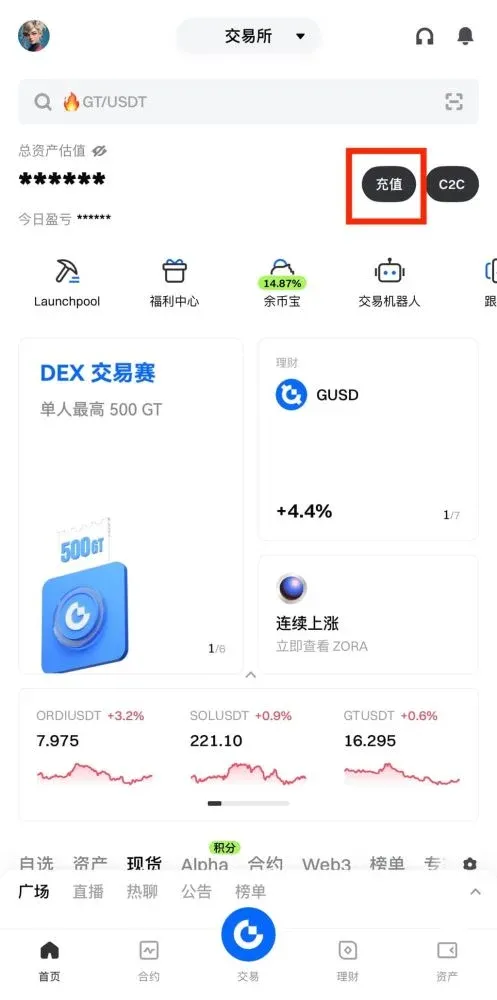
Step 1: Open the Gate App (download from the official site, register if needed). After logging in, tap the 【Deposit】 button at the top‑right of the home screen, or navigate to 【Assets】 → 【Deposit】.
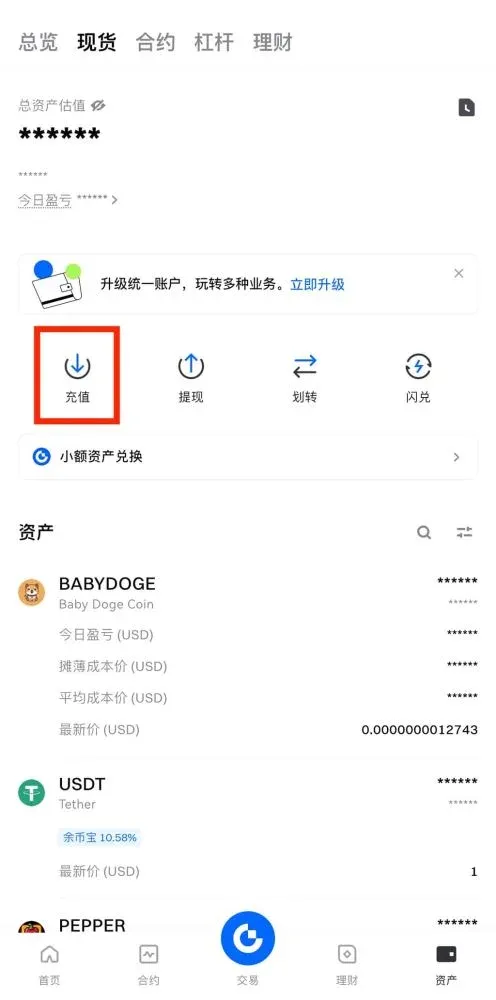
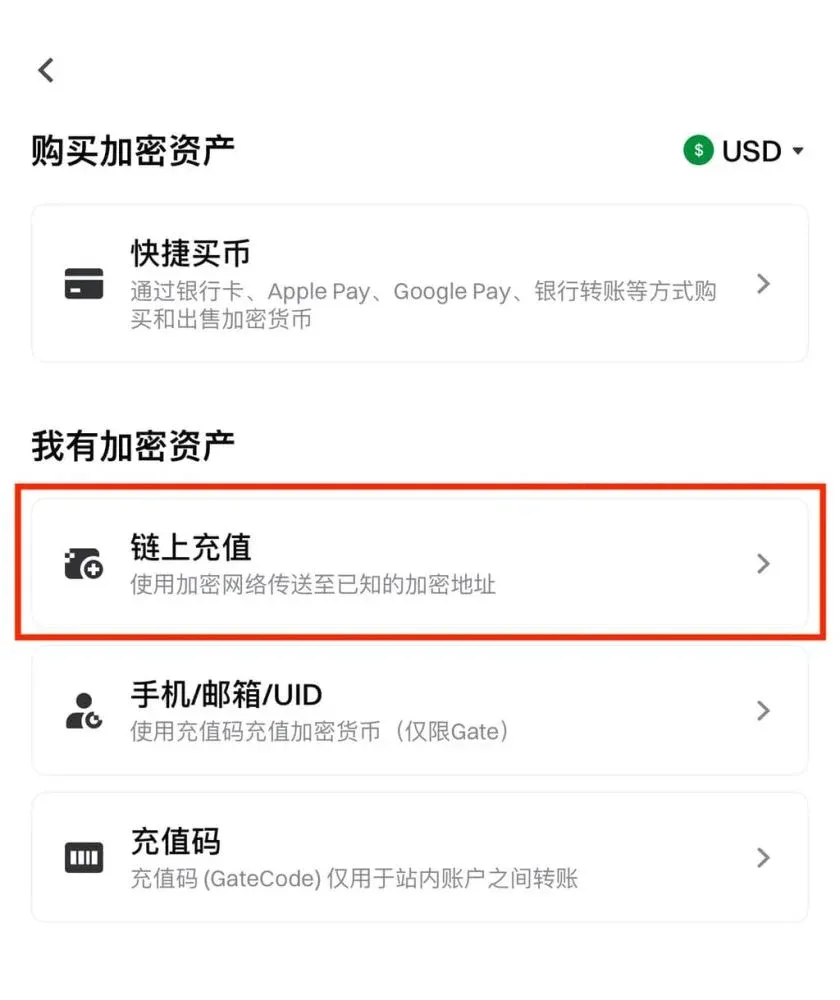
Step 2: Choose 【On‑Chain Deposit】 and type the coin you wish to deposit in the search box (the example below uses USDT).
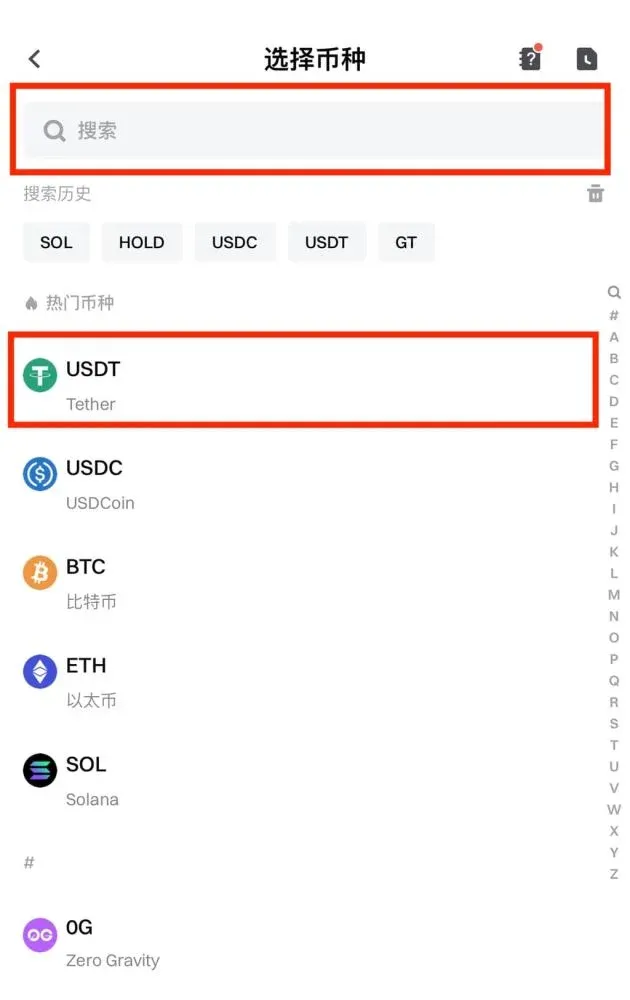
Step 3: Select the deposit network, then copy the displayed deposit address or save the QR code.
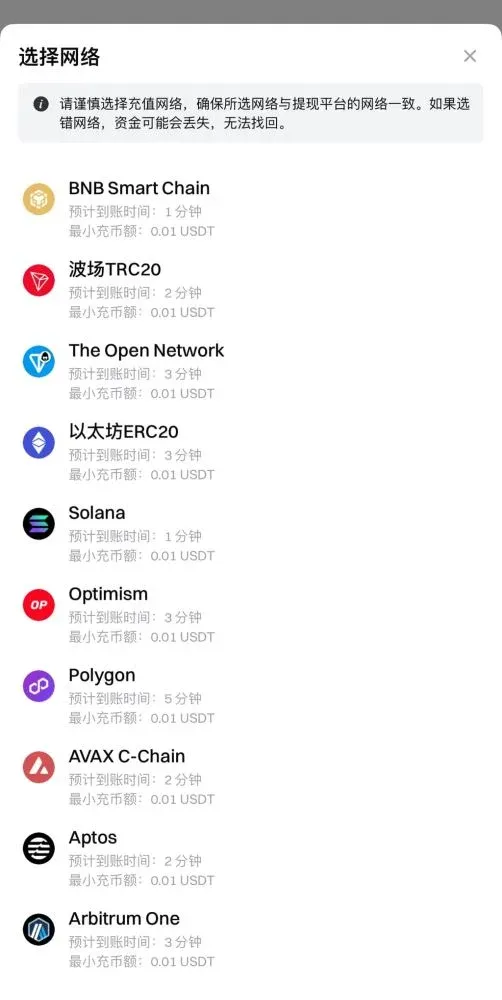
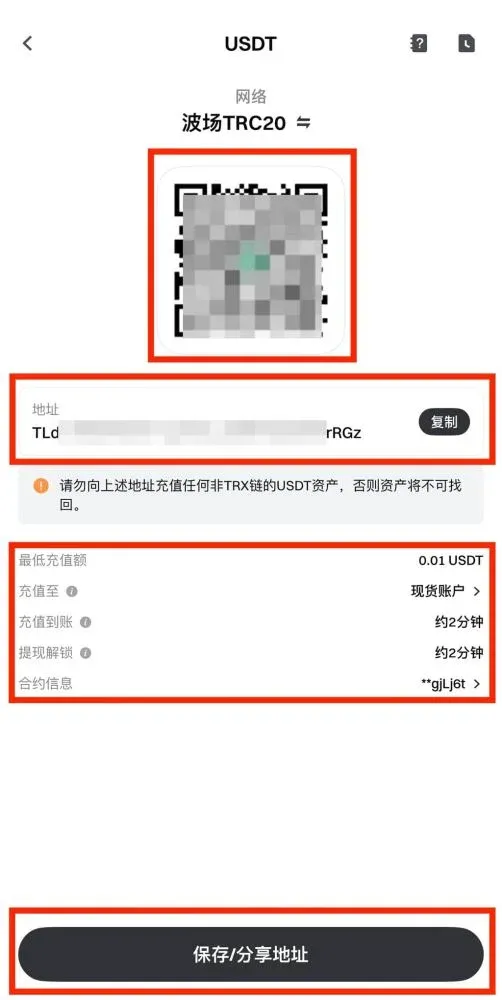
Important:
- The deposit network must match the network selected on the wallet or platform you are sending from; the contract address must also be identical for the funds to arrive.
- The deposit amount cannot be lower than the minimum deposit limit, otherwise the assets may become unrecoverable.
- If you encounter any issues, contact online customer support for assistance.
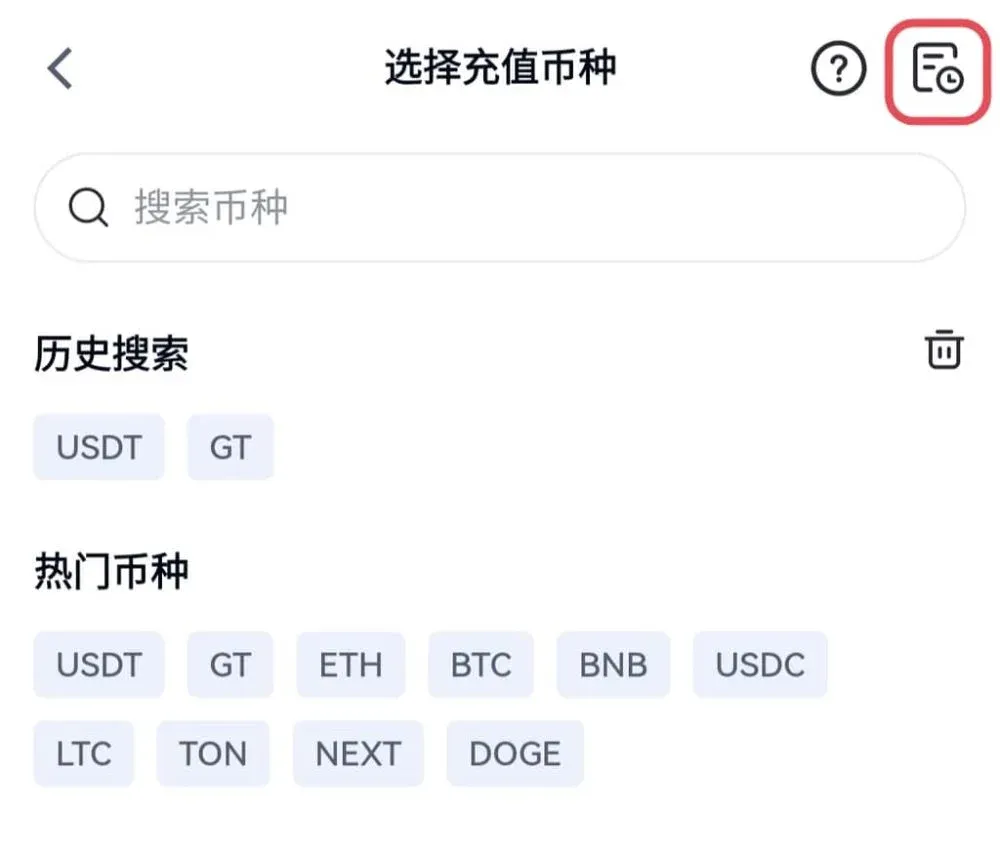
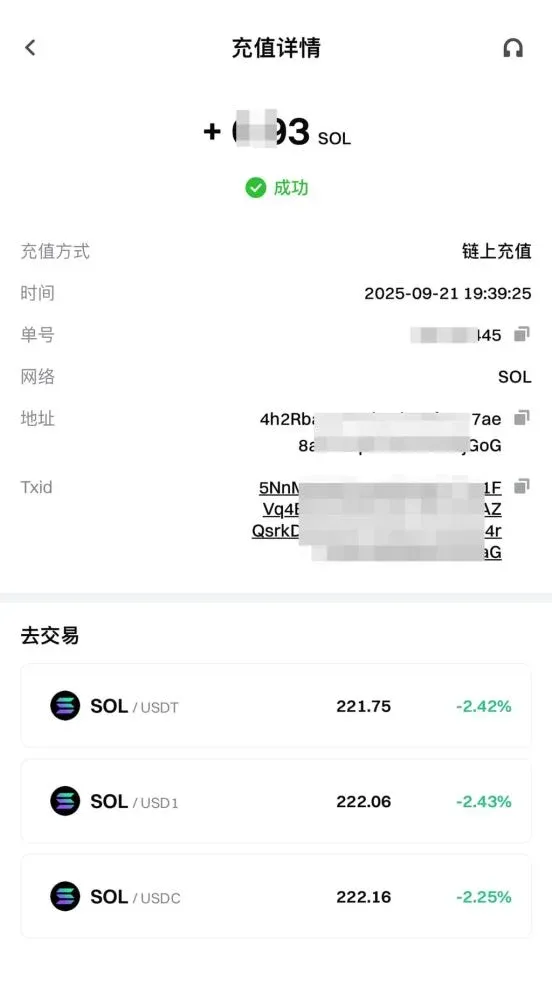
Step 4: Paste the copied address or scan the QR code in your external wallet/platform to complete the transfer. Once the deposit is confirmed, tap the 【Notebook】 icon at the top‑right of the page to open 【Recent Transaction History】 and view the details.
How to Make an On‑Chain Withdrawal
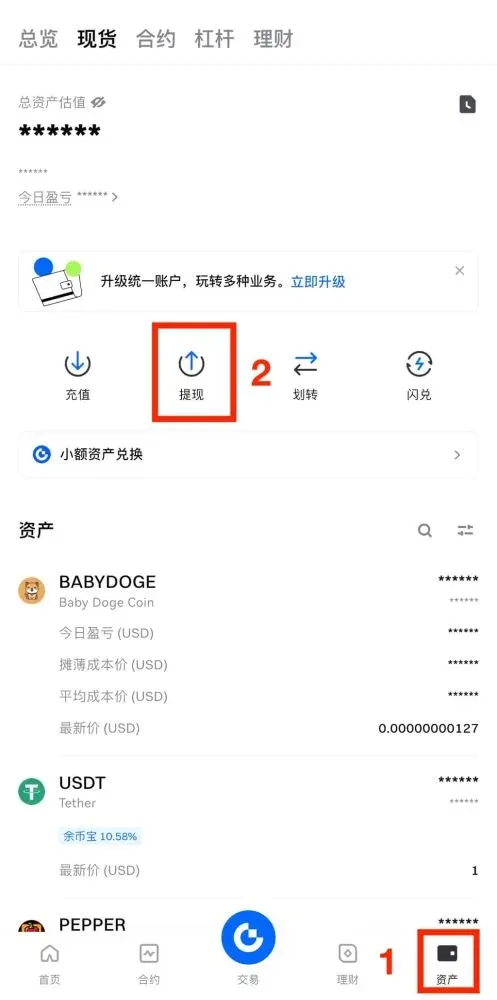
Step 1: After logging into the Gate App, go to 【Assets】 → 【Withdraw】.
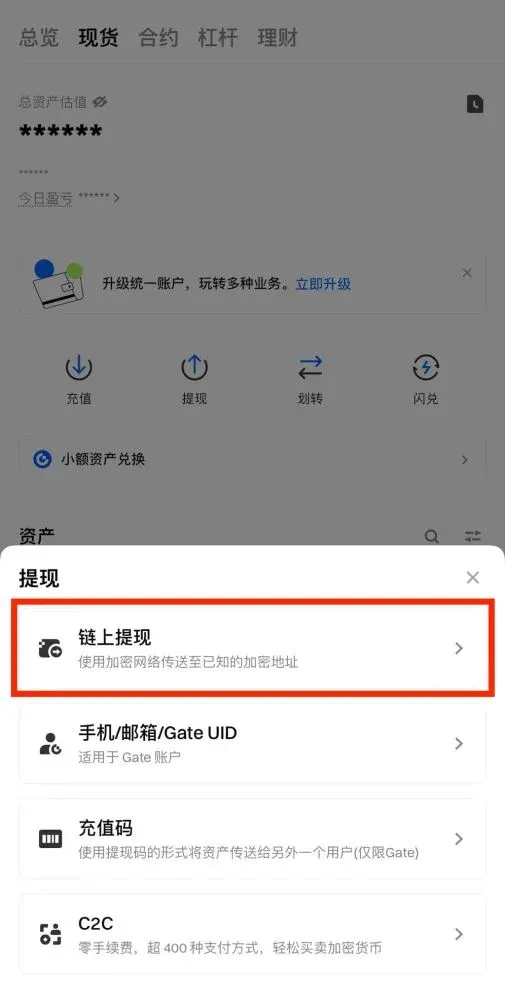
Step 2: Choose 【On‑Chain Withdrawal】 and enter the coin you wish to withdraw (again using USDT as the example).
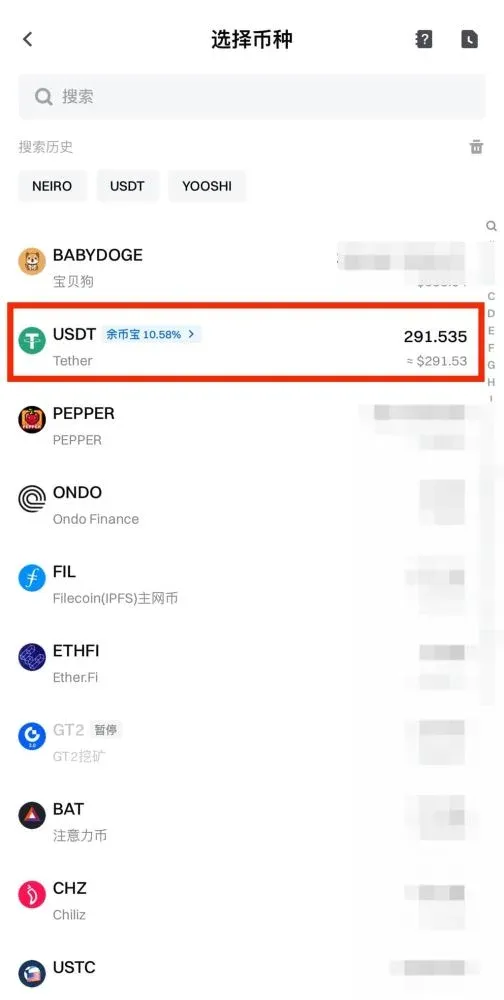
Step 3: Select the withdrawal network, fill in the recipient address and the withdrawal amount, then tap 【Withdraw】.
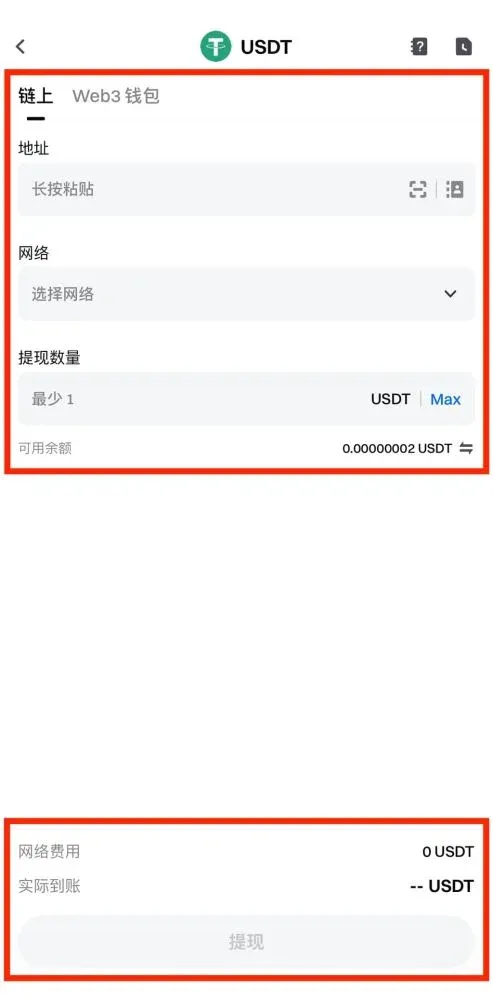
Important:
- The withdrawal network must be the same as the network you used for the deposit.
- Fees vary by coin and network; always rely on the amount displayed on the confirmation page.
Step 4: After double‑checking all information, tap 【Confirm】. You will then be taken to a security verification screen where you must enter your funds password, verification code, and any other required authentication to finalize the transaction.
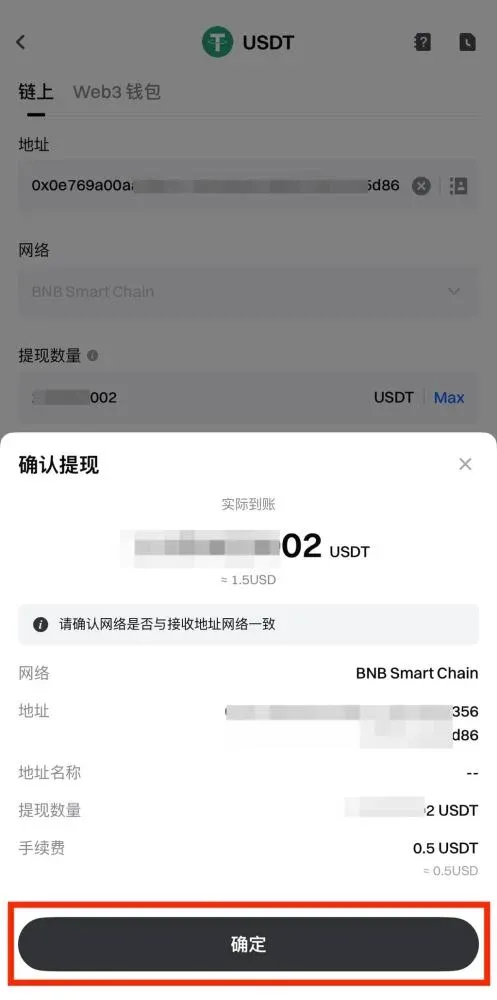
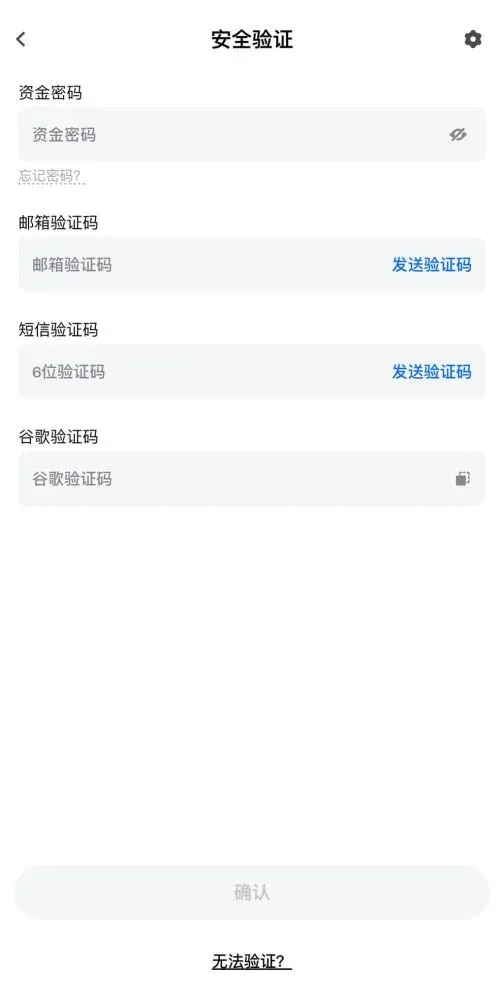
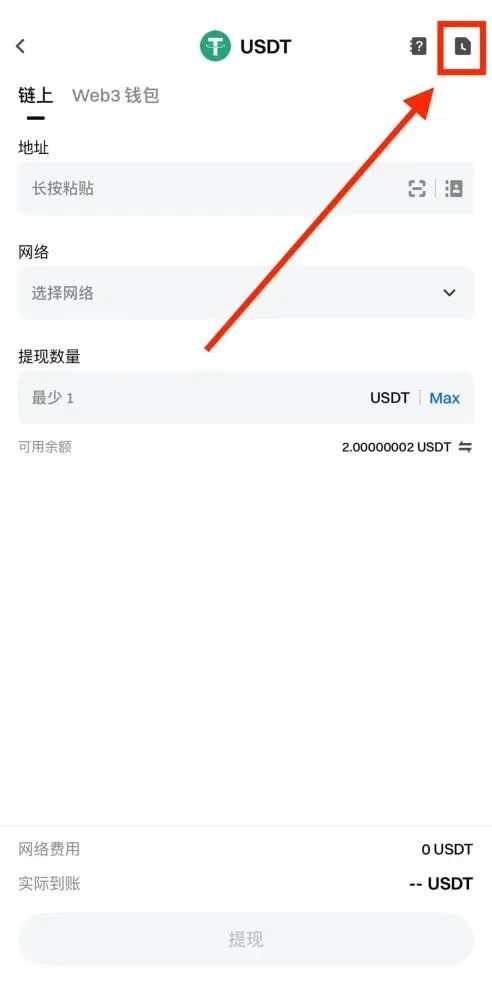
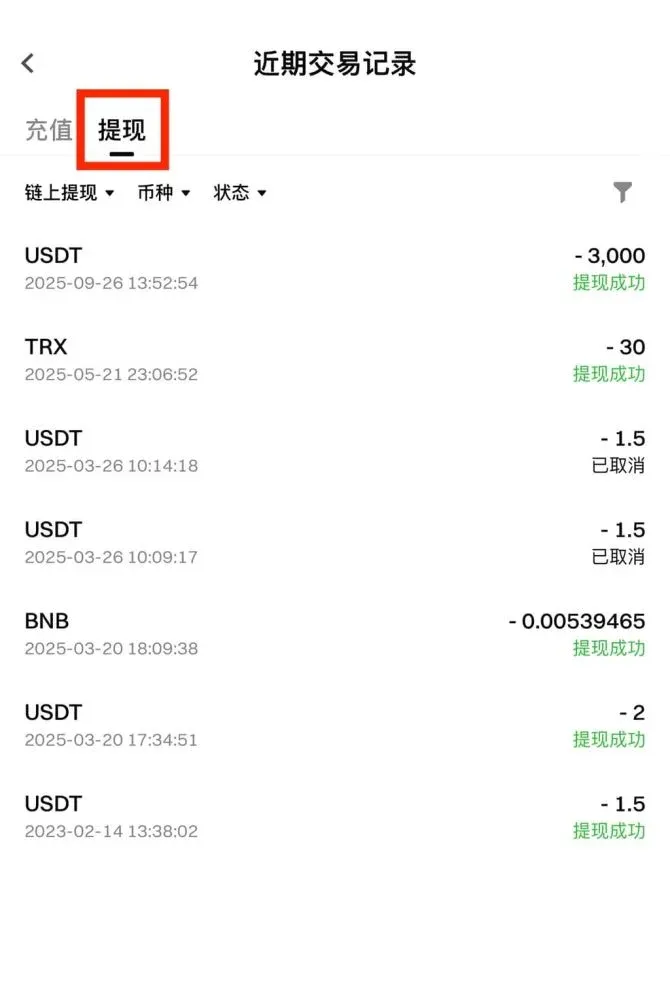
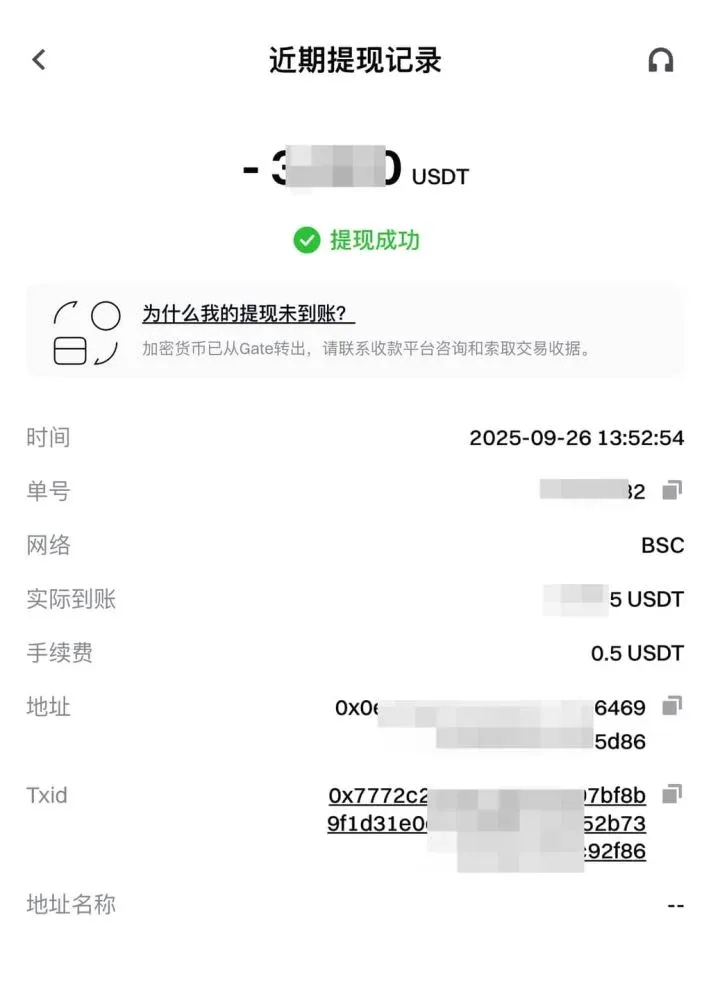
When the withdrawal is completed, you can again use the 【Notebook】 icon at the top‑right to view the withdrawal details under 【Recent Transaction History】.
Performing On‑Chain Deposits and Withdrawals on Gate (Web Platform)
1. How to Deposit
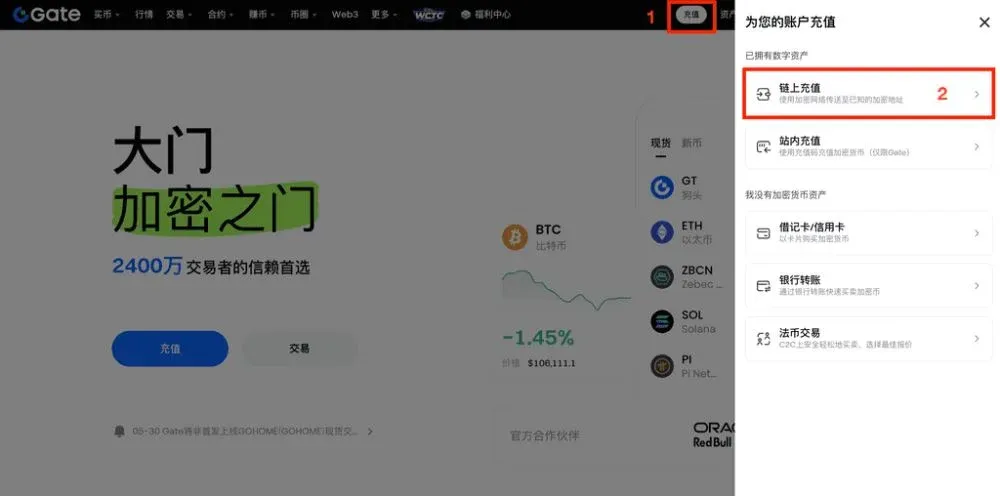
- Log in to your Gate account (download from the official site, register if you haven’t already). On the main dashboard click “Deposit” → “On‑Chain Deposit”.
- Choose the coin and network, then copy the deposit address or save the QR code.
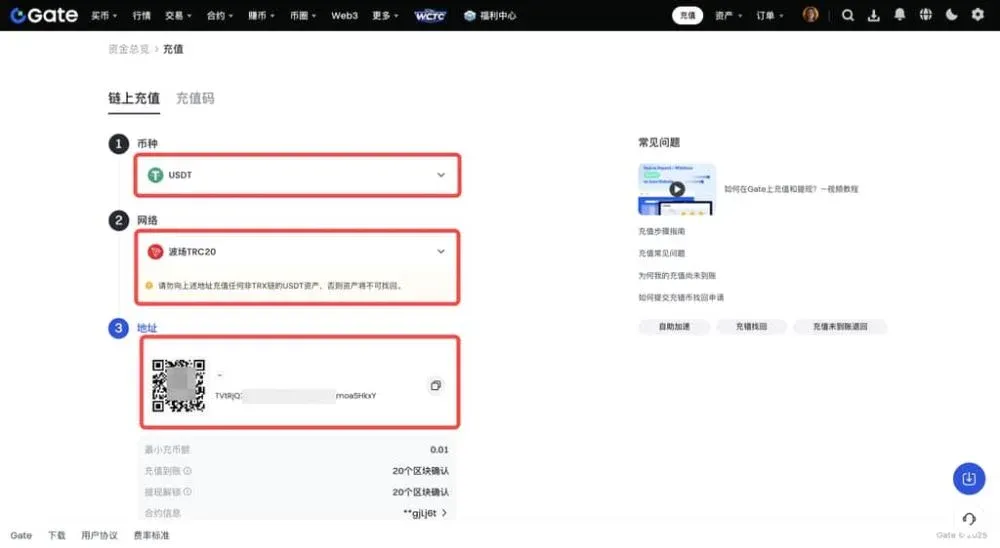
Note: You must ensure that the selected network matches the network of the external platform, and that both the address and contract are correct; otherwise the deposit will not arrive.
- Paste the address or scan the QR code in the external platform to complete the transfer. You can monitor the status in the “Recent Deposit Records” section on the deposit page.
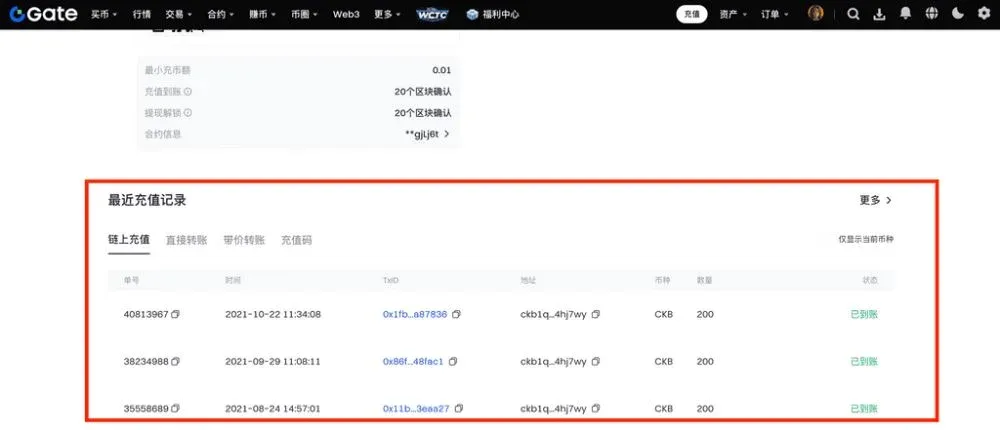
2. How to Withdraw
- Log in to your Gate account, then click “Assets” → “Funds Management” → “Withdraw” → “On‑Chain” in that order.
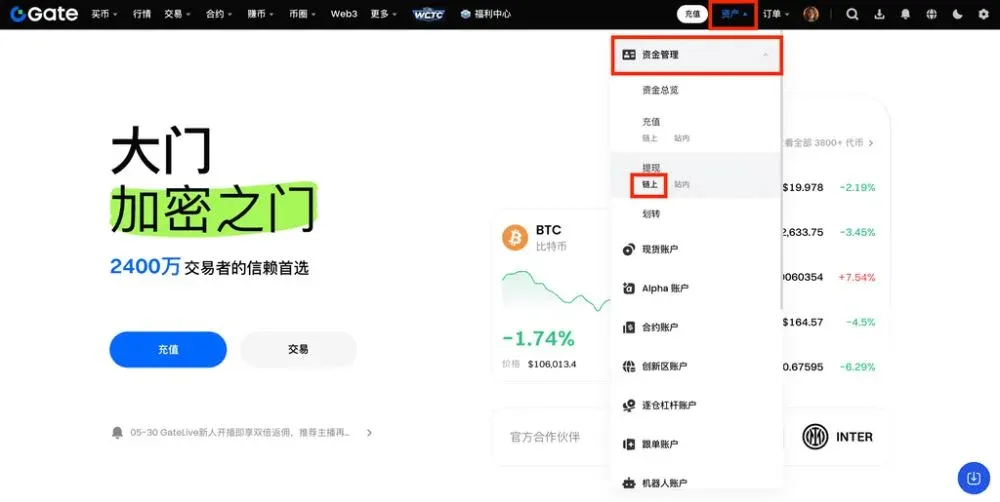
- Select the withdrawal coin and network, paste the receiving address, enter the withdrawal amount, and click “Next”.
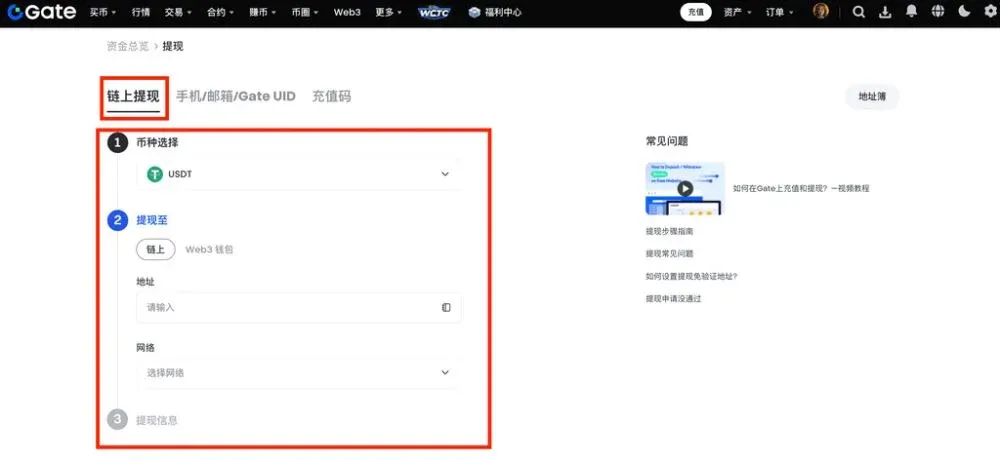
Note: The withdrawal network must match the deposit network; an incorrect address or contract will result in unrecoverable loss.
- On the confirmation screen, verify all details and tap “Confirm”. A pop‑up security verification window will appear; enter your funds password and the verification code to finish the process.
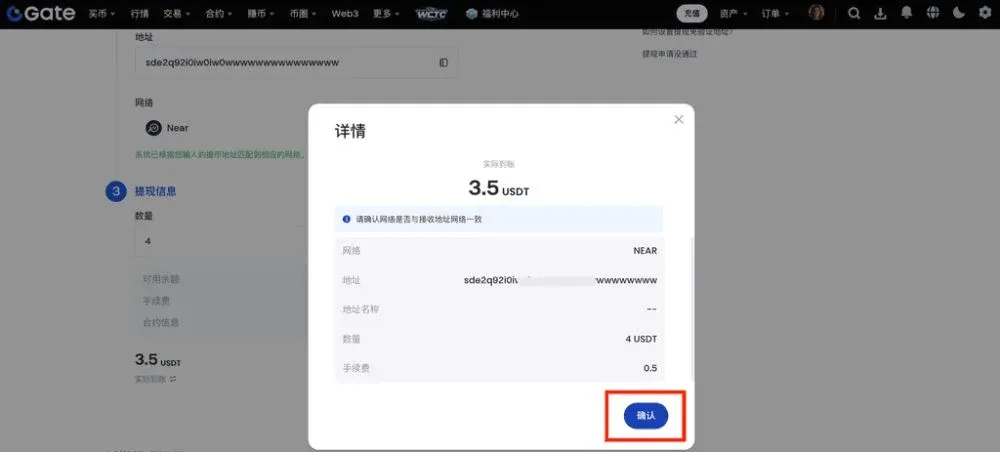
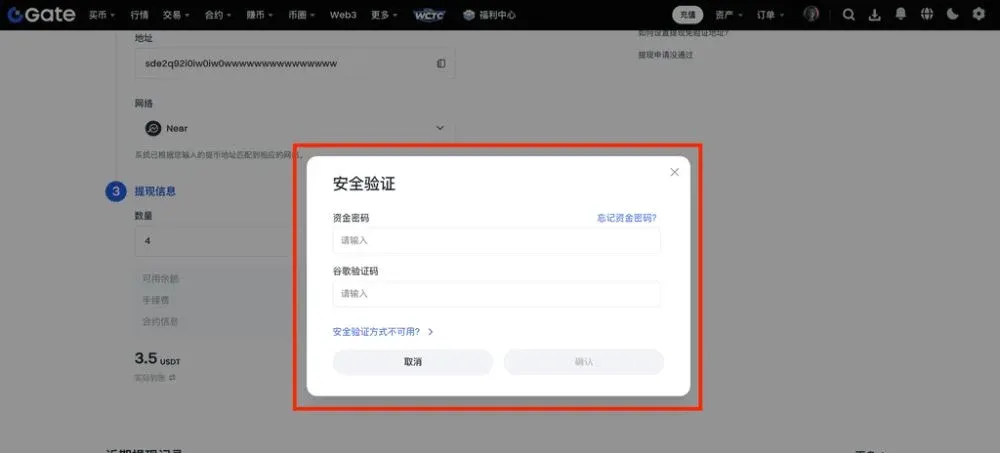
After a successful withdrawal, you can view the detailed record in the “Recent Withdrawal Records” section at the bottom of the page.
Frequently Asked Questions About Gate.io Withdrawals: Why Did My Withdrawal Fail?
Common reasons for failure include:
- Real‑name verification not completed.
- Incorrect address format or length.
- Missing Tag / Memo (required for certain assets such as XRP, EOS).
- Network congestion or delays.
Check each item carefully and try the withdrawal again.
---
Disclaimer: Cryptocurrency transactions may be subject to tax in your jurisdiction. Please consult a qualified tax professional to understand your obligations.
This completes the full illustrated guide to Gate.io on‑chain deposits and withdrawals, covering both the App and web methods. For more Gate‑related news and tutorials, feel free to explore other articles on Bitaigen.
Related Reading
- Download Gate.io Sesame on iPhone via Taiwan Apple ID
- Gate.io Registration & KYC: Beginner Step-by-Step Guide
- How to Trade Contracts on Gate.io: Step‑by‑Step Guide
💡 Register on Binance with referral code B2345 for the maximum trading fee discount. See Binance complete guide.