
 Bitaigen Research
 Bybit’s multi‑device login security is robust. The platform employs Trusted Devices, real‑time login notifications, 2FA and other layers of protection, supports simultaneous web and app sessions, and automatically logs out the oldest device when more than two devices of the same type are connected, significantly reducing overall risk.
In this article we systematically analyze Bybit’s multi‑device login security safeguards, detail the setup steps for Trusted Devices, real‑time alerts and two‑factor authentication, and provide a complete guide from account registration to identity verification. This will help you keep your account safe while using multiple terminals, and the following sections will walk you through the configuration process step‑by‑step.
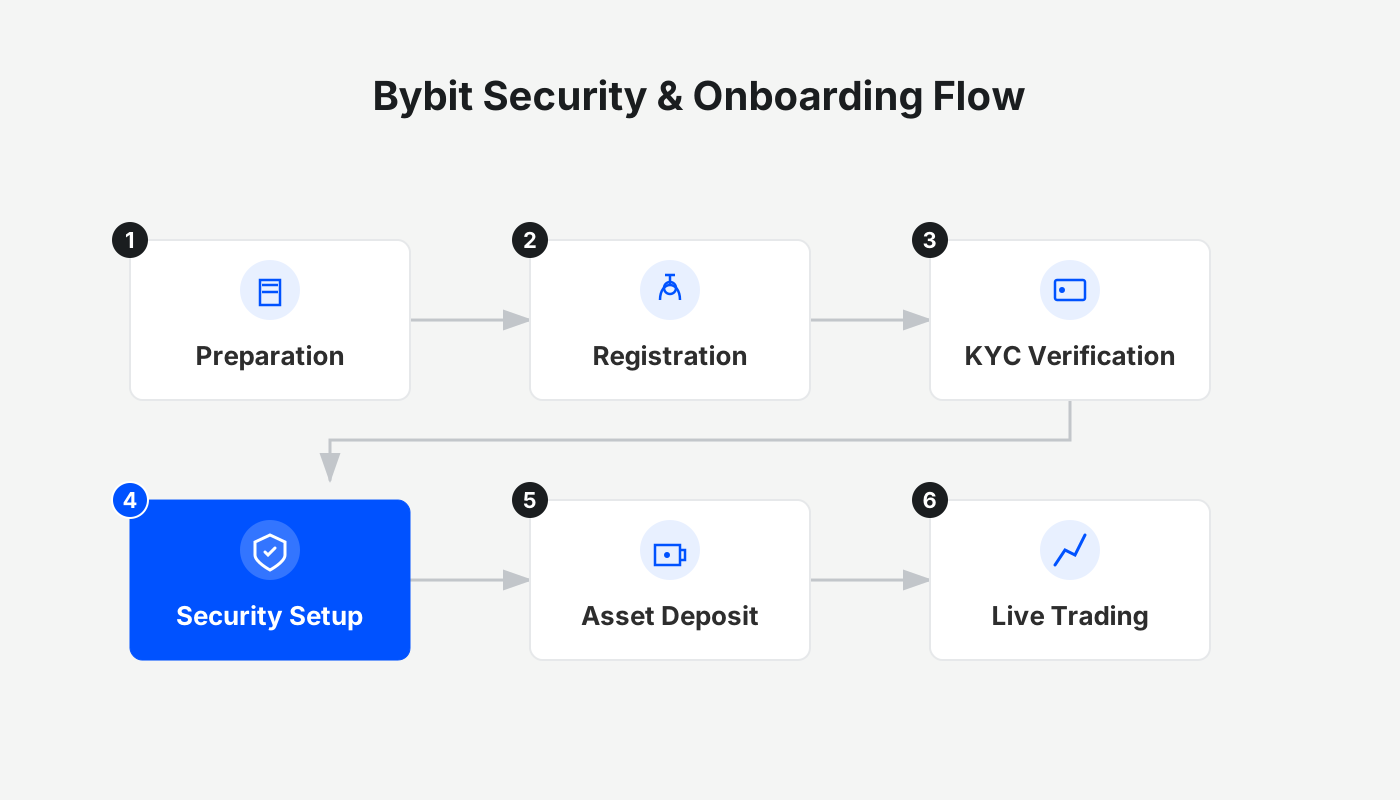
Core Security Mechanisms (Making Multi‑Device Use Safer)
- Trusted Devices Management (Core Feature)
Bybit offers a dedicated trusted‑device list under Account & Security → Trusted Devices. When you log in to a new device for the first time, you must complete 2FA plus email or SMS verification; the system then automatically adds the device to the trusted list (you can also review it manually). The list displays device name, IP address, login time and location, and you can delete or block unfamiliar devices with a single click. It is recommended to check the list regularly (App → User Center → Security → Trusted Devices, or directly via the web‑based trusted‑device page) and remove any unknown entries immediately.
- Login Notifications & Real‑Time Monitoring
Every time a new device, new IP or new geographic region logs in, Bybit sends real‑time alerts via email, app push and SMS. The backend continuously monitors abnormal behavior (e.g., high‑frequency logins from multiple locations, large jumps in IP geography) and can trigger risk‑control actions: temporary account freeze, additional verification prompts, or forced logout. Monitoring techniques include device fingerprinting, behavioral analysis, IP geolocation and human‑verification challenges to prevent attackers from using proxies or simulating multiple devices.
- Passkey / FIDO Biometric Authentication (Multi‑Device Friendly)
Bybit supports FIDO Passkeys, allowing you to authenticate across devices with your phone or computer’s fingerprint or facial recognition. Passkey biometric data is stored only locally and never uploaded to Bybit’s servers, offering higher security than traditional Google Authenticator and providing protection against phishing and SIM‑swap attacks.
- Secure Transaction Approval (Dedicated Device for Large Transactions)
Users can designate a primary device (e.g., a main smartphone) exclusively for withdrawal or large‑value transaction approvals. Even if other devices are logged in, they cannot complete a withdrawal on their own; the primary device must confirm the action, dramatically lowering the risk of theft when multiple devices are compromised.
- 2FA + Withdrawal Password + Anti‑Phishing Code (Triple Basic Shield)
Enable Google Authenticator (or Passkey) for login and sensitive operations. Set a separate withdrawal password that is required only for withdrawals/transfers. An anti‑phishing code—your custom string—appears on the email login page to help you spot fraudulent sites masquerading as the official portal.
Potential Risks and Pitfalls
- Avoid logging in over public Wi‑Fi or shared computers to prevent man‑in‑the‑middle attacks or device‑information leakage.
- Do not reuse the same password across multiple devices; while Bybit will kick out the oldest device, a leaked password can still compromise all logged‑in terminals.
- Sub‑accounts are useful for multi‑strategy or multi‑device management: create sub‑accounts under the main account, each with its own password and 2FA, and you can operate them in different browsers or incognito windows. Avoid creating too many sub‑accounts, which can lead to management confusion.
- In extreme cases where an attacker has already compromised your device or SIM card, SMS‑based 2FA may be bypassed; Passkey and Secure Transaction Approval provide stronger protection in such scenarios.
- Historical note: In 2025 Bybit experienced an internal multi‑signature cold‑wallet attack, a platform‑level security incident. No large‑scale user‑side multi‑device login breaches were reported.
Best Practices for Multi‑Device Use (Everyday Safety)
- Use your primary smartphone together with a web browser on a computer (officially fully supported).
- Before logging in on an extra tablet or backup phone, review the Trusted Devices list to ensure no unfamiliar devices are present.
- Enable all login notifications and review the device list at least once a week.
- Replace traditional 2FA with a Passkey (set up on the “Security” page).
- Approve high‑value actions only on the designated primary device.
- If you frequently change devices or travel abroad, enable both email + SMS dual verification in advance.
Whether you are connecting from a London IP or elsewhere, Bybit offers full‑function support. If you regularly switch between multiple devices (e.g., mobile app, home computer, office workstation), feel free to share your specific usage scenario (number of devices, travel frequency, asset size) and we can tailor risk‑control recommendations for you. Bybit’s multi‑device mechanism is deliberately conservative (old‑device kicking + Trusted management); when used sensibly it provides a high level of security, surpassing many comparable platforms.
Secure Purchase Roadmap
Choosing a reputable digital‑currency exchange and completing rigorous security configurations, while trading only on a controllable spot market, is the safest and most stable path for newcomers.
| Step | Key Action | Purpose & Security Focus |
|---|---|---|
| 1 | **Select a platform** (Binance, OKX, Bybit, Bitget, etc.) | Ensure large liquidity, high compliance, and robust custodial safeguards. |
| 2 | **Register an account** | Use official referral links and enter a referral code to obtain a permanent fee discount. |
| 3 | **Security configuration** | Enable 2FA (Google Authenticator or Passkey), set a withdrawal whitelist, and build the highest‑level anti‑theft system. |
| 4 | **Secure funding** | Purchase USDT via C2C / P2P from verified sellers; avoid private‑off‑exchange deals. |
| 5 | **Complete the purchase** | Use only the “spot” market with market orders; stay away from futures or leveraged products, limiting risk to the principal amount. |
Note: When dealing with fiat on‑ramps, use USD transfers via SEPA, SWIFT, or local bank wires where supported. In the United States, you must use Binance.US rather than the global Binance platform. Crypto gains may be taxable in your jurisdiction; consult a tax professional for advice.
How to Download the Bybit Android App
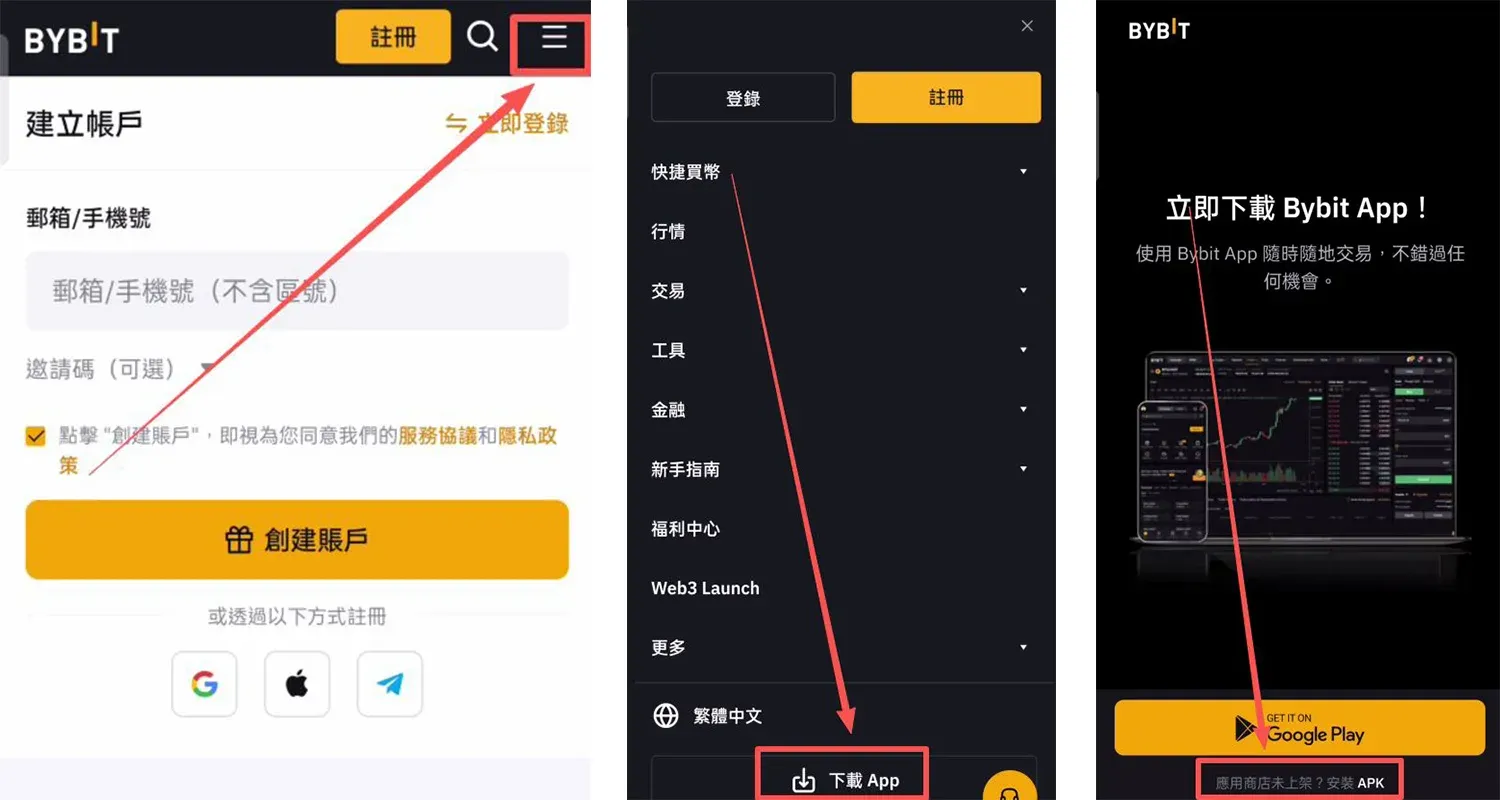
- Visit the official website and click the three‑line menu in the top‑right corner.
- Select Download APP.
- Click “App not listed in the store? Install APK”.
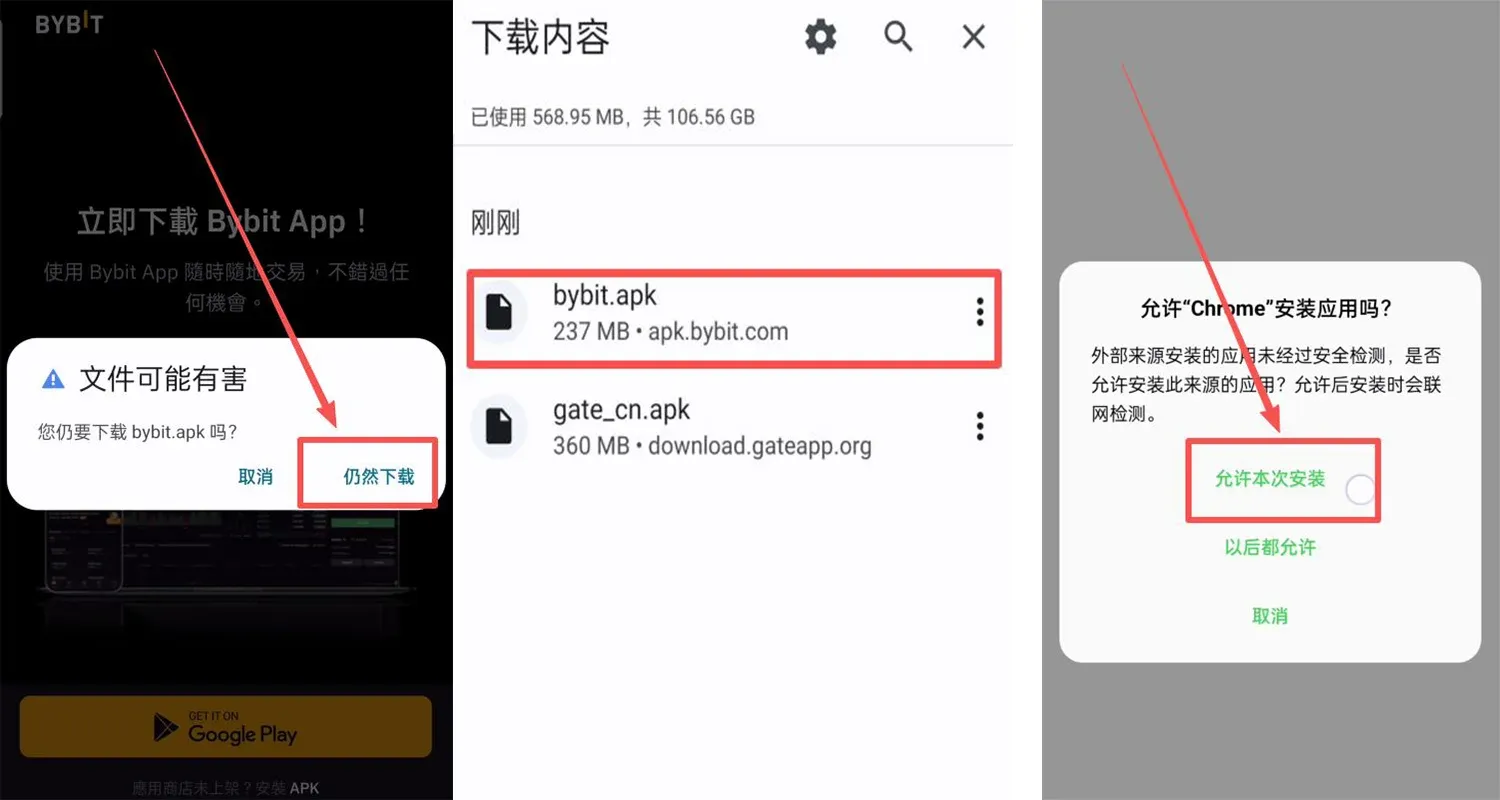
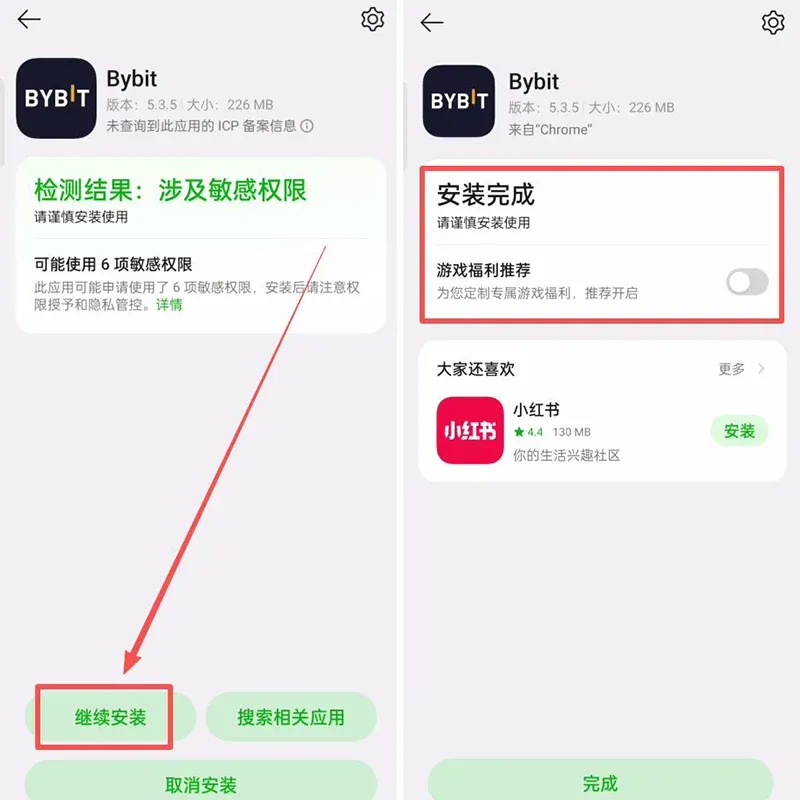
- When the system warns that the file may be harmful, tap Continue Download.
- After the download finishes, open the file and tap Allow this installation.
- Choose Continue Installation and wait for the process to complete.
Bybit iOS Re‑Download Tutorial
Why an Overseas Apple ID Matters
The App Store serves region‑specific applications. Some exchanges are only available in the United States, Taiwan, Hong Kong and other regions. Using an overseas Apple ID lets you access these restricted apps. For traders who need overseas services, registering a U.S. or Taiwanese Apple ID grants access to additional apps, Apple Music, Apple TV, etc.
Precautions When Using an Overseas Apple ID
- Create the account yourself; avoid shared accounts to prevent privacy leaks, account bans or device locks.
- Log in via the App Store, not through the system settings, to lower the risk of being flagged.
- If region verification fails, you can first register with a domestic Apple ID and later switch the region in account settings (you’ll need a phone number and network that matches the target region).
- Business accounts or users with an overseas mobile number have a higher success rate.
Required Materials for Registration
| Material | Description |
|---|---|
| Common providers such as QQ, 163, Gmail, 189 work; switch if you encounter errors. | |
| Mobile number | A real number that can receive SMS; the same number can be used for multiple Apple IDs. |
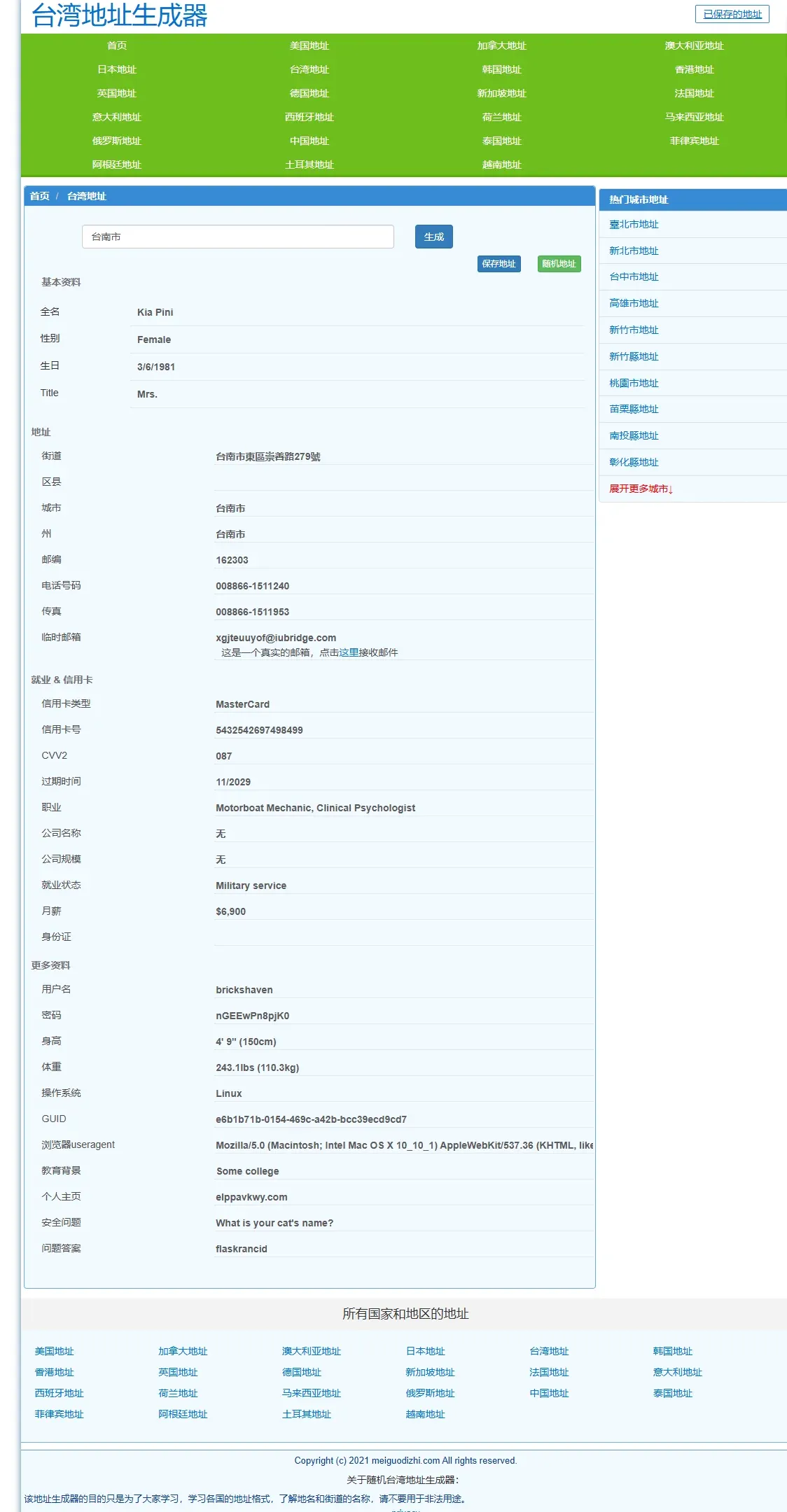
| Virtual address | Use an online address generator (e.g., [Address Generator 1](https://shenfendaquan.com/) or [Address Generator 2](https://www.meiguodizhi.com/)) to obtain a Taiwanese street, city and postal code. |
Detailed Steps to Register an Overseas Apple ID
All steps are performed from within Mainland China; screenshots are taken from the actual process.
- Open a virtual address generator, select “Taiwan address”, type “Tainan City” and generate an address. Record the street, city, postal code, etc.
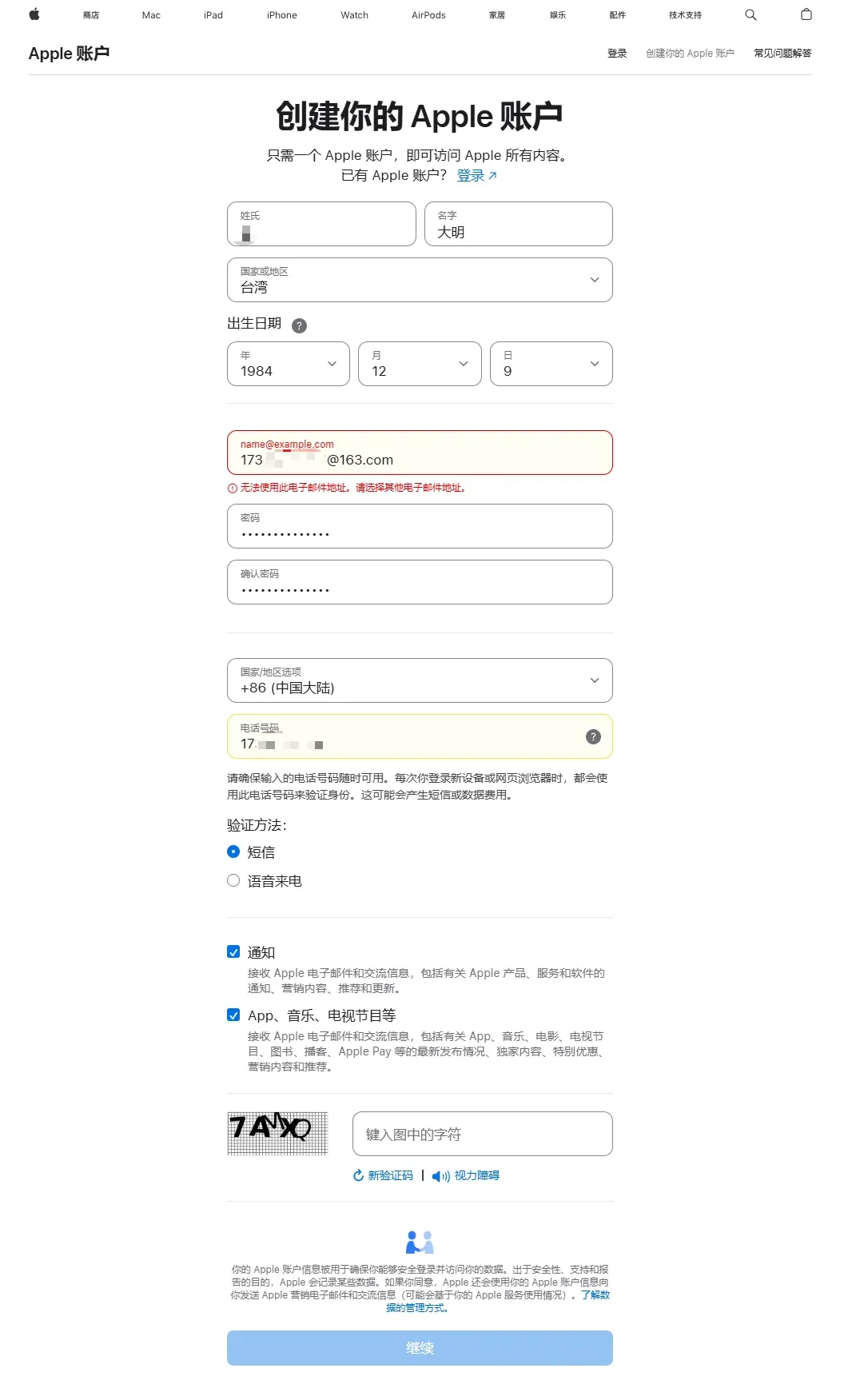
- Go to the Apple official account page, click Create your Apple ID, and fill in:
- Name: any name you like
- Country/Region: Taiwan
- Date of Birth: an adult date
- Email: a real, reachable email address
- Password: choose and remember it
- Country/Region (later): Mainland China (used for later verification)
- Phone number: you may use a domestic number and select “SMS” verification
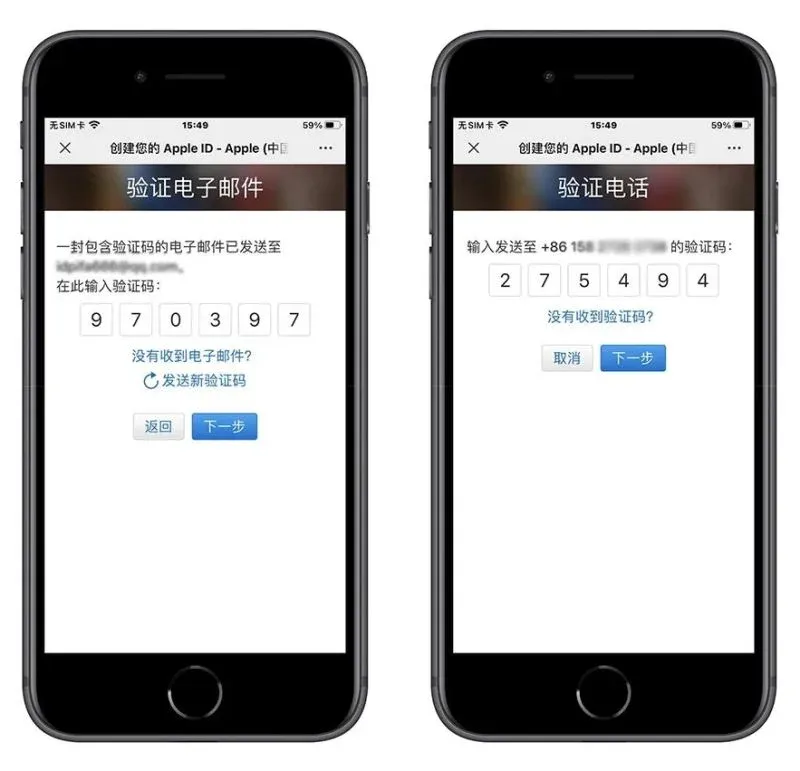
- Enter the email verification code, then the SMS code you received, and complete the registration.
- After success, open the App Store on your iPhone, tap the avatar in the top‑right corner, scroll down and tap Sign Out if you are logged in with an old account, then sign in with the newly created Apple ID.
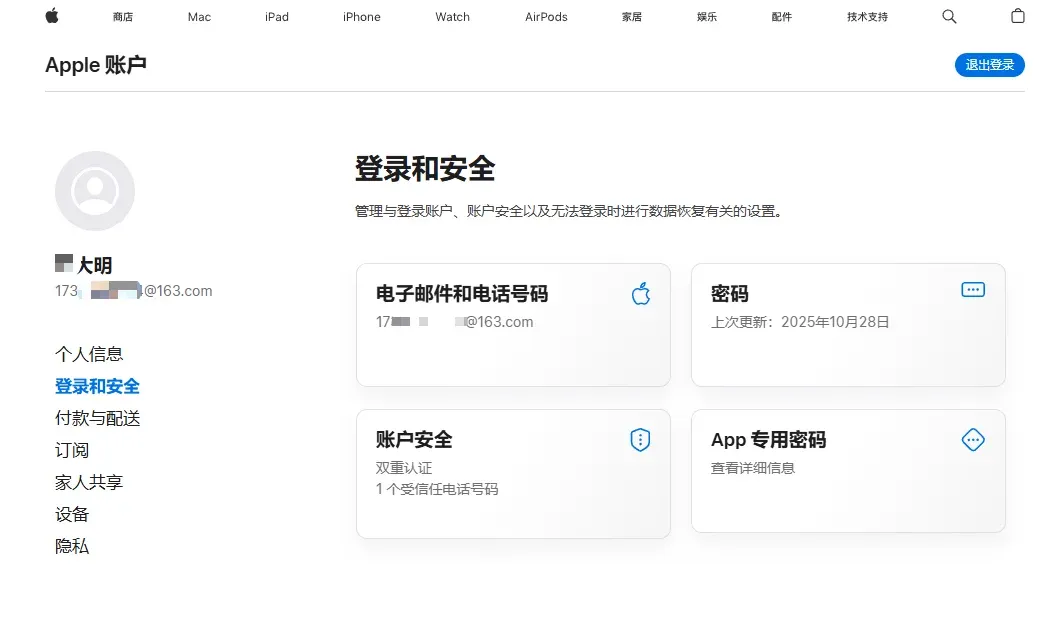
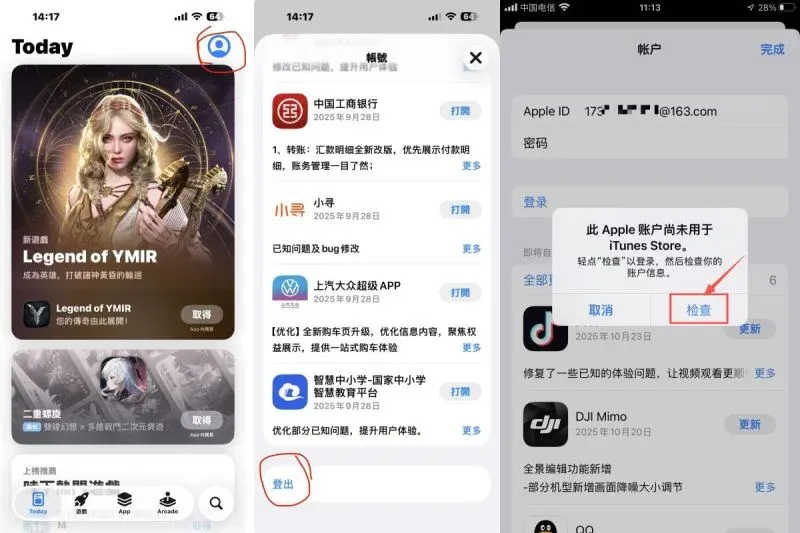
- The system will show “This Apple ID has not been used with iTunes Store yet”; tap Check to confirm the account information.
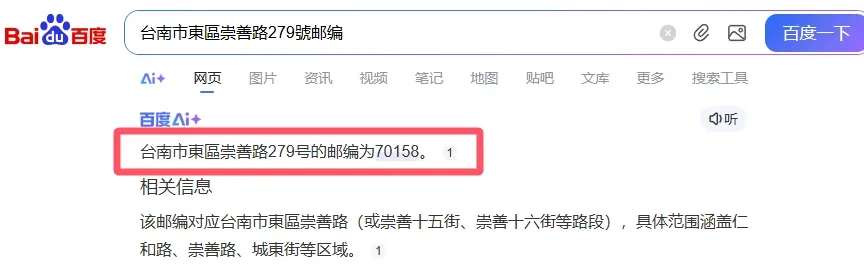
- On the Terms and Conditions page click Next, then you will reach the address entry screen. Paste the virtual street address you generated into the “Street” field; fill city, postal code, phone, etc., with the data from the generator (if the system rejects the postal code, look up the correct code on Baidu and enter it manually).
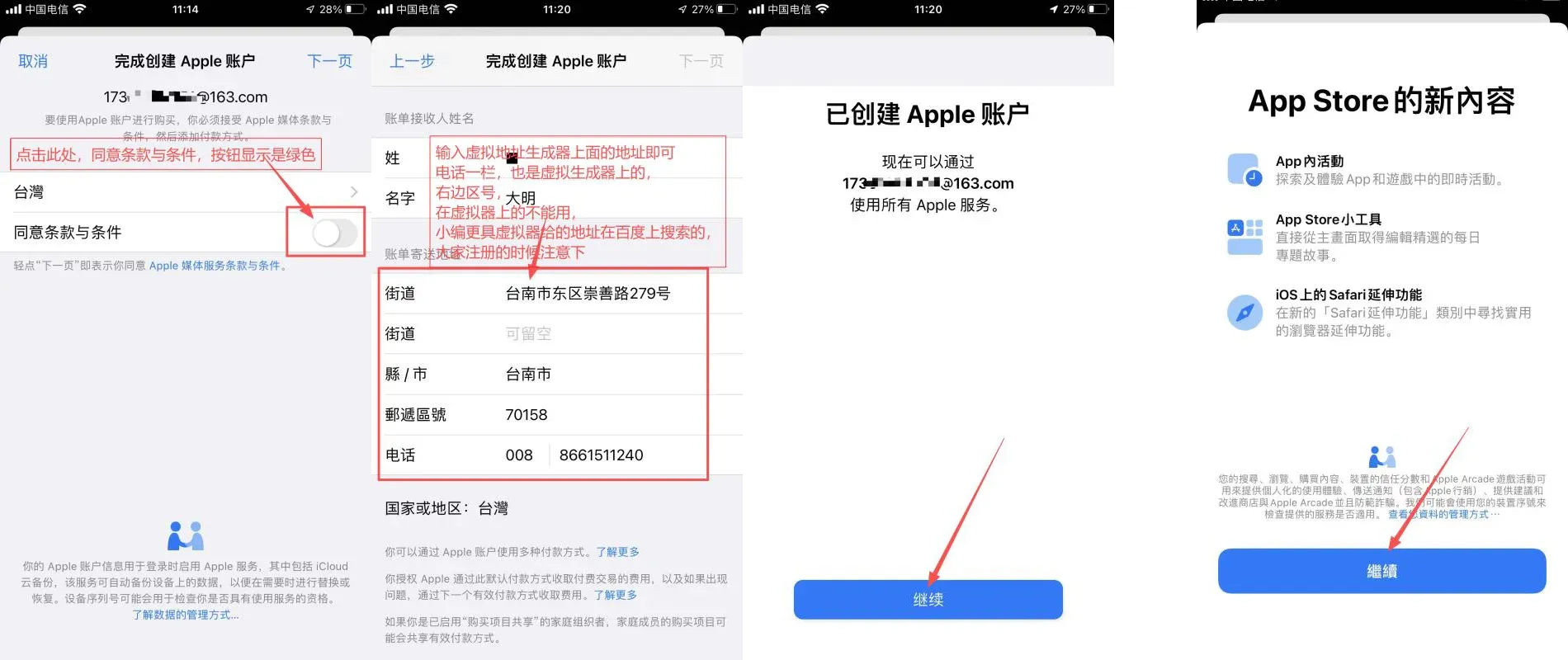
- After completing the address, keep tapping Continue until you reach the App Store home screen. You can now search for “Bybit” or any other exchange and download it.
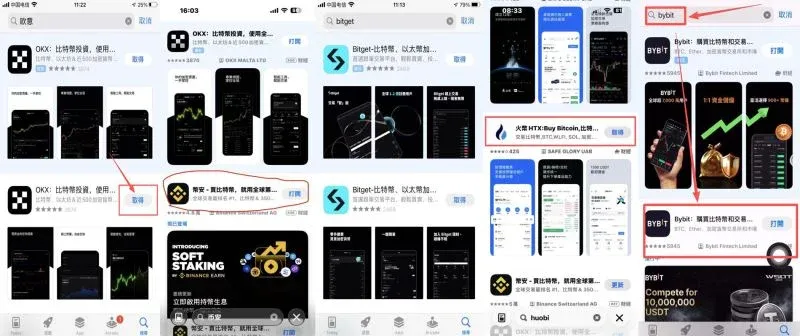
Mandatory Use of a Referral Code
Using a referral code grants a 20 % rebate on fees:
- OKX: `B2345` + official registration
- Binance: `B2345` + official registration (U.S. residents should use Binance.US)
- Huobi: `b6yq8223` + official registration
- Bitget: `vxje` + official registration
- Gate.io: `VLIWUGTFAA` + [official registration]
- Bybit: `B2345` + official registration
Setting App Store Billing Information
When prompted to choose a payment method, select None if the option appears. If “None” is not available, you may skip the step. Then fill in the Taiwanese address you prepared earlier; the recipient name can be your real name or a nickname.
Common Reasons for Registration Failure & Solutions
- Message “Unable to create your account at this time”
- This may happen if the same email, device fingerprint or IP has been flagged as suspicious. Fixes: use a brand‑new email address, switch to a mobile hotspot or a different network, clear browser cache and retry, or wait 24 hours before trying again.
- No “None” payment option
Related Reading
💡 Register on Binance with referral code B2345 for the maximum trading fee discount. See Binance complete guide.



