
 Bitaigen Research
 OKX App Installation Guide: Quickly Start Bitcoin Investing (Android / iOS Download)
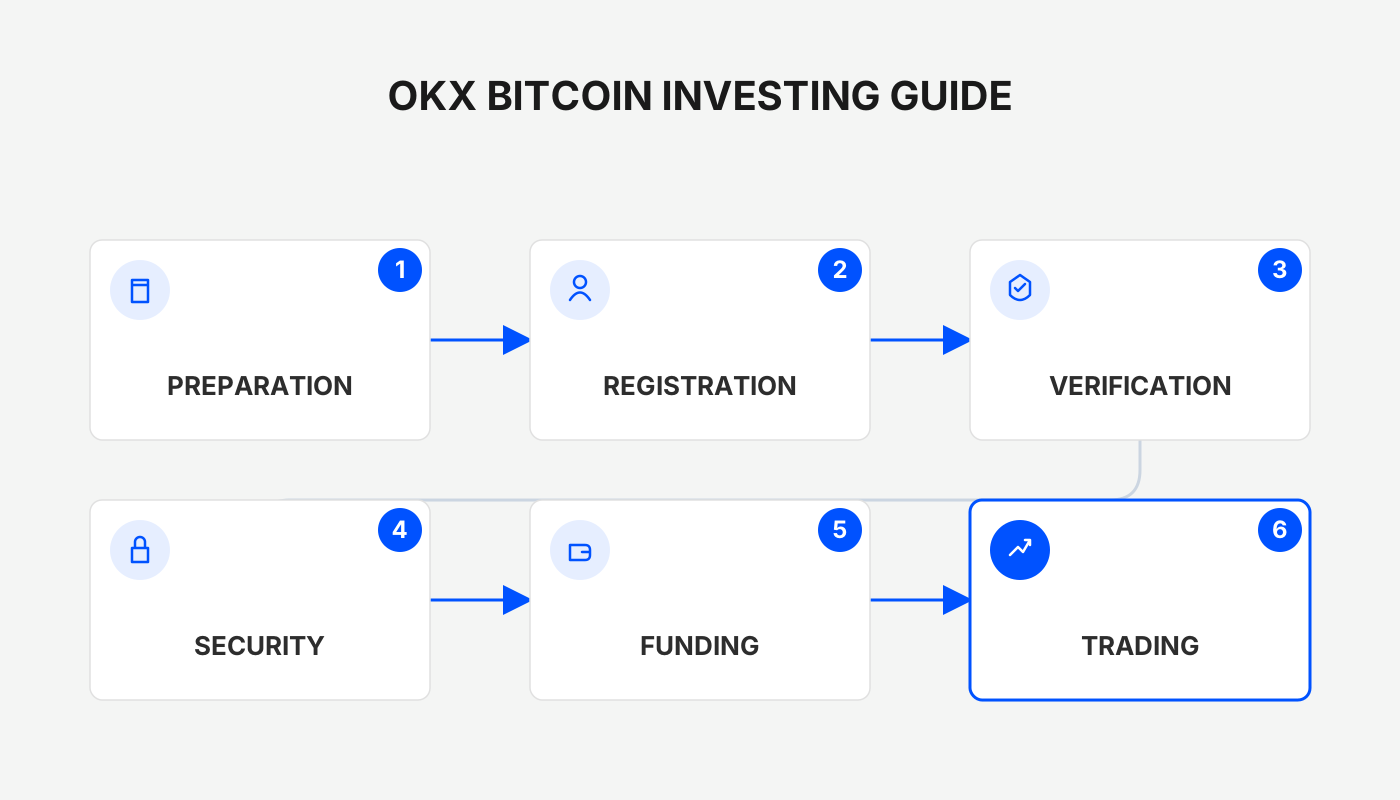
Download the OKX app, register, complete identity verification, deposit USDT, and you can purchase Bitcoin in the OKX spot‑trading section and monitor your assets in real time.

We have compiled a complete, illustrated walkthrough of the OKX app installation process—from downloading the official package to finishing identity verification and USDT deposit. This guide helps beginners get into the Bitcoin trading interface quickly and efficiently. Keep reading to save time and effort.
Step 1: Download and Install the OKX App
1. Android Users – Download and Install the OKX App
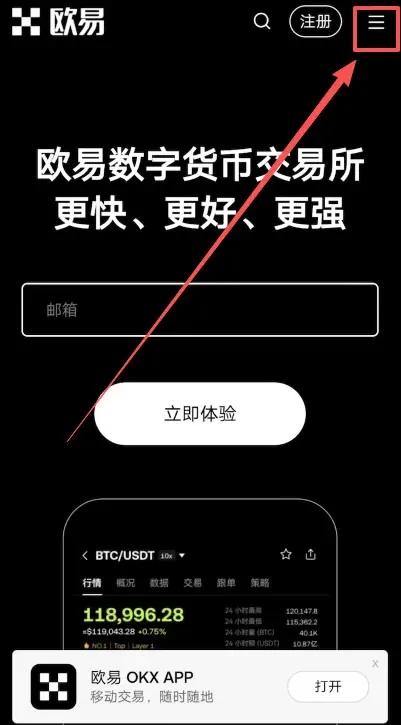
- Visit the official OKX website (Official Registration | Official Download).
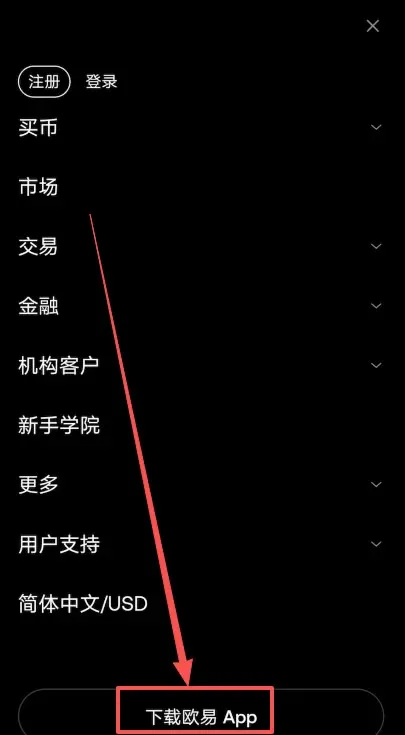
- Tap the three‑line “hamburger” icon in the top‑right corner and select 【Download OKX App】 from the drop‑down menu.
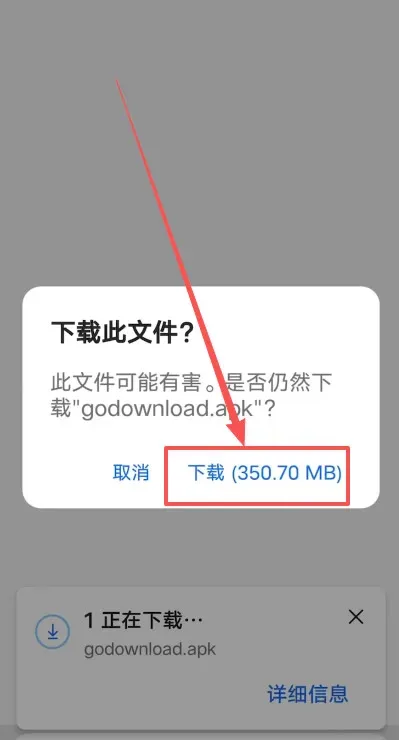
- Confirm 【Download OKX App】 again. A download prompt will appear—click 【Download】 and wait for the installer package to finish downloading.
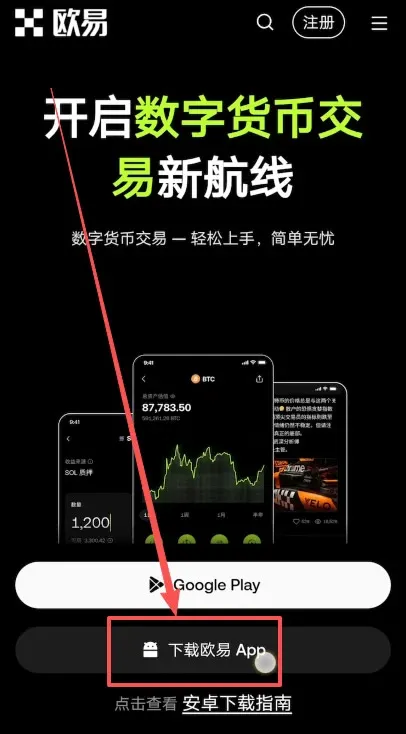
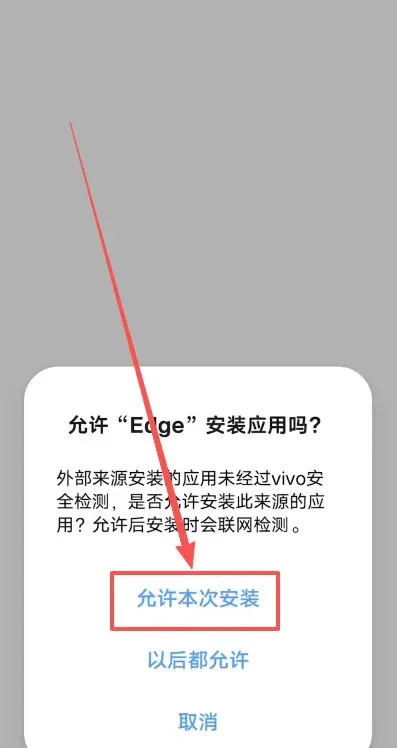
- Once the download completes, tap 【Allow Installation】.
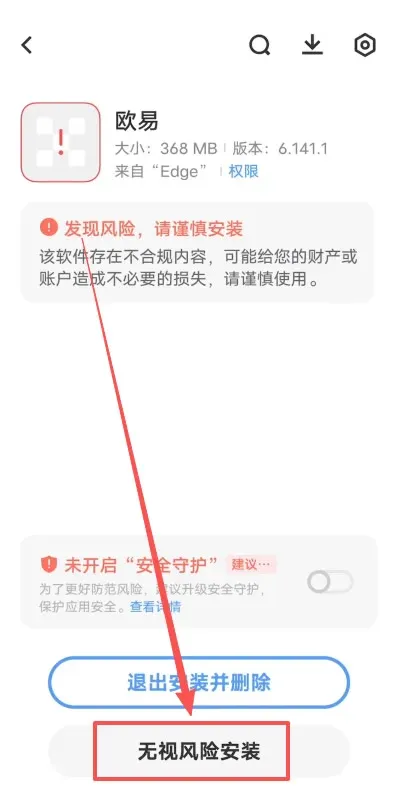
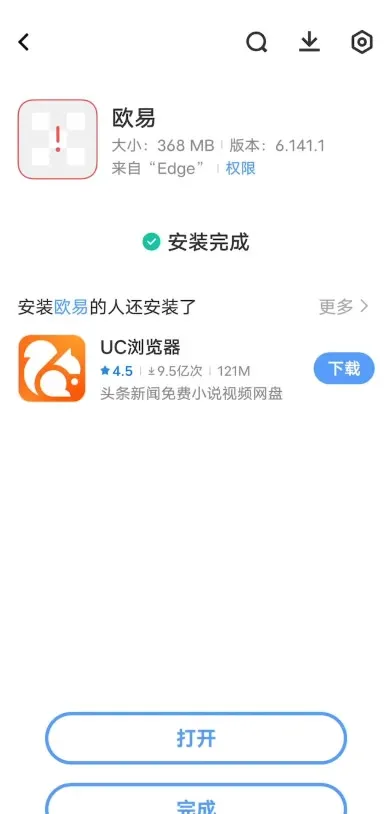
- Android will warn “Potential risk detected, proceed with caution” because the package comes from a browser rather than the device’s native app store. Verify that the file originates from the official OKX website, then tap 【Install Anyway】.
Three Common Solutions If the App Fails to Install
| Method | Steps |
|---|---|
| 1 | Disable Wi‑Fi and mobile data to prevent system security monitoring from interfering with the installation. |
| 2 | Go to **Settings → System & Updates → Pure Mode** and turn off enhanced protection. |
| 3 | Open **Settings → Security → More Security Settings**, then enable **Install apps from external sources**. |
Applying the above methods usually resolves installation issues.
2. Apple iOS Users – Download and Install the OKX App
Preparations
- Device: iPhone or iPad
- Unused email address: needed to create a new Apple ID
- Address generator: a Taiwan‑address generator (enter a real street name and ZIP code, e.g., Taipei City 100)
- Name: can be in Pinyin or Traditional Chinese; birthdate must be ≥ 18 years (doesn’t have to be genuine)
Register a New Apple ID
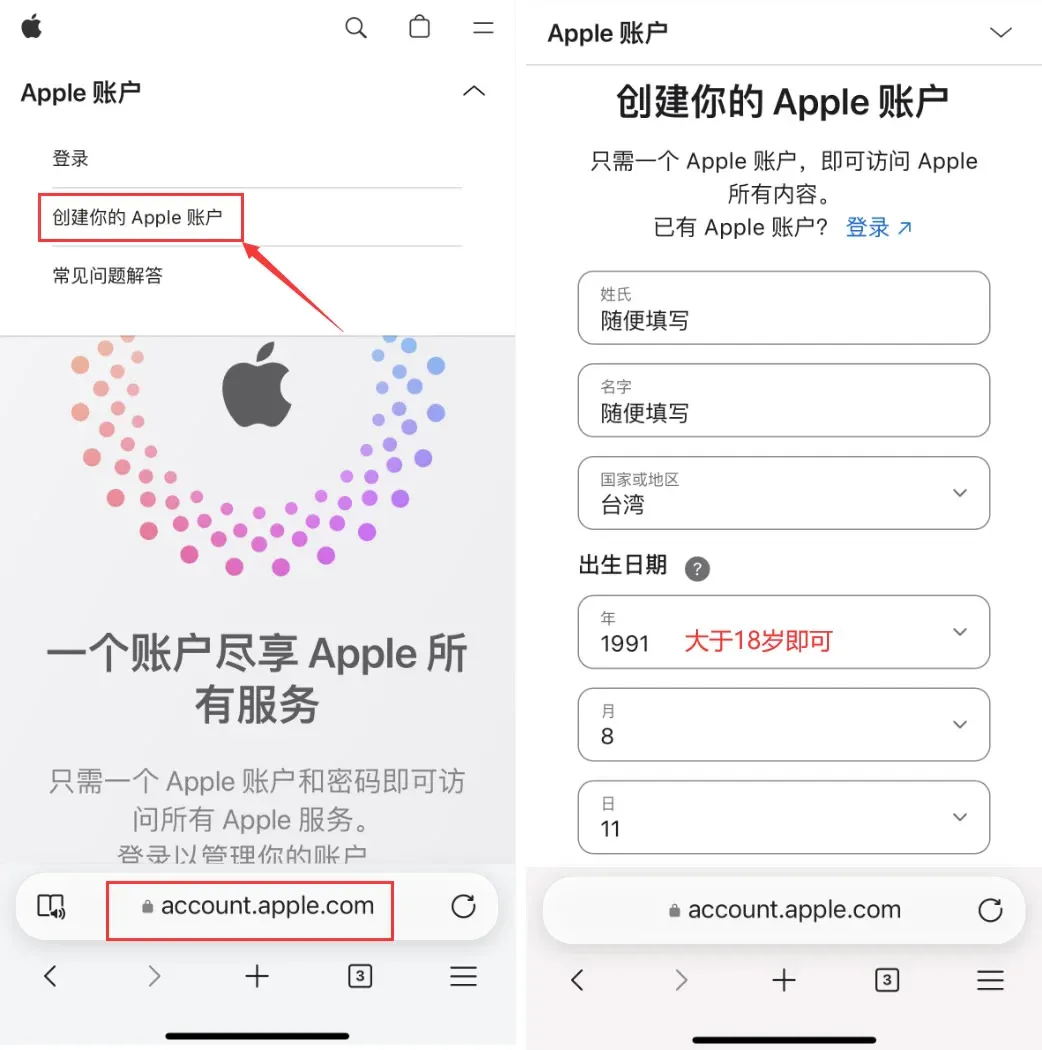
- Open a web browser and go to Apple ID Registration Page. Fill in the fields as follows: <br>• Last name / First name – any text you like <br>• Country/Region – select Taiwan <br>• Birthdate – must indicate you are at least 18 years old
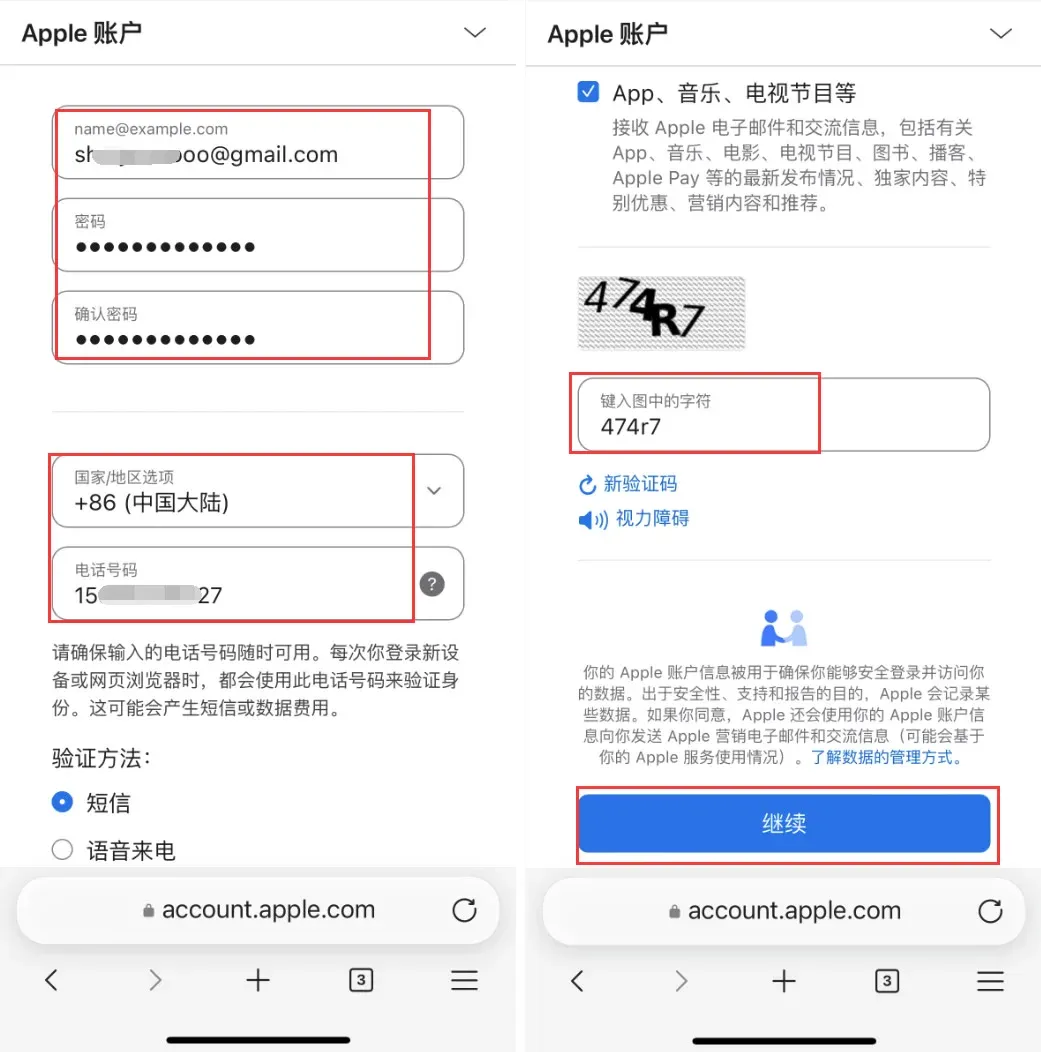
- It is recommended to use a Gmail address. Choose a password that contains uppercase, lowercase, numbers, and symbols. You may keep China Mainland as the country/region so you can receive verification codes on a mainland mobile number. Click 【Continue】 when finished.
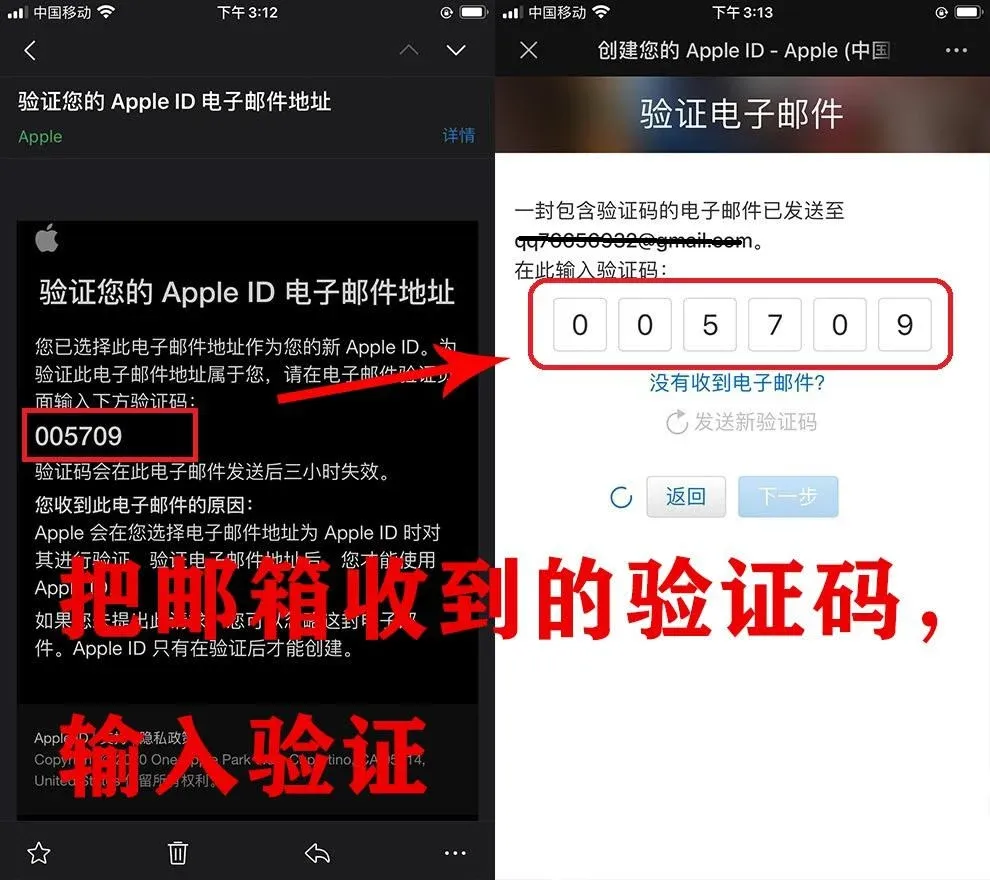
- After you verify the email, a verification code will be sent to your phone. Enter the code to complete the Taiwan Apple ID registration.
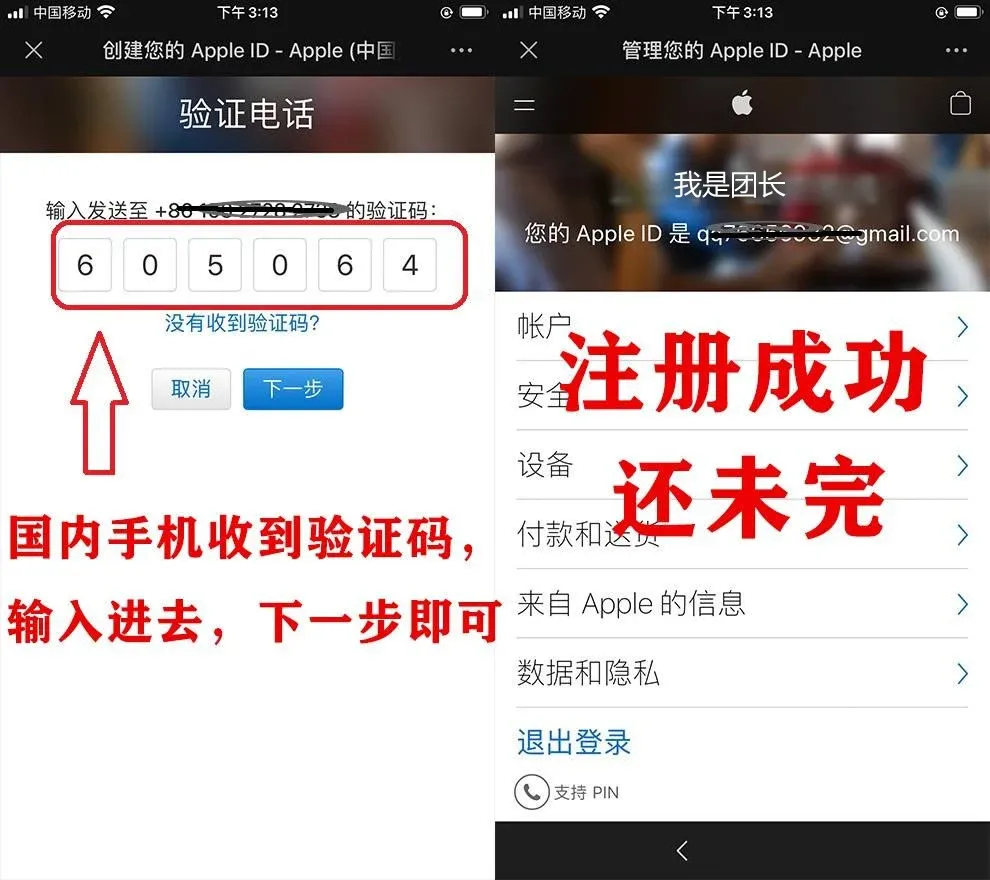
- Open the App Store on your iPhone/iPad and sign in with the newly created Apple ID (make sure you sign in inside the App Store, not in the iOS Settings app). The system will request an SMS verification—complete it as instructed.
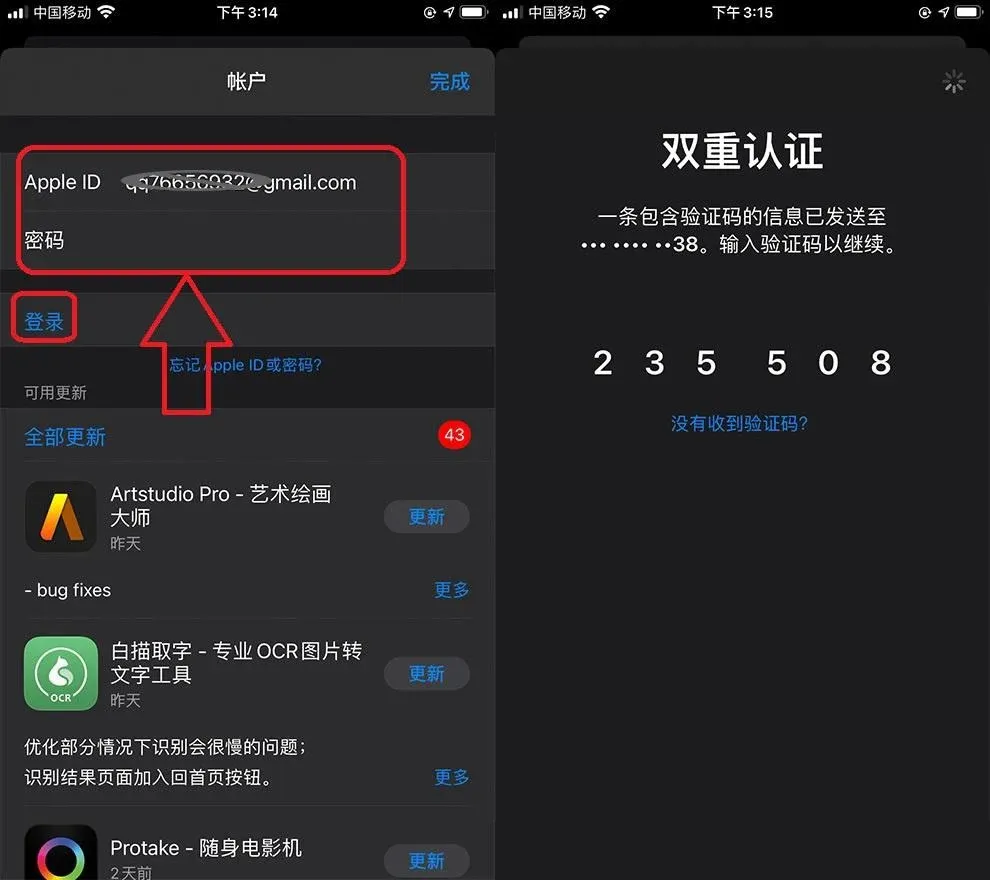
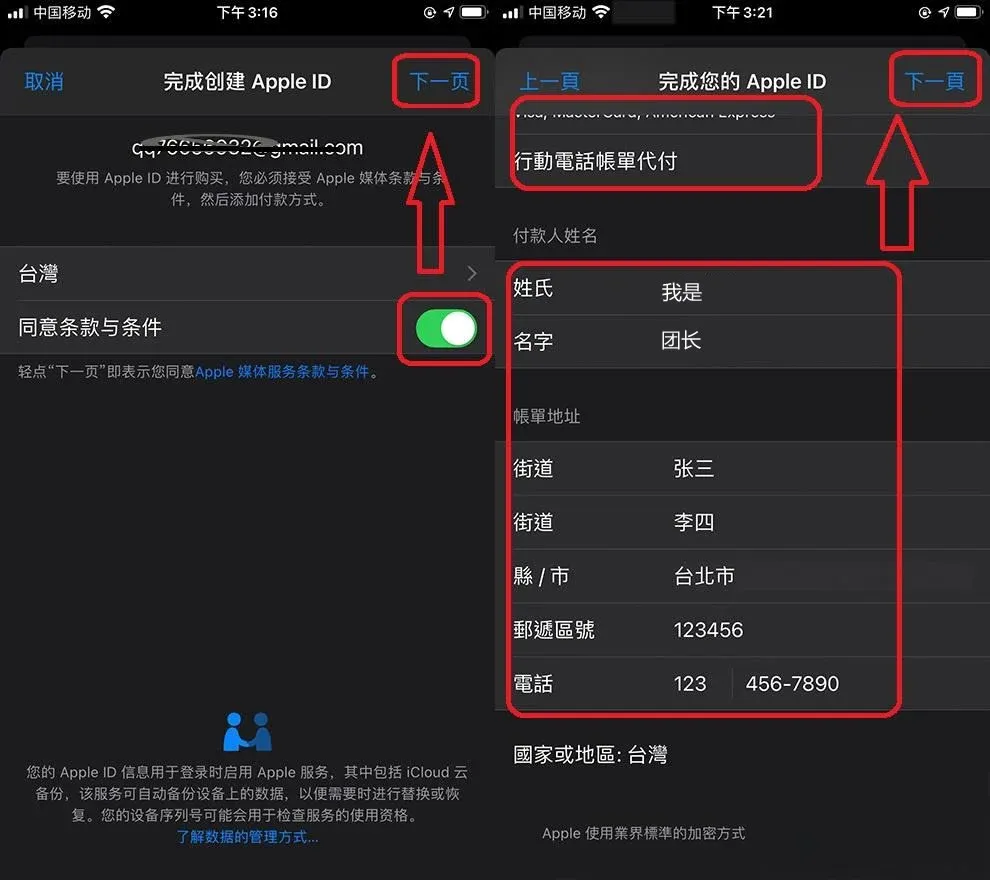
- After the two‑factor authentication succeeds, you will see a “Check” screen. Tick Agree to Terms and Conditions and proceed.
- In the Payment Method section, leave the field blank. You may enter any name for Payer and any billing address; the ZIP code should be six digits, and the phone number can be 1234567890.
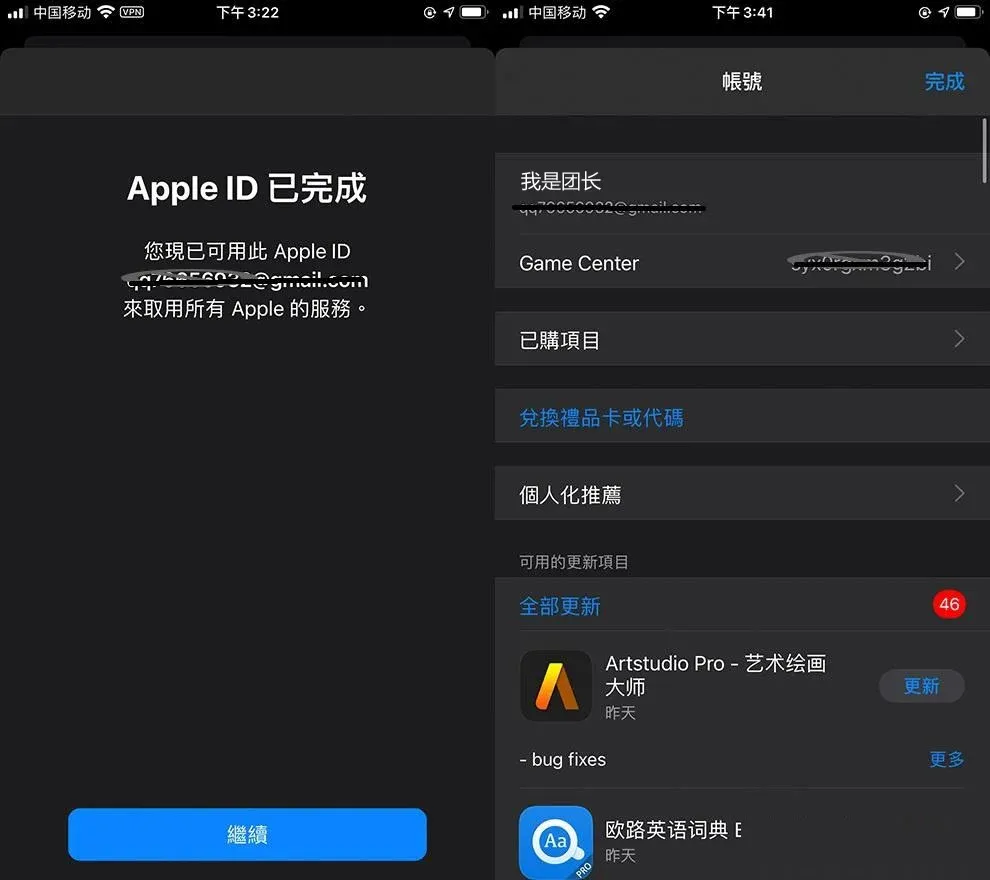
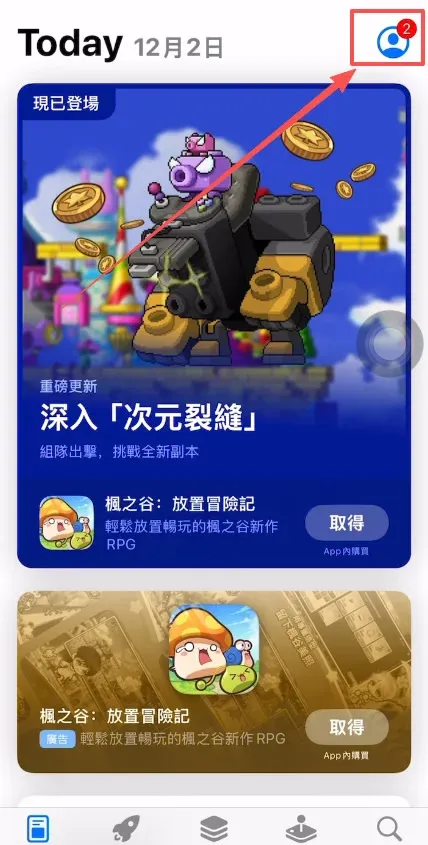
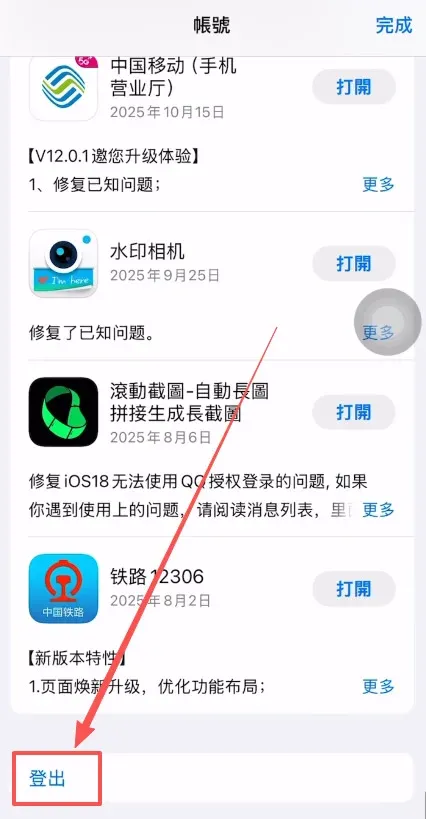
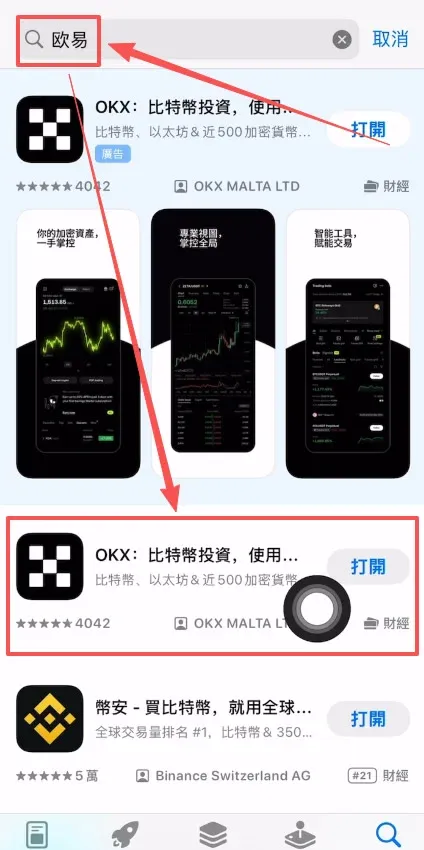
- Once registration is complete, open the App Store, tap the profile icon at the top‑right, choose Sign Out, then sign back in with the new Apple ID. You can now search for and download the official OKX app.
Important for U.S. Residents: When the guide references Binance, you must use Binance.US (the U.S.-compliant platform) rather than the global Binance website.
Step 2: Register and Log In to an OKX Account
1. Account Registration
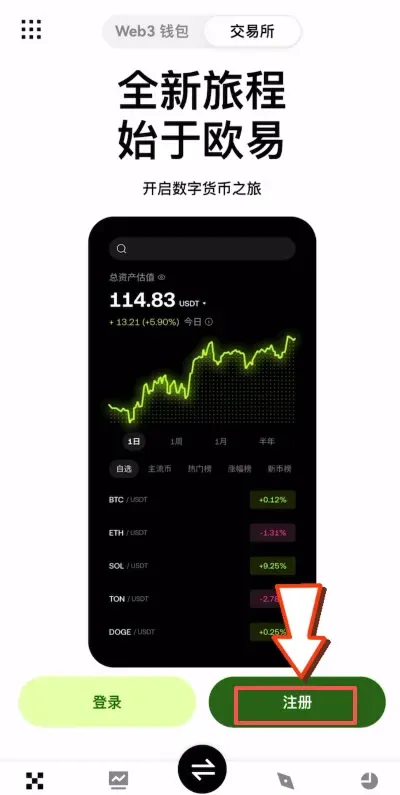
- Launch the OKX app and tap 【Register】.
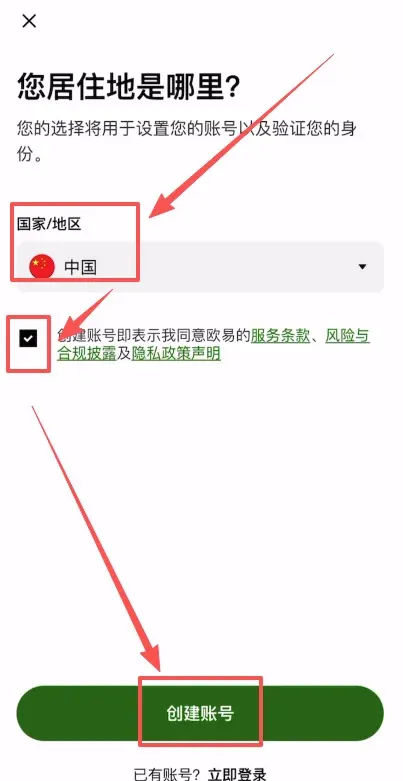
- Choose your Country/Region (e.g., China), tick the box to accept the terms, and tap 【Create Account】.
- Enter your email address and type the invitation code `B2345` in the Referral Code field, then tap 【Confirm】. Using this code grants you a 20 % trading‑fee discount on subsequent trades.
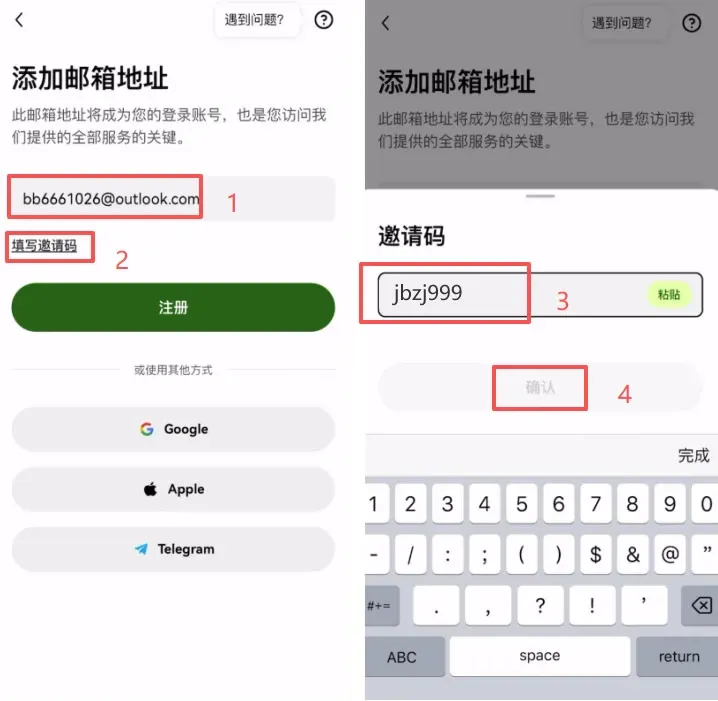
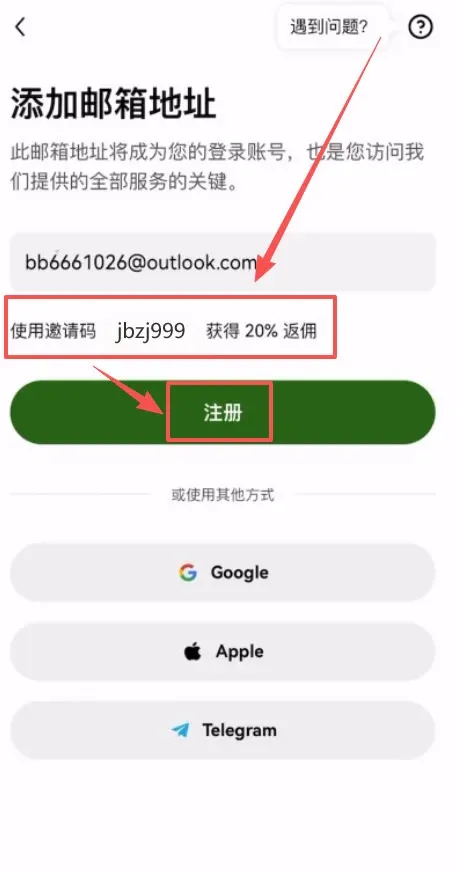
- A verification code will be sent to the email you provided; retrieve it and paste it into the app. Afterwards, bind a mobile number (use the +86 country code for mainland China) to finish registration.

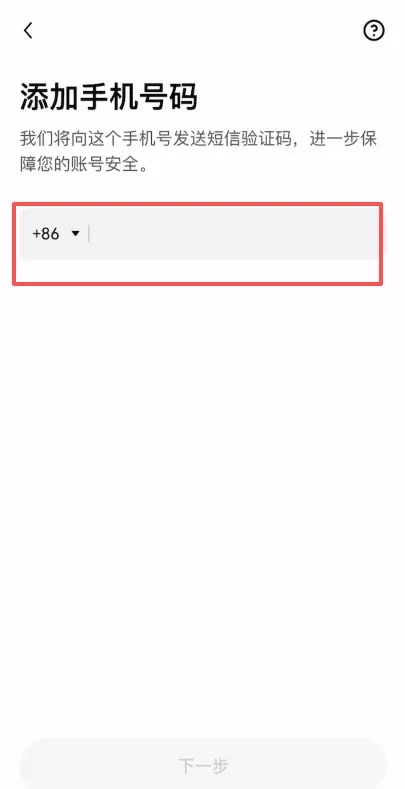
- After successful registration, the app automatically redirects you to the Identity Verification (KYC) page—complete it promptly.
2. Complete Identity Verification (KYC)
- From any trading screen, tap the menu icon in the top‑left corner → Profile & Settings → Identity Verification.
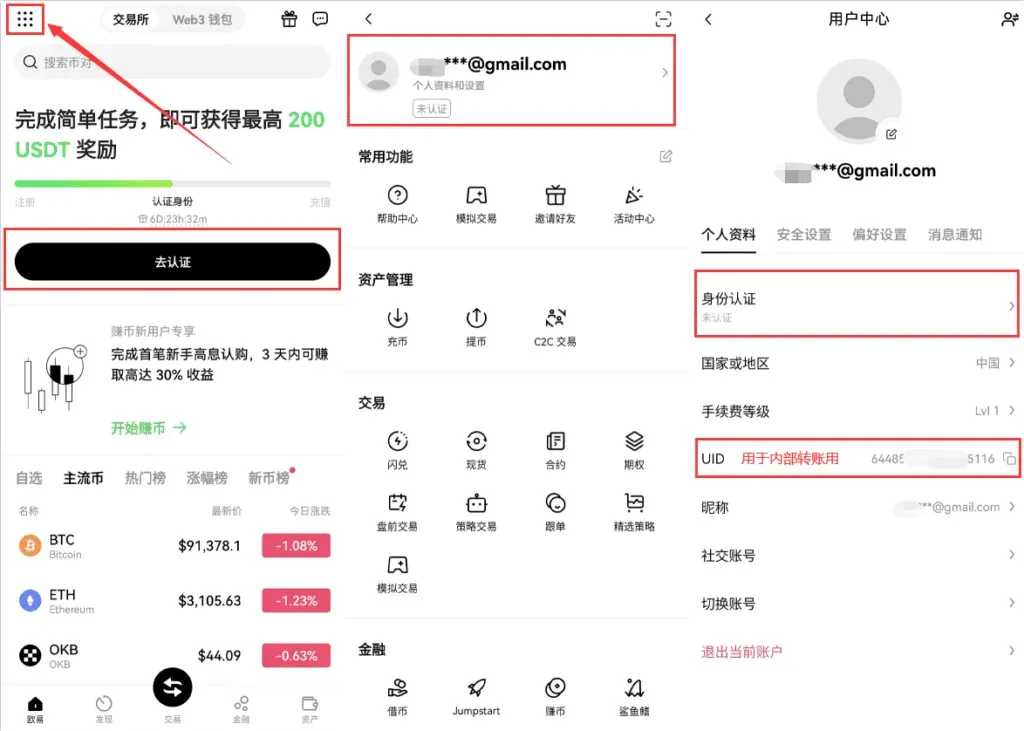
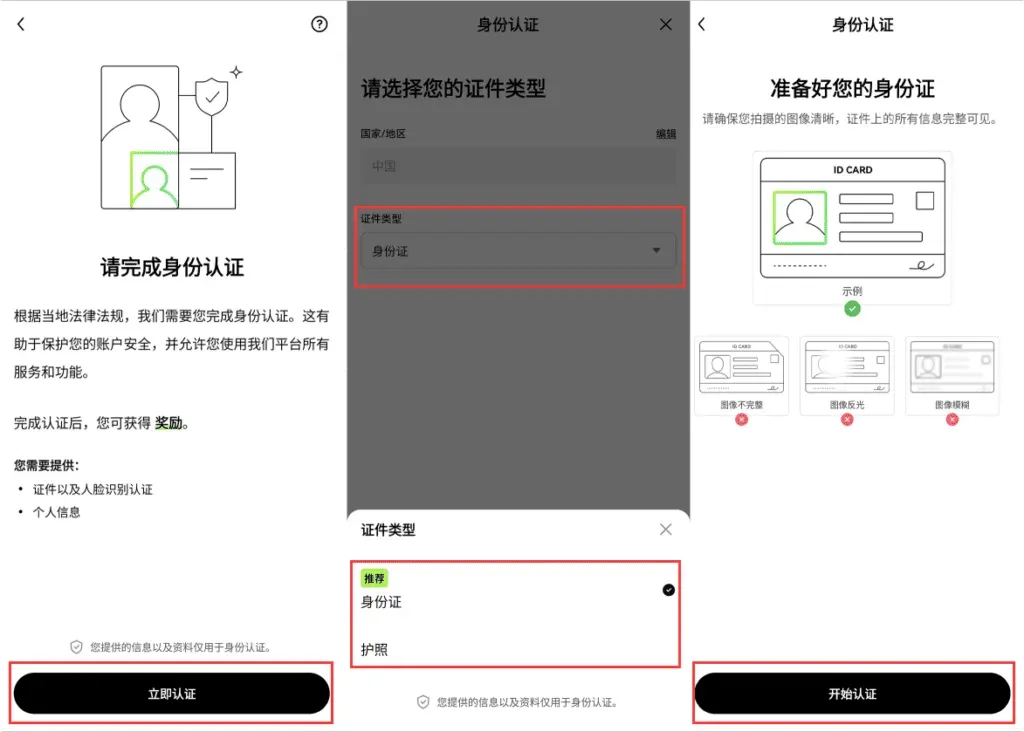
- Tap Start Verification, select your document type, upload the required images, and complete the facial recognition check. OKX uses a unified verification tier; once approved, you gain full access to all trading functions.
Note: Some users may encounter a C2C video verification prompt. This step can be skipped if you do not plan to conduct large‑volume trades.
3. Security Settings – Bind an Authenticator App
OKX supports Google Authenticator, Microsoft Authenticator, and hardware security keys.
Bind Within the OKX App
- Navigate to 【Full‑Feature】 → Profile & Settings → Security Settings → Authentication App.
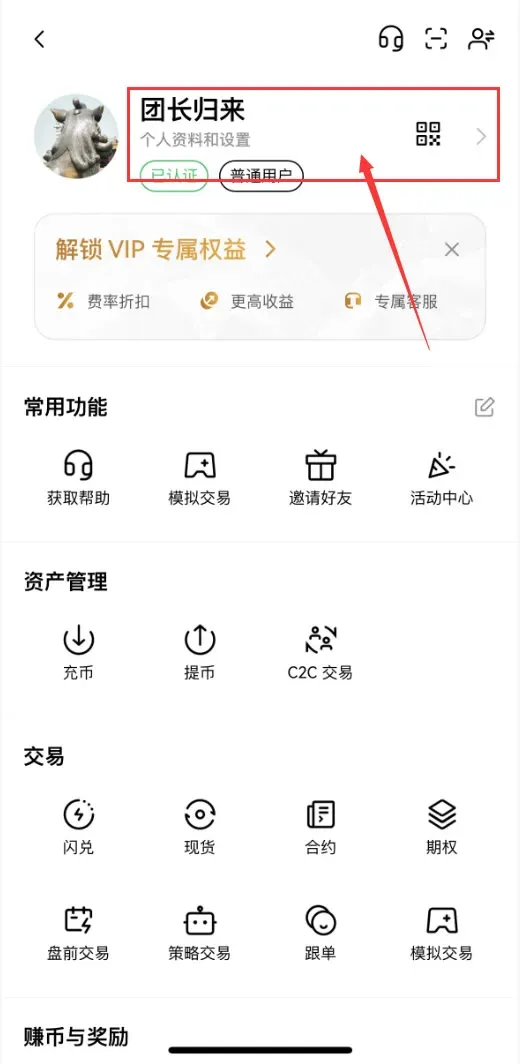
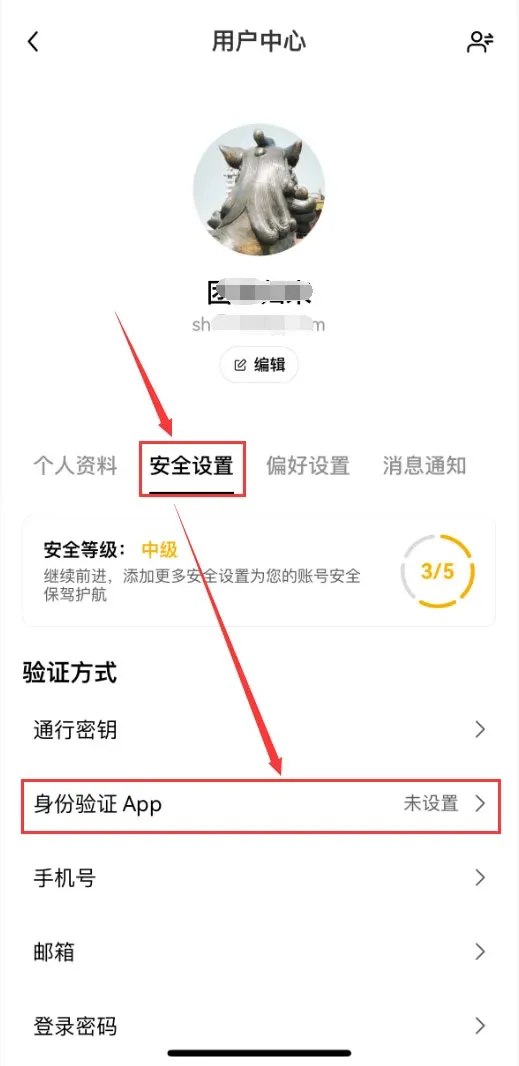
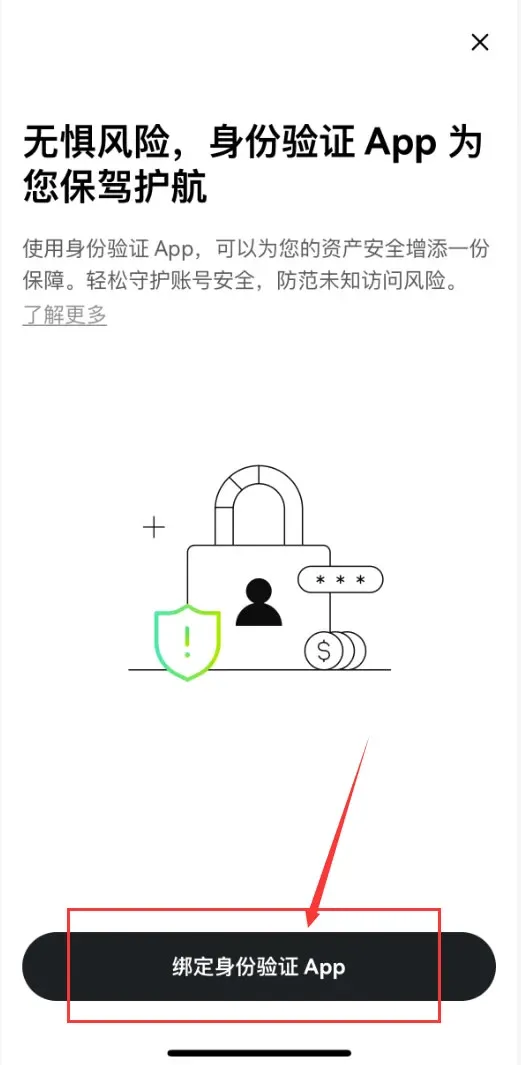
- Choose Google Authenticator (or Microsoft) and follow the link to download the corresponding app.
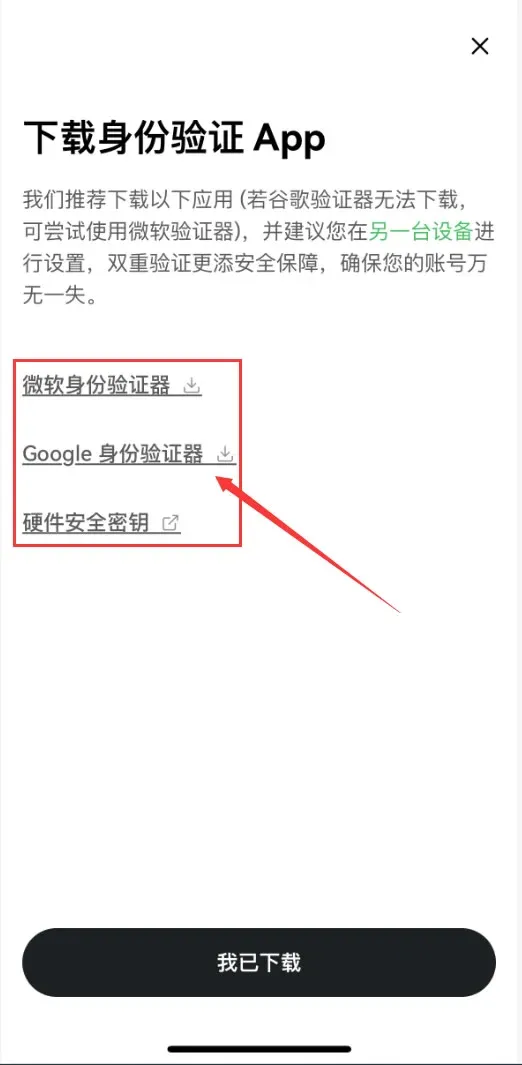
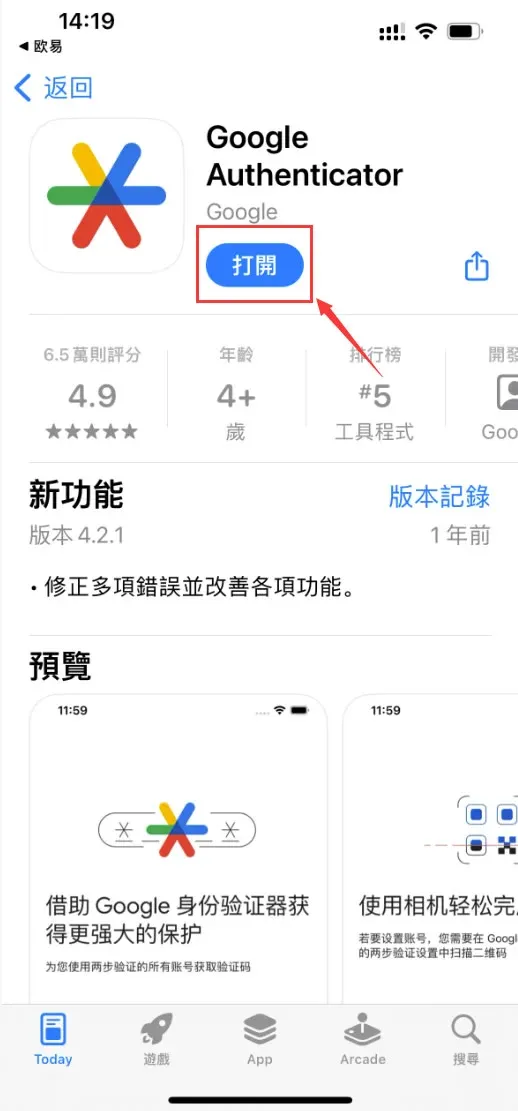
- After the download finishes, tap 【I’ve Downloaded】. The OKX app will display a QR code and a secret key. Open Google Authenticator, choose Scan QR code or Enter setup key to complete the binding.


