 Bitaigen Research
 OKX (formerly OKEx) has long been regarded by experienced traders as a top‑choice platform thanks to its powerful features, user‑friendly interface, and industry‑leading security measures. Whether you are interested in spot trading or derivatives (contracts) trading, the platform provides efficient execution.
In 2026, the complete workflow for performing spot and contract trades with the OKX mobile app includes: downloading and registering the app, completing KYC verification, configuring two‑factor authentication, purchasing USDT (or USDC) via a peer‑to‑peer (C2C) marketplace, navigating to the trading screen for spot transactions or selecting a contract type, setting leverage and position size, and finally placing the order.
In this article we systematically walk through the full‑process operation of the OKX mobile app in 2026, covering everything from download and real‑name verification to the key details of placing spot and contract orders. With illustrated step‑by‑step guidance, even first‑time users can quickly master the platform’s functionalities and improve trading efficiency. Continue reading for practical tips on each stage.
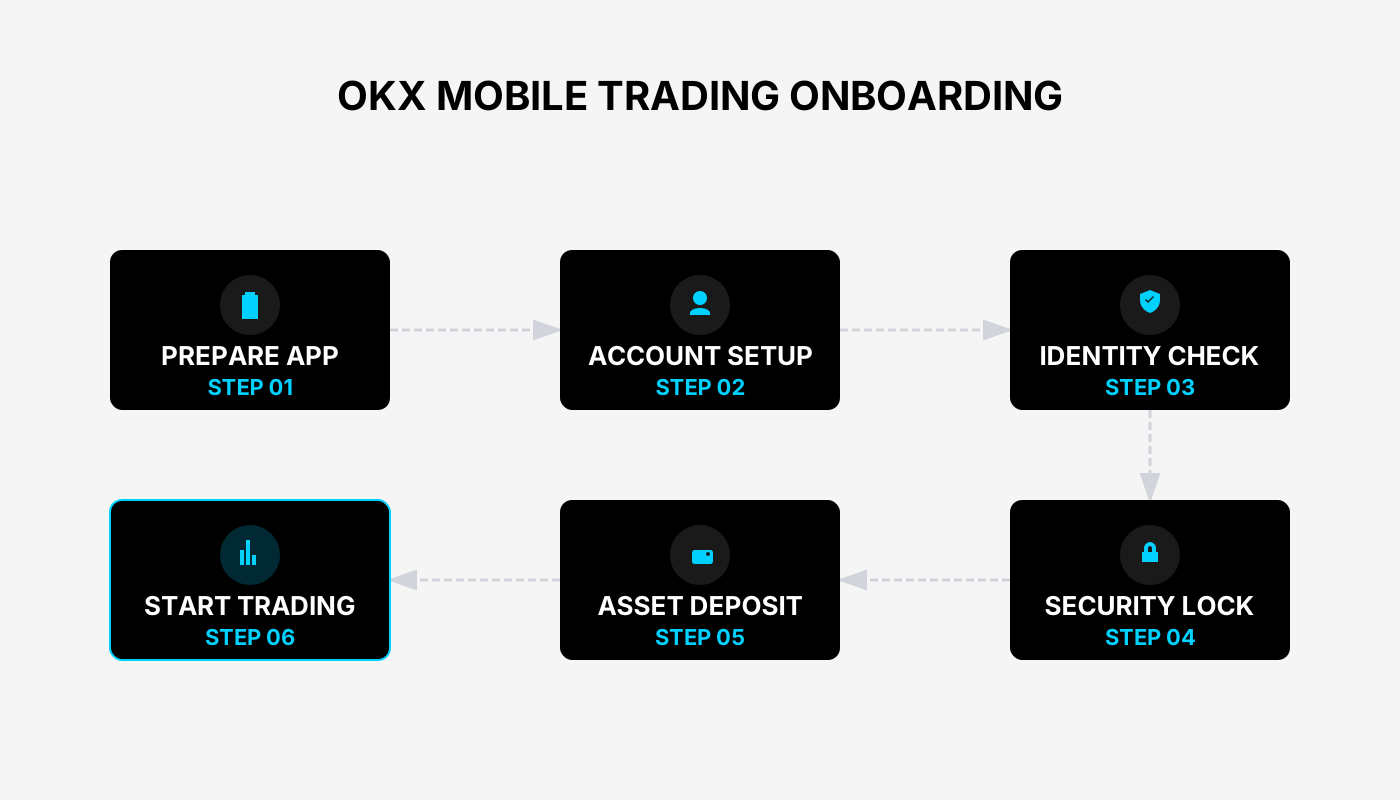
1. Preparations: Registration and KYC (latest 2026 process)
1.1 Download and Register
- Visit the official website or a reputable app store and download the latest OKX mobile app.
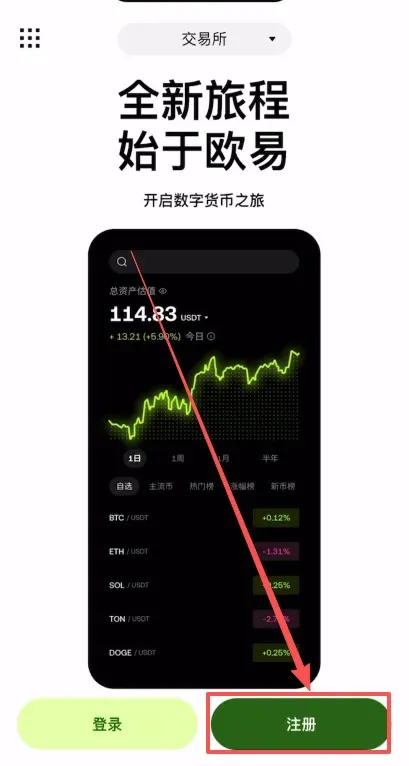
- Launch the app and tap [Register].
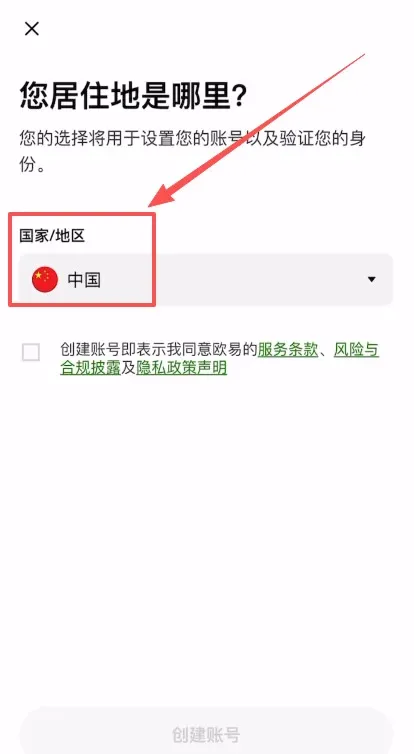
- In the pop‑up window select your region. For the purpose of this guide we choose United States (or any other jurisdiction you reside in).
- Enter a valid email address and, if you have a referral code, type `B2345` to enjoy a 20 % fee discount.
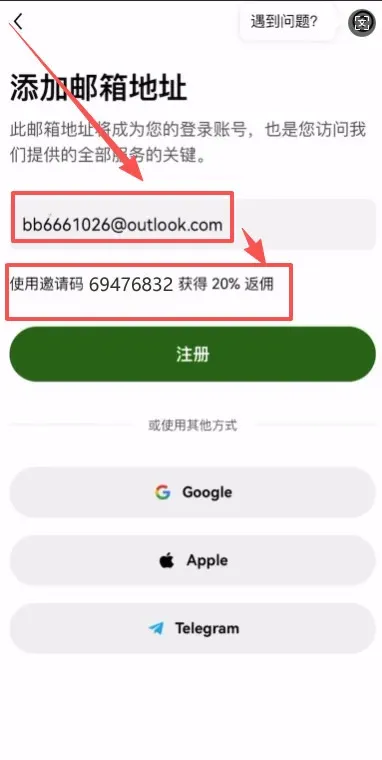
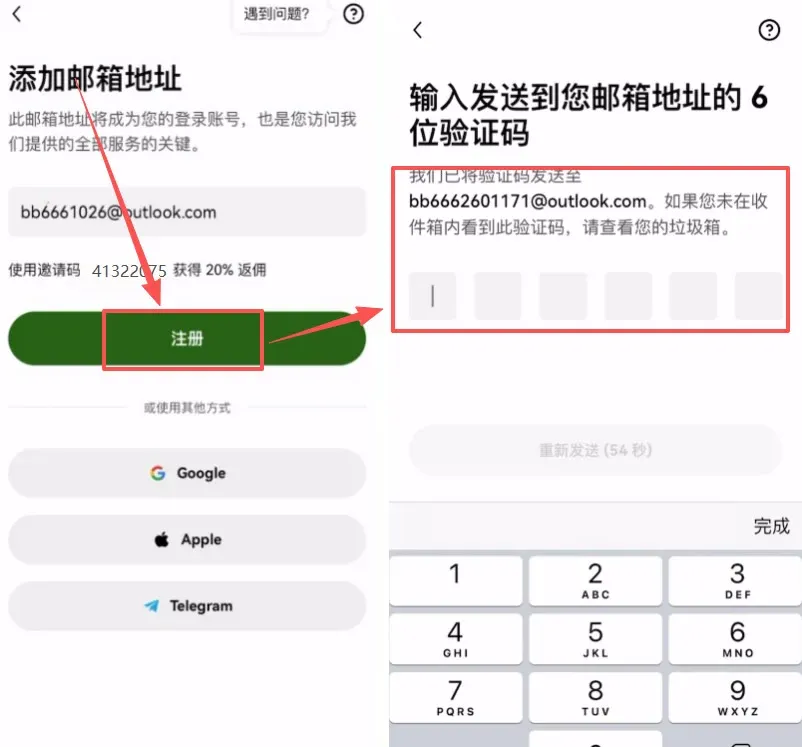
- An email verification code will be sent to you; input the code to confirm your email address.
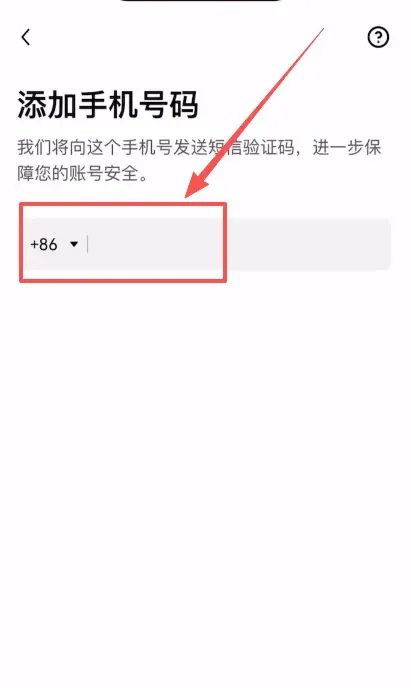
- Bind a mobile phone number (include the appropriate country code, e.g., +1 for the United States). After this step you can proceed to the next stage.
1.2 Level‑2 KYC (required for trading)
- Open the identity‑verification page and confirm that your country of residence is correctly displayed.
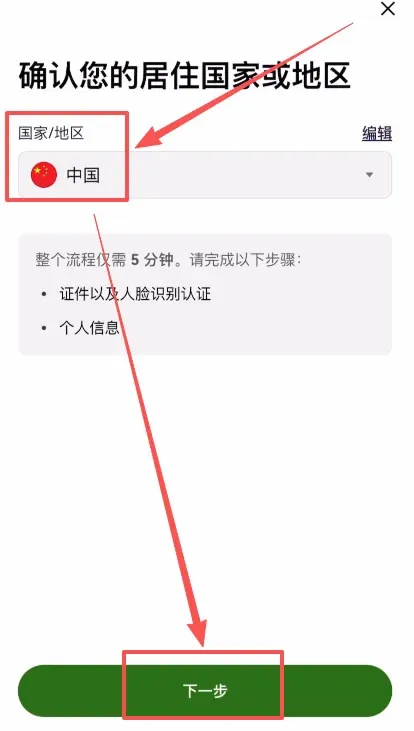
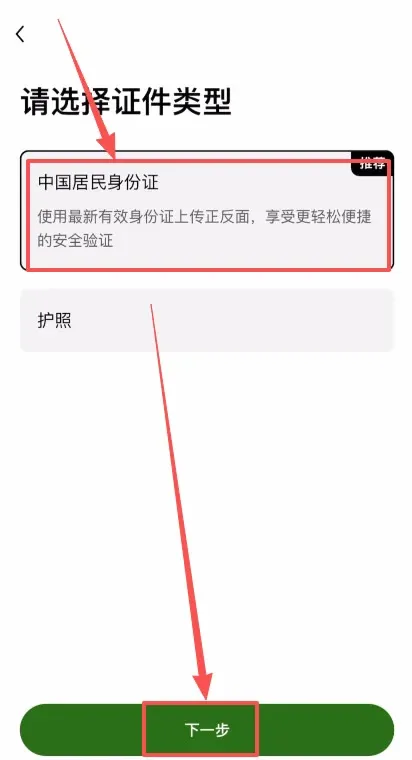
- Choose the appropriate document type—for most users this will be a national ID card or passport—and tap Next.
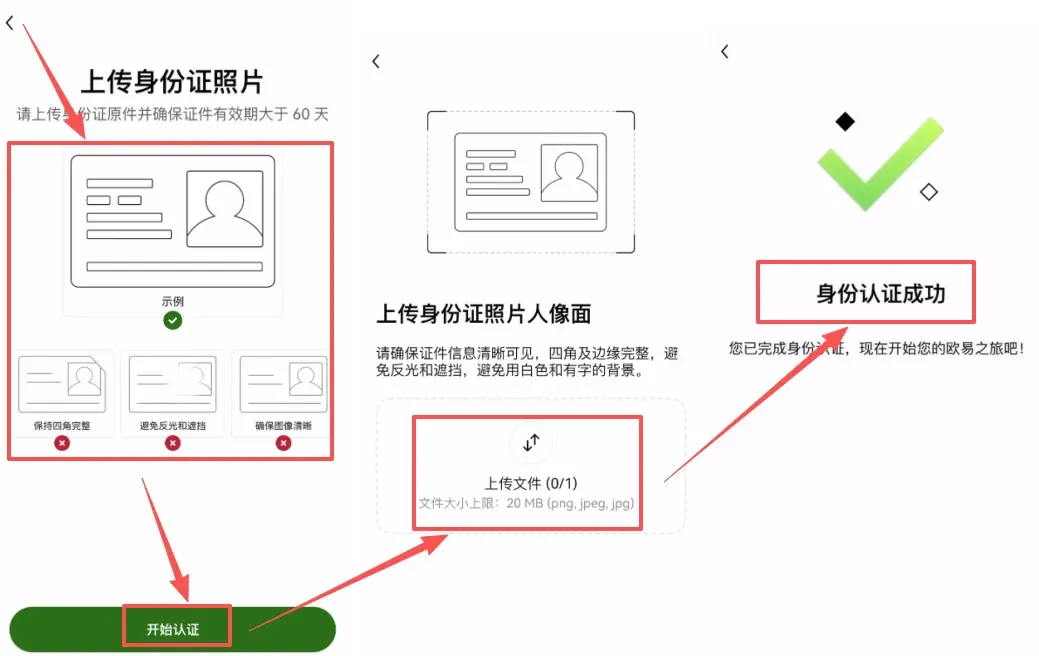
- Capture and upload clear photos of the front and back of the selected document.
- Complete facial recognition, then submit. The system typically completes the review within minutes. Once approved, all trading functions are unlocked.
1.3 Security Settings (must be completed)
Security configuration is essential for protecting your assets. Follow the order below:
| Security Item | Navigation Path | Importance |
|---|---|---|
| Two‑Factor Authentication (2FA) | **Me → Account Security → Google Authenticator / SMS → Bind** | ⭐⭐⭐⭐⭐ |
| Withdrawal Password | **Me → Account Security → Withdrawal Password → Set** | ⭐⭐⭐⭐⭐ |
| Email Binding | **Me → Account Security → Email → Bind** | ⭐⭐⭐⭐⭐ |
| Login Protection | **Me → Account Security → Login Protection → Enable abnormal device alerts** | ⭐⭐⭐⭐ |
Step‑by‑step instructions:
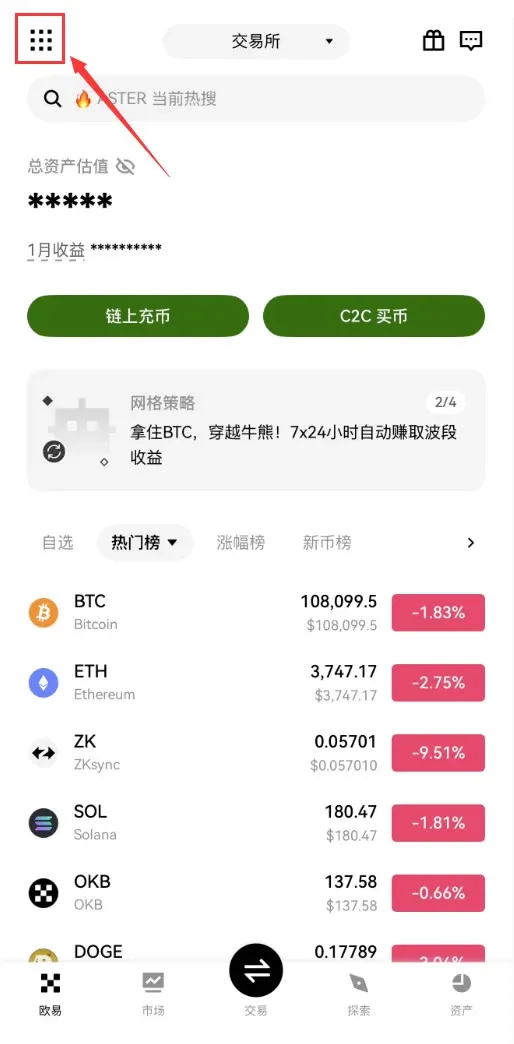
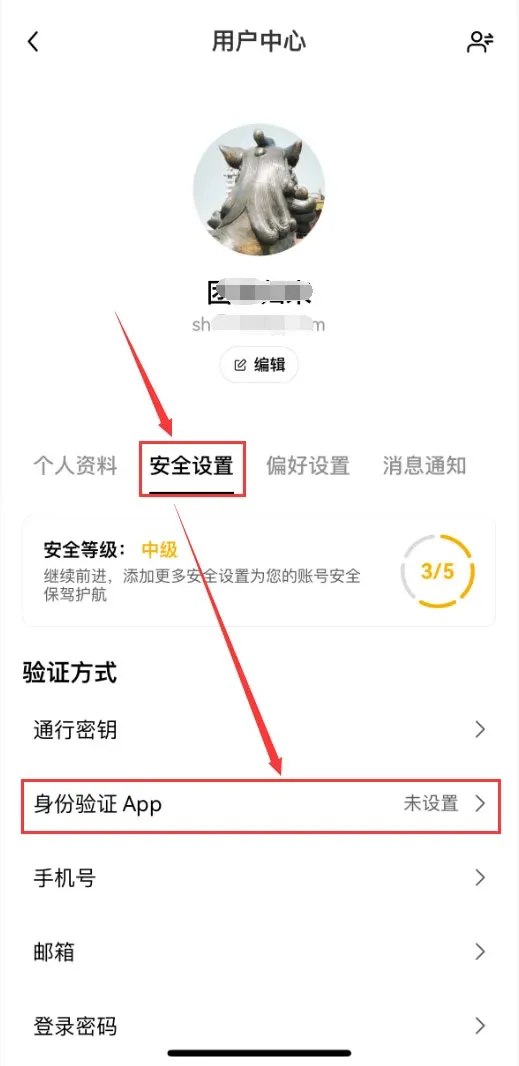
- Tap the [Full‑Features] icon in the top‑left corner of the app, then go to [Profile & Settings].
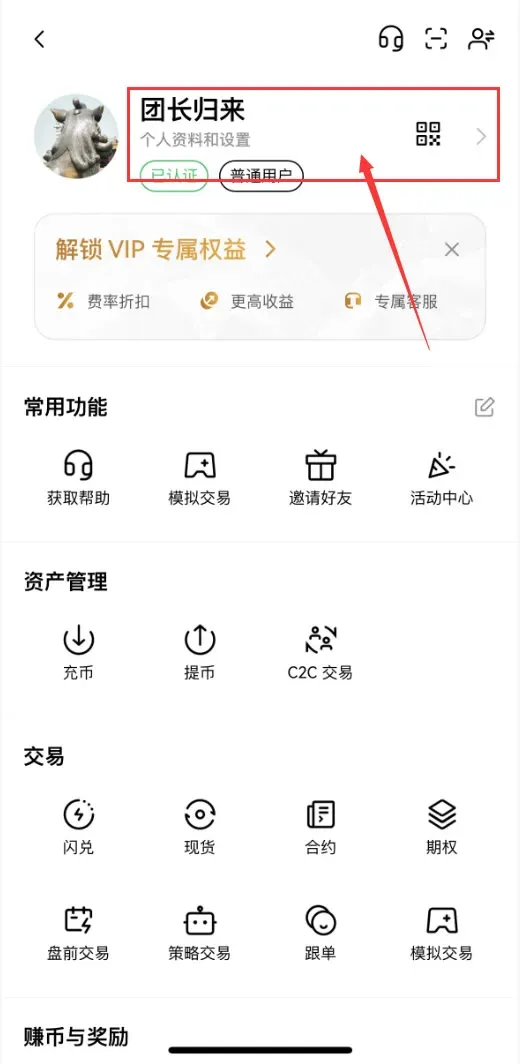
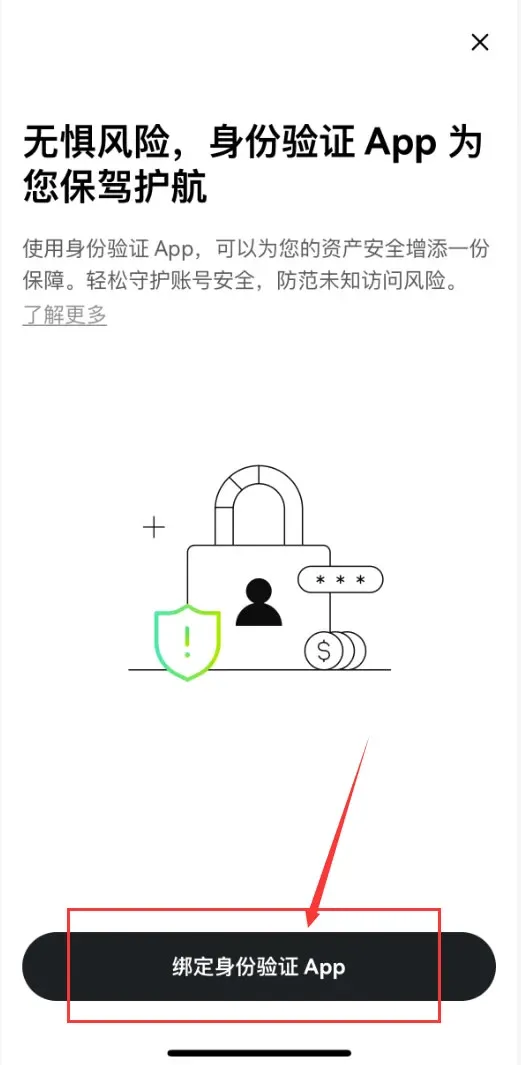
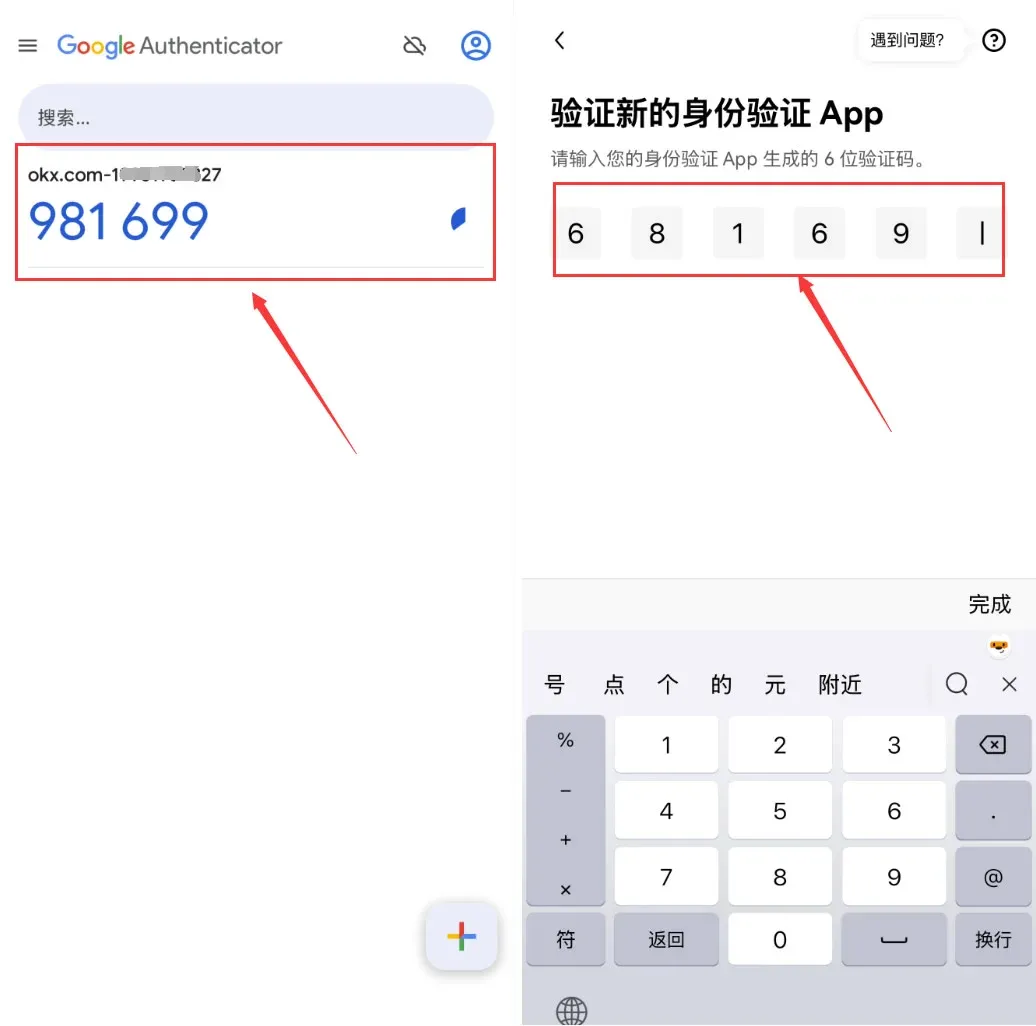
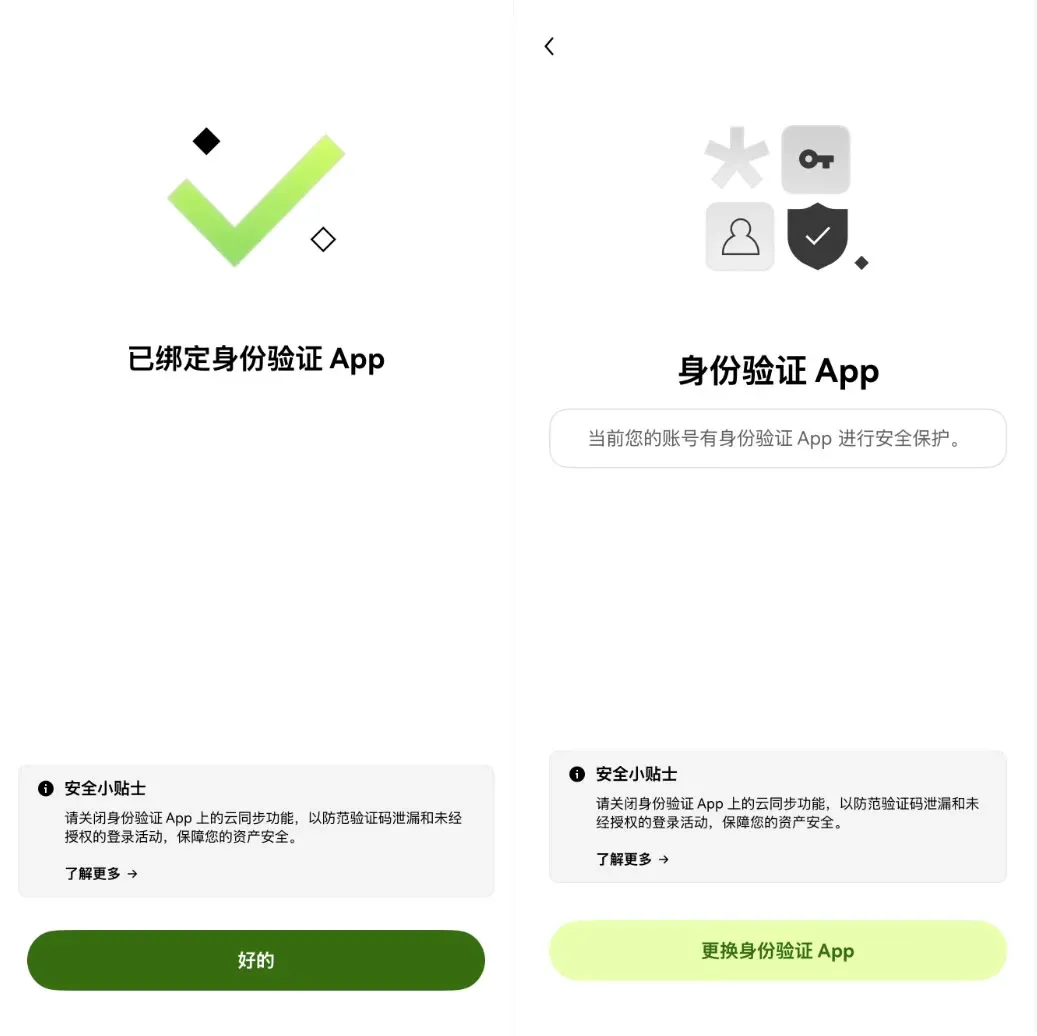
- Choose [Security Settings] → [Authentication App] → [Bind Authentication App].
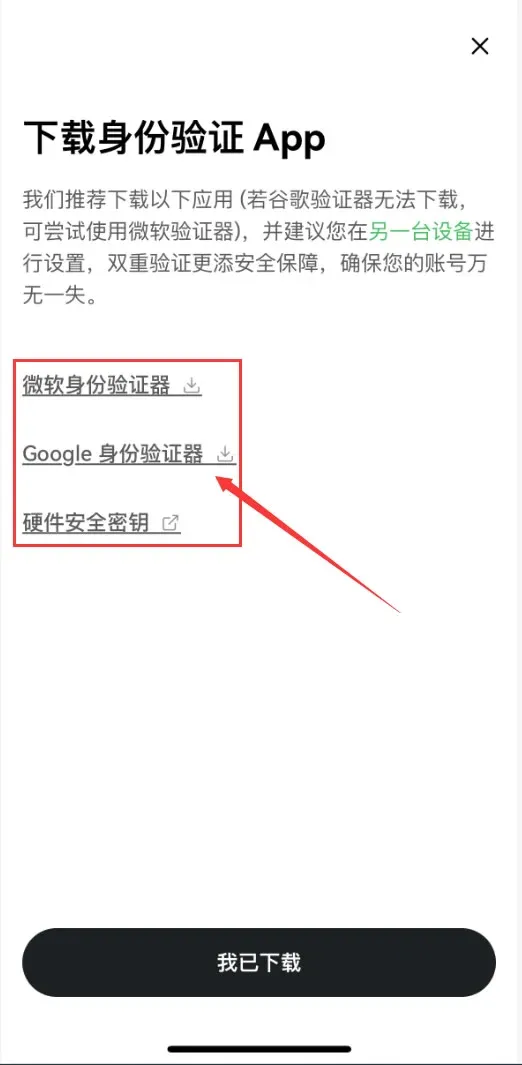
- Download Google Authenticator (or Microsoft Authenticator, or a hardware security key). After installation, tap [I have downloaded].
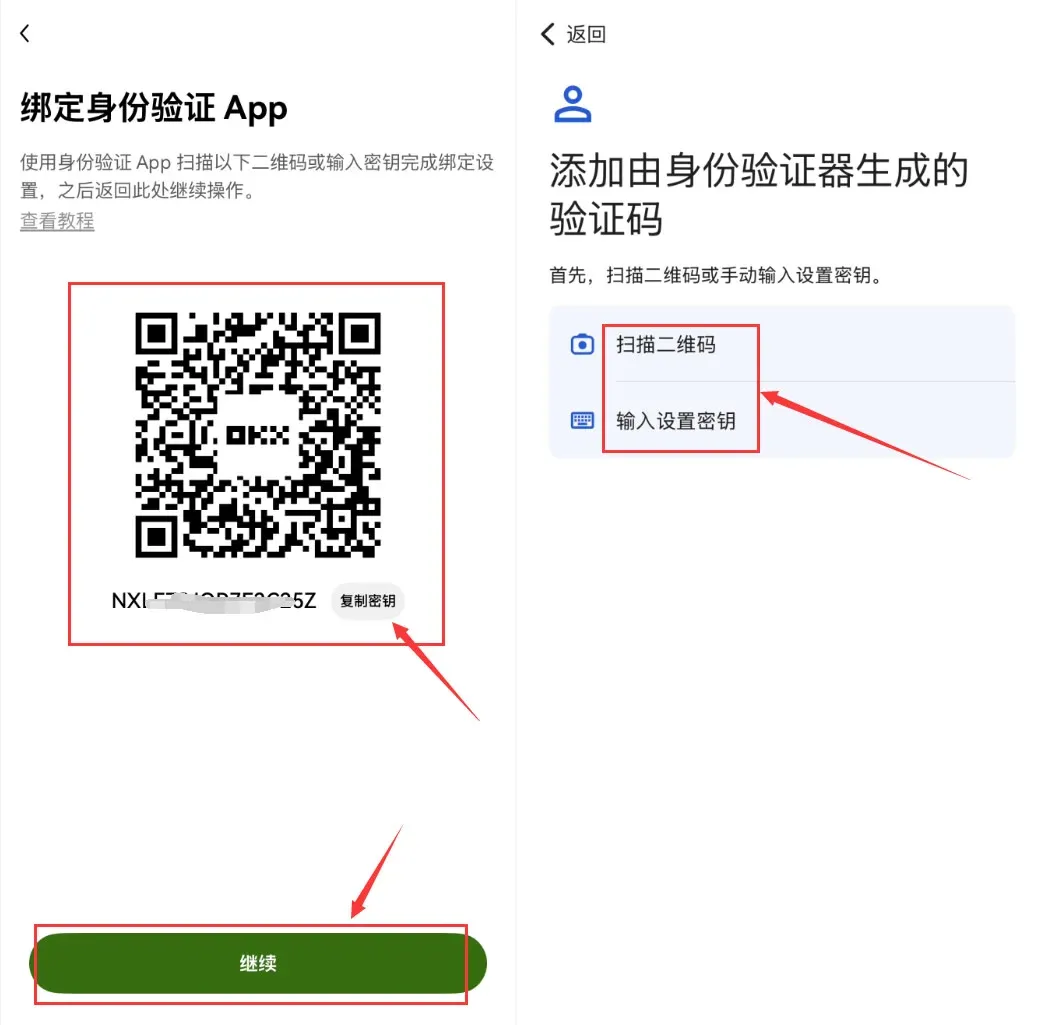
- Scan the QR code displayed in the app or manually enter the secret key, then input the generated 6‑digit code back into OKX to complete the binding.
2. Funding Your Account: Buying USDT via C2C (beginner‑friendly)
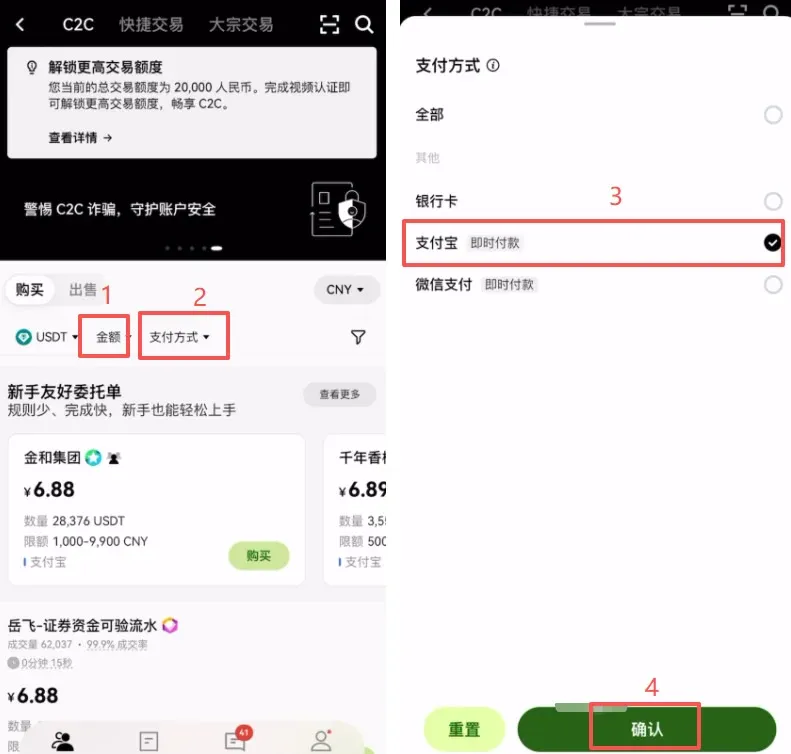
- From the home screen tap [C2C Buy] and select the fiat currency you wish to use (e.g., USD for most global users, EUR via SEPA, or GBP via SWIFT).
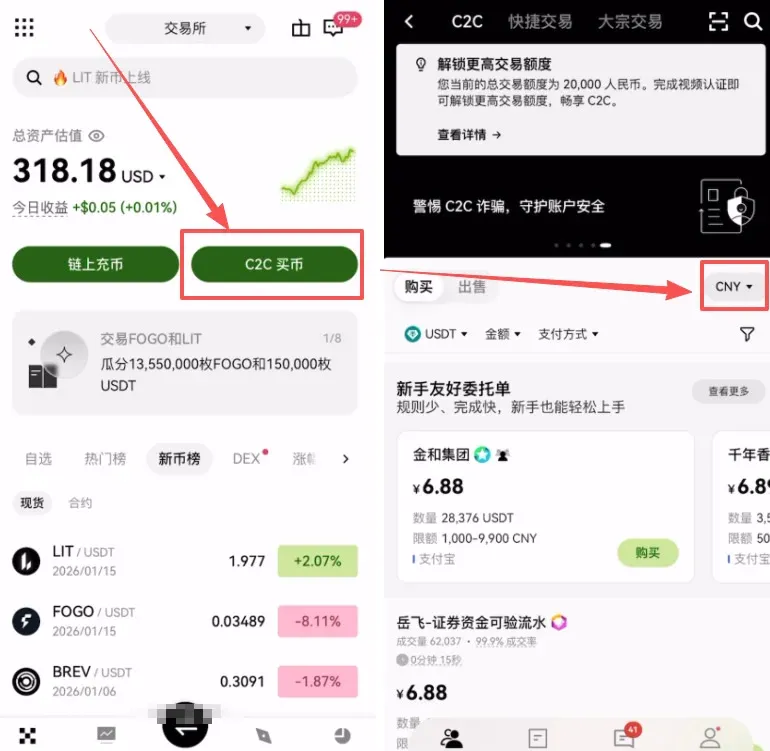
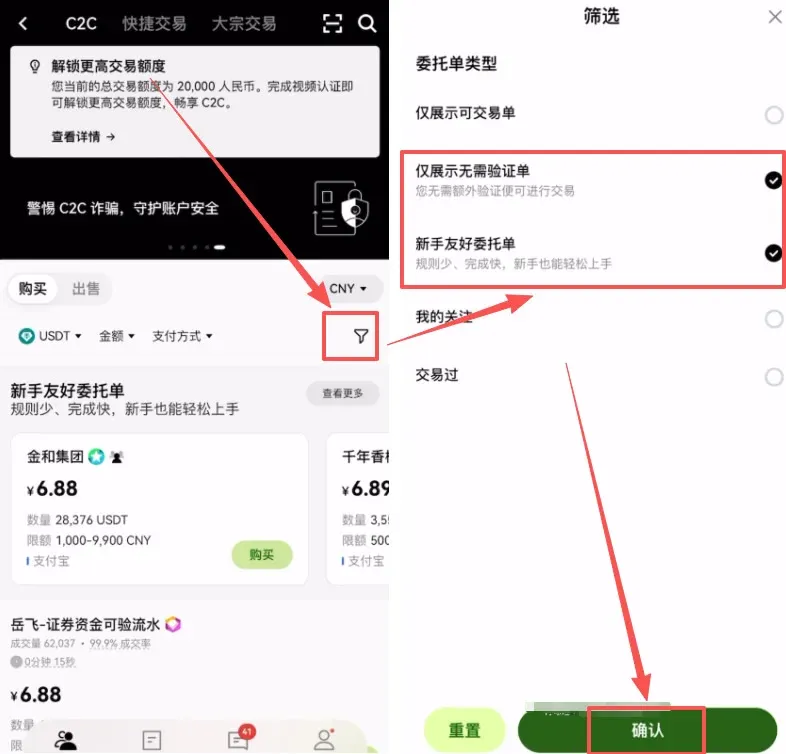
- Set your filter criteria:
- Check “Show only offers without additional verification” and “Beginner‑friendly orders”.
- Choose a payment method that suits your region, such as bank transfer (SEPA for EUR, SWIFT for USD/GBP), or local e‑wallets where available.
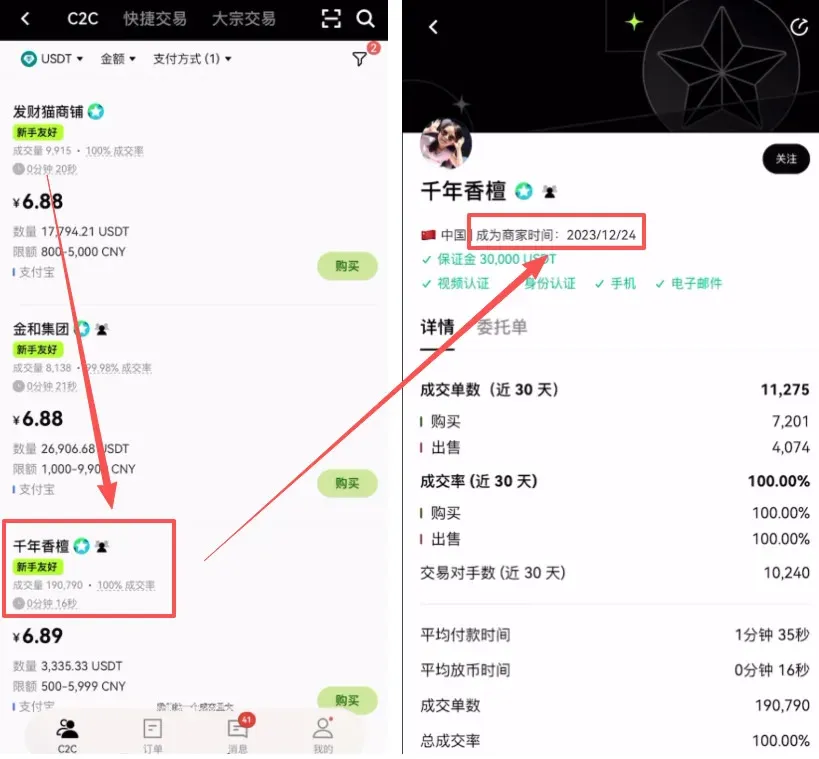
- When selecting a seller, consider the following information:
- Registration duration: at least six months.
- Trading volume and completion rate: high volume and high success rate indicate reliability.
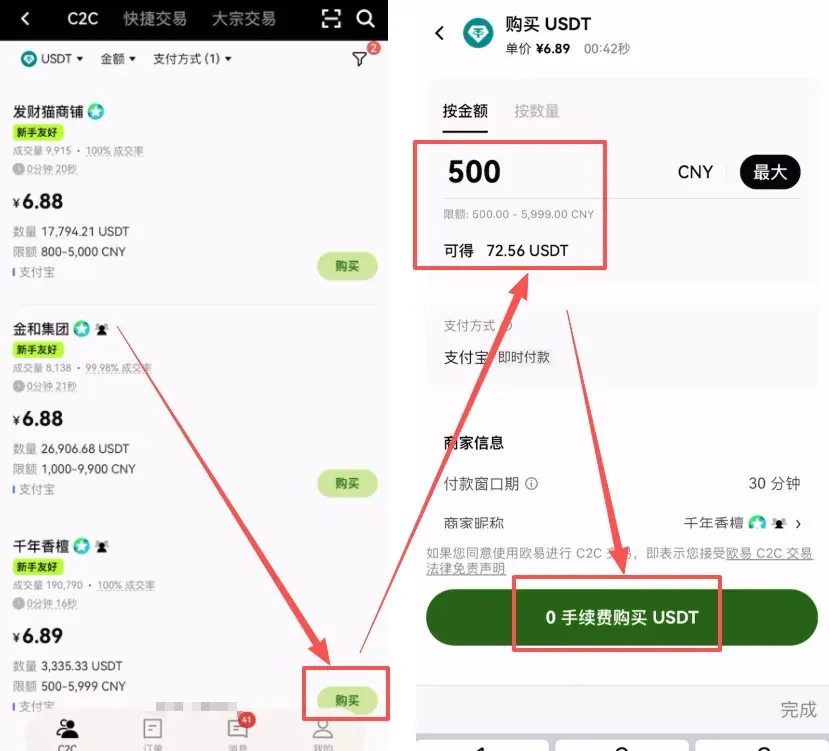
- Order placement workflow:
- Enter the amount of fiat you wish to spend and click “0 % fee purchase”.
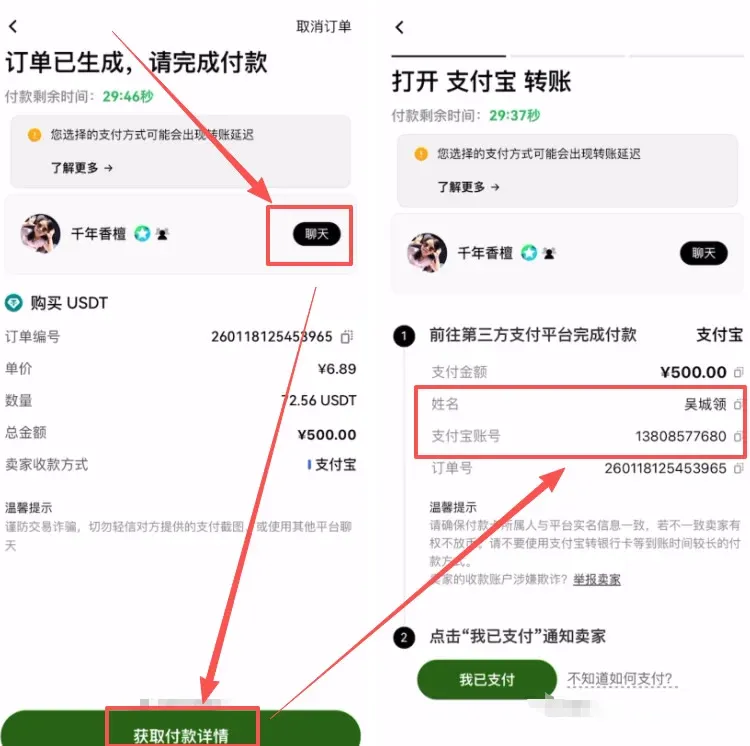
- In the chat window retrieve the seller’s bank account details (account number, SWIFT/BIC, and recipient name).
- Exit the app, complete the bank transfer through your banking portal or payment service.
- Return to the app and tap “I have paid”; the seller will then release the USDT to your spot wallet.
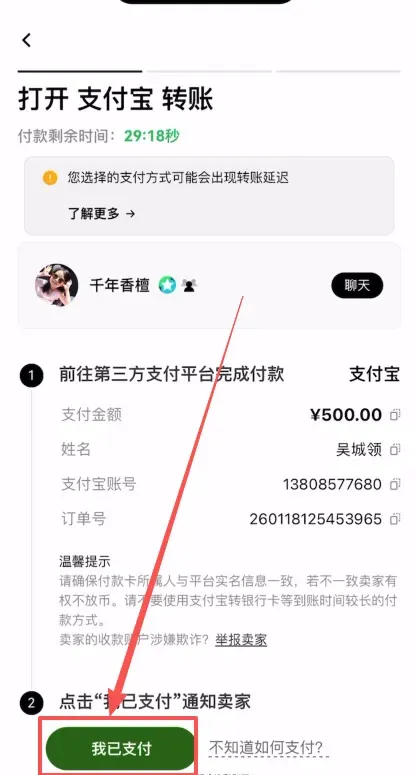
Note: Crypto gains may be taxable in your jurisdiction. Consult a tax professional to understand your reporting obligations.
3. Spot Trading Tutorial (lower risk, suitable for beginners)
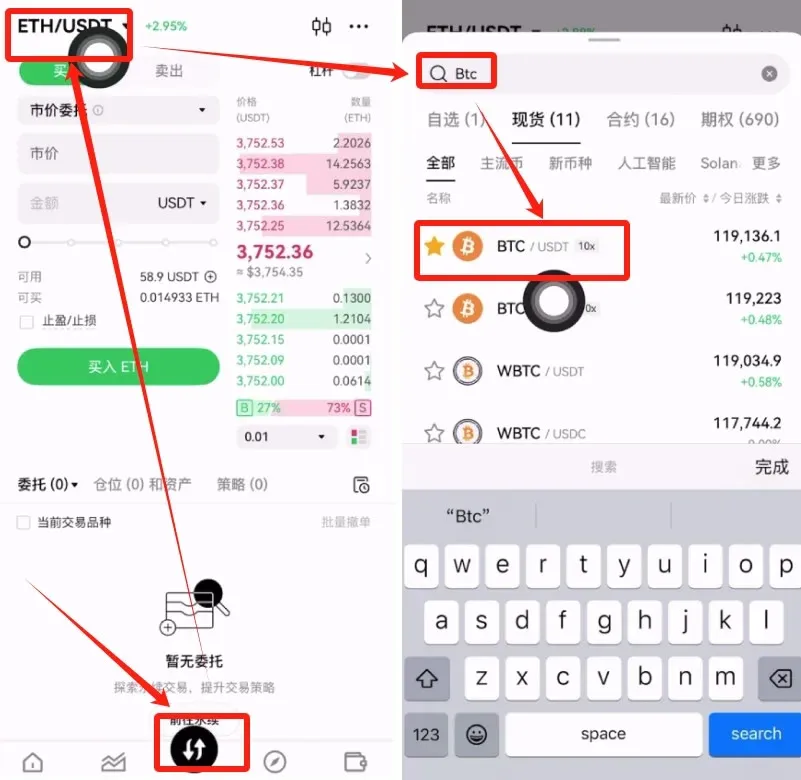
- Open the app and tap the [Trade] button located centrally at the bottom of the screen.
- In the search bar type the desired cryptocurrency (e.g., “BTC”) and select the BTC/USDT trading pair.
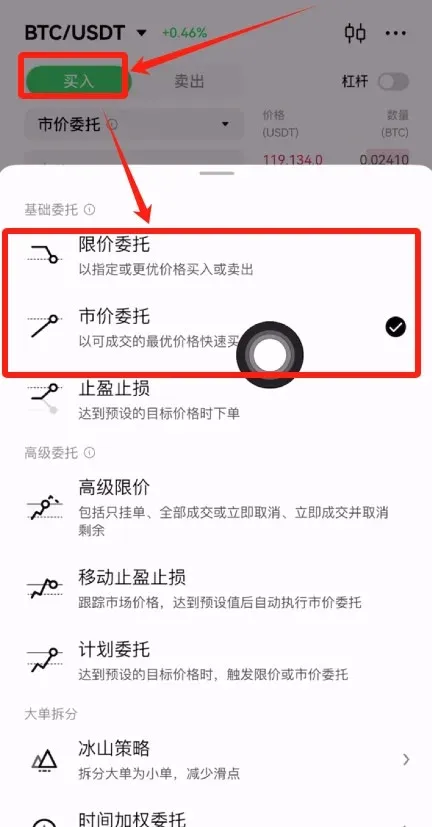
- Choose Buy, then pick one of two order types:
- Market Order – executes instantly at the best available price.
- Limit Order – you set a target price; the order fills only when the market reaches that level.
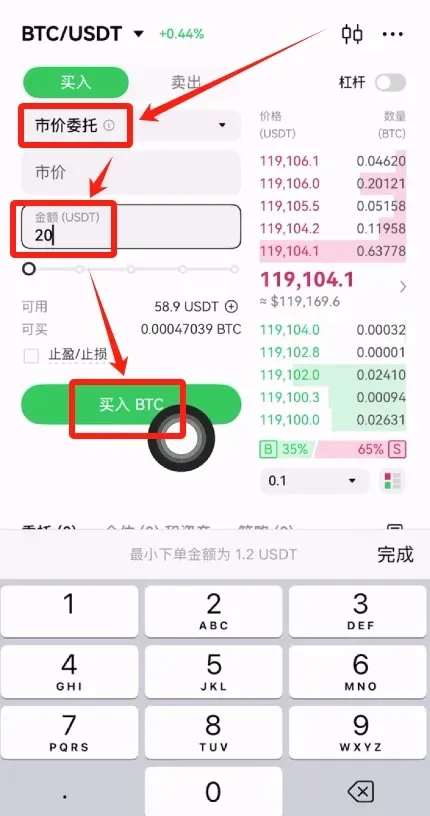
- For most beginners a market order is recommended. Enter the amount you wish to spend (in USD or USDT) and tap [Buy BTC] to confirm.
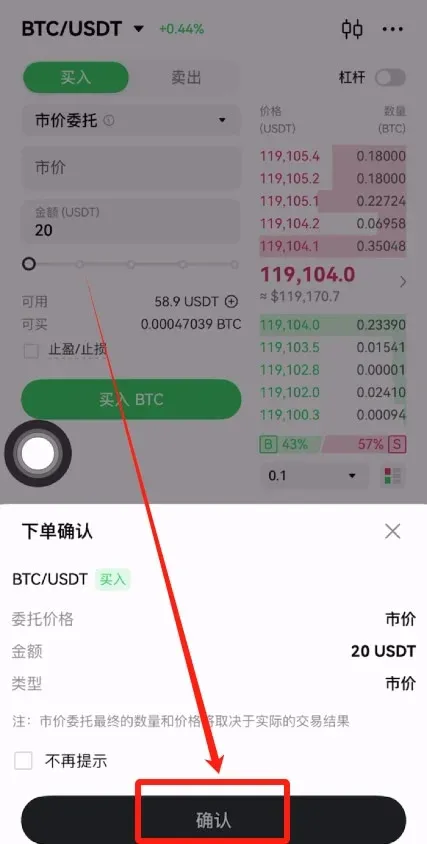
- After a successful trade, view your position by tapping the [Assets] button in the lower‑right corner, then [Spot Account].
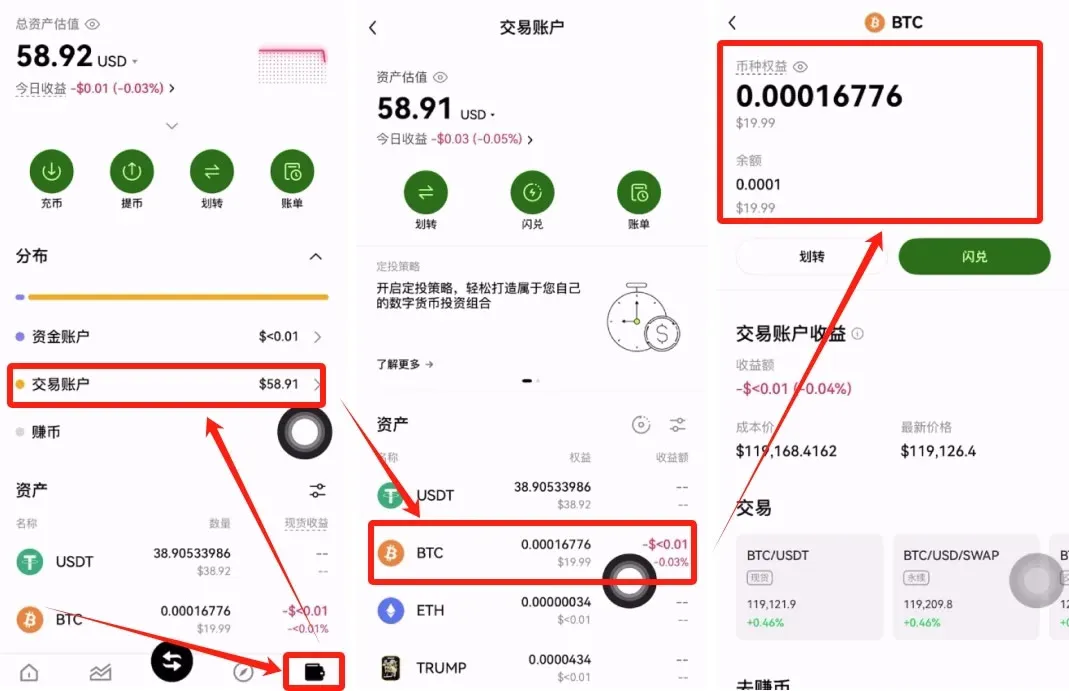
4. Contract (Derivatives) Trading Tutorial (high risk, proceed with caution)
- From the bottom navigation select [Trade] → [Derivatives] to open the contracts page.
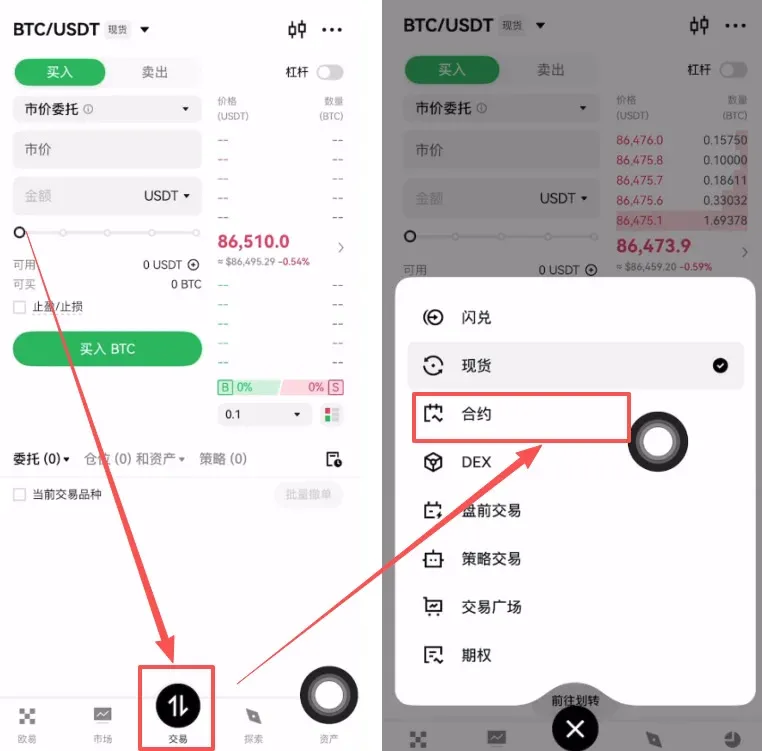
- Choose the contract you wish to trade, for example BTC/USDT Perpetual, or use the search bar to find another asset.
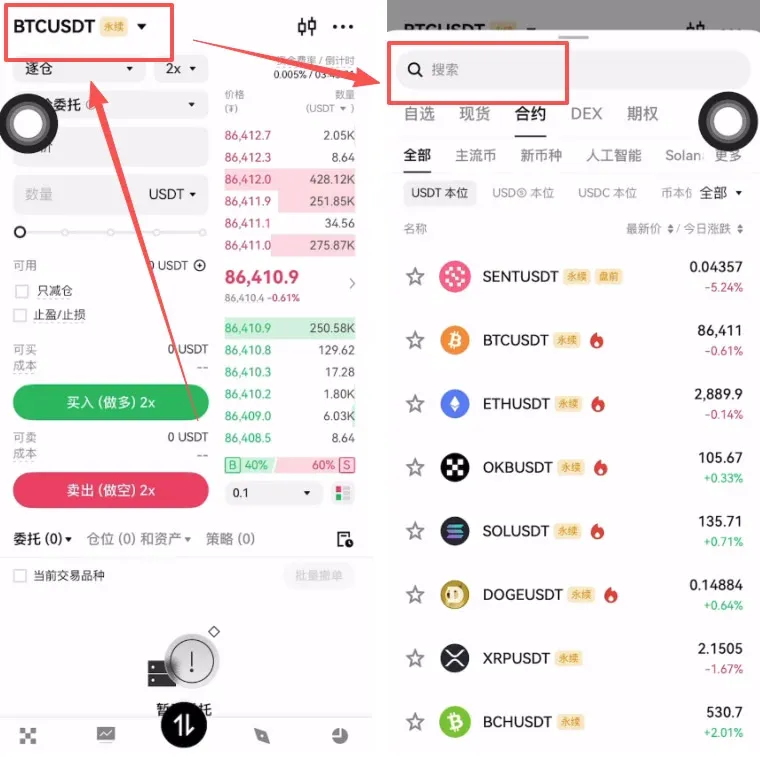
- Select a margin mode:
- Isolated Margin – only the margin you transfer to
Related Reading
- OKX Headquarters Relocation in Mainland China Service Update
- 2026 OKX Guide: Account Setup, Trading & Risk Tips
- How to Sell USDT on OKX and Withdraw to Your Bank Account
💡 Register on Binance with referral code B2345 for the maximum trading fee discount. See Binance complete guide.