
 Bitaigen Research
 This article will answer the definition of a passkey, how to set it up, and how to handle login anomalies.
A passkey is Binance’s password‑less biometric login method, allowing you to quickly log in or confirm transfers with a fingerprint or Face ID; it can be configured in the account security settings, and if you are unable to log in you can try deleting it and adding it again or reinstalling the app.
In this article we systematically review the concept of Binance passkeys, the setup steps, and solutions for common login issues, helping users get started quickly and improve account security. Whether you are a beginner or an experienced trader, you can find practical operating guidance here. For detailed information, keep reading.
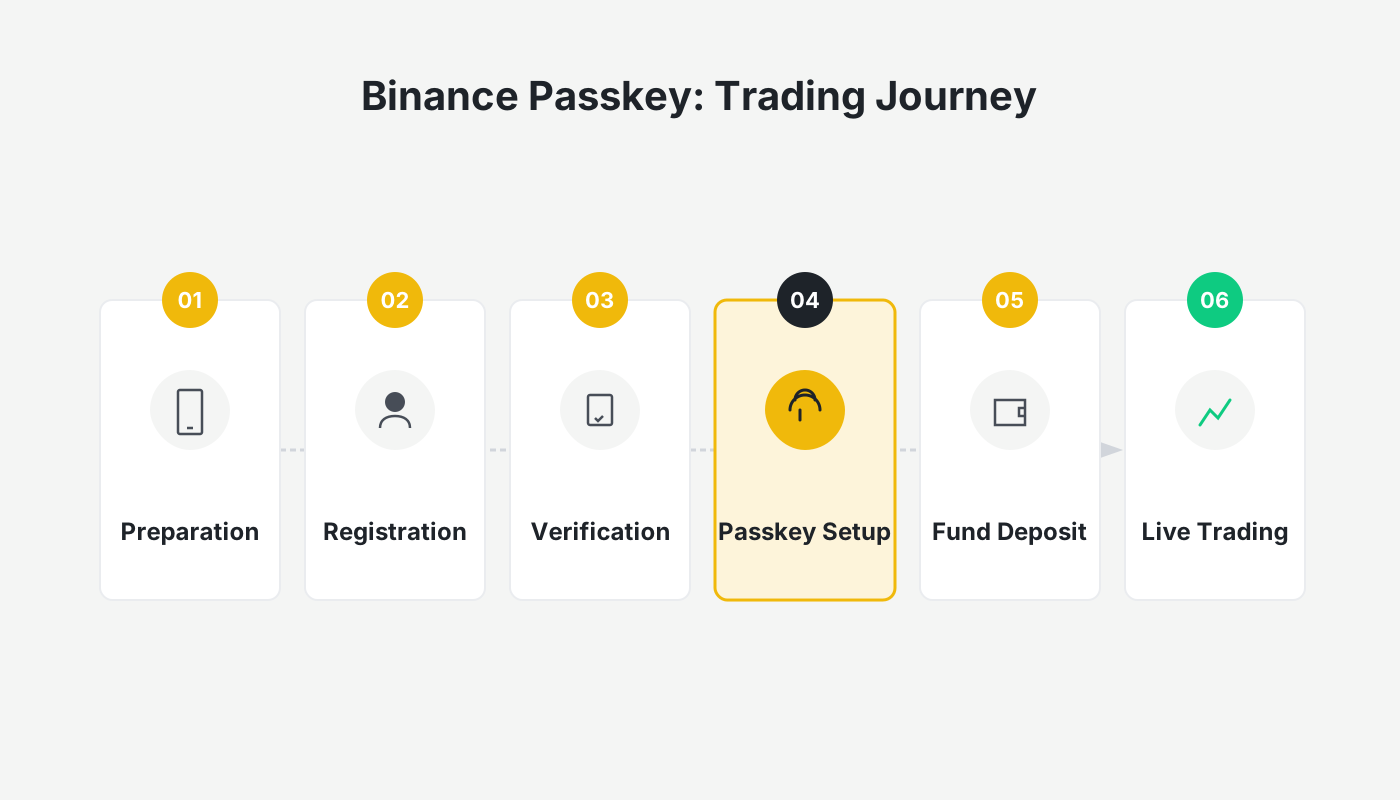
What Is a Passkey
Passkey is a password‑less authentication method that lets users use a fingerprint, Face ID, or other hardware biometric traits to quickly complete login or authorize functions on a device without manually entering a traditional password. iPhone, Android, and services such as PayPal already support this feature; the core principle treats “your device + you” as the credential, usable only on the associated device, thereby balancing convenience and security.
What Is the Binance Passkey
Binance Passkey is a security setting exclusive to the Binance platform, allowing users to log in quickly with a fingerprint, Face ID, or other biometric data, or to perform a second‑factor verification before a transfer, eliminating the need to type a password and reducing associated risks. After identity verification, the system will prompt you to set up a passkey; if your device supports fingerprint or Face ID, it is recommended to complete the setup immediately. Later, if you need to delete or modify it, simply log into Binance and pass the appropriate verification, which works like a secondary password that can be combined with your login password.
Note for US users: Access Binance’s services through Binance.US rather than the global Binance platform.
Fiat transactions: When dealing with fiat, values are quoted in USD and transfers may use SEPA or SWIFT networks.
Tax reminder: Crypto gains may be taxable in your jurisdiction; consult a local tax professional for guidance.
Advantages of the Binance Passkey
Based on years of usage, the main advantages of the Binance Passkey include:
- Phishing protection – Non‑official pages cannot trigger the passkey, making it difficult for hackers to obtain the credential.
- Fast login – A fingerprint or Face ID completes the login without repeatedly typing a password.
- Quick transfers – The same biometric verification can approve payments or cryptocurrency transfers, greatly improving operational efficiency.
How to Set Up a Binance Passkey
1. Set Up via the Web Portal
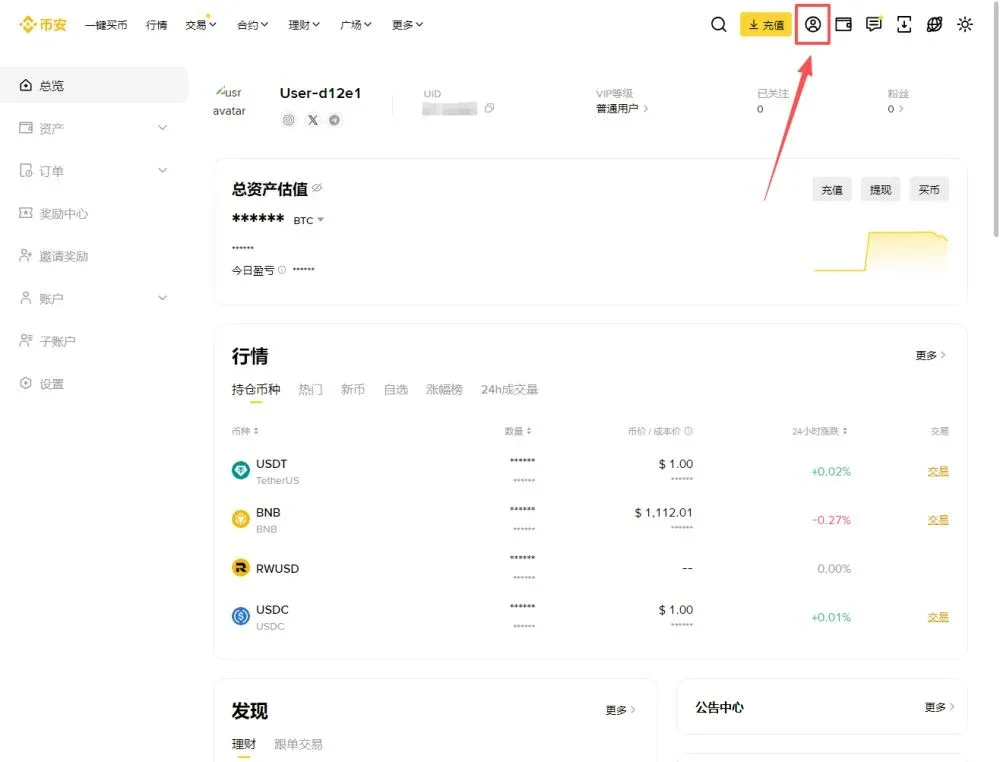
- Log in to the Binance website and click the avatar in the upper‑left corner to enter the Account page.
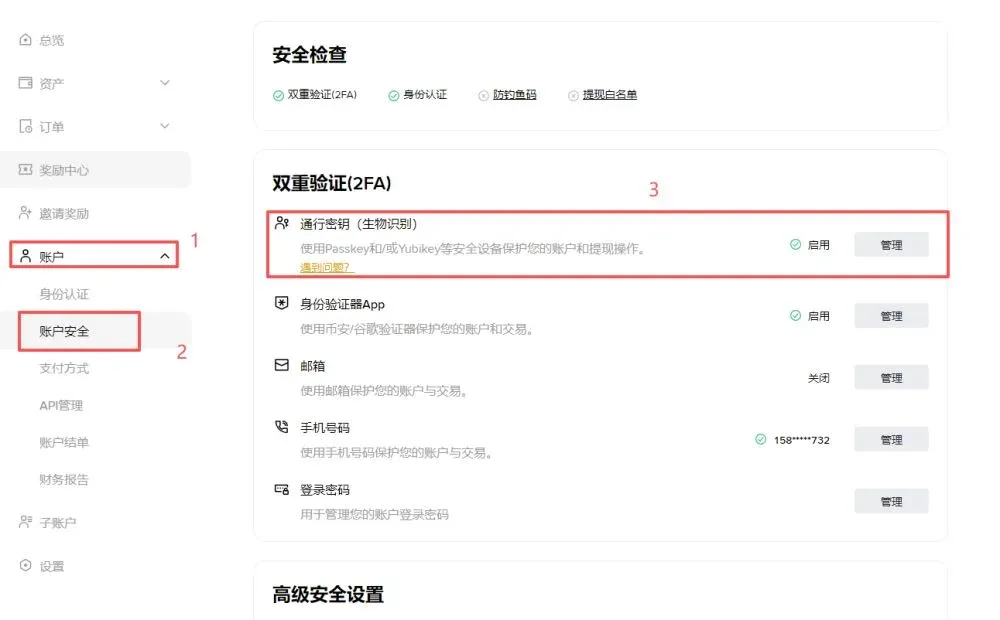
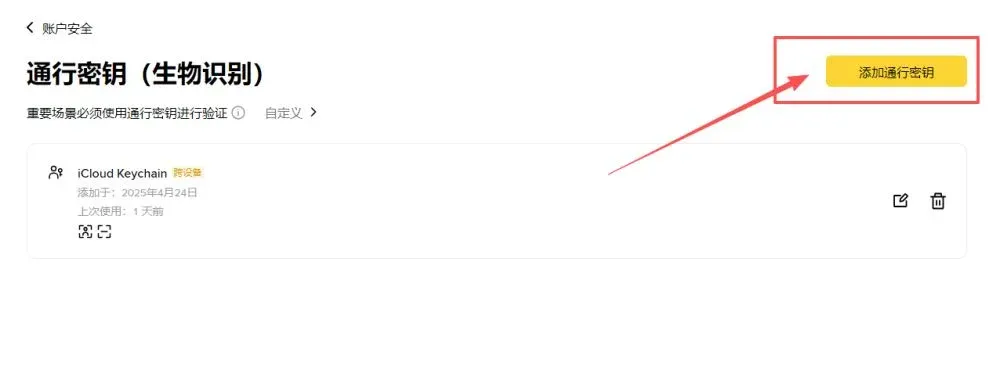
- Choose Security, where you will see the Passkey management entry.
2. Set Up via the Mobile App
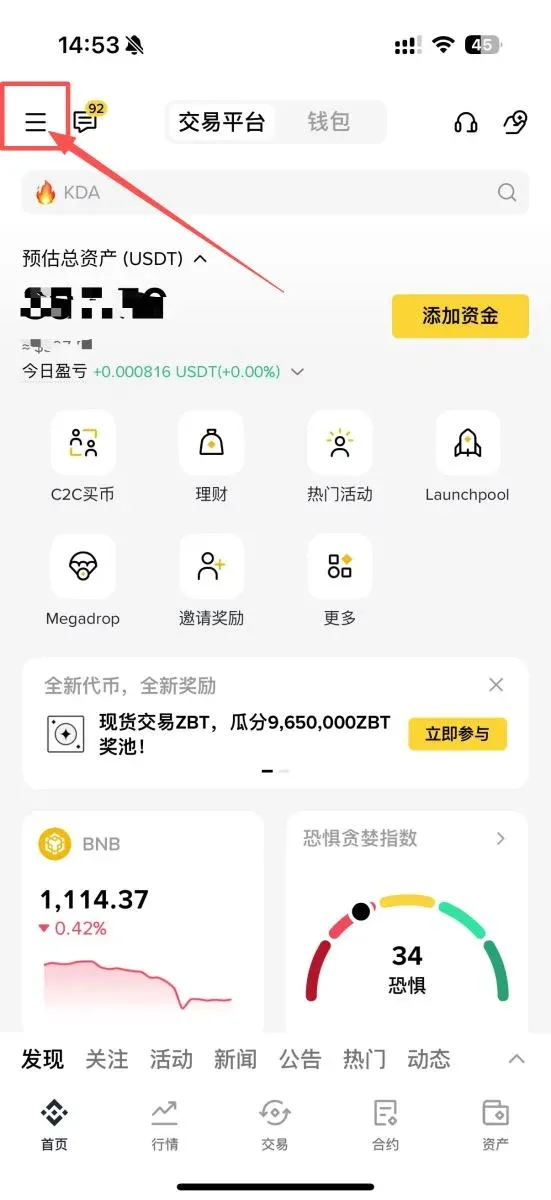
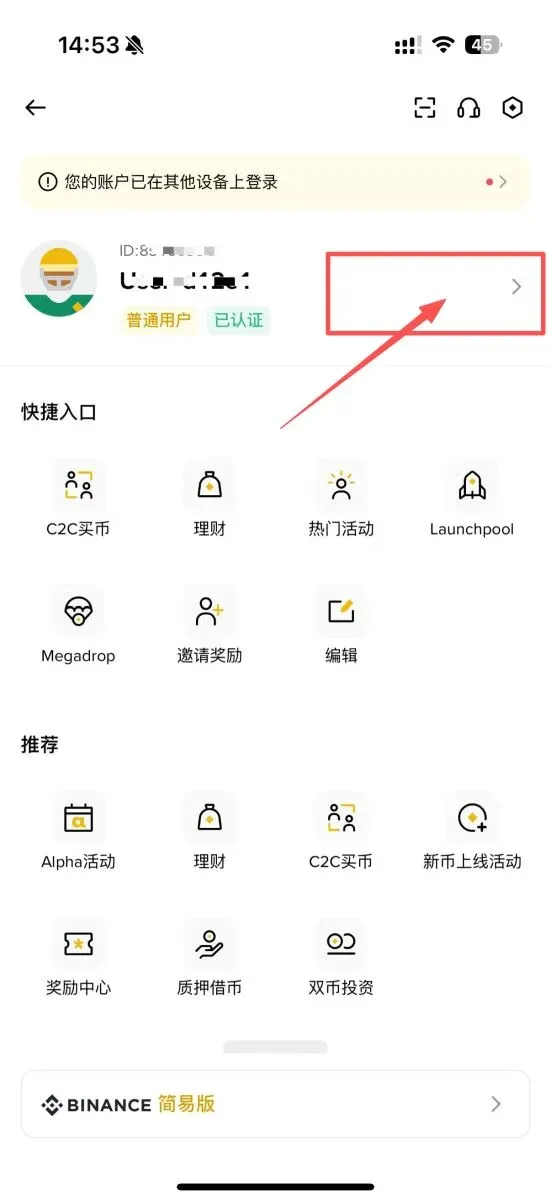
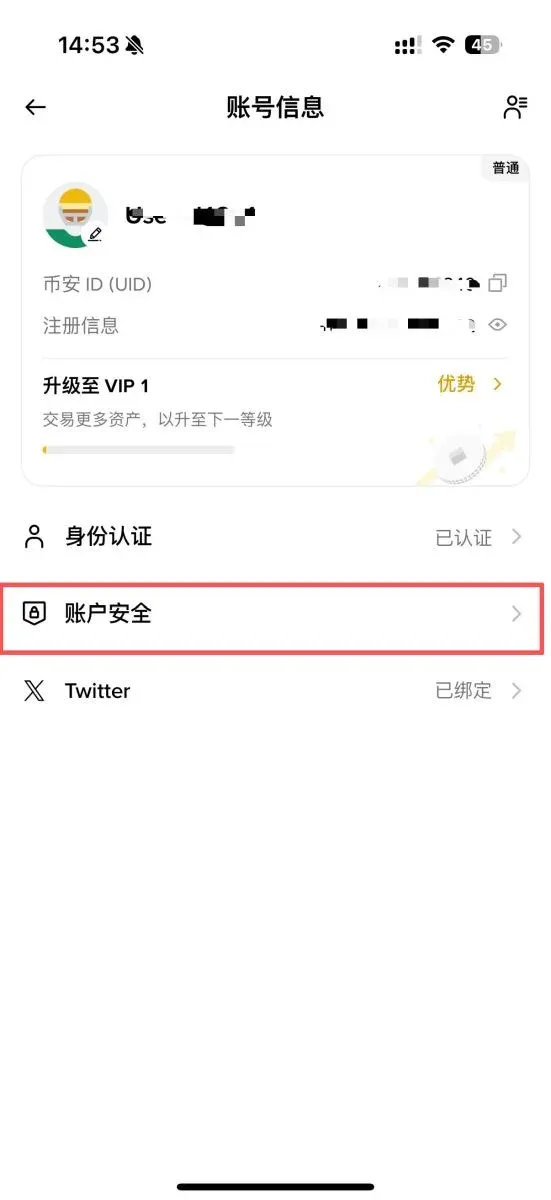
- Open the Binance app and tap the avatar in the upper‑left corner to go to the Account page.
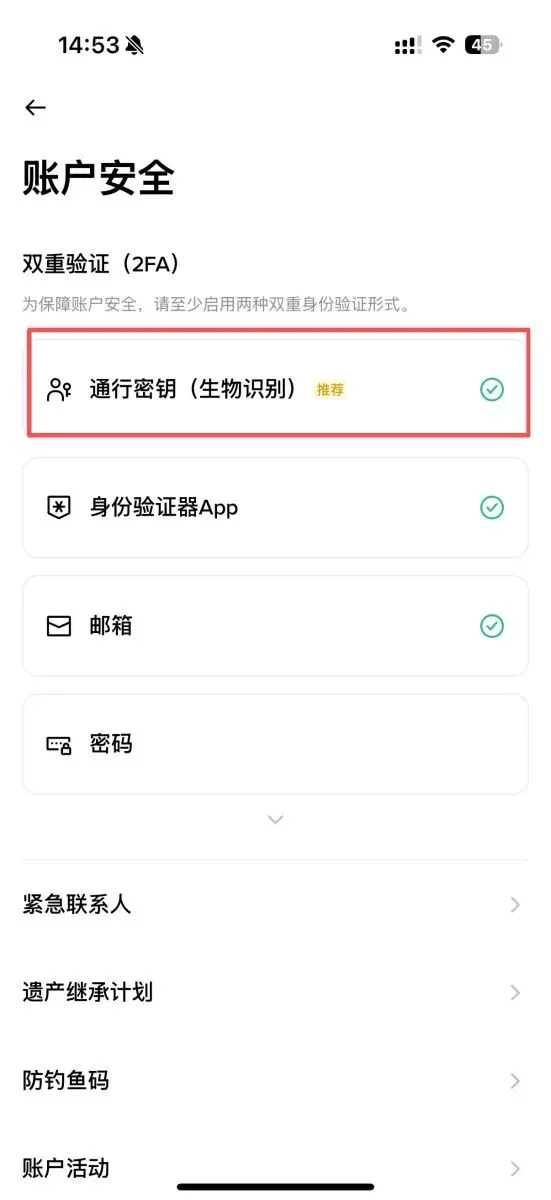
- Enter Account Security and locate the Passkey option.
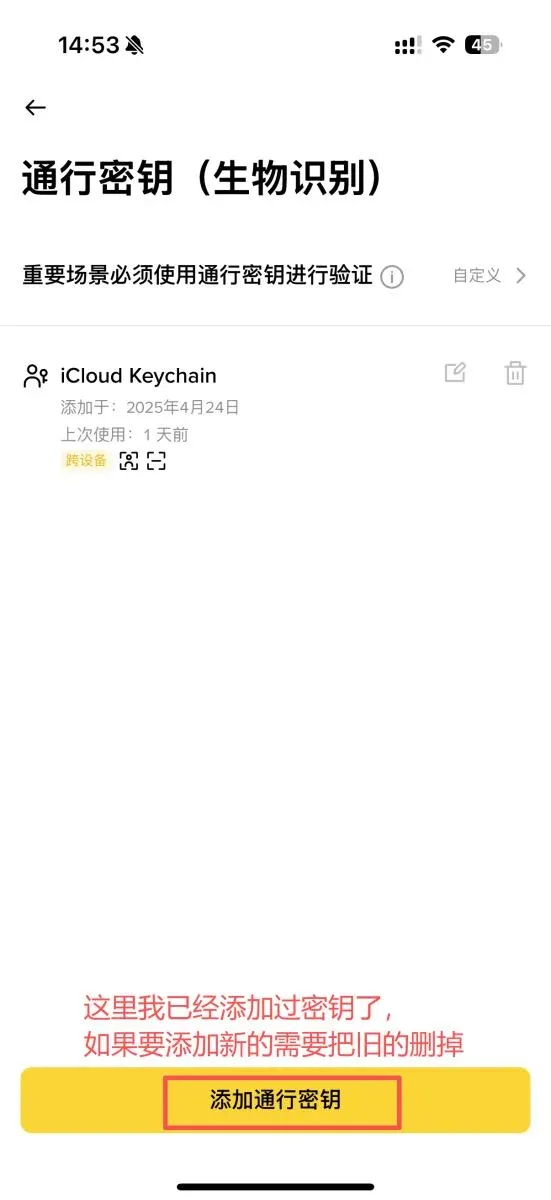
Setup Steps
- Passkey and Security Key are two distinct modes.
- Choose Passkey to use fingerprint or Face ID;
- Choose Security Key if you prefer a USB, NFC, or other hardware device.
- When using a fingerprint, simply place your usual unlocking finger on the sensor as you normally would to unlock the app—no extra fingerprint enrollment is required.
- After completing SMS or email verification, the passkey is activated; the entire process typically takes only a few seconds.
What to Do If You Cannot Log In with a Binance Passkey
- Delete and re‑add – Go to the Passkey Management page, delete the existing passkey, and set it up again on the original device.
- Reinstall the app – Uninstall the Binance app, download the latest version, and log in again; this often resolves anomalies caused by version updates.
Common Situations That Cause Invalidation
- Multiple‑device association – If the same account is used on two phones and one of them is linked to a different Google account, the passkey on the original device may become invalid. Deleting the old passkey and setting a new one will fix the issue, but be aware that a 24‑hour withdrawal limitation may be triggered.
- Automatic app updates – Some users report that after an update the passkey stops working; reinstalling the app usually restores functionality.
If these methods do not resolve the problem, contact Binance customer support for further assistance.
The Passkey Is Only an Auxiliary Verification Tool
Even if the passkey fails, as long as the system does not force its use, you can still log in through the following methods:
- A verification code generated by Google Authenticator
- Entering your login password
- Entering your transaction (payment) password
Therefore, a failed passkey does not render the entire account unusable; it merely removes one convenient layer of verification.
Frequently Asked Questions About Passkeys
Q1: After setting a passkey, can I still log in with a password?
A: Yes. The passkey is only for accelerated verification; if it is not used, the system will fall back to password login.
Q2: Is setting a Binance passkey mandatory?
A: After completing registration and identity verification, the system will prompt you to set up a passkey. If you choose not to, you will need to bind an email, phone number, or use an authenticator app, which is comparatively less convenient.
---
The above provides a complete guide on what a passkey is, how to set up a Binance passkey, and solutions when a passkey prevents login. For more tutorials, follow Bitaigen (比特根) and explore additional related articles.
Related Reading
- How to Sell Ethereum on Binance Spot Market: Order Types Explained
- Binance Sell Orders: Limit, Market, TP/SL, Trailing, OCO
- Top Crypto Exchange Apps: Binance & OKX Registration Guide
💡 Register on Binance with referral code B2345 for the maximum trading fee discount. See Binance complete guide.



