
 Bitaigen Research
 It is well known that digital wallets are a common asset‑management tool for cryptocurrency investors, allowing digital assets to be stored securely. Hardware wallets, because they keep private keys offline, are regarded as the safest category.
KeepKey is a hardware‑based Bitcoin and multi‑chain cryptocurrency wallet that uses offline‑generated private keys and a 12‑word mnemonic recovery mechanism, providing high‑security asset storage and transaction signing.
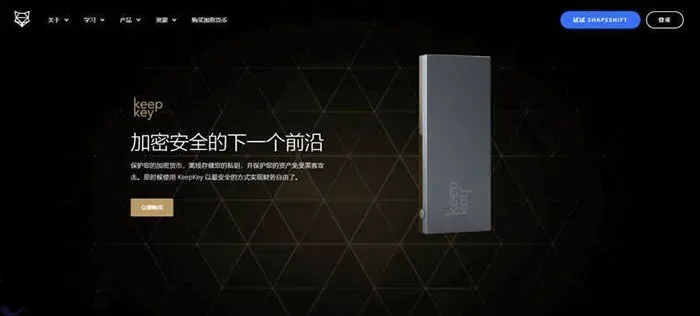
In this article we dissect the core security mechanisms and usage flow of the KeepKey hardware wallet, helping you get started quickly and assess its advantages for multi‑chain asset management. Through detailed UI walkthroughs and hands‑on instructions, you will clearly understand how to back up safely, sign transactions, and use the built‑in exchange feature. Keep reading to master the complete set of steps.
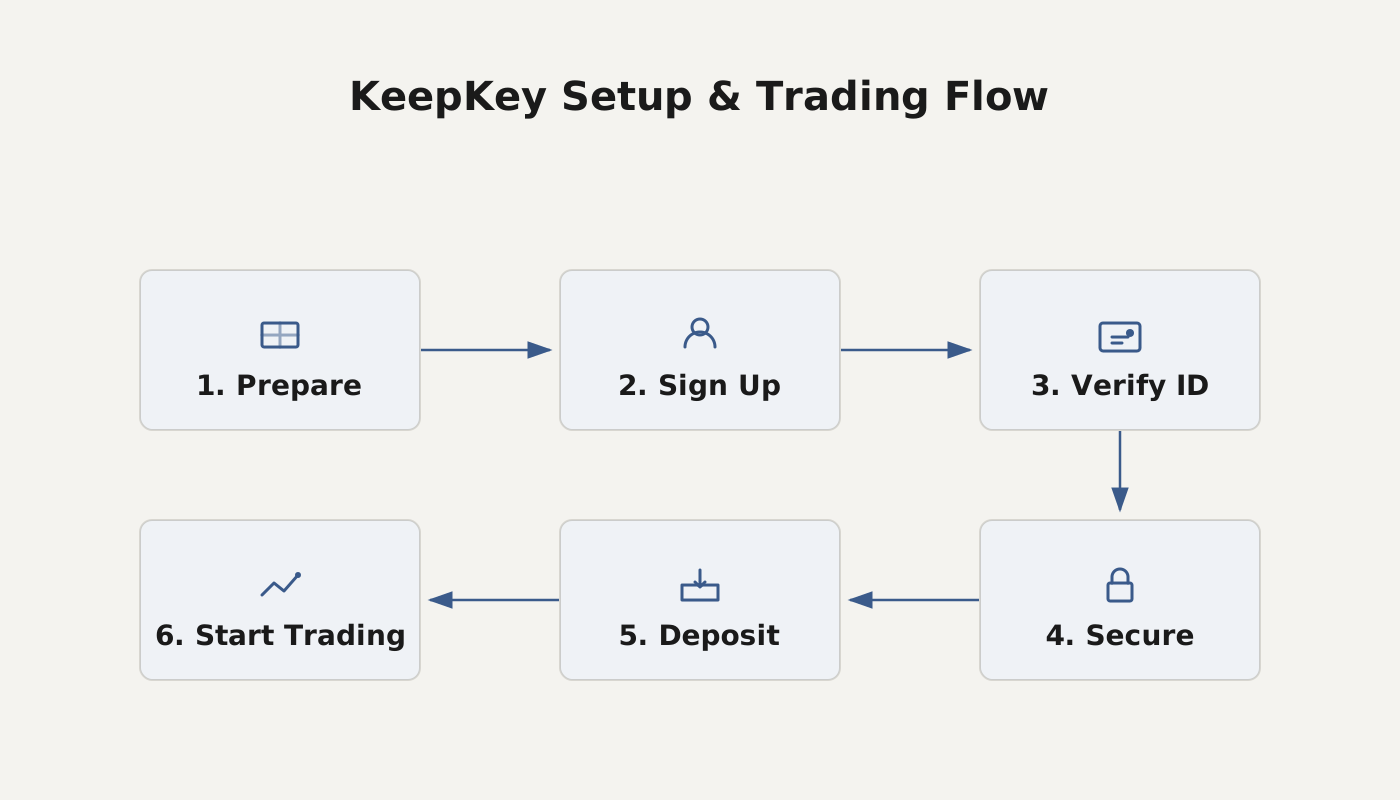
What is KeepKey?
KeepKey Wallet belongs to the hardware wallet family and is designed primarily for mainstream crypto assets such as Bitcoin. Its core characteristics include:
- Stress‑free security: Private keys are generated and managed inside the device, offline, preventing exposure to computer vulnerabilities and malware.
- Simple backup and recovery: During initialization a 12‑word recovery seed is created, which can restore the private keys if the device is lost or damaged.
- Large display: A high‑resolution screen shows every incoming and outgoing transaction in real time; all transactions must be confirmed manually by pressing a button.
- Built‑in ShapeShift: Quick cross‑chain swaps can be performed directly from the wallet.
Key‑Feature Overview
| Feature | Description |
|---|---|
| Offline private‑key generation | No network contact, reducing theft risk |
| 12‑word recovery phrase | Shown only once, ensuring backup safety |
| Large‑screen confirmation | Visual transaction data to prevent phishing |
| ShapeShift integration | One‑click cross‑chain exchange |
KeepKey Wallet User Guide
1. Getting Started – KeepKey
- Download the client: Obtain the KeepKey app from Google Play or the official website.
- Connect the device: Plug KeepKey into your computer with the supplied USB cable and launch the client.
- Enter initialization: Once the client starts, you will be prompted to initialize the device.
Security tip: Follow the best‑practice guidelines below while using the device.
- Never disclose your recovery seed to anyone.
- Store the seed offline on fire‑ and water‑resistant paper or metal cards.
- Do not type or store the seed on a computer, phone, or in email.
- Use a fresh address for each transaction to improve privacy.
- Set a unique, memorable 4‑6 digit PIN to strengthen access control.
If you suspect that the recovery seed has been compromised, transfer your assets immediately to a temporary software wallet (e.g., Exodus), then perform a “wipe device” on the KeepKey and re‑initialize it.
2. Initializing Your KeepKey Device
| Step | Action |
|---|---|
| **Step One** | Open the KeepKey Chrome client and click “Initialize KeepKey”. |
| **Step Two** | Assign a **label** to the device to differentiate it when you own multiple KeepKeys. |
| **Step Three** | Set a 4‑9 digit **PIN** (recommended 6‑digit or longer) by tapping the corresponding numbers on the screen. |
| **Step Four** | Re‑enter the PIN and click “Confirm PIN”. |
| **Step Five** | Write down the 12‑word **recovery seed** displayed on the screen, verifying each word’s spelling carefully. |
| **Step Six** | Press the side button on the device to confirm that the seed has been recorded, completing initialization. |
Purpose of Initialization
- Guarantees that the device ships without any pre‑loaded private keys.
- Private keys are generated only inside the device and never touch the internet.
- The recovery seed provides an offline backup, protecting against single‑point failure.
- Combined with 128‑bit entropy generated randomly, it ensures strong cryptographic keys.
3. Receiving Bitcoin (or Other Coins)
- Launch the KeepKey client and enter your PIN to authenticate.
- After selecting the appropriate account, click “Receive Bitcoin”.
- Use the green copy icon to copy the receiving address to your clipboard, or click the arrow next to the QR code to generate a new address.
- Provide this address to the sender, or initiate a transfer from a third‑party wallet.
By default, KeepKey creates a fresh address for each incoming transaction; keeping this setting enabled improves privacy and security.
4. Firmware Upgrade Guide
- The system will periodically display a firmware‑update prompt. Before upgrading, ensure your recovery seed is safely stored.
- Enter firmware‑update mode: unplug the device, hold the side button, then plug it back in.
- Follow the on‑screen instructions to complete the update, and verify the new version number in the client’s “Settings” after the process finishes.
5. Important Security Reminders
- KeepKey’s Chrome extension is no longer maintained; unofficial versions circulating online may contain malicious code.
- To keep your assets safe, use the official web‑based KeepKey interface or a trusted mobile client.
- Never transmit your recovery seed via email, social‑media platforms, or any electronic channel.
*Please be aware that cryptocurrency gains may be subject to tax in your local jurisdiction.*
That concludes the comprehensive overview and step‑by‑step guide for the KeepKey wallet. For additional resources, follow the upcoming articles on the Bitaigen platform.
Related Reading
- Token Pocket (TP) Wallet: Secure Multi‑Chain Self‑Custody
- Block.io Multi-Chain Web Wallet for Bitcoin, Litecoin & Dogecoin
- Cold vs Hot Wallets: Private/Public Keys & Mobile Setup
💡 Register on Binance with referral code B2345 for the maximum trading fee discount. See Binance complete guide.



