
 Bitaigen Research
 The Bitaigen editorial team notes that many users encounter mysterious errors when using MetaMask, affecting transfers and asset management. This article systematically reviews common error sources and provides step‑by‑step configuration adjustment solutions, helping you quickly restore normal operation without reinstalling or losing data. For details, keep reading.
In MetaMask’s Settings → Network → Heco Chain page, change the token symbol from HT to the default ETH, save, and then retry the transfer to eliminate the error.
We sometimes see error prompts while using MetaMask. Such issues are usually caused by incompatible network configurations or temporary system glitches. Below is a concise troubleshooting and resolution guide to help users get back to normal usage quickly.
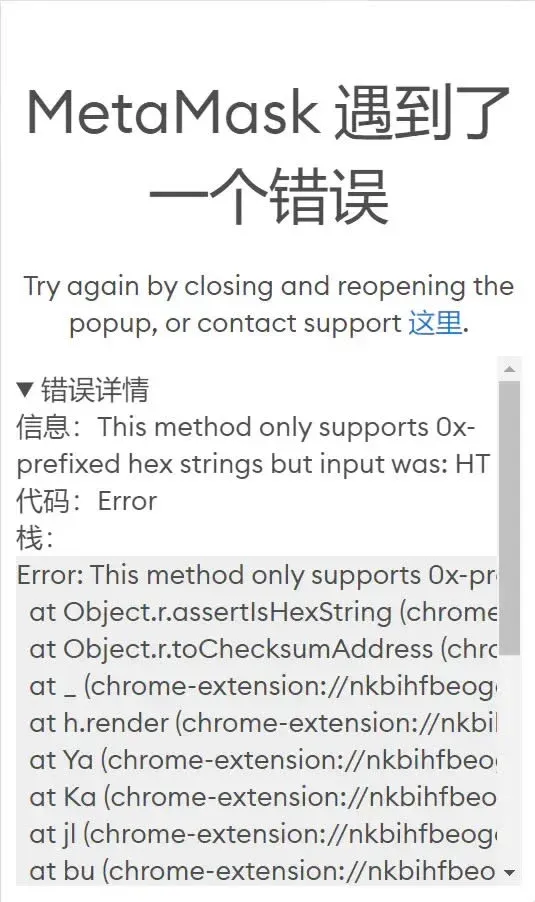
After reproducing the problem many times, I found the error persists. Checking the group chat history revealed a suggestion to uninstall and reinstall an older version, but because the wallet already stores multiple networks and frequently used addresses, I preferred to solve it through a settings tweak.
The error message indicated that a certain hexadecimal string was unsupported, specifically HT. Changing the token symbol from HT to the default ETH resolved the issue.
MetaMask Error Issue Resolution
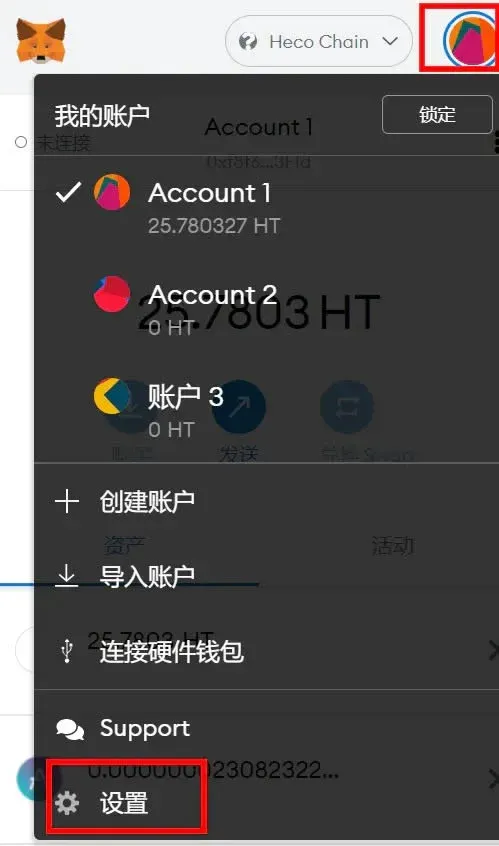
- Open Settings
Tap the “Settings” icon in the upper‑right corner of the MetaMask main screen.
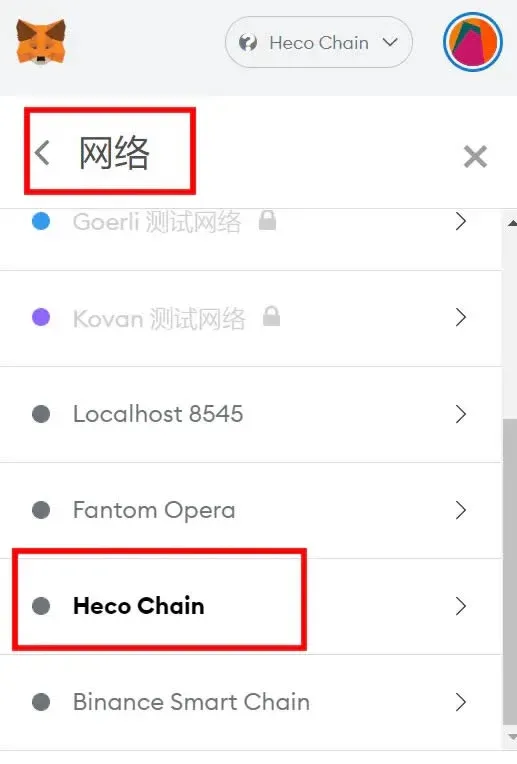
- Enter Network Configuration
Select “Network,” then locate and click Heco Chain.
- Modify Token Symbol
In the symbol field, replace HT with ETH, then confirm and save.
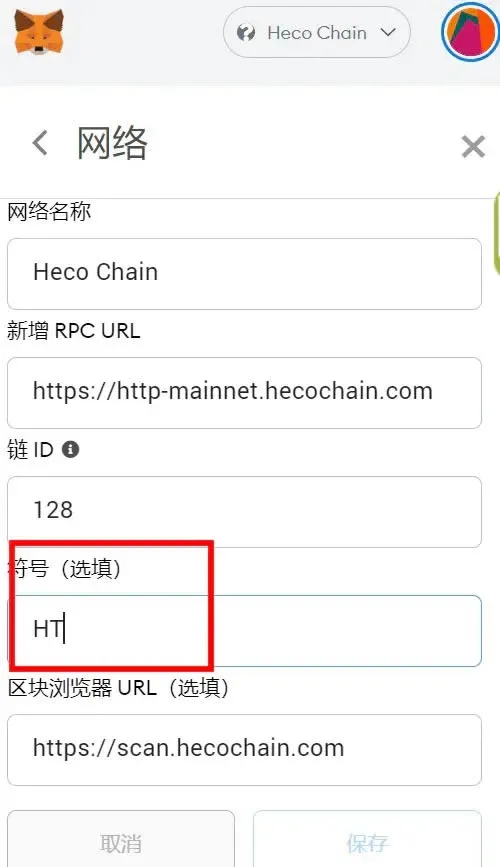
After completing the steps above, initiate the HT‑related transfer again; the error disappears and the transaction proceeds normally.
Note: Although the fee is displayed as ETH, the actual cost is still the original chain’s HT token. Fees may also be shown in USD equivalents depending on your wallet’s display settings.
The above constitutes the complete solution for the MetaMask error issue. For more wallet‑usage tips, follow Bitaigen (比特根) for additional articles.
*Please be aware that cryptocurrency gains may be subject to taxation in your local jurisdiction.*
Related Reading
- Staking & Liquidity Mining on OKExChain via MetaMask
- Crypto Wallets: imToken, Ledger, Trezor, MetaMask
- Top Tips to Secure Your Cryptocurrency Wallet in 2024
💡 Register on Binance with referral code B2345 for the maximum trading fee discount. See Binance complete guide.



