
 Bitaigen Research
With the latest overhaul of the Huobi platform, newcomers often wonder how to create an account as quickly as possible. The following guide walks you through the complete registration process for both the Huobi website and the mobile application (APP), and also includes step‑by‑step instructions for completing identity verification (KYC). This should enable you to finish everything in a single go.
We have compiled the newest, end‑to‑end registration workflow for Huobi. Whether you are on the desktop site or the mobile APP, you will find detailed screenshots and key‑step pointers. By reading this article you can finish creating your account and pass the KYC check without spending time experimenting. Continue reading for every single operation detail.
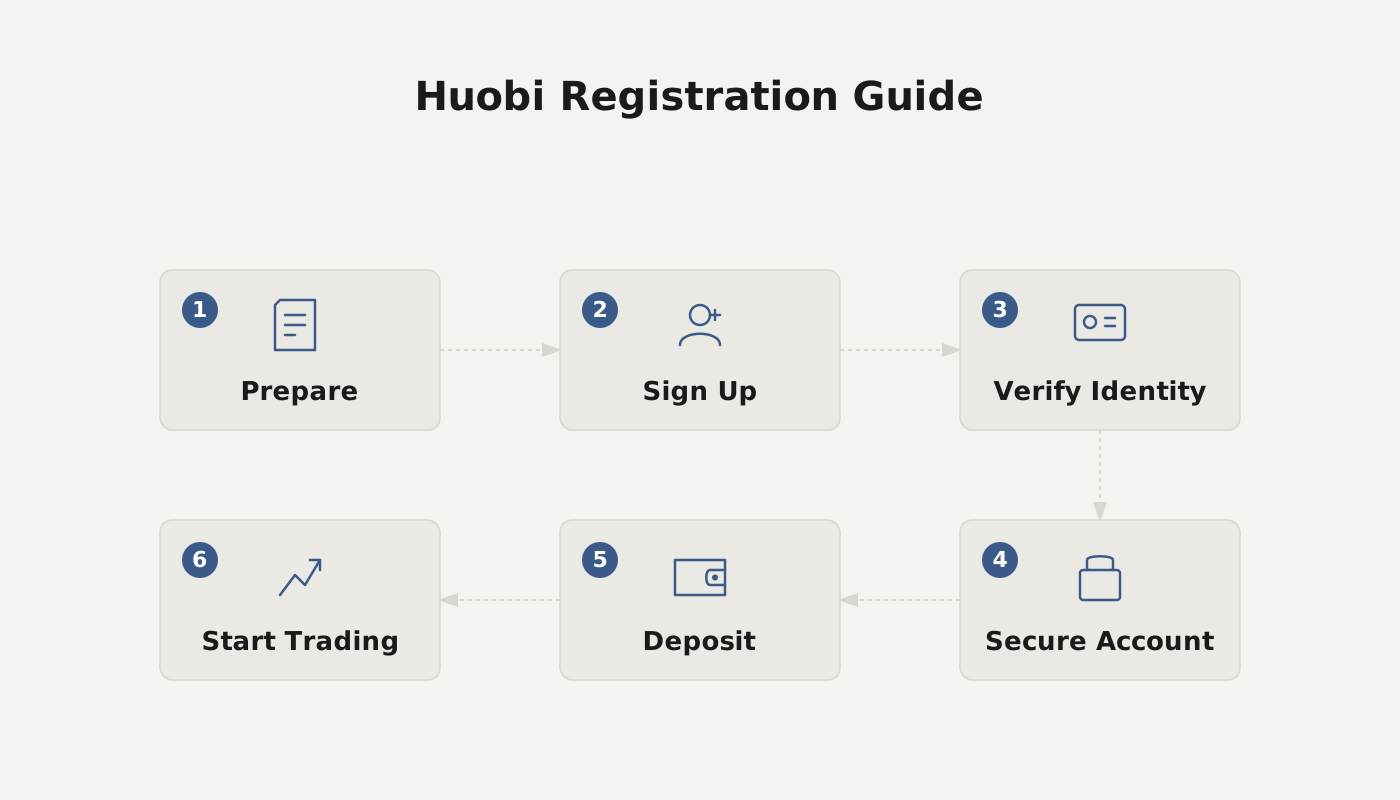
Full Registration Process on the APP
1. Create an account with an email address or mobile number
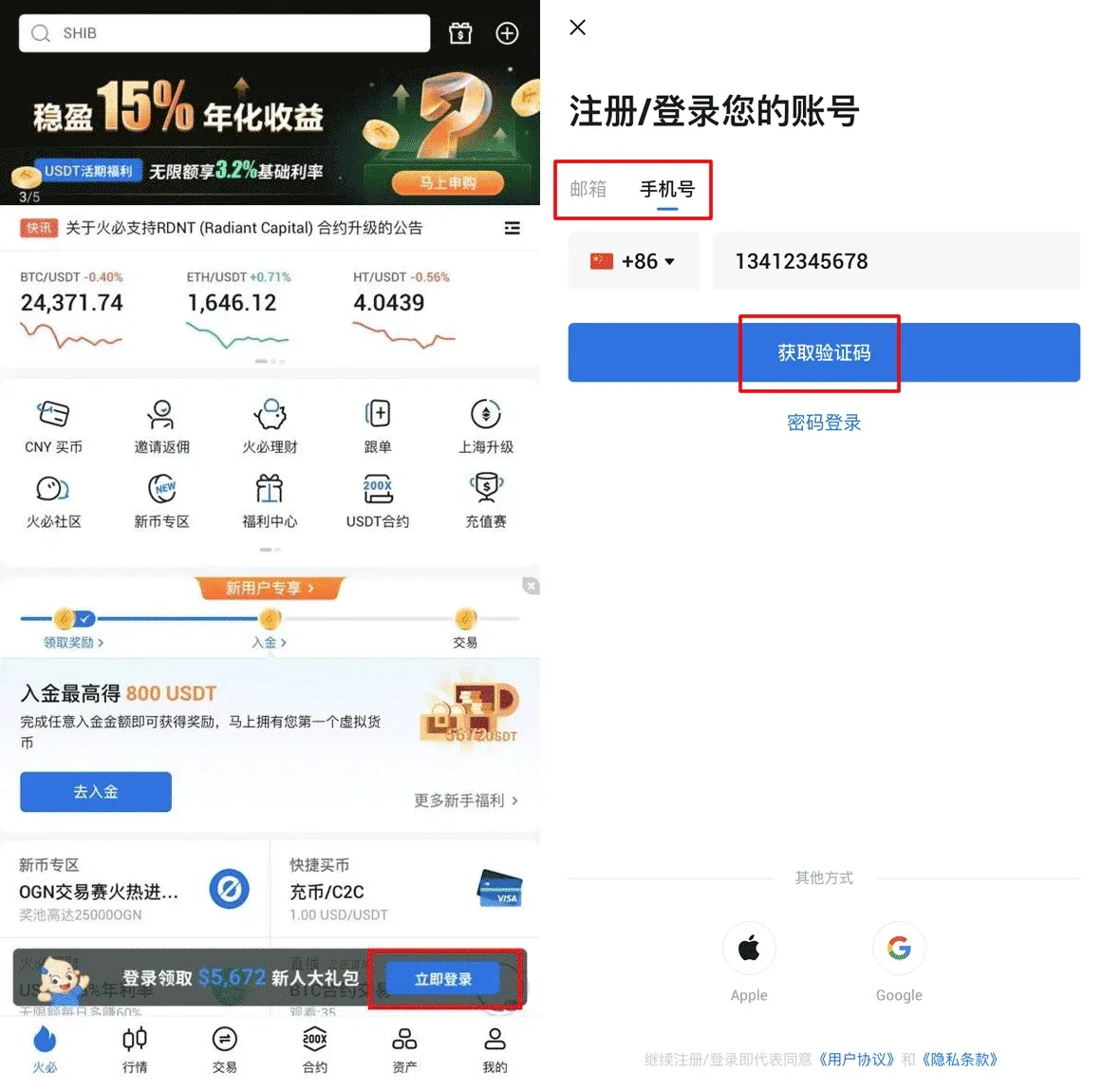
- Launch the Huobi APP and tap the 【Log In Now】 button at the bottom of the screen. In the pop‑up window, enter either your email address or your mobile phone number.
- Tap 【Get Verification Code】. After completing the puzzle‑style CAPTCHA, a 6‑digit code will be sent to the email address or phone number you provided. Enter the code within 30 minutes and submit.
- Set a login password. The password must contain at least two of the following categories: numbers, letters (upper‑ or lower‑case), or special symbols, and it must be at least 8 characters long. Once the requirements are met, the explanatory text turns green.
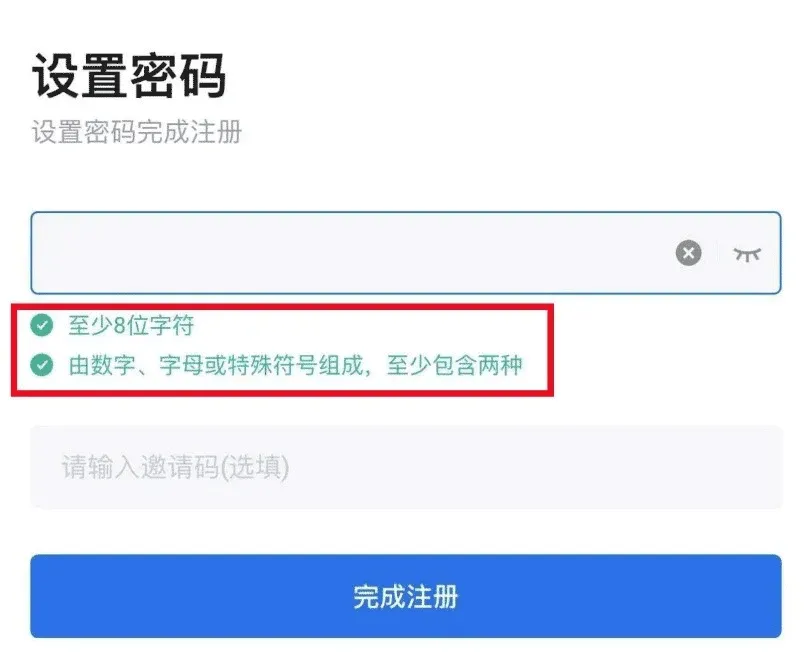
- If you have an invitation code, enter it now; otherwise simply tap 【Complete Registration】.
2. Quick registration via an Apple ID
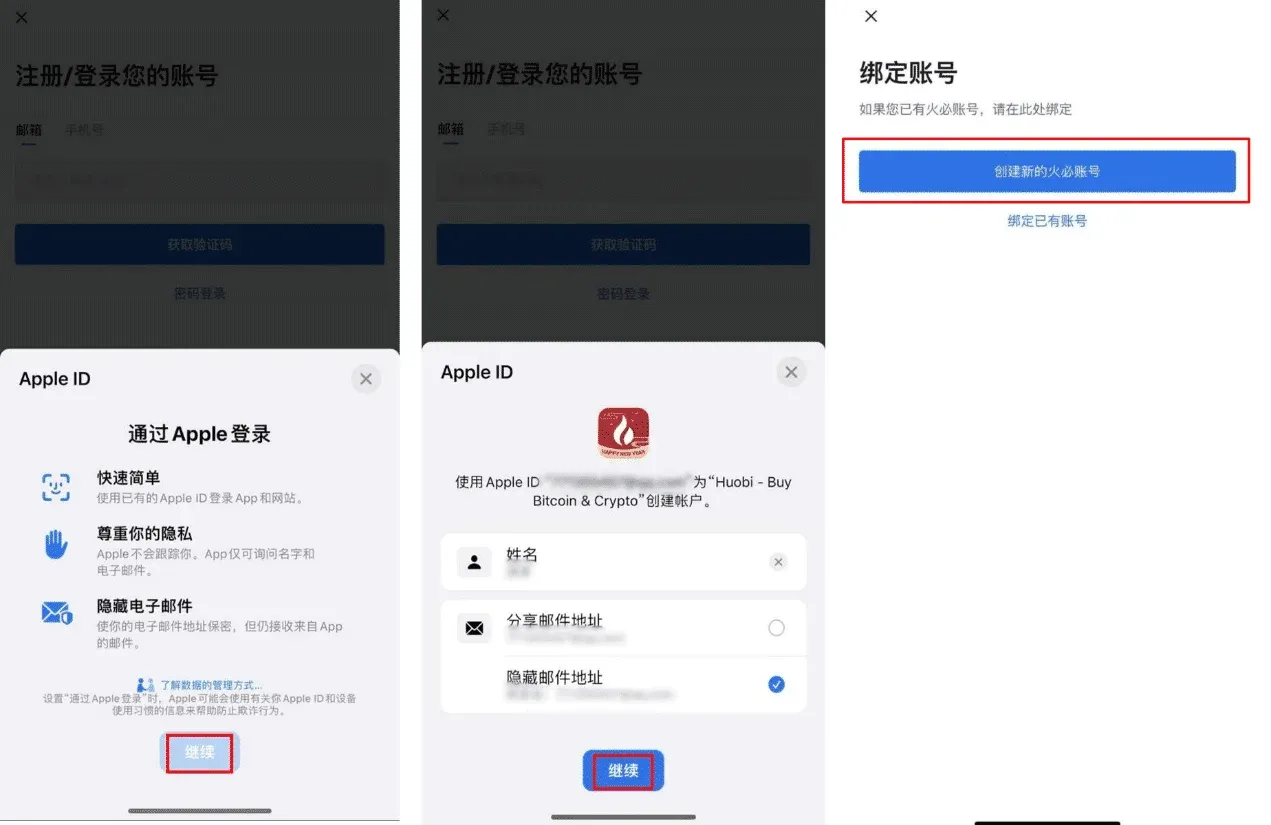
- On the registration screen choose 【Sign in with Apple】. The app will redirect you to the Apple ID login page; tap 【Continue】.
- Choose either 【Share My Email】 or 【Hide My Email】, then tap 【Continue】 again.
- The system will display 【Create a New Huobi Account】; you will be taken to the password‑setup screen. After setting a password, the registration is finished.
3. Fast registration with a Google account
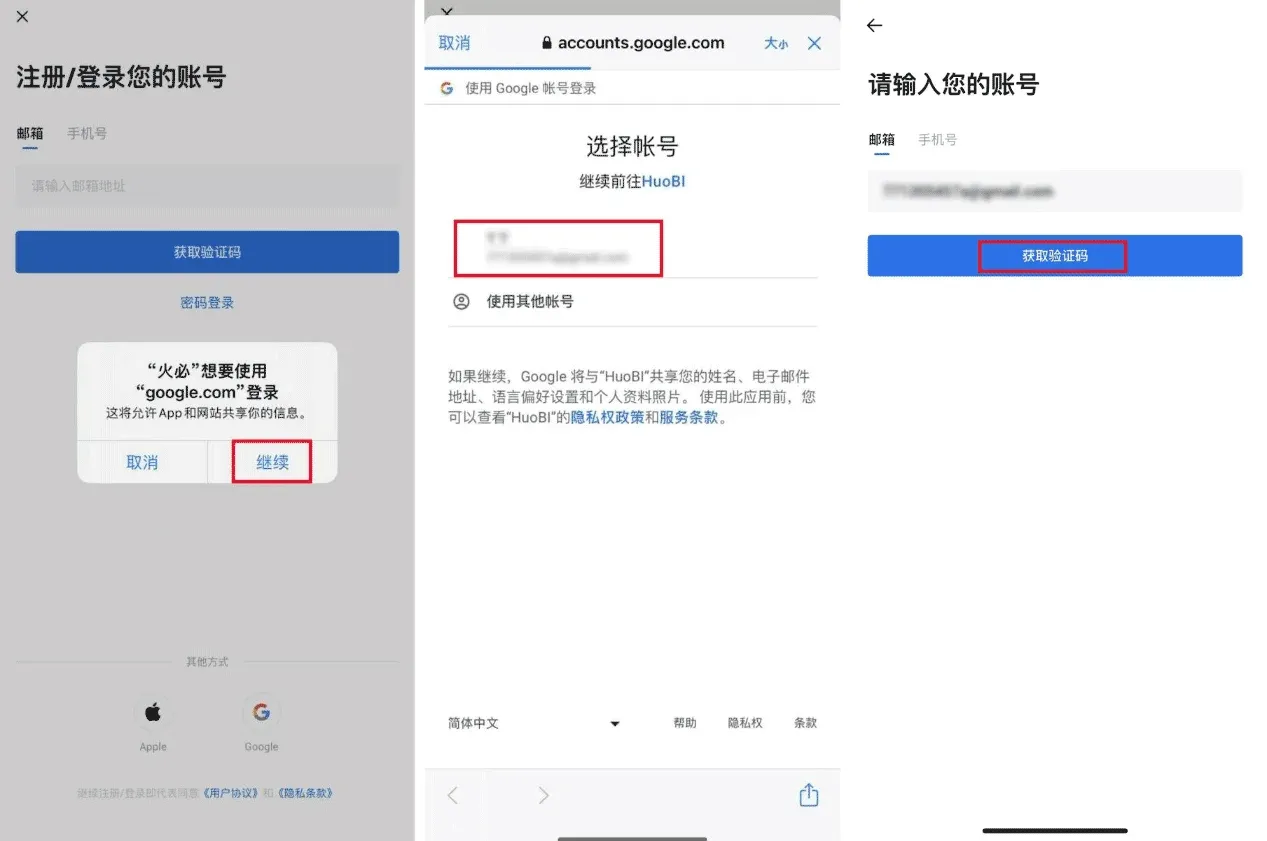
- Select 【Sign in with Google】. A pop‑up will ask whether Huobi may use your Google account; confirm to proceed.
- After signing into Google, the page will show your Google email address. Tap 【Get Verification Code】; a 6‑digit code will be sent to that email address.
- Enter the code within the allowed time window, set a password, and you are done—your Huobi account is now linked to your Google credentials.
4. Register via the official website (PC) – also possible on a mobile browser
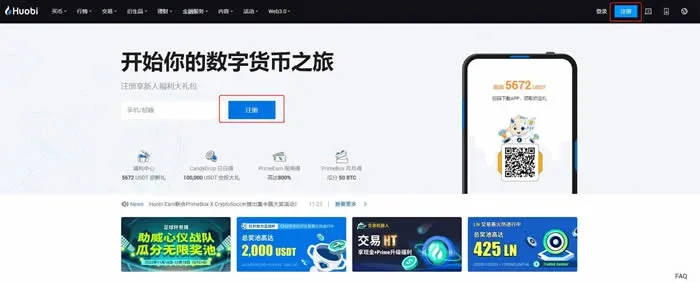
- Go to the official Huobi website huobi.com and click 【Register】 located either at the top‑right corner or in the middle of the homepage.
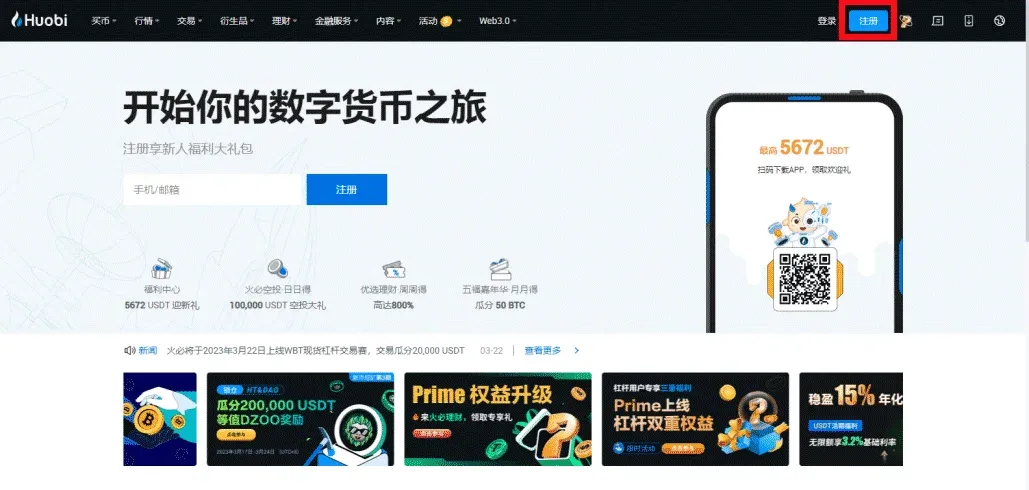
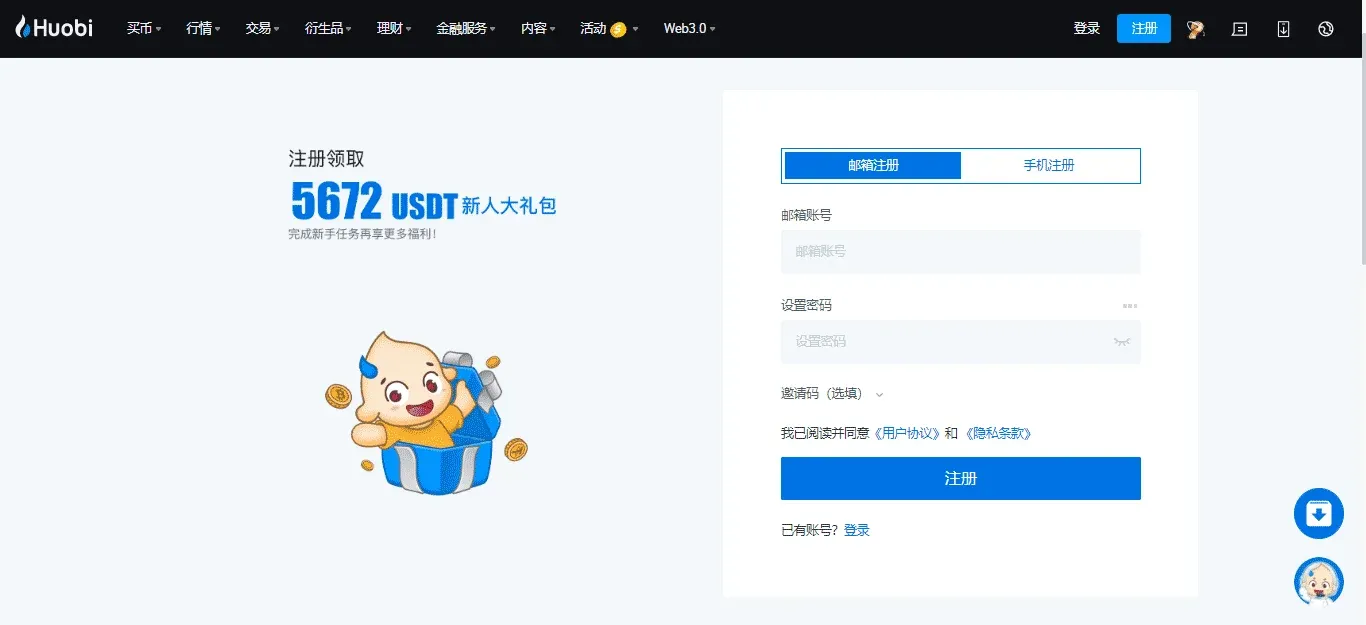
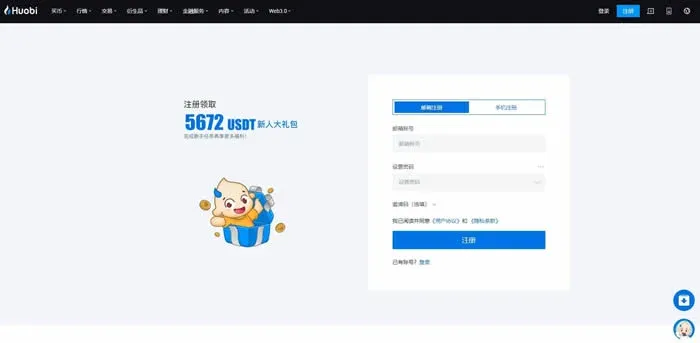
- Choose Email Registration or Mobile Registration, fill in the required information, set a secure password, and click 【Register】.
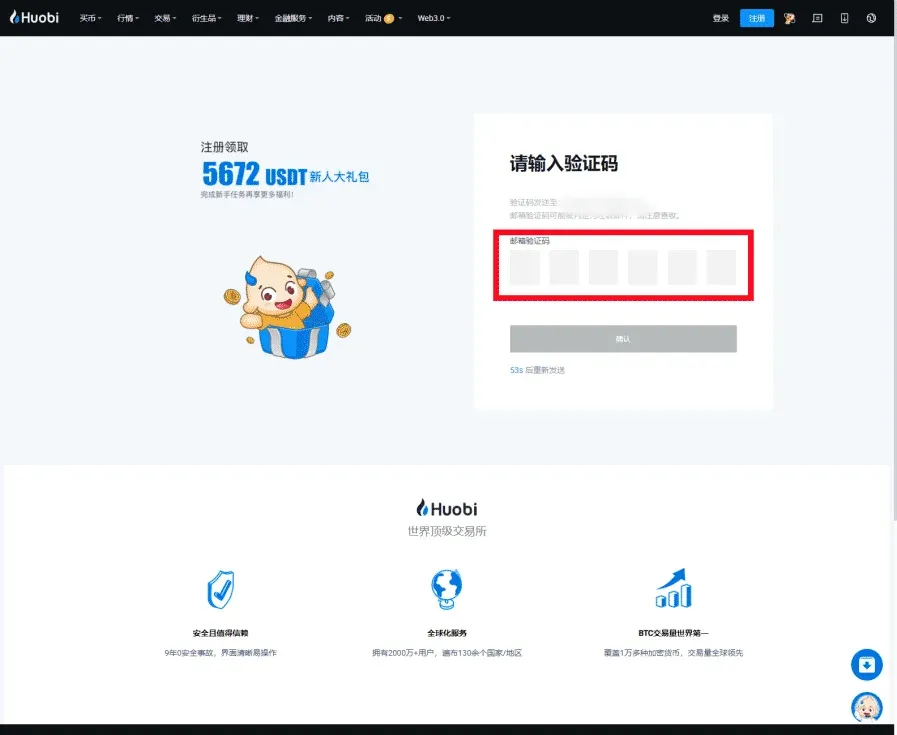
- Huobi will send a 6‑digit verification code to the email address or phone number you supplied. Input the code and confirm.
- After completing the steps above, your Huobi account will be created successfully.

Note on fiat deposits: Huobi supports deposits in USD via SEPA, SWIFT, and other international payment rails. Users residing in the United States should use Binance.US for fiat on‑ramps, as the global Binance platform is not available to U.S. residents.
Detailed Steps for Web‑Based Registration
- Open the official Huobi site huobi.com.
- Locate the 【Register】 button in the upper‑right corner or in the middle of the page and click it.
- On the registration screen, pick either “Email Registration” or “Mobile Registration” according to your preference, fill in the corresponding email address or phone number, set a login password, and submit.
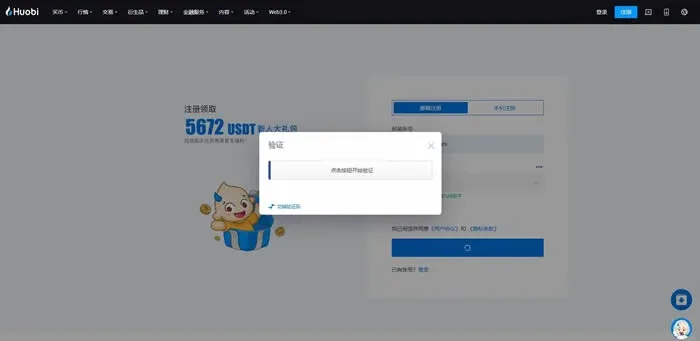
- A CAPTCHA will pop up; complete the sliding‑puzzle verification. After that, a verification code will be emailed to the address you entered.
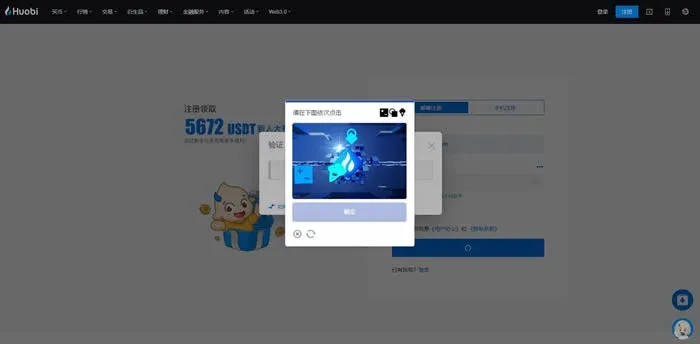
- Retrieve the 6‑digit code from the email, enter it on the website, and your web‑based Huobi account will be created.
Overview of the Identity Verification (KYC) Process
After you have registered an account, completing identity verification unlocks higher trading limits and enhances security. Huobi offers a three‑tier verification system (L1, L2, L3) and also supports obtaining a Dominican Digital Identity (DMI).
1. Initial verification (L1)
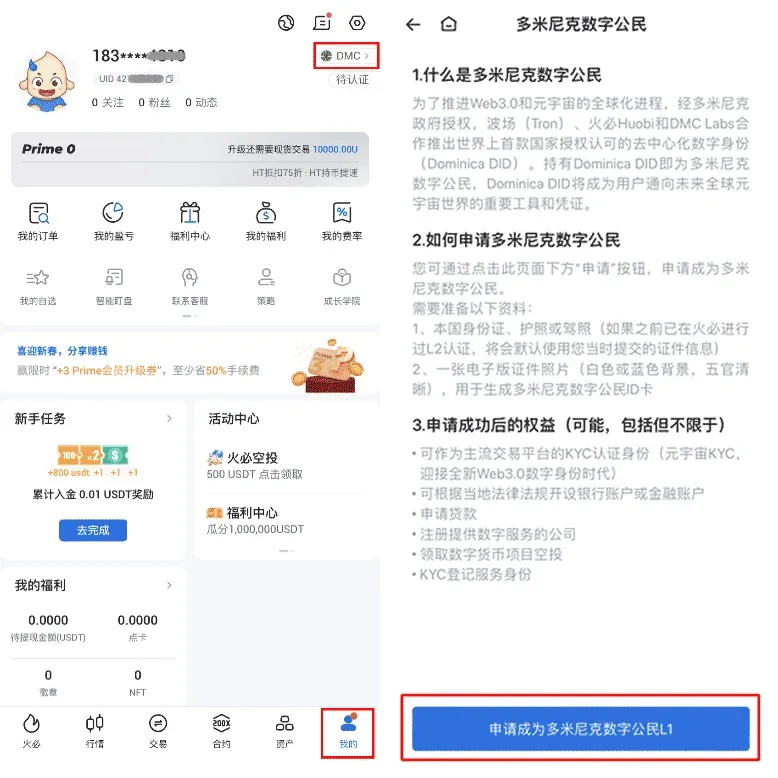
- Open the Huobi APP, log in, and go to the “Me” section. Tap the “DMC” tab at the top, then scroll to the bottom and select “Apply for Dominican Digital Citizenship L1”.
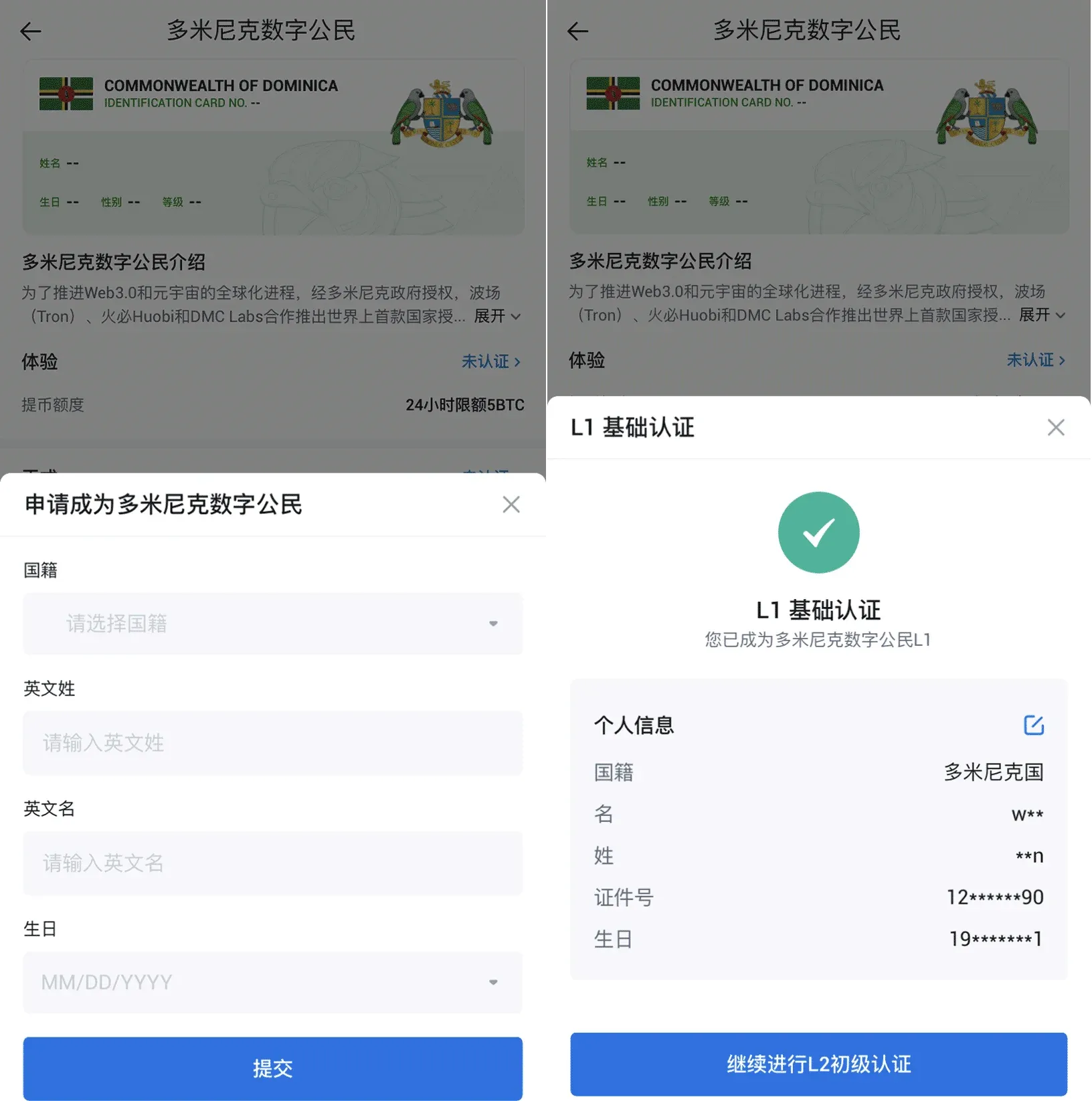
- Follow the prompts to choose your nationality, enter your English full name and date of birth, then submit. This completes the basic L1 verification.
2. Intermediate verification (L2)
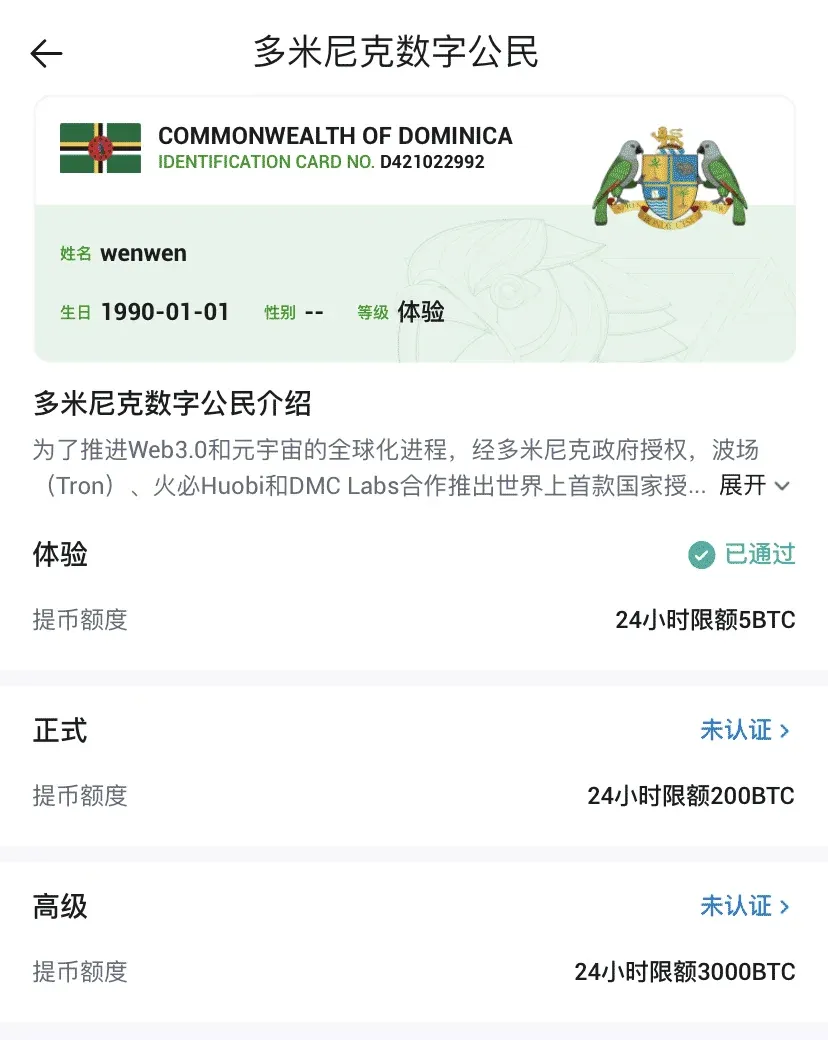
- After L1 is approved, return to the “Me” page and tap “DMC L1” to enter the verification centre. Choose “Proceed to L2 Basic Verification” (or simply click the “Not Verified” button that appears).
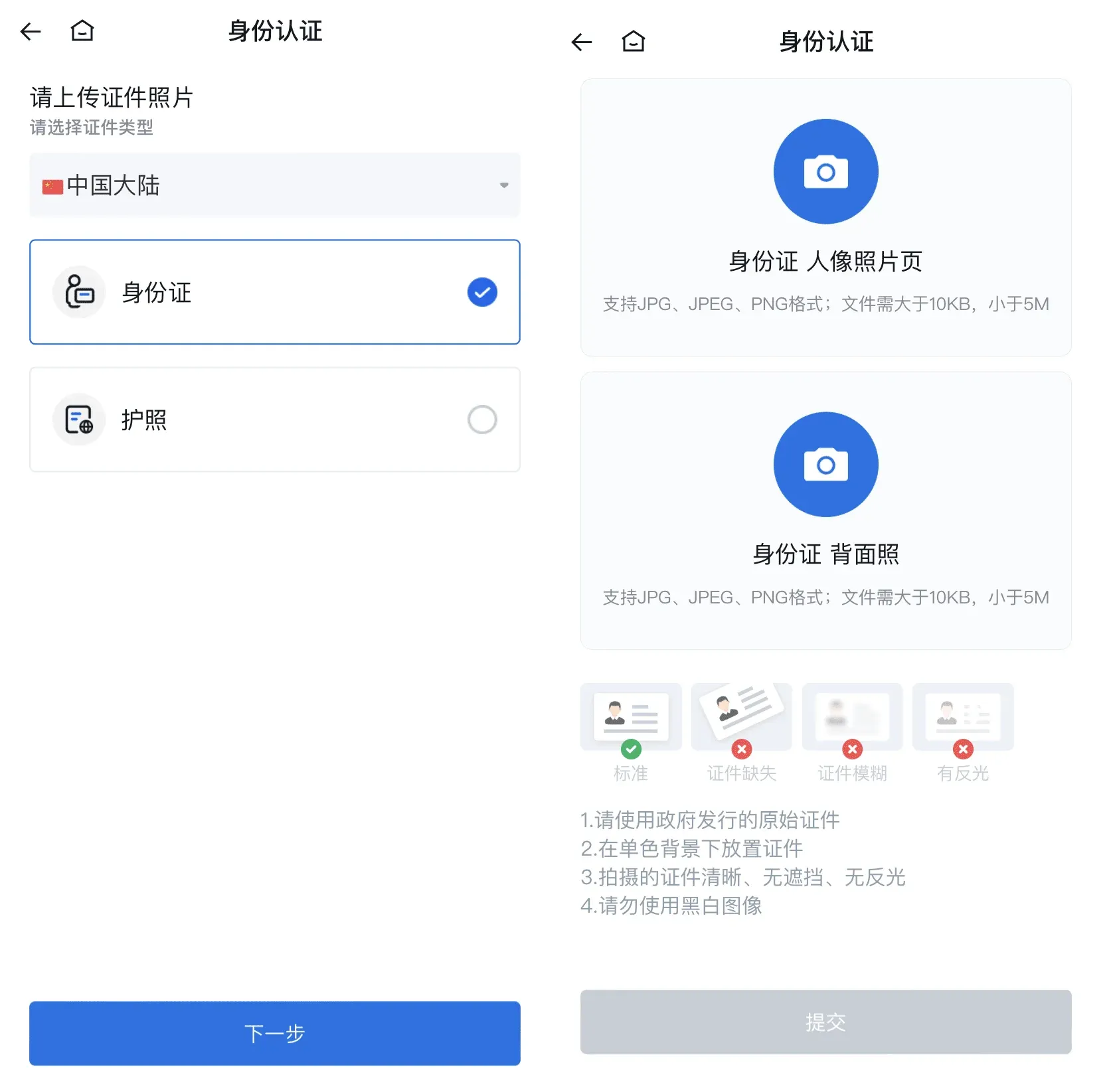
- Select the type of identity document that matches your country of residence, capture or upload clear images of the front and back of the document, and submit. Once the system approves the images, L2 verification is completed.
3. Advanced verification (L3)
- In the verification centre, tap the “Advanced” section and then the “Not Verified” button. The platform will guide you through a facial‑recognition check. After a successful scan, you will obtain L3‑level Dominican Digital Citizenship status.
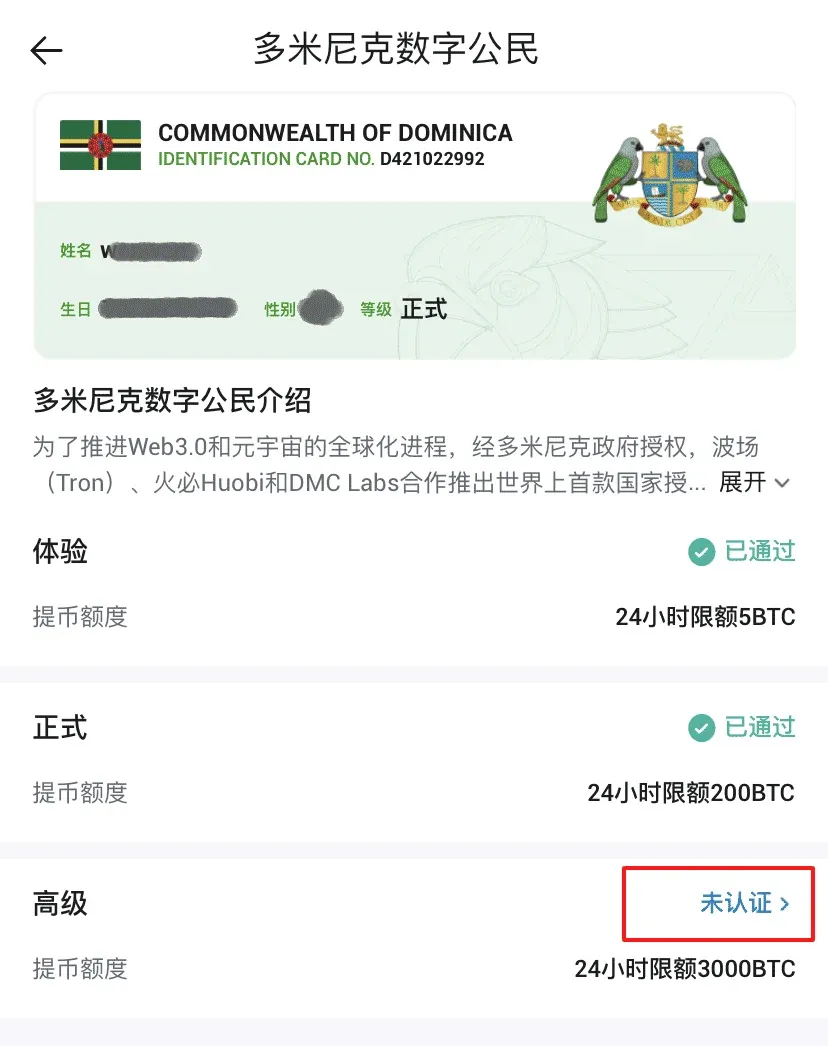
At this point all KYC steps are finished, and you possess a full Dominican Digital Identity. Should any issues arise during the verification process, feel free to contact Huobi customer support for assistance.
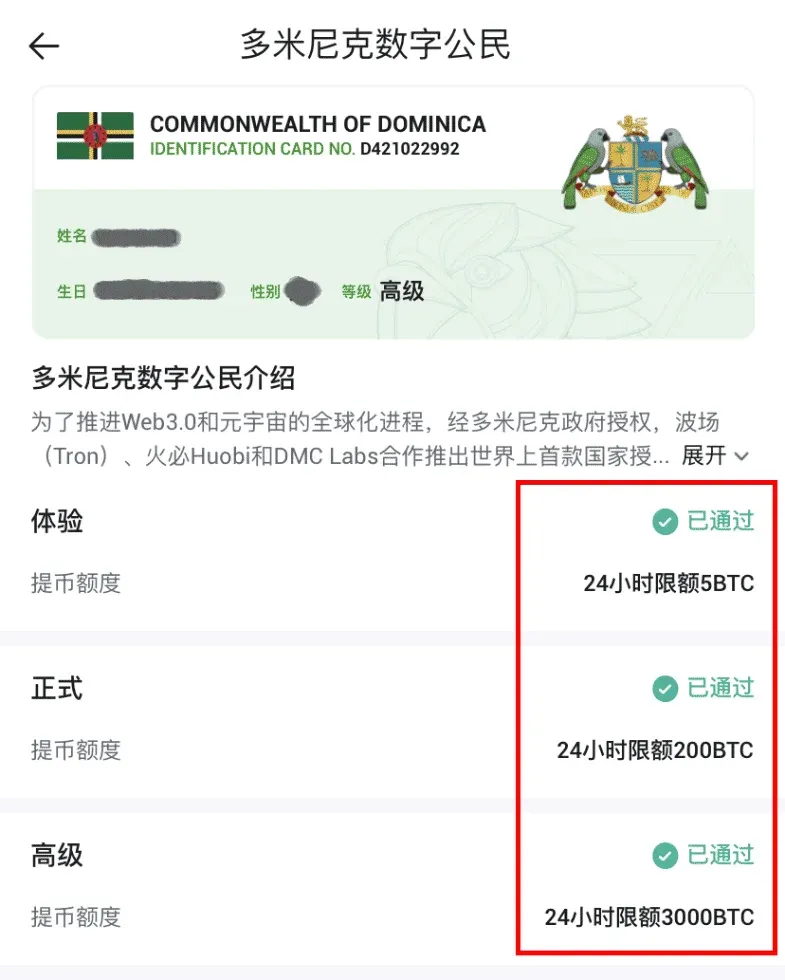
Helpful reminder: This article covers the complete registration flow for Huobi on both web and APP platforms, as well as the step‑by‑step procedure from L1 to L3 KYC. For the latest updates or more in‑depth tutorials, keep following Bitaigen (比特根) for future posts.
Tax disclaimer: Cryptocurrency transactions may generate taxable events in many jurisdictions. Users should consult a qualified tax professional or refer to local regulations to determine whether gains, losses, or income from crypto activities are subject to tax.
Related Reading
- Huobi Ecosystem: HT Token, HUSD Stablecoin & 400+ Assets
- Huobi Review: Security, Credibility & Regulatory Risks
- Pi Network Listed on Huobi: Price Surge & Risks
💡 Register on Binance with referral code B2345 for the maximum trading fee discount. See Binance complete guide.



