 Bitaigen Research
The complete workflow for using OKX (formerly OKEx) includes registering an account, completing identity verification, purchasing USDT, and conducting spot or futures trading. It also covers downloading the mobile app, depositing funds, transferring assets between wallets, and setting take‑profit/take‑loss orders.
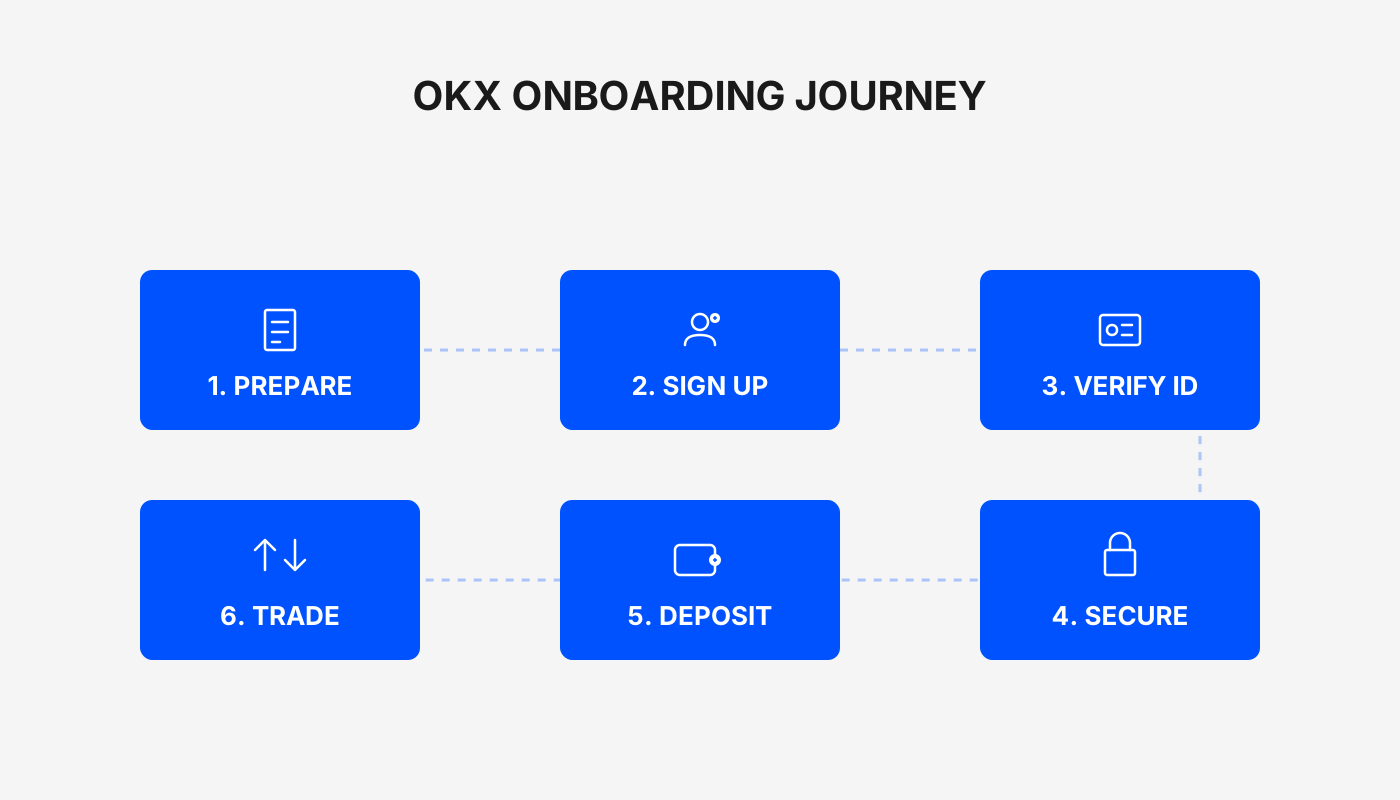
We have compiled a step‑by‑step path that takes you from OKX registration to an introductory futures trade, covering account creation, identity verification, fiat on‑ramp, spot and futures order placement, and other essential actions. With illustrated instructions, even first‑time users can get started quickly. Continue reading for detailed procedures and practical tips.
1. Register an Account and Download the APP
You can complete the registration on your own using the link and video tutorial below.
- New‑user registration: Click to register
- APP download: Click to download
Friendly reminder: Registering through the above link or using the referral code `B2345` entitles you to a reward of up to 50 USDT. Be sure to enter the referral code during sign‑up. (U.S. residents should use Binance.US instead of the global Binance platform.)
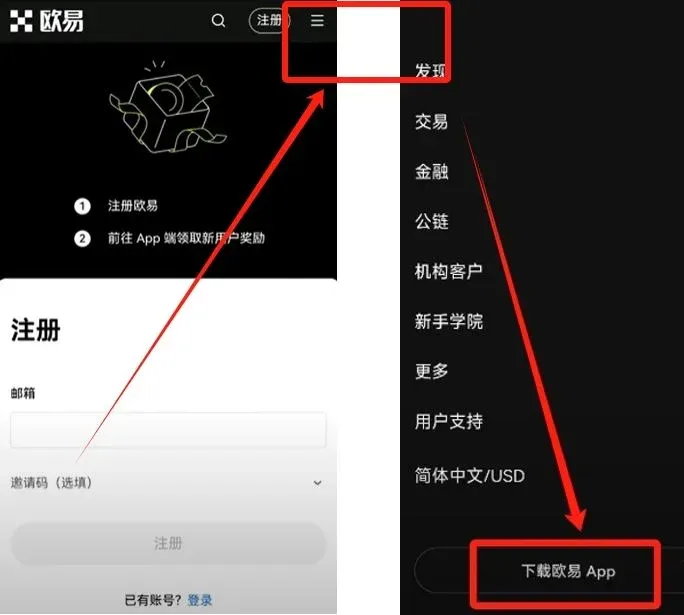
- After entering your email address, click 【Register】 and input the verification code to complete registration.
- Once registration succeeds, you can log in via the web portal; click the three‑line menu at the top‑right corner to download the OKX mobile app.
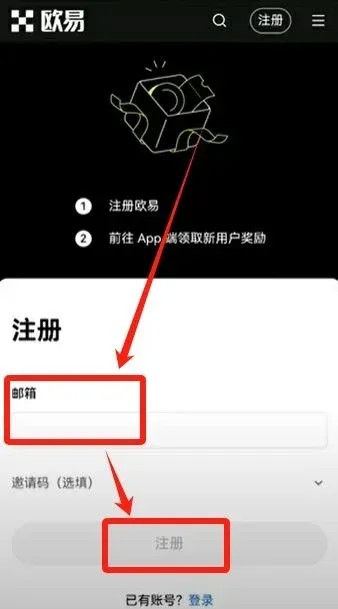
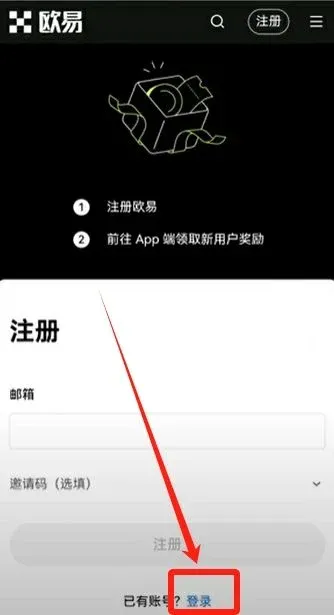
If you already have an OKX account, simply tap 【Login】 on the homepage and, after logging in, you can also download the APP from the web version.
2. Identity Verification
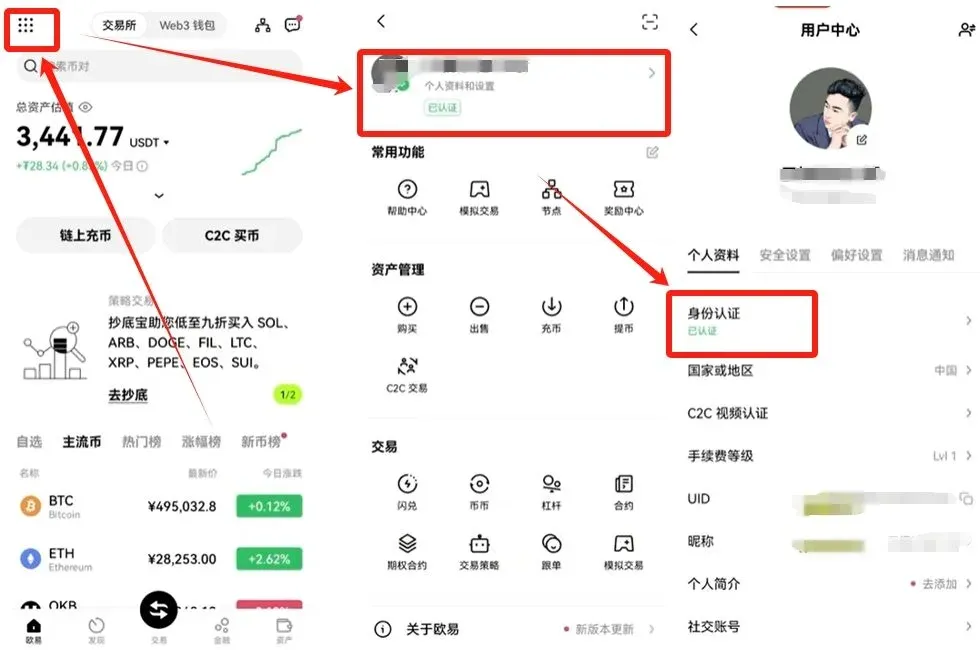
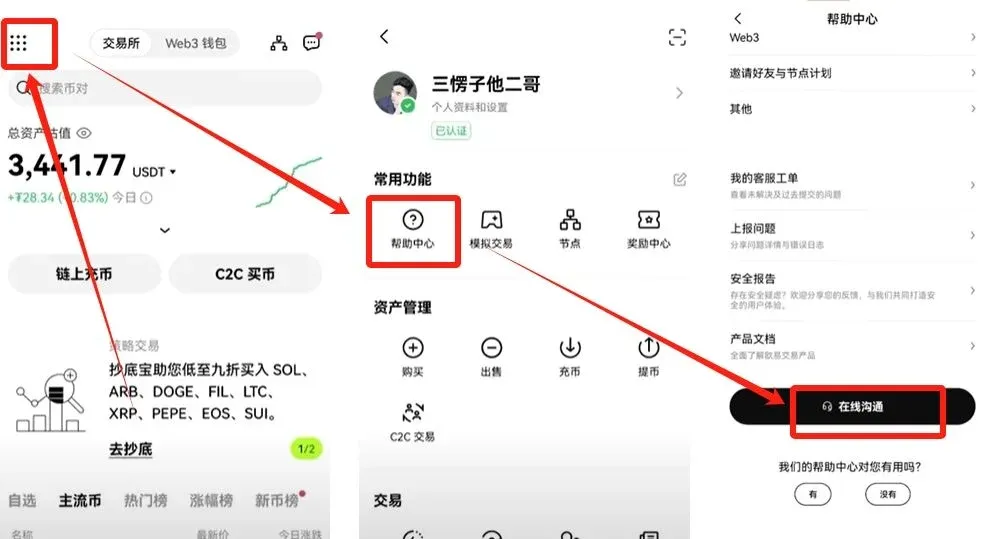
After logging into the OKX APP, tap the nine‑dot icon at the top‑left → Settings → Identity Verification. The system will prompt users who have not completed verification to start the process. Verification is divided into Level 1, Level 2, and Face‑Video tiers; the higher the completed level, the higher the trading limits. It is recommended to complete at least Level 2 verification.
3. Buying and Selling USDT
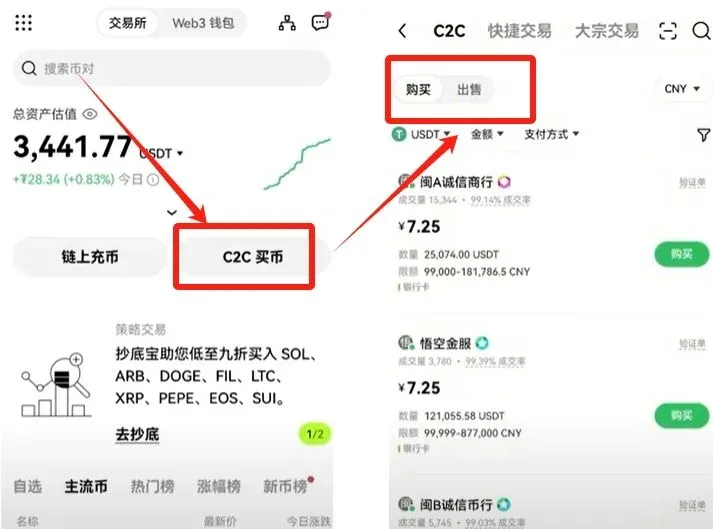
On the home screen, tap 【C2C Buy】; you can switch between Buy and Sell at the top.
Buying USDT
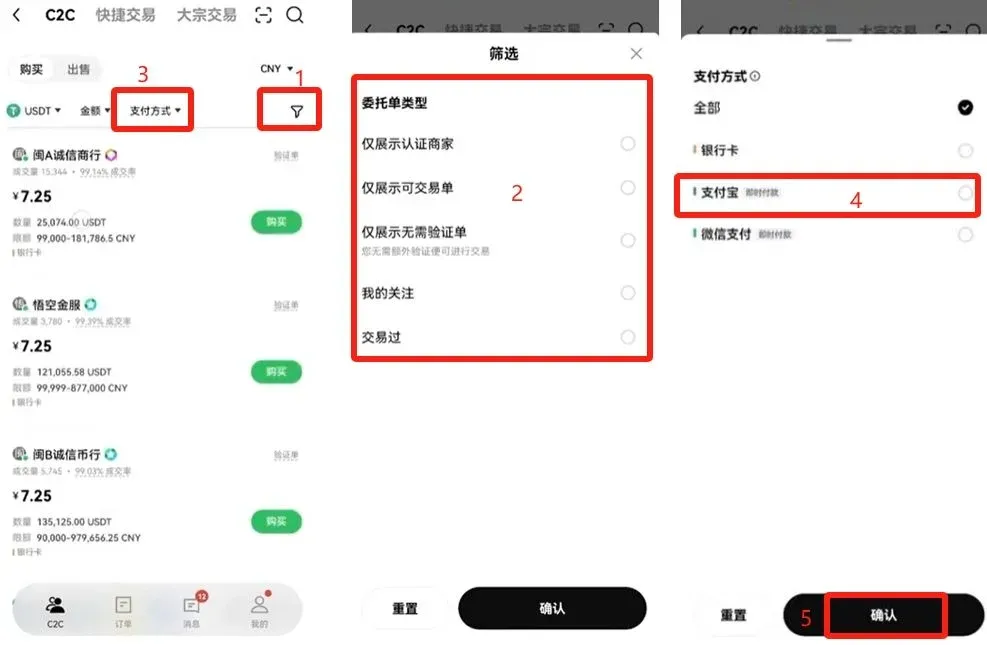
- On the purchase page, use the funnel icon on the right to filter merchants. You can filter by payment method (e.g., only merchants that accept Alipay).
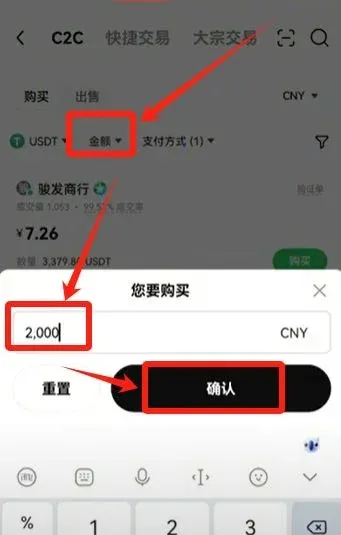
- Enter the purchase amount (e.g., $300 USD) and tap 【Confirm】. The system will match merchants that support the selected payment method.
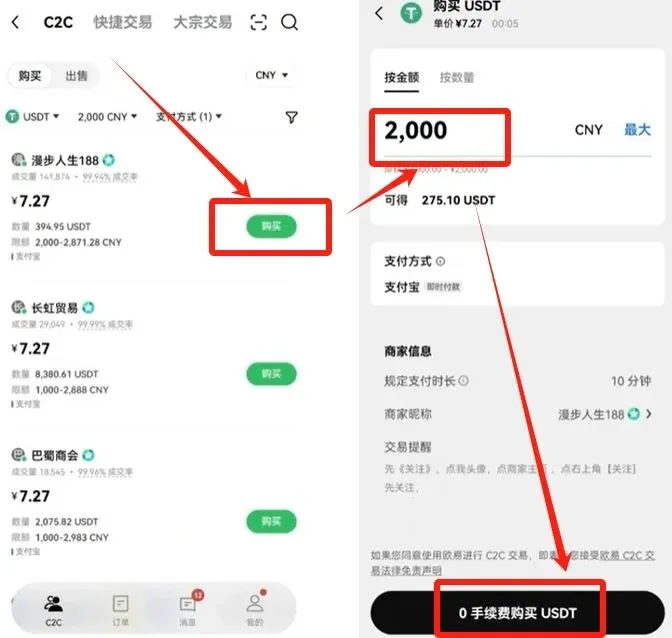
- After selecting a suitable merchant, fill in the amount or quantity, then tap 【Buy with 0% Fee】. A QR code for the merchant’s receipt will appear; complete the transfer according to that code. The platform holds a security deposit for merchants, and if anything goes wrong you can contact online customer service.
Selling USDT
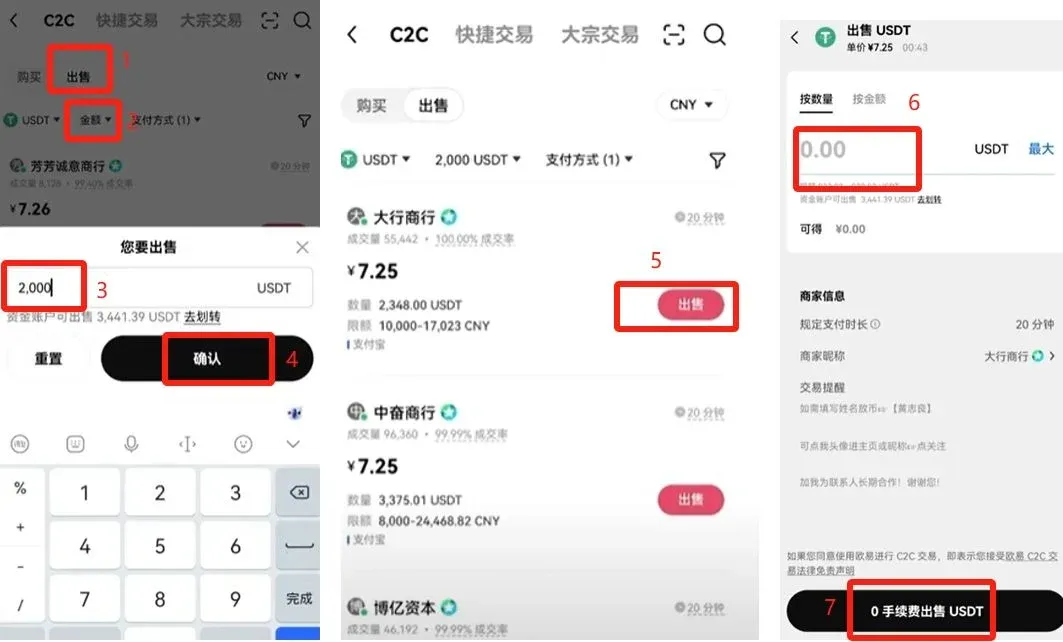
The selling flow mirrors the buying flow: go to 【C2C Sell】, filter merchants, enter the sell amount (e.g., $300 USD) or quantity (e.g., 1000 USDT), then tap 【Sell with 0% Fee】. Once the merchant confirms receipt, the funds will be credited to your account; confirm the receipt to finish the transaction.
If you encounter any issues during the transaction, return to the home screen, tap the nine‑dot icon at the top‑left → Help Center → Online Chat, type “human support” and start a conversation with a live agent.
4. Buying and Selling Cryptocurrencies
After you have USDT in your wallet, you can engage in spot trading, margin trading, or futures trading. This section demonstrates spot trading as an example.
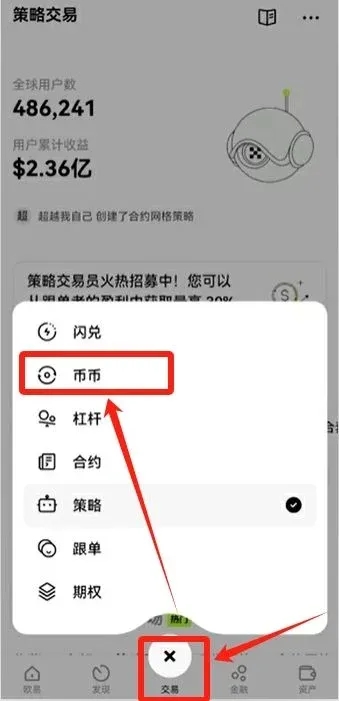
- Tap 【Trade】 in the bottom navigation bar, then select Spot.
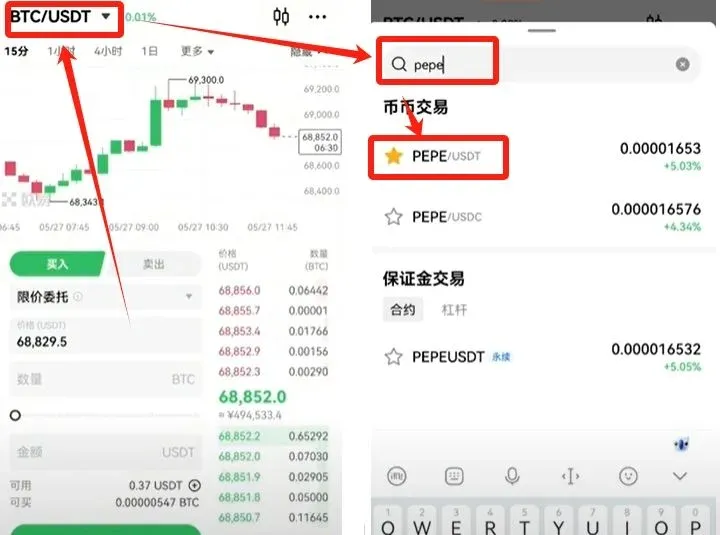
- The default pair displayed is BTC/USDT. To trade another token (e.g., PEPE), tap the down‑arrow next to the pair name, search for PEPE/USDT, and select it.
Market Order (Buy)
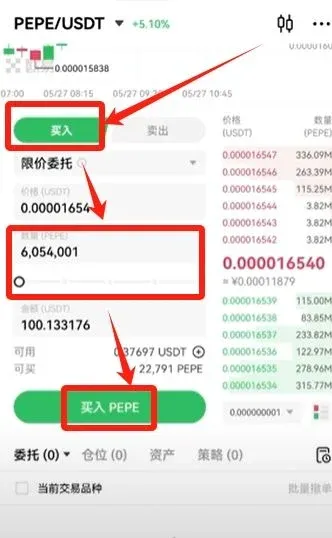
At the top of the trading page, choose 【Buy】, enter the quantity you wish to purchase, and tap 【Buy PEPE】 to execute instantly at the best available price.
Limit Order
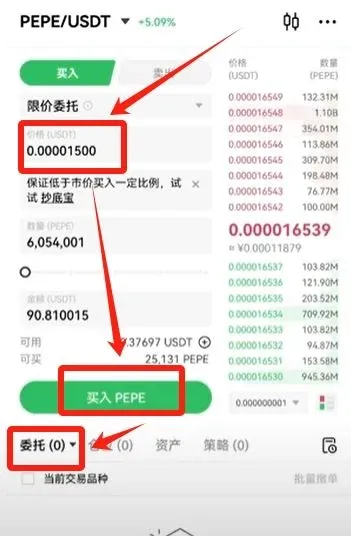
If you prefer to buy at a lower price, set your desired price in the price field. The system will automatically fill the order when the market reaches that price. The order will appear in the Open Orders section and can be cancelled at any time.
Transferring Funds
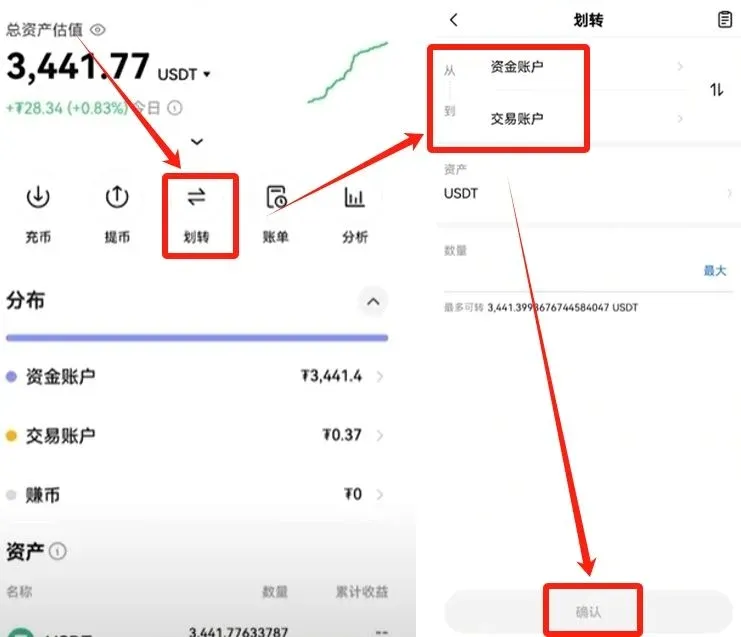
USDT must be moved from the Funding Wallet to the Trading Wallet before it can be used for spot trades. Tap 【Transfer】, select the direction (Funding → Trading), and confirm.
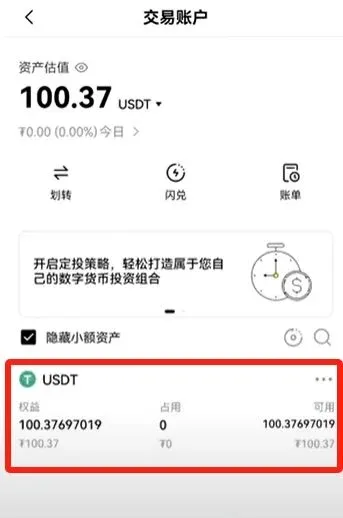
After the transfer, the trading wallet will display the corresponding balance (e.g., 100 USDT), and you can proceed with buying or selling.
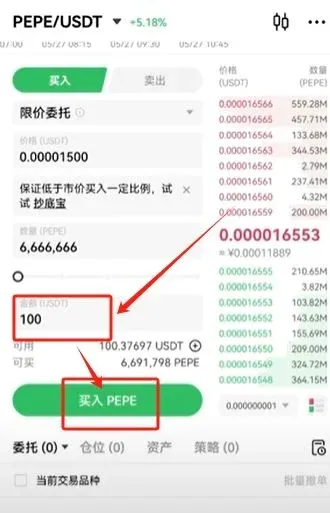
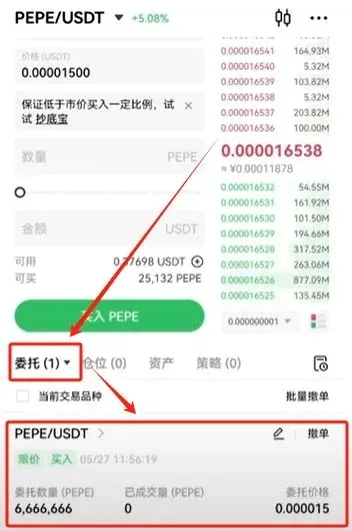
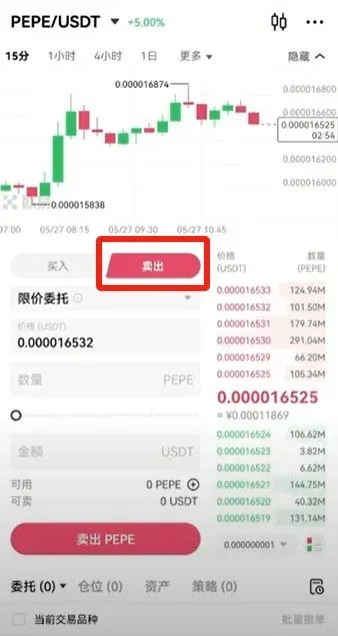
Selling works the same way; simply switch to 【Sell】, enter the amount you wish to offload and confirm. If your assets remain in the trading wallet, you must transfer them back to the funding wallet before you can withdraw them to an external address.
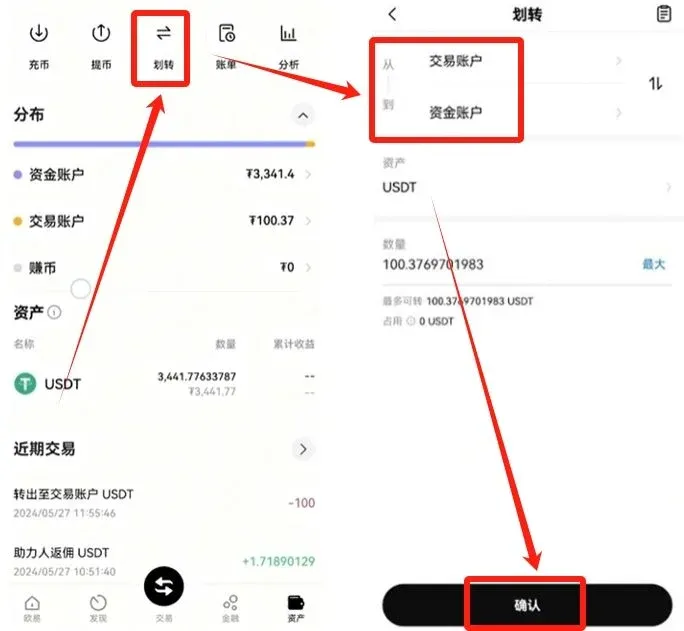
5. Futures (Contract) Trading
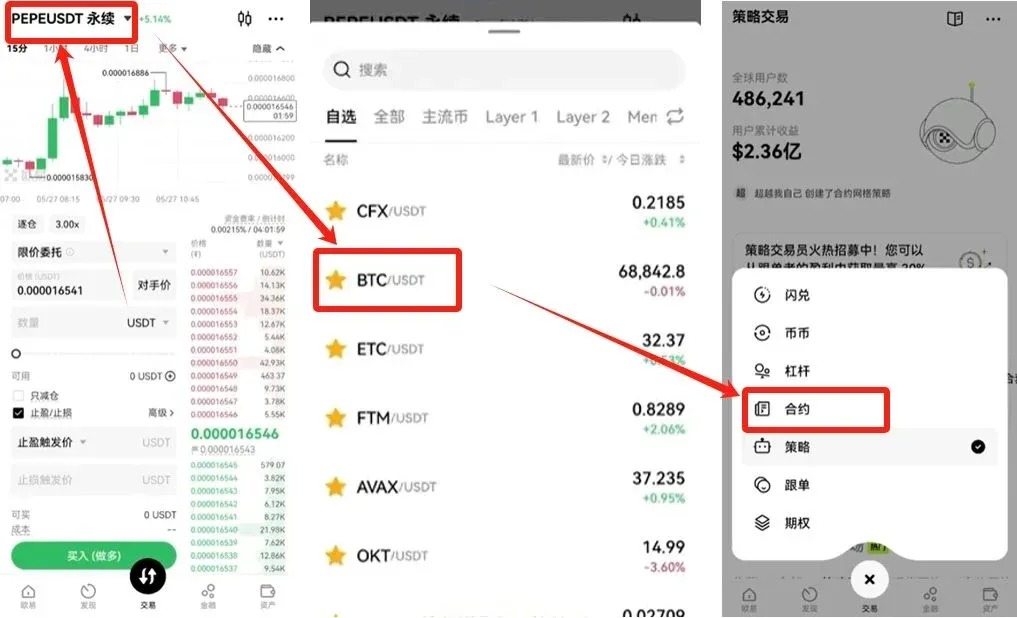
On the Trade page, switch to Futures (non‑margin). The most commonly used products are perpetual contracts.
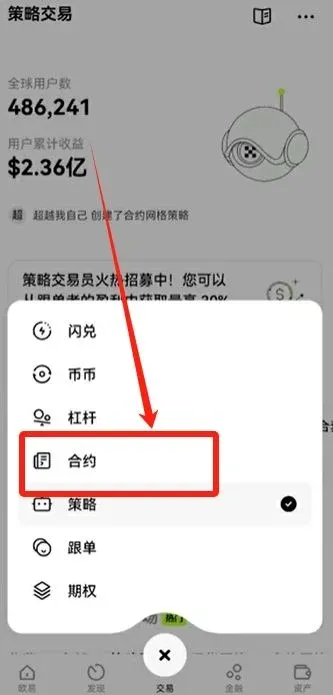
Select a futures pair (e.g., PEPE/USDT Perpetual) or tap the down‑arrow to change to another pair such as BTC/USDT Perpetual.
Opening a Position
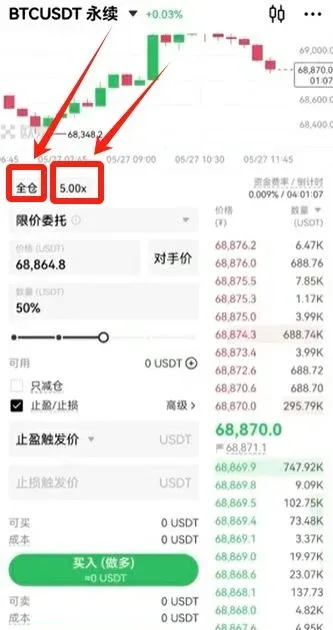
- Cross‑margin: Uses the entire available balance as collateral.
- Isolated‑margin: Limits collateral to the amount allocated to the specific position; higher risk and generally not recommended for beginners.
You can adjust the leverage multiplier; OKX supports up to 100× leverage. For newcomers, it is advisable to risk only 3 %–5 % of your account equity per trade to reduce the chance of liquidation.
Short‑Sell Example
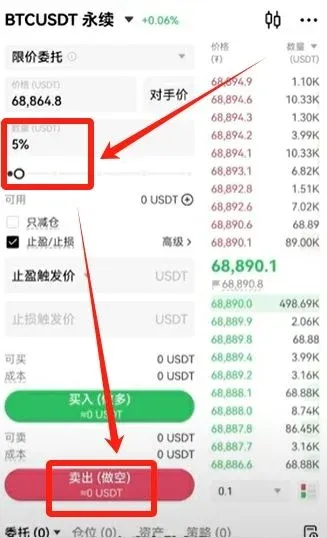
To short Bitcoin with a 5 % position size, tap 【Sell‑Short】. You can then set Take‑Profit and Stop‑Loss levels:
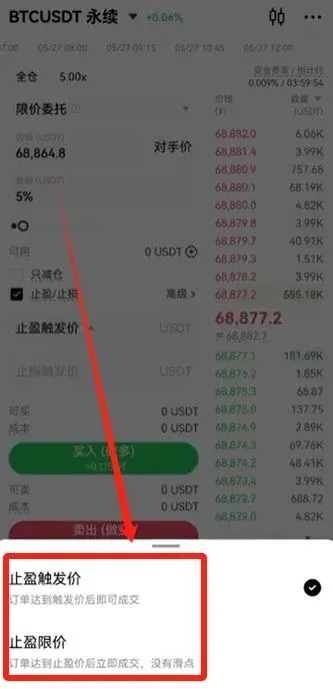
- Take‑Profit: Automatically closes the position when profit reaches a predefined amount (e.g., $1,000 USD).
- Stop‑Loss: Automatically closes the position when loss hits a predefined threshold (e.g., $500 USD) to avoid liquidation.
Placing Limit Orders
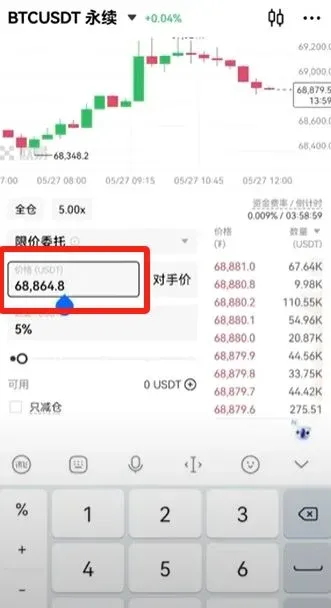
If the current market price does not meet your target, you can set a higher or lower limit price manually. The system will automatically execute the order when the market reaches that level. The limit‑order area is located in the blank space at the bottom of the screen.