 Bitaigen Research
 When trading on OKX (formerly known as OKEx), you may often encounter the message “Insufficient balance despite having assets in the account, unable to place order.” This is not a system malfunction; it simply means that existing open orders are locking the corresponding funds.
In this article we dissect the fundamental reason why OKX open orders occupy your balance, and we provide a step‑by‑step guide on how to cancel those orders and release the funds. The goal is to help you quickly restore usable capital and avoid trading interruptions. We also highlight common entry‑point checks to ensure you retrieve complete order information through the correct channel, further improving your trading experience.
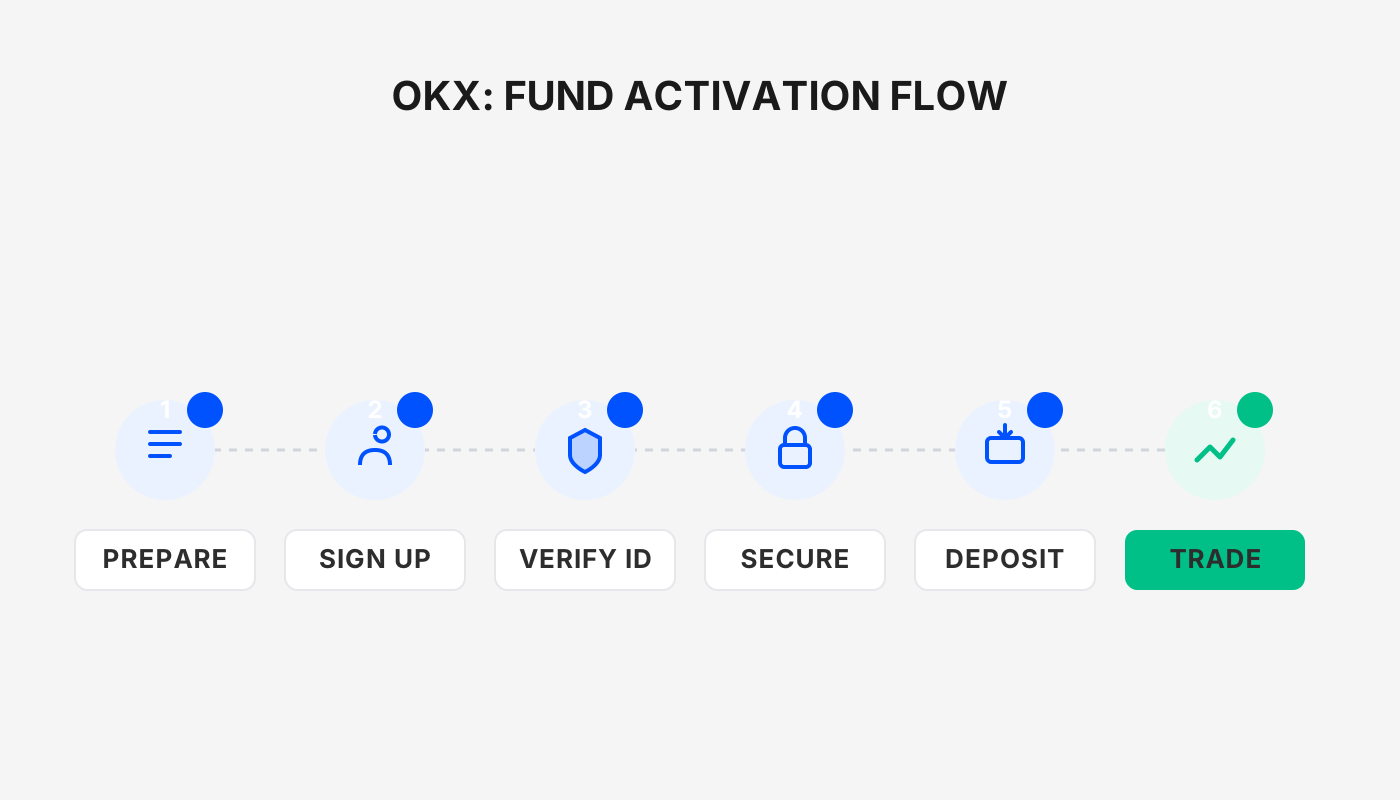
1. Why the balance appears to be occupied
When you place a limit order—or any order that must wait for a counter‑party to match—the system first locks the relevant assets. These locked assets appear under Open Orders / Unfilled Orders. Until the order is either filled or cancelled, the funds cannot be used for new trades. You can view these unfilled orders on the platform’s Current Orders page.
2. Verify that you are using a proper entry point
If you notice an abnormal balance on the trading page or the order list fails to load, first make sure you have entered the platform through an official, accessible entry point. Depending on your network environment, some domains may be temporarily unreachable; in that case, use the entry‑navigation page to redirect you. This page automatically selects a reachable route based on your current network, preventing missing asset or order information due to access issues.
3. How open orders cause the “cannot place order” message
- Once assets are locked by an open order, the available balance drops accordingly;
- When you attempt to place a new order, the system checks only the available balance;
- If the available balance is lower than the amount required for the new order, the system displays an “Insufficient balance” (or similar) warning.
This situation is especially common when you hold multiple cryptocurrencies or temporarily change your trading plan.
4. How to unfreeze assets that are currently locked
If you do not want to keep waiting for the open order to fill and would rather use those funds for something else, simply cancel the corresponding order. Once the cancellation is successful, the system immediately releases the freeze and the assets return to your Trading Account.
If you have not yet registered on OKX, you can sign up using the links below or the mobile app download address, and follow the video tutorial for the full procedure.
- OKX official registration link
- OKX APP download (click here).
*Note for U.S. users: use Binance.US (or the equivalent local service) instead of the global Binance download link.*
Tip: New users who register with the above link or invitation code `B2345` can claim up to 50 USDT in rewards; be sure to enter the invitation code during registration.
Order‑cancellation steps
- Go to the OKX trading page or the assets page;
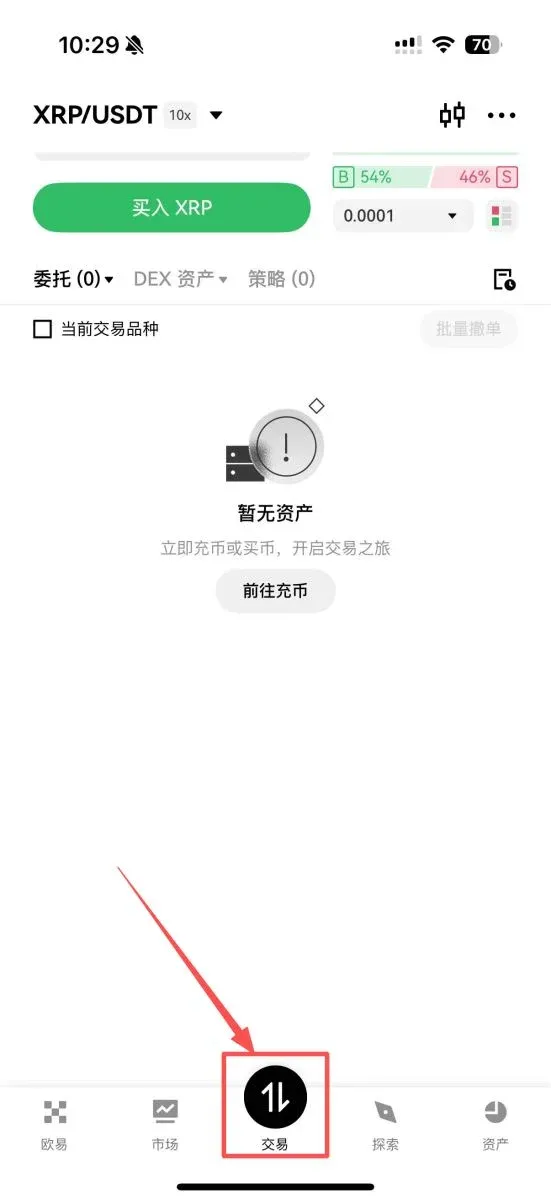
- Open the Current Orders tab;
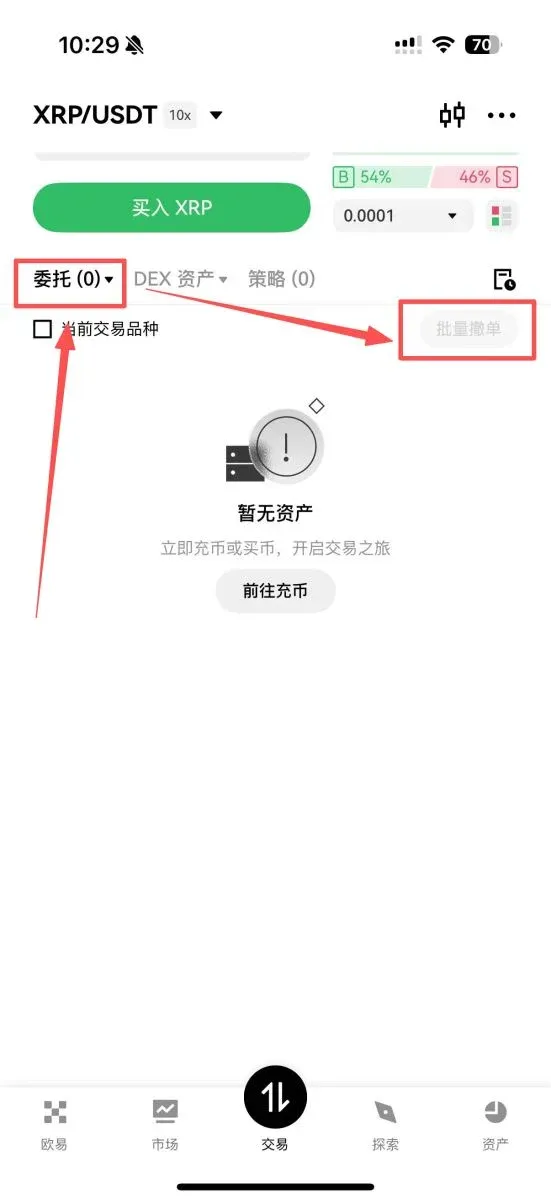
- Locate any order that is still unfilled in the list, click Cancel and confirm.
After the cancellation, the associated assets are instantly unfrozen, the amount is added back to your available balance, and you can immediately use them to create new orders.
5. Where the assets go after cancellation
Many beginners worry that cancelling an order will make their funds “disappear.” The actual flow is straightforward:
- The unfilled order is cancelled;
- The system lifts the freeze on the corresponding assets;
- The balance returns instantly to the trading account;
- The usable amount is restored.
As long as the cancellation succeeds, the funds are fully back in a controllable state.
6. Common misconceptions
When faced with a seemingly occupied balance, users often fall into these misunderstandings:
- Assuming the account has been restricted;
- Believing the platform is experiencing a glitch;
- Forgetting that they previously placed a limit order;
- Not checking the Current Orders list;
- Relying on a stale page that has not refreshed, causing outdated information.
Therefore, the first step when you notice an abnormal available balance is to verify whether any unfilled open orders exist—this usually pinpoints the root cause fastest.
7. When you might *not* want to cancel immediately
If you still wish to have the order filled at the price you set, you can simply wait until it is executed. Cancel only when you need the locked capital for other trades. The decision to cancel should be driven by your personal trading plan, not by a system‑imposed requirement.
Conclusion
On OKX, a “blocked balance” is almost always the result of one or more unfilled open orders. By navigating to the Current Orders page and cancelling the relevant orders, you can unfreeze the assets and redeploy them for new trades. Developing the habit of checking order status after each placement helps you quickly clear any obstacles when capital is tight, thereby enhancing the overall trading experience.
For more details on OKX order cancellation and fund unfreezing, feel free to follow Bitaigen (比特根) and explore related articles.
Related Reading
- Bitcoin Portfolio Allocation: How OKX & Binance Shape Crypto Investing
- USDT Explained: How to Buy & Sell USDT on OKX (2026 Guide)
- OKX Review 2024: Fees, Features & Fiat Options
💡 Register on Binance with referral code B2345 for the maximum trading fee discount. See Binance complete guide.