
 Bitaigen Research
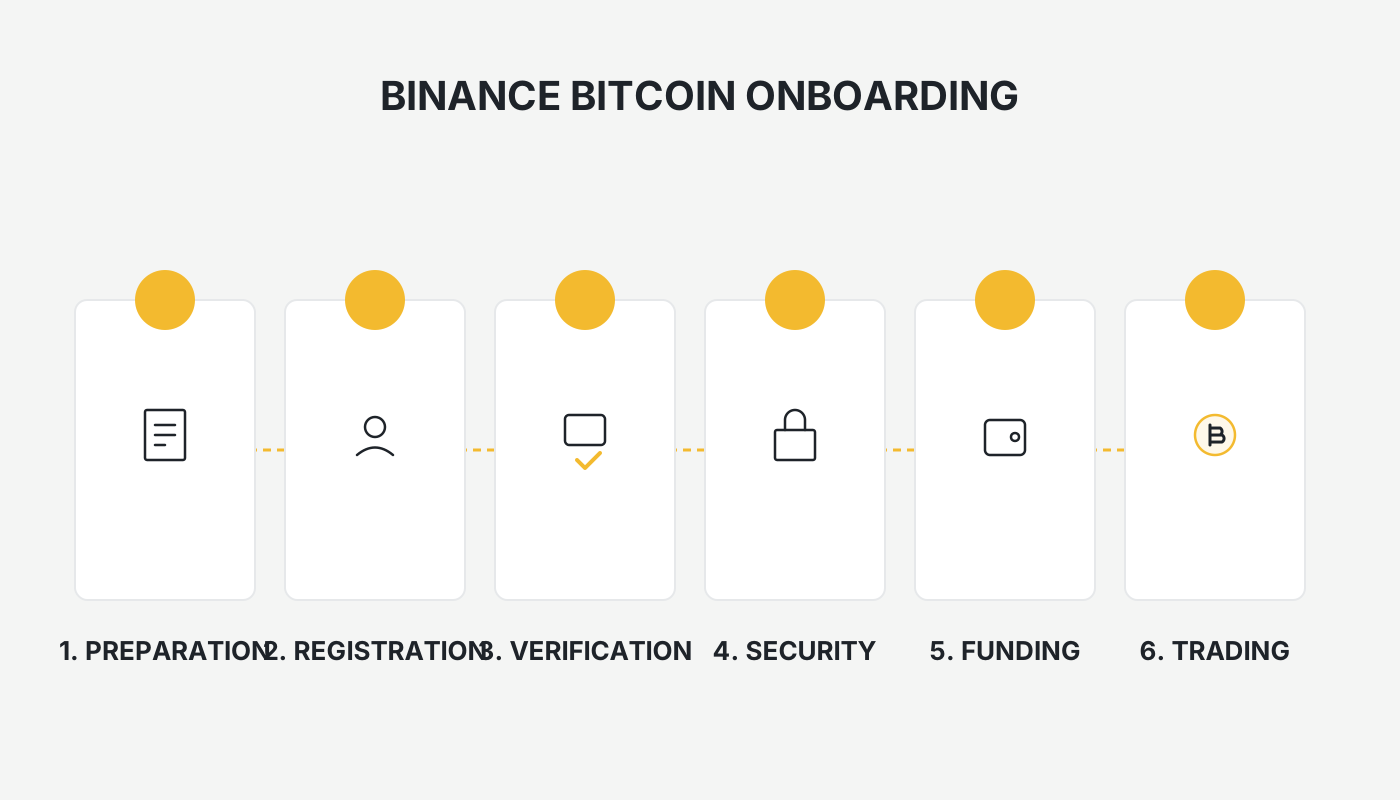
 Binance is the world‑leading cryptocurrency platform by trading volume and is very beginner‑friendly. By following this guide you can quickly complete the entire process from account creation to making your first crypto purchase.
This article mainly covers the following topics:
- Account registration and referral‑code usage
- How to download the app on iOS and Android devices
- Fiat‑currency top‑up via the C2C marketplace
- Step‑by‑step instructions for buying BTC with USDT
- Key points for securing your account

In this guide we walk you through the Binance onboarding flow. Every step—from registration to your first purchase—is accompanied by practical screenshots and security tips, helping newcomers get started quickly while avoiding common pitfalls. For details on iOS installation and fiat top‑up, keep reading.
Important note for U.S. residents: Use Binance.US (the U.S.‑specific platform) instead of the global Binance website or app.
Fiat‑currency handling: When depositing fiat, you may use USD via SEPA, SWIFT, or other international transfer methods supported by Binance.
Tax disclaimer: Crypto gains may be subject to tax in your jurisdiction. Please consult a tax professional for advice relevant to your situation.
---
2. How to Obtain a Taiwan Apple ID on iOS Devices and Download the Binance App
Because the domestic App Store imposes regional restrictions on certain crypto‑trading apps, Apple users need a Taiwan‑region Apple ID in order to find Binance, OKX, and similar applications in the store.
1. Preparations
- An iPhone or iPad
- An email address that is not already linked to an Apple ID (Gmail or Outlook is recommended)
- A tool that can generate a Taiwanese address (available at this link)
- The name can be entered in pinyin or traditional Chinese; the birthdate must be at least 18 years old (it does not need to be real)
2. Registration Process
- Open a browser and go to the Apple ID registration page (https://appleid.apple.com). Fill in the last name, first name, Country/Region (select Taiwan), and a birth date that makes you over 18.
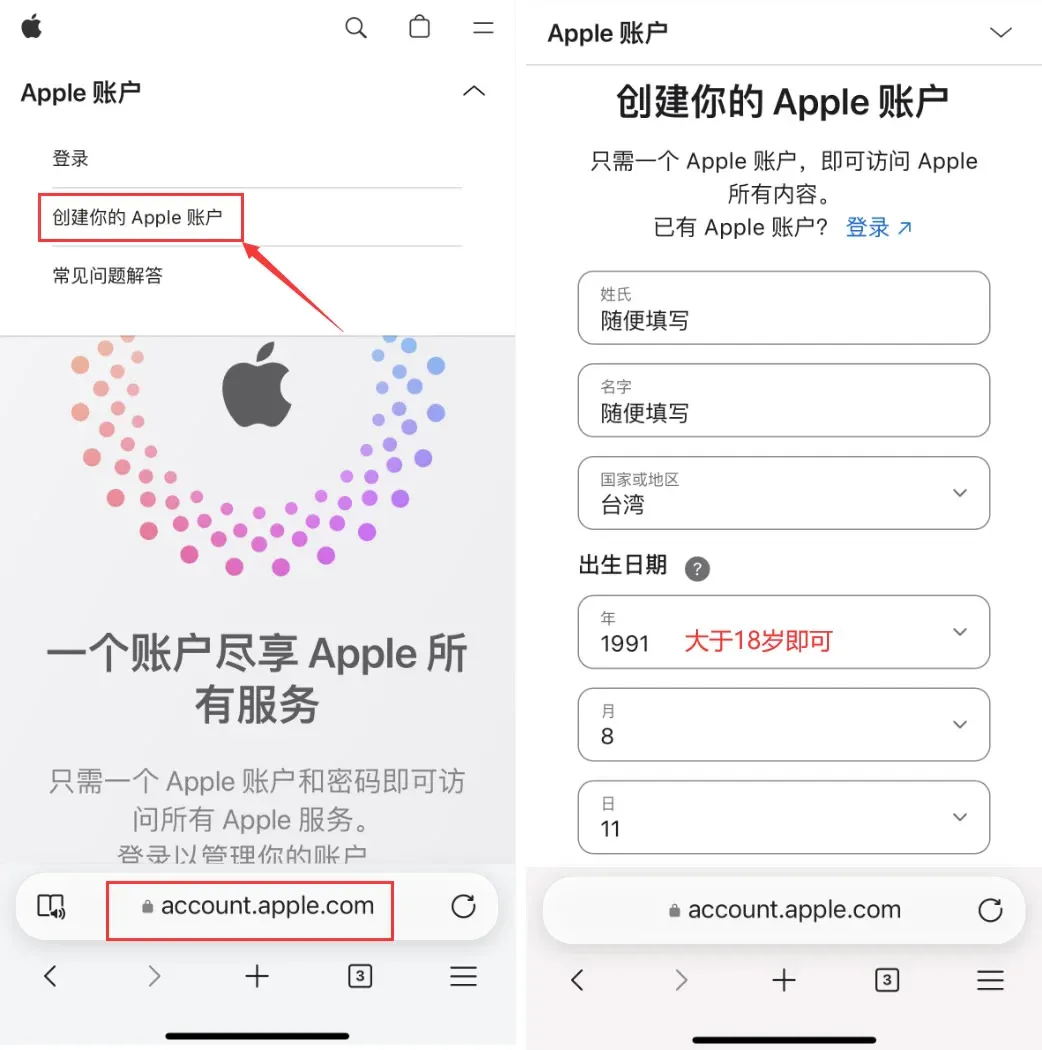
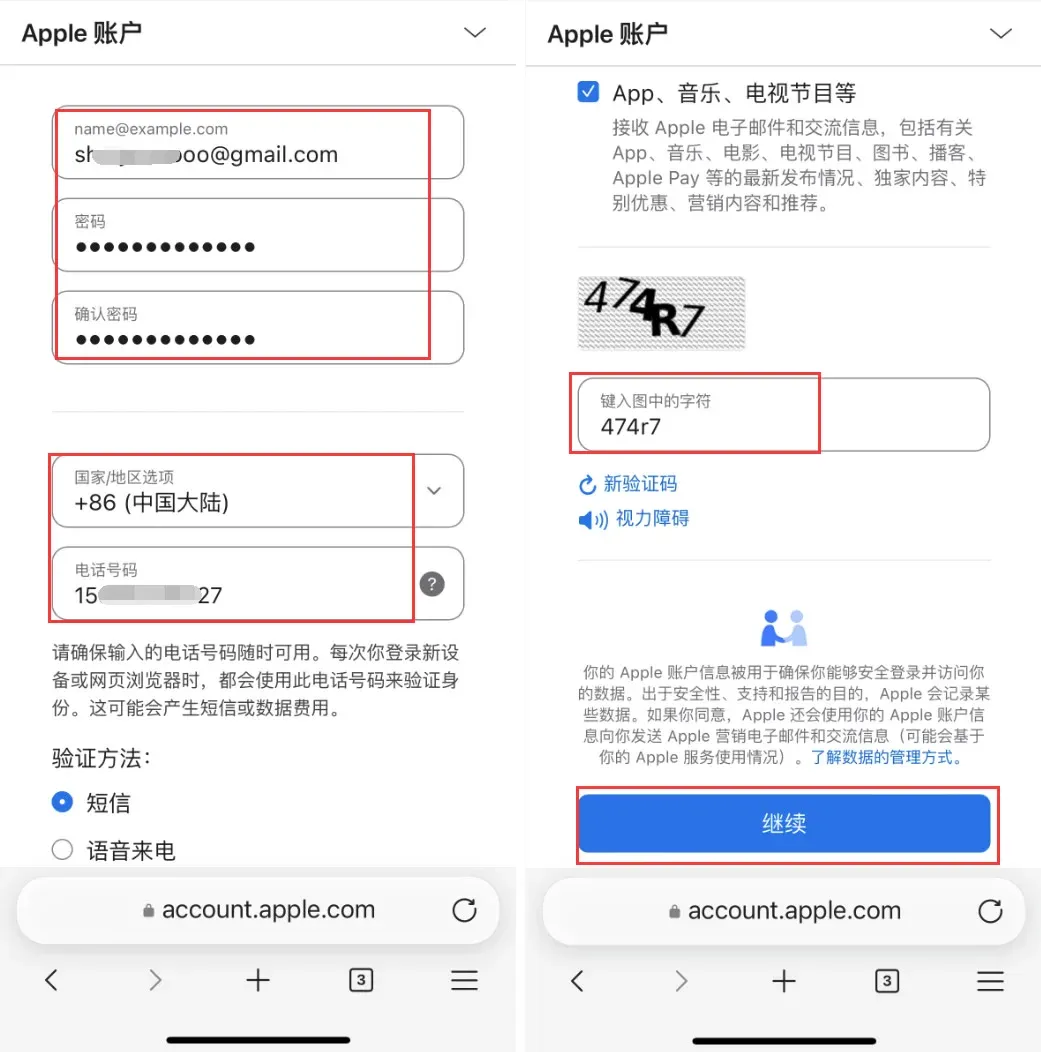
- It is advisable to use a Gmail address. The password must contain uppercase and lowercase letters, numbers, and symbols. For Country/Region you may keep Mainland China selected so you can receive the verification code on a Chinese mobile number. After completing the fields, enter the code you receive and click Continue.
- Check your email inbox for a verification link sent by Apple and complete the email verification.
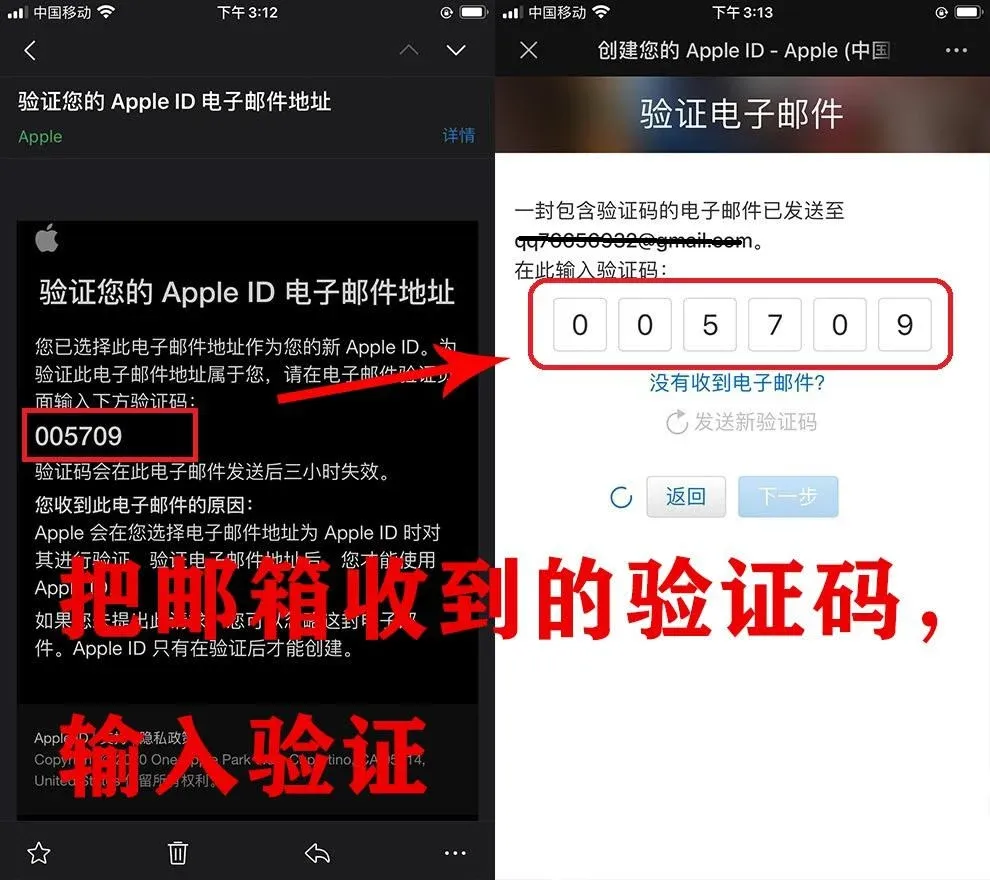
- The system will then send a verification code to the phone number you entered earlier. Enter the code as instructed. At this point a Taiwan‑region Apple ID has been partially created.
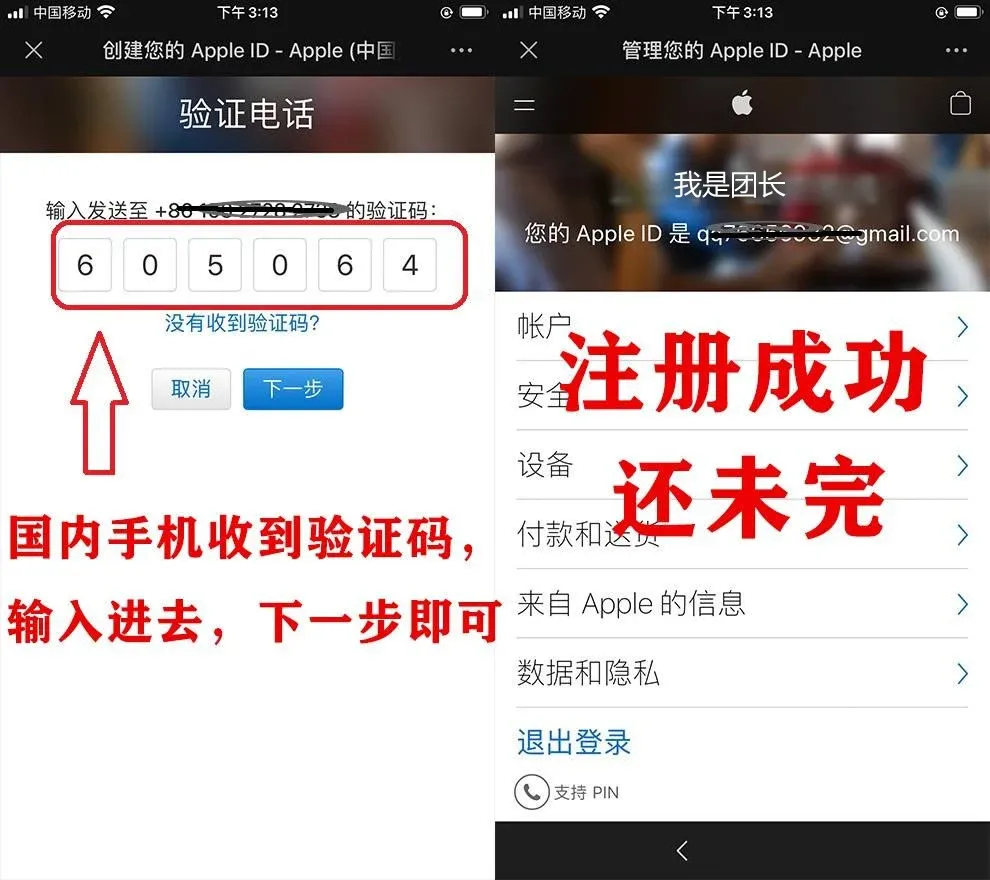
- On your iPhone/iPad open the App Store and sign in with the new Apple ID (do not sign in via the Settings app). The system will request two‑factor authentication; complete it to proceed.
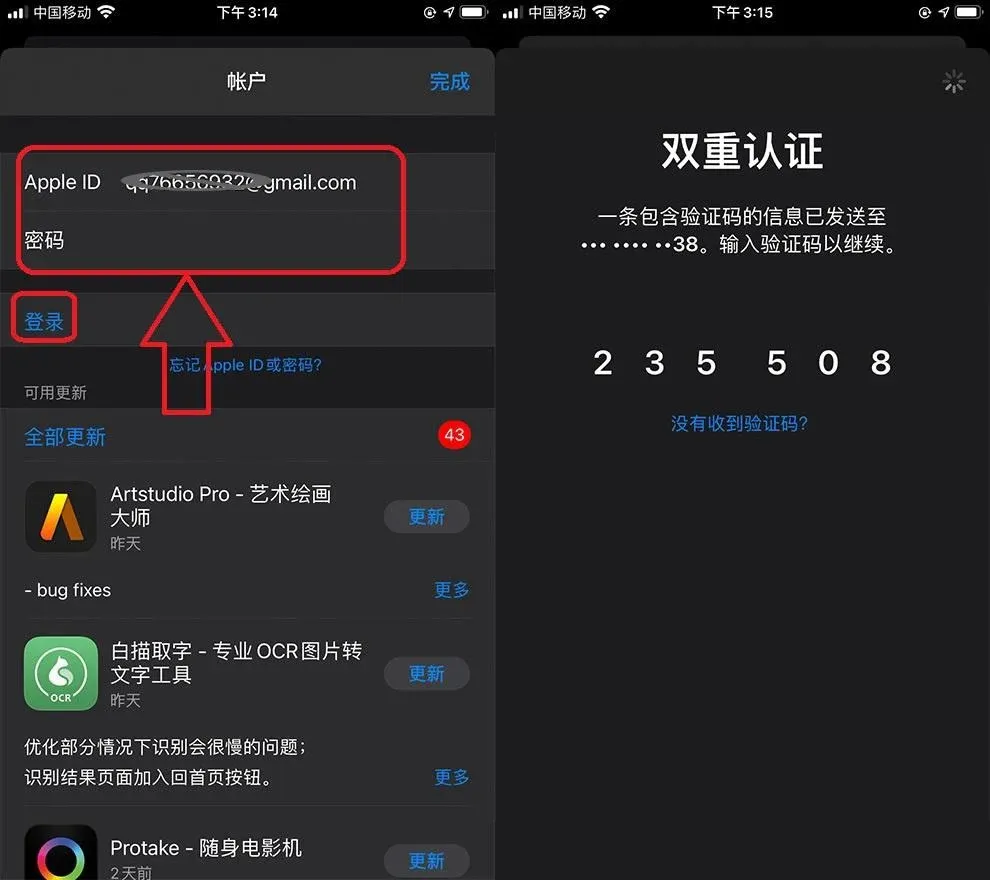
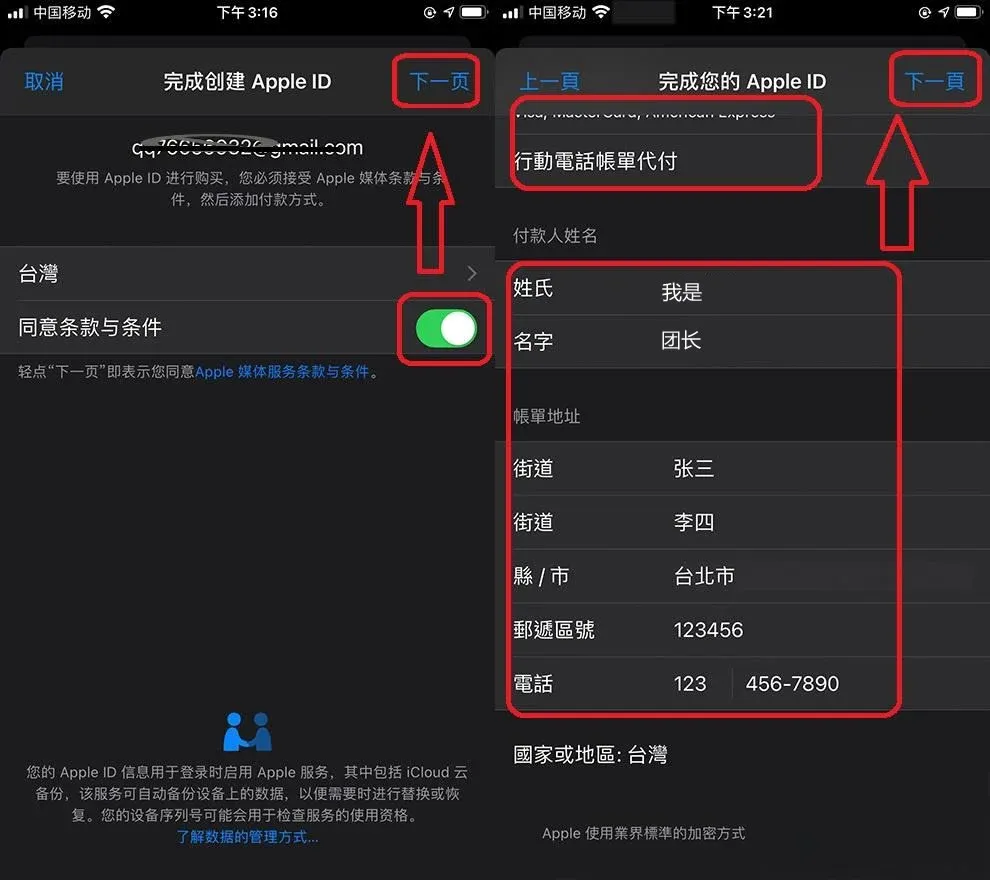
- After successful verification you will see a “Check” prompt. Tick Agree to Terms and Conditions and continue. On the payment‑method screen choose none, enter any billing name and address (a 6‑digit postal code is sufficient), and put a placeholder phone number such as 1234567890. Click Next.
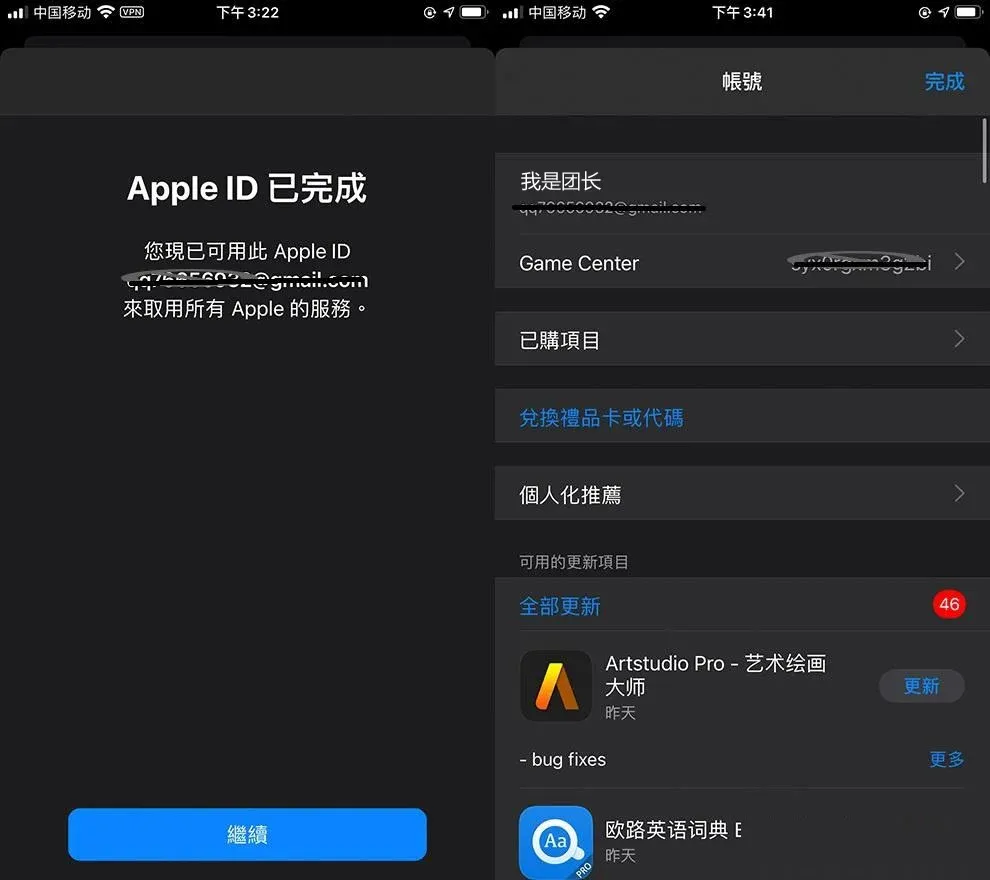
- The Apple ID is now fully active. Log into the App Store with this account and you will be able to search for and download the overseas versions of Binance, OKX, and other crypto apps.
---
3. Download and Install the Binance App on iPhone/iPad
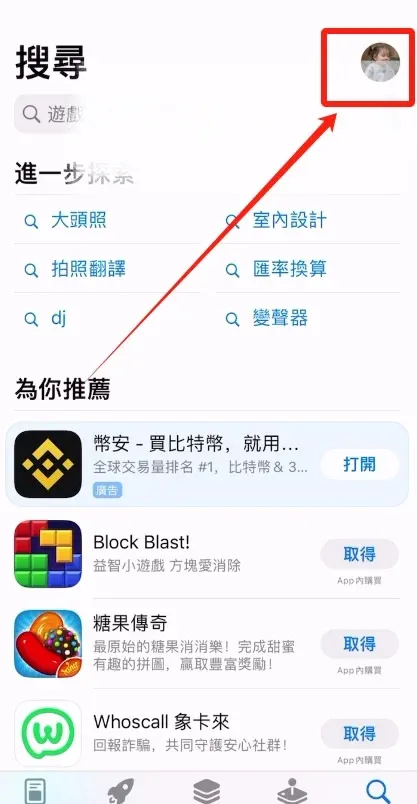
- Open the App Store, tap the profile icon in the upper‑right corner, and sign out of any existing Mainland‑China Apple ID.
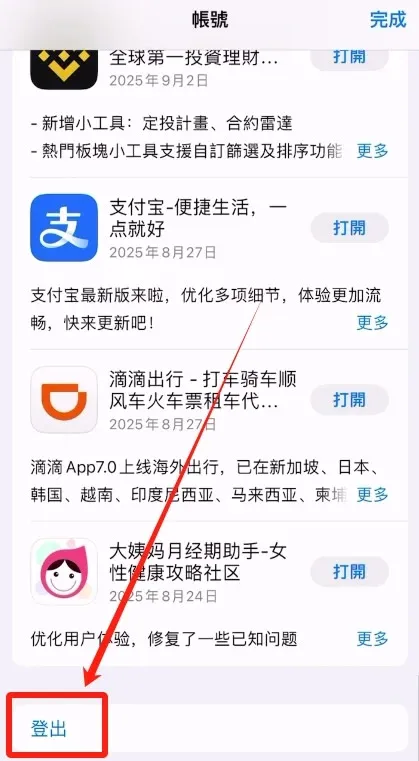
- Choose Sign Out, then sign in with the Taiwan Apple ID you created in the previous section.
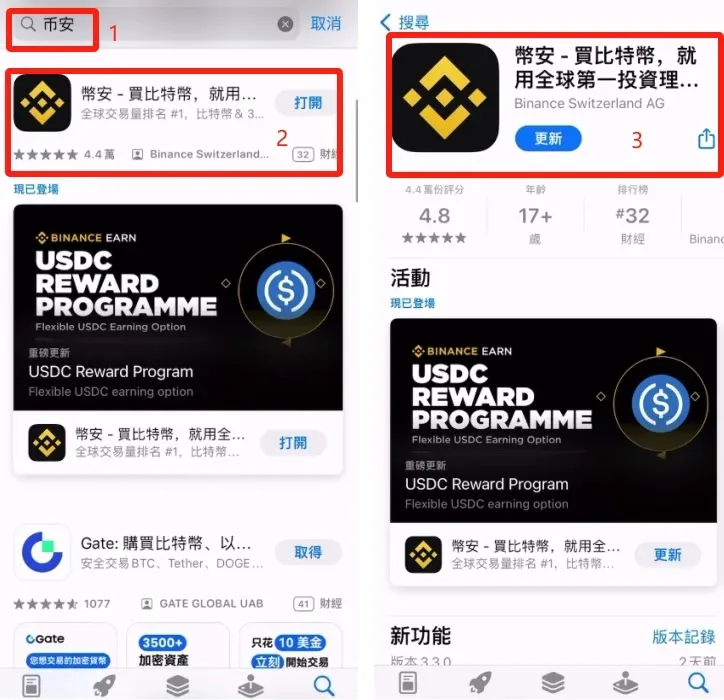
- Once logged in, type “Binance” into the search bar. The correct app icon will appear; tap Get to download it.
---
4. Complete Steps for Downloading the Binance App on Android Devices
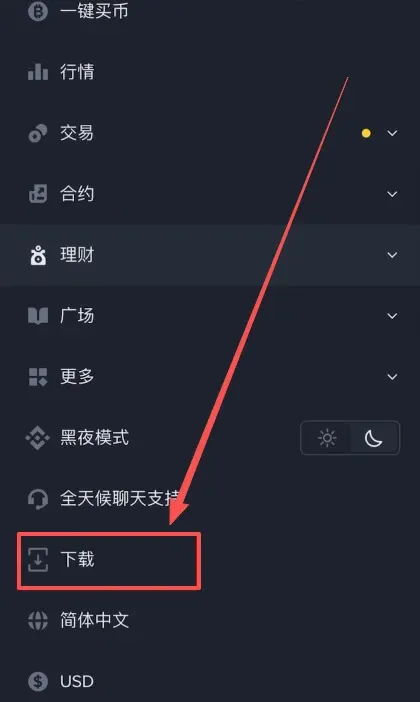
- Visit the official Binance website and click the three‑line menu icon in the upper‑right corner.
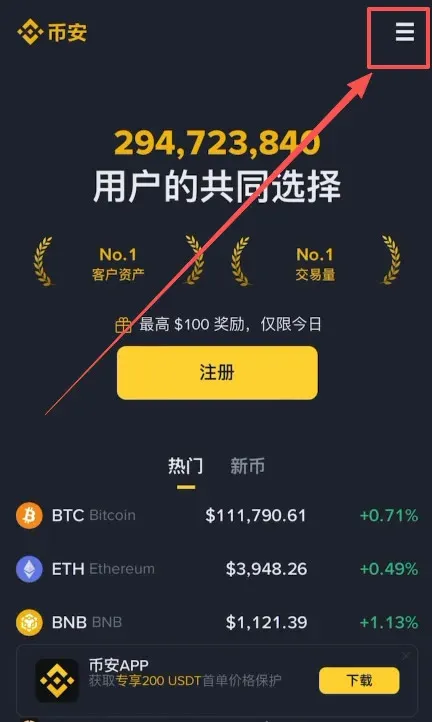
- In the side panel that appears, select Download.
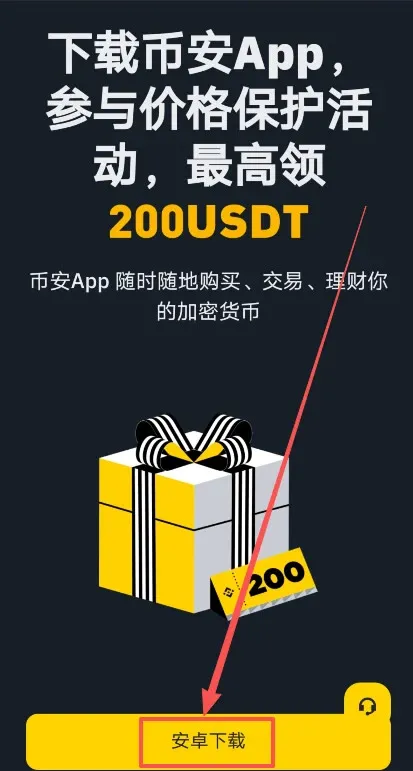
- On the download page, click the Android Download button.
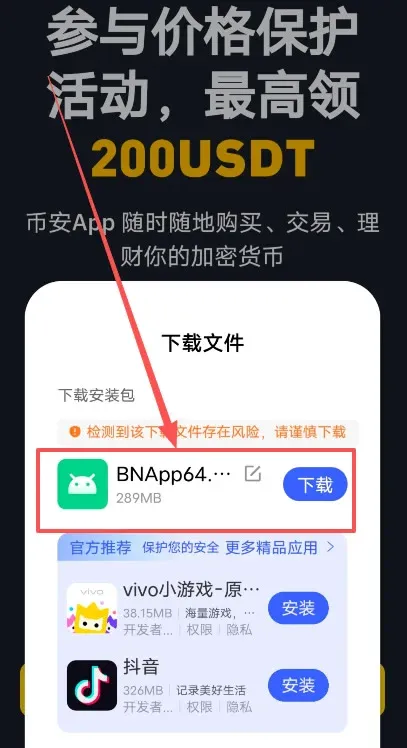
- A system prompt will appear asking whether to download the APK file. Confirm to start the download.
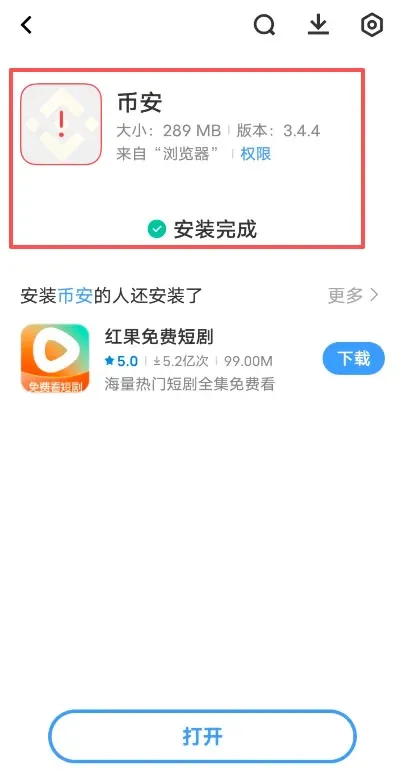
- After the download finishes, open the APK file and choose Install anyway (ignore the “untrusted source” warning) to perform a manual installation.
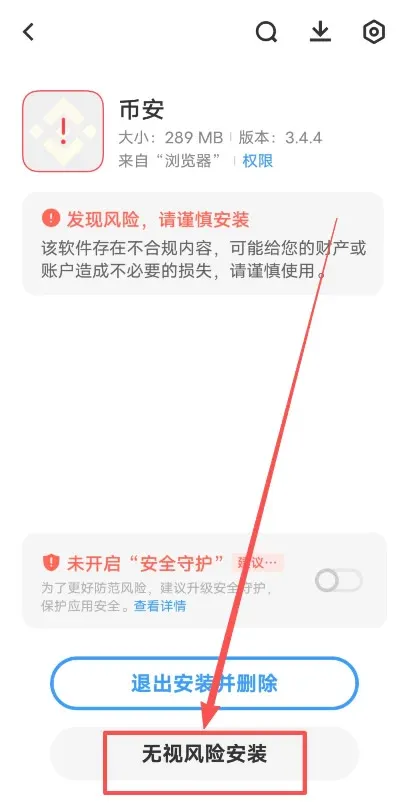
- When the installation completes, the Binance app is ready for use on your Android device.
---
5. How to Register a Binance Account and Bind a Referral Code
- Follow the exclusive link provided in this article to open the Binance registration page (avoid IP addresses from the United States, Canada, Singapore, etc.; IPs from Taiwan, Japan, or South Korea are acceptable).
Registration URL: https://accounts.binance.com/register?ref=B2345
- Once the page loads, click Register.
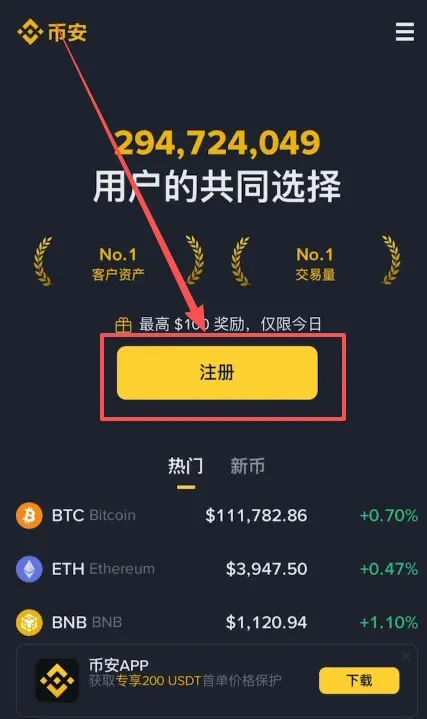
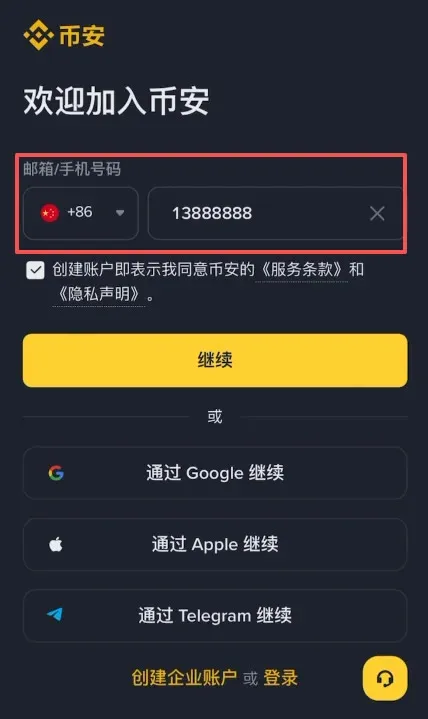
- Binance supports two registration methods: email and mobile phone number. Even a Mainland‑China +86 mobile number can be used.
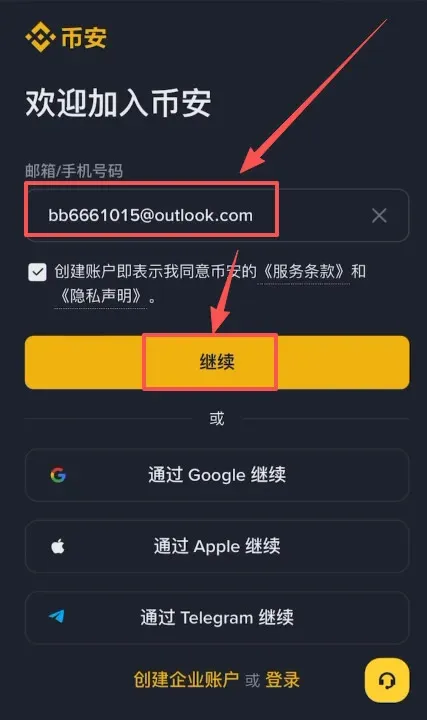
- The example below demonstrates registration via email. It is recommended to use an overseas email service (Outlook, Gmail), though domestic services such as QQ or 163 are also accepted. After entering the email address, click Continue.
- Binance will send a verification code to the provided email. Retrieve the code, paste it into the field, and confirm.
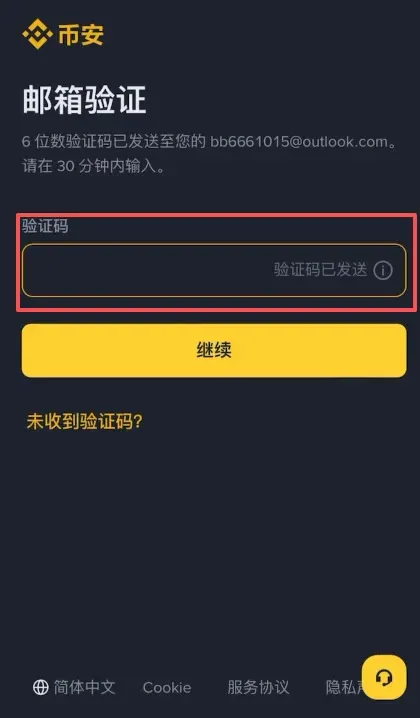
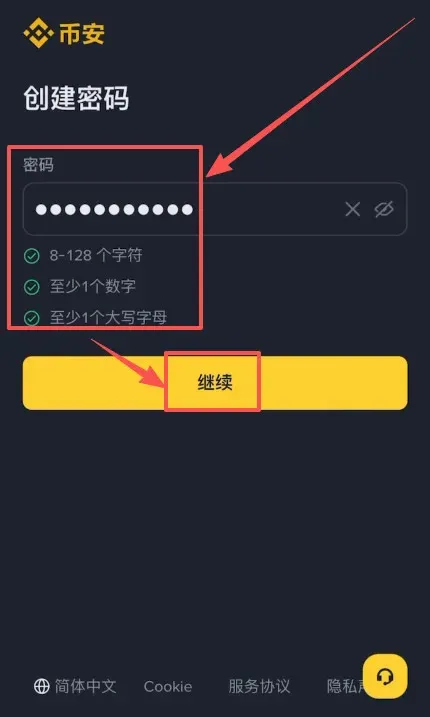
- Next, set a login password. The password must be at least 8 characters long and contain both numbers and uppercase letters. Click Continue when done.
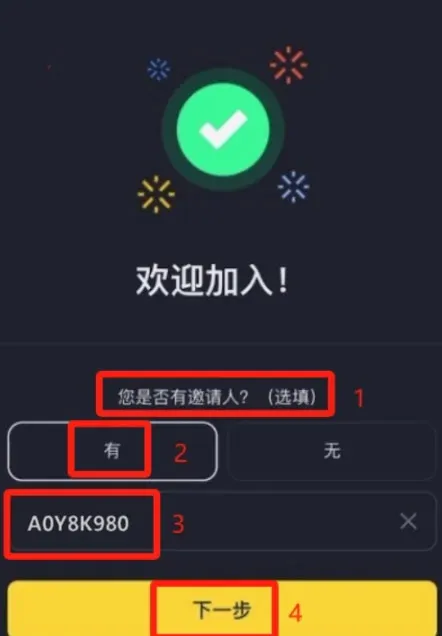
- After successful registration, the page will ask whether you have an inviter. Select “Yes” and enter the referral ID `B2345`. This will grant you a permanent 20 % fee rebate on subsequent trades. Click Next to finish the registration.
After completing the steps above, your Binance account is created. You can now download the app (or log in via the web interface) and start using it.
---
6. Adding Fiat Funds via the C2C Marketplace
- Open the Binance app (or the registration link above) and on the home screen tap Add Funds → C2C Trade.
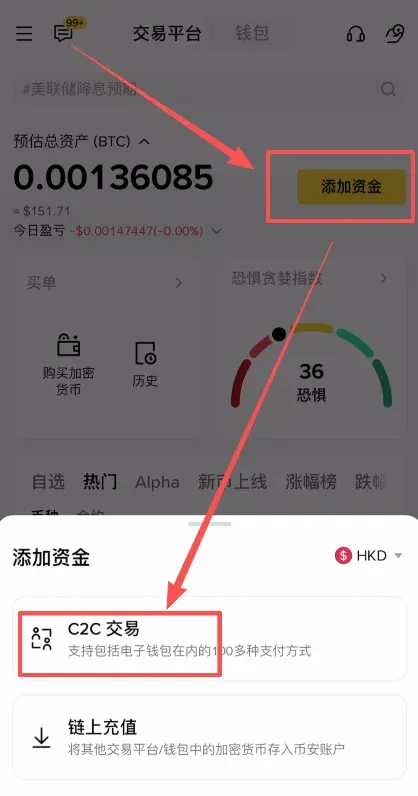
- The C2C page offers a Quick‑Buy section where you can select a fiat currency (e.g., USD) and a payment method such as SEPA, SWIFT, or local bank transfer. Choose the amount you wish to purchase, then click Buy.
*Note for U.S. residents:* Use the Binance.US app or website and select the appropriate U.S. payment options (ACH, wire, etc.).
- A list of sellers will appear, each showing the exchange rate, payment method, and limits. Review the details, then click Buy next to the seller you prefer.
- Confirm the transaction details, then follow the seller’s instructions to transfer the fiat amount to their bank account (or via the chosen payment channel).
- After the seller verifies the receipt of funds, the corresponding amount of USDT (or another stablecoin) will be credited to your Binance wallet automatically.
*Reminder:* Crypto transactions may be taxable in your jurisdiction. Keep records of the fiat amount, the stablecoin received, and the date for potential tax reporting.
---
7. Buying BTC with USDT
- In the Binance app, navigate to Trade → Classic (or Advanced if you prefer).
- Select the BTC/USDT trading pair from the market list.
- Choose the Buy tab, specify the amount of USDT you want to spend, and select either Market (instant execution at the best available price) or Limit (set your own price).
- Review the order summary, then click Confirm Buy. The BTC will be deposited into your Spot wallet once the order is filled.
- You can view your holdings by tapping Wallet → Spot, where BTC and USDT balances are displayed.
---
8. Essential Security Tips
- Enable Two‑Factor Authentication (2FA): Use Google Authenticator, Authy, or a hardware security key.
- **
Related Reading
- Binance vs OKX 2026: Security, Liquidity & Fees for Beginners
- 2026 Bybit Registration & App Download Guide for China
- Binance vs OKX vs Gate.io: Security, Fees & UX Review
💡 Register on Binance with referral code B2345 for the maximum trading fee discount. See Binance complete guide.



