
 Bitaigen Research
In this article we walk you through the entire process—from gathering the required materials to completing the verification—so that users located on the mainland can smoothly obtain a Hong Kong‑region Apple ID and download apps that are restricted to that region. Once you master the key details, you’ll be able to switch the App Store effortlessly, enjoy smoother subsequent operations, and continue reading to learn the exact steps for each stage.
Preparation
Before you officially apply for a Hong Kong‑region Apple ID, make sure you have the following conditions satisfied:
- An email address that has never been used to register an Apple ID before
- A mobile phone number capable of receiving SMS (a mainland number works as well)
- A stable internet connection
- It is recommended to use the Chrome or Safari browser
---
Introduction
Because of regional restrictions, the Binance app cannot be downloaded directly from the mainland App Store. To obtain the application you first need a Hong Kong‑region Apple ID. This guide will demonstrate, step by step, how to create and configure a Hong Kong Apple ID.
---
Step 3: Verification and Use
Verify That the Configuration Is Effective
- Open the App Store and search for an app that is offered only in the Hong Kong region; if it appears with the correct price, your account has successfully switched to the Hong Kong store.
- The interface language should change to Traditional Chinese.
Key Tips When Using the Account
- Do not log into iCloud with this account. This ID is intended solely for App Store downloads, and using it for iCloud could cause data‑sync conflicts.
- Record the email, password, and any other login credentials promptly to avoid losing them.
- It is advisable to open the App Store and sign in at least once every few weeks; prolonged inactivity may result in the account being disabled.
- Never share your account information with others, as doing so can trigger a suspension risk.
---
Step 1: Create an Apple ID Account
1. Access the Official Registration Page
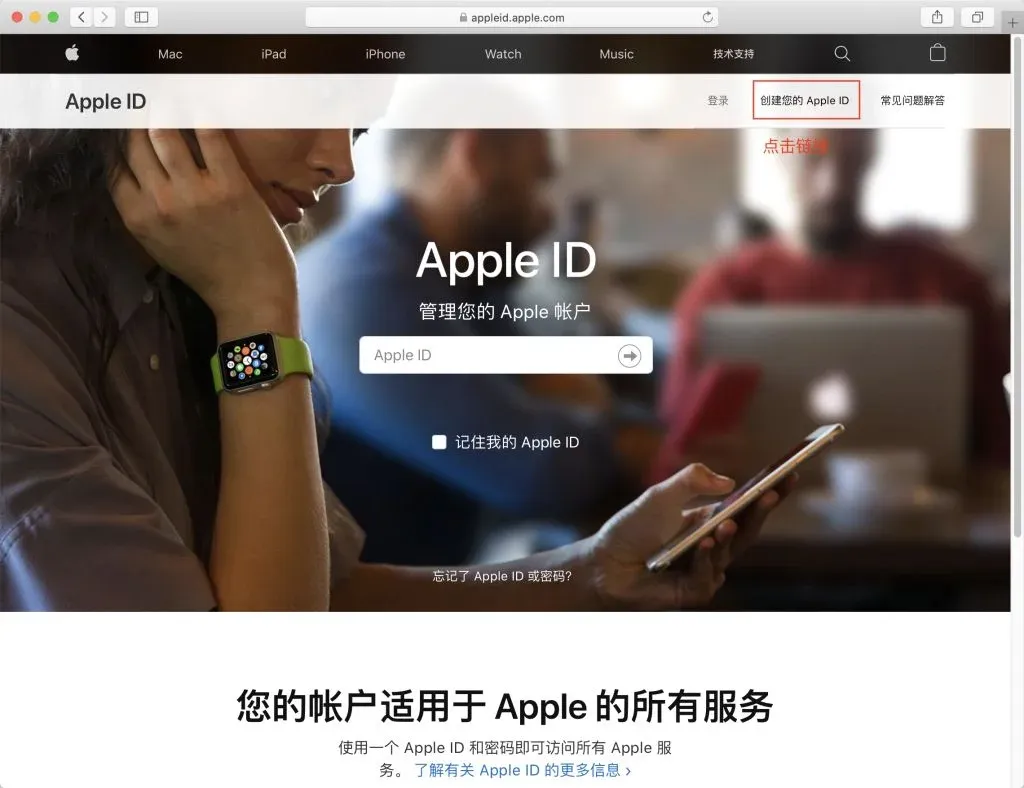
- Open the Apple ID creation page in your browser.
- Click the “Create Your Apple ID” button at the top‑right corner to reach the input form.
2. Fill in Personal Information
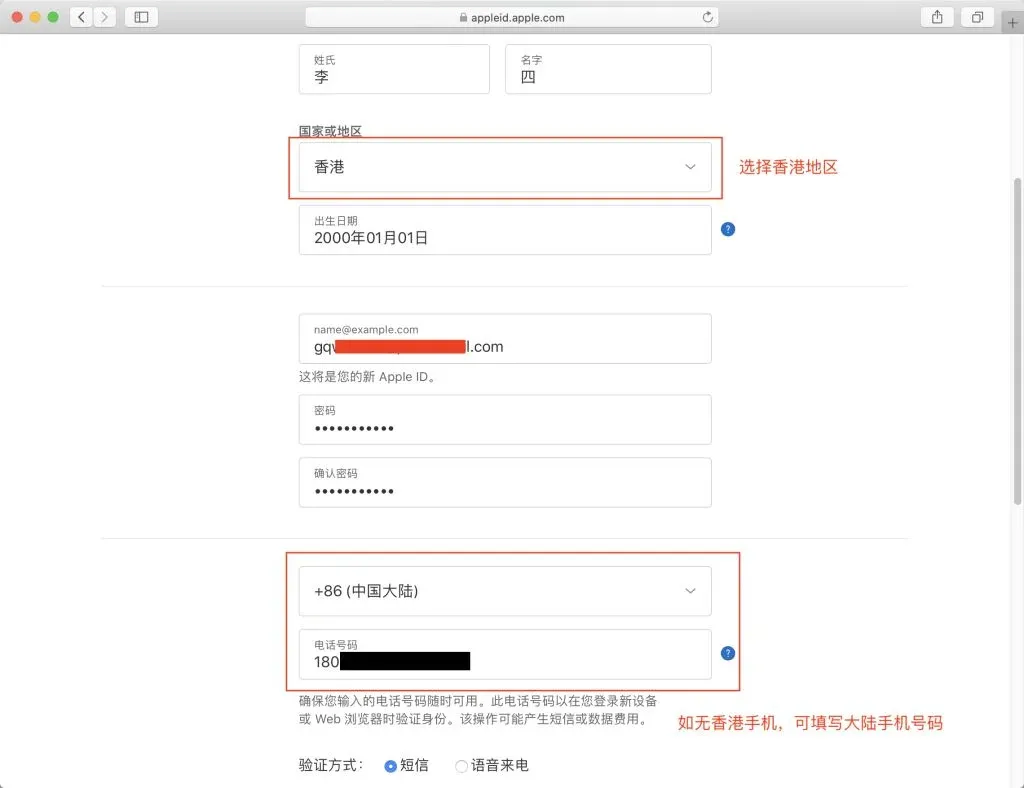
Enter the following fields in order:
- Full name: Use your real name (Chinese characters are accepted).
- Country/Region: ⚠️ Must select “Hong Kong”.
- Date of birth: It is recommended to enter an adult birthdate to avoid age‑related restrictions.
- Email: Provide an email address that has never been registered with an Apple ID.
- Password: Choose a strong password of at least 8 characters that includes uppercase letters, lowercase letters, and numbers.
- Confirm password: Re‑enter the same password.
- Phone number: If you do not have a Hong Kong number, you may temporarily enter a mainland China mobile number.
3. Complete the Verification
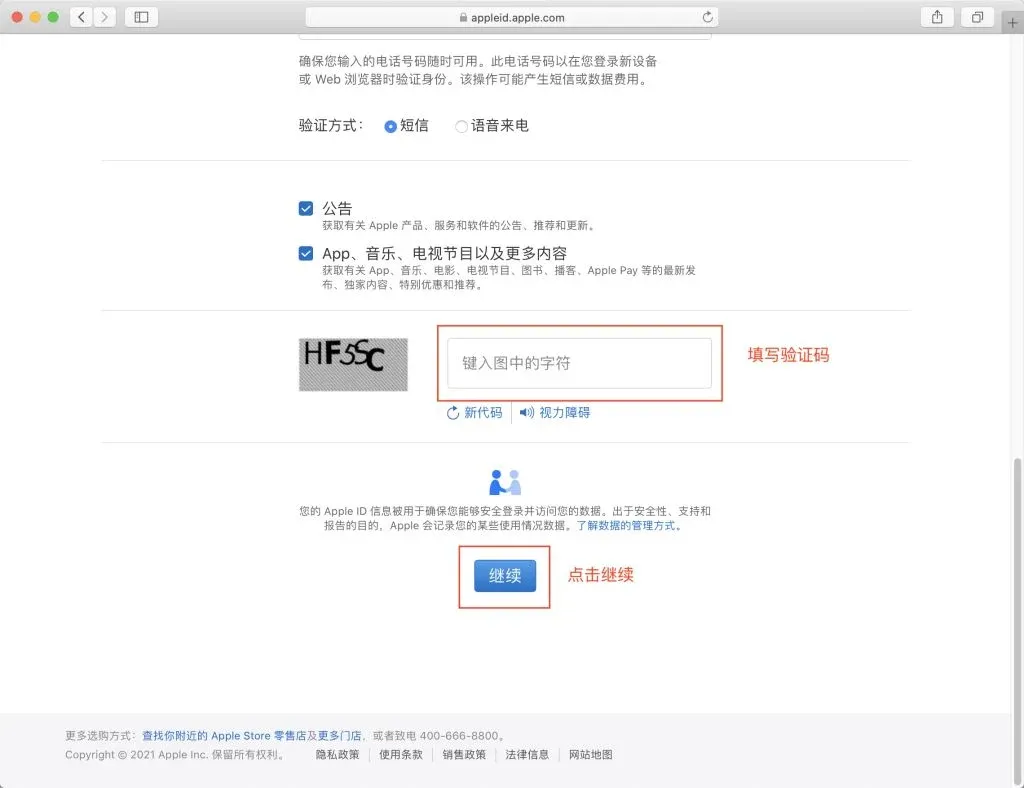
- After solving the image captcha displayed on the page, click “Continue.”
- Check your inbox for the verification code sent by Apple, then type it into the corresponding field on the website.
- Click “Continue” again, and finally enter the SMS verification code you received on your phone to finish the verification process.
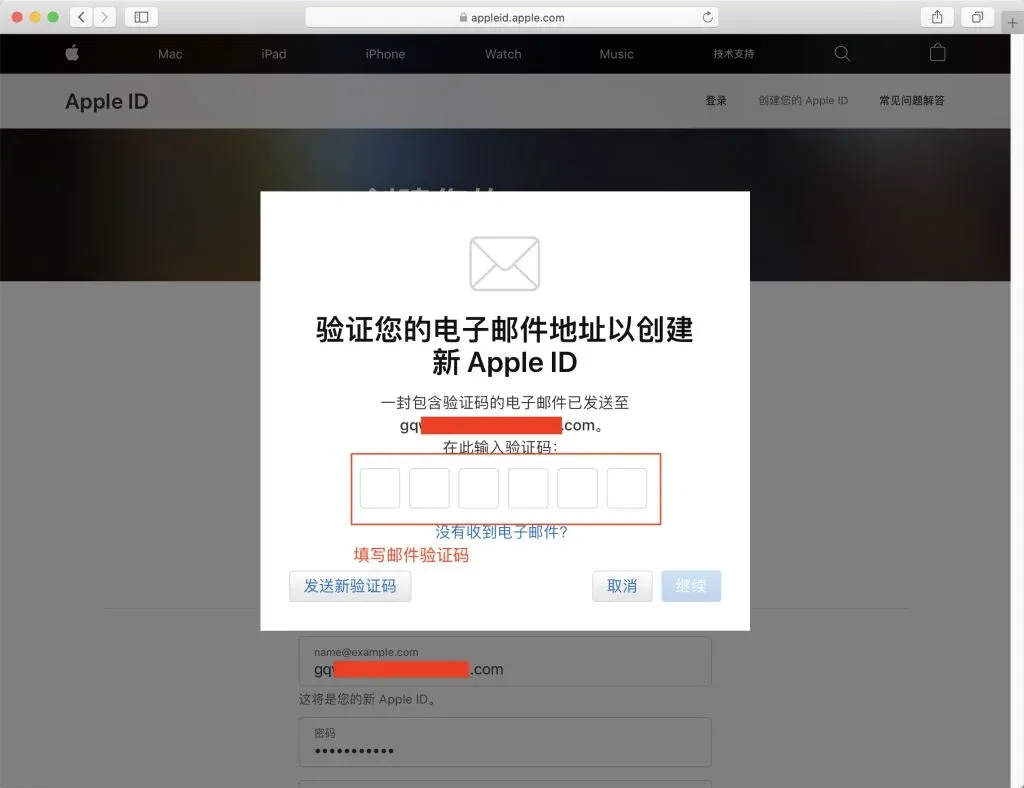
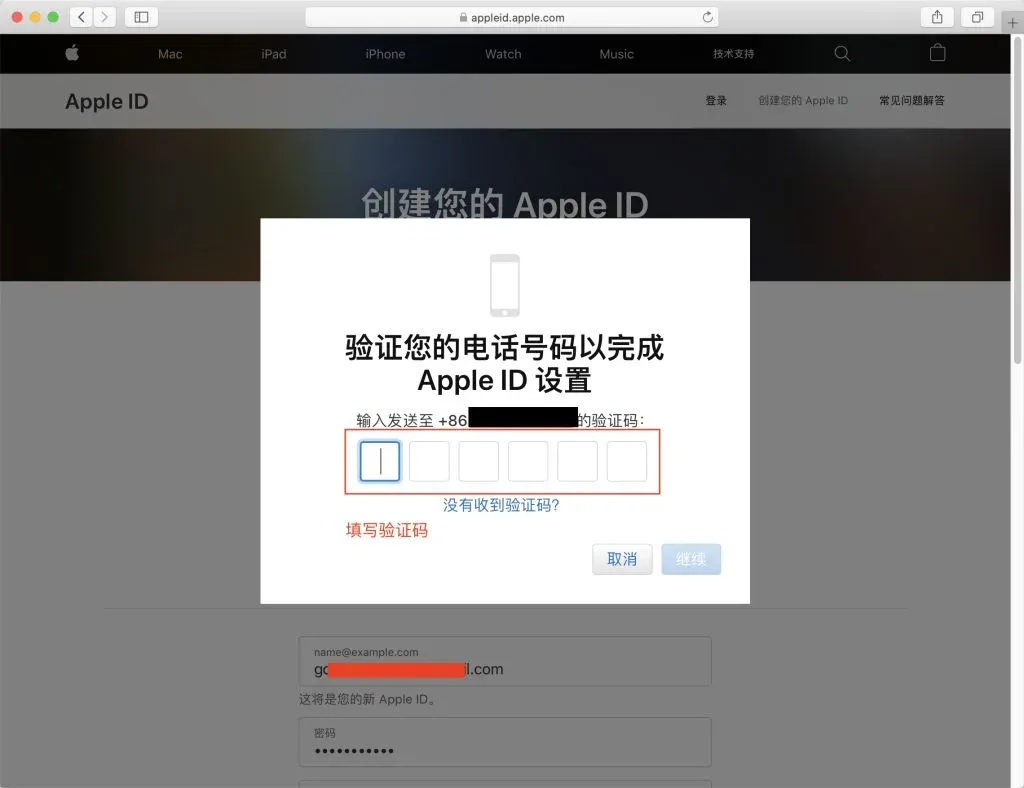
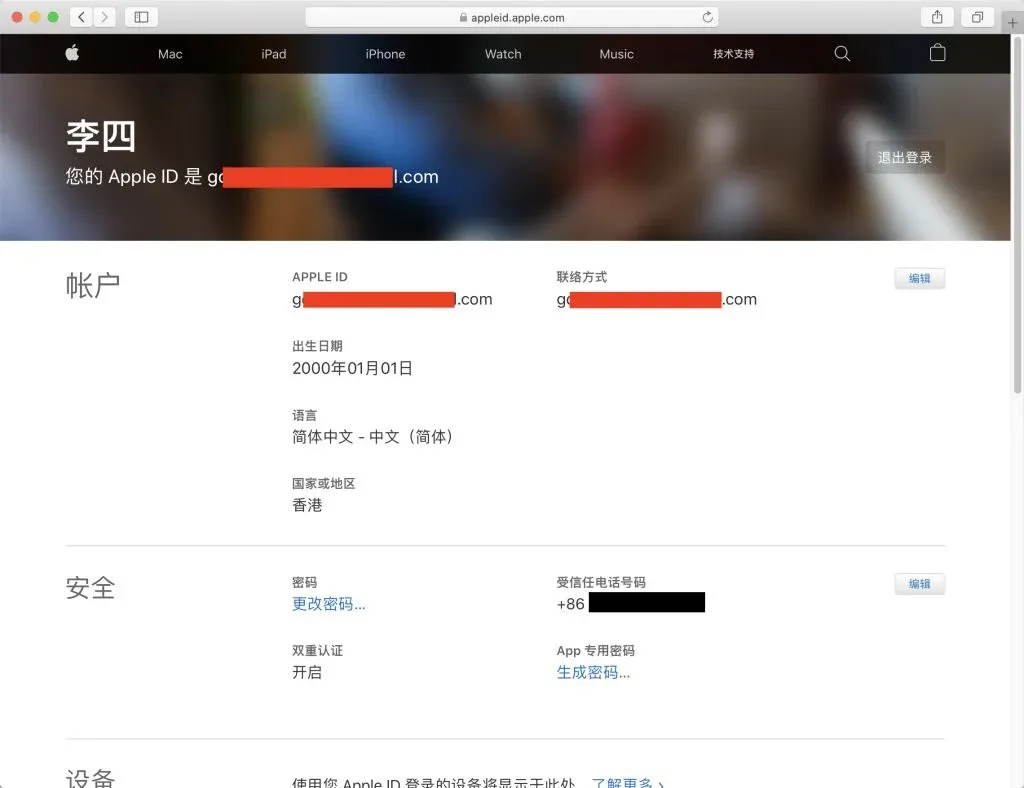
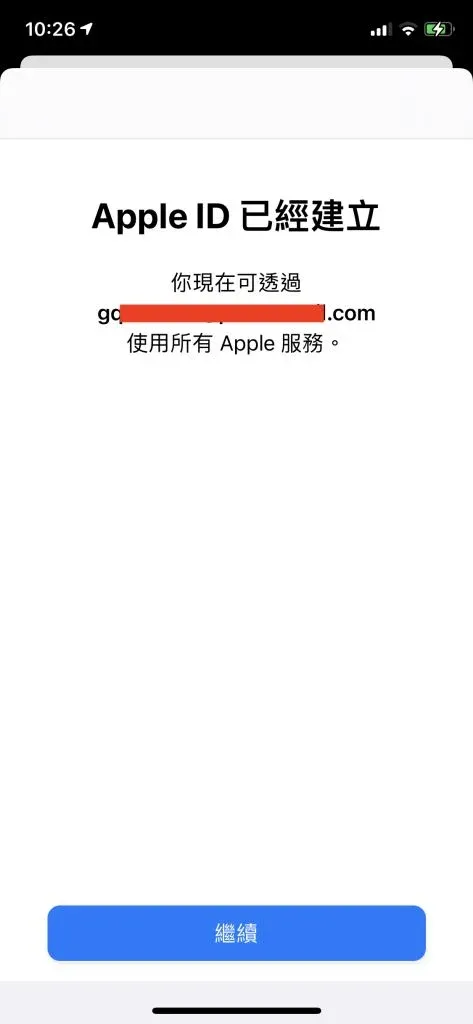
Once the verification succeeds, your Hong Kong Apple ID is officially created.
---
Step 2: Configure the Apple ID on an iOS Device
1. Sign In to the App Store
- Launch the App Store app on your iPhone or iPad.
- Tap the profile icon at the top‑right corner. If you are already logged in with another Apple ID, sign out first.
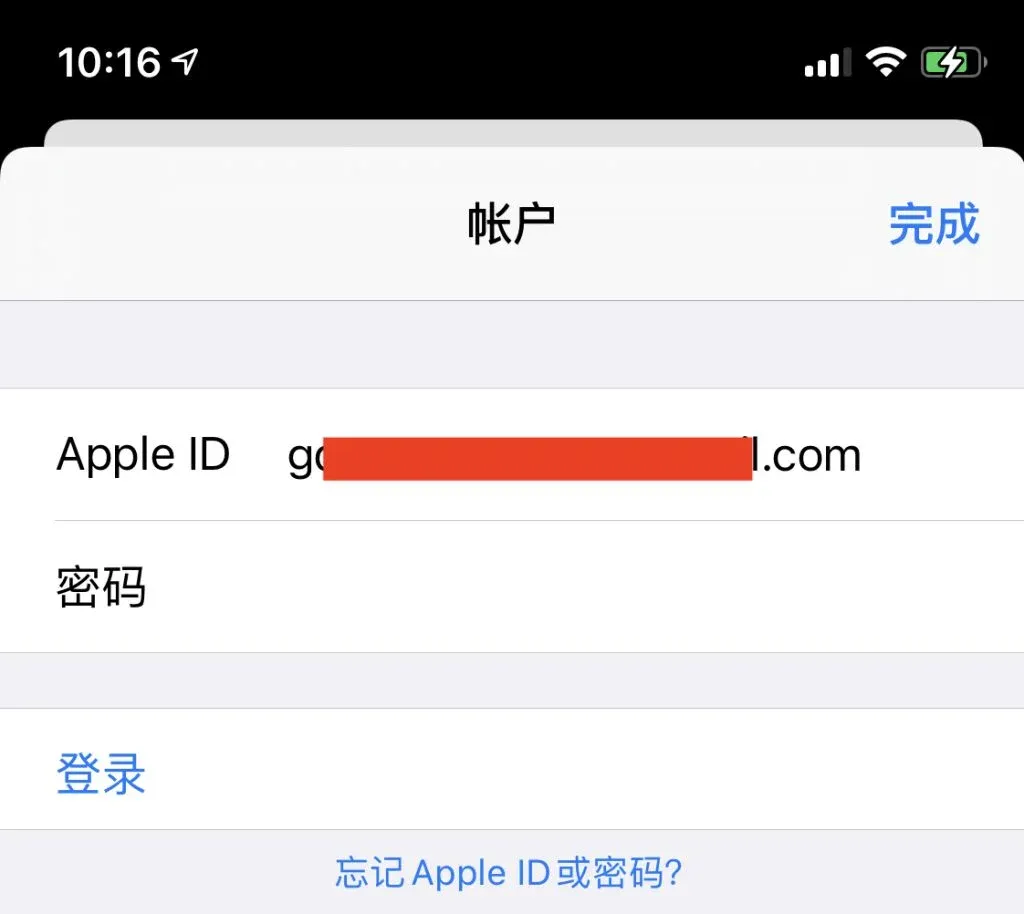
- Choose “Sign In” and enter the Hong Kong Apple ID and password you just created.
2. Additional Verification on First Sign‑In
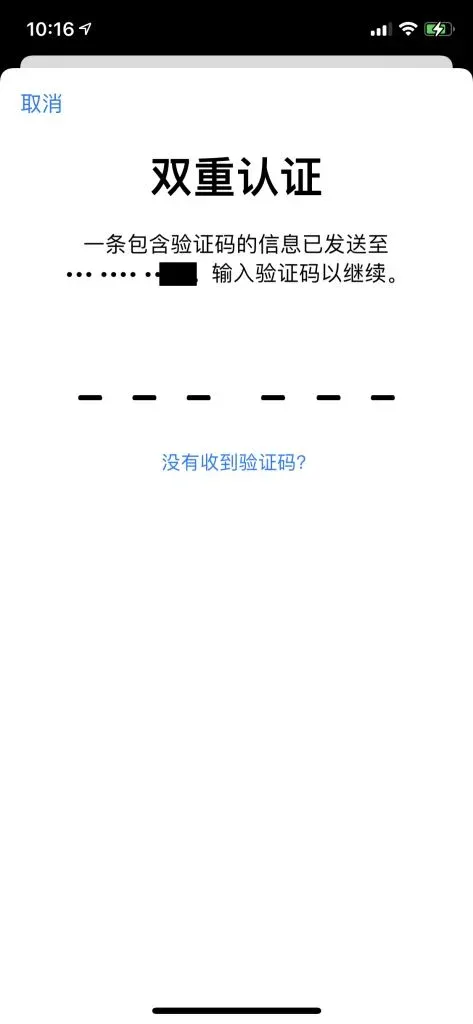
- The system may request the verification code that was sent to your phone; follow the prompts to complete it.
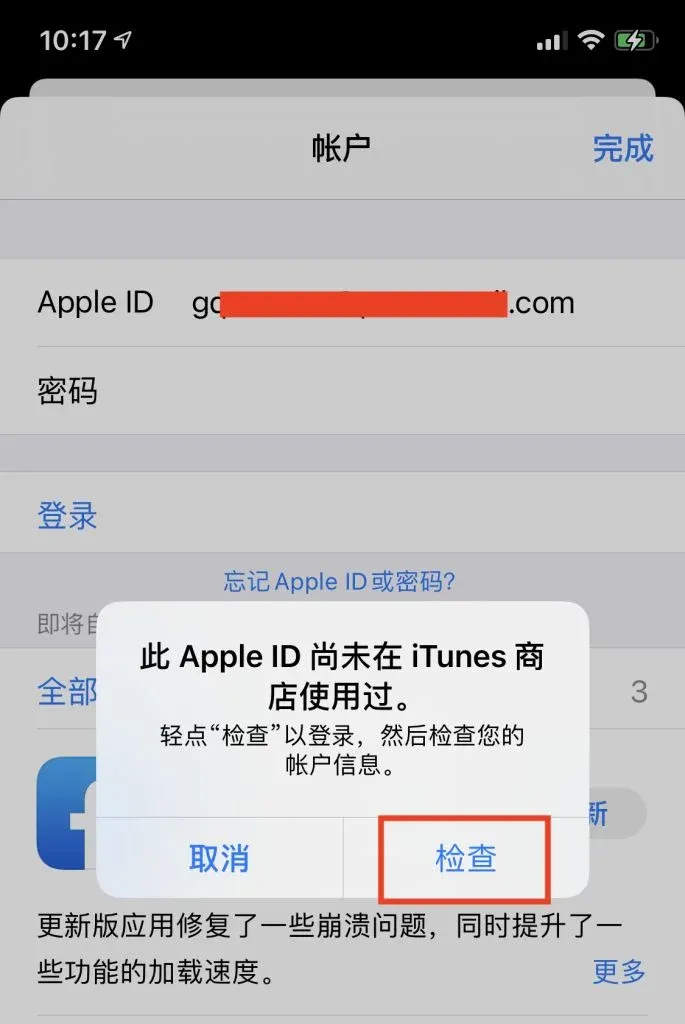
- After signing in, you will see a message stating “This Apple ID has not been used with iTunes Store before.” Tap “Check” to proceed.
3. Accept the Service Terms
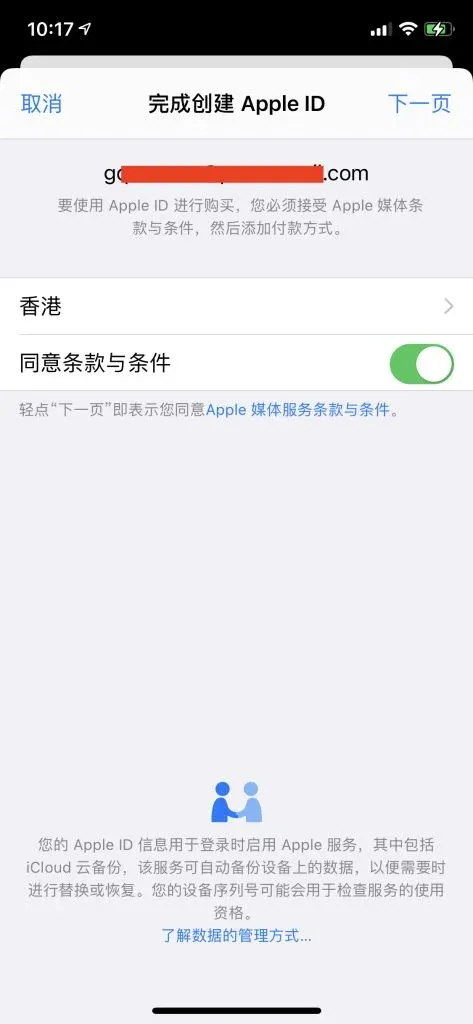
- Carefully read Apple’s Terms and Conditions.
- Tick the box “I have read and agree to the above terms and conditions,” then click “Next.”
4. Set Up a Payment Method (Critical Step)
Payment Options
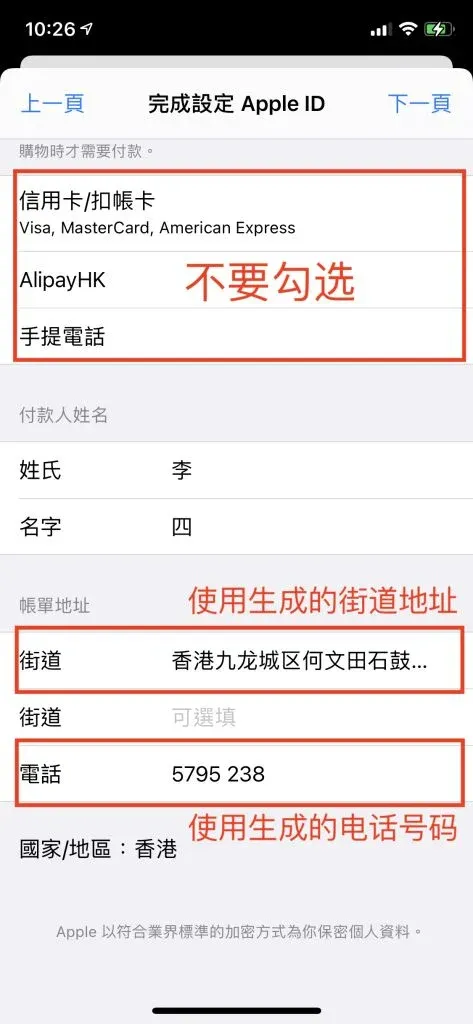
- Prefer “None.” Selecting “None” prevents any payment instrument from being linked to the account.
- If the “None” option does not appear, choose any other method for the moment; you can later return to the Apple ID account settings (appleid.apple.com) and switch it to “None.”
Billing Address
You must provide a Hong Kong address. An example format is:
```
Name: Your Full Name
Street address: 123 Des Voeux Road Central
City: Central
State/Province: Hong Kong
Postal code: 999077
Phone: +852 12345678
```
How to obtain a Hong Kong address:
- Use a Hong Kong address generator, e.g., https://www.meiguodizhi.com/hk-address
- Or search online for a real commercial address in Hong Kong and use it for the purpose of registration.
When entering a billing address, you may use USD as the currency and select SEPA/SWIFT as the payment‑network option if you later decide to add a payment method.
5. Finish the Configuration
- After filling in all required fields, tap “Next” at the top‑right.
- When the system finishes processing, a “Welcome to the App Store” screen will appear, indicating that the setup is complete.
---
Frequently Asked Questions
Q1: Why doesn’t the “None” option appear when I choose a payment method?
A: If the option is missing, first complete the registration with any available payment method. Afterwards, log in to the Apple ID management page (appleid.apple.com) and change the payment method to “None.”
Q2: What should I do if I entered the billing address incorrectly?
A: Sign in to the Apple ID management portal, navigate to the “Billing Address” section, and edit the information there.
Q3: Can I use a mainland China phone number?
A: Yes, a mainland number can be used for the initial verification, but it is recommended to replace it with a Hong Kong number later for a smoother verification experience.
Q4: How do I recover the account if I forget the password?
A: Visit the “Forgot Password” page on the Apple ID website, and follow the instructions to reset the password using the email address you registered with.
---
Summary
After completing all of the steps above, you will possess a fully functional Hong Kong‑region Apple ID that can be used in the App Store to download apps such as Binance that are restricted by region. Keep the account active by signing in periodically; prolonged inactivity may lead to deactivation.
This article explained How to Create a Hong Kong Region Apple ID in 2026 – A Detailed Step‑by‑Step Overview. For more related content, you can search the archives of Bitaigen (比特根) or continue reading the recommended articles listed below. Thank you for supporting Bitaigen (比特根)!
💡 Register on Binance with referral code B2345 for the maximum trading fee discount. See Binance complete guide.
⚠️ Risk Disclaimer: Crypto prices are highly volatile. This is not investment advice.



