
 Bitaigen Research
 OKX (formerly OKEx) is a digital‑asset exchange founded on May 31 2017. The platform rebranded with the Chinese name “欧易” in 2021. It now serves more than 150 countries and regions, hosts tens of millions of users, and offers a full suite of products including spot trading, margin, options contracts, and DeFi mining. In 2025 the exchange strengthened its security framework by launching the OKX Protect program, which integrates nine security mechanisms such as AI monitoring, Proof‑of‑Reserve (POR), and self‑custody wallets. The system has also undergone an independent audit by Hacken and uses Merkle‑tree technology to provide transparent asset management.
The Bitaigen editorial team has carefully compiled a complete step‑by‑step onboarding guide for OKX, covering everything from downloading the app, installing it, completing identity verification, and funding your account. With illustrated screenshots, newcomers can quickly become familiar with the platform’s functions and lower the barrier to their first trade. Continue reading to access the full tutorial.
Download the OKX APP
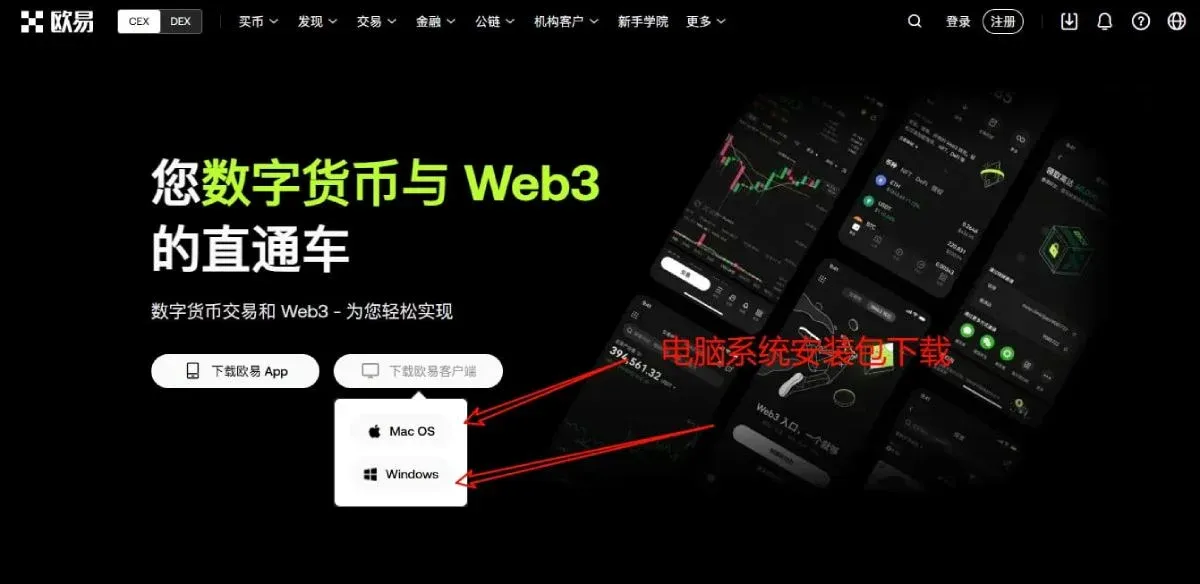
After you finish identity verification and security configuration, the first step is to download the OKX APP. Click the downward‑arrow icon in the top‑right corner to reach the download page, where versions for Android, macOS, Windows, and other platforms are provided.
Installation
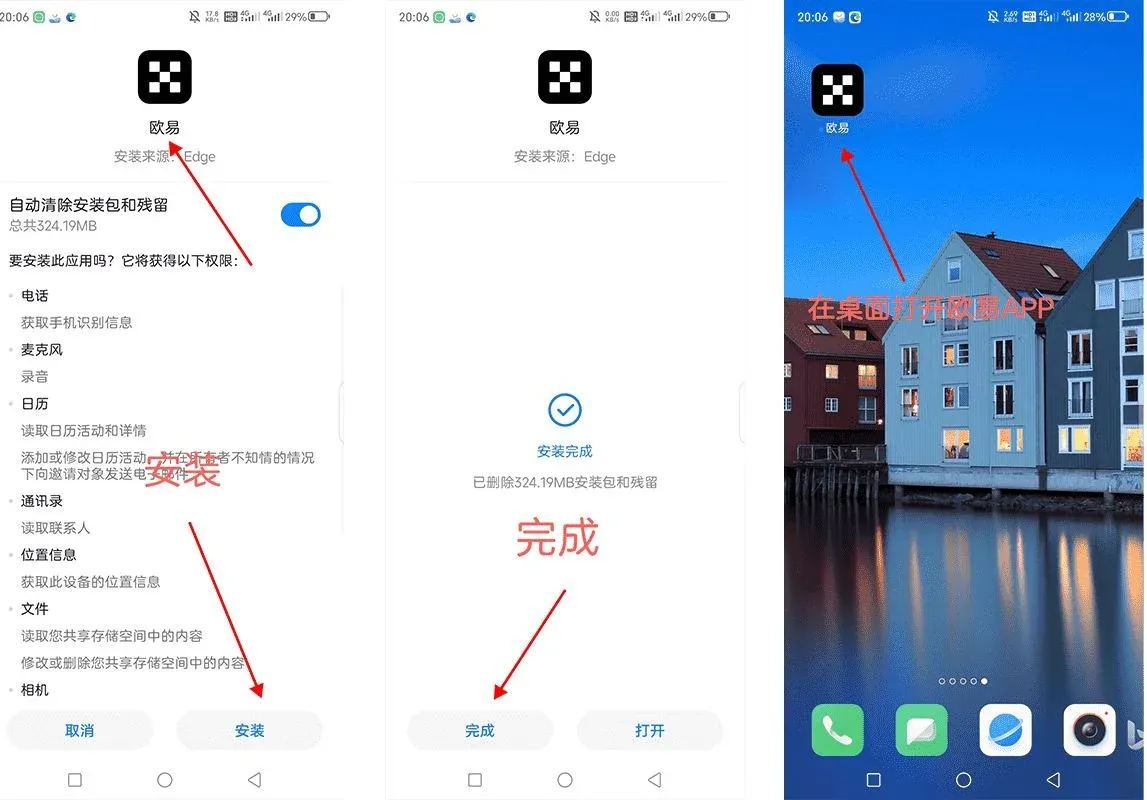
Android users are encouraged to download the latest version directly from the official OKX website. Depending on the phone brand, you may need to adjust the following settings:
- Huawei: Disable “Pure Mode” (Settings → System & updates).
- Xiaomi: Turn off “Security Guard”.
- Other Android devices: Enable “Install unknown apps” for the browser or file manager you use.
During installation the system may display a risk warning because the app is not distributed via domestic app stores. As long as you confirm that the source is the official website, the signature can be trusted and the installation can proceed.
iOS – Download OKX
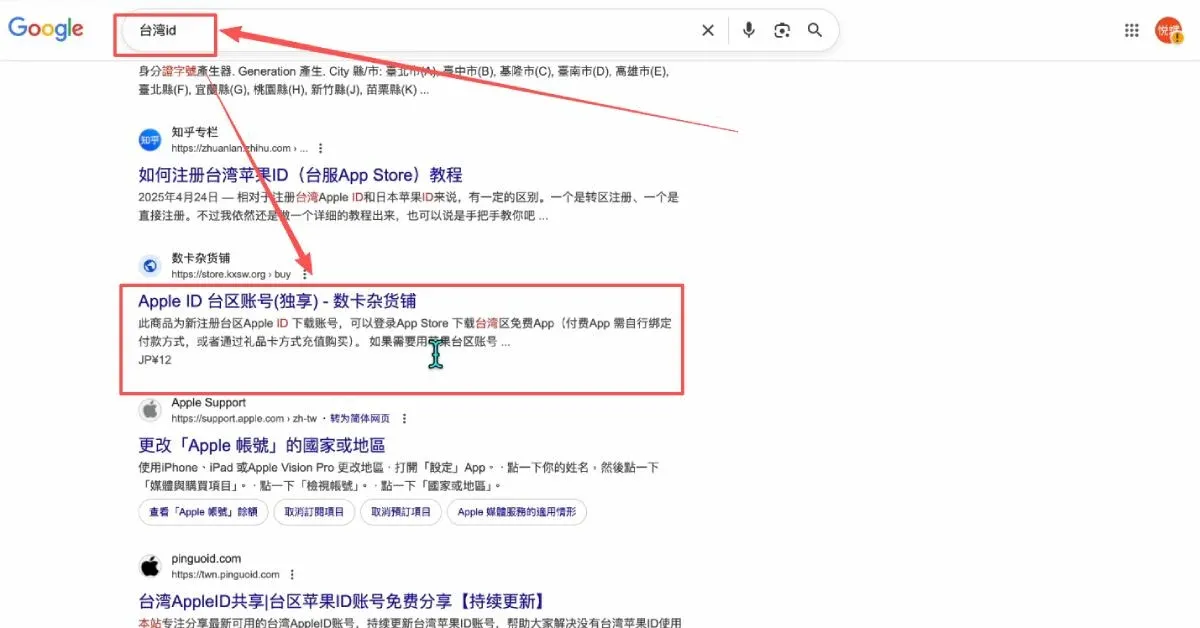
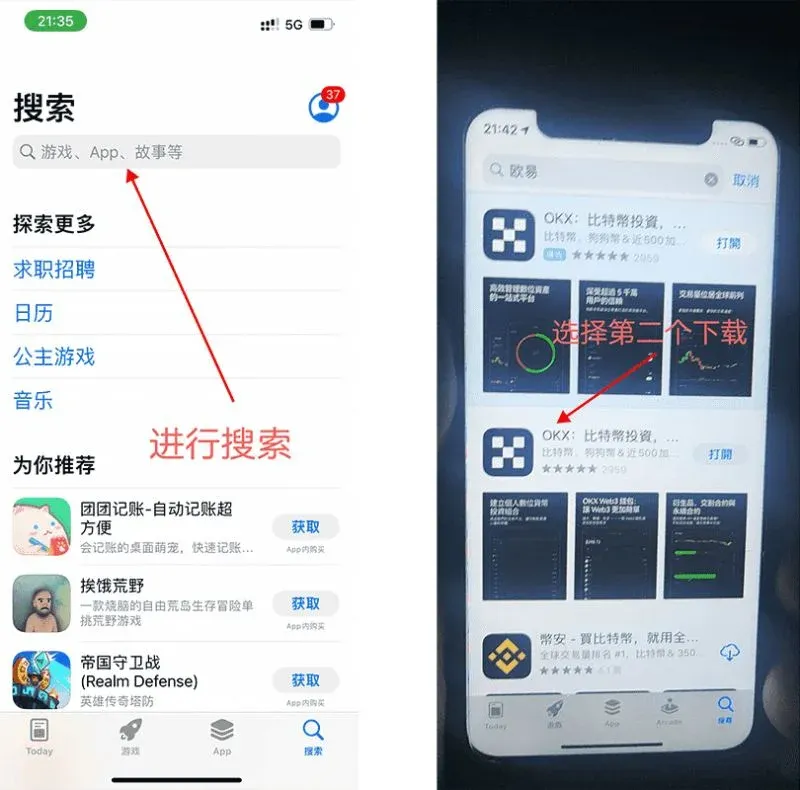
For iPhone users, you need an overseas Apple ID (e.g., a Taiwan‑region ID) to log into the App Store. After purchasing, you can download the OKX APP. The versions for the US, Taiwan, and Hong Kong regions are identical and can be obtained either from the official website or directly from the App Store.
Switch the Interface to English (or other languages)
If the app opens in a language you do not understand, tap the grid icon at the top‑left to enter Profile → Preferences. In the Language dropdown, select “English”. The interface will refresh in the chosen language.
If the app lands directly on the wallet screen, tap the Web3 tab at the top and switch to “Exchange” mode to access the full trading interface.
Register an OKX Account
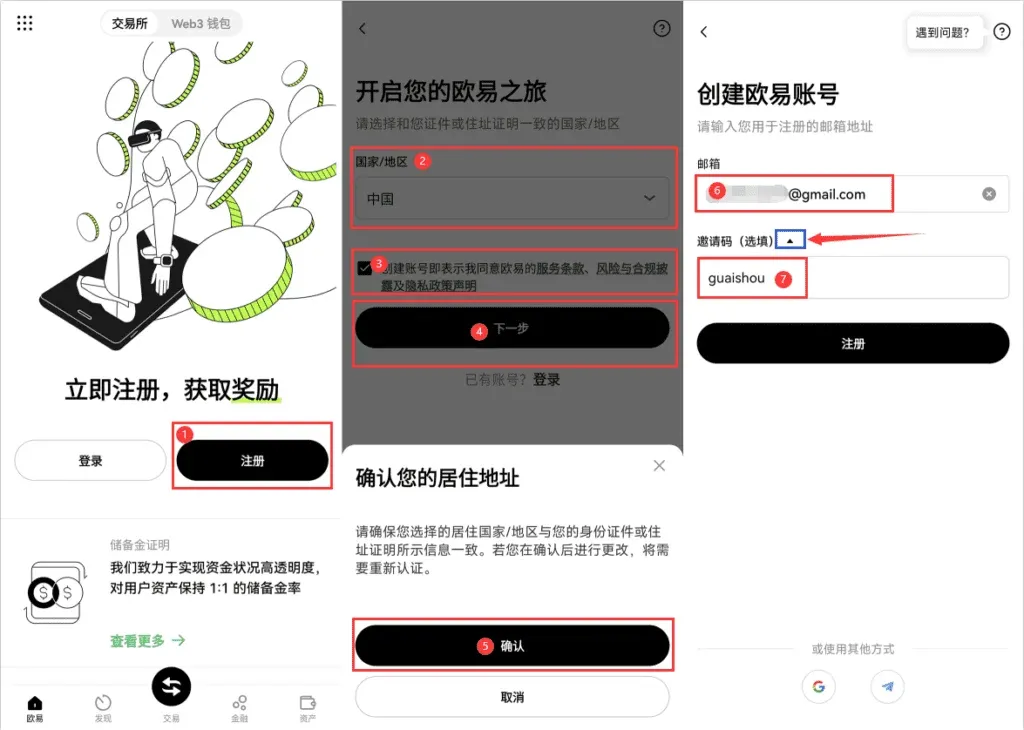
Creating an account is the first step to using OKX and takes only a few minutes. Prepare a valid mobile number or international email address (Gmail, Outlook, etc.) so you can receive verification codes.
- Open the app and tap Register (or use the official registration link). Choose the appropriate Country/Region that matches your identification document, agree to the Terms of Service, and click Confirm.
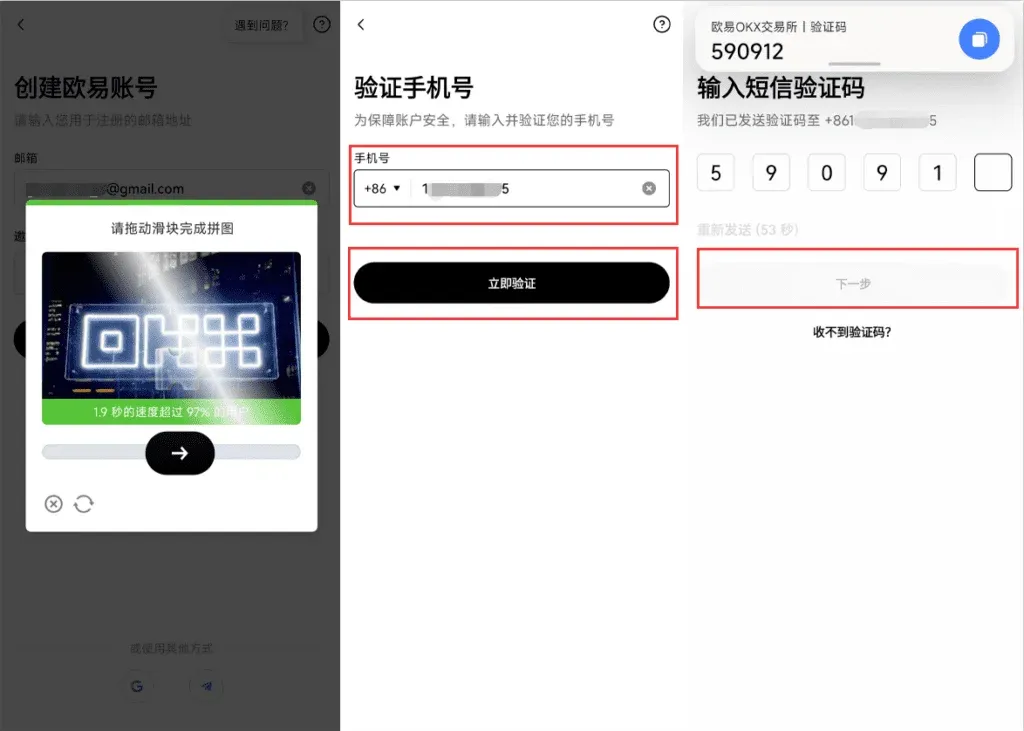
- Complete the image captcha, enter your mobile number (e.g., +1 for the United States, +44 for the United Kingdom) and request the verification code, then tap Next.
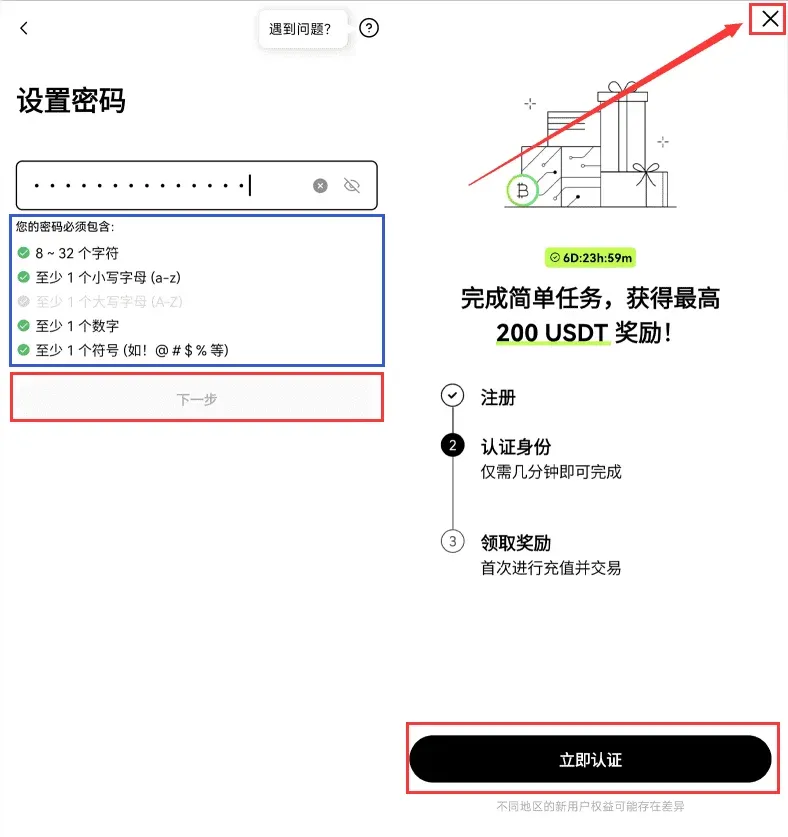
- Set a login password to finish registration. You can start the identity verification immediately, or close the pop‑up (×) to do it later.
Identity Verification and Security Settings
KYC (Know‑Your‑Customer) verification is a regulatory requirement and a key safeguard for user assets. The process typically takes under 5 minutes and consists of uploading a government‑issued ID and completing a facial‑recognition check.
- After logging in, you can access the verification entry from the home page or any trading screen.
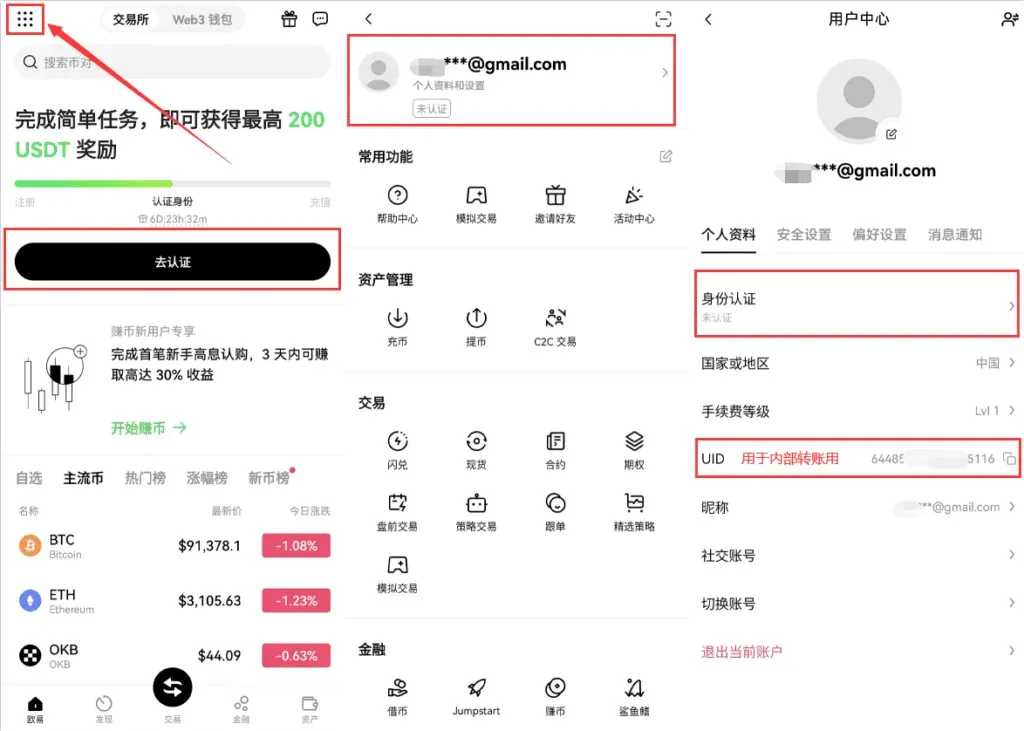
- Tap the menu icon at the top‑left → Profile & Settings → Identity Verification.
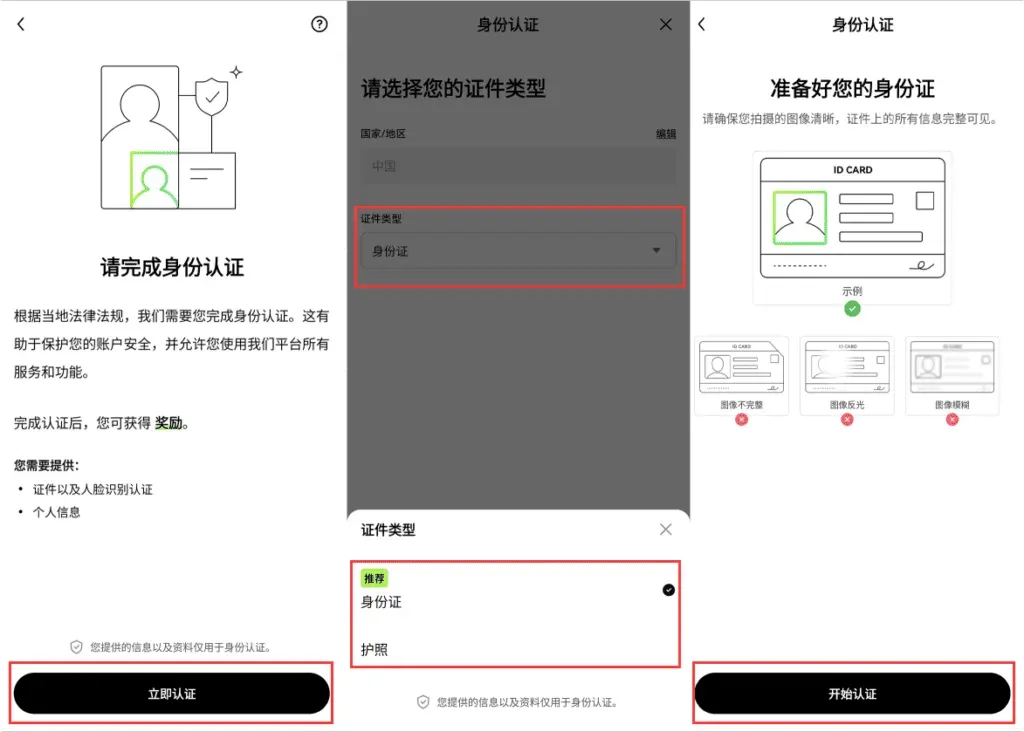
- Choose the document type, upload the required photos, and perform the facial‑recognition step. OKX no longer differentiates verification tiers; once approved you can access all platform features.
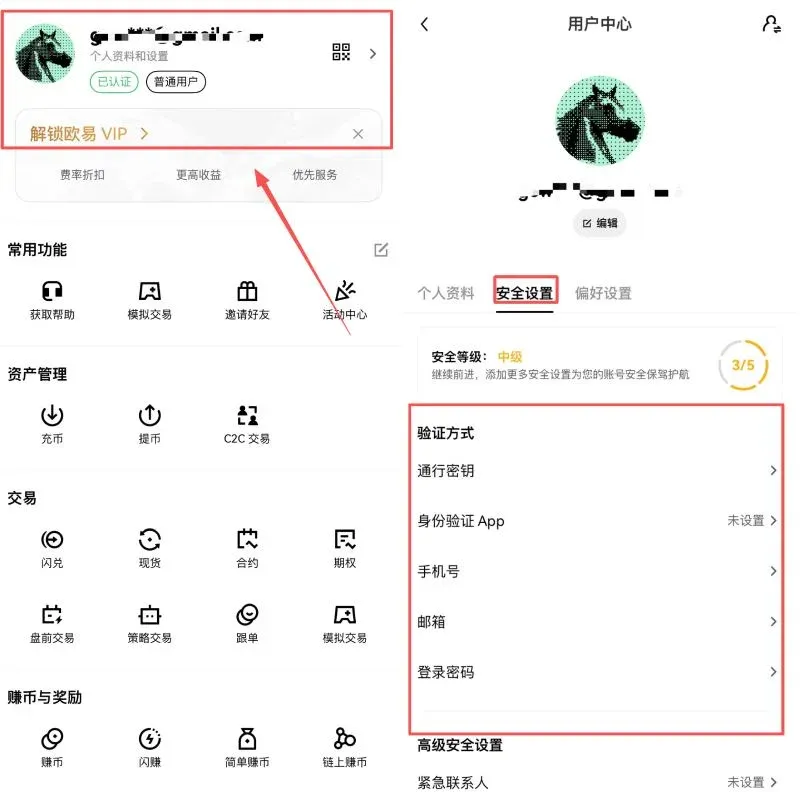
After successful verification, go to the Security Center from your profile page. The system has already auto‑linked your email and phone number (from registration). It is strongly recommended to enable the following additional protections:
- Passkey (biometric or hardware‑based login)
- Authenticator App (e.g., Google Authenticator, Authy)
- Anti‑phishing Code
- Emergency Contacts
These measures significantly raise your account’s security grade.
Funding Your Account
As of 2025, OKX supports two primary funding channels for global users:
| Method | Fee | Arrival Time | Ideal For | Remarks |
|---|---|---|---|---|
| **On‑chain Deposit** | 0 (only blockchain gas fee) | 5–10 minutes | Users who already hold crypto assets | Prefer the **TRC‑20** network for USDT to enjoy the lowest fee |
| **C2C Purchase** | ~2.5–5 % (depends on payment method) | Instant (1–3 minutes) | Newcomers or those who need a quick on‑ramp | Supports credit/debit cards, bank transfers (SEPA/SWIFT), and other local payment options |
- To minimize fees and ensure a stable transfer, choose On‑chain Deposit.
- To receive funds instantly without holding crypto beforehand, choose C2C Purchase.
C2C Purchase (Buy Crypto Directly)
If this is your first time on OKX and you do not yet own any digital assets, the most convenient route is the C2C Purchase feature. It accepts fiat currencies such as USD and allows payment via bank cards, SEPA/SWIFT transfers, and other supported methods. You can buy mainstream coins like USDT, BTC, ETH, etc. The system automatically compares offers and displays the net amount you will receive; you can select the lowest‑fee option.
Step‑by‑Step Procedure
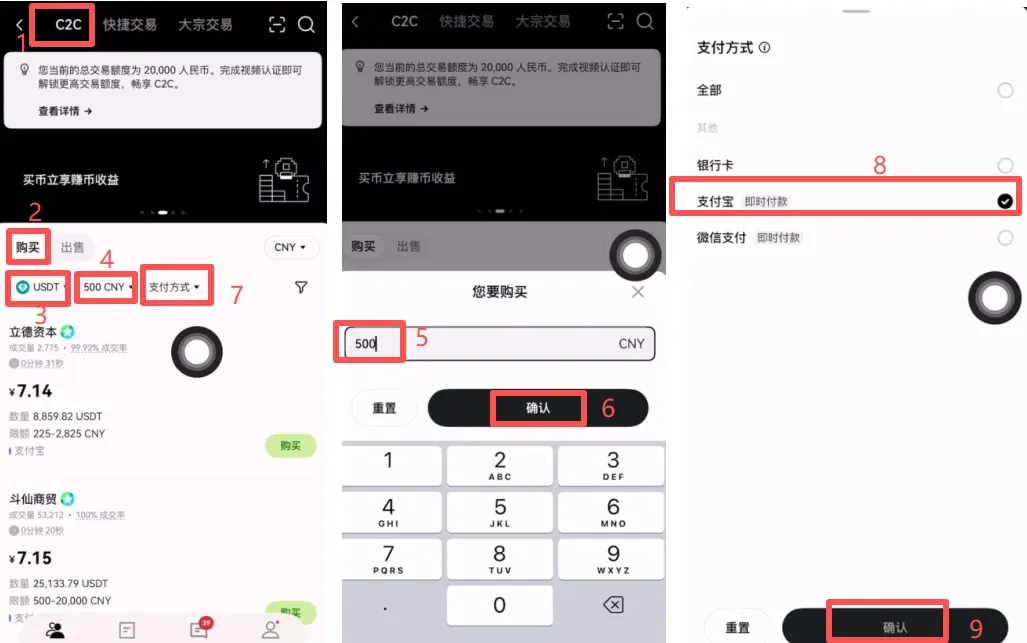
- Open the OKX APP and tap C2C Buy. At the top you will see three tabs: C2C, Quick Trade, and OTC (large‑volume trade).
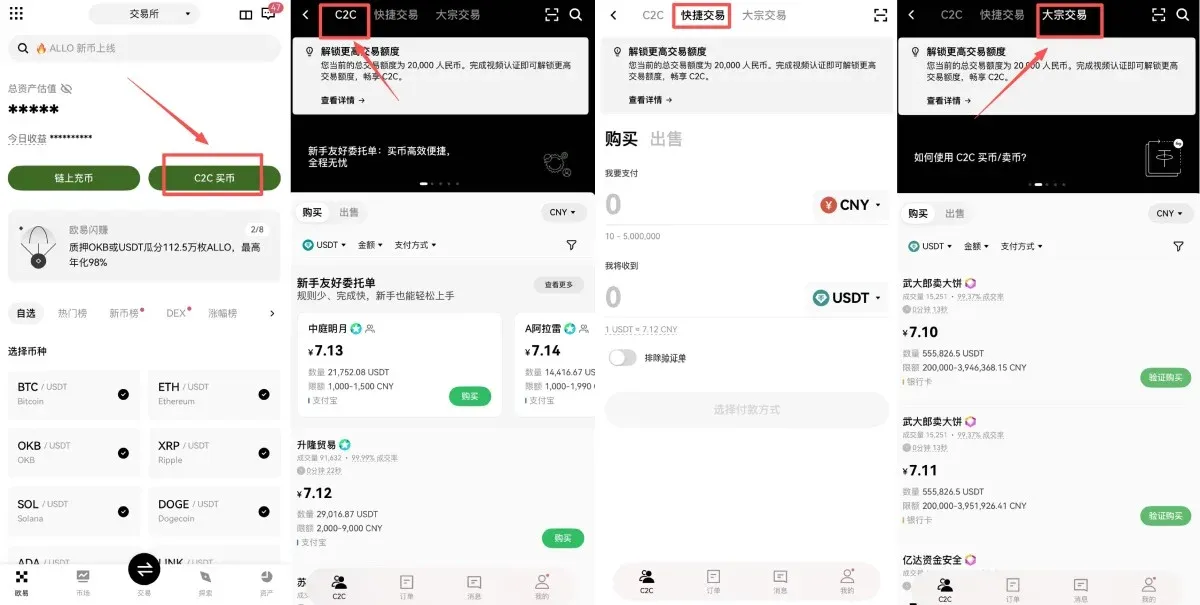
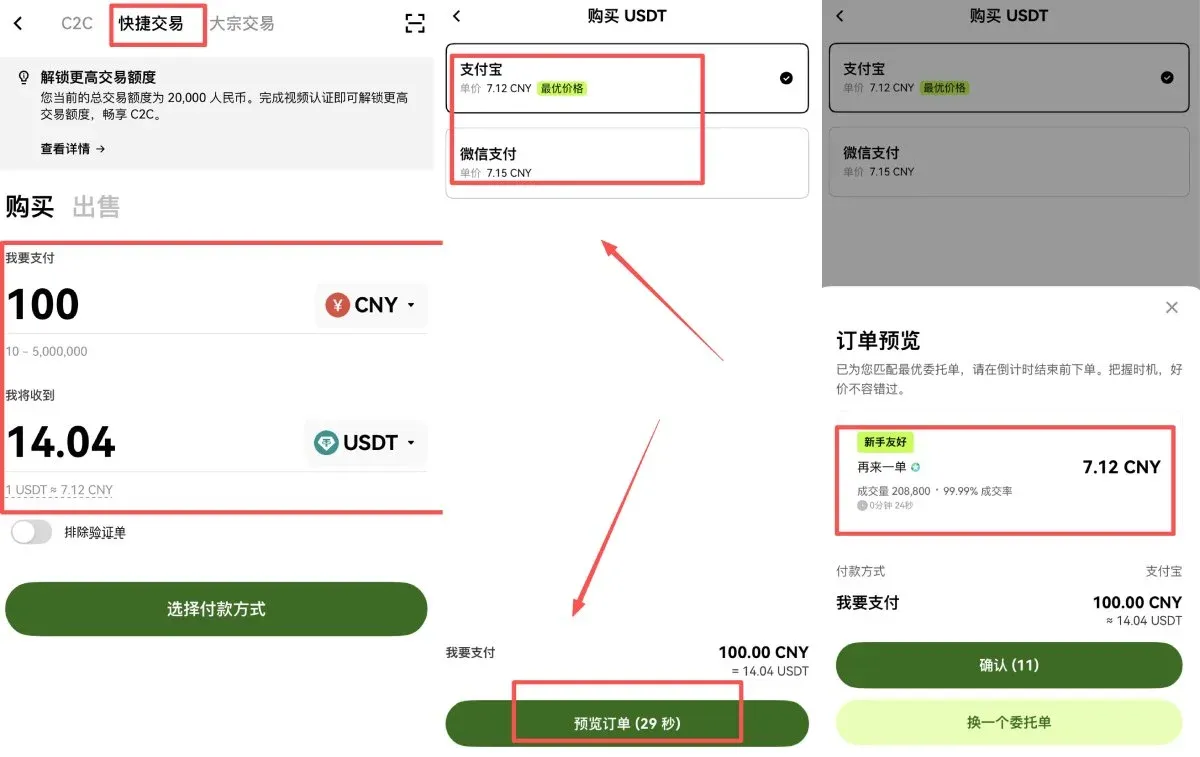
- Quick Trade
- Select Quick Trade → Buy.
- Enter the fiat amount and choose the cryptocurrency you wish to receive.
- Pick a payment method (e.g., credit card, SEPA transfer), preview the order, and confirm.
- After the order is generated, you will see the seller’s payment details. Follow the seller’s instructions to complete the payment.
- Once payment is made, tap I have paid in the app, upload a screenshot of the transaction receipt, and wait for the seller to release the crypto.
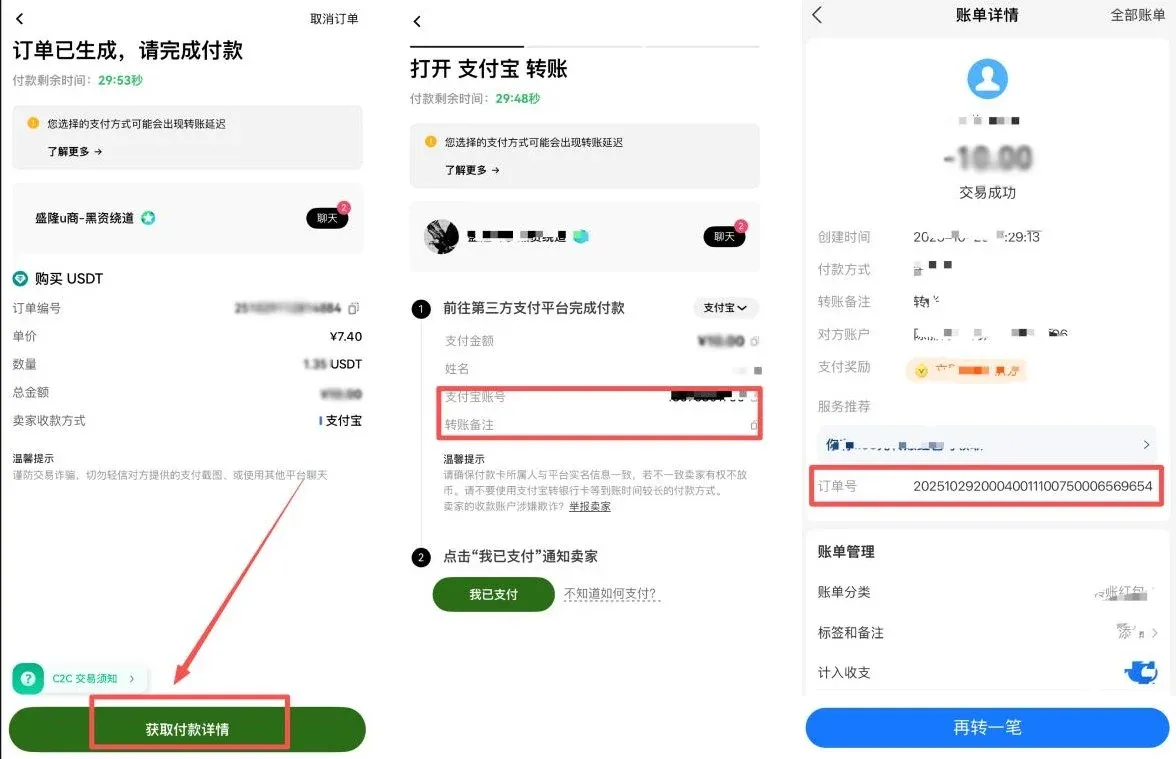
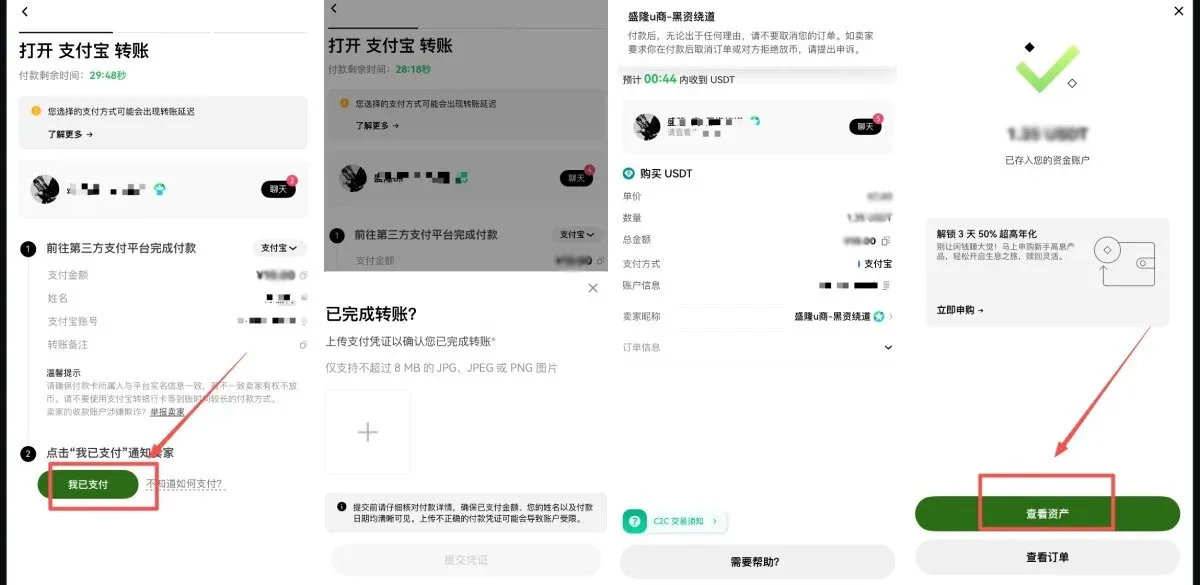
- OTC (Large‑volume) Trade
- Choose C2C → Buy.
- Using USDT as an example, input the USD amount you wish to spend (e.g., $500) and select a payment method such as a bank transfer.
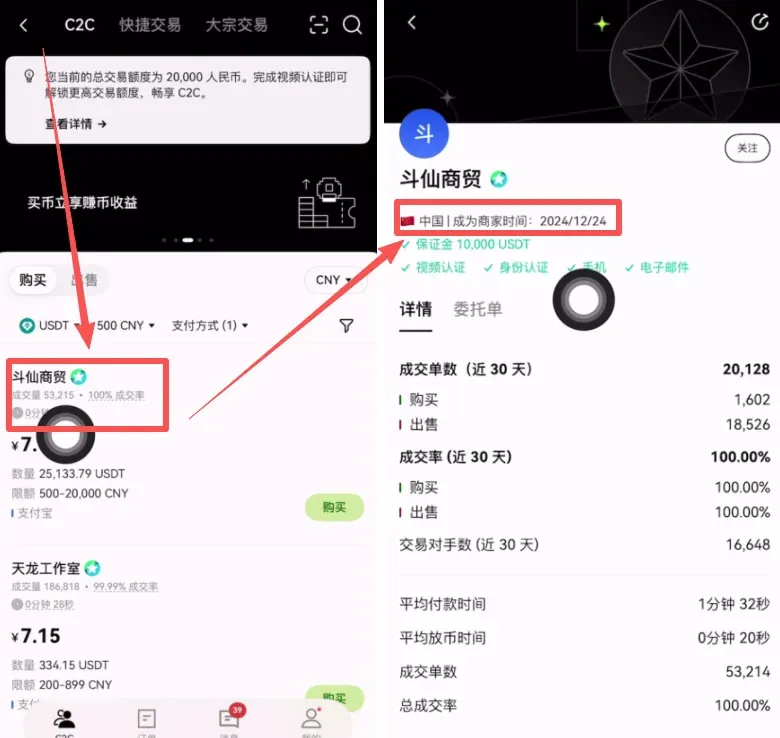
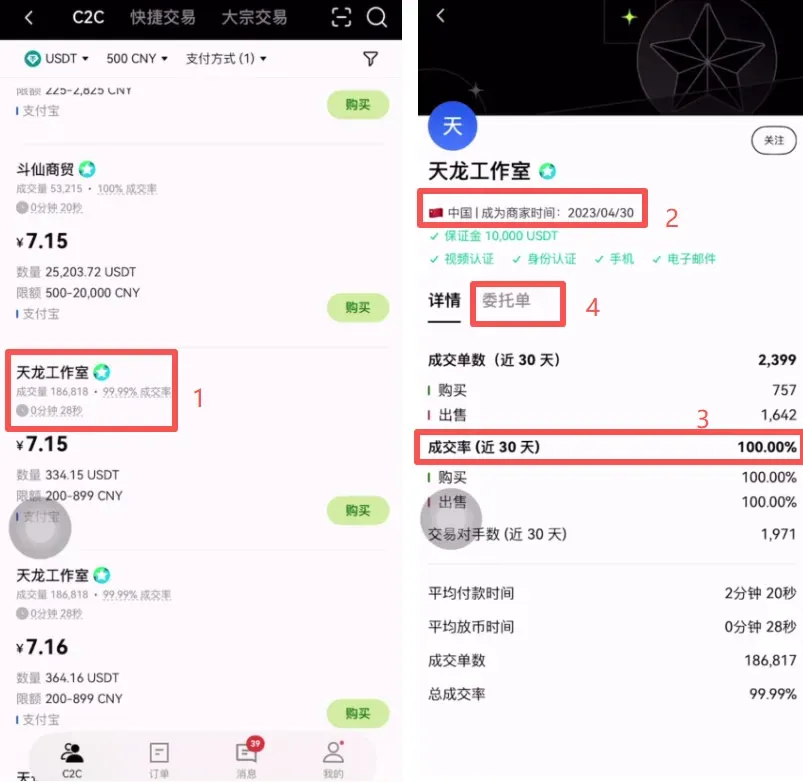
- The platform will list matching sellers. Prioritize sellers with high transaction volume, high success rates, and registration dates older than one year.
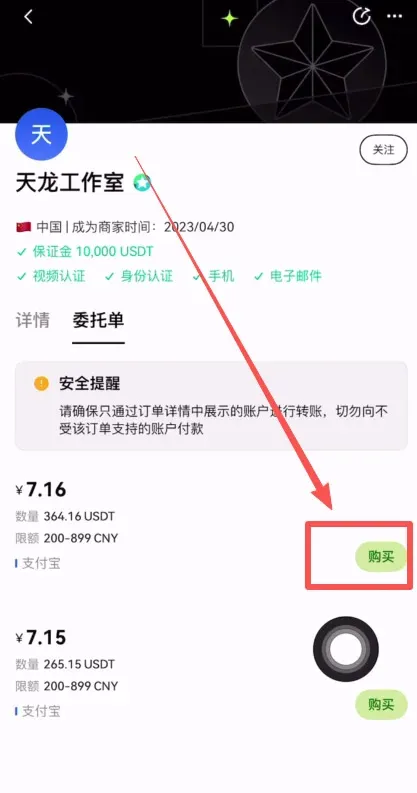
- Initiate a chat with the seller to obtain exact payment details, transfer the funds, then click I have paid. The seller will release the cryptocurrency after confirming receipt.
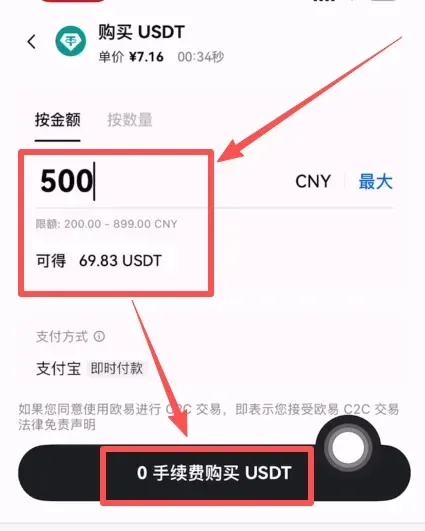
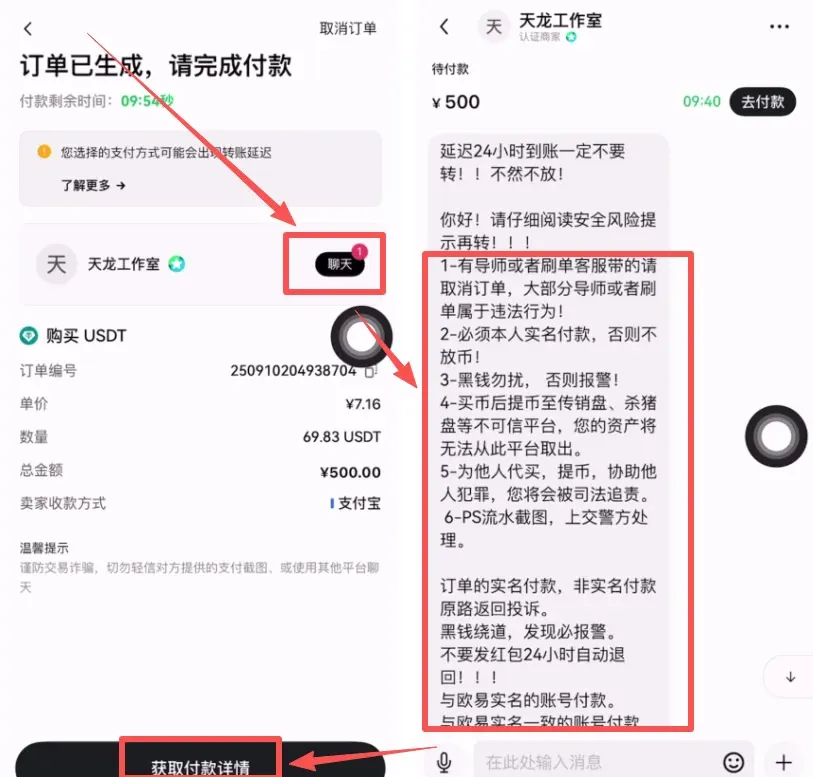
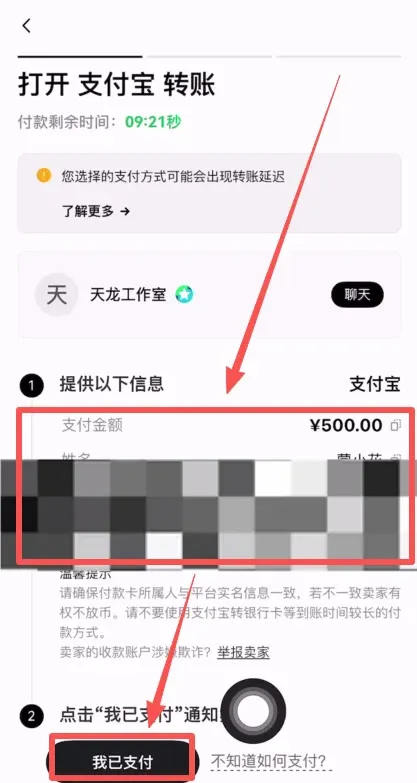
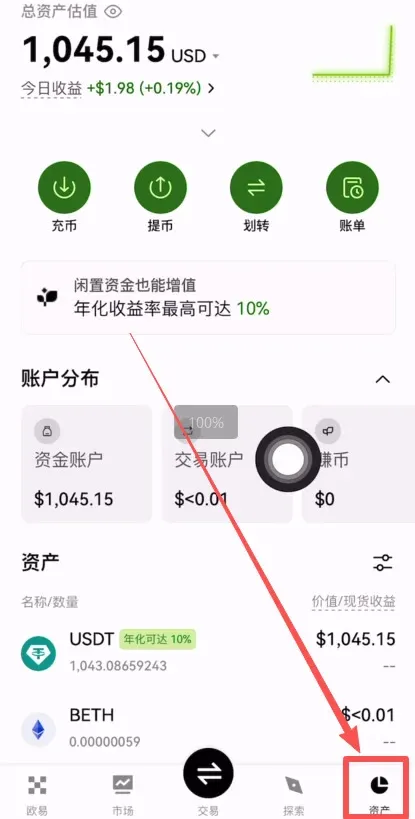
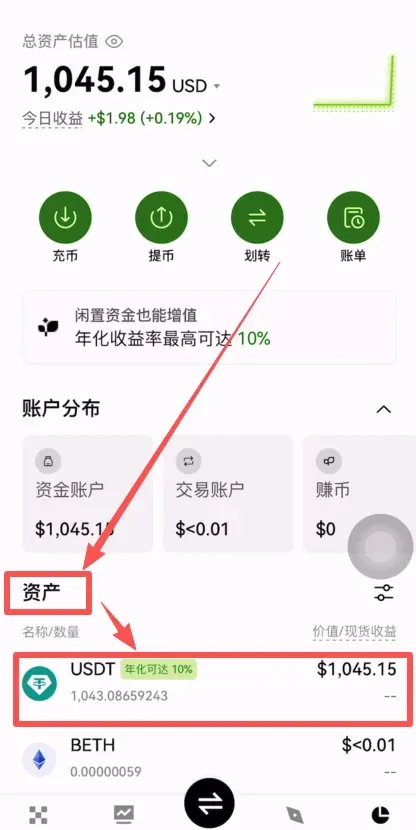
- The purchased USDT will appear under Assets → Funding Account and can be transferred to your personal wallet at any time.
On‑chain Deposit
If you already hold USDT (TRC‑20), BTC, or other tokens in another exchange or wallet, the On‑chain Deposit method is recommended because it incurs minimal fees and is processed quickly.
Procedure (USDT‑TRC20 example)
- From the OKX APP home screen, tap On‑chain Deposit, select USDT, and choose the TRC‑20 network.
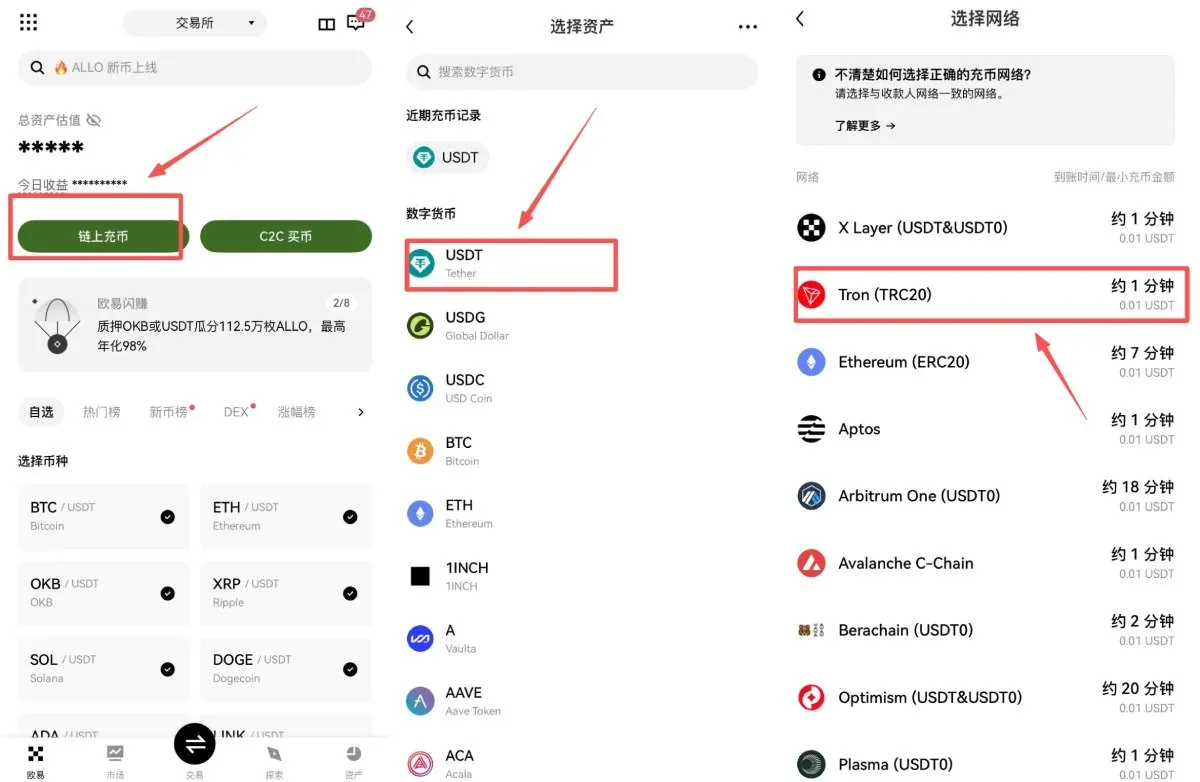
- Copy the displayed deposit address (e.g., `TX3abxxxx…`) and double‑check the first and last few characters for accuracy.



