
 Bitaigen Research
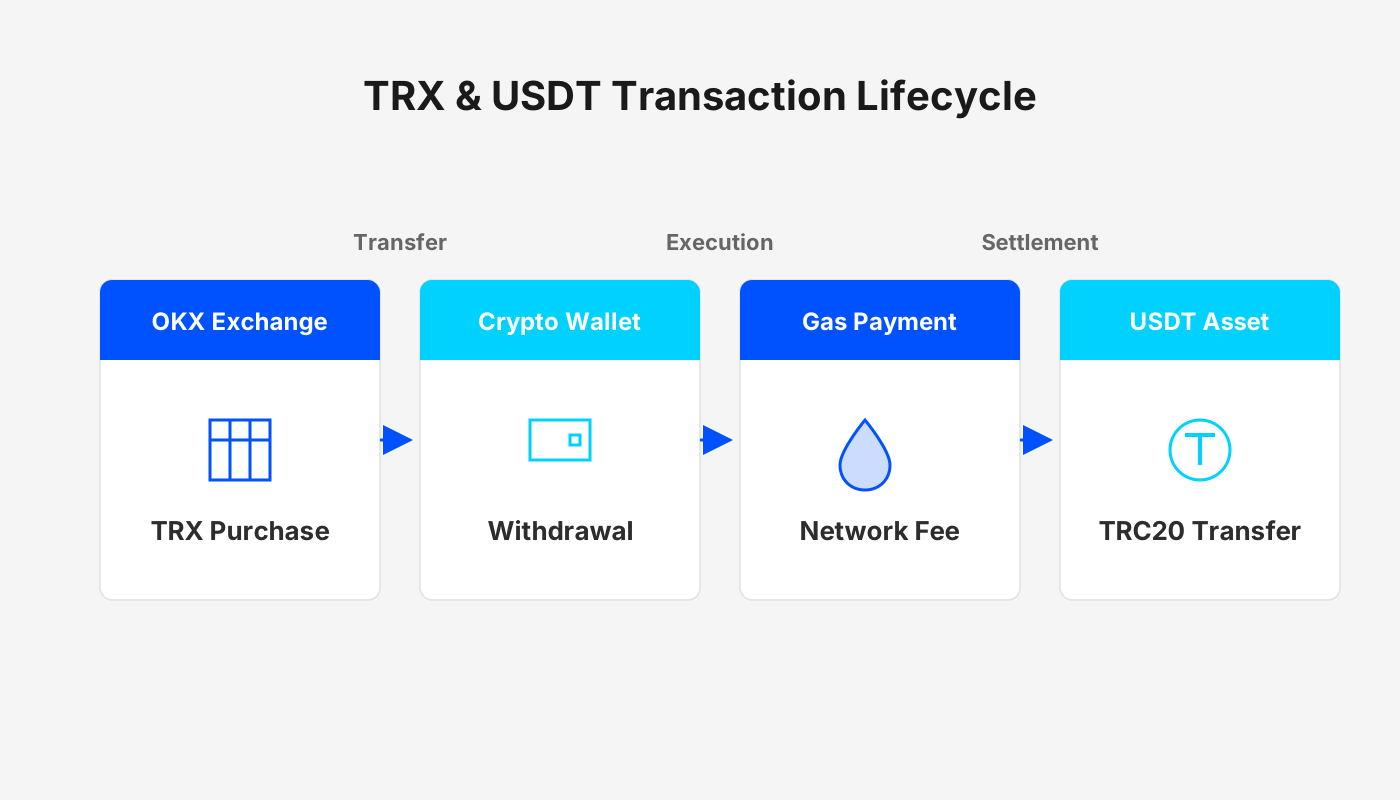
 After registering on the OKX exchange and purchasing TRX with USDT, you can use the OKX Web3 Wallet withdrawal function to send the TRX to your personal wallet. Then, using the TRX in the wallet as gas, you can transfer USDT‑TRC20 back to the deposit address of the exchange.
In this article we walk beginners through the entire workflow on the OKX platform—from account registration, buying TRX, withdrawing it, using TRX to pay gas fees, and finally returning USDT‑TRC20 to the exchange. Illustrated step‑by‑step screenshots help you get started quickly while avoiding common pitfalls. Subsequent sections will also highlight key points you should pay attention to at each stage, so be sure to read them carefully.
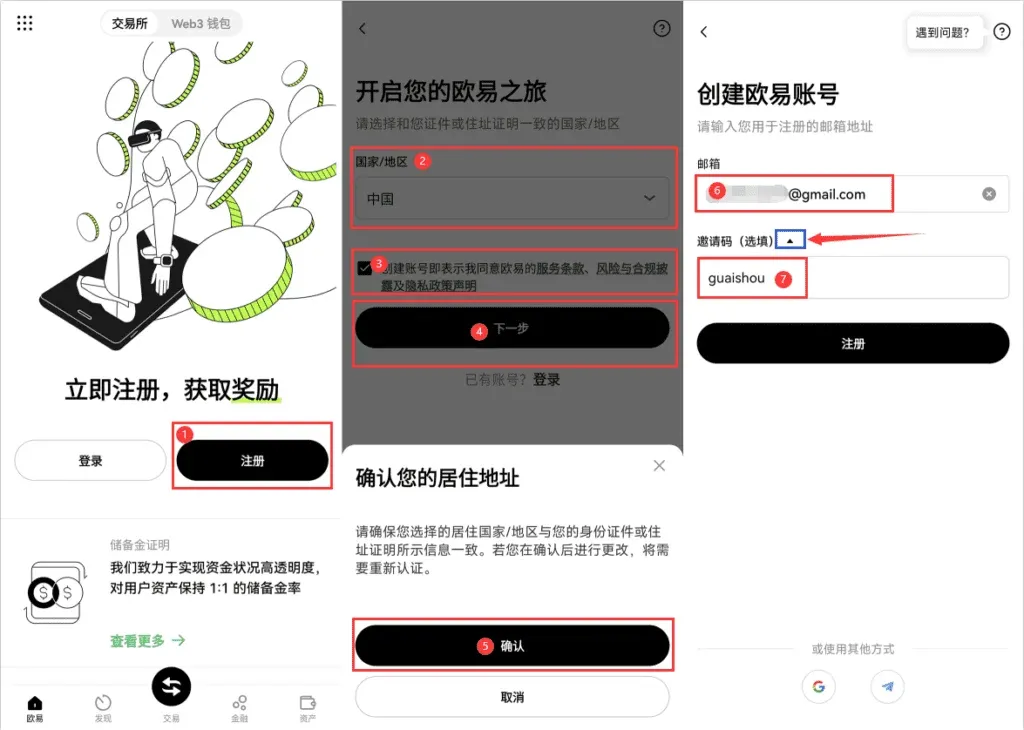
1. Registering an OKX Account
- Users who do not yet have an OKX account can click the official link below to register and download the OKX APP to start trading.
- Register with the invitation code `B2345` to enjoy a permanent 20 % fee discount.
Note for U.S. users: Use Binance.US or another U.S.-compliant platform for any fiat‑on‑ramp activities; the global OKX platform is not available in the United States.
2. How to Buy TRX – Purchase Guide
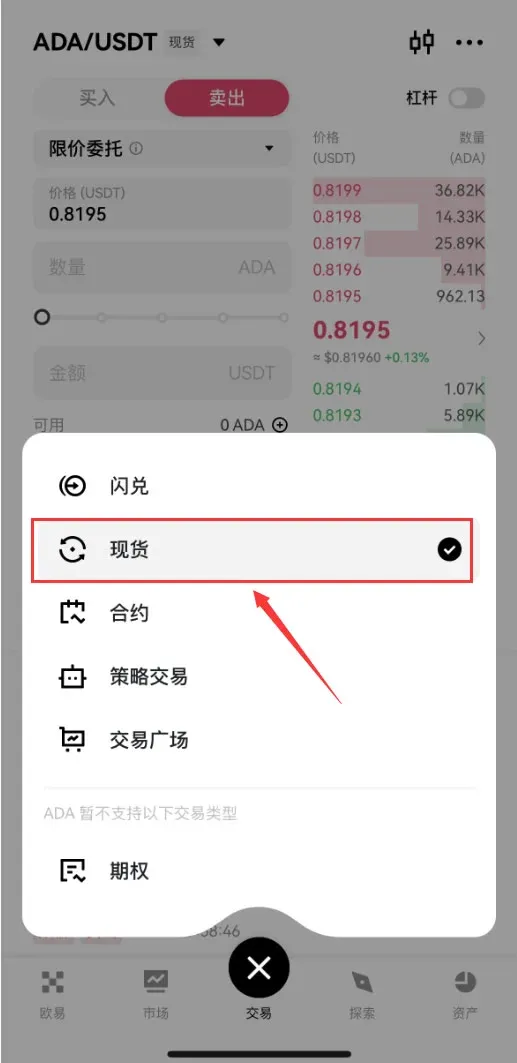
- On the OKX home page, tap the Trade button located at the bottom centre. Tap it twice and then select Spot (i.e., spot trading) to exchange USDT for other cryptocurrencies.
- In the search box at the upper left, type TRX and choose the first result, the TRX/USDT spot pair.
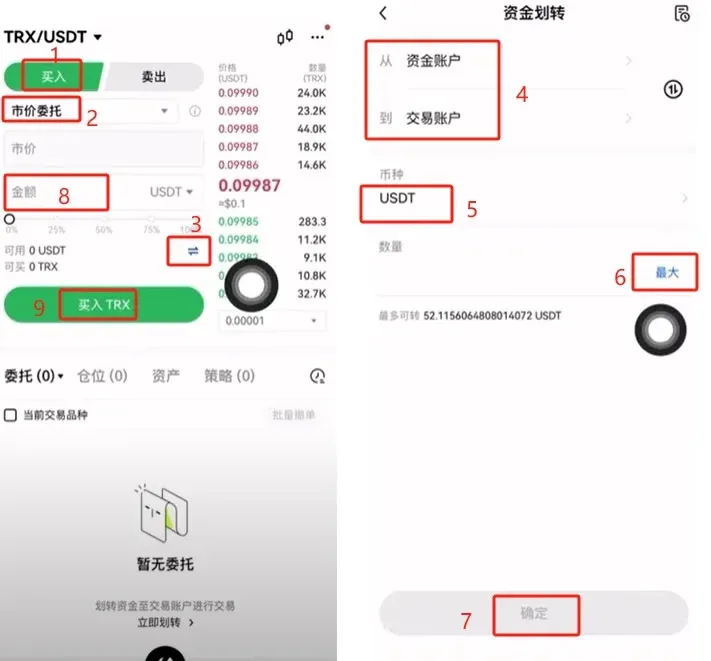
- Click Buy, set the order type to Market Order to complete the purchase as quickly as possible.
- Transfer USDT from your Funding Account to your Trading Account (transfer the full amount). This internal transfer incurs no fee.
- It is advisable to buy at least $5 USD worth of TRX so that you will have enough TRX later to cover gas fees when sending tokens.
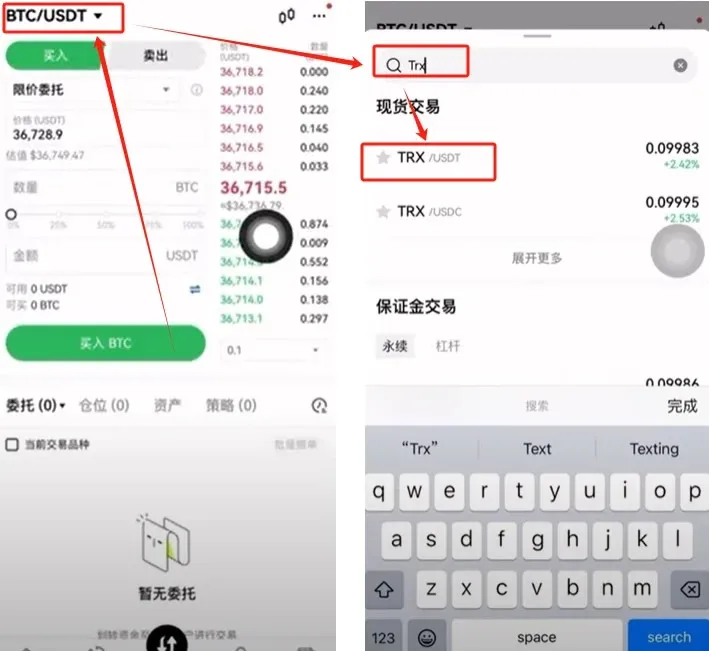
- Enter the purchase amount (e.g., $10 USD) and click Buy TRX to finalize the trade.
Tax reminder: Crypto gains may be taxable in your jurisdiction. Keep records of purchase dates, amounts, and prices for potential reporting to tax authorities.
3. How to Transfer TRX to Your Personal Wallet
The following steps use the Web3 Wallet that comes built‑in with OKX as an example.
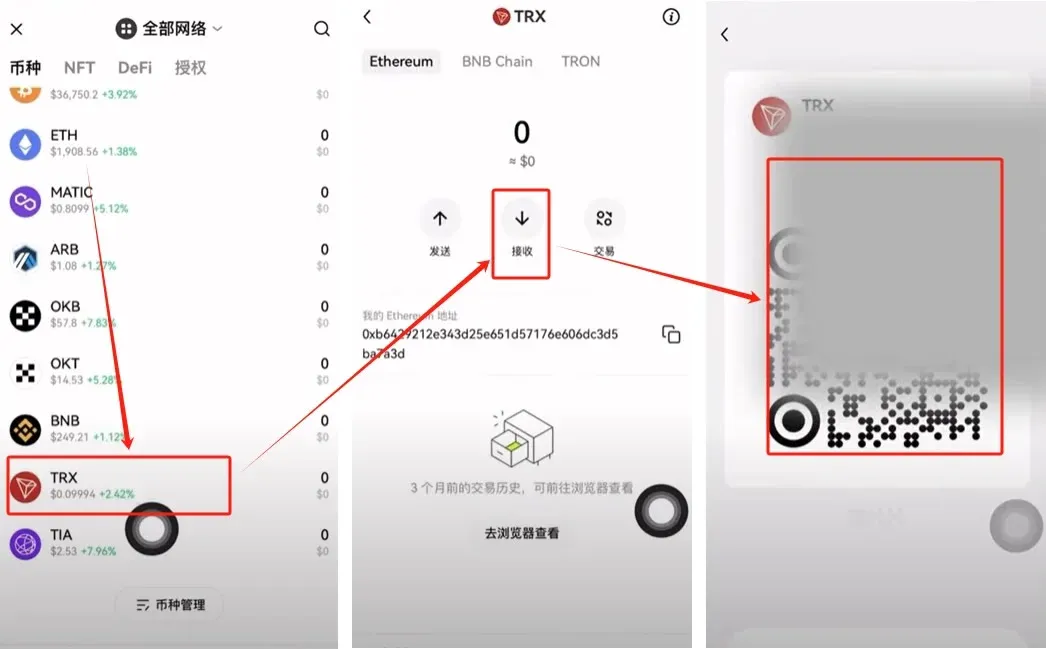
- Open the Web3 Wallet from the top‑right corner of the page, then locate TRX in the list of assets.
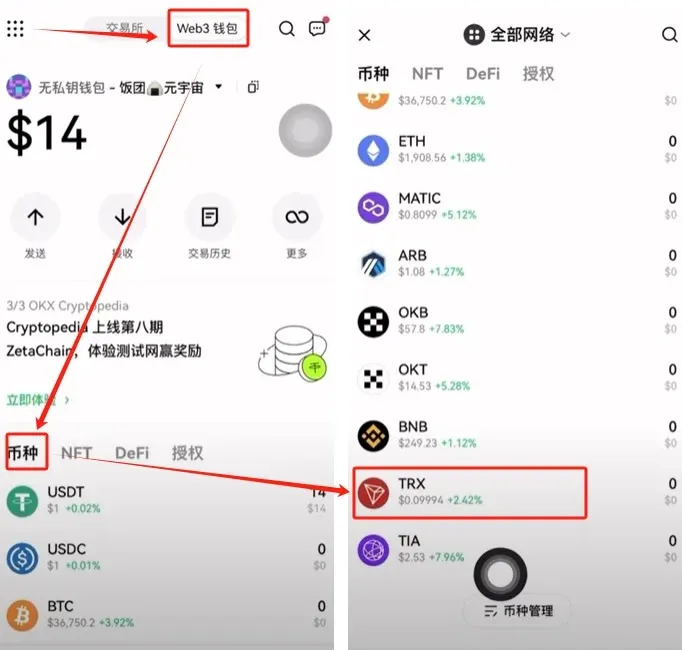
- If TRX does not appear in the list, scroll down to Asset Management, search for TRX, and tap the + icon next to it to add it to your view.
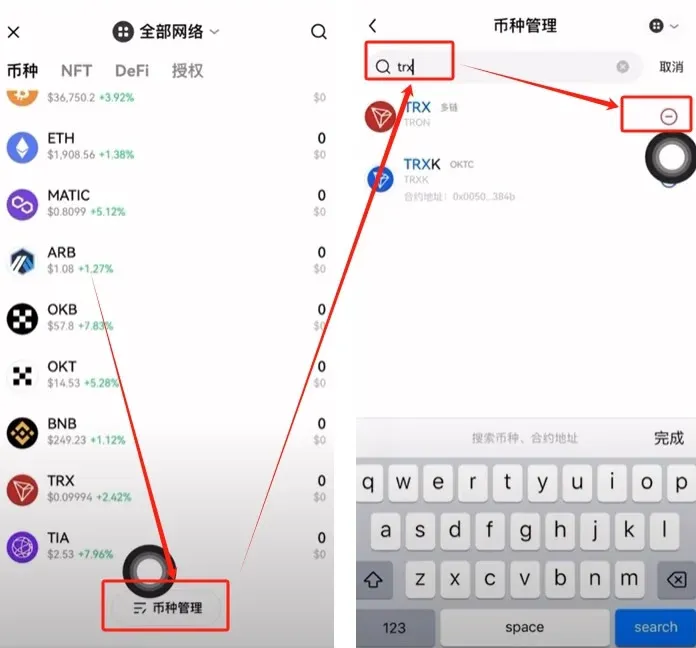
- Tap the newly added TRX entry, select Receive, and the screen will display your personal wallet’s TRX receiving address.
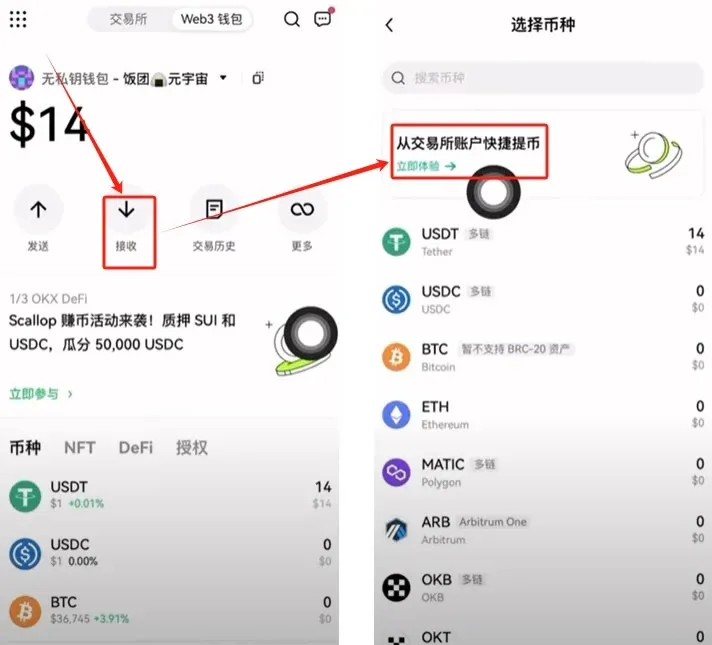
- For an even faster withdrawal, you can use the shortcut Receive → Quick Withdraw from Exchange Account directly on the wallet page, which eliminates the need to manually copy the address.
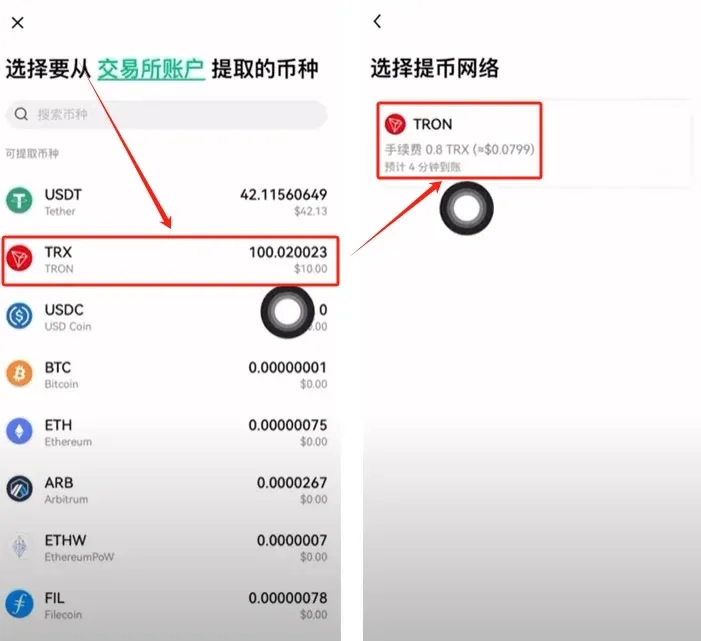
- Choose TRX as the withdrawal asset; the system will indicate a 0.8 TRX network fee.
- Enter the amount you wish to withdraw (you may select All), then click Submit. After that, you will be prompted to enter the verification code sent to your registered email, phone, or Google Authenticator to confirm the transaction.
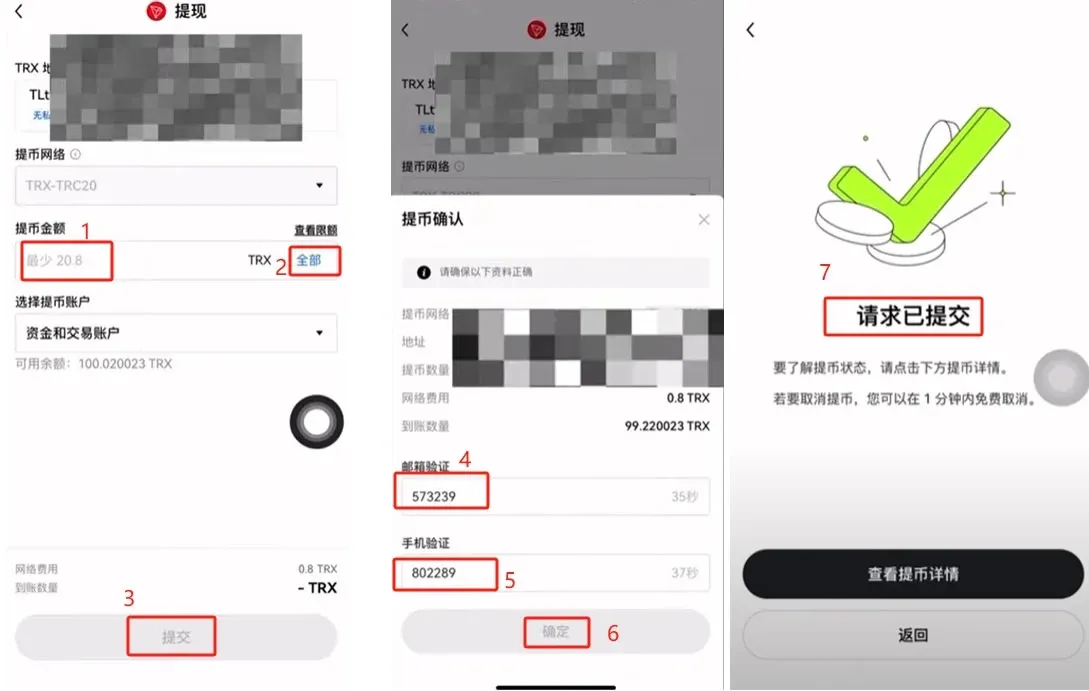
- Once the submission succeeds, wait for on‑chain confirmation. Within a few minutes the transferred TRX should appear in your personal wallet.
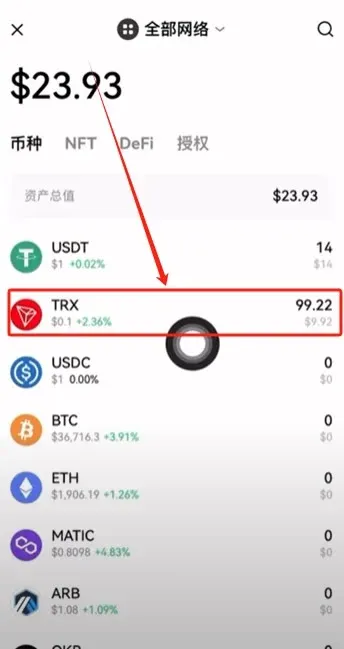
4. Sending USDT‑TRC20 Back to the Exchange
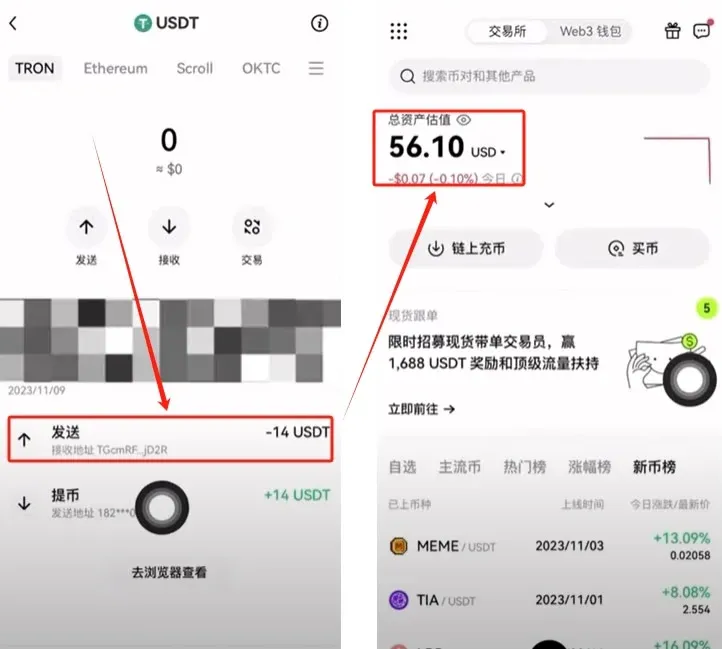
- In the wallet, tap the Send button at the top left, choose the asset USDT (marked TRON, indicating it is on the TRC20 network), and make sure you have enough TRX in the wallet to cover the gas fee.
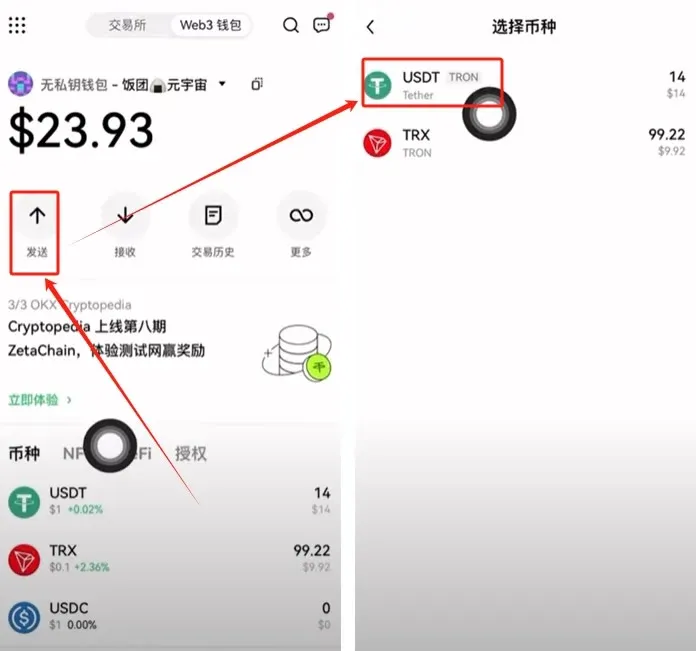
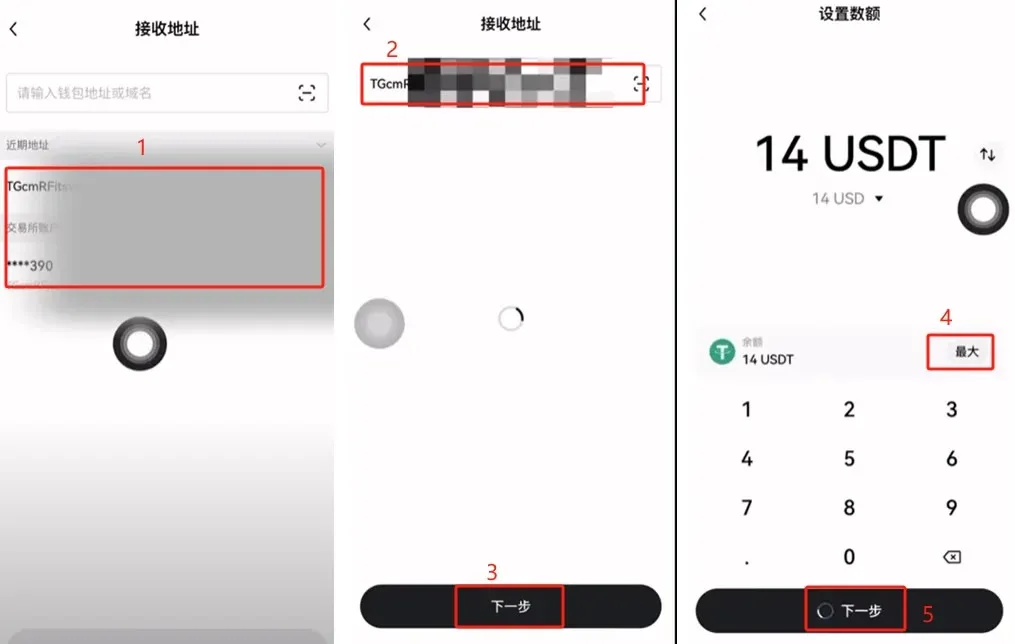
- Paste (or select) the USDT deposit address provided by the exchange, tap Next, then in the amount field choose Max, and tap Next again.
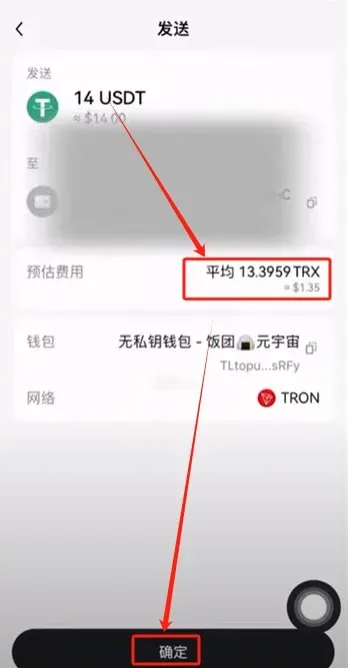
- The system will show the amount of TRX that will be consumed for this transfer (approximately 13 TRX). Confirm the details and click Confirm.
- After the transaction is submitted, you can return to the exchange to verify whether the USDT‑TRC20 deposit has been credited.
---
The steps above constitute the complete workflow for how to buy TRX, how to move TRX to a personal wallet, and how to send USDT‑TRC20 from that wallet back to the exchange. If you would like to explore more tips on purchasing and transferring TRX, feel free to follow additional articles from Bitaigen (比特根).
Related Reading
- TRON (TRX) Technical Review & 2024-25 Price Outlook
- TRON (TRX) Review: Value, Scam Risk & Price Forecast
- TRON公链详解:低费高速USDT转账与TRX投资指南
💡 Register on Binance with referral code B2345 for the maximum trading fee discount. See Binance complete guide.



