
 Bitaigen Research
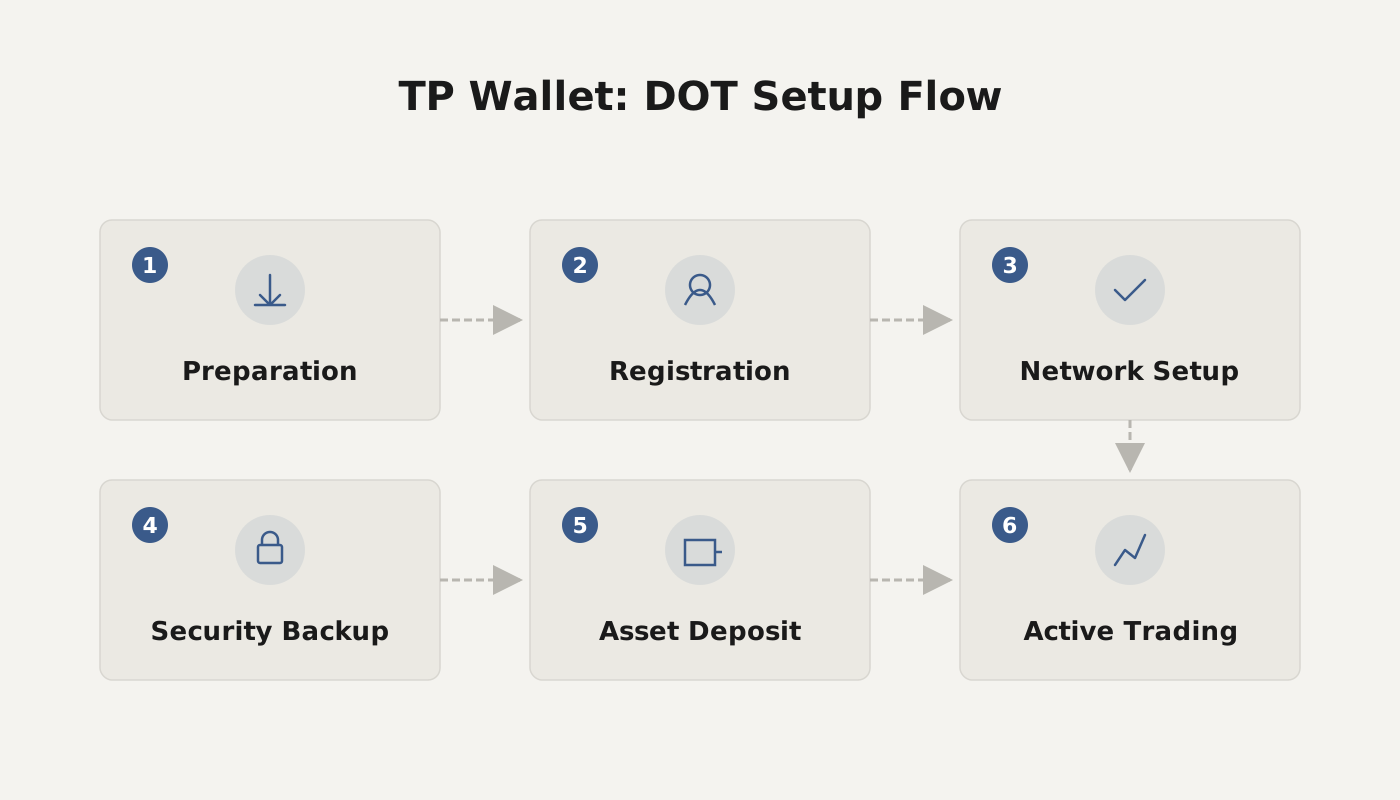
 We systematically outline the key points for using the TP Wallet within the Polkadot ecosystem, covering the creation or import of a Polkadot account, the secure export of mnemonic phrases, private keys, and keystore files, and providing two convenient import methods. Once you master these steps, you can safely manage your Polkadot assets; subsequent sections will delve deeper into trading and node operations, which are worth reading further.
Polkadot (DOT) Wallet Creation / Import Guide
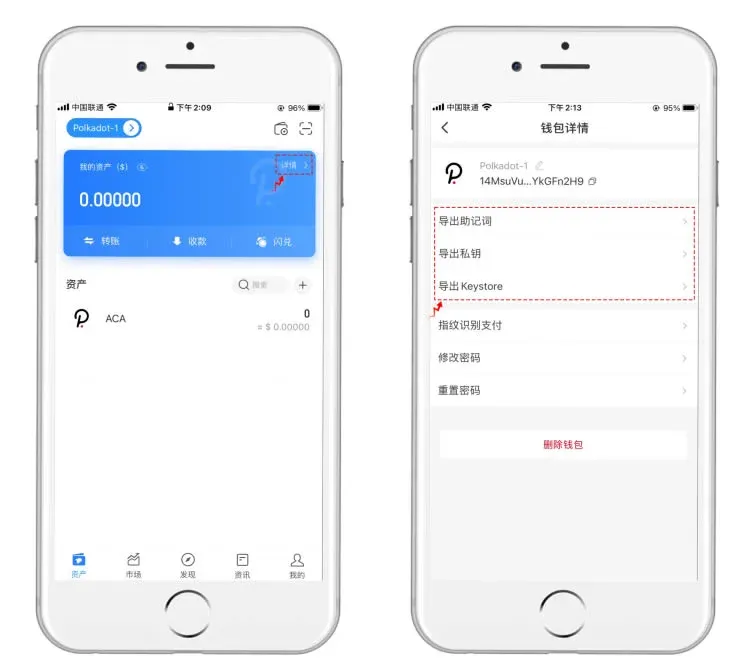
3. Exporting Private Key and Keystore
On the already opened TP Wallet interface, tap the blue [Details] button in the upper‑right corner to enter the wallet details page. This page offers three export options: mnemonic phrase, private key, and keystore. It is important to understand that these three pieces of information function as the “keys” to your assets; they must be stored in a secure environment after export to prevent loss or leakage.
4. How to Import a Polkadot Wallet
- For users who already have a Polkadot account: When using TP Wallet for the first time, select [I Have a Wallet] and follow the prompts to import using either the mnemonic phrase or the private key. This will give you control over your existing assets.
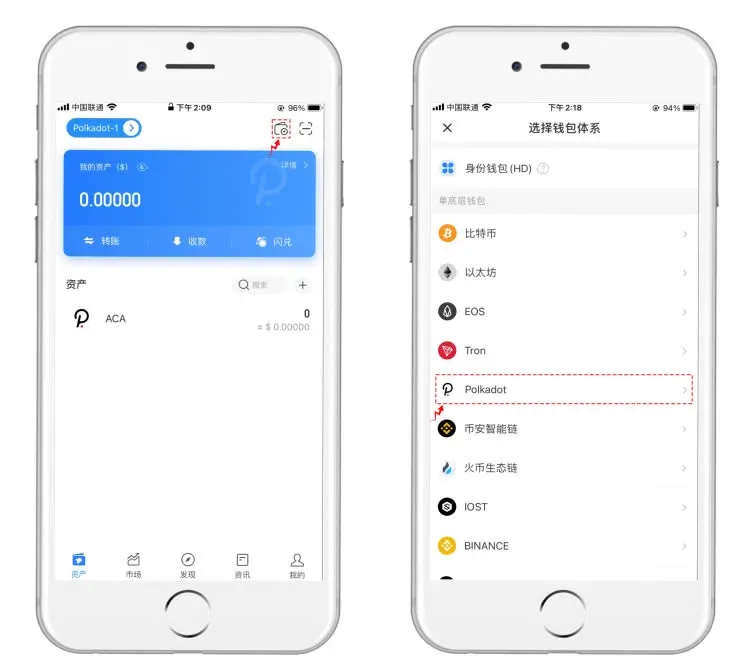
- Import within TP Wallet: On the wallet home page, tap the first icon in the upper‑right corner labeled [Add Wallet]. In the pop‑up list, choose Polkadot, then import using either the mnemonic phrase or the private key.
1. How to Download the Wallet
- Visit the official TP Wallet site at www.tokenpocket.pro, download the appropriate mobile installation package for your device, and complete the installation.
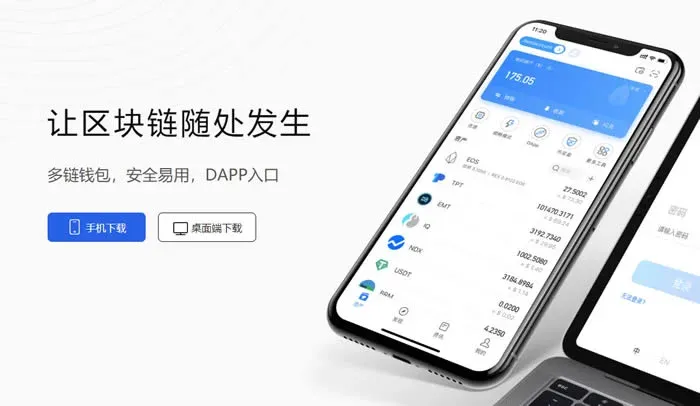
- iOS users can obtain the app through two channels: the App Store (which requires an overseas Apple ID) or TestFlight. The following screenshots focus on the TestFlight version for illustration.
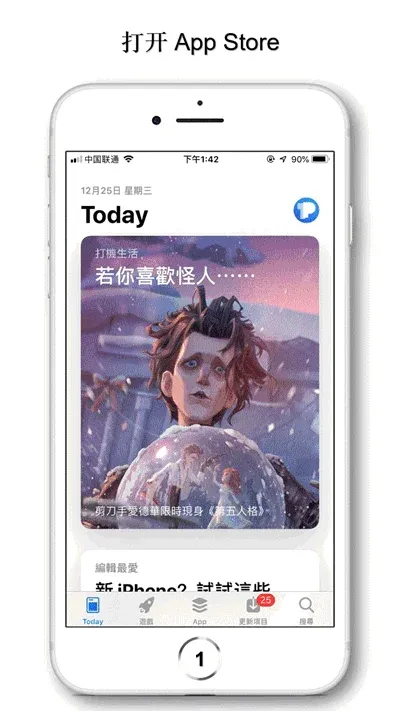
2. Creating a Polkadot Wallet
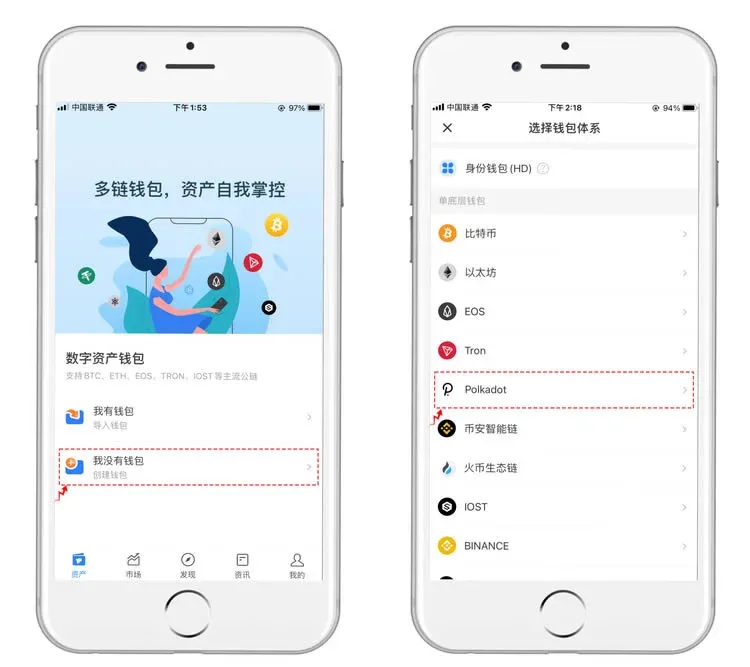
- After launching TP Wallet, new users should select [I Don’t Have a Wallet]. In the list that appears, tap Polkadot to start the creation process.
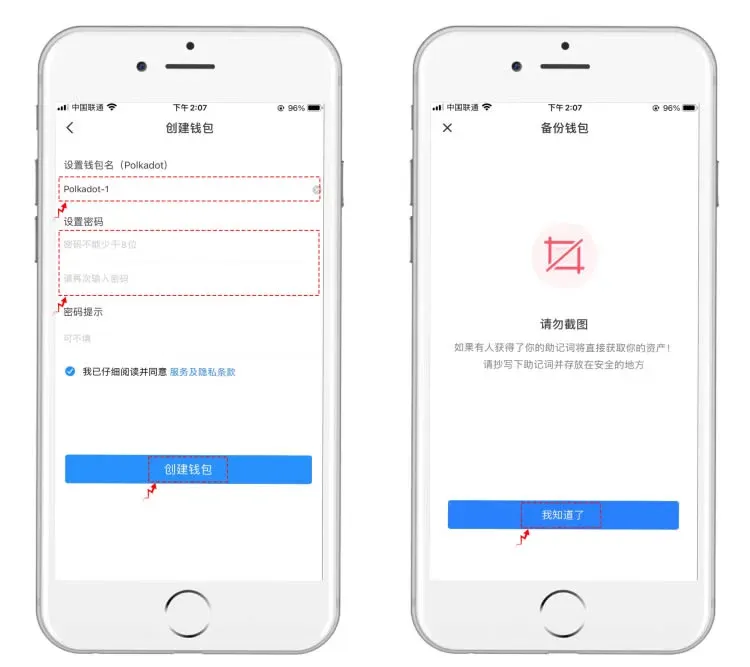
- Assign a name to the wallet (the system will automatically increment names based on creation order), then set a login password. After tapping [Create Wallet], a backup reminder will appear. Read the precautions, then tap [I Understand] to proceed to the mnemonic backup screen.
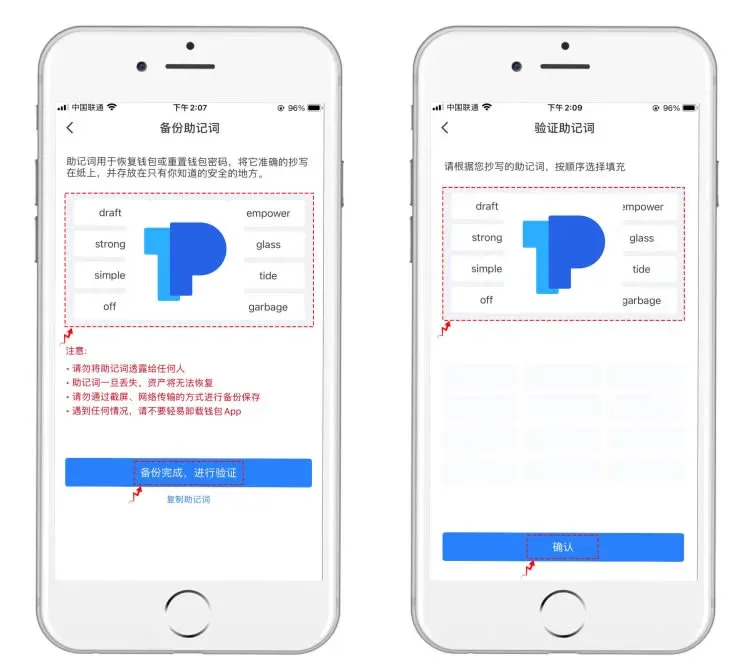
- The mnemonic phrase is the sole credential for restoring your assets; it must be stored offline using a reliable method and must never be disclosed or lost. TP Wallet is a decentralized product—private keys are held only by the user, and the platform cannot assist in recovery. After confirming the mnemonic phrase and completing the secondary verification, tap the [Confirm] button at the bottom to finalize wallet creation.
- Upon successful creation, the system will automatically navigate to the assets page. When future versions officially support Polkadot, simply tap [Discover] in the bottom navigation bar to access a variety of tools and DApps within the Polkadot ecosystem.
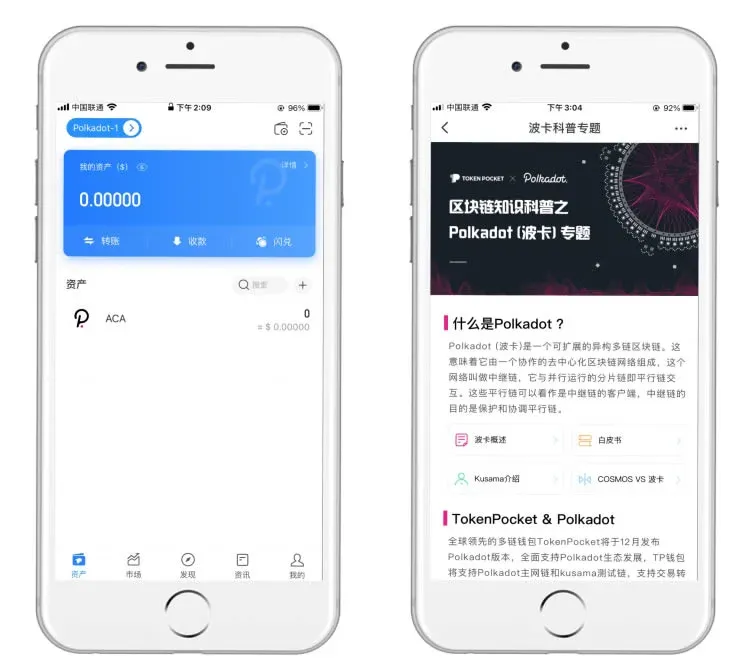
The above constitutes a complete step‑by‑step guide for creating and importing a TP Wallet on the Polkadot (DOT) network. For additional tips on using Polkadot wallets, feel free to follow the related topic articles on the Bitaigen platform.
Related Reading
- Is the OKX Web3 Wallet Secure? In‑Depth Security Review
- What Are Mnemonic Phrases? Secure Your Crypto Wallet Backup
- Jaxx Wallet Review: Cross‑Platform Features, Private‑Key Management & Security
💡 Register on Binance with referral code B2345 for the maximum trading fee discount. See Binance complete guide.



