 Bitaigen Research
 We provide a comprehensive guide to locating the first Gate.io Telegram mini‑program, its core functionalities, and the step‑by‑step order‑placement process. This tutorial is designed to help newcomers quickly create a wallet, manage assets, and claim GW points and airdrop rewards—all without leaving the chat platform. The instructions are clear and concise, making it ideal for users who want to improve their trading efficiency within the TON ecosystem. Continue reading to master the essential points.

Product Overview
Gate.io’s official Telegram mini‑program is the industry’s pioneering solution that brings the exchange’s core features directly into a messaging environment. Users can stay inside the familiar Telegram interface while performing wallet creation, asset management, order placement, and friend‑invitation tasks, and they can simultaneously receive GW points and airdrop rewards. The mini‑program is tightly integrated with the Gate.io website, maintaining the same security standards as the main platform. It is suitable both for beginners who need a gentle onboarding experience and for experienced traders who require daily operational tools, making it arguably the best gateway to the TON ecosystem.
---
1️⃣ Quickly Locate the Gate TG Mini‑program
1. Direct Link Access
Click the link below to jump straight to the Gate TG mini‑program entry point:
https://t.me/gate_official_bot
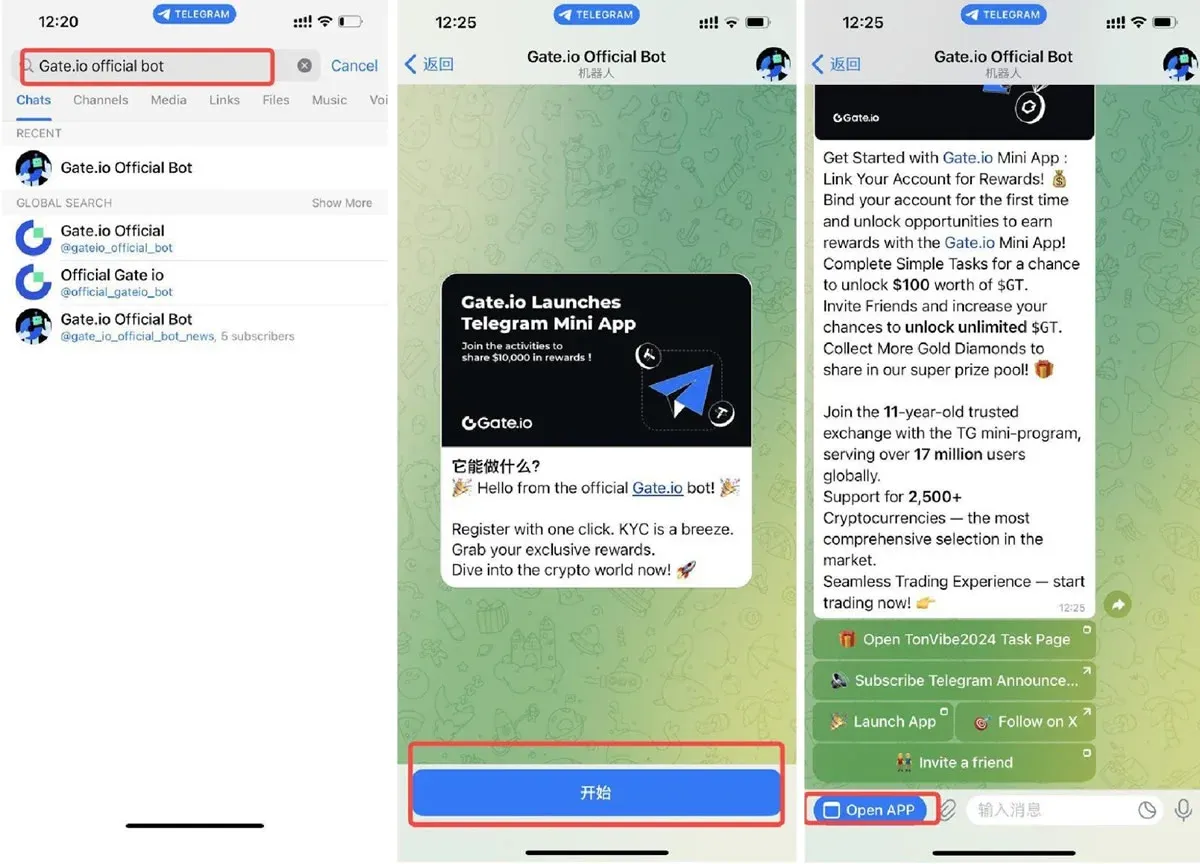
2. Search Within the Telegram Client
- Open Telegram on your desktop or mobile device.
- Type gate‑official‑bot (or simply “GATE”) into the search bar.
- From the list of results, select gate‑official‑bot to enter the bot.
3. Launch the Mini‑program
- After entering, tap Start.
- Then press OPEN APP; the Gate TG mini‑program will open in a new window.
Video and Image Tutorial
---
2️⃣ Account Registration and Binding
Registration Process
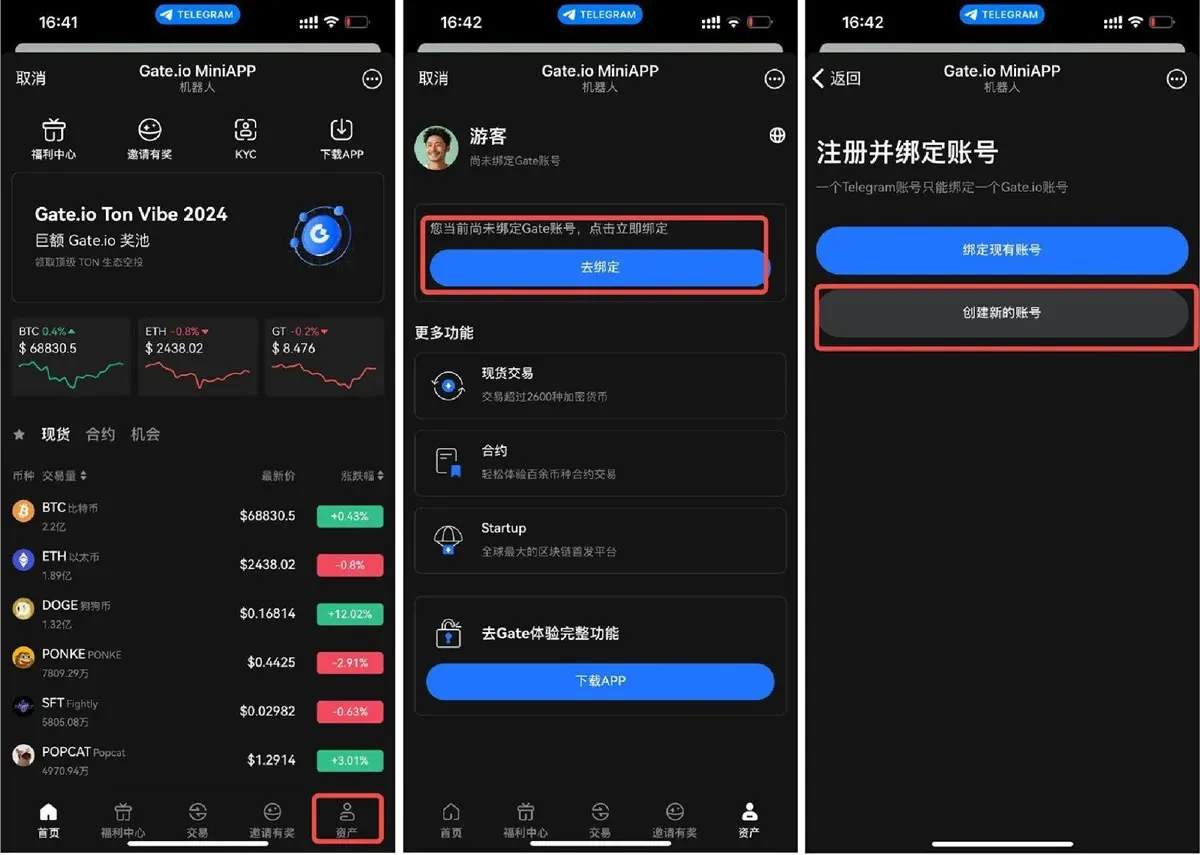
- Inside the mini‑program, tap OPEN APP.
- Navigate to Assets, then click Bind Now.
- If this is your first time, choose Create New Account; if you already have a Gate.io account, select Existing Account.
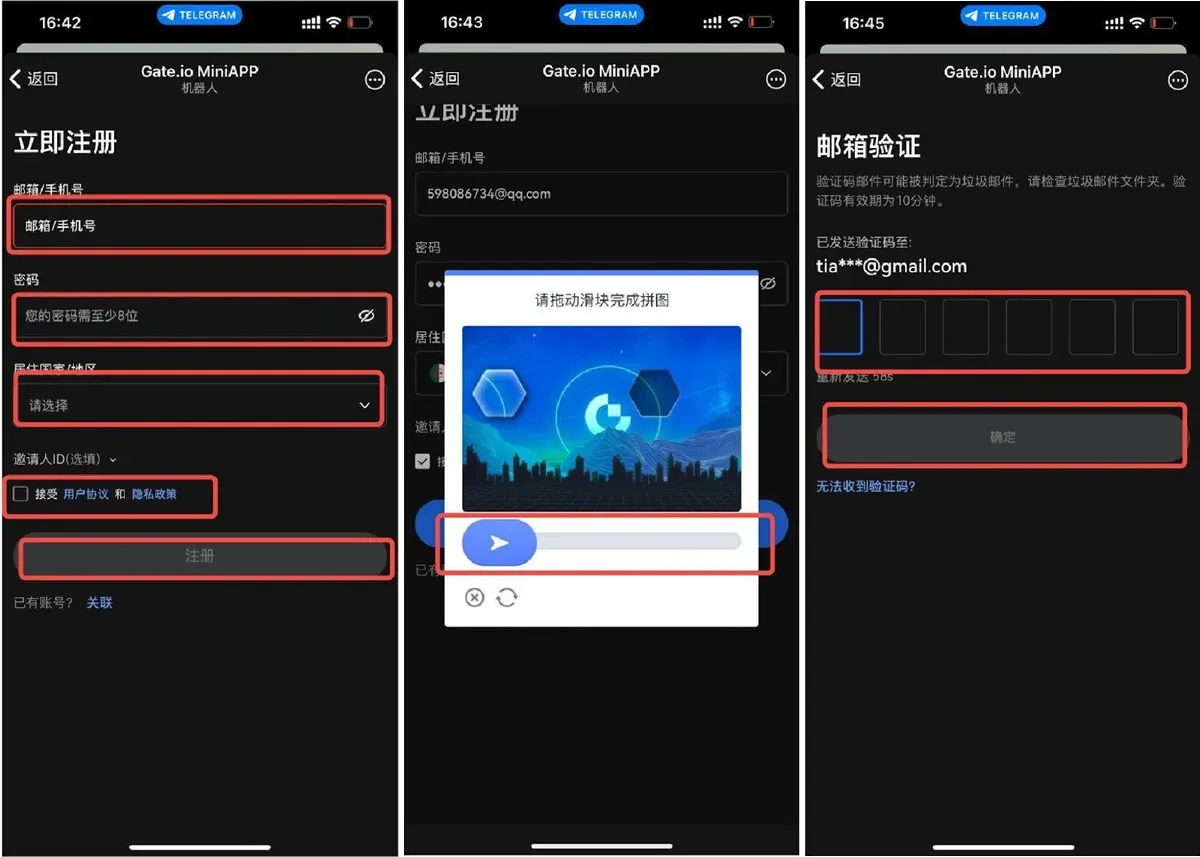
- Follow the prompts and fill in the required fields:
- Email address or mobile phone number
- Login password (ensure it meets the strength requirements)
- Country/region of residence
- Referrer ID (optional)
- Check the boxes for the User Agreement and Privacy Policy
- Submit the form; a verification code will be sent to your email. Enter the code and tap Confirm to complete registration.
Video and Image Tutorial
KYC Identity Verification
- From the home screen, tap KYC to open the personal verification page.
- Provide your nationality, country of residence, full legal name, and identification number (passport, driver’s license, etc.).
- Indicate whether you are a user outside the United States and press Next. (U.S. residents must use Binance.US instead of the global Binance platform.)
- Choose the type of document you are uploading and its issuing country/region, then continue.
- On the upload screen, you may either select a file stored locally or take a photo of the document directly with your device.
- After submission, the system will review the information. Once approved, your KYC status will be marked as completed.
Tax Note: Cryptocurrency gains may be subject to tax in your local jurisdiction. Be sure to consult a tax professional to understand your reporting obligations.
Video and Image Tutorial
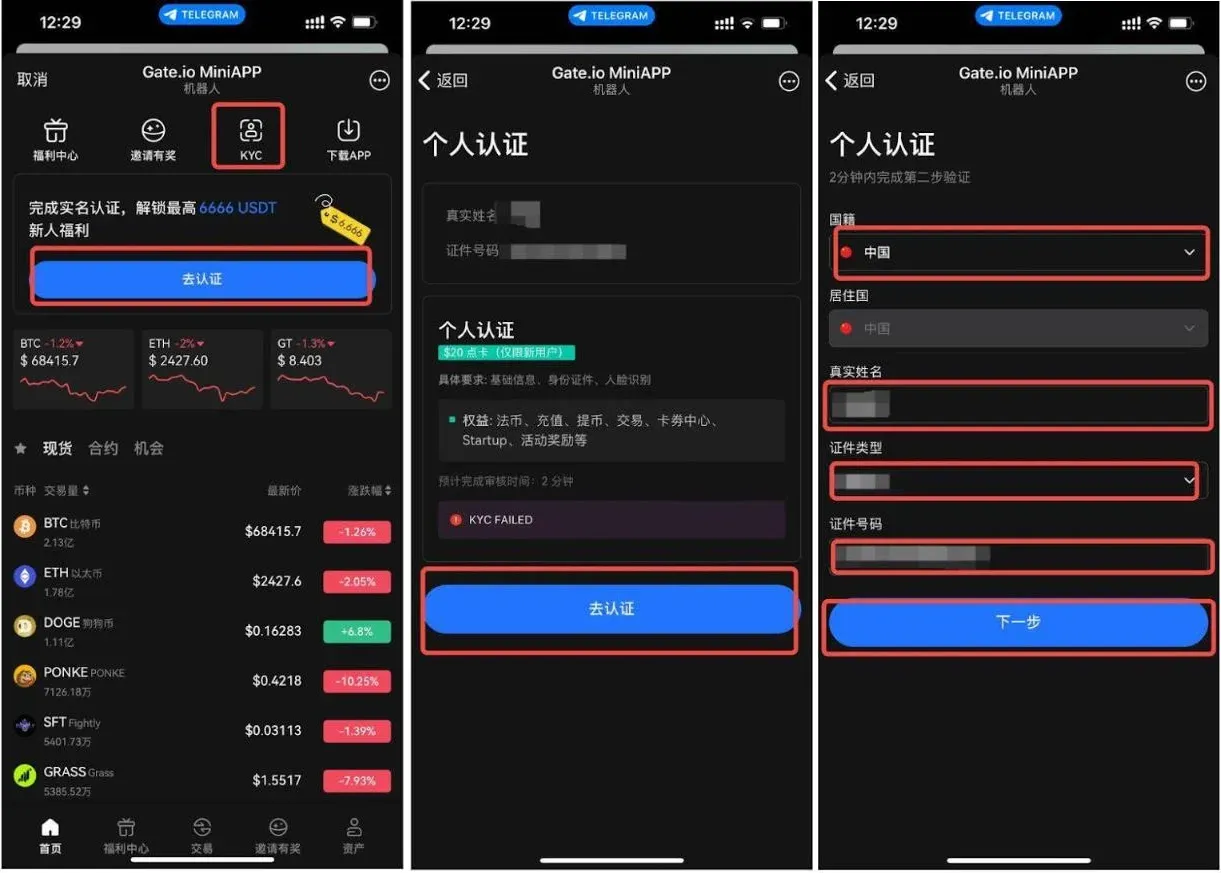
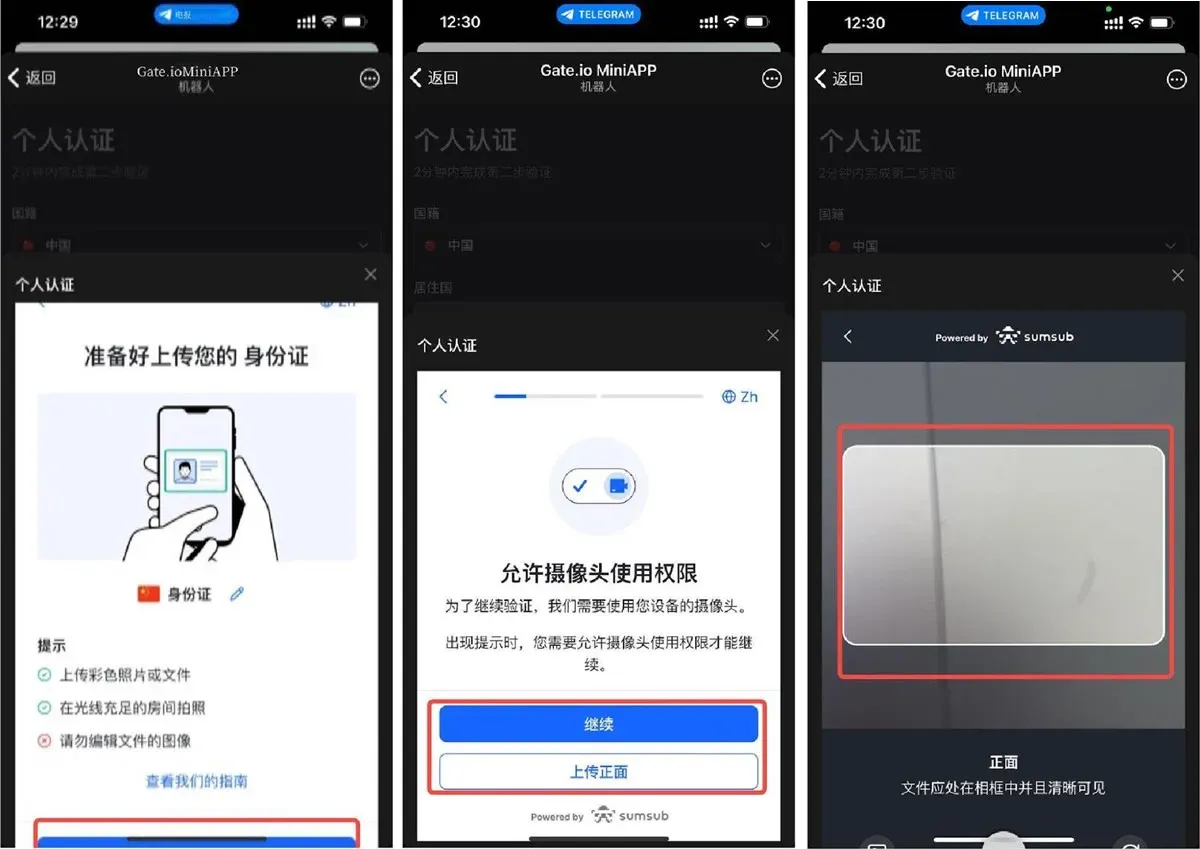
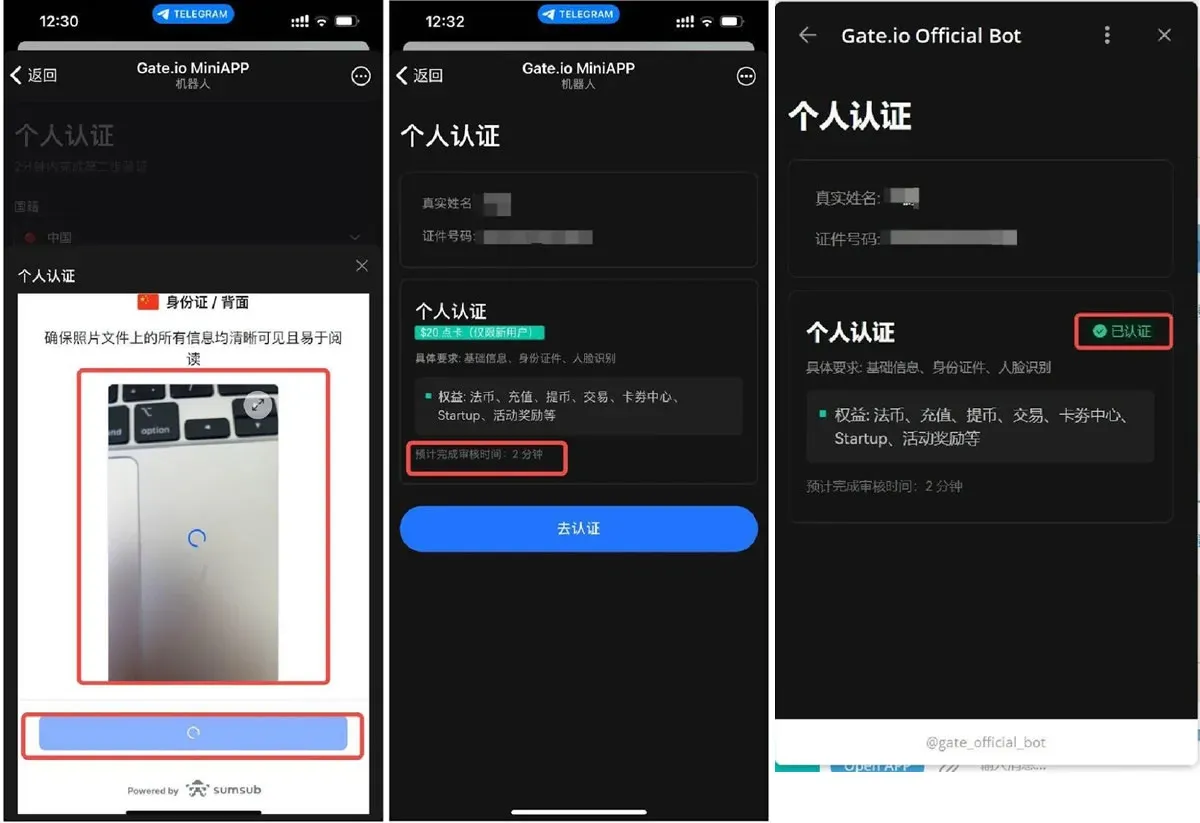
---
3️⃣ Asset Management and Trading
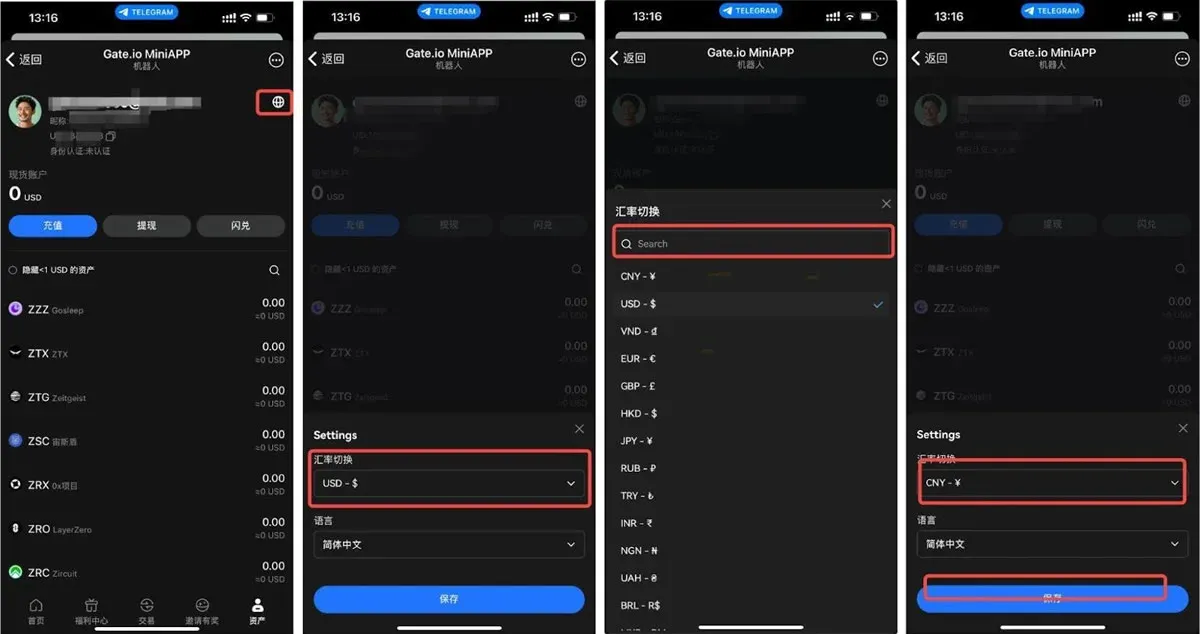
1. Viewing and Switching the Asset Dashboard
- Open My Assets; the bottom of the page lists all of your current holdings.
- To change the fiat‑currency display (e.g., from CNY to USD), tap the 🌏 icon in the top‑right corner, select the desired currency, and save your choice.
Image Tutorial
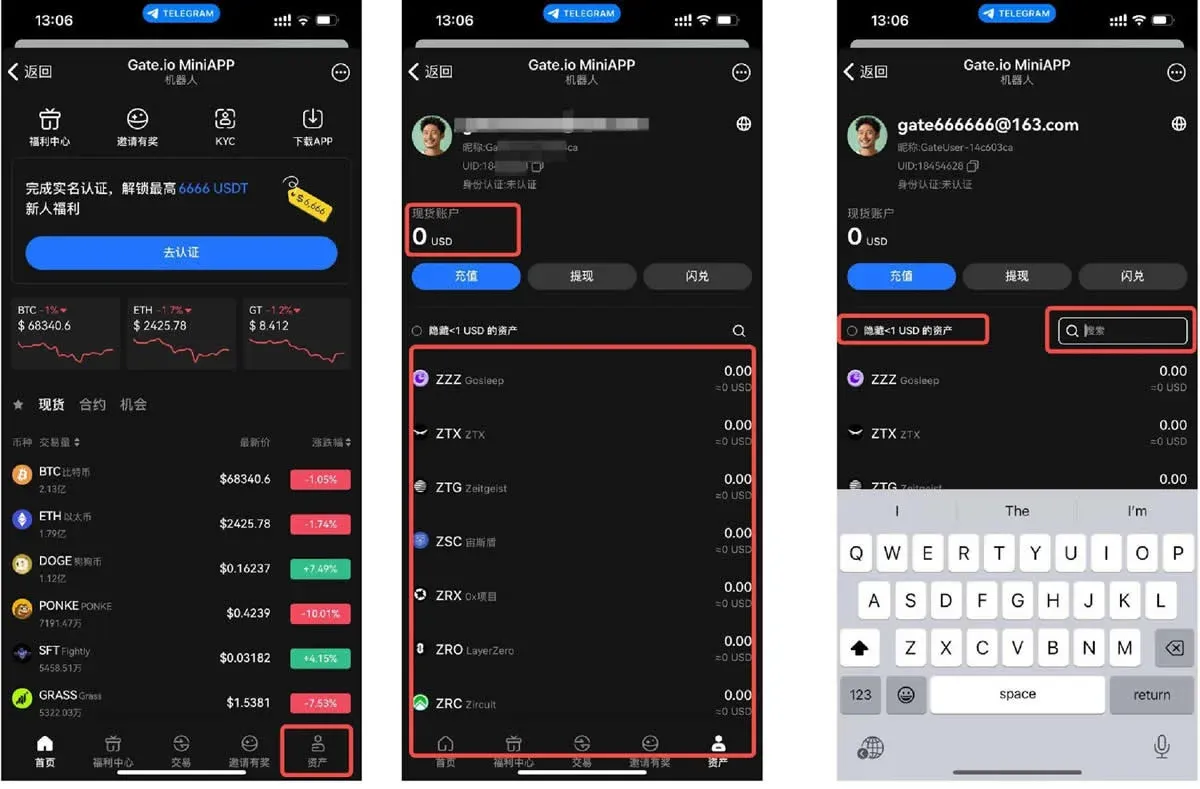
2. Instant Exchange (Fast Swap)
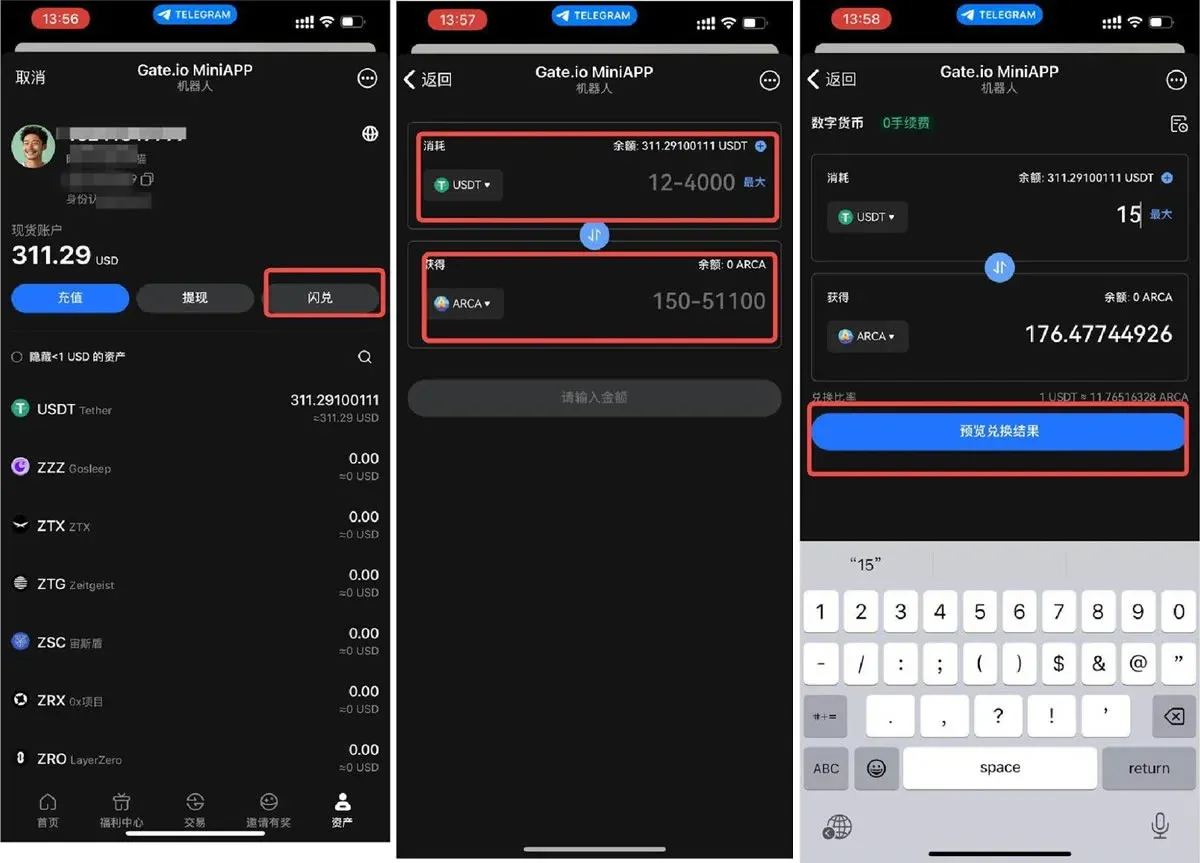
- Navigate to Assets → Instant Exchange.
- Choose the cryptocurrency you want to sell (e.g., USDT) and the one you want to receive (e.g., BTC).
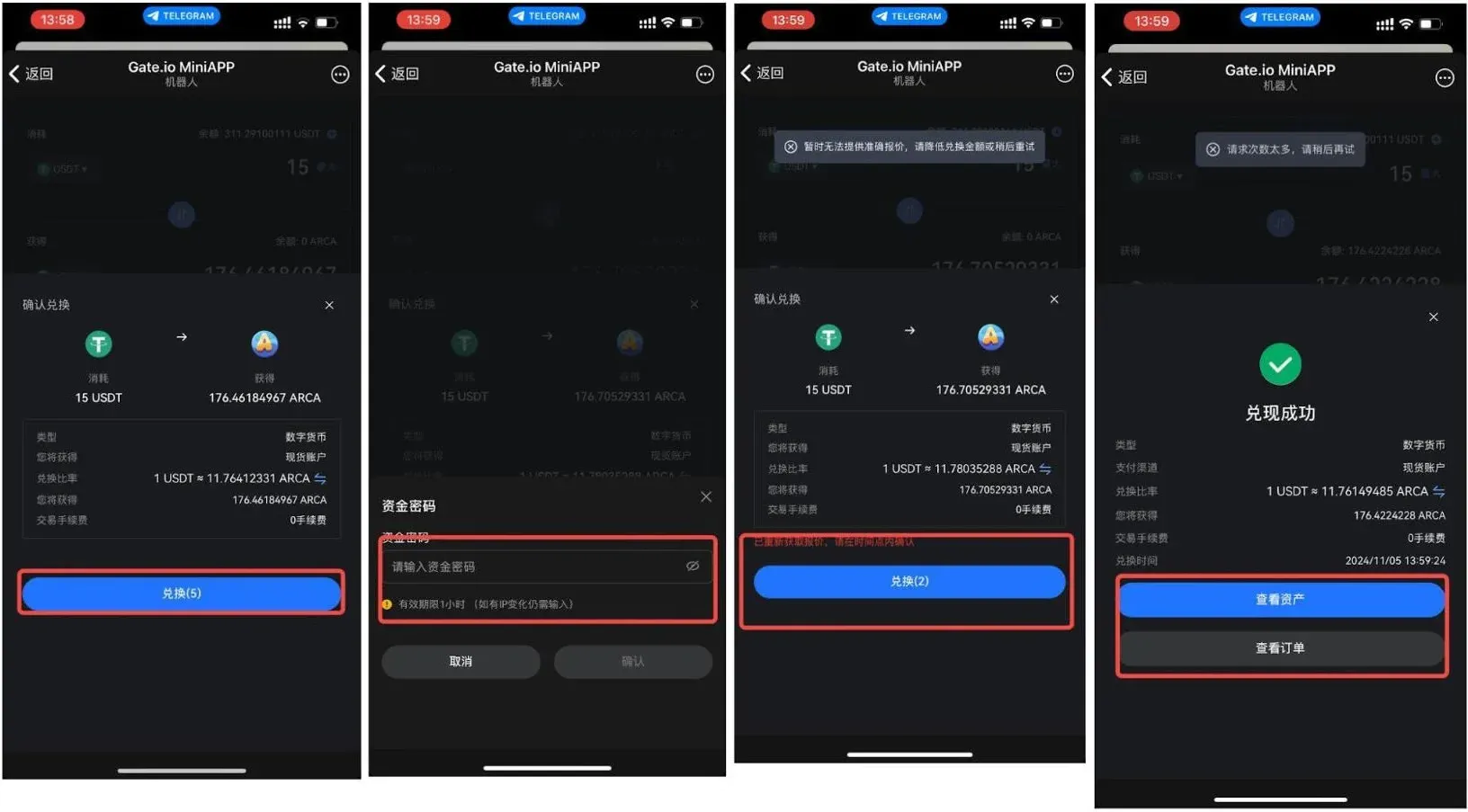
- Enter the amount you wish to exchange; the interface will instantly preview the expected result based on current market rates.
- Confirm the details, input your trading password, and submit the order to complete the swap.
Image Tutorial
3. Deposit (Funding)
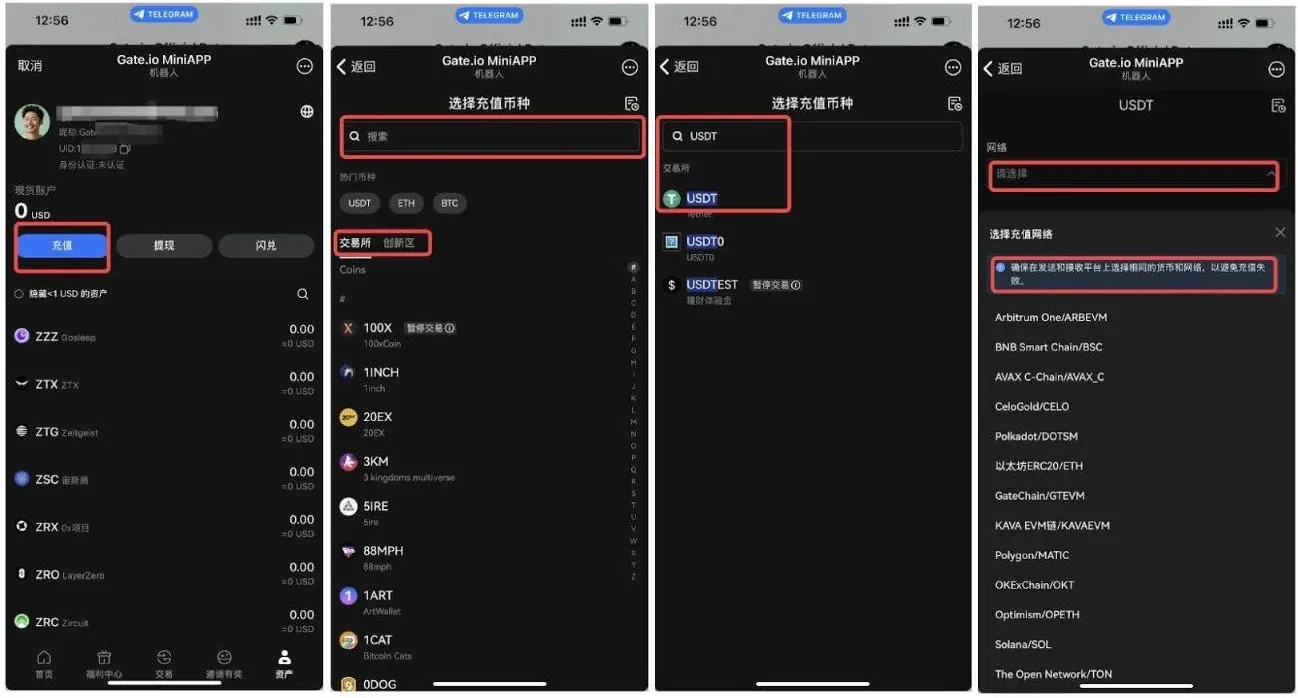
- In the Assets section, tap Deposit.
- Select the target cryptocurrency and verify the network (for example, USDT‑TRON (TRC20)).
- The system will display a deposit address and a QR code. Copy the address or scan the QR code to send funds from your external wallet.
Friendly Reminder: Ensure the network you use on the sending platform matches the network selected on Gate.io; otherwise, you risk losing assets.
Image Tutorial
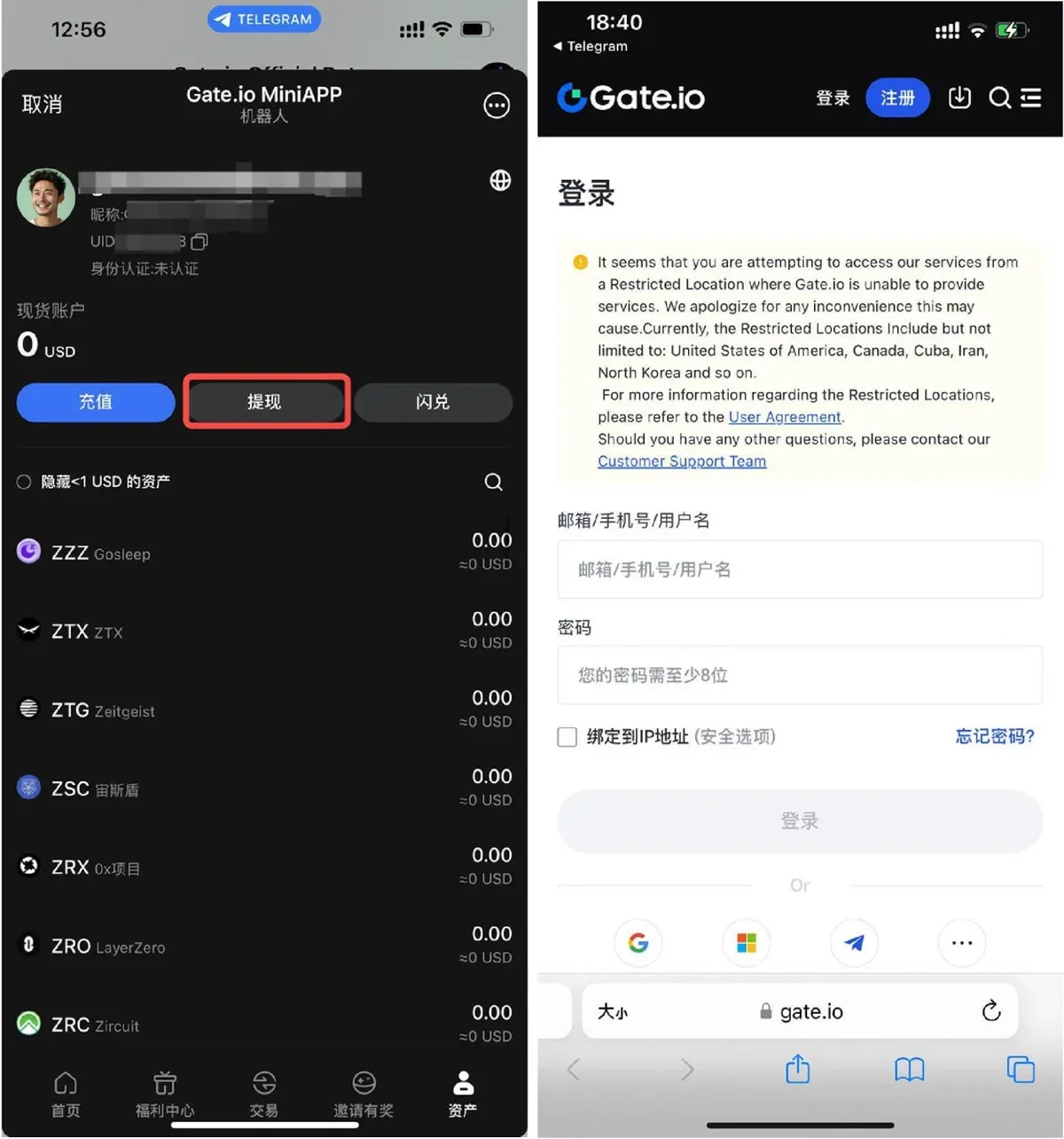
4. Withdrawal (Sending Out)
- From the Assets screen, tap Withdraw. The interface will redirect you to Gate.io’s official web page to complete the withdrawal request, where you can specify the destination address and amount.
Image Tutorial
---
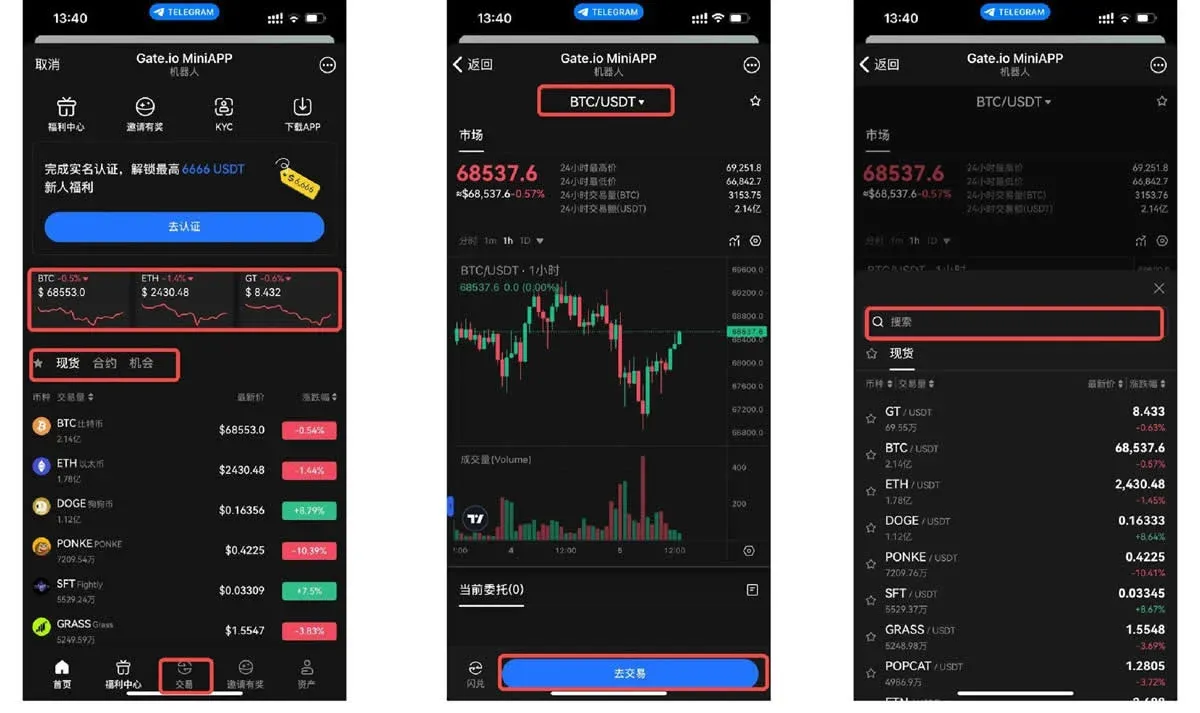
4️⃣ Market Overview and Trading Entry
- The top of the home screen displays live price tickers for major cryptocurrencies.
- Use the navigation bar to switch among Spot, Derivatives, or Opportunities tabs, each representing a different market view.
- Browse the list to locate a trading pair that interests you, tap it, and you’ll be taken to a dedicated trading page that shows candlestick (K‑line) charts, order‑book depth, and other essential data.
Image Tutorial
---
5️⃣ Platform Promotions and Benefits
Viewing Ongoing Promotions
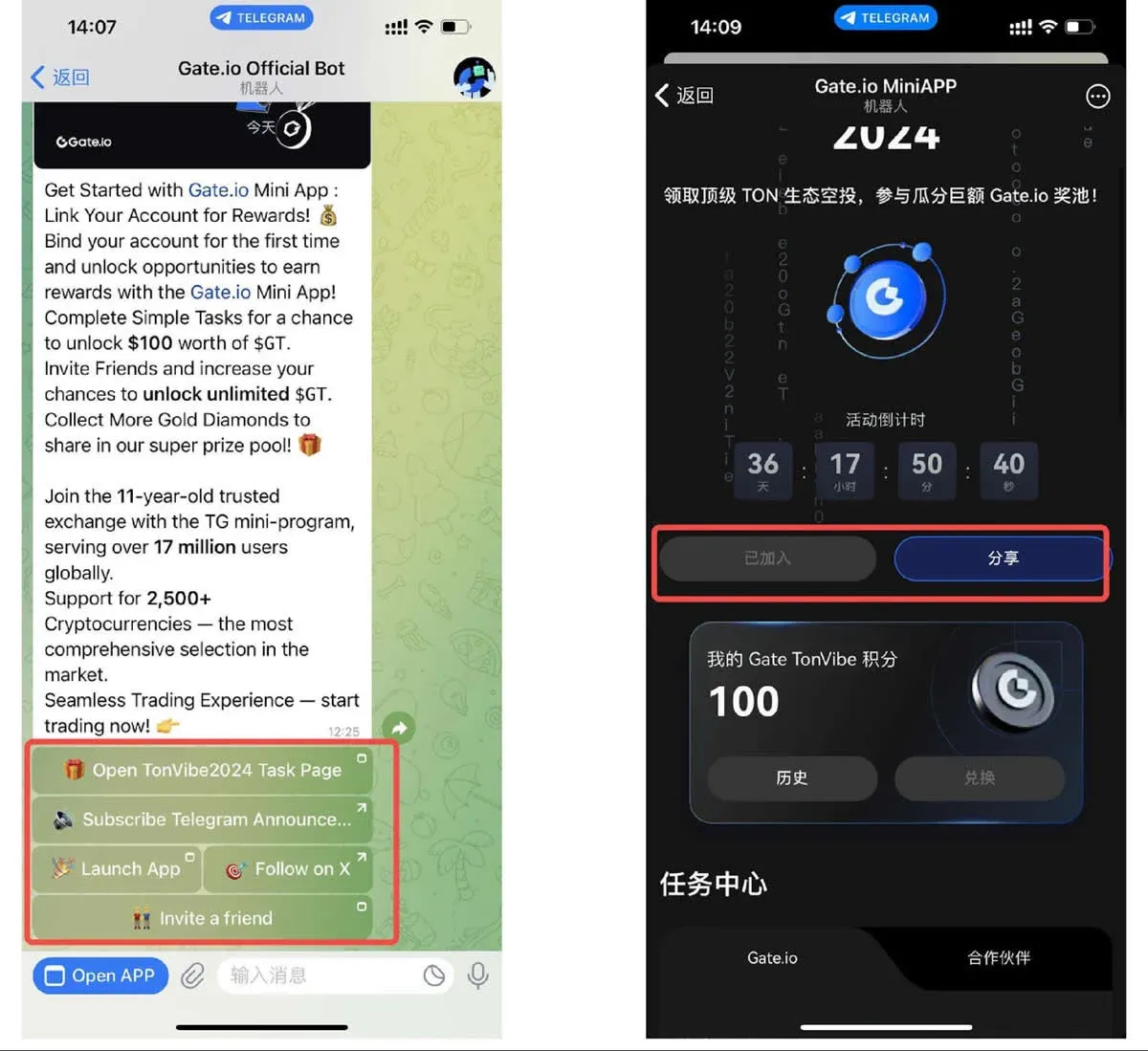
- Inside the mini‑program, tap gateofficialbot; the bot will push notifications about current campaigns, airdrops, and point‑earning activities.
Image Tutorial
Participating in a Promotion
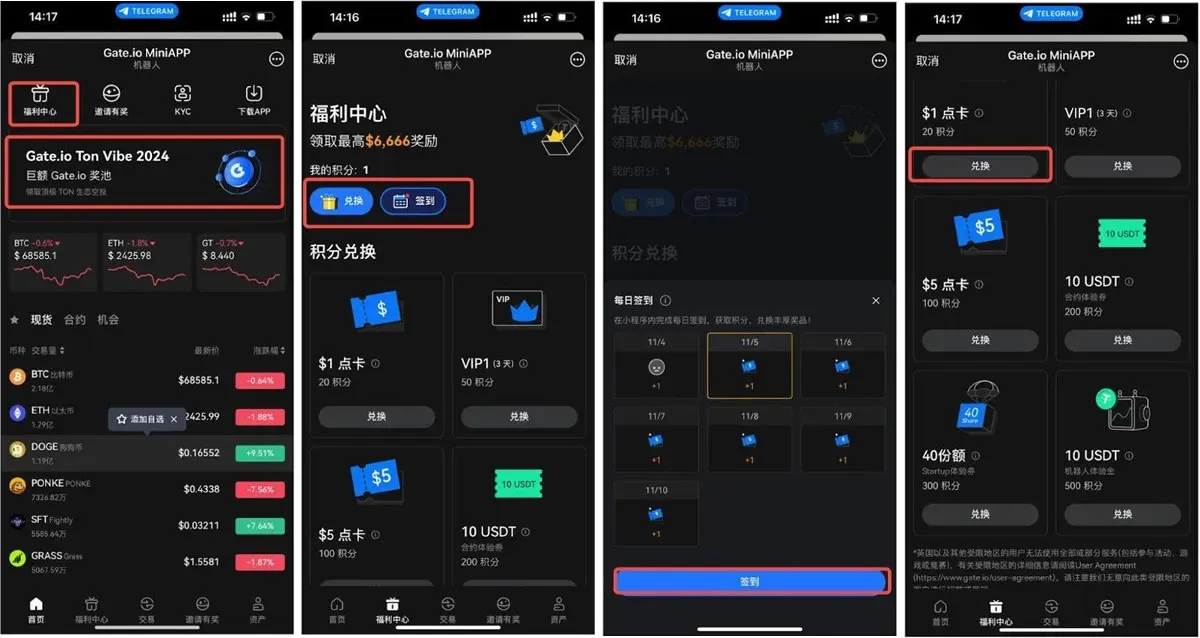
- On the home screen, the BANNER or Benefit Center highlights popular events.
- Tap the event card to open its detail page, then press Participate to register.
Image Tutorial
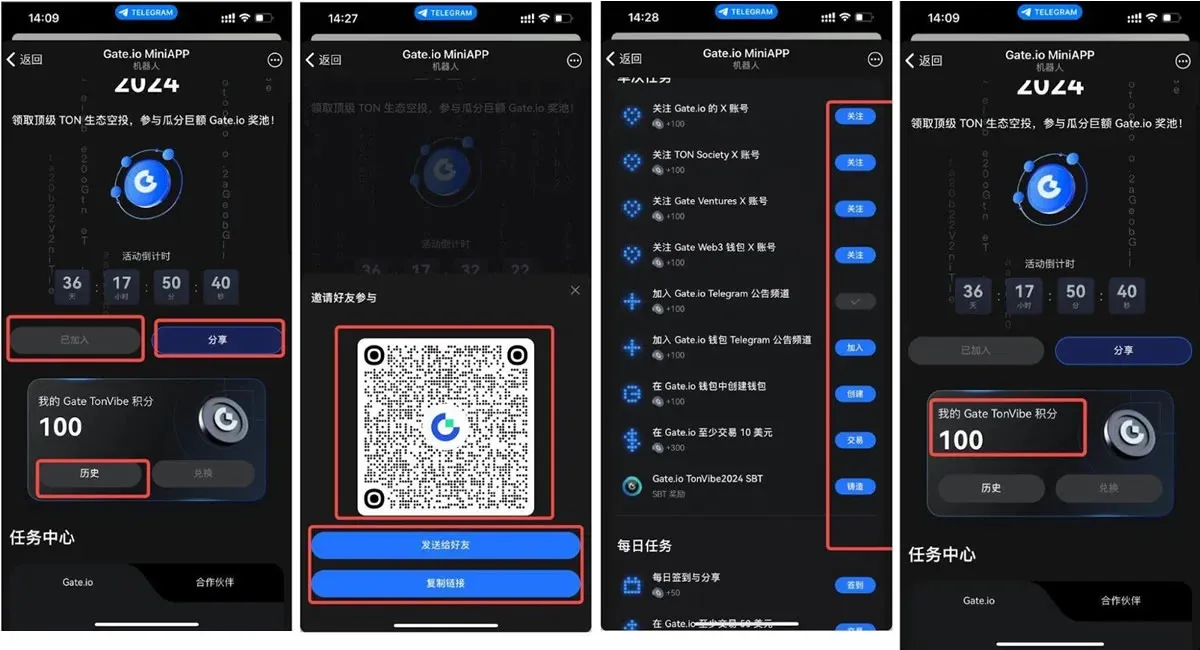
Example: TonVibe2024 Event
- Search for gate‑official‑bot in Telegram and launch the mini‑program.
- Tap OPEN APP → go to the event page → click Join.
- Use the Share button to forward the event to friends. Return to the app, complete the listed tasks, and you’ll earn GW points. After the event ends, rewards will be distributed according to the published rules.
Image Tutorial
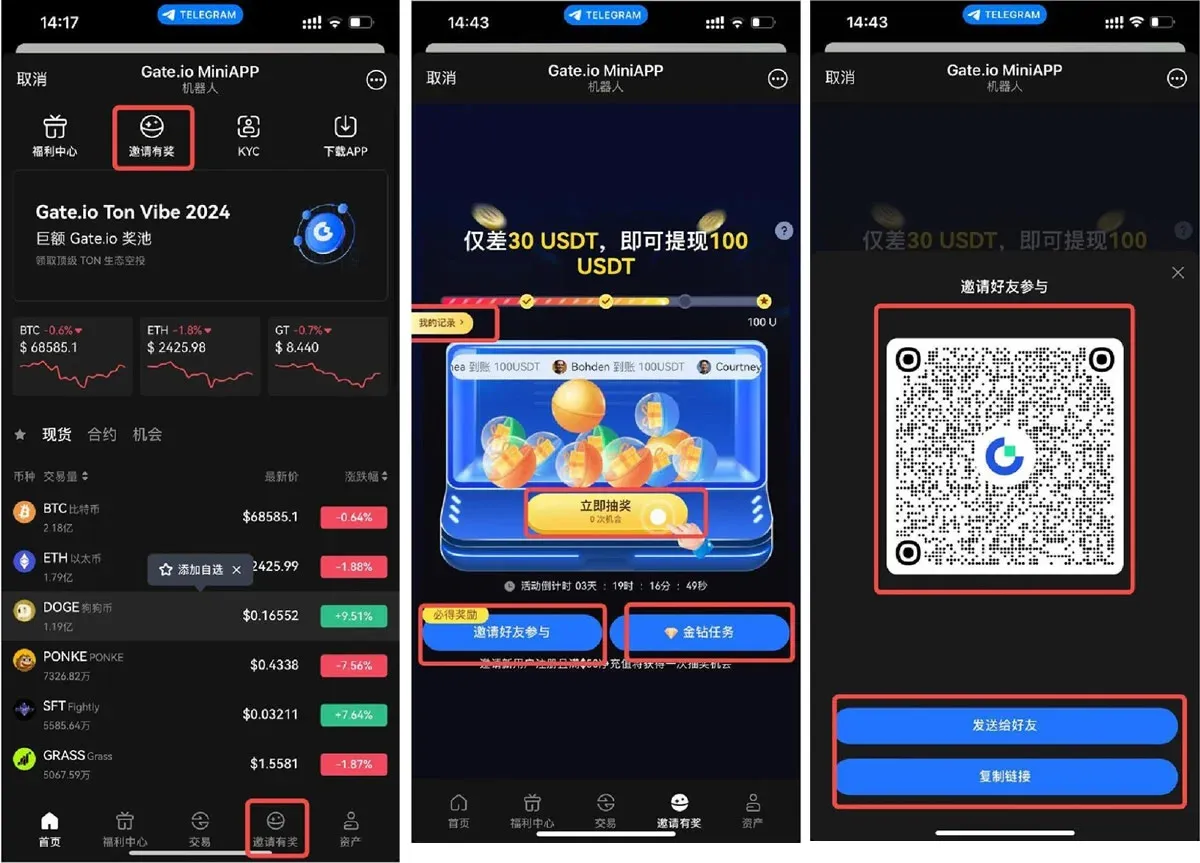
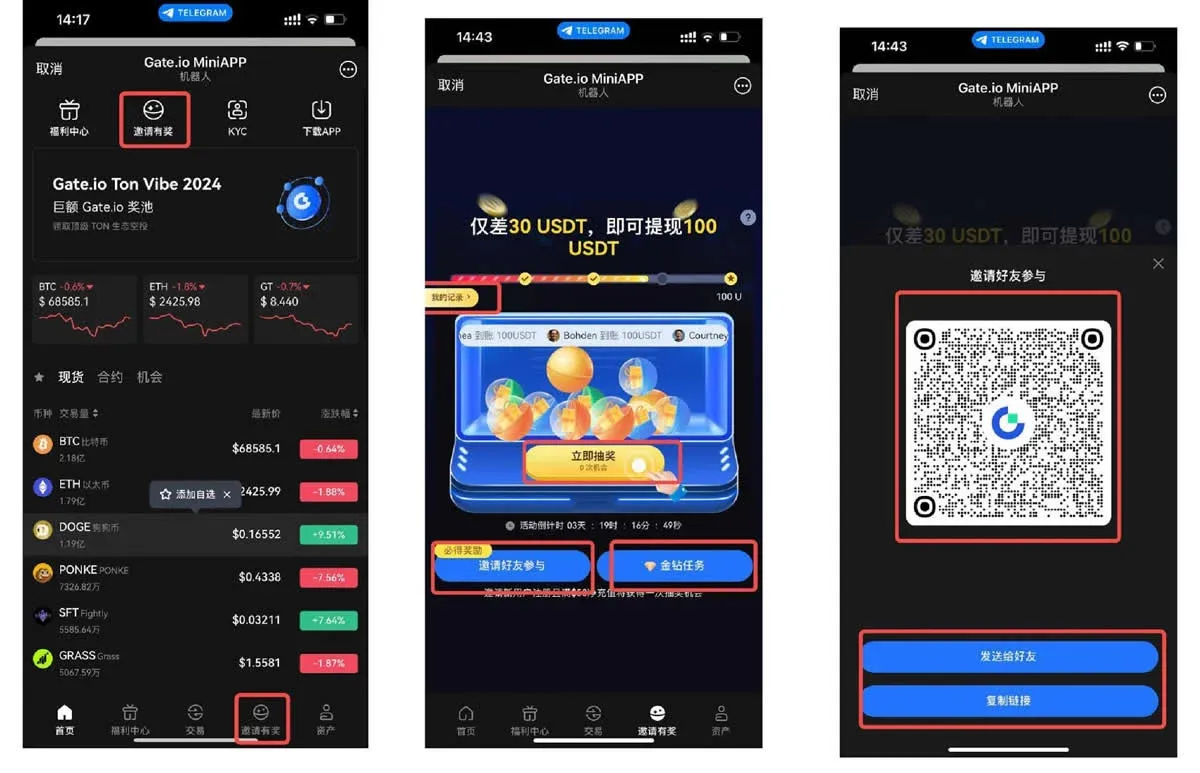
Invite‑and‑Earn Program
- Inside the mini‑program, select Invite‑and‑Earn.
- A personalized QR code or referral link will be generated; share it with friends via any channel.
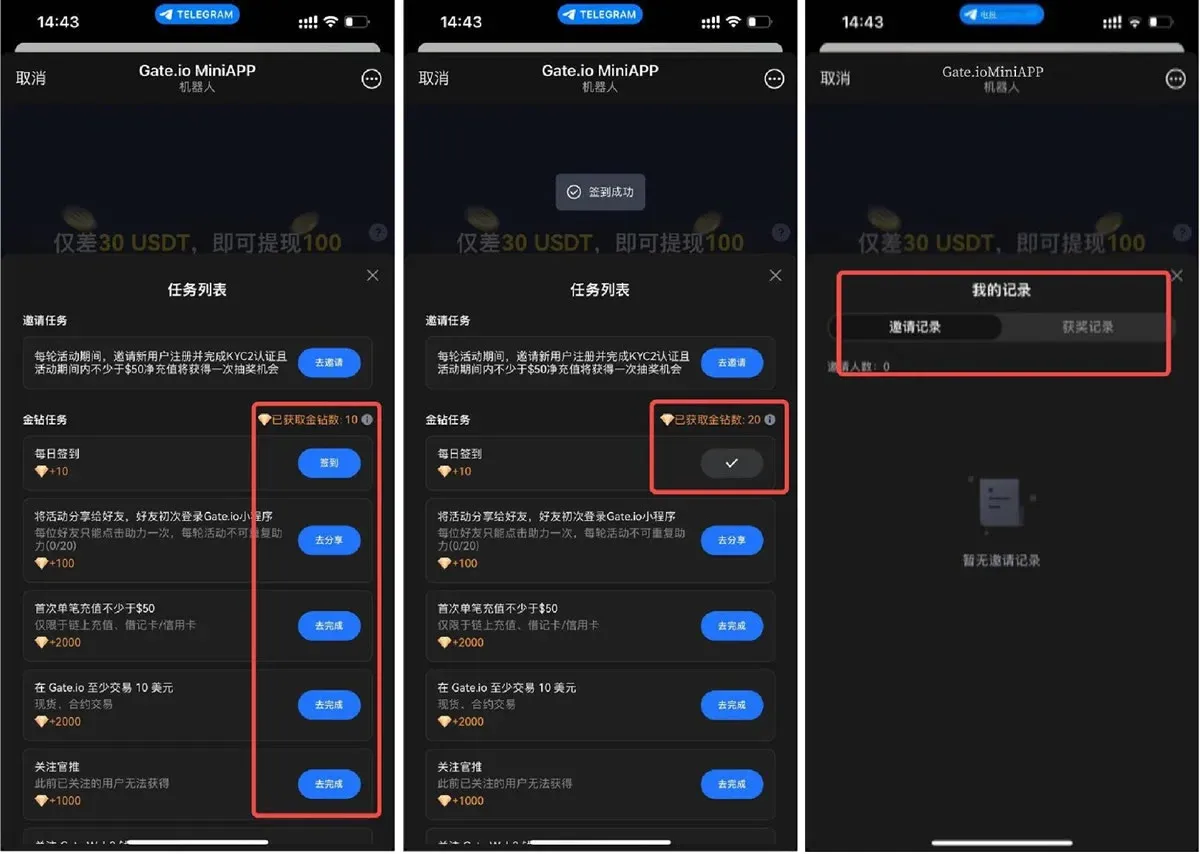
- When a friend registers using your link, you receive Gold Diamonds or a chance to enter a lottery. Complete the associated tasks, then check the Gold Diamond Tasks page to monitor progress and withdraw any earned rewards.
Image Tutorial
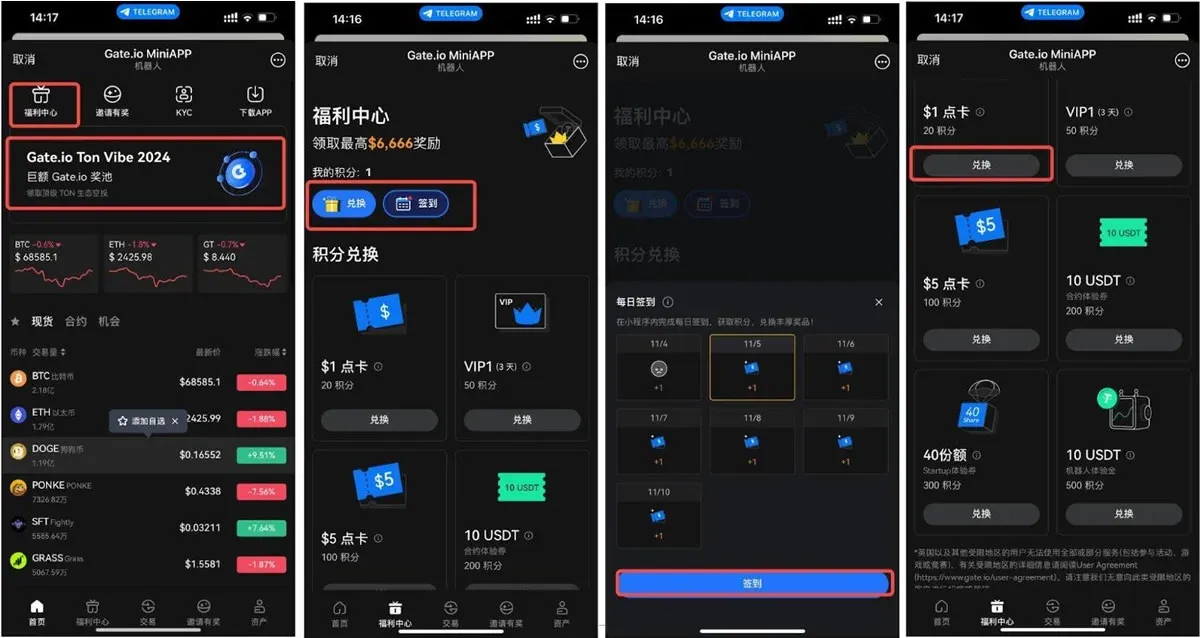
Daily Check‑In in the Benefit Center
- Open Benefit Center, then tap Check‑In once per day. Accumulated points can later be exchanged for various rewards once you reach the required threshold.
Image Tutorial
---
6️⃣ Invite Friends to Earn Rewards
- In Telegram, search for gate‑official‑bot and open the mini‑program’s home page.
- Locate the Invite‑and‑Earn module and tap it.
- The system will produce a unique QR code or referral link; copy it and share it with your contacts.
- When a friend registers through your link, the invitation is considered successful, and you can monitor your reward status on the event page.
Image Tutorial
---
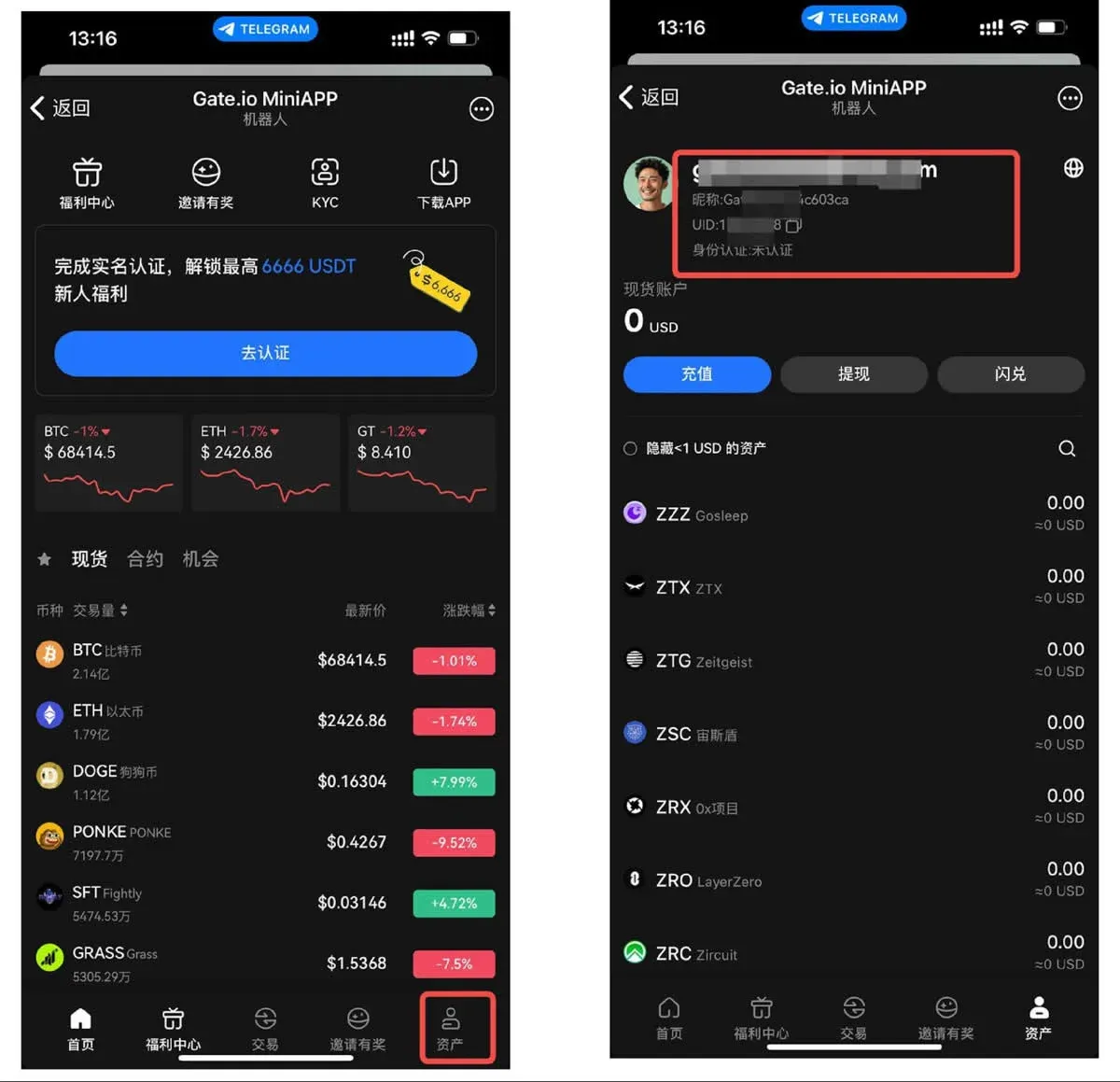
7️⃣ Personal Information and Language Settings
Viewing Personal Details
- Go to My Assets; the screen displays basic account information such as your registered email, verification status, and current balance.
Image Tutorial
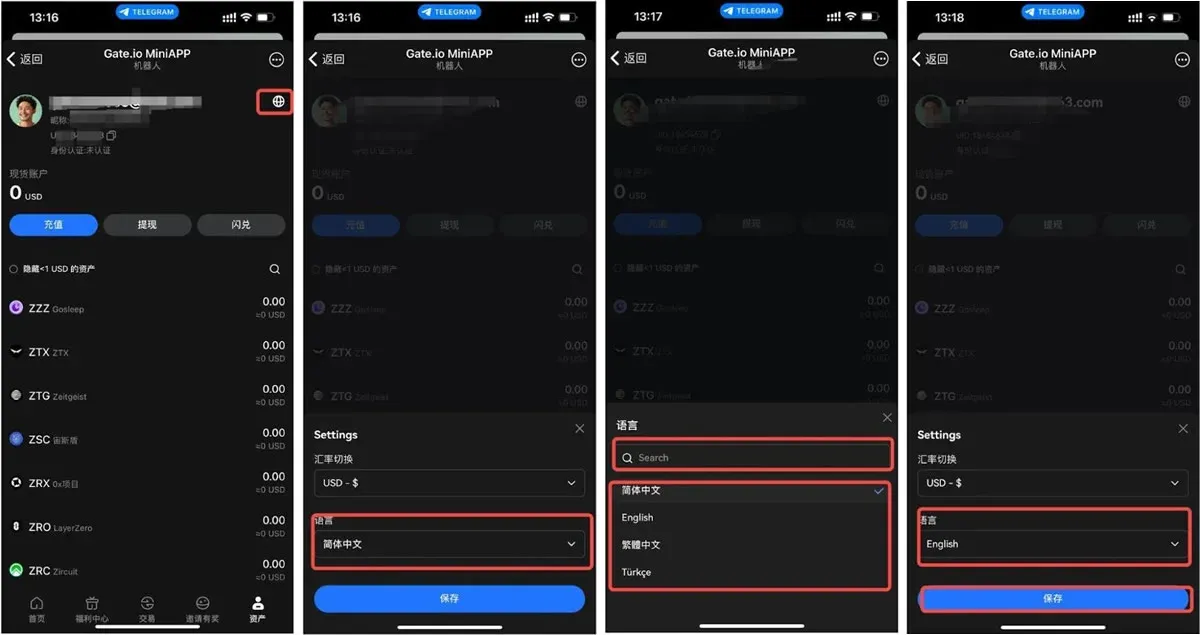
Switching Interface Language
- While on the My Assets page, tap the 🌏 icon at the top‑right.
- A pop‑up list of supported languages appears; select your preferred language (e.g., English, Spanish, French) or use the search bar, then confirm to apply the change.
Image Tutorial
---
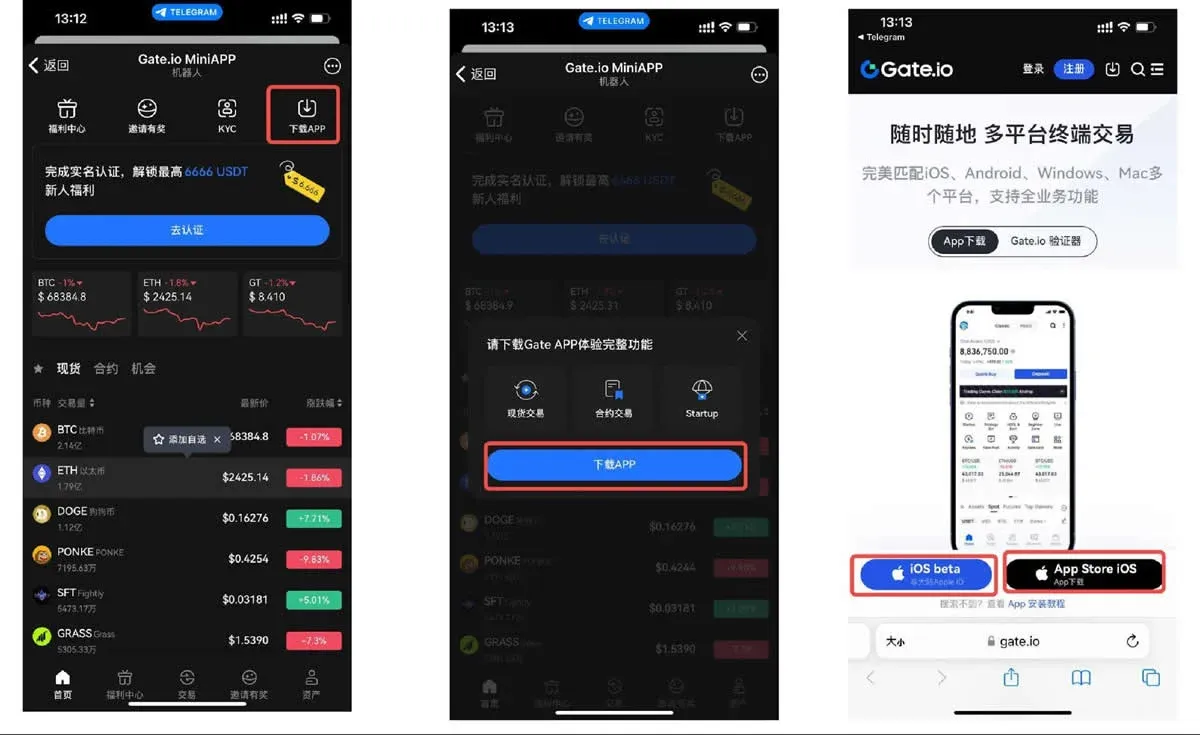
8️⃣ Download the Gate.io Mobile App
At the bottom of the mini‑program’s home screen, tap Download APP. A prompt will appear; after confirming, you’ll be redirected to your device’s browser where you can download the latest Gate.io client (available for iOS via the App Store and for Android via the Google Play Store). Installing the native app unlocks additional features such as advanced charting tools, push notifications, and deeper security controls.
Image Tutorial
---
That concludes the full step‑by‑step guide for locating the Gate TG mini‑program on Telegram, completing registration, passing KYC, managing assets, executing trades, and taking part in platform promotions. For more tips, tricks, and updates on using the Gate.io Telegram mini‑program, feel free to follow Bitaigen (比特根) for future releases.
Related Reading
- Gate.io On‑Chain Deposit & Withdrawal Guide (App & Web)
- Download Gate.io Sesame on iPhone via Taiwan Apple ID
- Gate.io Registration & KYC: Beginner Step-by-Step Guide
💡 Register on Binance with referral code B2345 for the maximum trading fee discount. See Binance complete guide.