
 Bitaigen Research
 In this article we outline the root cause of the error that suddenly appeared on the HECO network when using MetaMask, and provide a complete step‑by‑step guide—from changing the token symbol in the settings to restoring normal operation. No re‑installation is required; just follow the instructions to quickly troubleshoot and keep your on‑chain assets safe.
Today, while using MetaMask on Huobi’s HECO chain, an error popup unexpectedly appeared. Later, I saw in a WeChat group that several friends had encountered the same issue, and I didn’t expect it to happen to me as well.
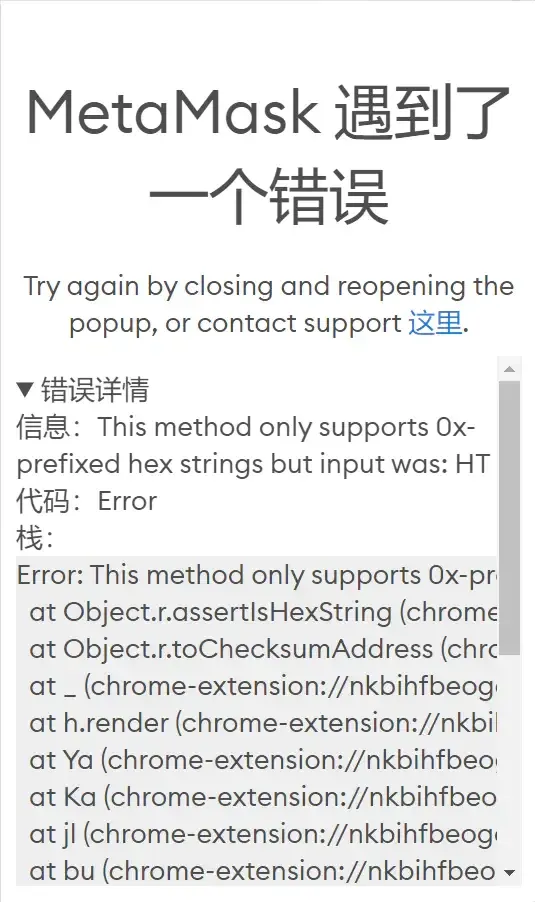
I repeated the operation many times and found that the error persisted. After scrolling through the group chat history, someone suggested uninstalling and reinstalling an older version of the wallet, hoping that would fix the problem. Considering that the wallet stores information for multiple networks and my frequently used addresses, I decided to try another solution first.
The error message literally says “Unsupported hex string type”, specifically referring to HT. I therefore changed the token symbol for HT to the default ETH, and the problem was resolved immediately.
Detailed steps
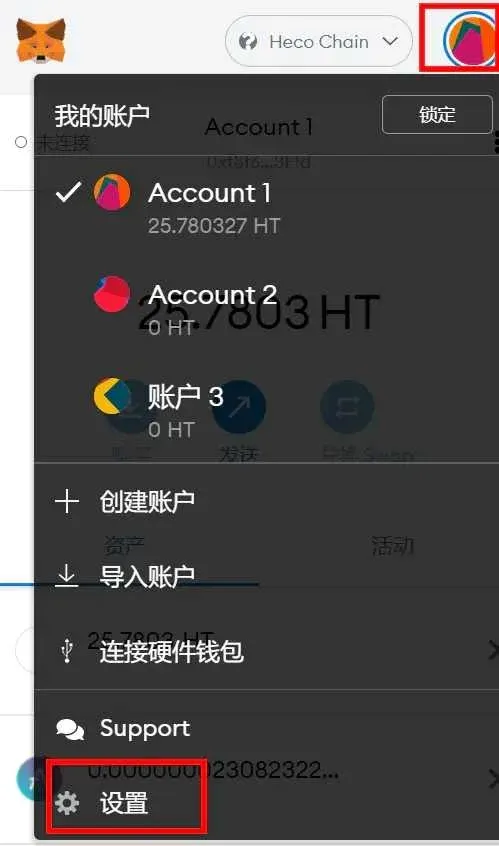
Step 1: Open “Settings” in MetaMask.
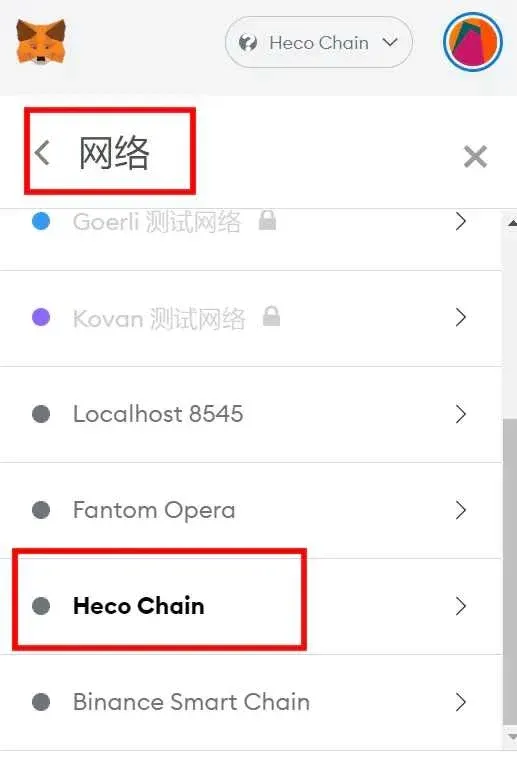
Step 2: Tap “Network”, then select “HECO Chain”.
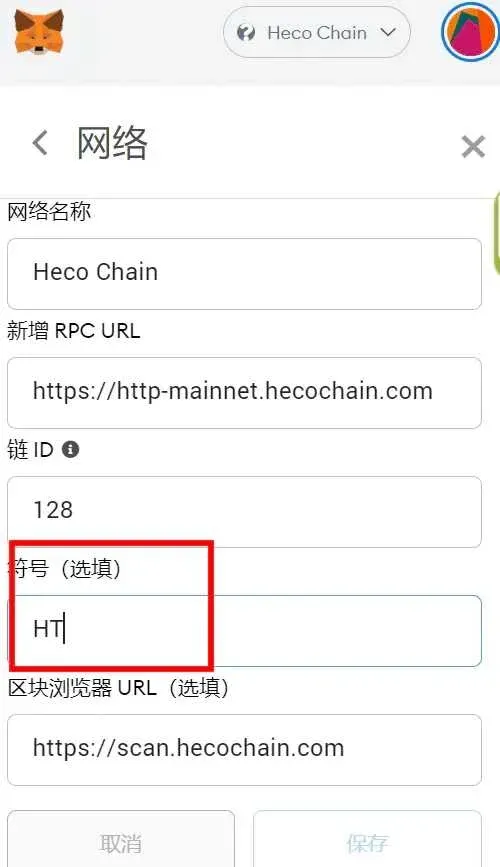
Step 3: Change the symbol from HT to ETH and save.
After completing the modification, retry the HT‑related transfer; all actions now proceed normally.
Note: Although the displayed fee is labeled as ETH, the network still deducts the original HT token for the transaction fee.
That concludes the full method for fixing the MetaMask error. For more information about downloading and using MetaMask, feel free to follow Bitaigen (比特根) and explore its related articles.
💡 Register on Binance with referral code B2345 for the maximum trading fee discount. See Binance complete guide.



