
 Bitaigen Research
 In this article we systematically outline the complete process for obtaining the Binance app on iOS and Android devices, covering preparatory steps, key points for registering an overseas Apple ID, and secure download channels. Once you master these steps, you can smoothly install the exchange client on your phone and enjoy easier subsequent operations.
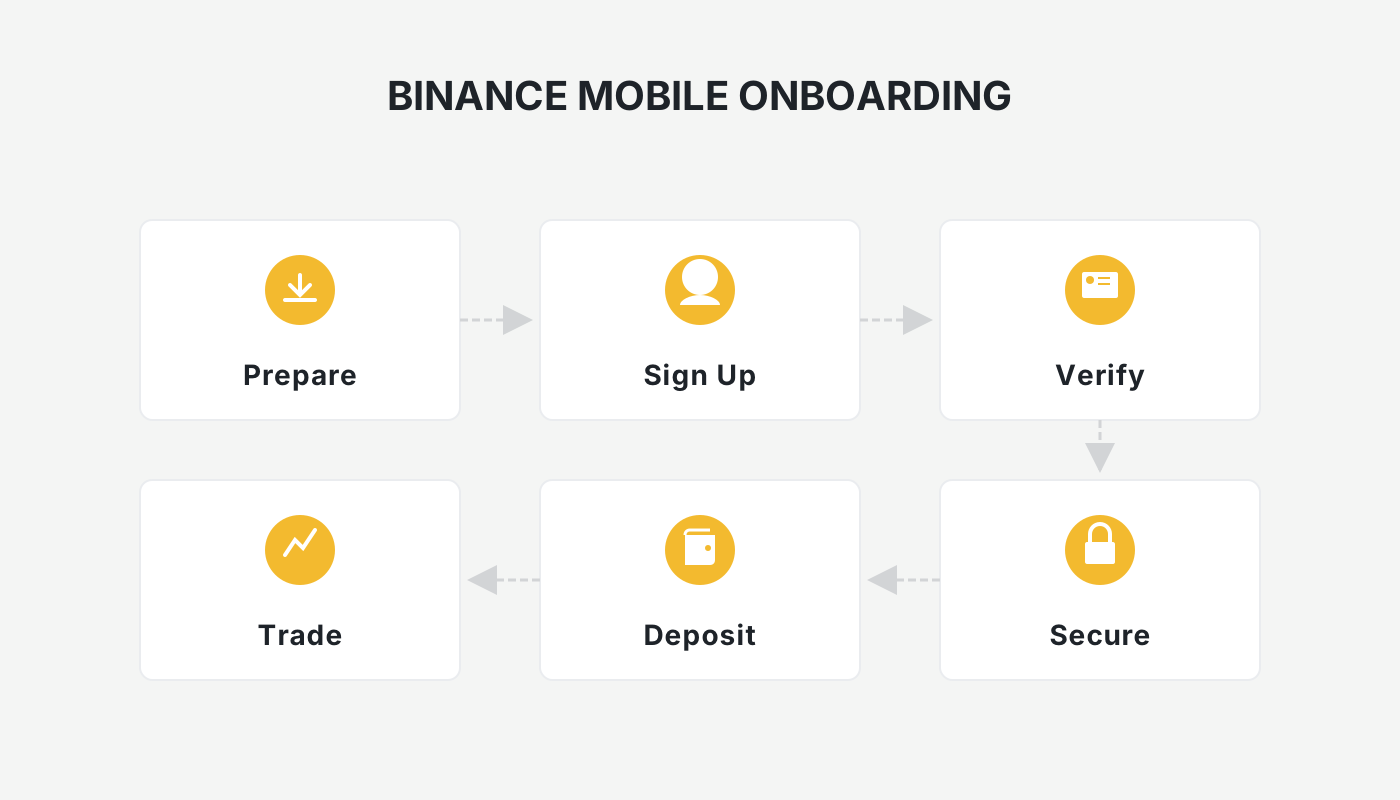
How to Download the Binance Exchange App for iPhone (iOS)?
1. Preparatory Work
To install Binance or other overseas exchange applications on an iPhone or iPad, you first need an Apple ID that is not tied to mainland China. The most common approach is to register an Apple ID for Taiwan, as IDs for other regions (e.g., the United States, Hong Kong) are currently unable to function properly for this purpose.
- Device: One iPhone or iPad.
- Email: Prepare an email address that has never been used for an Apple ID before (Gmail is recommended).
- Address information: Use a Taiwan‑address generator to fill in a realistic street name and postal code (for example, Taipei City 100). The name can be entered in pinyin or traditional Chinese characters, and the birthdate must be at least 18 years old (it does not have to be your real birthdate).
2. Steps to Register a Taiwan Apple ID
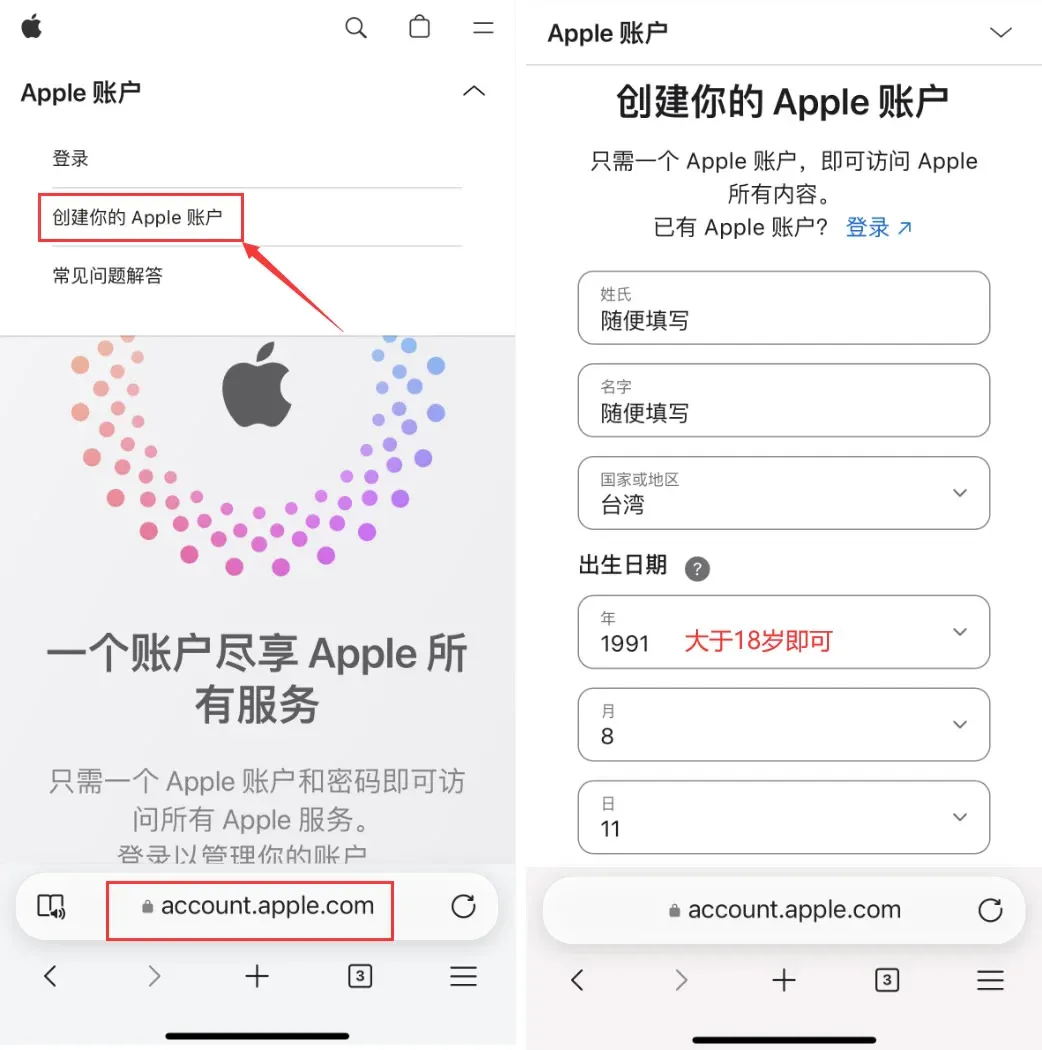
- Open a web browser and go to the Apple ID registration website. Follow the on‑screen prompts to fill in the required information. You may enter any values for the surname and given name, select Taiwan as the country/region, and set a birthdate that makes you 18 years or older.
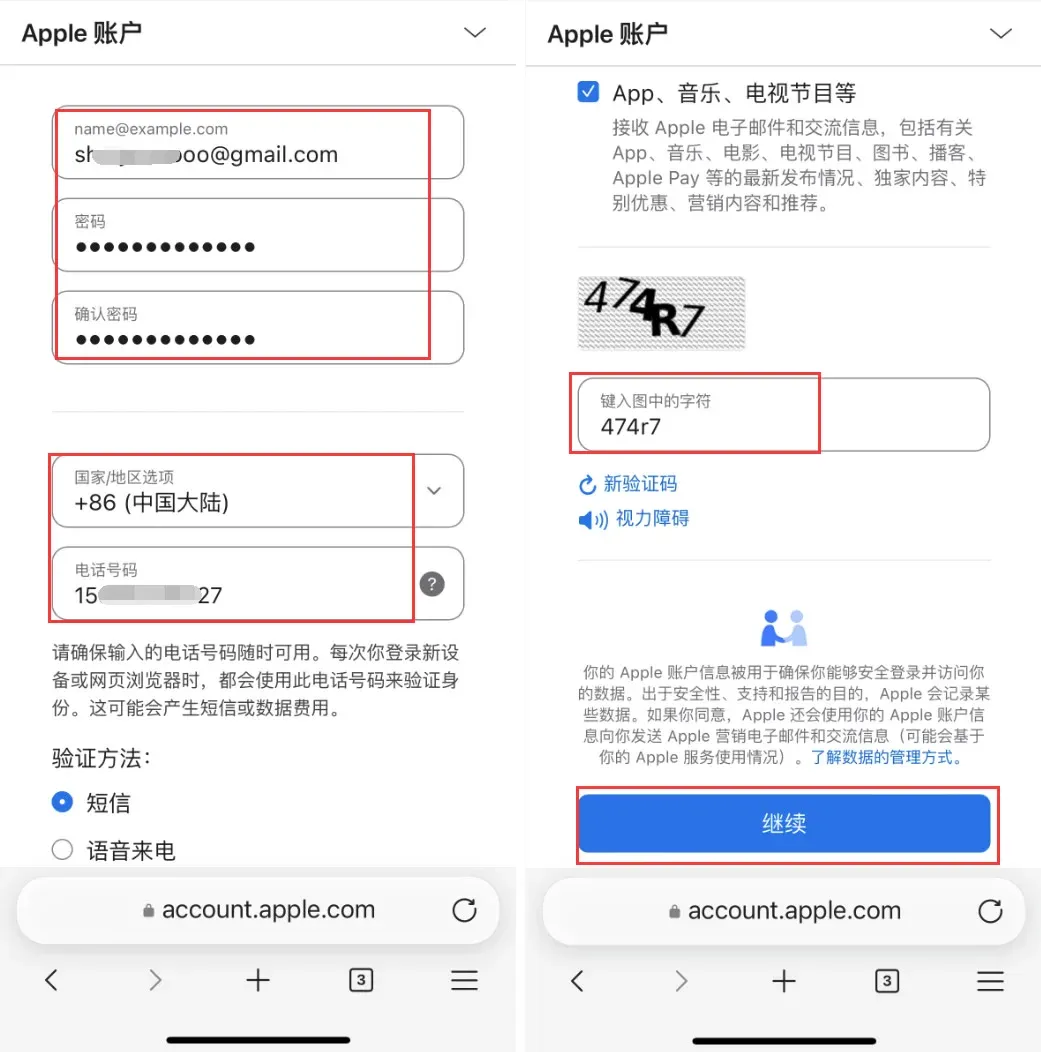
- It is advisable to use a Gmail address. The password must contain uppercase and lowercase letters, numbers, and symbols. For the “Country/Region” field you may select Mainland China so that you can receive the verification code via a Chinese mobile number. After completing the form, click [Continue] and solve the graphical captcha.
- Check the inbox of the email you provided; Apple will send a verification code. Follow the instructions in the email to complete the email verification step.
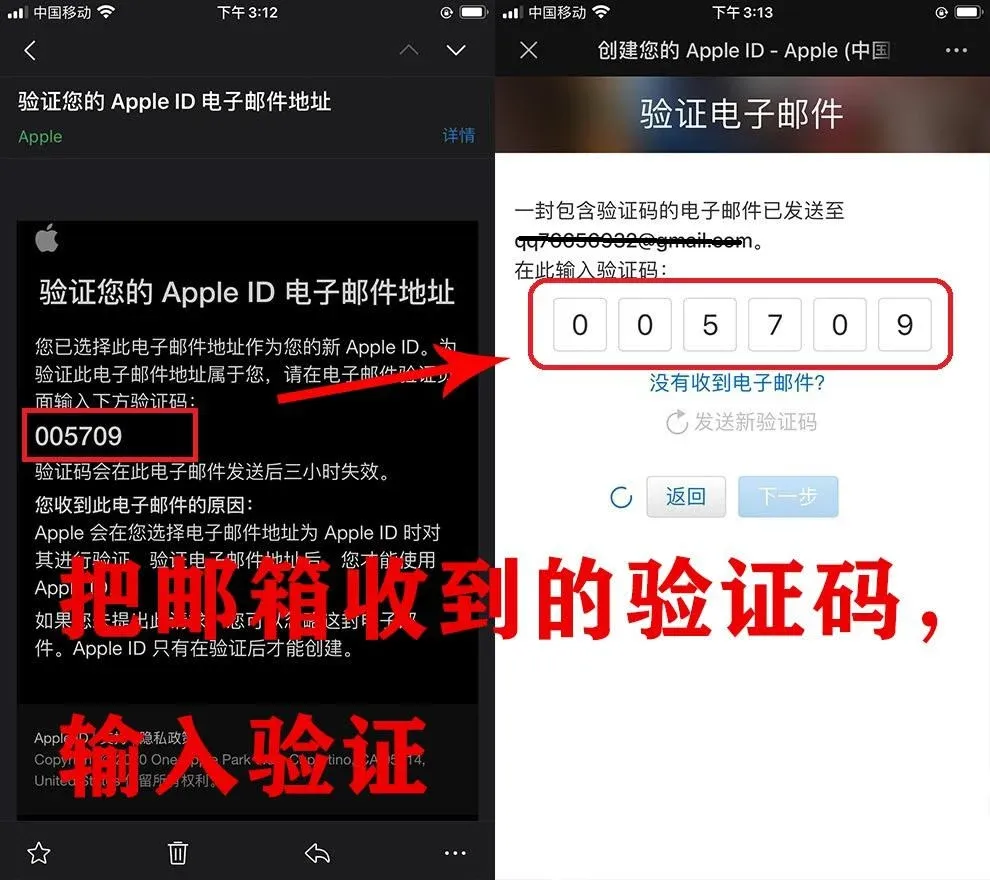
- After the email is verified, Apple will send a one‑time verification code to the phone number you entered earlier. Input that code to finish the initial creation of the Apple ID.
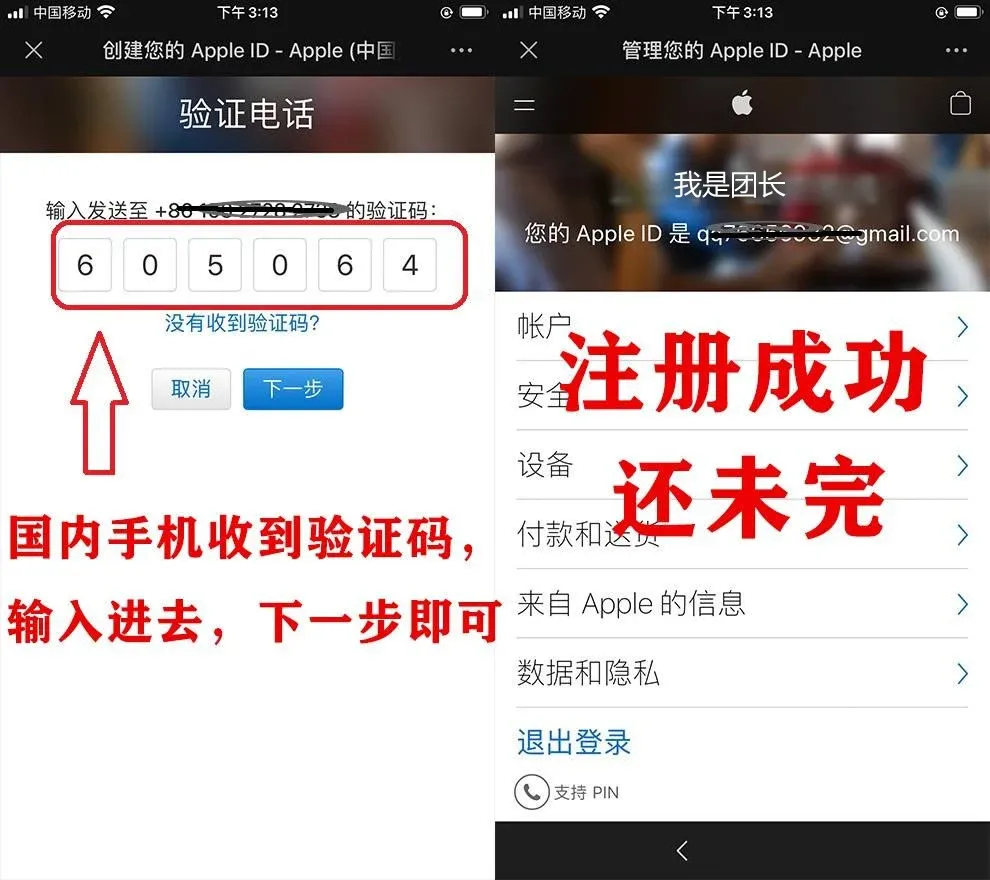
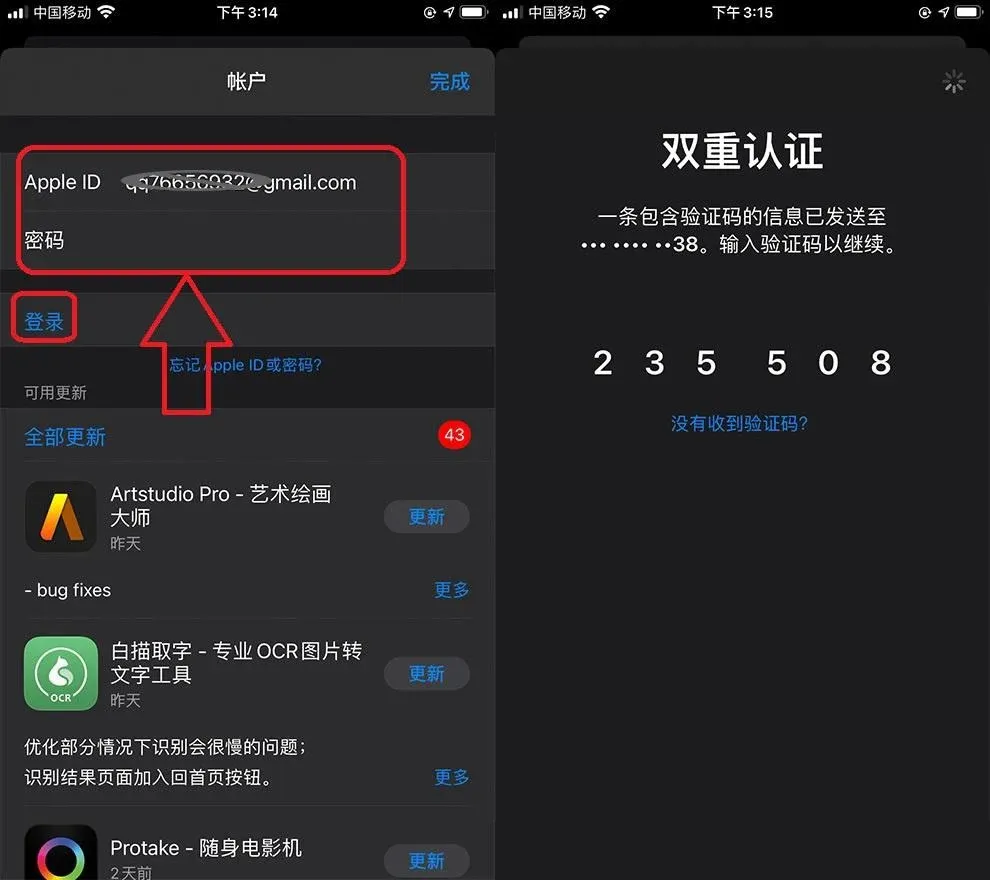
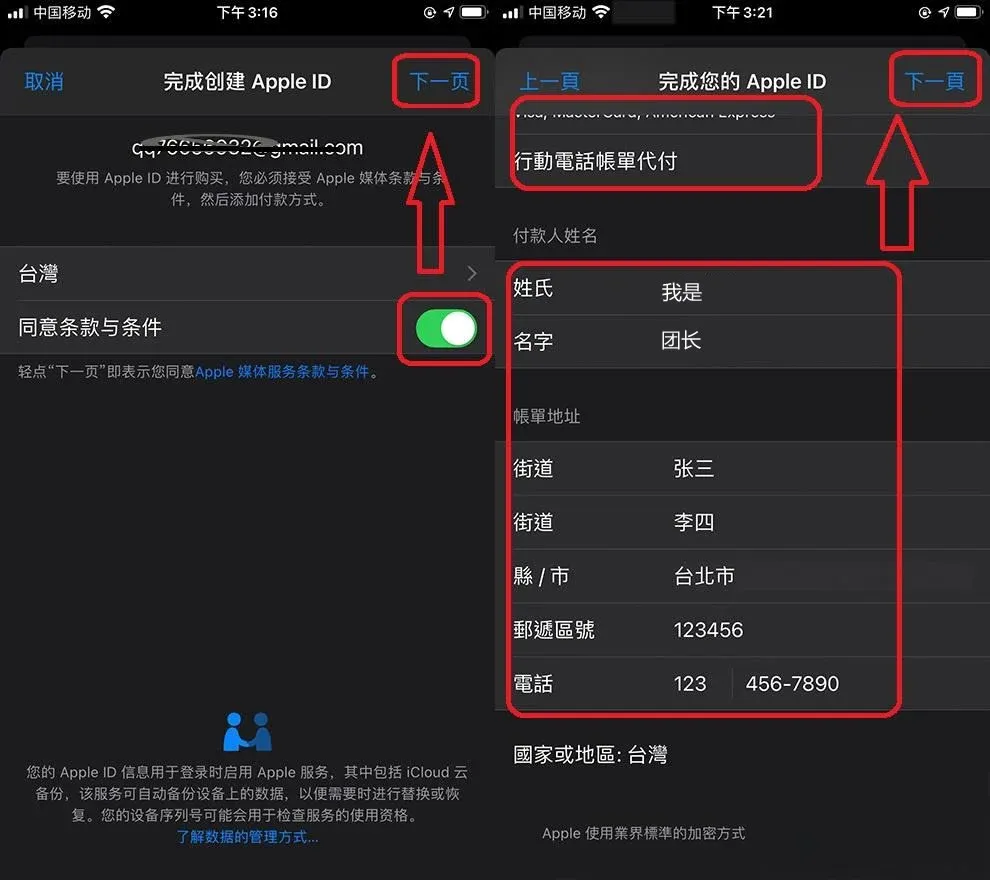
- On your iPhone or iPad, open the App Store and sign in with the newly created Apple ID within the App Store itself (do not use the “Settings” → “iTunes & App Store” login entry). The system will request two‑factor verification; after you complete it you will see a Check button. Tap it, then tick the box for “Agree to Terms and Conditions” to proceed to the next step.
- When prompted for payment information, do not select any payment method. You can fill in the payer’s name and billing address with arbitrary values; the postal code only needs to be a six‑digit number, and the phone number can be a placeholder such as 1234567890. Then click Next to finish the registration.
Note: If you later intend to add a payment method for fiat deposits, you may use USD via SEPA or SWIFT transfers, depending on your local banking options.
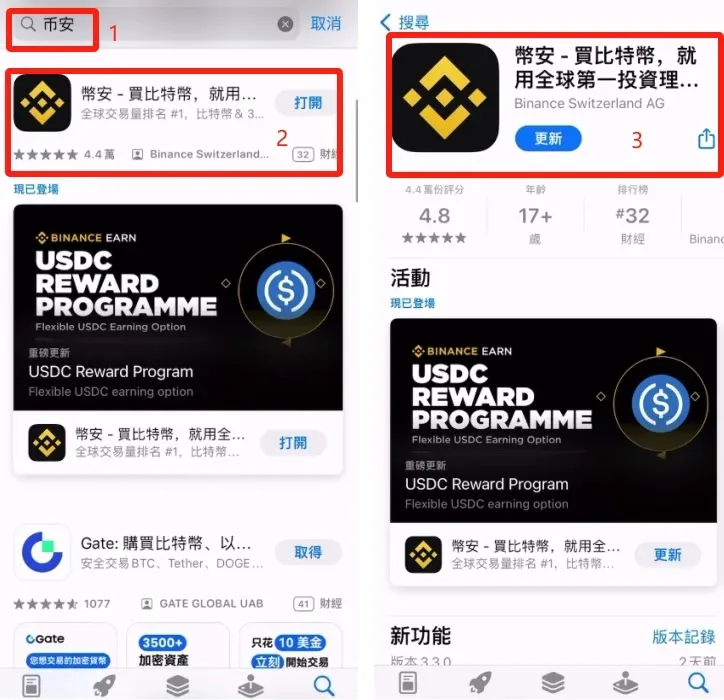
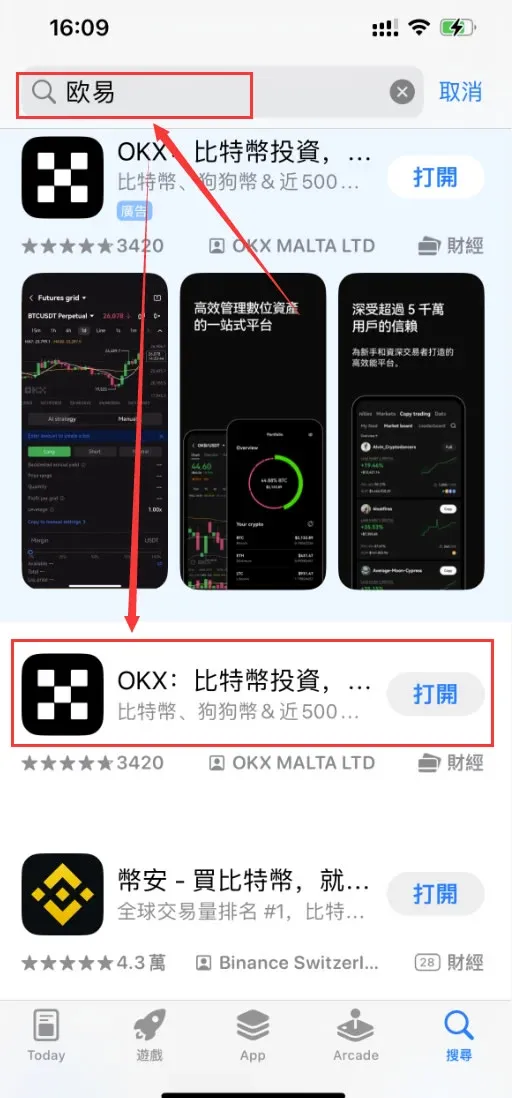
- Once registration succeeds, simply search for “Binance” or “OKX” (the brand known as “欧易” in Chinese) inside the App Store. The official application will appear; tap Get to download it.
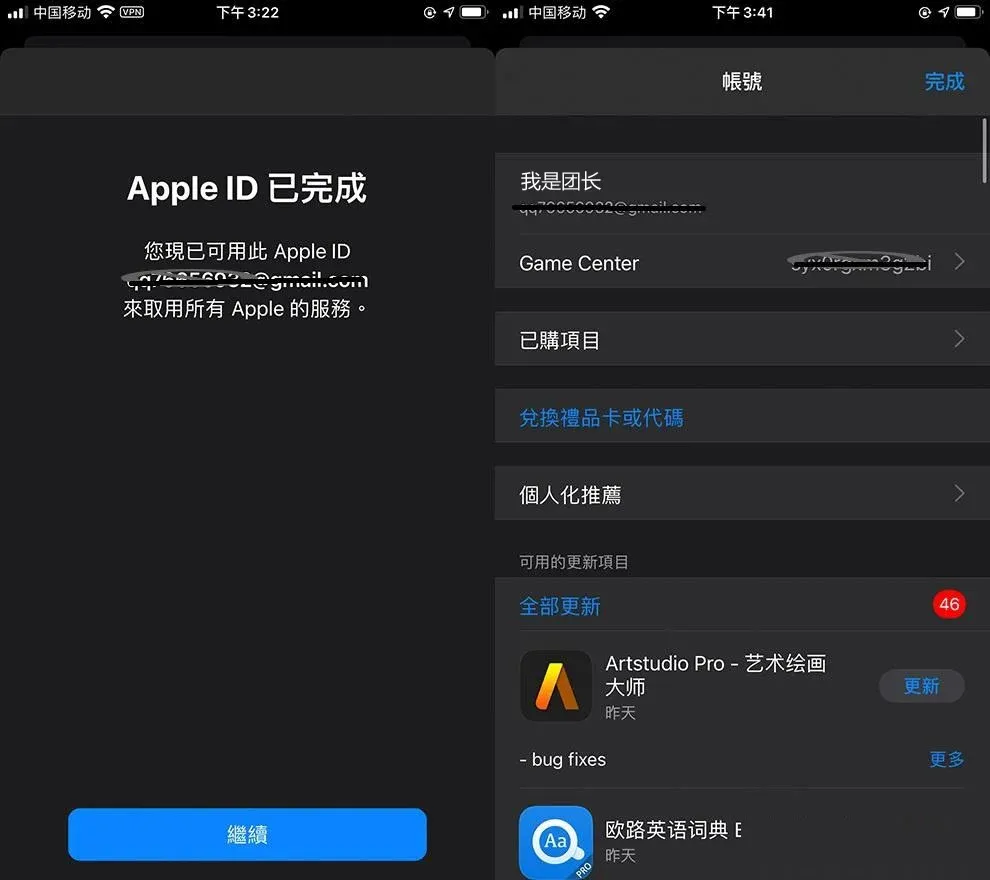
3. App Store Login and Downloading the Binance App
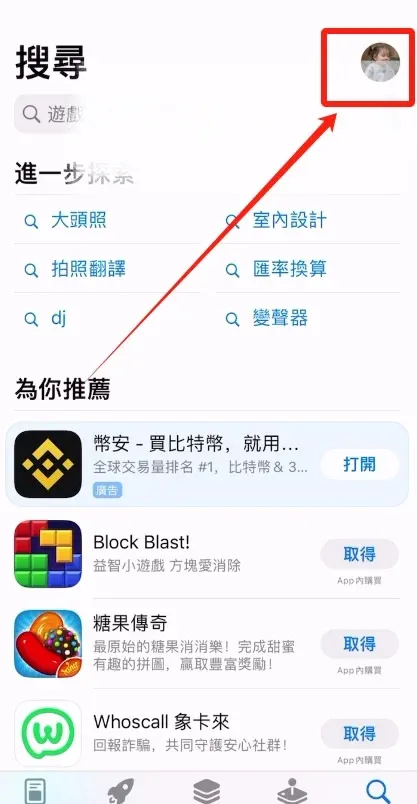
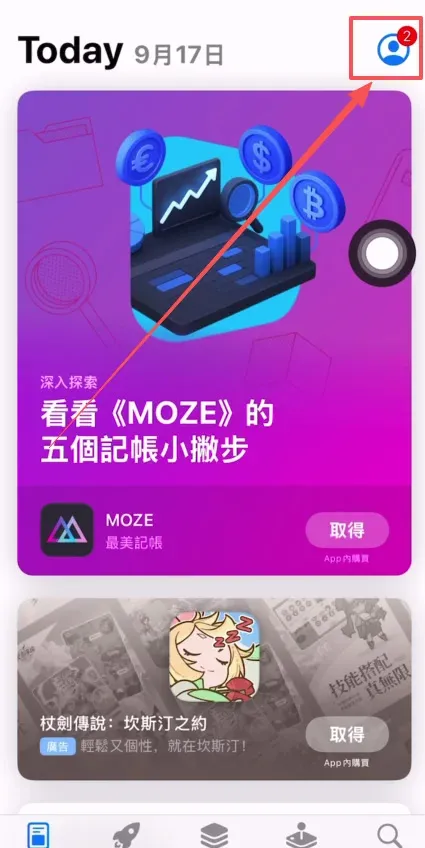
- Open the App Store, tap the avatar icon in the upper‑right corner, and first sign out of the current mainland‑China Apple ID (that account cannot locate Binance).
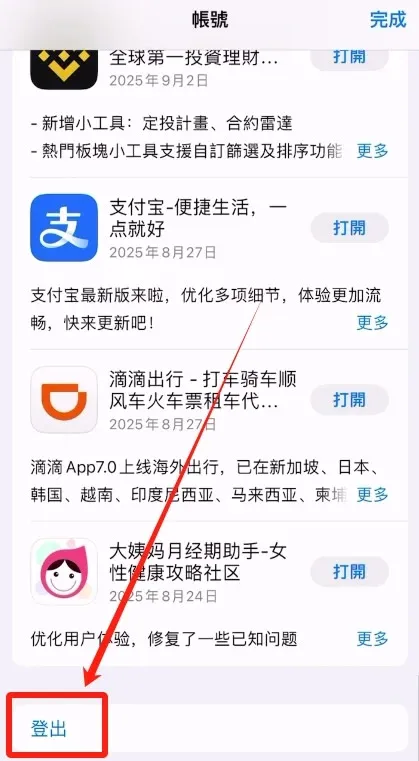
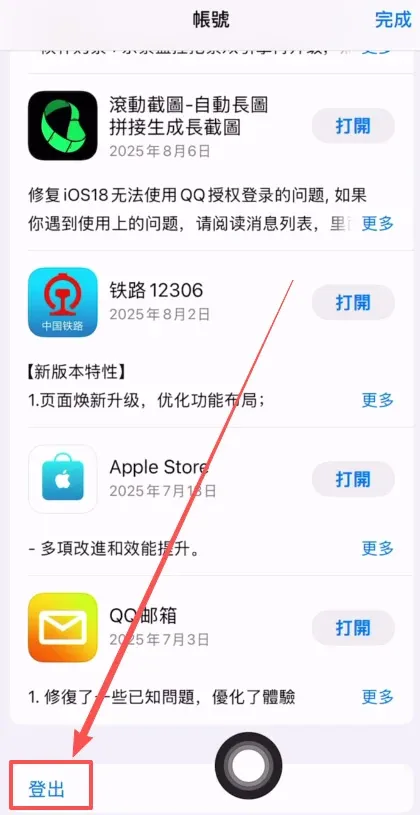
- In the pop‑up menu choose [Sign Out].
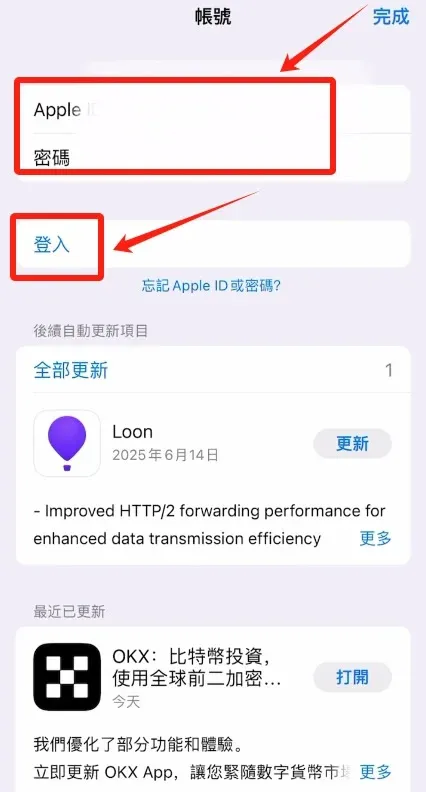
- Enter the newly registered Taiwan Apple ID and its password, then tap [Sign In].
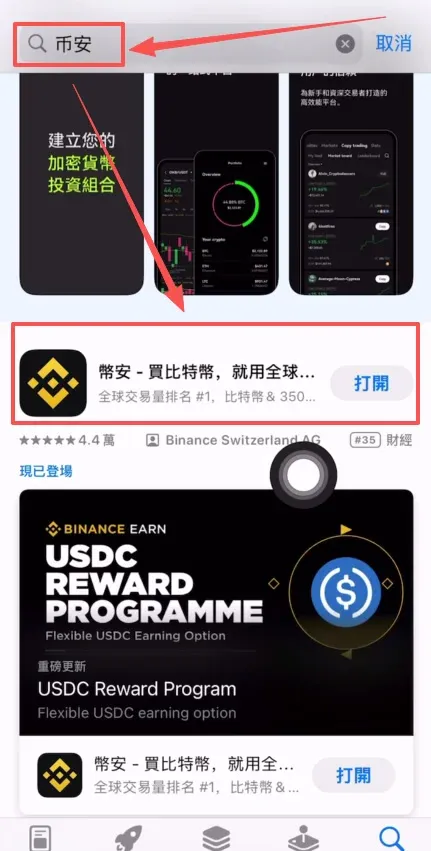
- After a successful sign‑in, type “Binance” into the search bar. Locate the official app and tap Get (or the cloud download icon) to start the installation.
4. Shortcut Method: Purchase a Pre‑Made Taiwan Apple ID
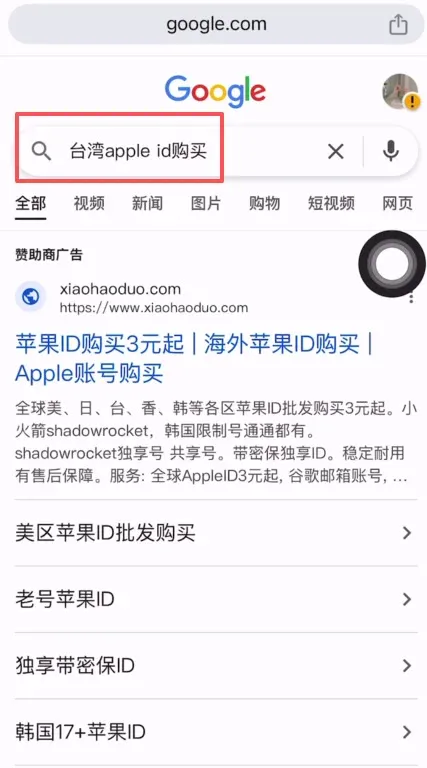
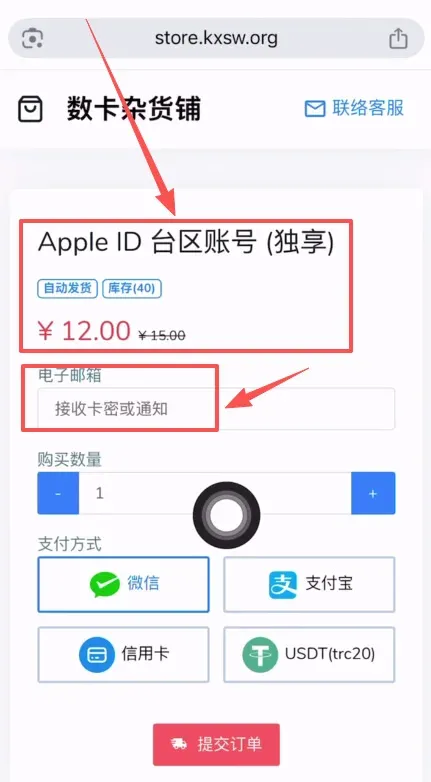
If you prefer not to register an Apple ID yourself, you can search online for “Taiwan Apple ID for sale”. Choose a reputable, non‑advertising seller; the typical price is around USD 2 (≈ 12 CNY). After payment, you will receive a ready‑to‑use account that can be logged in directly.
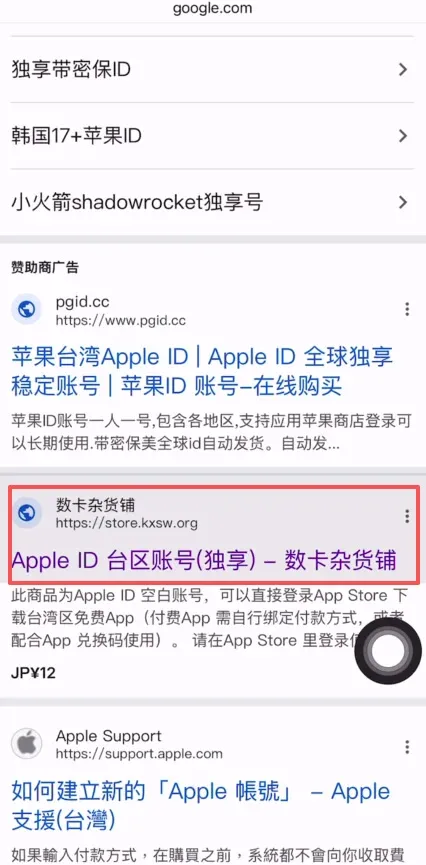
After purchase, repeat the sign‑out procedure described above, then log in with the newly acquired Apple ID and search for “Binance” to download the app.
---
Binance Exchange App Android Installation Process
- Visit Binance’s official dedicated link (registering through this link grants a 20 % rebate):
Binance registration link: <https://www.bitaigen.com/binance>
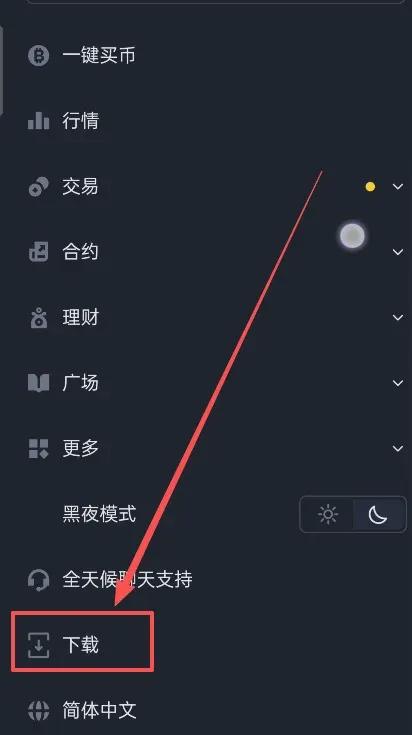
- In the upper‑right corner of the page click the “three‑bars” (hamburger) icon, scroll down and locate the [Download] button.
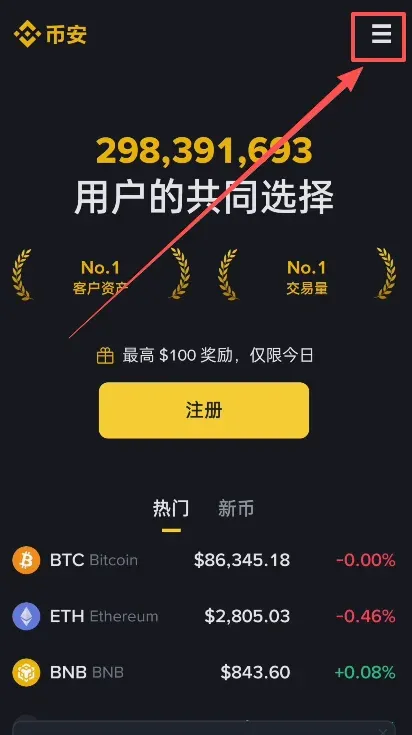
- On the download page choose [Android Download], then hit the [Download] button to start retrieving the APK package.
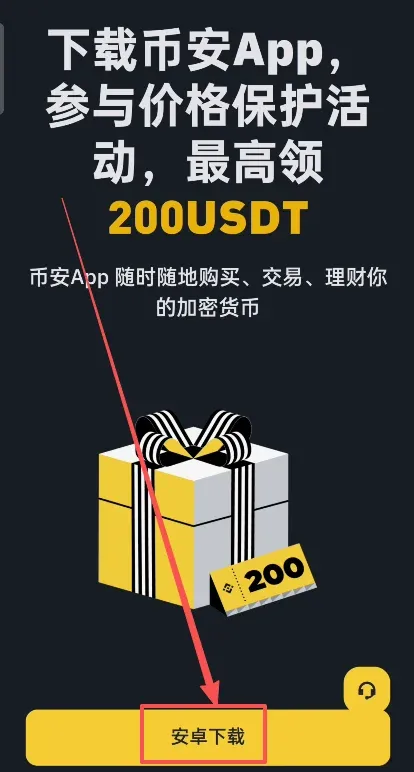
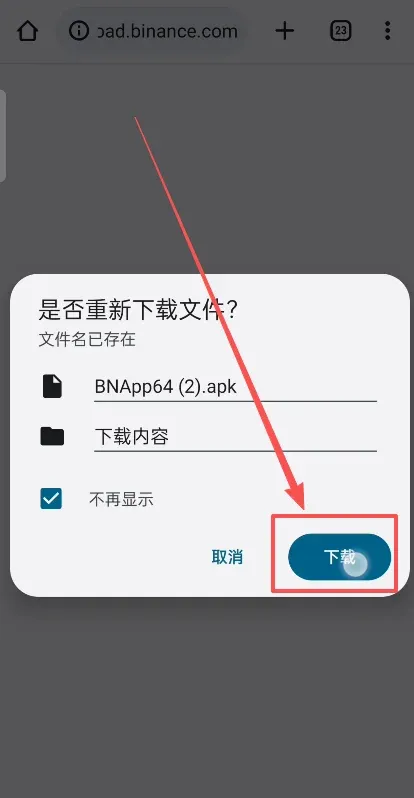
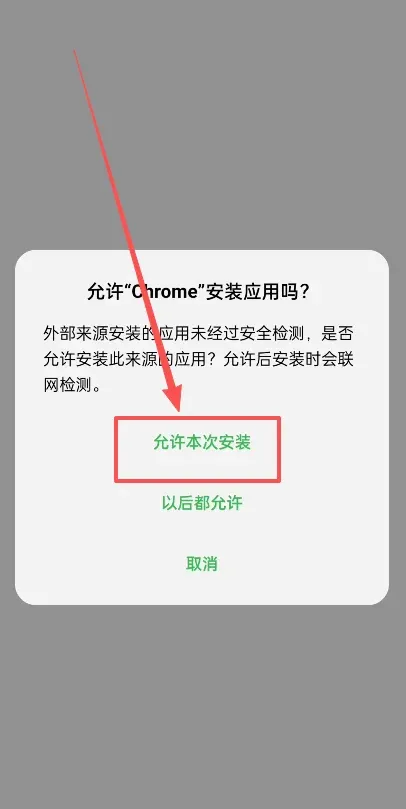
- Once the download finishes, open the APK file. Android will display a prompt titled “Allow this installation”; tap Allow to proceed.
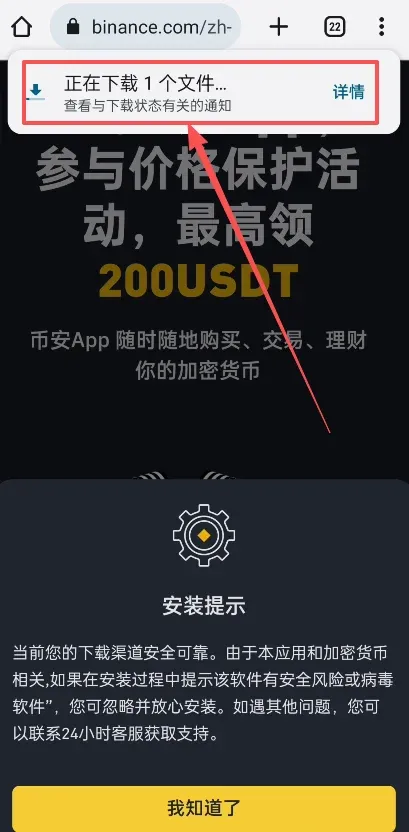
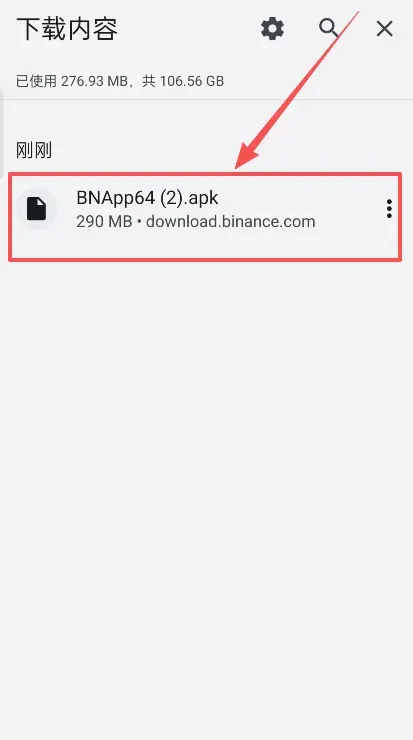
- A security‑enhancement screen will appear; select “Start deep scan”.
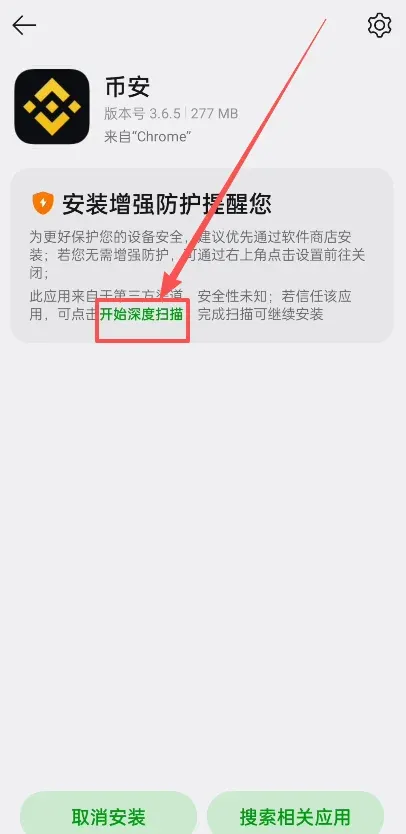
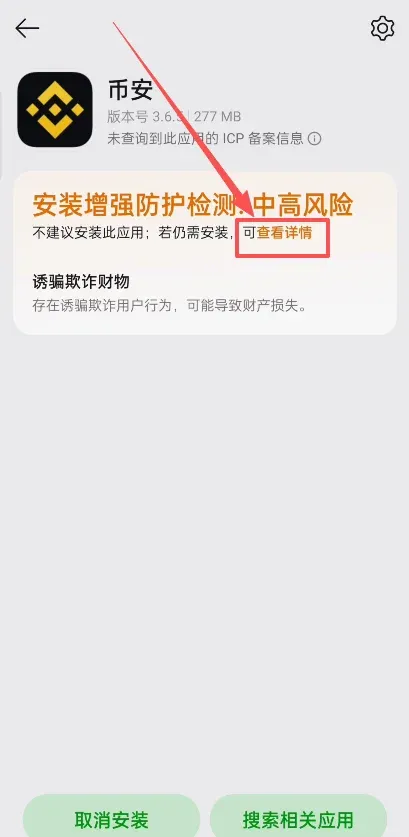
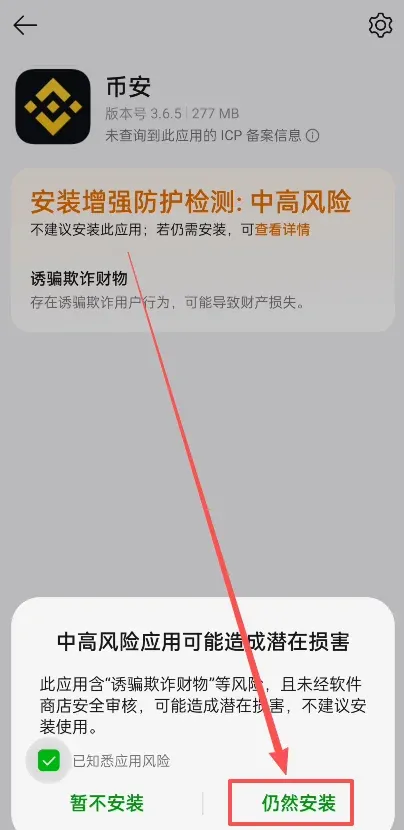
- The scan may flag the package as “Potentially risky software”. If this occurs, tap [View Details], then choose [Install Anyway] to continue.
- No
Related Reading
💡 Register on Binance with referral code B2345 for the maximum trading fee discount. See Binance complete guide.



