
 Bitaigen Research
 We have found that many OKX users miss critical market movements because they constantly switch between apps while trading. This article, compiled by the Bitaigen editorial team, provides step‑by‑step tutorials for Android and iOS widgets, helping you quickly place market‑watch widgets on the home screen, lock screen, or as a floating window so you never miss a price change. If you want to improve efficiency and reduce risk, keep reading to master every step.
Why Use Market‑Watch Widgets
When trading on OKX, having to open the app each time you want to check a price often leads to missing key volatility spikes. To address this pain point, the platform offers a variety of market widgets for both Android and iOS that can be embedded directly on the home screen, as a floating overlay, or on the lock screen. These widgets let you keep an eye on price movements and position changes without repeatedly navigating to the trading page.
---
Official Channels for Download
Before adding a widget or updating the client, it is recommended to download the app through official channels to ensure you get the latest, most secure version:
- Official OKX registration link: <https://www.okx.com/zh-hans/join/B2345>
- OKX APP download link: <https://www.bitaigen.com/binance/download>
Note for U.S. users: Access to OKX’s global platform is not available in the United States. Use Binance.US (or another regulated U.S. exchange) for similar services.
Fiat considerations: Deposits and withdrawals can be handled in USD via SEPA or SWIFT, depending on your jurisdiction.
Tax reminder: Cryptocurrency gains may be taxable in your local jurisdiction; consult a tax professional for guidance.
---
iOS Devices: Home‑Screen and Lock‑Screen Dual Modes
1. Adding a Home‑Screen Widget (iOS 14 and later)
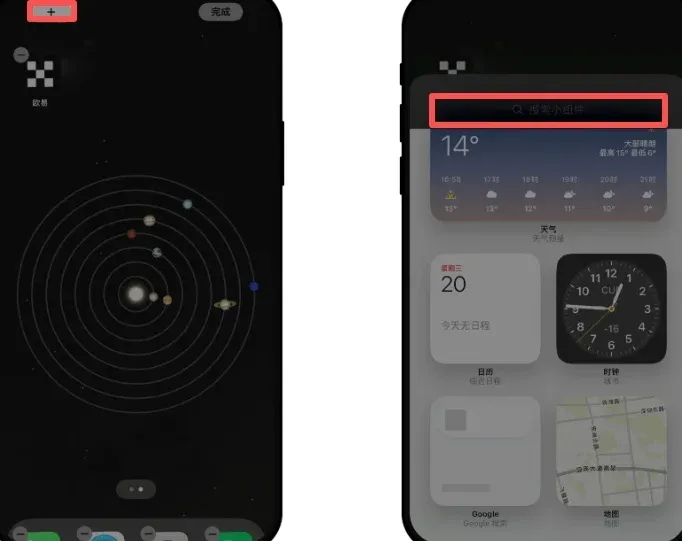
- Long‑press an empty area on any home screen, then tap the “+” button in the upper‑left corner.
- In the widget gallery that appears, search for “OKX”, or simply scroll down until you locate the OKX app.
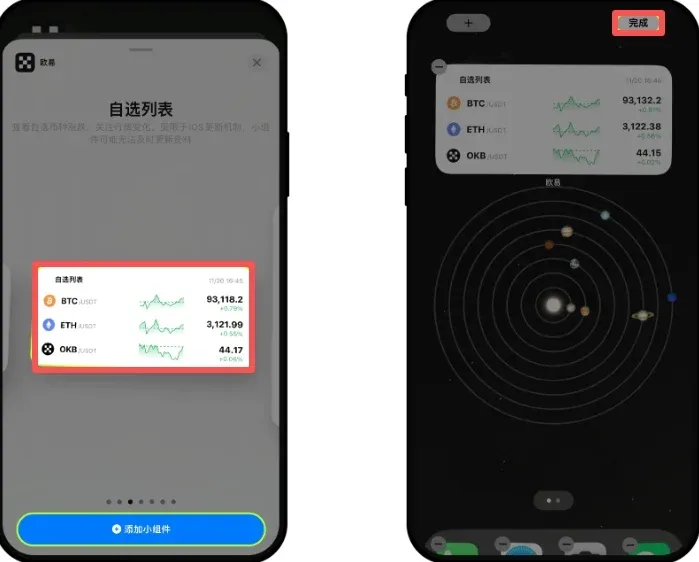
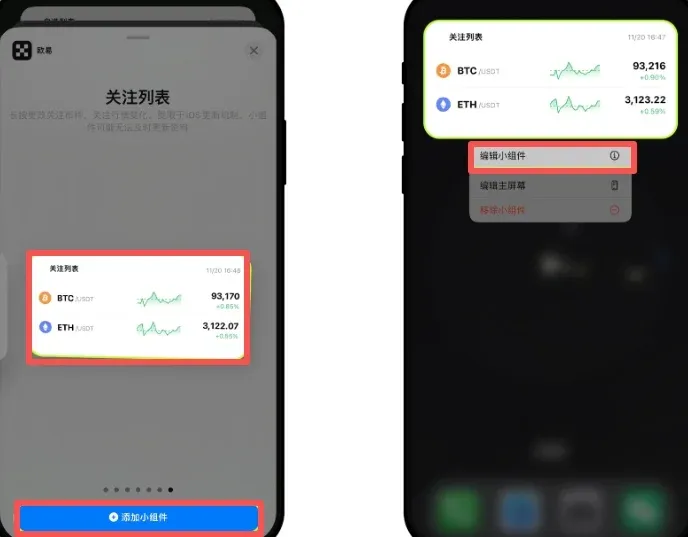
- Choose the template you prefer (e.g., “Major Coins”, “Watchlist”, “Position List”, “Favorites List”, etc.), tap “Add Widget”, and confirm.
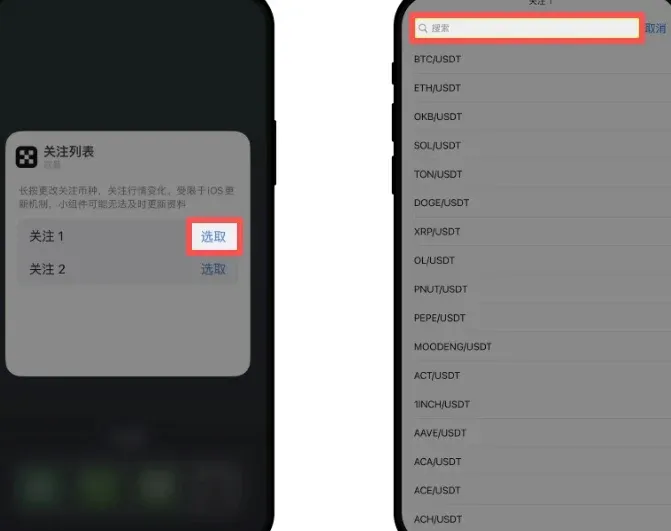
- To modify the coins displayed in a “Favorites List” widget, long‑press the widget → “Edit Widget” → “Select”, then search for or tick the desired assets in the popup.
2. Using a Lock‑Screen Widget (iOS 16 and later)
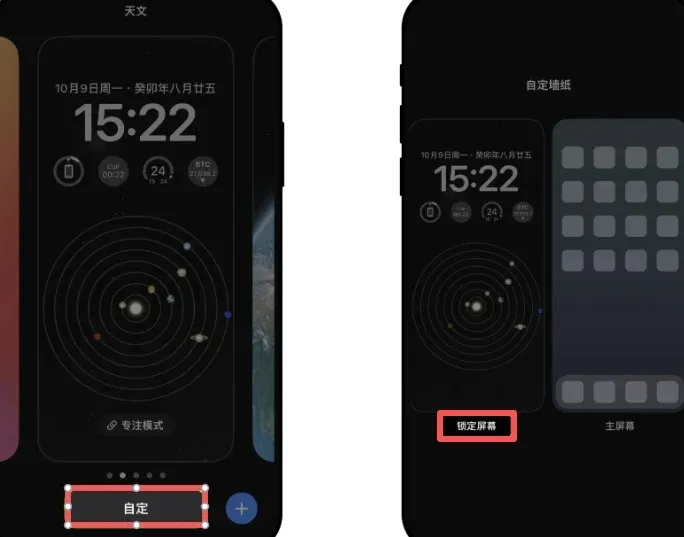
- On the lock screen, long‑press any area, then select “Customize” → “Lock Screen”.
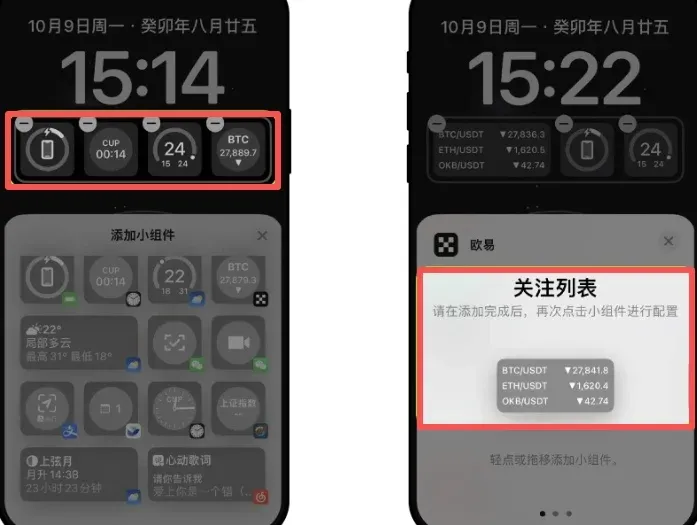
- Tap the widget area, locate “OKX” in the list, and swipe to choose templates such as “Spot Watchlist”, “Futures Watchlist”, or “Favorites List”.
- After selecting a template, tap “Select” and add the specific coins you wish to monitor to the widget.
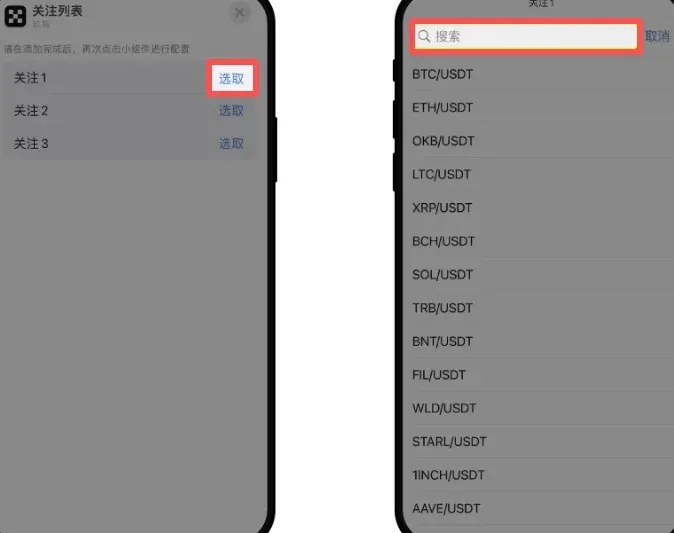
Friendly reminder: iOS’s widget refresh mechanism may introduce a slight delay in data updates. Since version 6.39.0, the real‑time floating‑window feature for market monitoring is no longer supported on iOS.
---
Android Devices: Home‑Screen Widgets & Floating‑Window Monitoring
1. Adding a Home‑Screen Widget
- Long‑press an empty spot on the home screen; a “Widgets” menu will appear at the bottom.
- Scroll through the list until you find “OKX”, then pick the widget type you need.
- Tap the small settings icon at the top‑right of the widget to open the edit screen, where you can add the trading pairs or coins you want to follow.
2. Enabling the Position Floating Window
- Open the OKX app → go to the “Trade” page → select any trading pair.
- Tap the upper‑right “More” icon → “Trade Settings” → “Preferences”, and toggle the “Position Floating Window” switch to On.
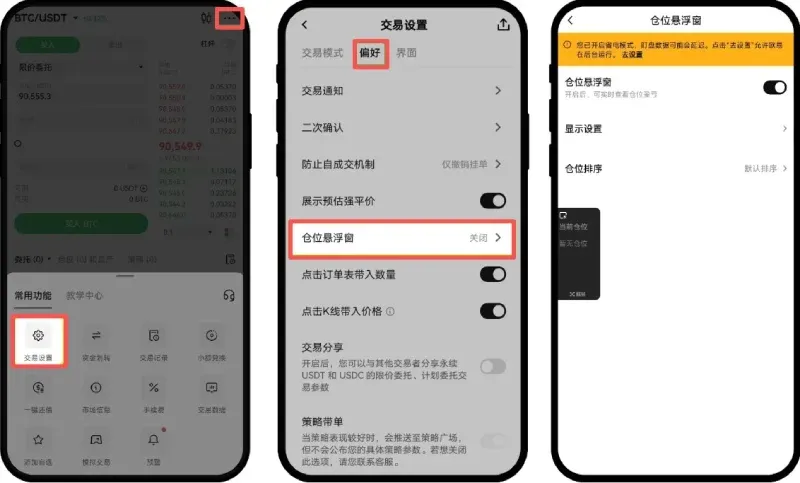
- Your device may display a permission request such as “Display over other apps” (common on Huawei phones). Follow the on‑screen instructions to grant the permission.
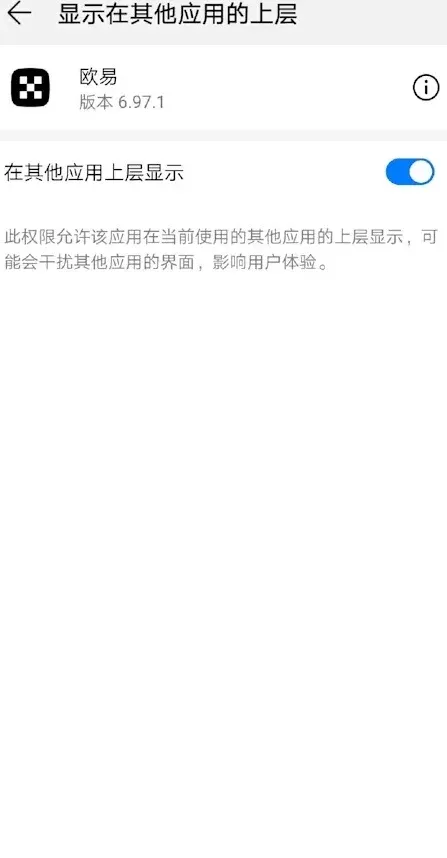
If you accidentally tapped “Later” on the permission dialog, you can manually enable it later by going to Settings → Apps → Menu → Special Access → Appear on top, then granting the permission to OKX.
Once granted, the floating window can be dragged to any location on the screen.
3. Activating the Real‑Time Monitoring Floating Window
- Open the K‑line (candlestick) chart of any trading pair, then tap the upper‑right “Settings” → “Icon Settings”.
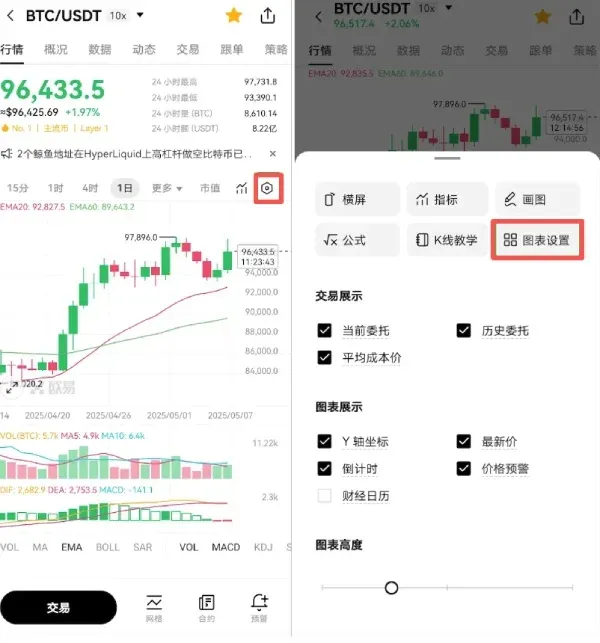
- Switch “Real‑Time Monitoring Floating Window” to On.
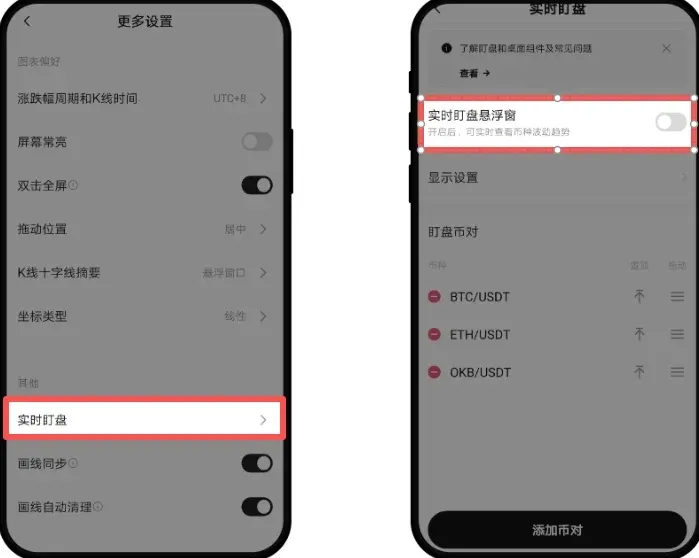
- If another overlay permission appears, follow the system prompt to allow display over other apps.
4. System Settings to Keep the Floating Window Updated
- Disable battery‑saving mode: Settings → Battery → Turn off Power Saving.
- Allow OKX to run in the background and auto‑start.
- Lock OKX in the recent‑apps view to prevent the OS from automatically clearing it.
---
Who Benefits Most from Market Widgets
Market widgets are especially useful for the following types of users:
- Investors who need to glance at multiple coin prices quickly but do not want to open the full app each time.
- Users who want to see live price information while the phone is locked or while using other applications.
- Traders who require constant monitoring of position P&L and need the app to stay alive in the background.
---
Summary
By adding the market‑watch widgets offered by OKX to your smartphone, you can bring critical price information to the home screen, floating overlay, or lock screen for an “at‑a‑glance” monitoring experience. Android users enjoy the flexibility of both home‑screen and floating‑window modes, provided they manage the necessary permissions and disable aggressive power‑saving settings. iPhone users can achieve similar convenience through home‑screen and lock‑screen widgets that display their selected assets. Combining these tools wisely helps improve the efficiency and convenience of market observation.
For more detailed tips on adding OKX widgets to your phone, feel free to search Bitaigen for additional historical tutorials or explore the related links below. Thank you for your continued support of Bitaigen!
Related Reading
- Buy & Sell TIME Token: Step‑by‑Step Guide on KuCoin
- TradingView Alerts 2026: Crypto Tutorial & Market Impact
💡 Register on Binance with referral code B2345 for the maximum trading fee discount. See Binance complete guide.



