
 Bitaigen Research
 We examine the partnership between imKey and imToken from both technical and security perspectives, and walk through the integration process step by step. By reading this article, you will quickly grasp the key points of pairing a hardware wallet with the imToken app, managing assets, and performing signing operations, thereby raising the protection level of your digital assets.
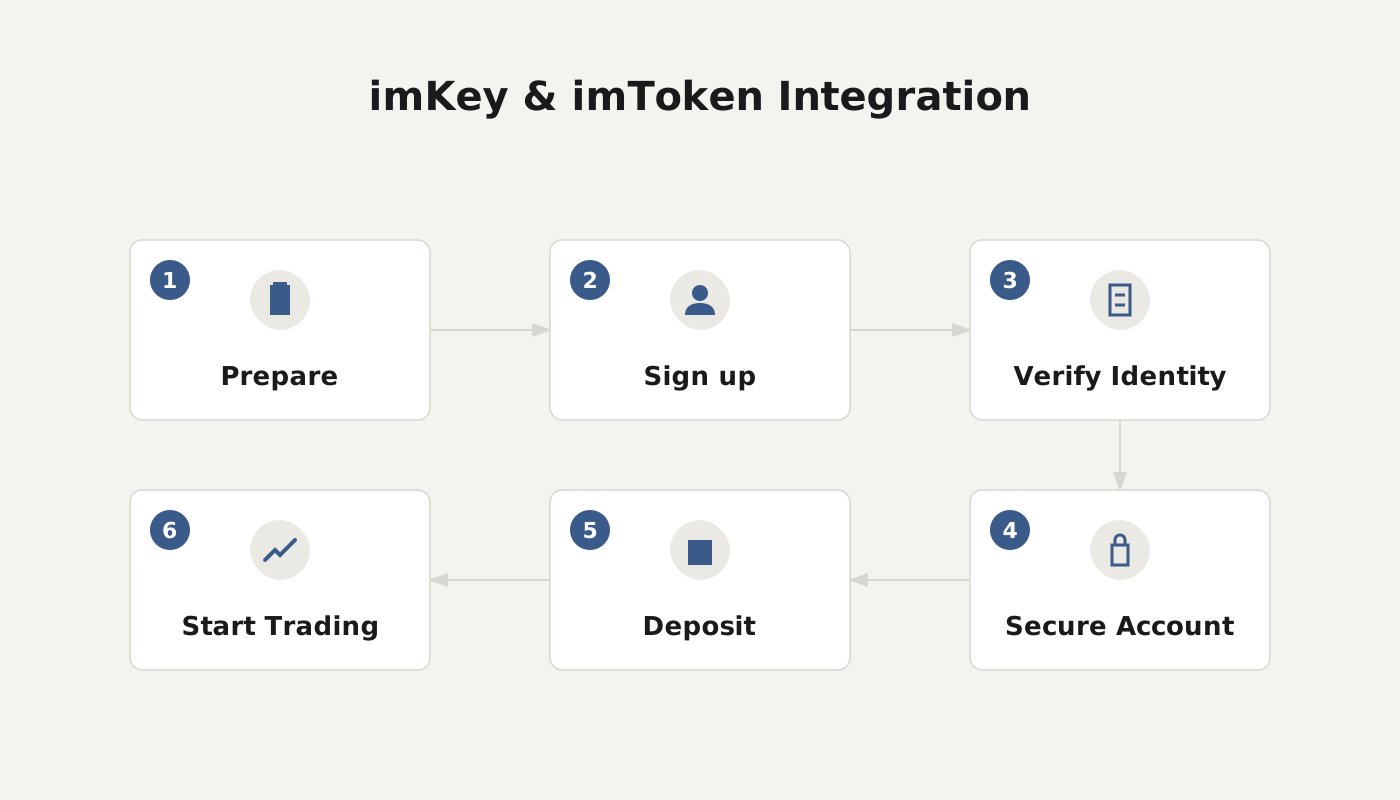
Relationship and Integration Method Between imKey and imToken
imKey is a Bluetooth hardware wallet launched by the imToken team, and the two products have achieved deep integration. Users can pair the device directly within the imToken APP and manage the assets stored on imKey.
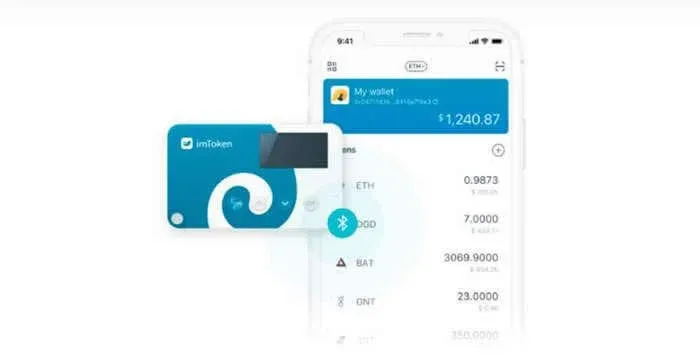
What Is the Relationship Between imKey and imToken?
imKey has received strategic investment from imToken Ventures and is tightly integrated with the imToken wallet.
- imKey handles offline storage of private keys, employing an EAL6+‑grade security chip to prevent key leakage.
- imToken takes care of asset interaction, display, and transaction signing. The two work together to provide a “hardware + software” dual‑protection model.
A wallet’s essence is the storage of the private key, not the assets themselves. Possession of the private key equals control over the assets. Consequently, safeguarding the private key is the core of digital‑asset security, and hardware wallets remain the most reliable solution today. From the outset, imToken’s product design incorporated compatibility with hardware wallets, leading to the collaborative launch of imKey.
How Are imKey and imToken Integrated?
1. Pairing imKey
- Download and install imToken (version ≥ 2.3.0).
- In imToken, select “Create/Recover Identity.”
- Power on imKey, go to its settings screen, choose a language, and bring the device close to your phone.
- Enable Bluetooth and GPS (location services) on your phone.
- In the imToken wallet list, tap “Pair Hardware,” which opens the device‑search page.
- Choose imKey and click “Connect Device.”
- Enter the Bluetooth pairing code displayed on the imKey screen to complete the pairing.
2. Configuring imKey
(1) Binding Code
- Purpose: Establish a one‑to‑one binding between imKey and imToken.
- View the binding code on the imKey screen, then input the same code within imToken.
- Be sure to copy the code accurately and store it securely.
(2) PIN Code
- Purpose: Unlock the imKey device; the PIN consists of 6–8 numeric digits.
- Use the up/down buttons to select numbers, press OK to confirm, and C to cancel.
- After setting, re‑enter the PIN for confirmation.
- Security tip: Avoid sequential or repeated numbers, and do not use third‑party tools to generate the PIN.
(3) Create and Backup Wallet
- On imKey, select “Create Wallet.”
- After reading the prompts, tap OK.
- Write down the mnemonic phrase (12 words) in order; this is the sole recovery method and must be stored offline.
(4) Verify Mnemonic Phrase a Second Time
- imKey will ask you to confirm the order of the mnemonic words.
- Use the up/down buttons to select each word, press OK to confirm, and continue until all words are verified.
- Once finished, the system displays “Wallet creation in progress, estimated 2 minutes to complete.”
(5) Complete the Import
- In imToken, check the box “I have completed the above steps,” then click “Next.”
- After a successful import, close the notification window.
- The imKey wallet will now appear in the wallet list of the imToken app.
3. Security and User Experience
- Hardware security: imKey embeds a financial‑grade EAL6+ encryption chip that can authenticate the device’s authenticity and resist supply‑chain attacks.
- User experience: Bluetooth pairing is plug‑and‑play; the interface remains consistent with imToken, lowering the learning curve for new users.
By following the steps outlined above, users can safely manage their imKey hardware wallet within the imToken application, achieving a seamless blend of offline storage and online operation for their digital assets.
For more technical details and use‑case examples concerning imKey and imToken, stay tuned to future articles from Bitaigen (比特根).
Related Reading
- imToken LCS Wallet Report: Mnemonic Exposure Risks
- 2024 Secure Crypto Wallets: imToken, HyperPay, Ledger, Cobo
- Withdraw Crypto to a Cold Wallet: Step‑by‑Step Guide
💡 Register on Binance with referral code B2345 for the maximum trading fee discount. See Binance complete guide.



