
 Bitaigen Research
 We systematically review the mainstream HECO‑compatible wallets in this article and provide a step‑by‑step demonstration of how to add the Huobi Eco‑Chain (HECO) to MetaMask on a PC. Whether you are a beginner or an experienced user, you can quickly get started and safely connect to DeFi applications. Subsequent sections also offer additional practical tips, so keep reading.
2. How to Configure an Ethereum Wallet on a PC for Use with HECO
Among the many browser extensions available, MetaMask is the most common choice. If you already have MetaMask installed, simply follow the steps below to add the Huobi Eco‑Chain (HECO). Once added, you can use the network on the relevant DeFi platforms or DApps.

MetaMask Guide for Adding the HECO Network
MetaMask (also known as the “Fox Wallet”) download page: https://metamask.io/
- Open the Network List
In the upper‑right corner of the MetaMask interface, click the currently displayed “Ethereum Mainnet”.
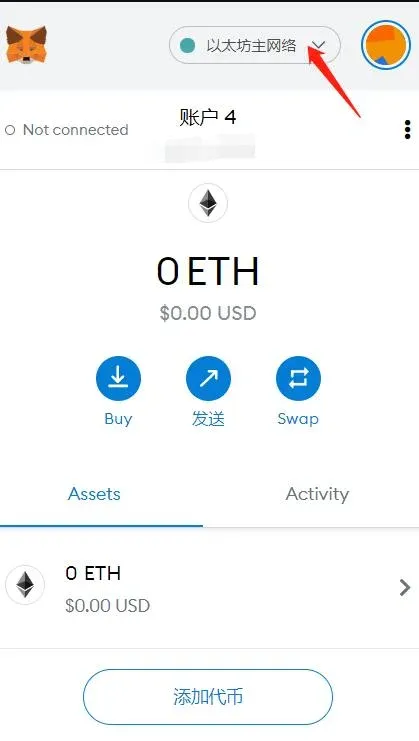
- Enter Custom RPC Settings
Choose Custom RPC to open the network configuration page.
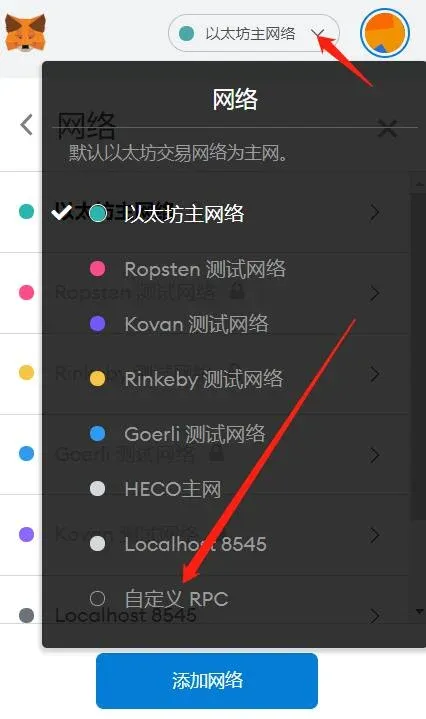
- Fill in the Network Information
- Network Name: Choose any name that helps you identify it, e.g., HECO Mainnet.
- New RPC URL: `https://http-mainnet.hecochain.com`
- Chain ID: `128`
- Symbol: `HT`
- Block Explorer URL (MetaMask labels this as “Explorer URL”): `https://scan.hecochain.com`
An example of the completed configuration looks like this:
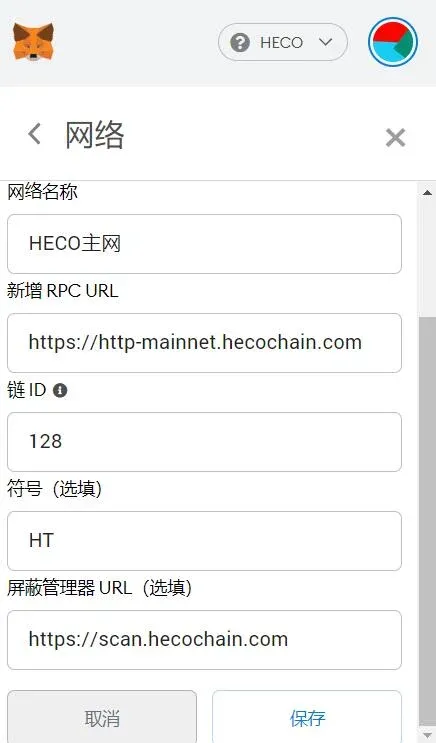
After entering the details, click Save. The network will be added to your MetaMask instance.
- Switch to the HECO Mainnet
When you want to use a DeFi application that runs on HECO, you must switch your wallet to the newly created HECO network. Do this by clicking the dropdown arrow next to the network list and selecting HECO Mainnet.
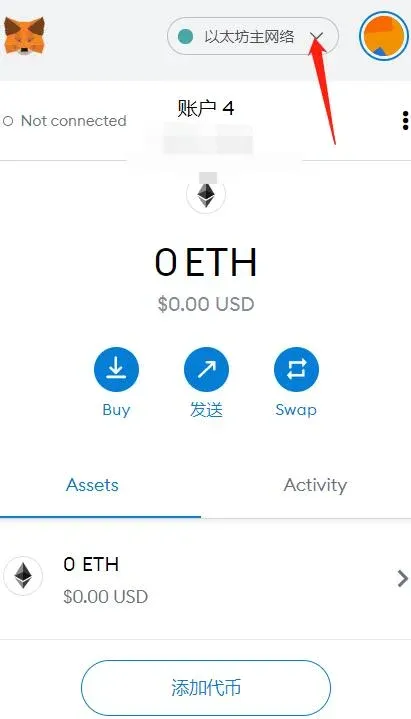
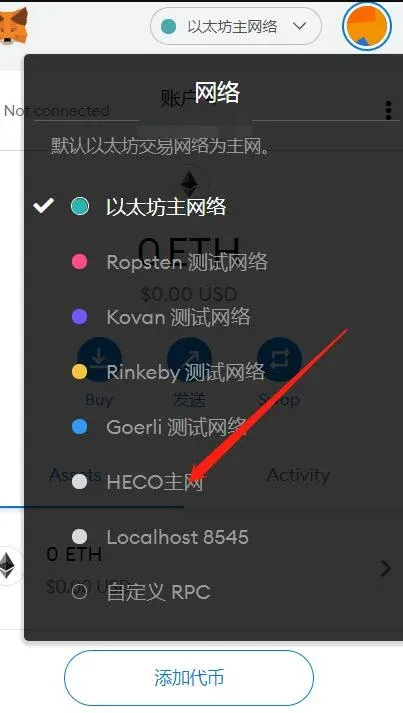
At this point, MetaMask on your PC is successfully connected to the Huobi Eco‑Chain. You can now manage assets and interact with the appropriate DApps.
Note: Crypto transactions may generate taxable events in many jurisdictions. Users should consult local tax regulations or a professional advisor to determine whether gains, losses, or income from HECO‑based activities are subject to tax.
---
1. List of Mobile Wallets That Support HECO (Huobi Eco‑Chain)
Below is a selection of commonly used mobile wallets that currently support the HECO network. It is recommended to download the latest version of each app to ensure full functionality.
TokenPocket (TP) Wallet
- Latest Versions: Android 1.1.5, iOS 3.1.2 (TestFlight build)
- Download Page: https://www.tokenpocket.pro/
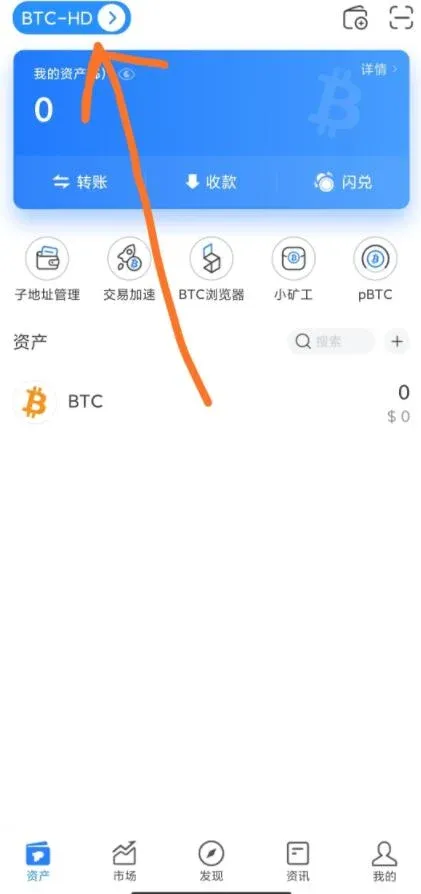
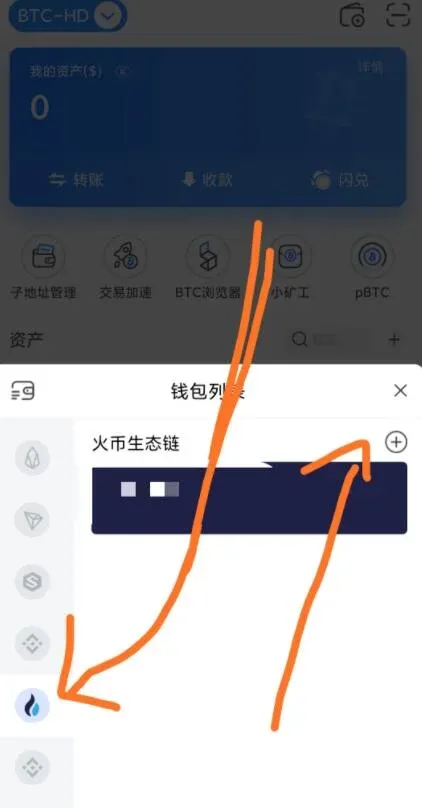
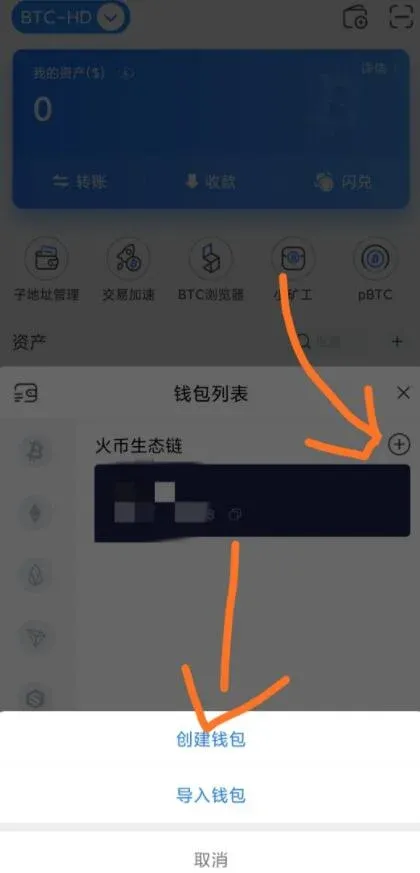
- How to Use: After launching the app, you can either Create a New Wallet or Import an Existing Wallet. On the chain‑selection screen, tick the box for Huobi Eco‑Chain.
BitKeep Wallet
- Latest Version: Android 4.6.7
- Download Page: https://bitkeep.org/
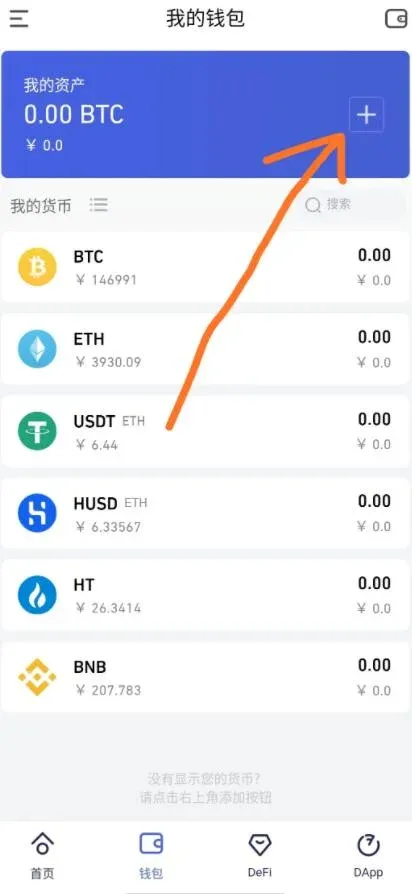
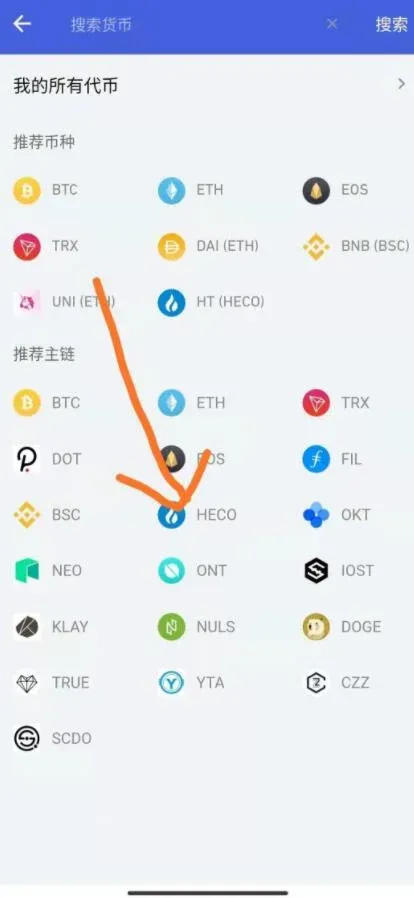
Huobi Wallet
- Download Page: https://www.huobiwallet.com/zh/
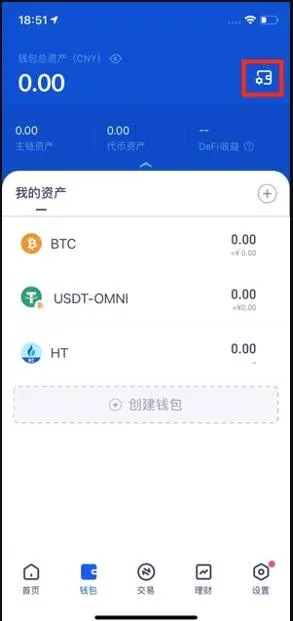
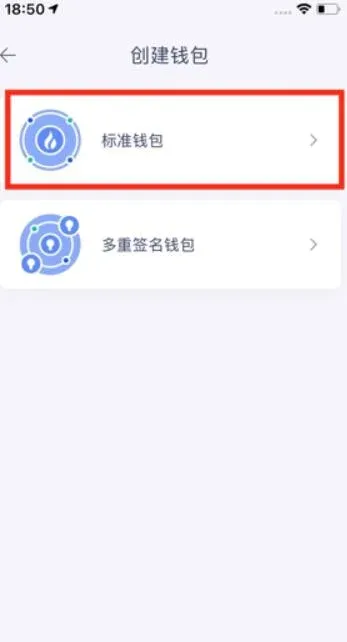
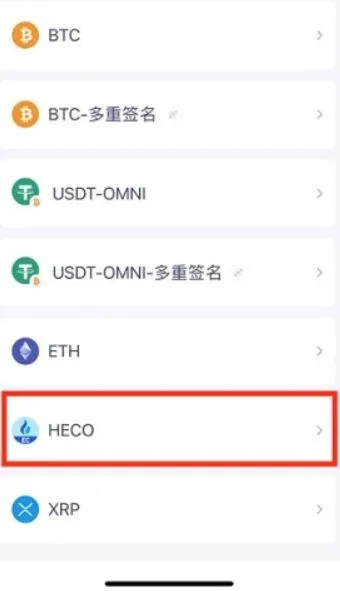
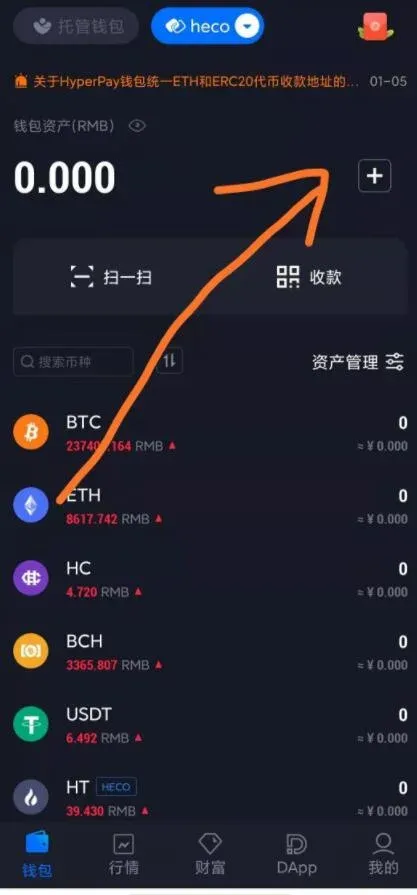
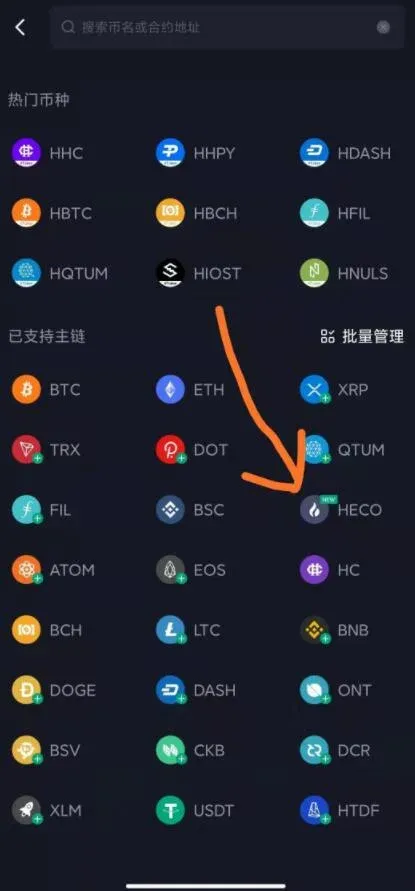
HyperPay Wallet
- Download Page: https://www.hyperpay.tech/
---
The above constitutes the complete list of wallets usable on the HECO ecosystem, together with the detailed steps for adding the HECO network to MetaMask on a PC. For more practical information about configuring HECO wallets, stay tuned to future articles from Bitaigen (比特根).
Global Market Context: When moving fiat funds to purchase HECO‑compatible assets, users typically rely on international payment methods such as USD transfers via SEPA (for Euro‑zone participants) or SWIFT (for worldwide transfers). U.S. residents should use Binance.US rather than the global Binance platform to remain compliant with local regulations.
💡 Register on Binance with referral code B2345 for the maximum trading fee discount. See Binance complete guide.



