
 Bitaigen Research
 This article provides imToken and Bitpie wallet complete step‑by‑step visual instructions, covering download and installation, account creation, funding, withdrawals, and transfers, to help beginners safely complete transactions.
First, download the wallets
- imToken download link: https://token.im/
- Android users can tap the link directly; iOS users should open the page in Safari and then download. After the download finishes, go to Settings → General → Device Management and manually trust the application.
- Bitpie download link: http://bitpie.com/
In this article we have organized the full installation, account creation, funding, withdrawal and transfer processes for the two mainstream wallets, imToken and Bitpie, accompanied by clear screenshots and key operation points. This helps you avoid common pitfalls and quickly start safe trading. To master every detail, keep reading.
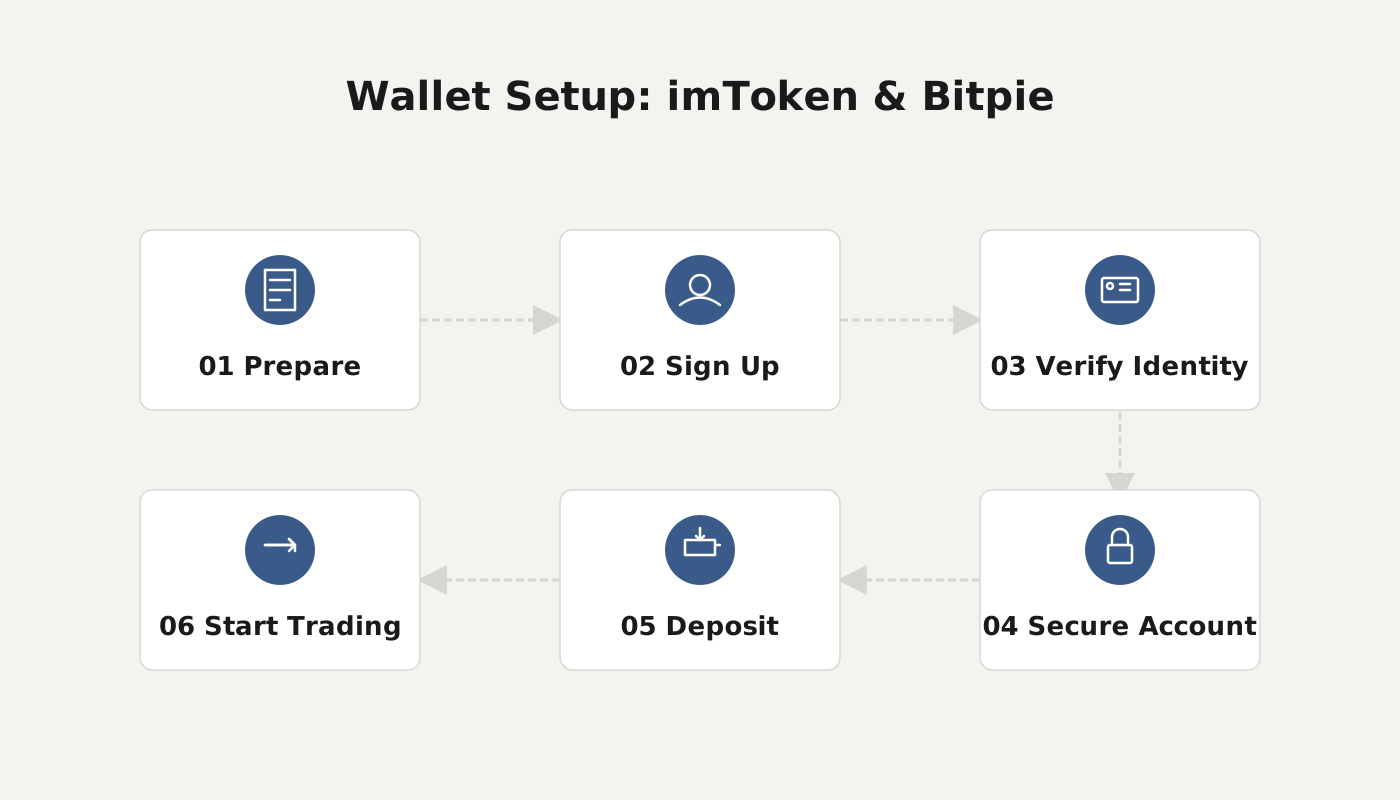
Visual Tutorial
Clarify Core Concepts
- Wallet registration essentials: enter a username, set a password, back up the private key, mnemonic phrase, and Keystore file.
- imToken only supports ERC‑20 tokens (assets built on the Ethereum ecosystem) and does not support Bitcoin‑derived assets.
- ERC‑20: Ethereum Request for Comments #20, a standard that defines how tokens on Ethereum should behave. Most tokens on the market follow this specification.
- Bitpie supports a broader range of coins, including BTC and its forks as well as ETH‑based tokens, LTC, ZEC, QTUM, HSR, DASH, DOGE and others.
Explanation of the Black‑Screen Phenomenon
When demonstrating the Bitpie registration process, you may encounter a black screen. The first screen after opening the wallet looks like this:
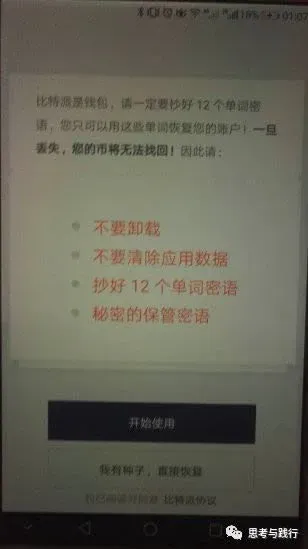
Tap “Get Started”:
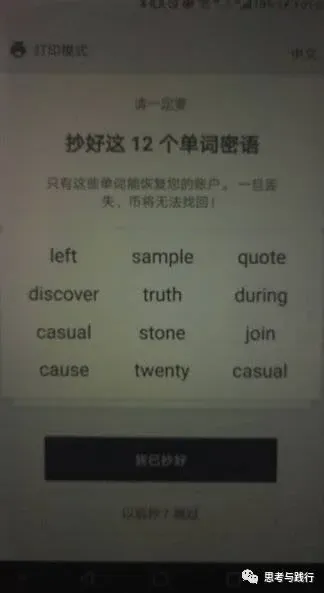
The app then displays a 12‑word mnemonic phrase; you can switch the display language to English in the top‑right corner:
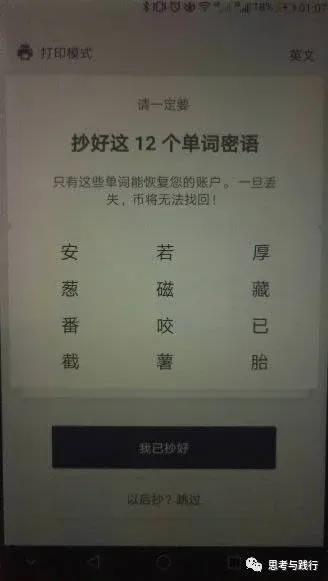
Reason: Bitpie disables screenshots and screen recordings during the onboarding process to improve security, whereas imToken remains functional even when you capture the screen.
How to Fund Your Own Wallet
Below we use the OTC platform OTCBTC to send ETH to an imToken wallet as an example.
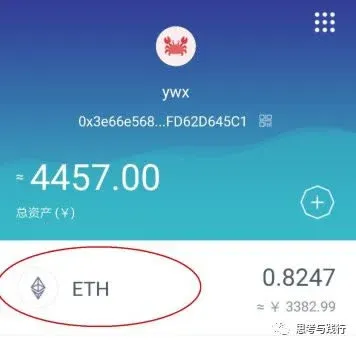
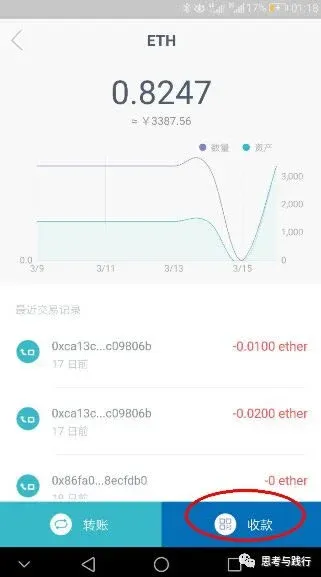
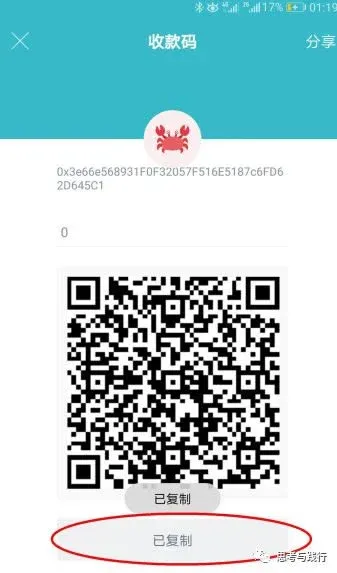
Step 1: Obtain the imToken Receiving Address
- Open imToken, tap ETH → Receive → Copy Address
Step 2: Withdraw from OTCBTC
- Navigate to Asset Management → My Wallets → Search ETH → Withdraw
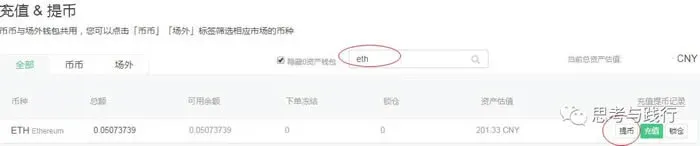
- Create a new withdrawal address and paste the imToken address you just copied (double‑check for accuracy).
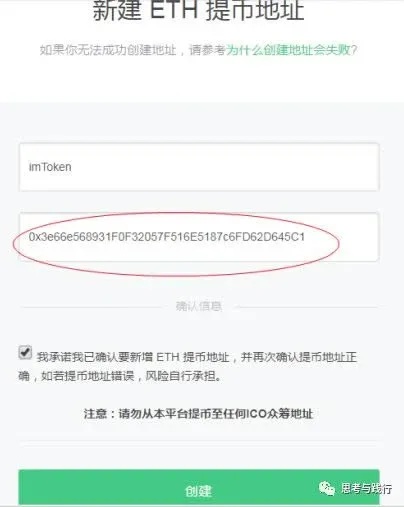
- After confirming the new address, click Withdraw

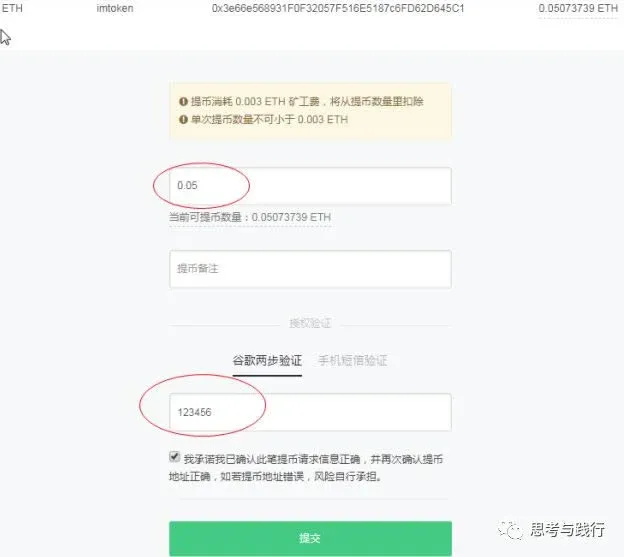
- Enter the withdrawal amount, complete the Google CAPTCHA, then submit.
- Upon successful submission, the page displays the transaction hash (TXID).
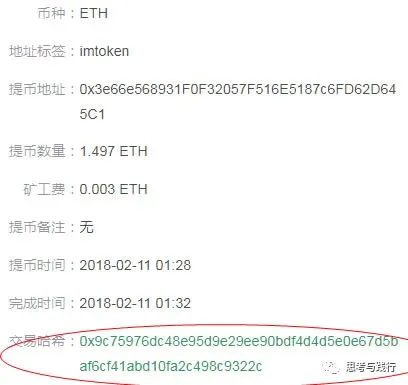
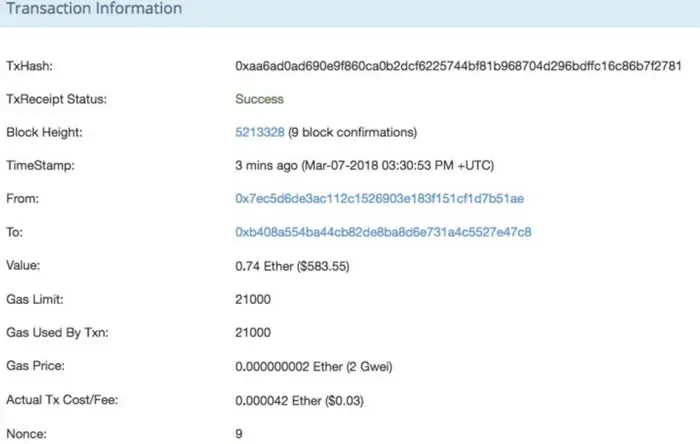
- Click the hash link to view the transaction status on the Ethereum block explorer Etherscan (https://etherscan.io/).
How to Send Funds Out of the Wallet
We illustrate sending ETH from imToken back to OTCBTC.
Step 1: Get the Exchange Deposit Address
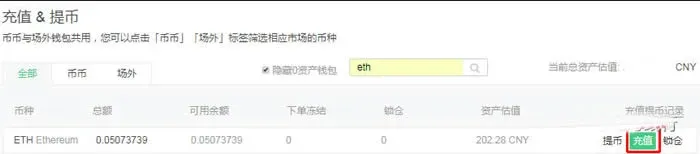
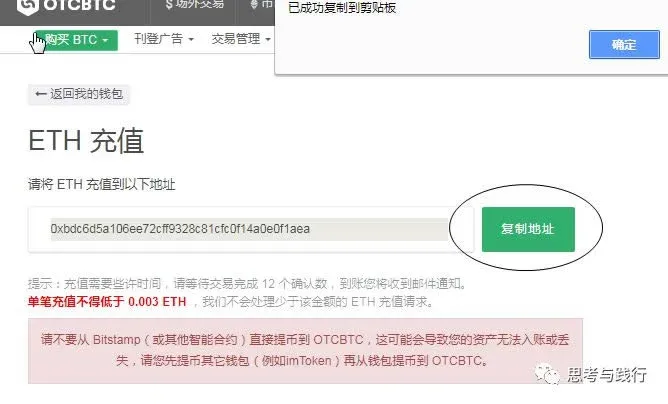
- Log in to OTCBTC, go to Asset Management → My Wallets → Search ETH → Deposit and copy the displayed ETH address.
Step 2: Initiate the Transfer in imToken
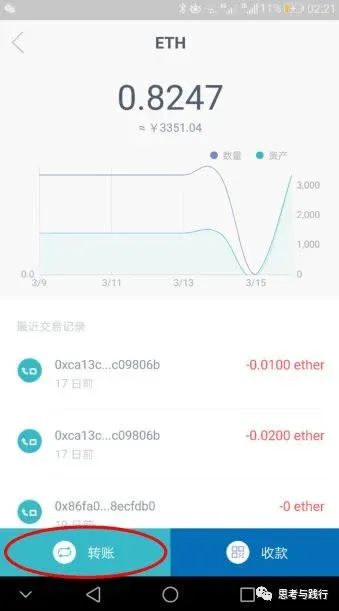
- Open imToken, tap ETH → Transfer
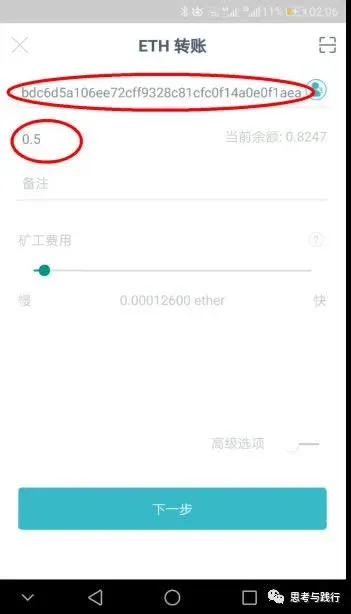
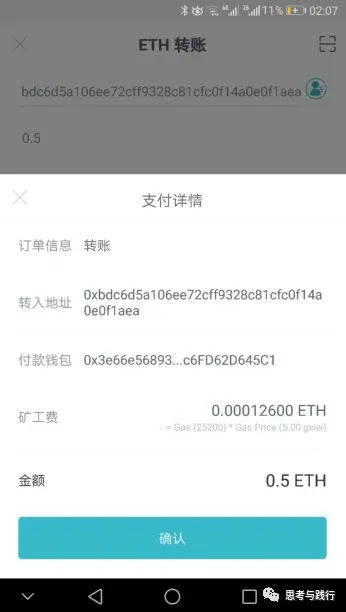
- Paste the exchange address you copied into the Recipient Address field, enter the amount you wish to send, and keep the gas fee at the default setting (increase it only if you need a faster confirmation).
- Review the transaction details for accuracy.
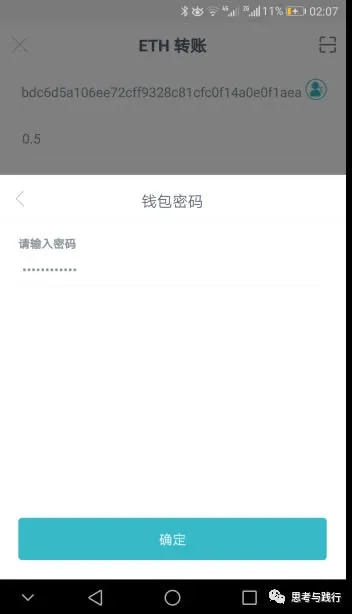
- Enter your wallet password to confirm the transfer.
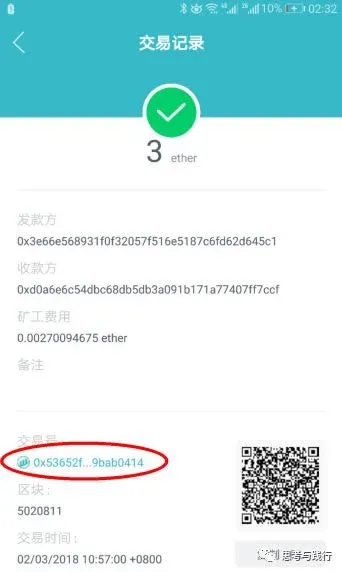
- After the transaction is submitted, the screen shows a transaction number (TXID) that you can use for later lookup.
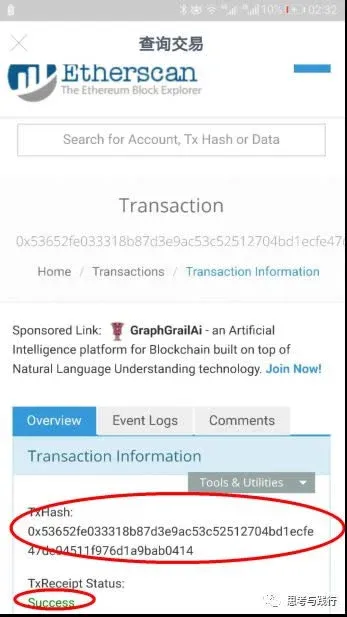
- Click the TXID to jump to Etherscan for on‑chain details (some wallets also display this information internally).
Summary: This guide walks through the complete processes of funding, withdrawing, and transferring between wallets. Whether moving assets wallet ↔ wallet, wallet ↔ exchange, or exchange ↔ exchange, the steps are fundamentally the same. Mastering them will make you proficient in the basic operations of the crypto ecosystem.
For more imToken and Bitpie usage tips, follow the upcoming articles from Bitaigen.
*Note*: Cryptocurrency transactions may be subject to tax in your jurisdiction. In many countries, capital gains from crypto are taxable, so consider consulting a tax professional.
*For users in the United States, please use Binance.US or another regulated U.S. platform for fiat on‑ramps and off‑ramps; global Binance is not available to U.S. residents.*
Related Reading
- imToken Cold & Watch‑Only Wallet Setup Guide
- imKey & imToken Integration: Secure Hardware Wallet Pairing
- imToken LCS Wallet Report: Mnemonic Exposure Risks
💡 Register on Binance with referral code B2345 for the maximum trading fee discount. See Binance complete guide.



