
 Bitaigen Research
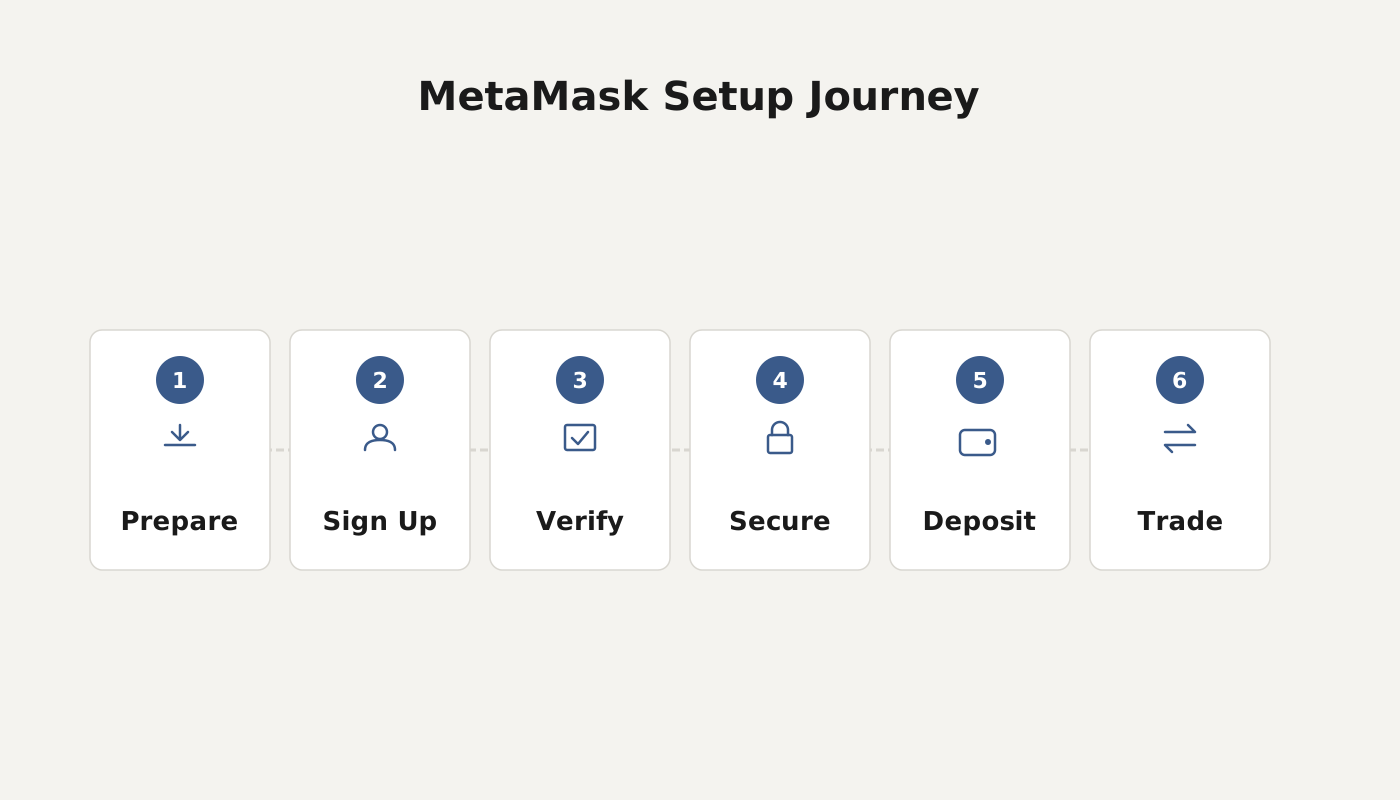
 To create and use the MetaMask “Fox” wallet, you first need to install the MetaMask browser extension, then create or import a mnemonic‑based wallet, add the appropriate blockchain networks, and finally transfer assets into the wallet before you can perform transfers, DeFi interactions, NFT management, and other operations.
Since October 2020, MetaMask’s “Fox” wallet has surpassed 1 million active users, reaching 5 million monthly active users by April 2021. Usage continues to rise in emerging economies across Asia, Africa, and South America, indicating that an ever‑growing number of investors are paying attention to and adopting this wallet. Below, we’ll walk through the complete process of creating and using a MetaMask wallet.
In this article we systematically outline the full creation and usage workflow for the MetaMask “Fox” wallet, covering extension installation, mnemonic management, network configuration, as well as asset transfers, DeFi and NFT operation essentials. The guide is intended to help newcomers get up to speed quickly while avoiding common pitfalls—let’s master this mainstream digital wallet together.
What Is a Digital Wallet?
A digital wallet is an application used to store various digital assets.
- Decentralized: Assets reside on the blockchain and are not controlled by any single operator.
- Unique: Every wallet is associated with a unique mnemonic phrase (12 or 24 words) that can be used to recover the assets.
- Immutable: The blockchain’s inherent properties protect assets from loss even if a platform shuts down.
Creating a Wallet
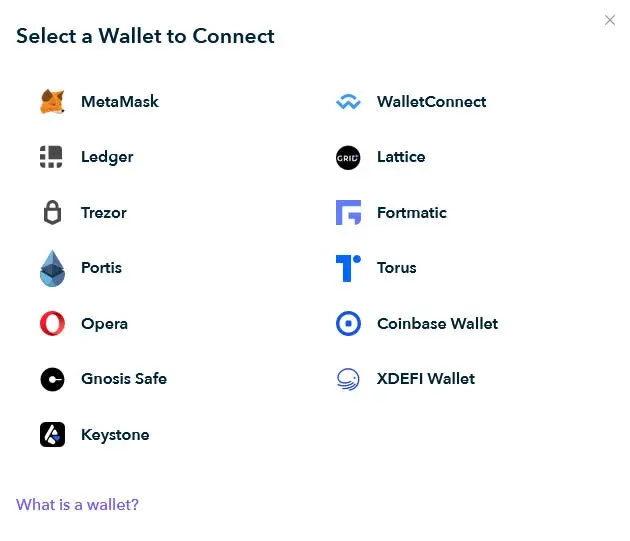
1. Choose a Client
- Mobile: You can use the TP wallet; after downloading, it supports transfers, receipt of funds, and DeFi mining.
- Web: We recommend the MetaMask “Fox” wallet, which is installed as a browser extension for Chrome, Firefox, and other browsers.
Detailed steps for creating and using the TP wallet are covered in a previous article; this guide focuses on the MetaMask “Fox” wallet.
2. Install the MetaMask Extension
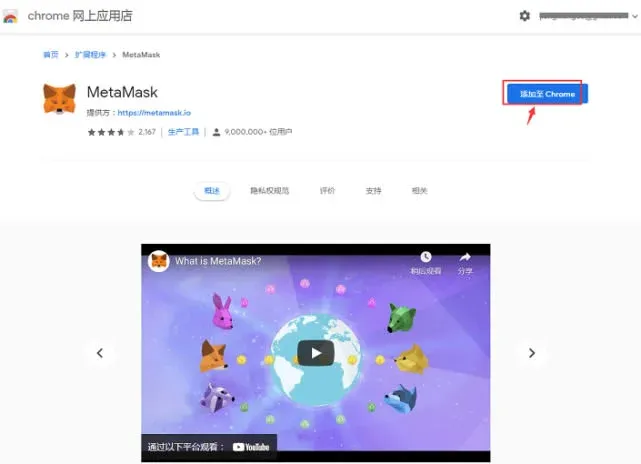
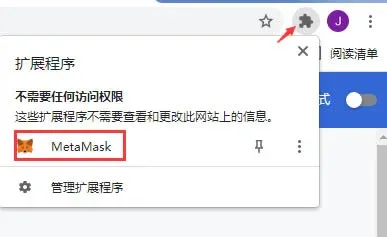
- Open the Chrome Web Store and search for MetaMask (the “Fox” wallet).
- Click Add to Chrome to complete the extension installation.
3. Create or Import a Wallet
- Create a new wallet: On first use, the system will prompt you to generate a mnemonic phrase. Write it down offline and store it securely; do not take screenshots or keep it on an internet‑connected device, as this could expose it to theft.
- Import an existing wallet: If you already have a mnemonic phrase from another wallet, select Import wallet in MetaMask and enter the phrase to recover your assets.
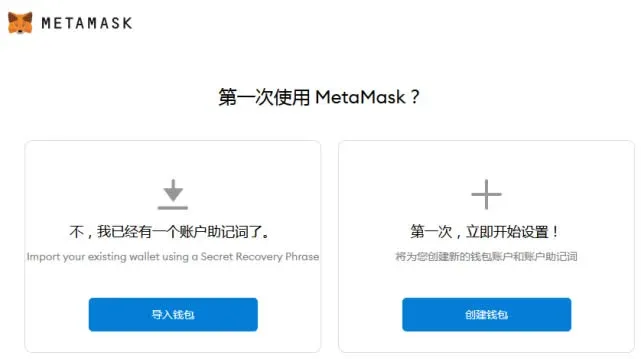
Definition: A mnemonic phrase consists of 12 or 24 words that serve as a recovery key. If lost, the wallet cannot be recovered.
After a successful installation, the MetaMask icon appears in the browser toolbar. Clicking it opens a blank MetaMask wallet interface, ready for you to deposit digital assets.
How to Use the Fox Wallet
1. Add Network Chains
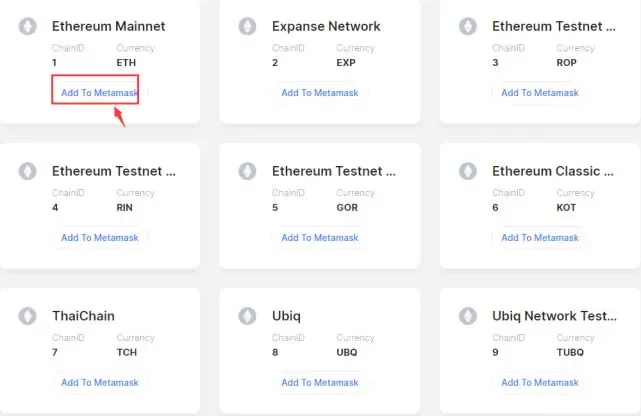
MetaMask supports the Ethereum mainnet by default. To use other chains (e.g., BSC, Polygon, etc.), visit chainlist.org, search for the desired network, and add it with a single click.
2. Transfer Assets In
- When withdrawing from an exchange, always select the same network that you have added in MetaMask; otherwise the funds may be lost.
- Copy the receive address directly from MetaMask’s “Receive” page and paste it into the exchange’s withdrawal form.
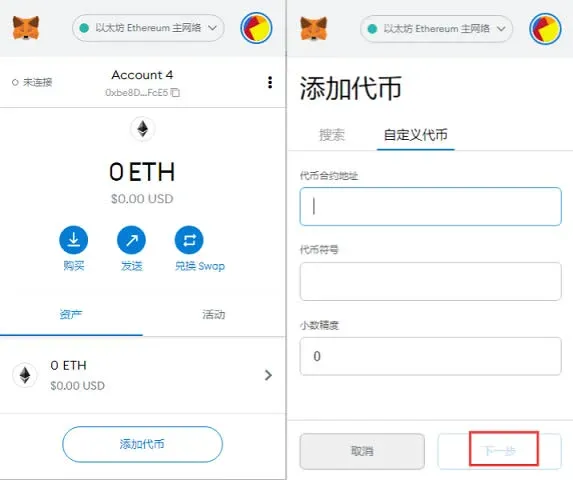
If the transferred assets do not appear automatically, you may need to add the token manually in MetaMask by entering the contract address, symbol, and decimals. Once added, the balance will show up in the interface.
Note on fiat conversions: When converting fiat (e.g., USD) to cryptocurrency, use reputable on‑ramps that support SEPA or SWIFT transfers for global users. U.S. residents should use Binance.US or other U.S.-compliant platforms.
3. Common Operations
| Operation | Brief Steps |
|---|---|
| **Transfer** | Select the asset → **Send** → Enter recipient address and amount → Confirm the transaction |
| **DeFi Interaction** | Connect to a DApp → Approve the transaction → Provide liquidity or take a loan |
| **NFT Management** | In the **Assets** tab click **Add NFT** → Input the contract address to view owned NFTs |
Additional Uses for a Digital Wallet
- Metaverse Access: When logging into metaverse platforms, the wallet acts as the sole identity credential; all virtual assets are managed through it.
- GameFi: Connecting the wallet lets you enter blockchain games where you can earn while you play.
- Cross‑Platform Asset Flow: Using a single wallet, you can move assets freely between multiple platforms, enabling seamless on‑chain value transfer.
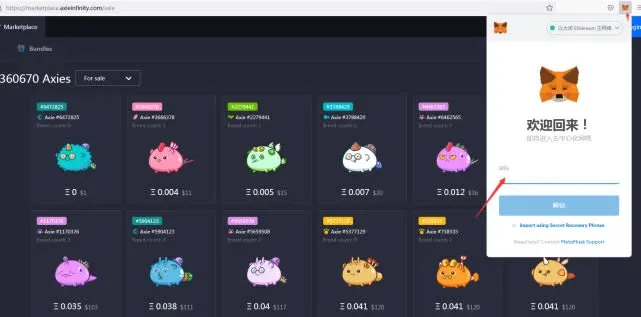
Direct login to GameFi titles with the Fox wallet
In summary, the steps above complete the creation and everyday use of the MetaMask “Fox” wallet. For more detailed insights, follow Bitaigen (比特根) for additional articles.
*Disclaimer*: Crypto transactions may be subject to taxation in your jurisdiction. Please consult a tax professional to understand your local obligations.
Related Reading
- MetaMask (Fox Wallet) Setup: Add BSC & HECO on Android
- Fix MetaMask Errors on Heco Chain – Step-by-Step
- Staking & Liquidity Mining on OKExChain via MetaMask
💡 Register on Binance with referral code B2345 for the maximum trading fee discount. See Binance complete guide.



