 Bitaigen Research
 In the TRON network, every time you send a TRC‑20 token (such as USDT), the system simultaneously consumes two types of resources: Energy and Bandwidth. If an account lacks either of these resources, the network will automatically draw from the TRX balance to compensate, which often causes transaction fees to surge dramatically—especially in scenarios that require frequent transfers.
To address this cost issue, TRON introduced an Energy‑rental mechanism. Users can purchase the required Energy with a relatively small amount of TRX, thereby avoiding the direct burning of large quantities of TRX and significantly lowering the fee. For users who need to move large volumes of USDT or other tokens on a regular basis, this approach not only saves money but also improves transaction smoothness.
In this article we provide a detailed analysis of TRON’s Energy and Bandwidth mechanisms, and we demonstrate how to achieve low‑cost USDT transfers using the “One‑Click Rental” feature of the imKey wallet. Once you master this workflow, you will be able to cut fees substantially and boost transaction efficiency. Let’s walk through the exact steps.
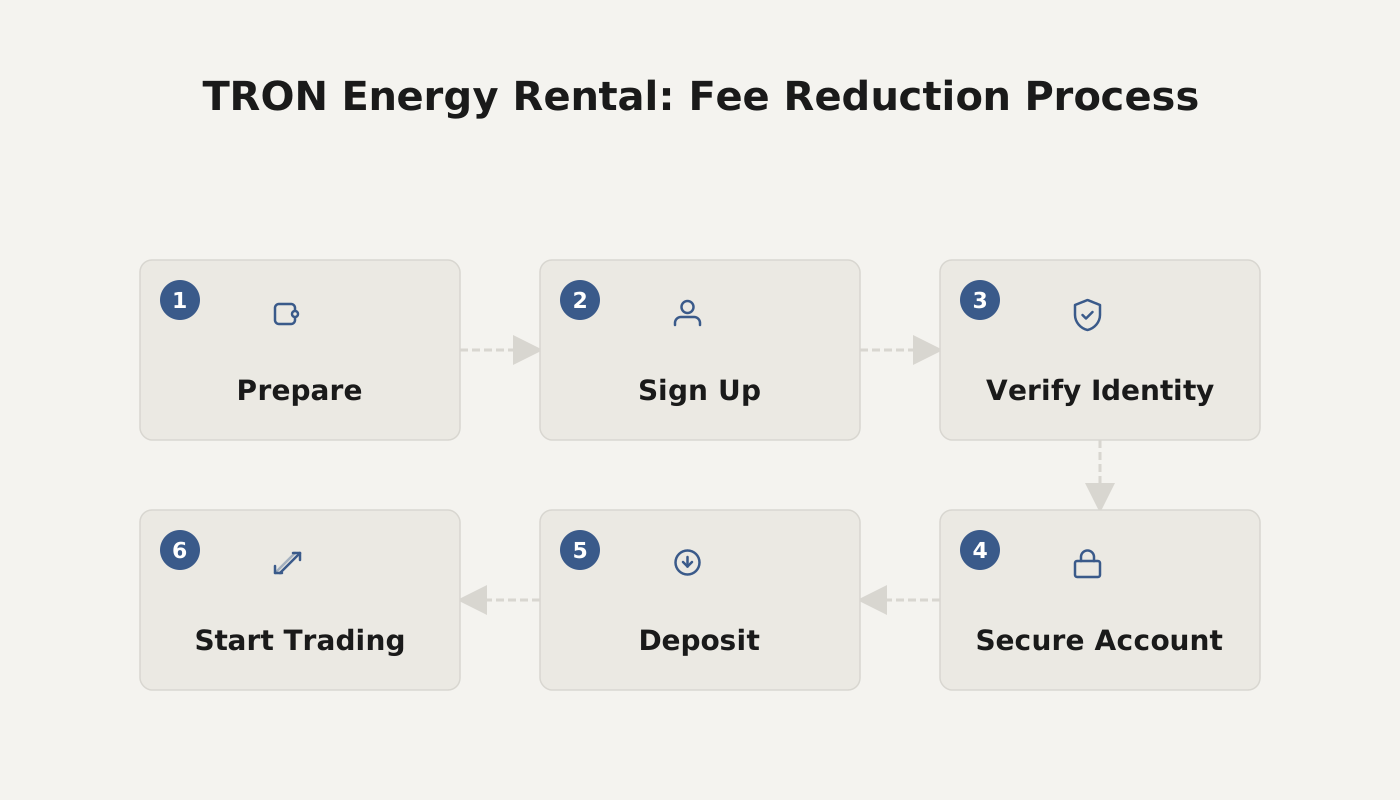
How can imKey users perform a one‑click energy rental to transfer USDT?
In version 2.15.6 of imToken, the energy‑rental feature received a full upgrade. Now, users can simply tick “Pay TRX to rent Energy” on the TRON USDT transfer page, and the system will automatically combine the energy‑rental and the transfer into a single operation. According to official data, this process can reduce fees by up to roughly 70 % while streamlining the user experience.
The improvement is also available to anyone using an imKey hardware wallet. Below are the prerequisites and the step‑by‑step guide required to complete the operation.
Prerequisites
- Power on the imKey hardware wallet and enable Bluetooth on your phone (Android devices must also turn on GPS/location services).
- Ensure that the TRON account holds at least 30 TRX; the exact amount of TRX needed for the rental will fluctuate in real time with the network’s resource pricing.
Step‑by‑step Procedure
- Open imToken, tap the icon in the upper‑left corner to enter the “Select Account” screen, and choose the TRON account that is linked to your imKey hardware wallet.
- On the USDT transfer page for that account, fill in the recipient address and the amount to send. The “Miner Fee” field will now display the amount of TRX that would be consumed if you opt to rent Energy.
Note: Once a blockchain transaction is broadcast and confirmed, it cannot be altered. Please double‑check the recipient address and the amount before proceeding.
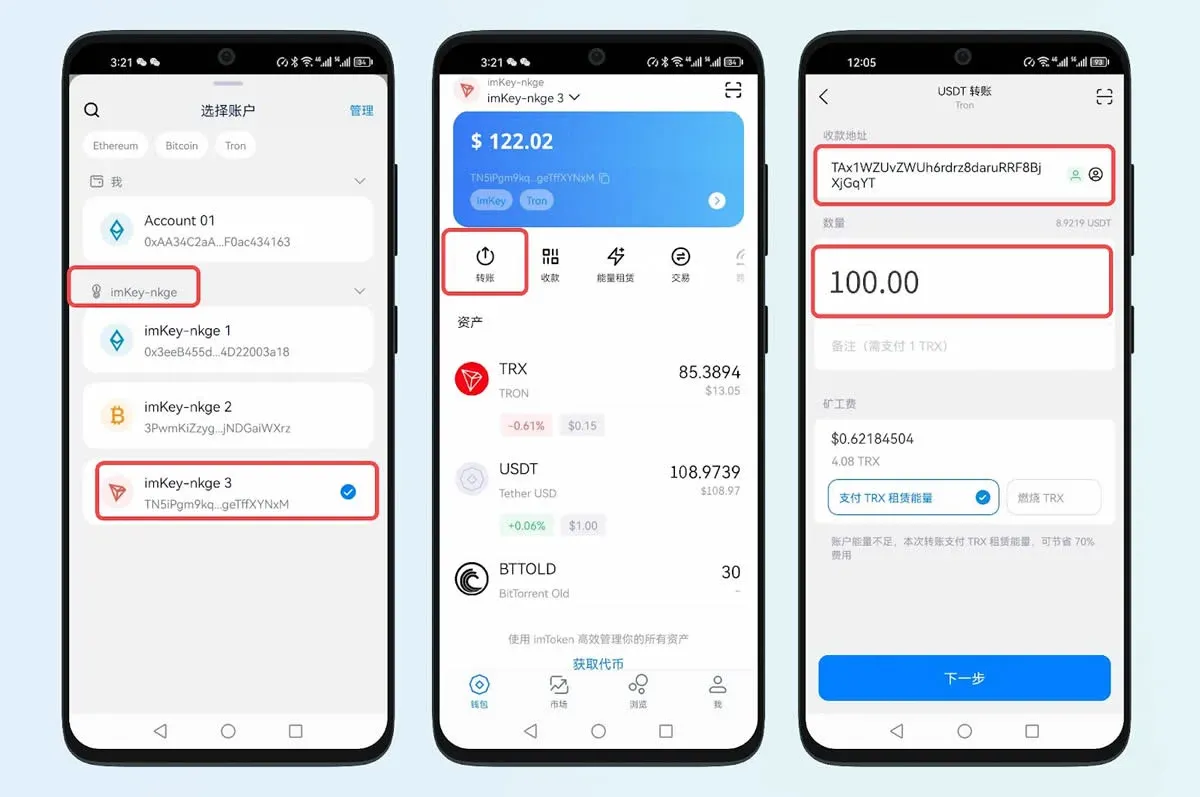
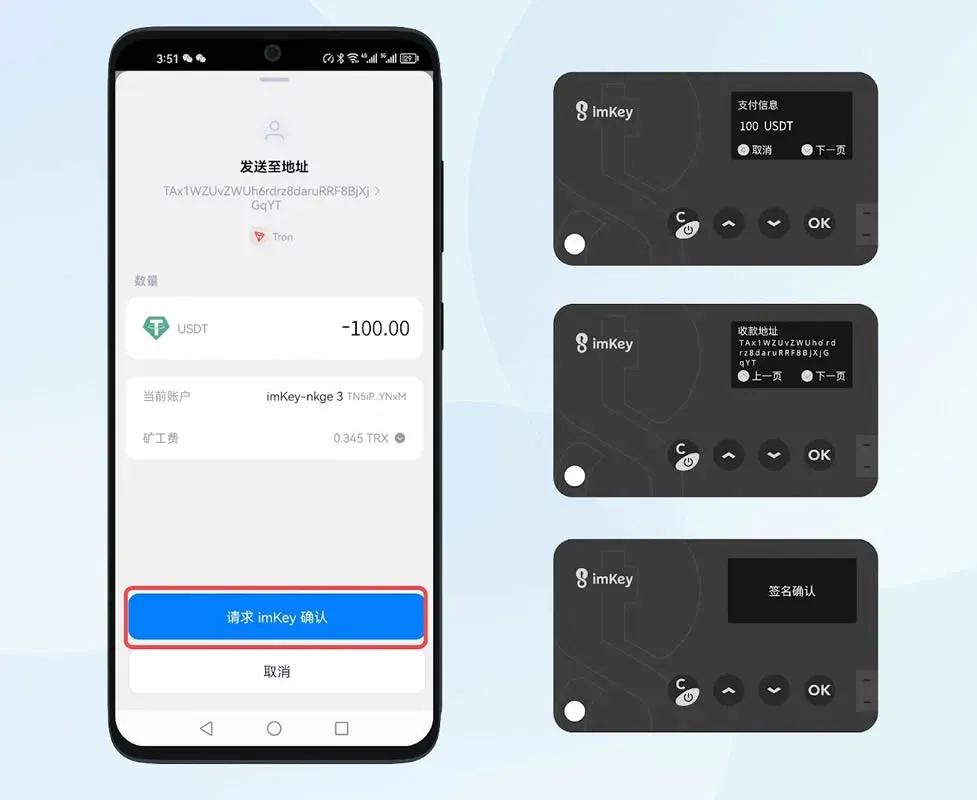
- Tap “Pay TRX to rent Energy” and then select “Next”. The app will pop up a “Request imKey Confirmation” for the rental transaction. Verify the recipient address shown in the “Payment Information” on the imKey device, and press “OK” to sign once you confirm it is correct.
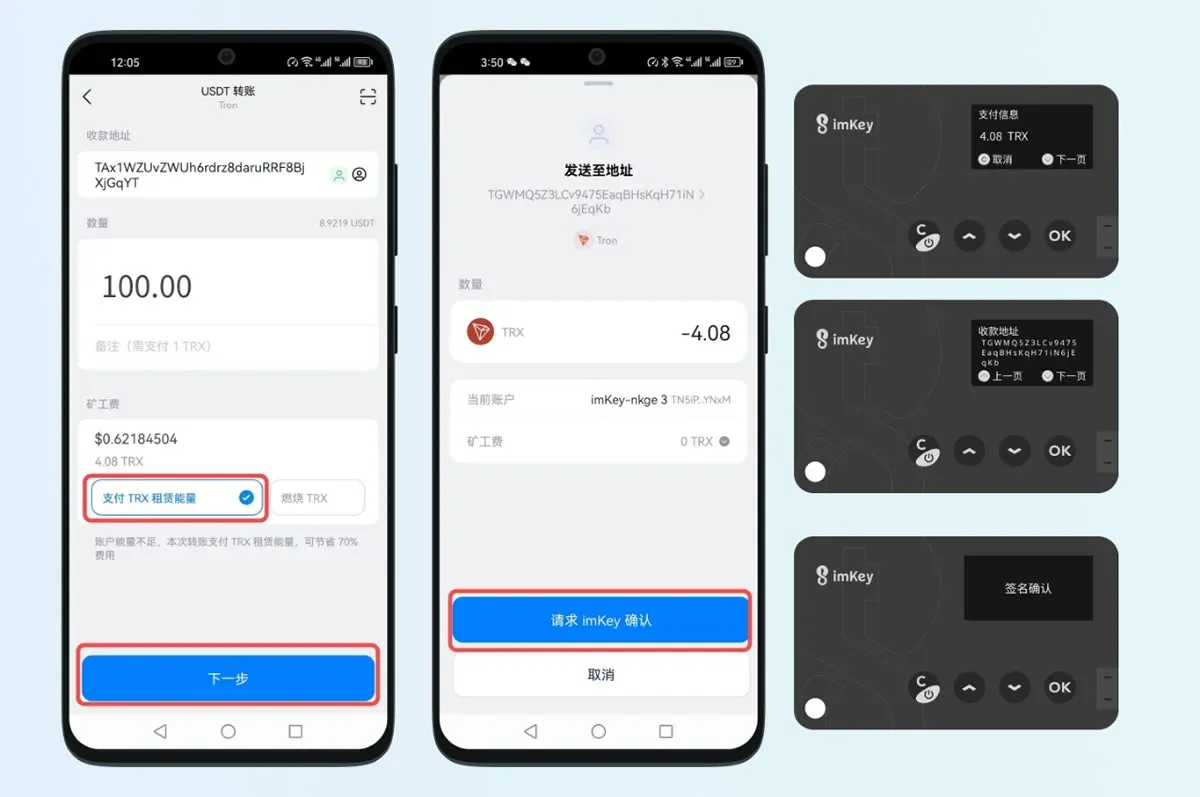
- After the rental succeeds, the transfer request is launched automatically. You will need to confirm the recipient address again on the imKey device and tap “OK” to sign the transfer. After a short wait, the counterpart will receive the USDT you sent.
Frequently Asked Questions
How can I ensure my account can successfully pay for TRX‑rented Energy?
When using the rental feature, the available TRX balance in the account must exceed the amount that would otherwise be burned. Otherwise, the function will not work.
- If the recipient address already holds a USDT balance, the transaction typically consumes about 14 TRX for direct burning, so the account should hold more than 14 TRX.
- If the recipient address has no USDT balance, the transaction may require roughly 28 TRX, meaning the balance should be greater than 28 TRX.
Why do Energy‑rental transactions sometimes fail?
When the rental status shows “Completed,” Energy has been successfully allocated to your account. However, if the TRON network is experiencing an Energy shortage, the rental may not succeed (e.g., delayed Energy arrival). In such cases you can:
- Proceed with the transfer using TRX directly, bypassing the rented Energy; or
- Go to the TRON account homepage, manually rent Energy, wait for confirmation, and then retry the transfer.
What should I do if Energy arrival is delayed?
If you encounter a delay or failure in Energy rental, it is advisable to either wait patiently for the Energy to be credited or simply use TRX to complete the transfer, thereby preventing the transaction from getting stuck.
The above outlines the complete workflow for “one‑click Energy rental and USDT transfer” using the imKey hardware wallet, enabling you to lower TRON transaction fees. For more beginner‑friendly guides on using imKey, feel free to explore other articles published by Bitaigen (比特根).
Related Reading
- Stablecoin Design Visualized: USDT, DAI, FEI, Basis Cash, ESD
- Stablecoin Instability: USDT Supply‑Demand & Credit Risks Explained
- Add HUSD & USDT to HECO Wallets – MetaMask & Mobile
💡 Register on Binance with referral code B2345 for the maximum trading fee discount. See Binance complete guide.