 Bitaigen Research
 We approach this guide from the perspective of the Bitaigen editorial team, systematically outlining the entire workflow of the SafePal wallet—from download and installation, through account creation, to each step of token trading—with illustrated, step‑by‑step instructions. The aim is to help newcomers get up to speed quickly while managing their assets securely. For practical tips, continue reading to obtain the full tutorial.
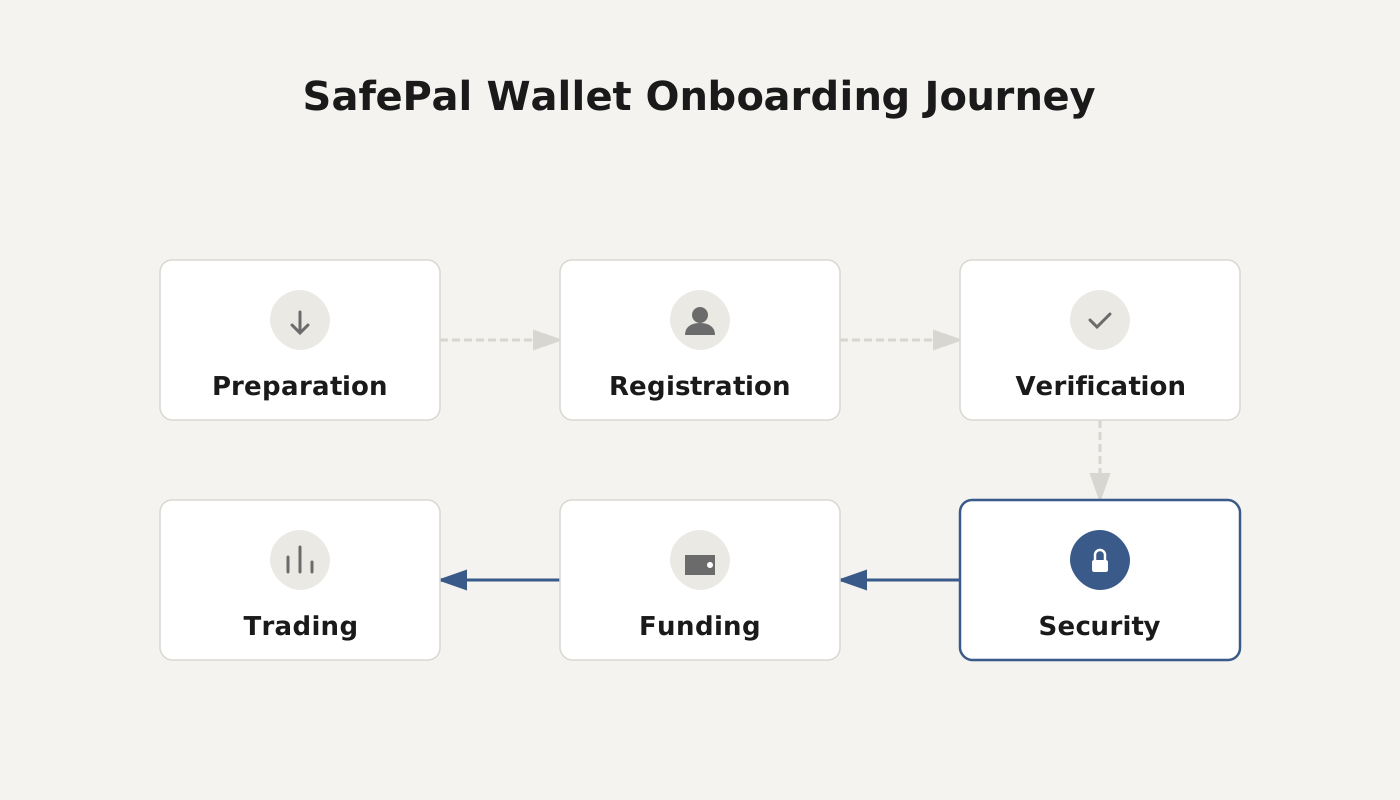
How to Download and Install the SafePal Wallet?
To use SafePal you first need to obtain the corresponding mobile application.
Official App Acquisition Methods
- iOS and Android users can search for “SafePal” directly in the Apple App Store or Google Play Store and install the app.
- Other Android devices may download the APK manually via the official link.
- Invitation code `625127` (entering it will grant a free hardware wallet).
1. Open a SafePal Bank Account
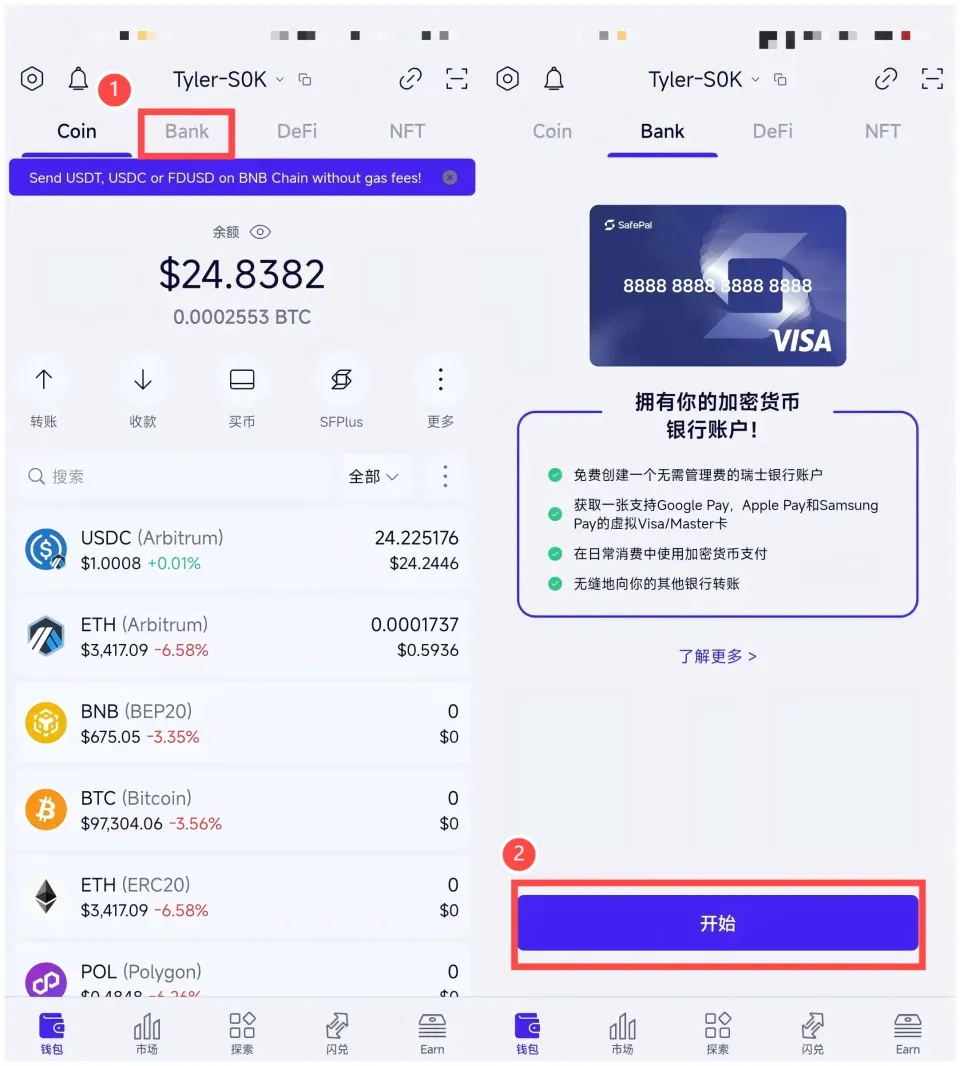
After the app is installed, launch it and tap the Bank entry at the top of the screen, then select Start.
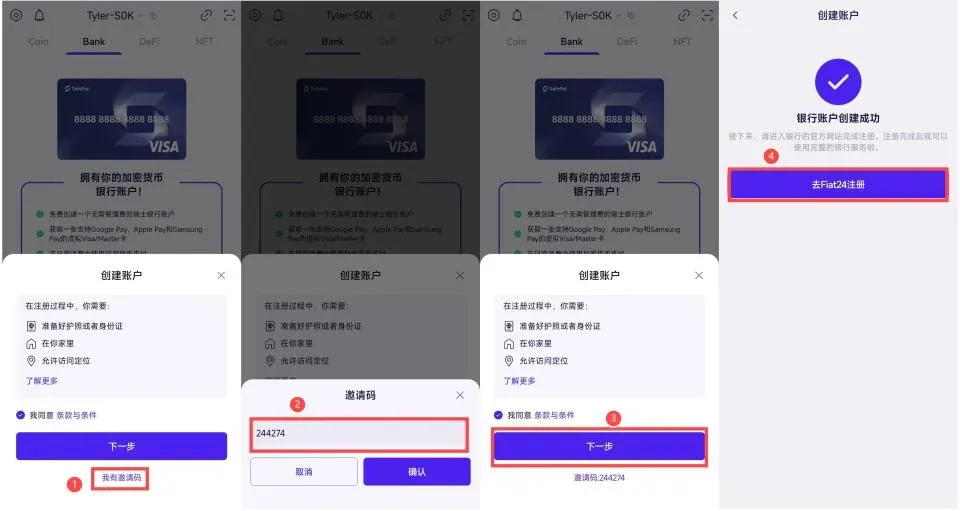
On the subsequent screen tap I have an invitation code, input 625127, and proceed to the next step to create the bank account. Then tap Go to Fiat24 Register to enter the registration flow.
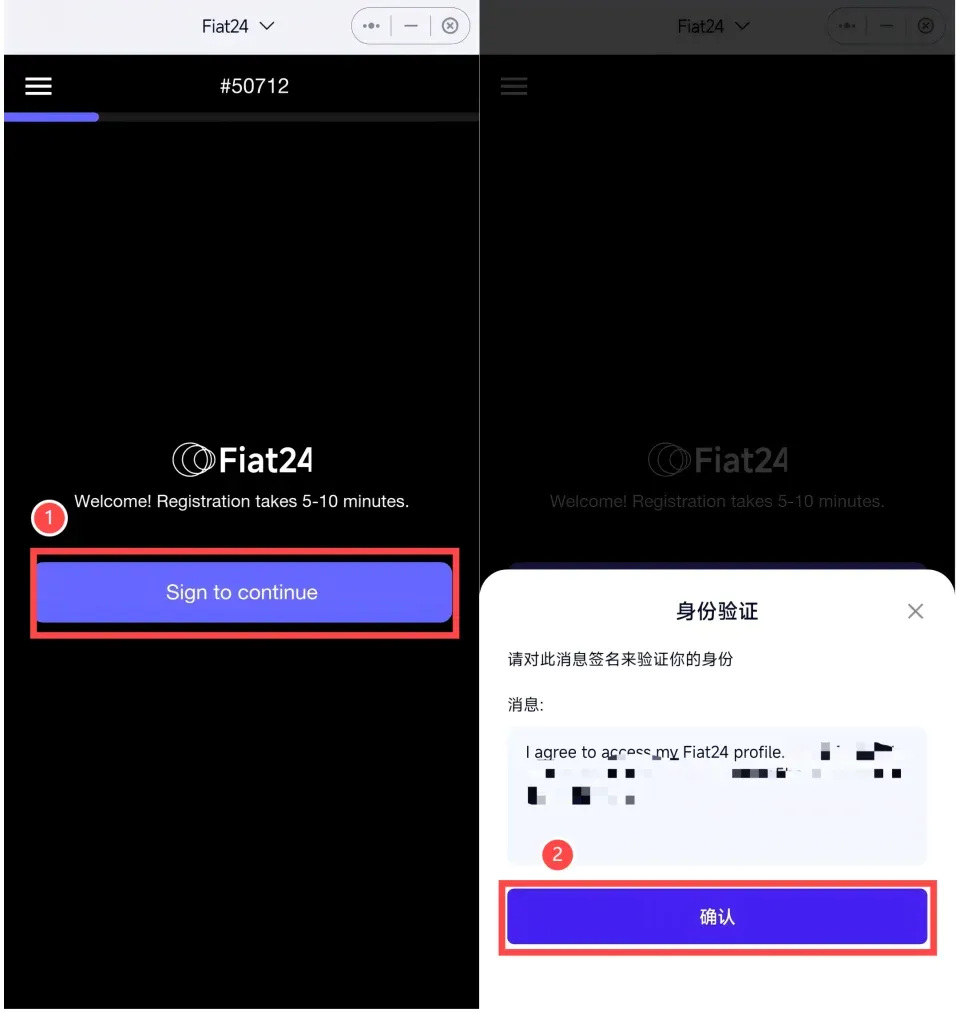
Tap Sign to continue; in the pop‑up identity‑verification window confirm the signature to complete the wallet‑signing action.
You will then be asked to provide an address, a national ID/passport, and to enable GPS location. After checking all three items, press Continue to move forward.
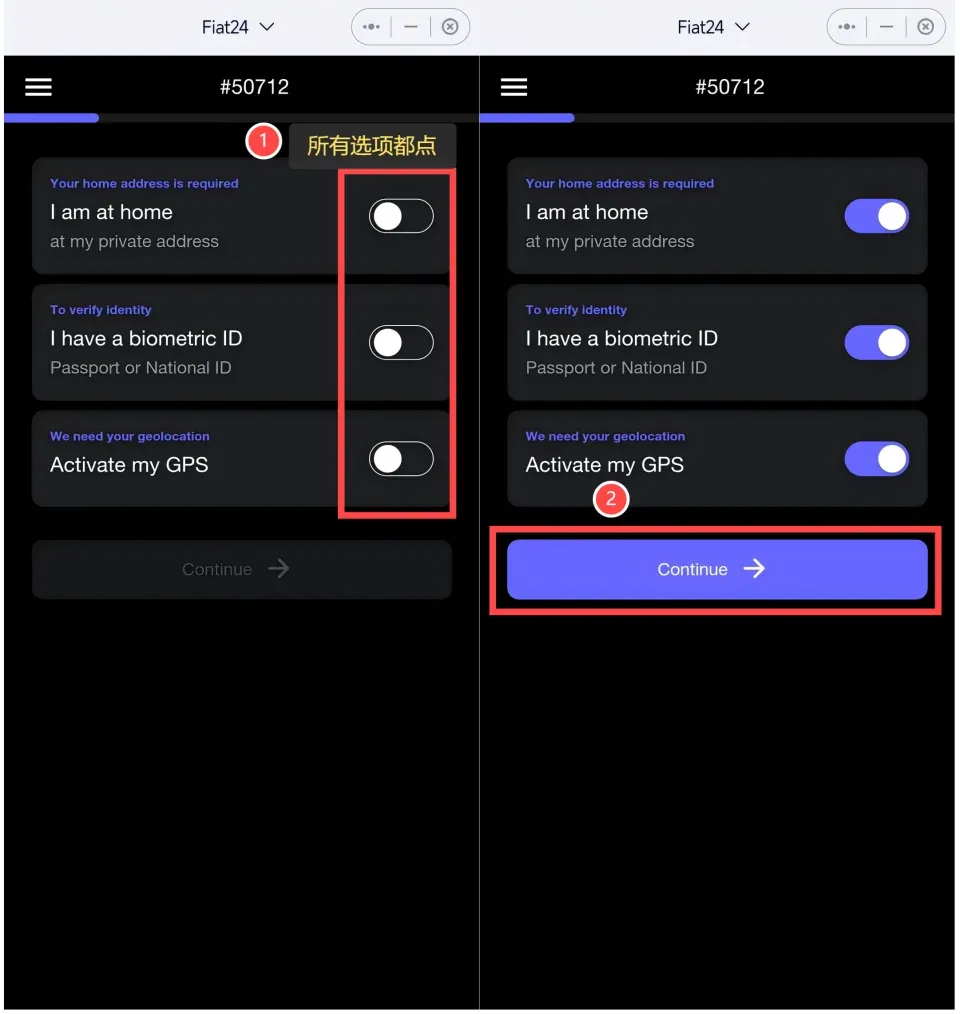
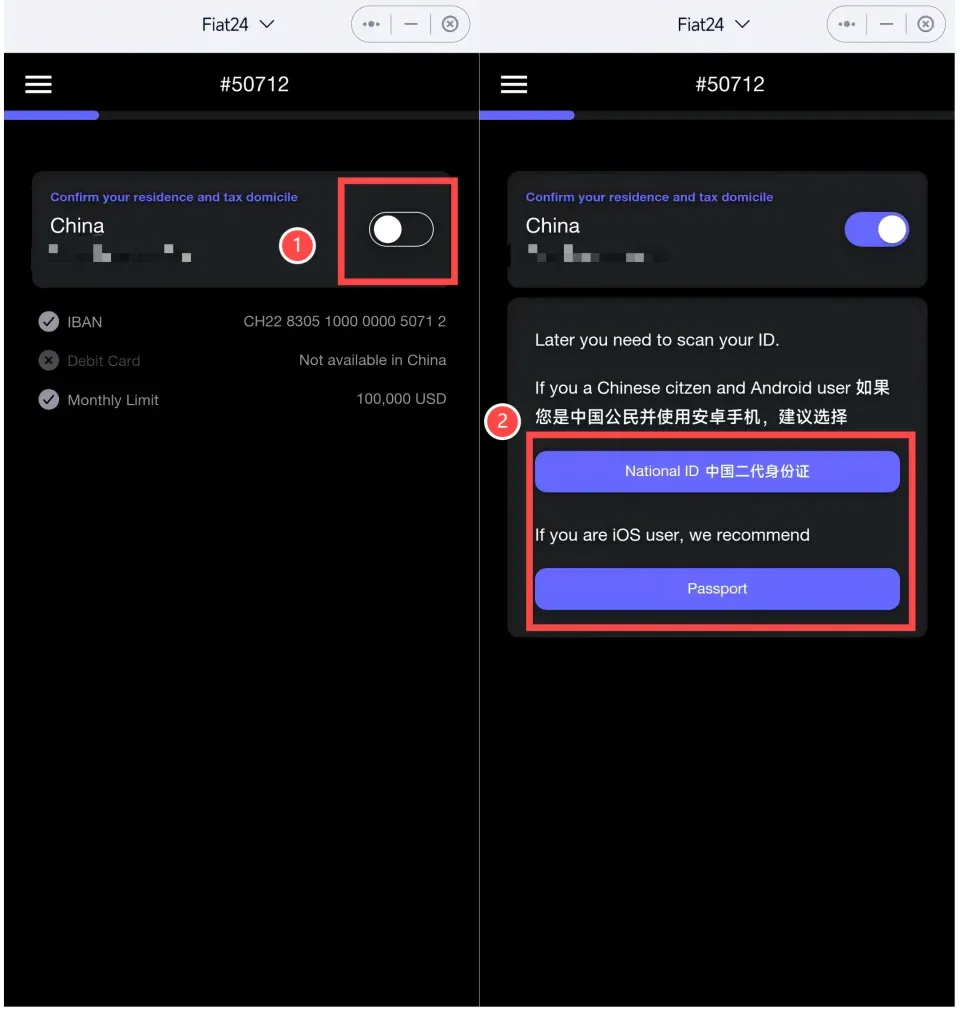
During the identity‑verification stage, Android users are advised to use an NFC‑enabled phone to read the ID card, while iOS users may opt for a passport.
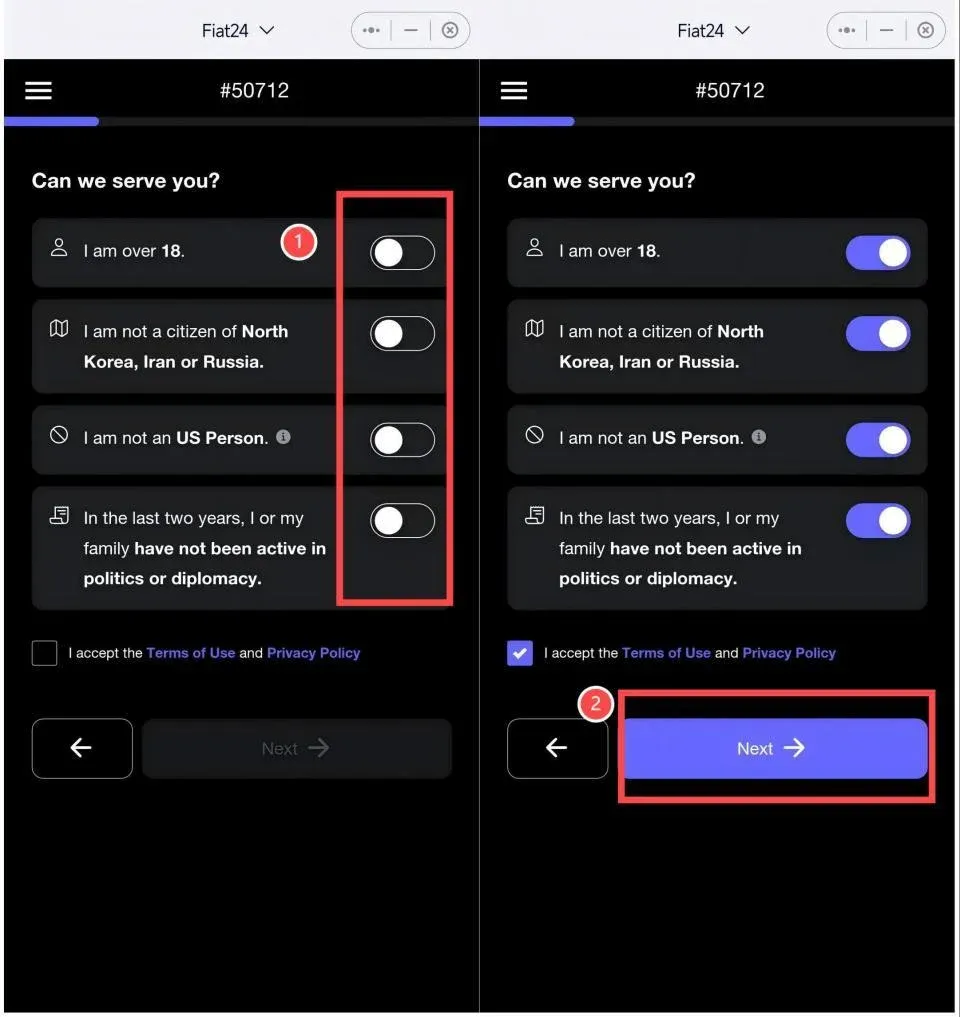
All four personal‑information options should also be toggled on; after confirming, click Continue.
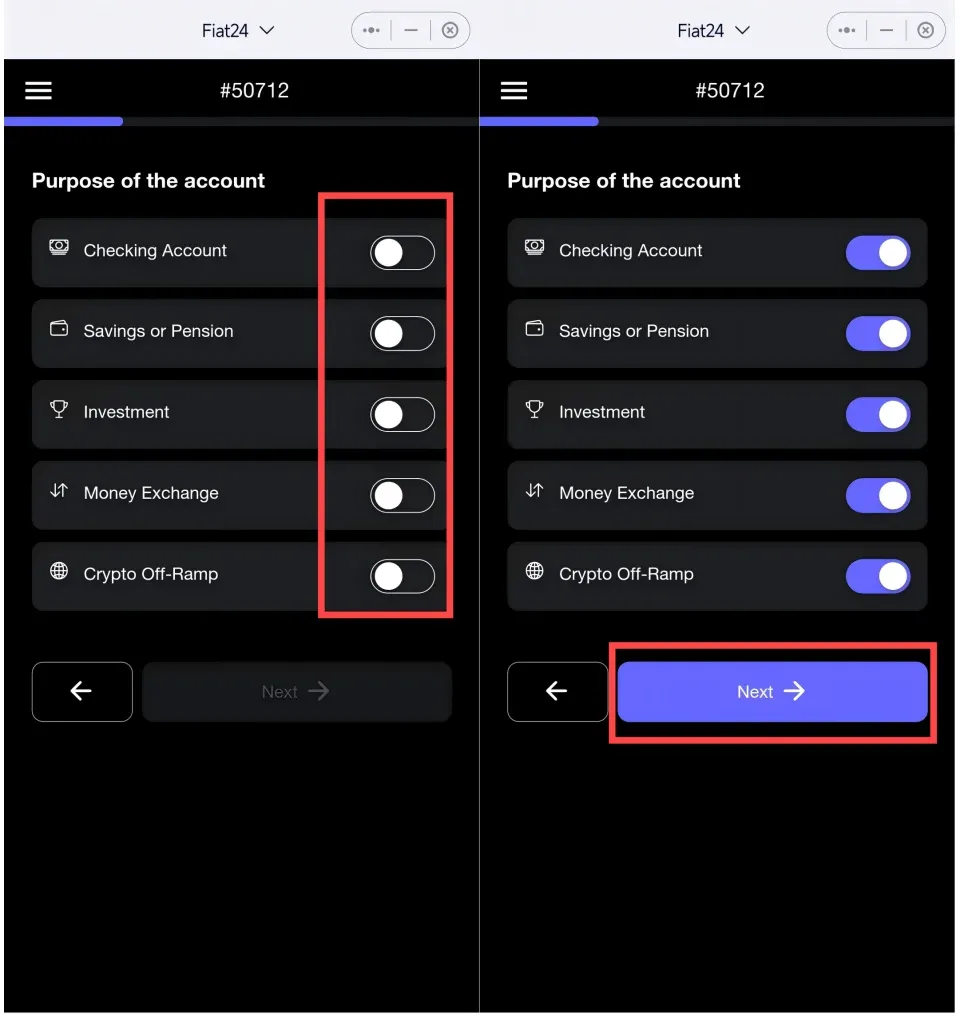
It is recommended to check every purpose option, then tap Next.
On the risk‑assessment screen, truthfully disclose your income source and level, then proceed. After checking the two acknowledgment boxes on the informed‑consent page, click Next again.
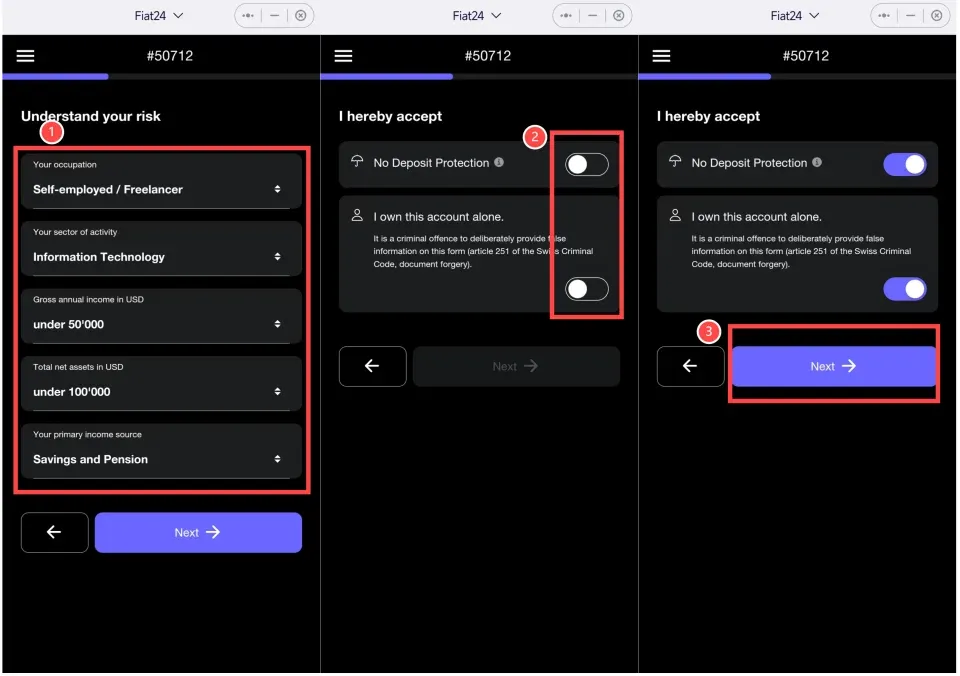
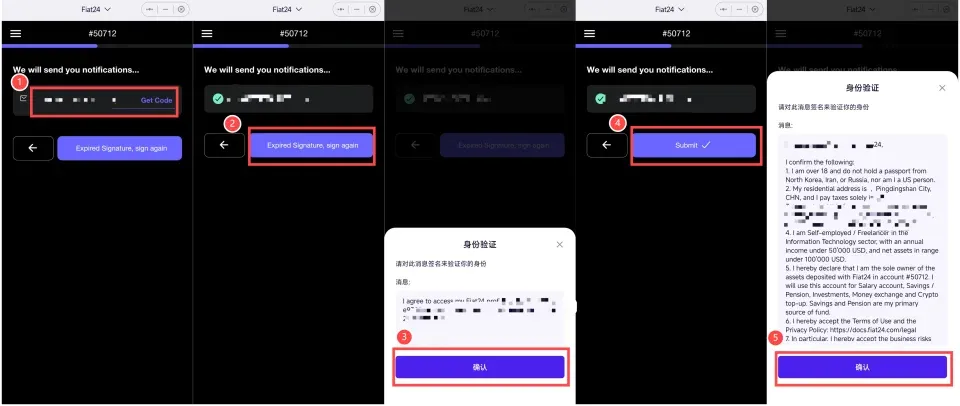
The final step is to bind an email address and complete a signature:
- Enter your email and tap Get Code; after receiving the verification code, input it.
- If you encounter Expired Signature, sign again, repeat the signing step.
- Once done, press Submit and confirm the signature once more.
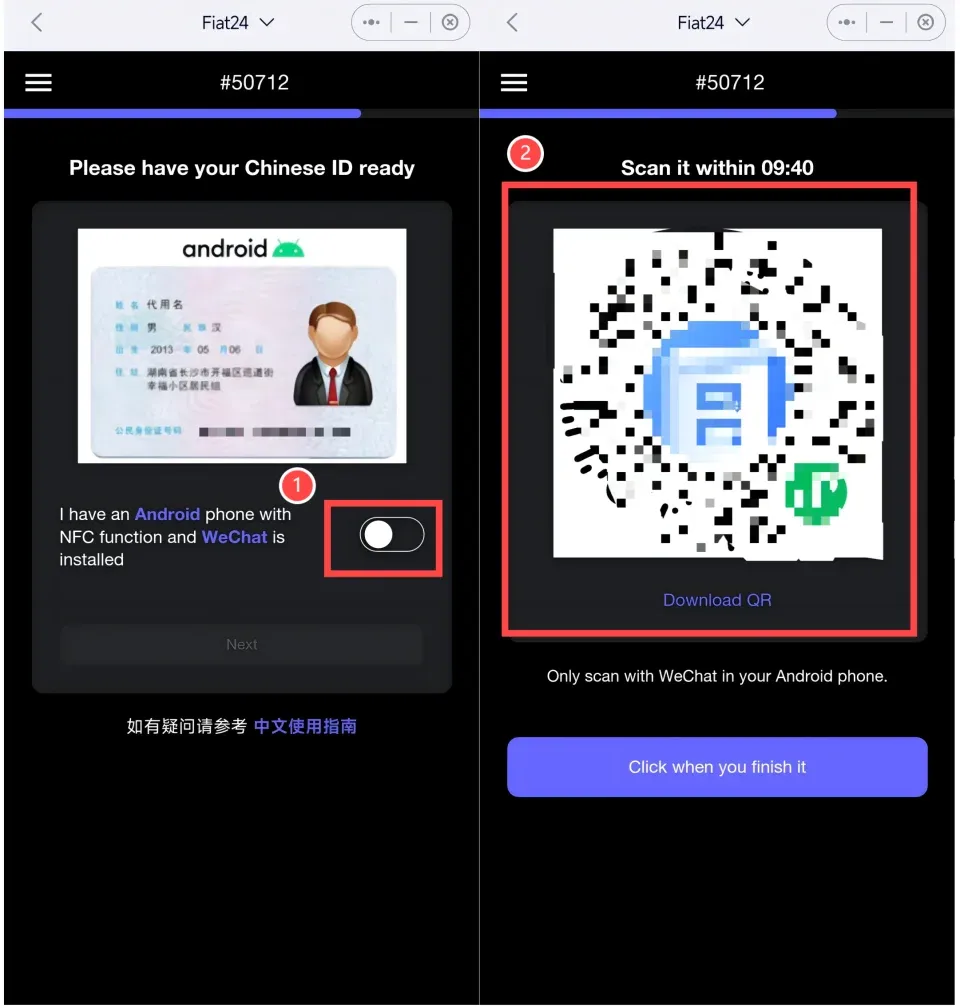
After entering the ID‑verification page, use an NFC‑enabled Android phone to scan the QR code within WeChat, which opens the verification mini‑program.
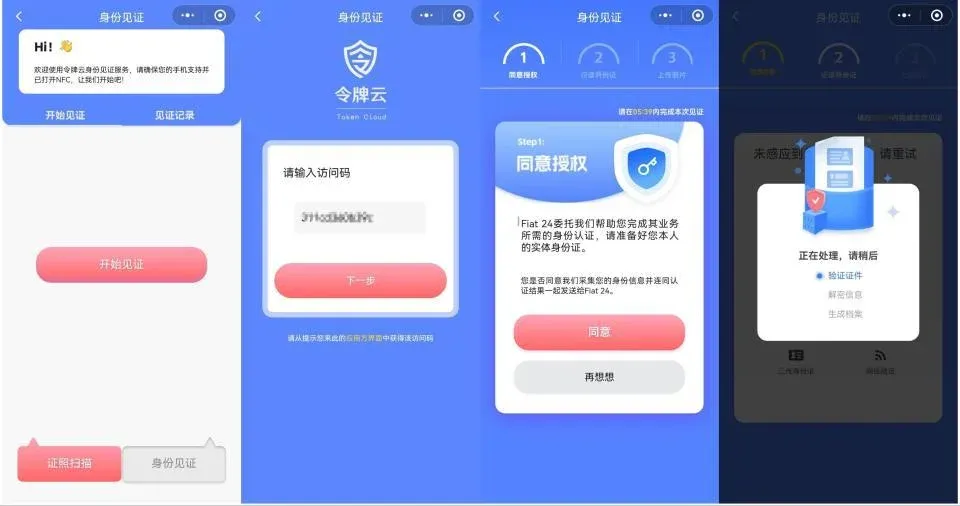
Place the back of the ID card close to the phone’s NFC area (make sure NFC is enabled) to read the data, then complete facial recognition. Once verification passes, return to the SafePal app and tap Click when you finish it to finish.
Tip: If your phone cannot run the ReadID app, open the bank’s KYC website on a computer, obtain the verification code there, and complete the authentication with ReadID.
Once Fiat24 approves the submission, the bank account registration is complete. Domestic users (i.e., those residing in the People’s Republic of China) can subsequently apply for a co‑branded Mastercard. Note that during the beta phase, a new account typically requires about one day of review, with the application link appearing no later than 2–3 days after registration.
2. Apply for the SafePal Mastercard
From the Bank page you can request the co‑branded card directly, provided the account holds at least 10 USD (or equivalent) in assets.
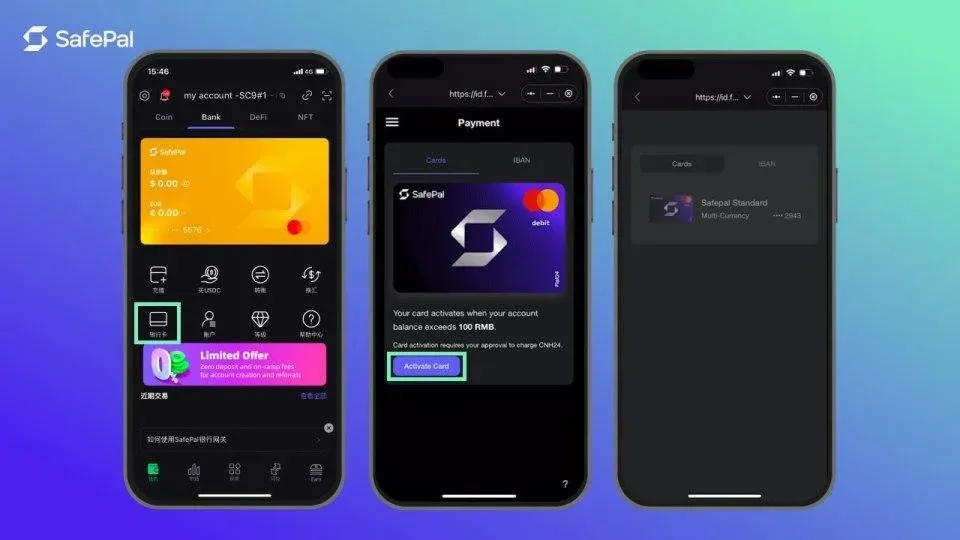
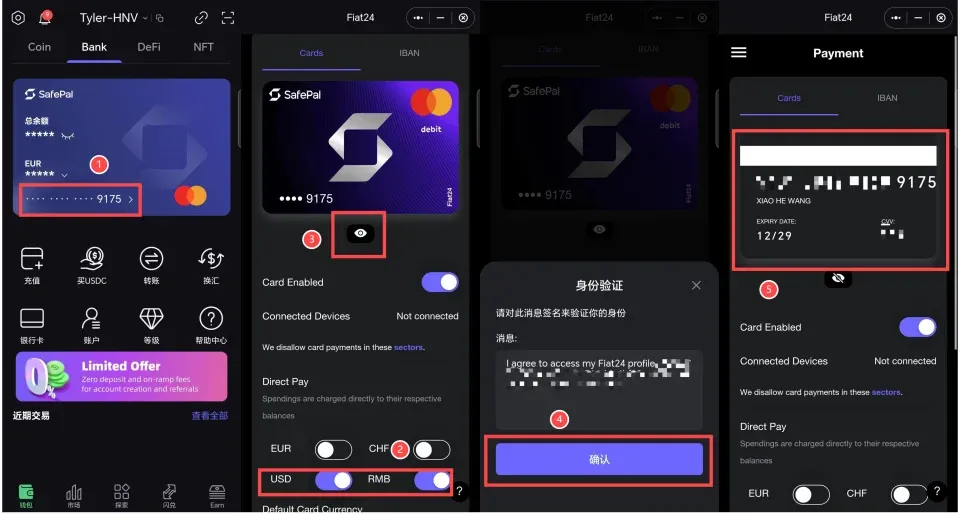
After the card is issued, you can configure it on the card‑details screen:
- The card supports USD, RMB, EUR, and CHF. Activate the currency you need; for domestic purchases in China RMB is usually most cost‑effective, while for overseas spending or subscription services USD (or EUR) can reduce conversion fees. In a global context, EUR and CHF transactions can be routed through SEPA or SWIFT corridors where applicable.
- Tap the icon next to the card number to open the details view; use the eye icon to reveal the full card number, expiration date, and CVV. After confirming the pop‑up, complete the required wallet signature.
- With the full details in hand you may bind the card number to payment platforms such as WeChat Pay, Alipay, or other global digital wallets. Keep the CVV confidential at all times. For overseas usage, consider applying a privacy sticker to the physical card to enhance security.
---
Introduction to the SafePal Wallet
SafePal, backed by Binance (U.S. users should use Binance.US for any Binance‑related services), was among the first generation of hardware wallets to hit the market. It is offered in both hardware and software forms, catering to a spectrum of needs—from daily micro‑transactions to long‑term storage of large sums.
- The hardware wallet employs a “air‑gap” architecture combined with offline private‑key storage, ensuring that the private key never contacts the internet and thereby dramatically lowering the risk of hacking.
- The software wallet provides a more convenient experience for frequent, low‑value transfers.
Regardless of the form factor, SafePal supports hundreds of mainstream tokens—including Bitcoin, Ethereum, BNB, USDT, and many others—allowing users to manage them all from a single interface. The UI is clean and intuitive, enabling even first‑time crypto users to navigate with ease.
---
How to Use the SafePal Wallet? How to Trade?
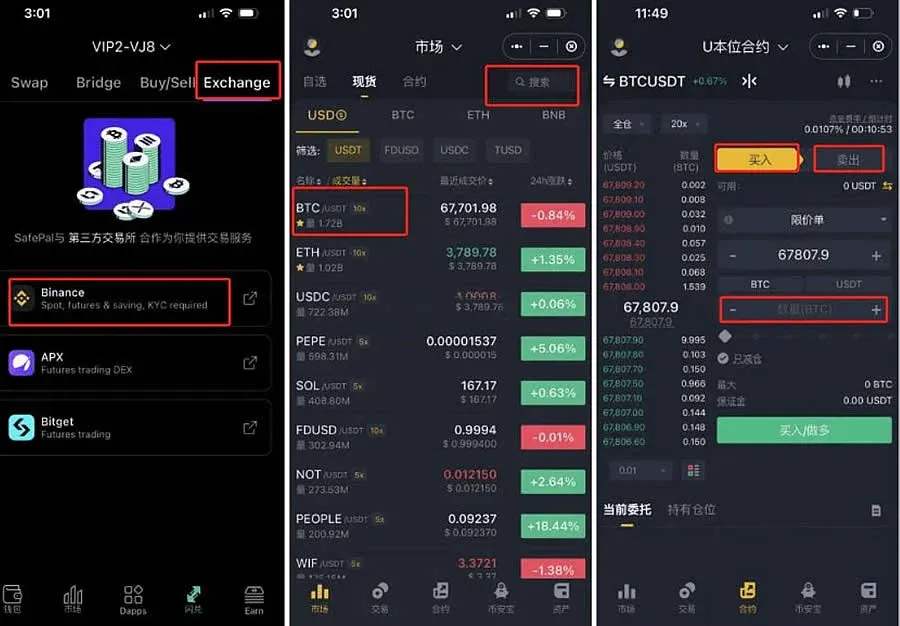
SafePal aggregates mini‑programs from several exchanges (such as Binance and Bitget) inside the wallet itself. Trading fees are identical to those on the respective exchanges, so you can buy and sell without leaving the app. The following are the concrete steps:
- Open the SafePal app and go to the Exchange page.
- Choose the token you wish to trade (e.g., BTC) and tap the corresponding trading pair BTC/USDT.
- In the pop‑up order box, enter the amount you want to buy or sell, then confirm to place the order.
---
How to Import an Existing Wallet?
If you already hold a wallet on another platform and want to migrate your assets to SafePal, simply restore it with the mnemonic phrase:
- Launch the SafePal app and tap Restore Wallet.
- Enter the original wallet’s 12‑word mnemonic in the exact order, taking care to spell each word correctly.
- After the system validates the phrase, the wallet is imported and all assets appear inside SafePal.
---
Core Features and Advantages of SafePal
- Decentralization: The mnemonic, private key, and keystore are all under the user’s sole control; the platform never stores any sensitive data.
- Multi‑Chain Support: One login grants management of thousands of tokens, and cross‑chain assets can be moved directly within the app.
- Security Architecture: Built by a top‑tier security team, the wallet incorporates the latest cryptographic protocols and receives regular updates—keep the app at its latest version.
- One‑Stop Service: Beyond the core wallet, SafePal offers a DeFi aggregator, staking, cross‑chain bridge, and other utilities, eliminating the need to switch between multiple third‑party DApps.
To date, SafePal serves users in more than 140 countries and regions, with over 2 million accounts, offering both hardware and software solutions that balance safety and convenience.
---
Detailed Trading Operations
1. Receiving Crypto Assets
- Open the Assets page, select the desired token, and tap Receive.
- The screen will display a QR code and the corresponding address; the sender can scan the QR code or manually copy the address to complete the transfer.
2. Sending Crypto Assets
- Navigate to Assets, choose the token you wish to send, and tap Send.
- Input the recipient’s address and the amount, verify the details, set your transaction password, and confirm.
- Upon successful execution, the app will show a detailed transaction receipt.
3. Viewing Transaction History
- In the Assets page, pick any token and tap Transaction History to browse the full list of past movements for that token.
---
Backup and Restoration Guide
Backing Up Your Wallet
When a wallet is created, the system automatically generates a mnemonic phrase. Record this phrase in a secure offline environment and store it safely; never keep it on an internet‑connected device or in cloud storage.
Restoring Your Wallet
- Open the app and select Restore Wallet.
- Enter the 12‑word mnemonic in the original order.
- After successful verification, the wallet is fully restored and all assets become usable again.
---
Security Best Practices
- The mnemonic is the sole recovery credential; never disclose it or share it with anyone.
- Keep the private key and mnemonic offline at all times; avoid storing them on network‑connected devices.
- Use a strong login password and change it periodically.
- Perform regular wallet backups and keep backup files in separate, secure locations.
- When operating, prefer private, trusted networks over public Wi‑Fi to reduce the risk of network‑level eavesdropping that could compromise private keys.
---
Frequently Asked Questions (FAQ)
1. How secure is the SafePal wallet?
SafePal utilizes a hardware security module (HSM) and a fully air‑gapped design, ensuring the private key never touches the internet, which dramatically reduces the attack surface. Multiple backup mechanisms are also provided to guarantee that assets can be recovered on any device.
2. What if I lose my device—how can I retrieve my assets?
As long as you have securely stored the mnemonic phrase, you can restore the wallet on any compatible device using the Restore Wallet function and regain full access to your holdings.
3. Where can I get the latest version of SafePal?
The newest mobile or desktop client can be downloaded from the Apple App Store, Google Play Store, or directly from the SafePal official website.
4. Which major cryptocurrencies are supported?
Supported assets include, but are not limited to, Bitcoin, Ethereum, BNB, USDT, and thousands of other mainstream tokens.
5. Can I use DeFi products directly within SafePal?
Yes. SafePal includes an integrated DApp browser, allowing users to connect to various DeFi platforms for liquidity mining, lending, staking, and more without needing to install third‑party applications.
---
Tax Note: Crypto‑related gains may be taxable in your jurisdiction. Users should consult local tax regulations or a professional advisor to ensure compliance.
This completes the comprehensive guide to using and trading with the SafePal wallet. By following the steps outlined above you can swiftly download the app, open an account, import assets, execute trades, and manage security. Always stay vigilant and avoid performing sensitive operations on insecure networks to protect your private keys and assets.
Related Reading
- Beginner's PolkaWallet Guide: Download, Setup & DOT Staking
- Complete Trust Wallet Guide: Download, Install, Setup & Use
- OKX Pay Guide: Features, Registration & Fee‑Free Transfers
💡 Register on Binance with referral code B2345 for the maximum trading fee discount. See Binance complete guide.