
 Bitaigen Research
 We systematically outline the configuration steps for an imToken cold wallet and a watch‑only wallet in this article, helping you securely generate a private key in an offline environment and monitor assets and perform offline signing via a watch‑only wallet. Once mastered, you can complete reliable transfers without exposing your mnemonic phrase. Subsequent sections will demonstrate each step in detail, so a careful read is worthwhile.
What Are Cold Wallets and Watch‑Only Wallets?
In imToken, first create an ETH cold wallet on an offline phone and obtain its address QR code, then add a watch‑only wallet on a connected phone, scan the cold‑wallet QR code to link them, and finally initiate a transfer from the watch‑only wallet. The cold wallet signs the transaction offline, after which the transfer is completed. *(≈78 words, directly answering the title question)*
Cold wallet: A wallet whose private key is generated in a network‑isolated environment. Because the private key never touches the internet, it effectively prevents hackers from stealing the mnemonic via online attacks, thereby enhancing asset security. When assets need to be moved while the wallet remains offline, the process must be paired with a watch‑only wallet to complete the signing workflow.
Watch‑only wallet: A wallet used to view the cold‑wallet’s assets in real time and to request transfers. When a transfer is initiated, the watch‑only wallet creates an offline‑signature QR code; the cold‑wallet device then authorizes the signature, and the transaction is broadcast.
Note: Currently imToken only supports the setup of ETH cold wallets and watch‑only wallets; other blockchain networks are not yet compatible.
Preparation
- Two non‑rooted secure smartphones
- Offline phone: Used to create the cold wallet; keep it in airplane mode or with all network interfaces disabled.
- Online phone: Used to add the watch‑only wallet, continuously monitor assets, and initiate transfers.
- Both phones must have the latest version of imToken installed (click here for the recommended secure download method).
- If you only have a single phone, it is advisable to use a dedicated hardware wallet such as imKey to achieve comparable offline security.
Step 1: Create a Cold Wallet on the Offline Phone
- Enable airplane mode or turn off all network connections to ensure the phone is completely offline.
- Open the pre‑downloaded imToken app and follow the prompts to create a new identity.
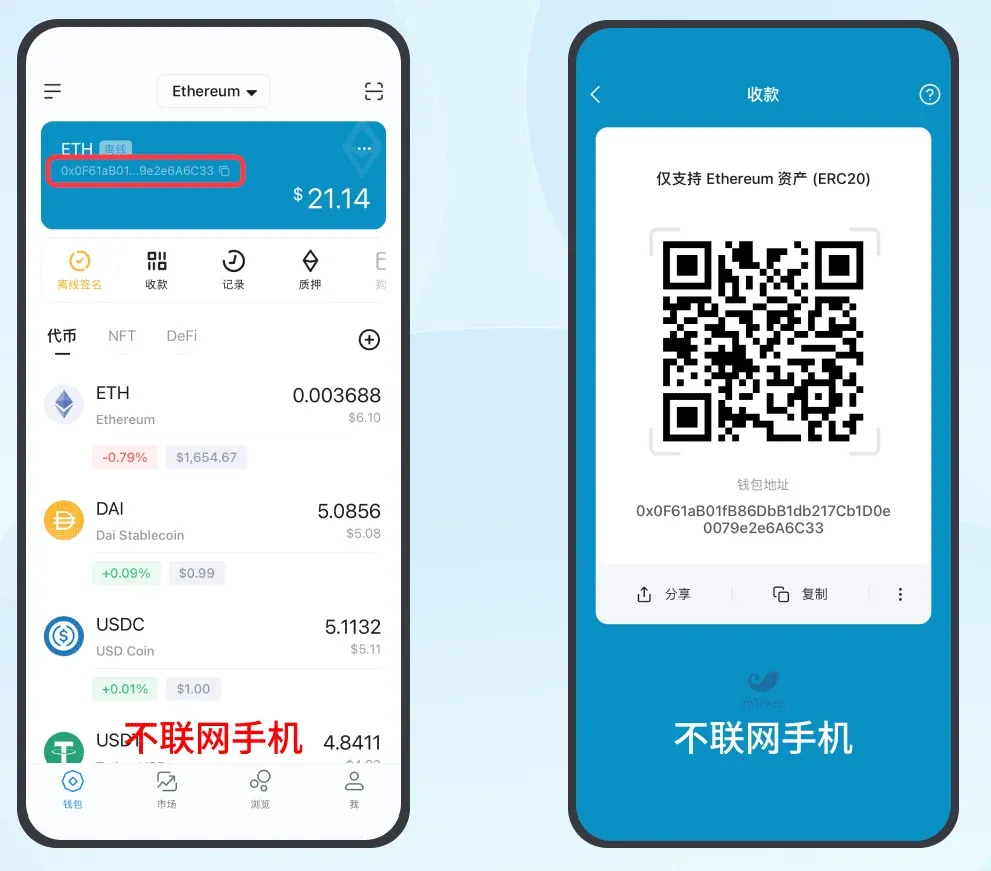
- Navigate to the ETH wallet, tap the wallet address, and the address QR code will be displayed.
Step 2: Add a Watch‑Only Wallet on the Online Phone
- Open imToken and complete the identity creation process.
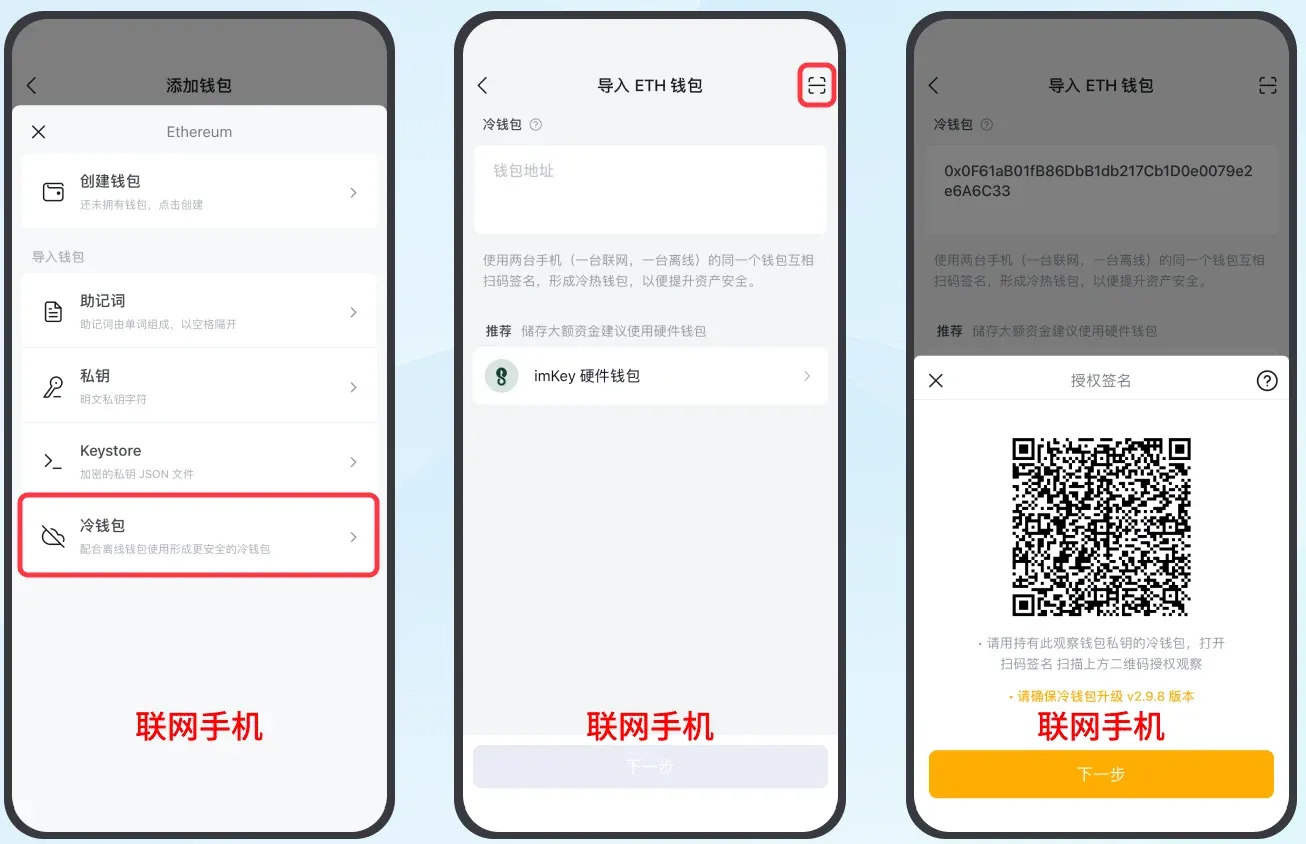
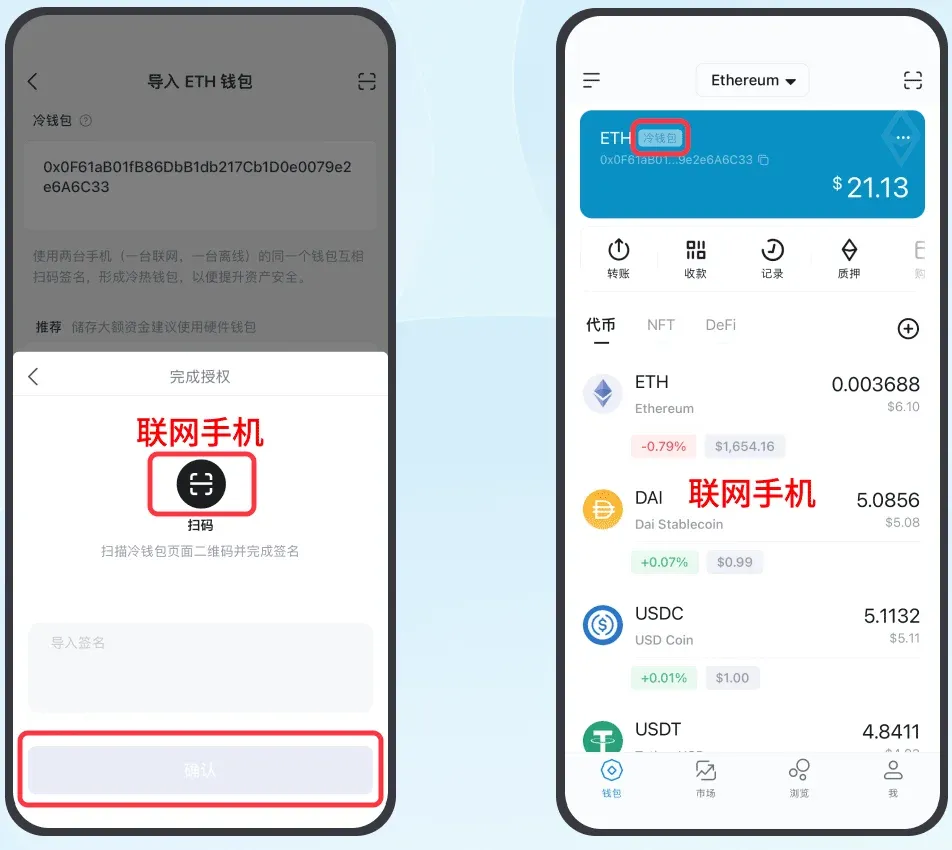
- Sequentially tap “Me” → “Manage Wallets” → “Add Wallet” → “ETH” → “Cold Wallet.”
- Tap the scan button at the top‑right corner, scan the QR code shown on the offline phone to import the cold‑wallet address, then tap “Next” to proceed to the authorization‑signature screen.
Step 3: Generate an Authorization‑Signature QR Code on the Cold Wallet
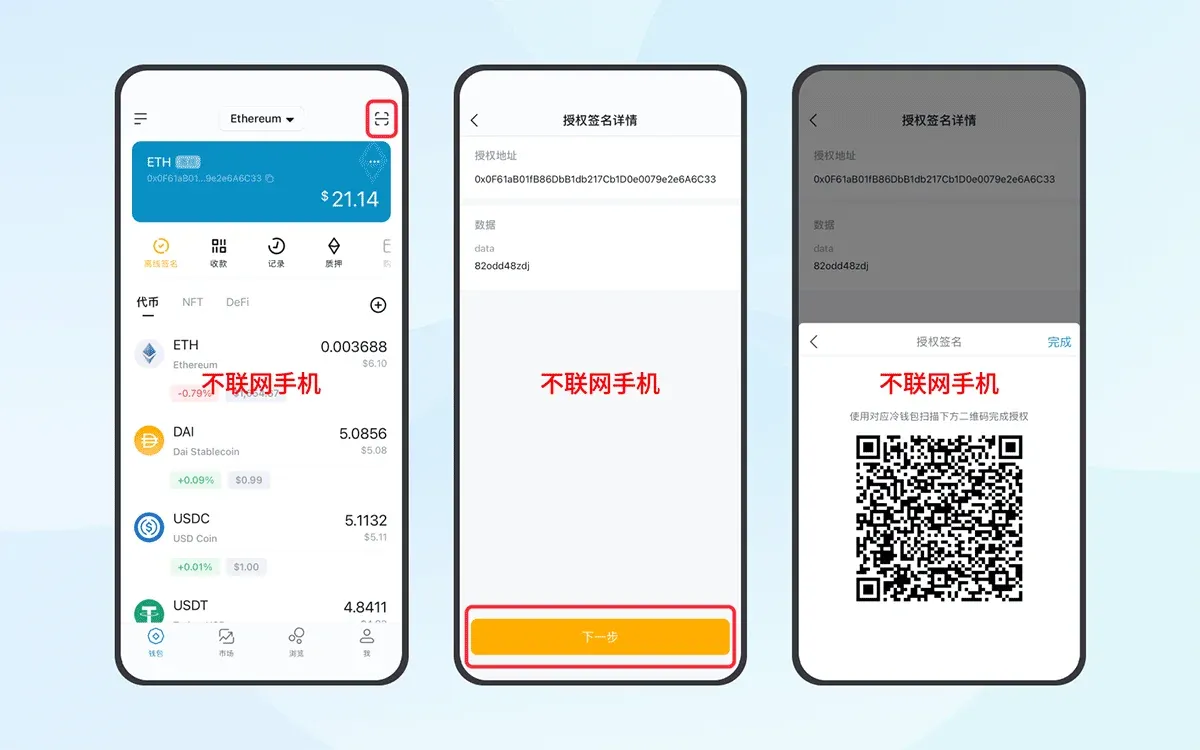
- Return to the ETH wallet page on the offline phone, tap the scan button at the top‑right, and scan the QR code displayed on the online phone.
- In the pop‑up window, tap “Next,” enter the wallet password, select “Authorize Signature,” and the app will generate an authorization‑signature QR code.
Step 4: Scan the Authorization‑Signature QR Code with the Online Phone
- On the online phone, tap “Next,” use the scanning function to read the QR code generated by the offline phone.
- Confirm the details and tap “Confirm,” completing the watch‑only wallet linkage. At this point, the watch‑only wallet will display the cold wallet’s balance in real time.
Step 5: Initiate a Transfer Using the Watch‑Only Wallet
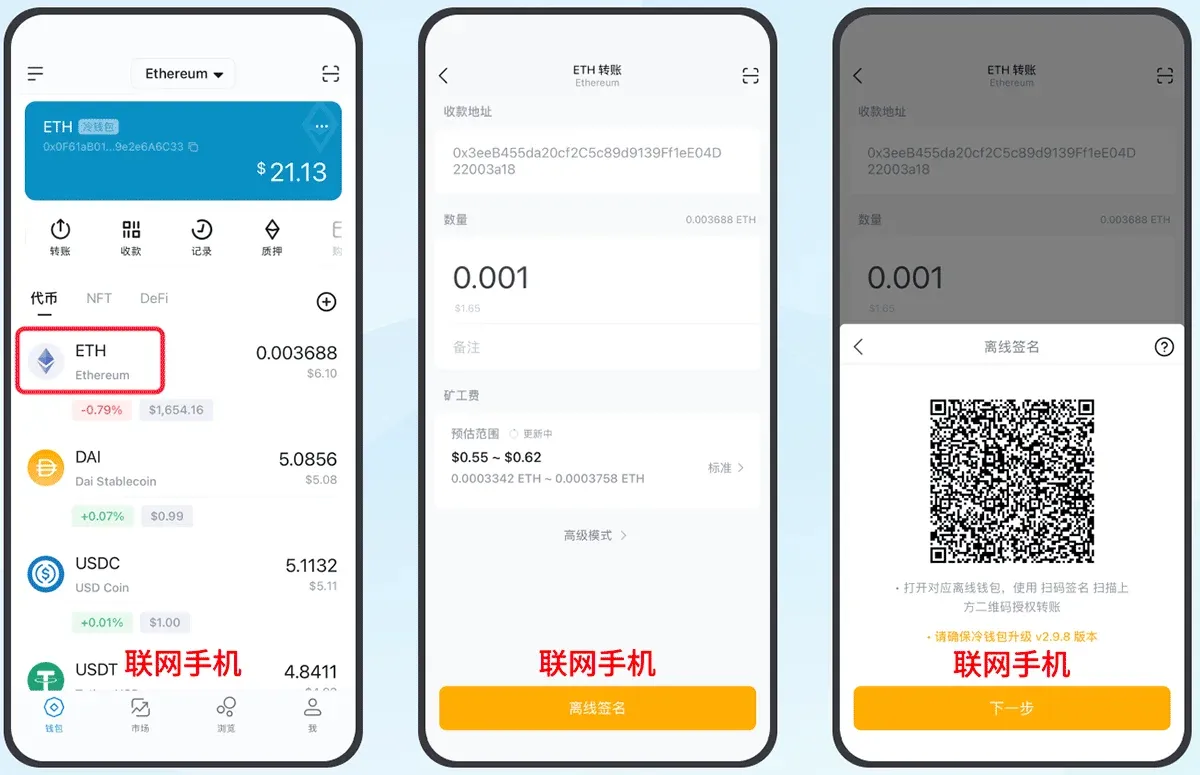
5.1 Create an Offline Signature on the Online Phone
- Choose the token you wish to send (the example uses ETH), tap “Transfer,” and fill in the recipient address, amount, and any additional data.
- Tap “Offline Signature,” confirm the transaction details, and proceed to the next step, where the app will generate an offline‑signature QR code.
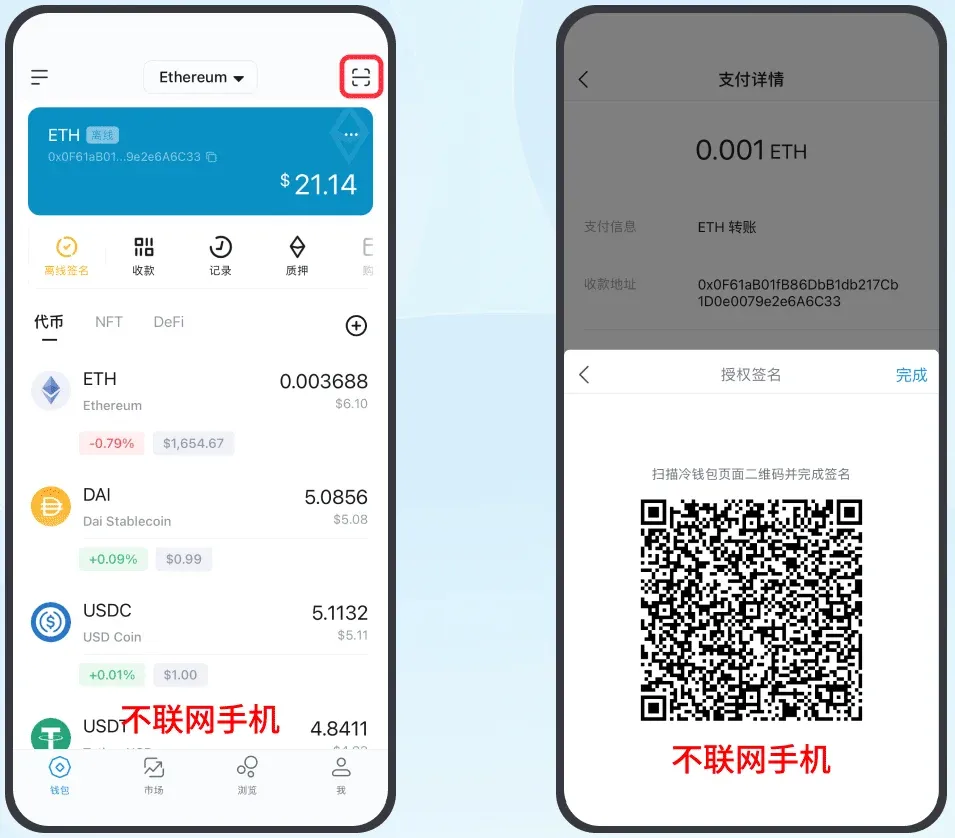
5.2 Complete the Authorization Signature on the Offline Phone
- Open the ETH wallet on the offline phone, tap the scan button, and read the offline‑signature QR code shown on the online phone.
- After verifying that the information is correct, tap “Next,” enter the password, select “Authorize Signature,” and the device will produce an authorization‑signature QR code.
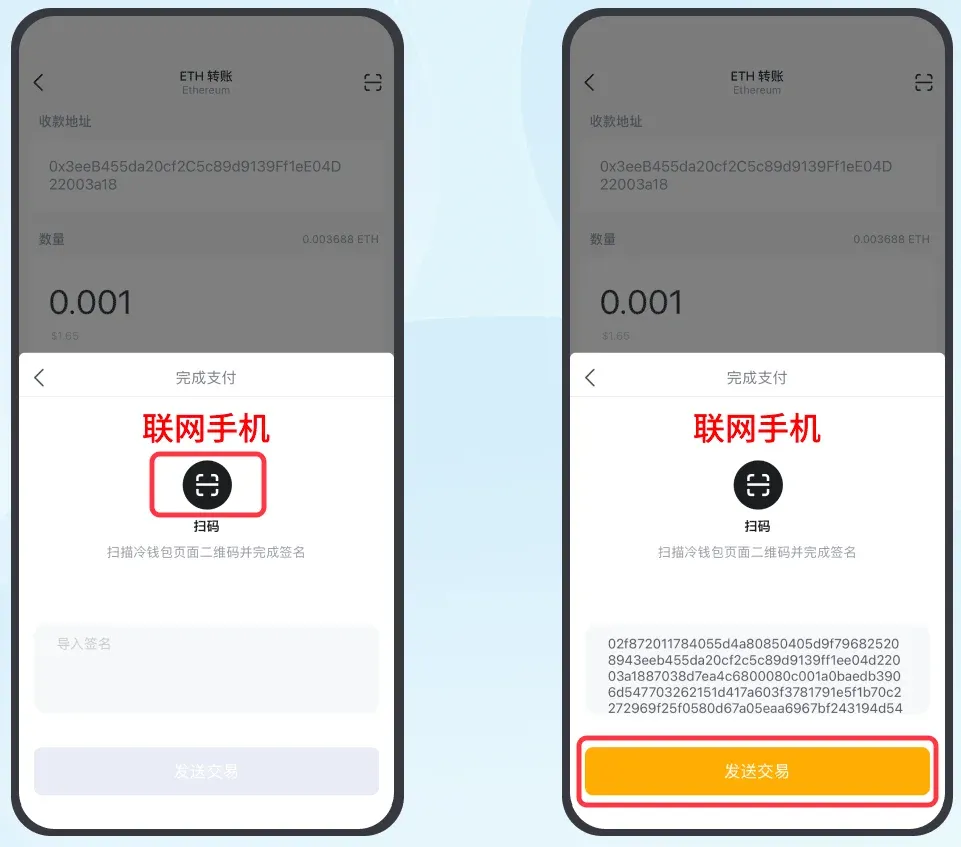
5.3 Broadcast the Transaction from the Online Phone
- On the online phone, tap “Next,” use the scanning function to read the authorization‑signature QR code produced by the offline phone.
- Tap “Send Transaction,” and the transaction will be broadcast to the blockchain network. Once the transfer is confirmed, the balance change will be reflected in the watch‑only wallet.
Important:
- The offline phone stores the private key and functions as the cold wallet.
- The online phone only retains the public key, acting as a watch‑only wallet without signing authority.
- A transfer can only be executed after the cold wallet completes the offline signature; a watch‑only wallet lacking a completed signature cannot initiate a transaction on its own.
Essential Reading for Crypto Newcomers: Understand Cold and Hot Wallets in 3 Minutes
1. Cold Wallet
A cold wallet is a device or software that stores private keys completely offline. It is suited for users holding large amounts of assets; by keeping idle funds offline, the risk of network‑based attacks, malware, and similar threats is greatly reduced.
2. Hot Wallet
A hot wallet accesses private keys over the internet, making it an online wallet. When using a hot wallet, it is recommended to set a unique password for each platform and enable two‑factor authentication to improve security. Because of its convenience, most retail investors rely on hot wallets for everyday trading.
3. Cold Wallet vs. Hot Wallet
| Comparison Dimension | Cold Wallet | Hot Wallet |
|---|---|---|
| Security | High (offline) | Lower (online) |
| Convenience | Requires manual signing | Instant transactions |
| Ideal Users | Large‑value holders | Small‑value or frequent traders |
In May 2019, the hot wallet of the Binance exchange was compromised by hackers, resulting in the theft of roughly 7,000 BTC and highlighting the security vulnerabilities inherent to hot‑wallet solutions.
4. Usage Guidelines
- Back up private keys and mnemonics
- Never store screenshots of mnemonics or private keys on your phone, cloud storage, or social platforms.
- Prefer paper backups or offline hardware solutions with multiple copies for redundancy.
- Download official software
- Only obtain imToken, imKey, and similar wallet applications from the official website or authorized distribution channels to avoid malicious software that could exfiltrate your credentials.
- Avoid public Wi‑Fi
- Public networks are prone to eavesdropping; opt for a trusted mobile data connection or a personal VPN when accessing wallet apps.
How to Choose Between Cold and Hot Wallets?
- Small amounts, frequent trading: Use a hot wallet for quick, on‑the‑fly transfers.
- Large amounts, long‑term holding: Store core assets in a cold wallet and pair it with a watch‑only wallet to achieve secure yet convenient transfers.
For users managing substantial portfolios, a combined cold‑and‑hot wallet strategy can preserve ease of use while effectively isolating risk, thereby raising the overall security posture of digital assets.
Related Reading
- imKey & imToken Integration: Secure Hardware Wallet Pairing
- imToken LCS Wallet Report: Mnemonic Exposure Risks
- 2024 Secure Crypto Wallets: imToken, HyperPay, Ledger, Cobo
💡 Register on Binance with referral code B2345 for the maximum trading fee discount. See Binance complete guide.



