
 Bitaigen Research
 Since a series of exchange security incidents in recent years, many investors have lost confidence in keeping their assets on exchanges for the long term. As a result, digital wallets have become a popular alternative. The imToken wallet, known for its ease of use and strong security features, is widely favored by the crypto community.
Some investors have very high security requirements for their assets but do not wish to purchase the dedicated imToken hardware wallet. In fact, with just two smartphones you can create an offline (cold) wallet with imToken and store your digital assets completely offline.
Below is a step‑by‑step, image‑rich guide that explains how to create and use an imToken cold wallet.
In this article we break down the entire setup process for an imToken cold wallet, helping you strike a balance between security and convenience. With only two phones you can achieve offline storage while still being able to monitor your holdings in real time through an observation wallet. Follow the illustrated steps to get started quickly and keep your digital assets safe.
How to create an imToken cold wallet?
- Prepare two smartphones and install the imToken app on both of them.
- One phone will stay offline and will be used to generate the cold wallet.
- The other phone will stay online and will serve as the *observation* wallet that can view the cold wallet’s balances.
- On the offline phone, create a new wallet and back it up properly. Open the Wallet page and select the newly created cold wallet, as shown below:
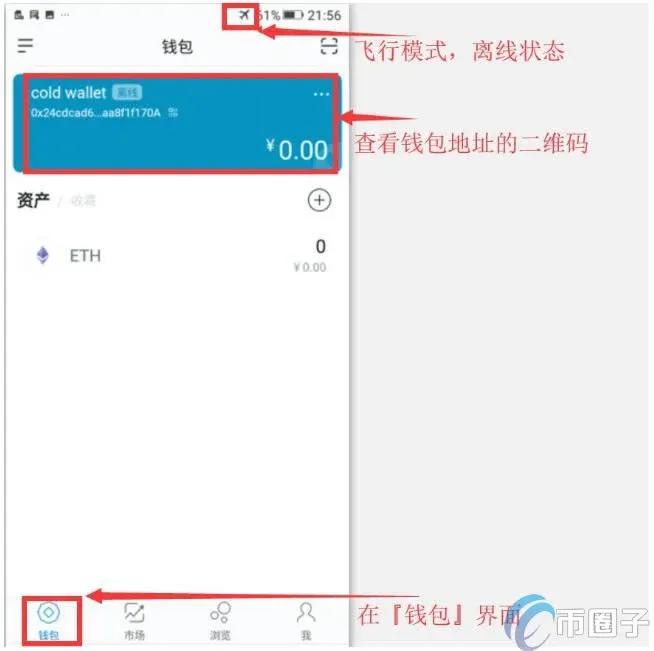
- Import the cold wallet into the online phone so it can be used as an observation wallet. Launch imToken on the online phone and go to the Me page:
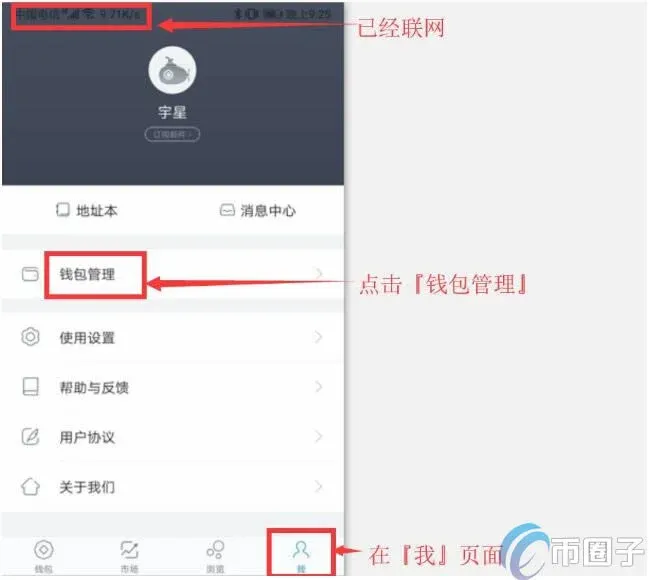
Tap Wallet Management to open the following screen:
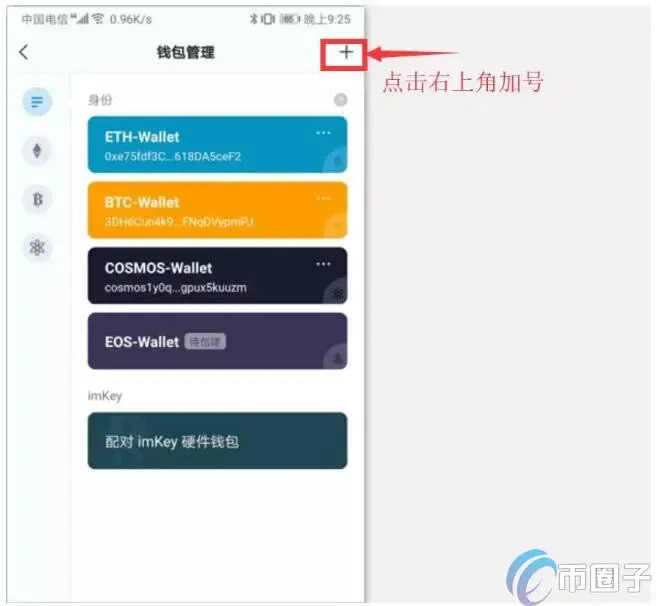
Choose ETH to prepare for importing an Ethereum wallet; after completion the page will look like this:
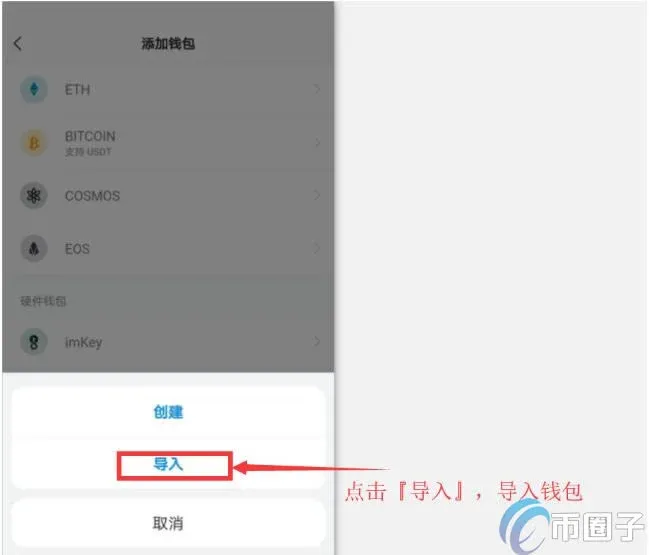
- Select Cold Wallet, tap the scan box to activate the camera, and scan the QR code displayed on the offline phone. The address will be added to the wallet address field:
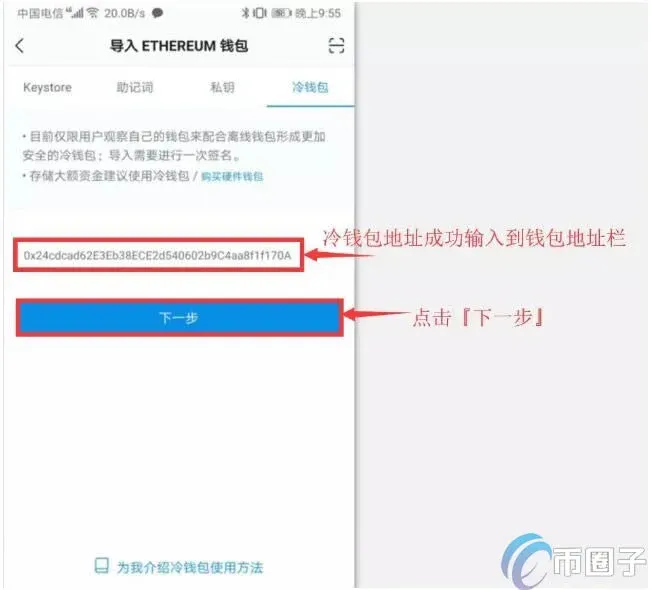
After tapping Next, an Authorization Signature QR code will be generated:
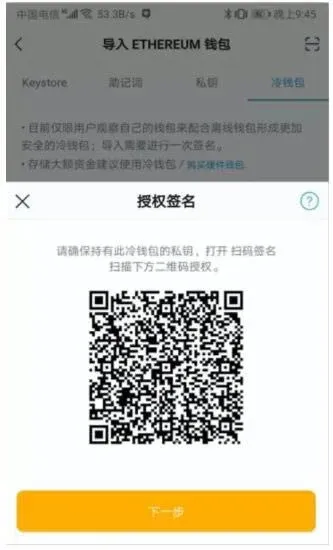
- On the offline phone, open imToken and use the Scan function in the top‑right corner to scan the Authorization Signature QR code produced in the previous step:
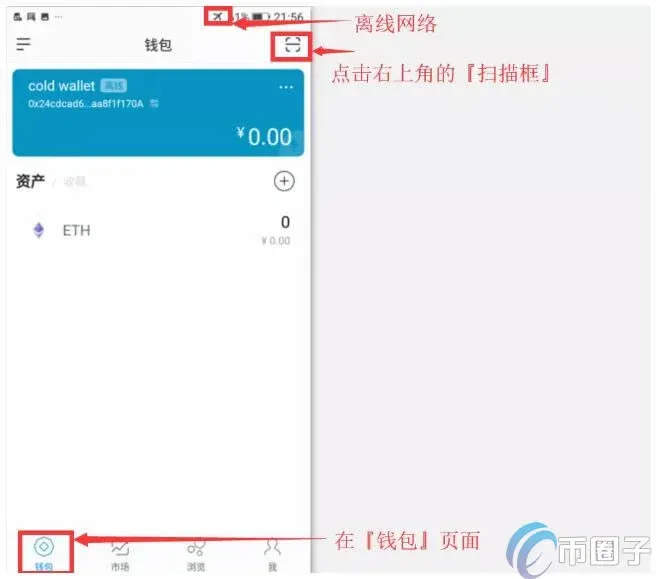
After scanning, a screen prompting you to enter the wallet password appears. Input the password and tap Authorize Signature:
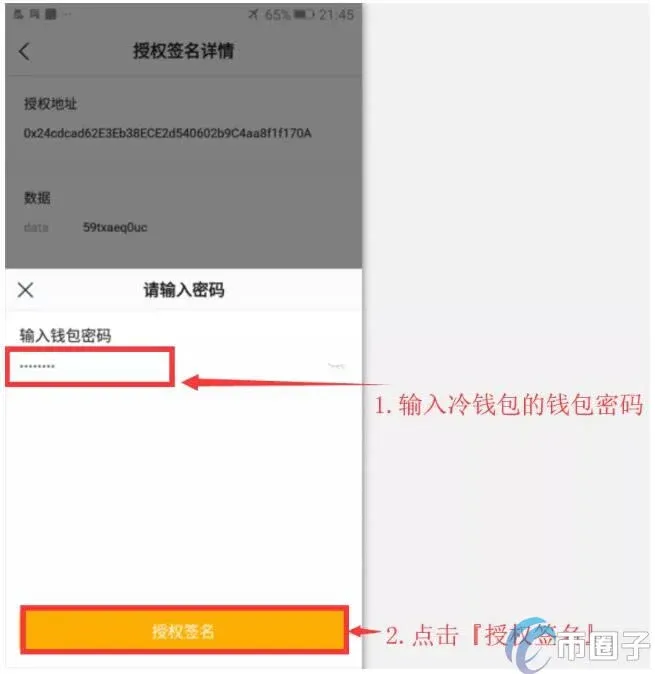
Once authorization succeeds, the offline phone will display a QR code representing the signed authorization:
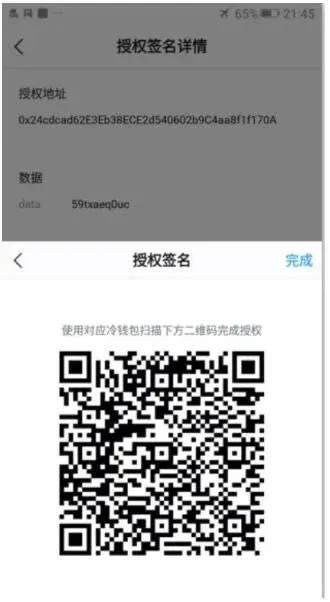
- Switch back to the online phone and tap Next, which brings you to the following screen:
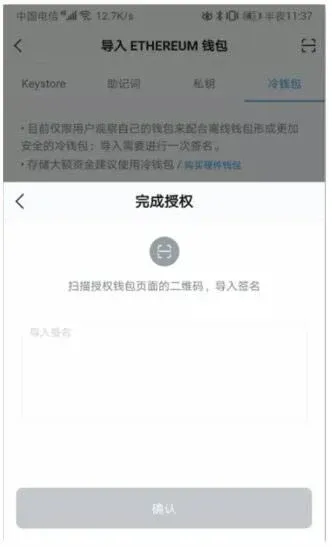
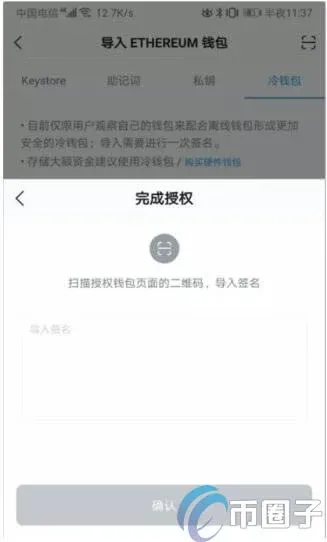
Tap the scan box again, scan the QR code generated by the offline phone, and the system will automatically import the signature. Finally, press Confirm:
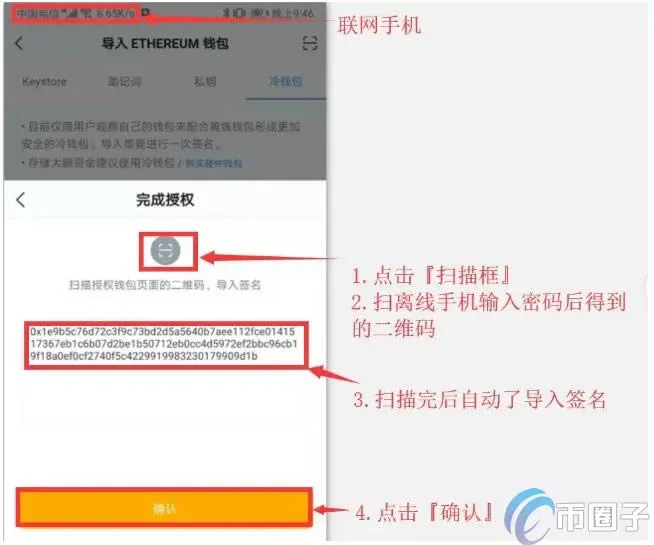
- Steps 5 and 6 constitute the first‑time authorization needed to import a cold wallet. In short, the online phone generates a QR code, the offline phone scans it, enters the password, and returns a signed QR code that the online phone then reads. After the process finishes, the online device will display Wallet setup successful, and you will see the newly imported cold wallet listed under Wallet Management → Create/Import.
How to authorize a transfer using the cold wallet?
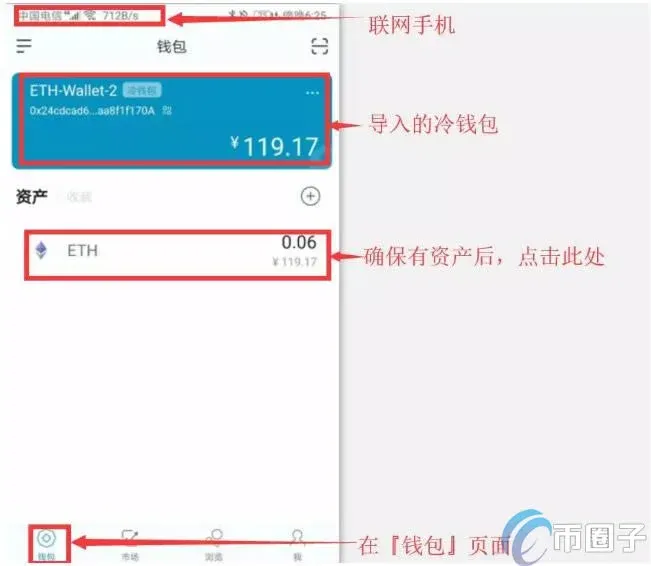
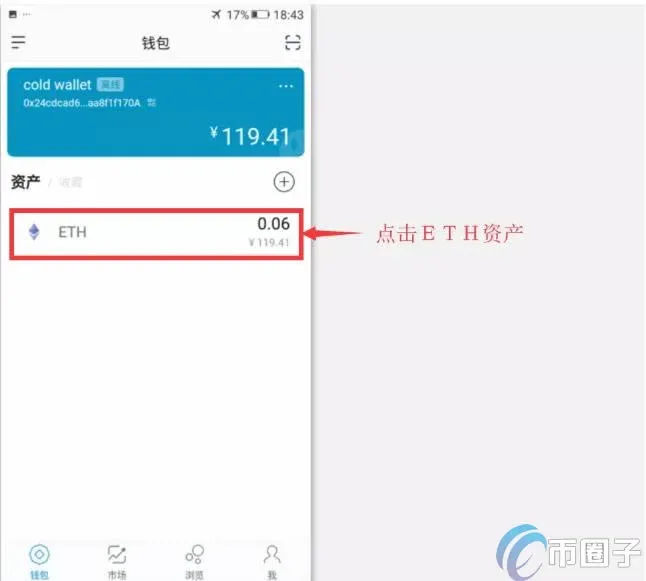
- Open the cold wallet on the offline phone, go to the Wallet page, and select the ETH asset. At this point only the Receive function is visible; sending must be performed via the online observation wallet combined with an offline signature:
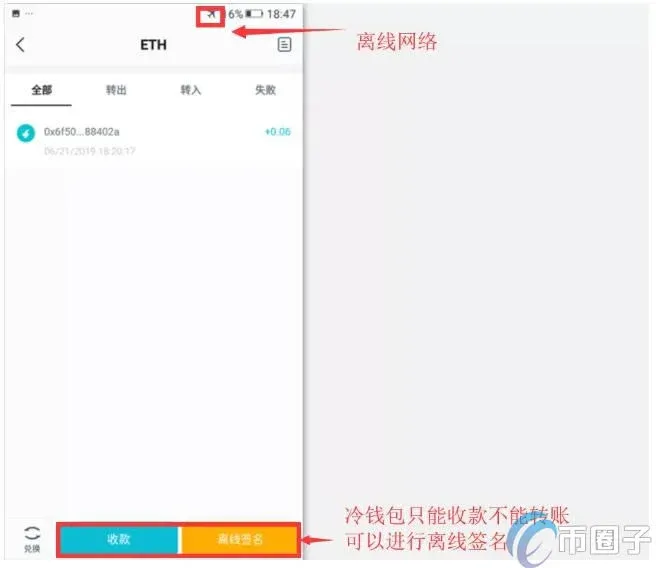
- On the online phone’s imToken, locate the cold wallet you just imported, verify that it holds ETH, and tap the asset to open the Transfer screen:
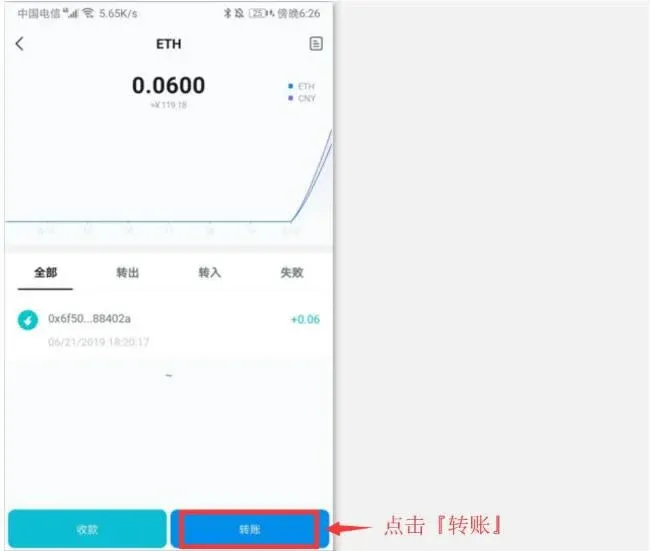
- Tap Transfer. The app will remind you that the actual transaction must be completed on the offline phone. You are then taken to a page where you can set the Amount, Recipient address, and Gas fee:
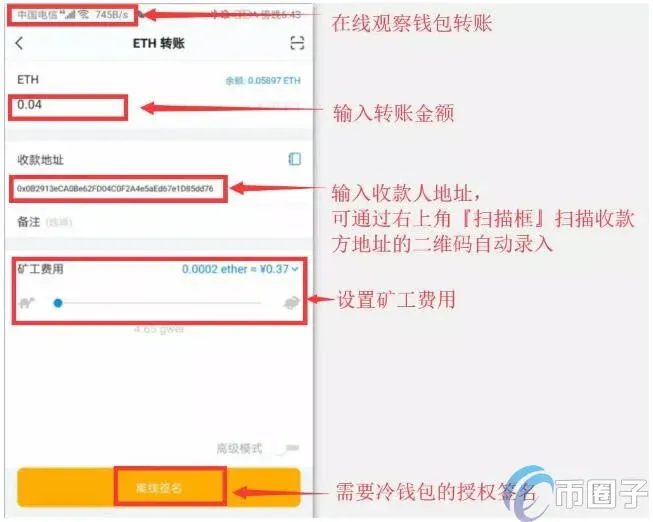
After filling in the details, tap Offline Signature:
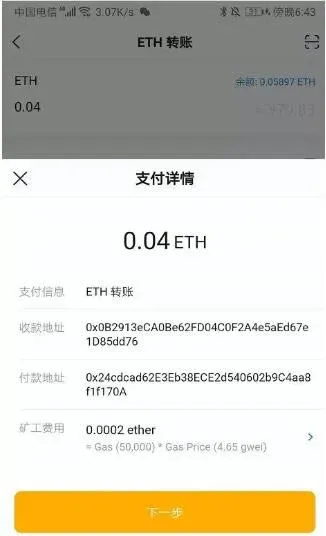
Verify that all information is correct and press Next:
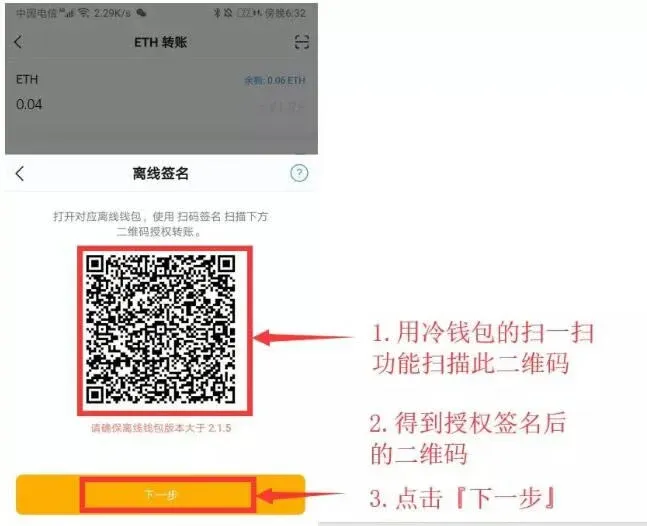
- Switch back to the offline phone, open the cold wallet, select the ETH you wish to send, and tap Offline Signature:
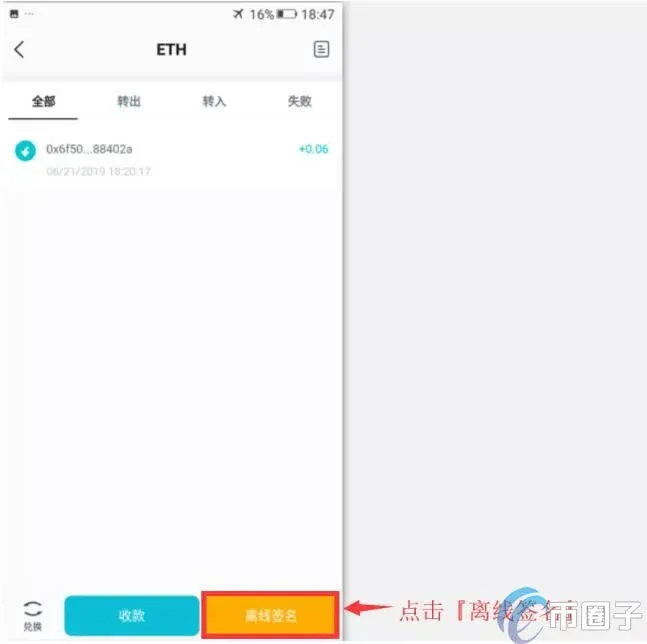
The camera will open; scan the QR code displayed on the online phone (the one generated in step 3). You will be taken to an Enter Password screen; input your wallet password and tap Authorize Signature:
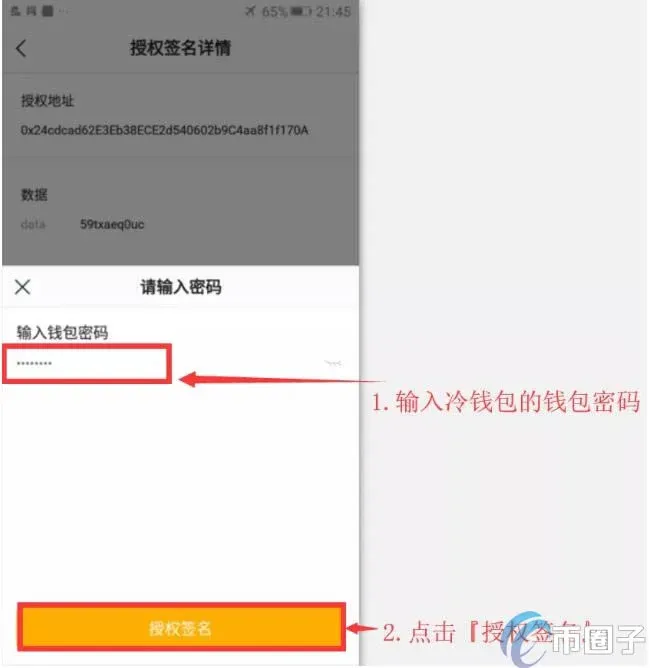
After a successful authorization, a new Authorization Signature QR code will appear:
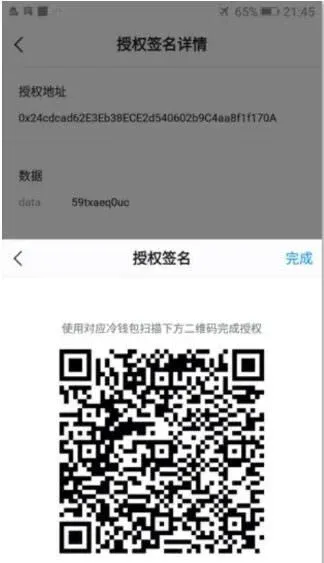
- Return to the online phone and tap Next:
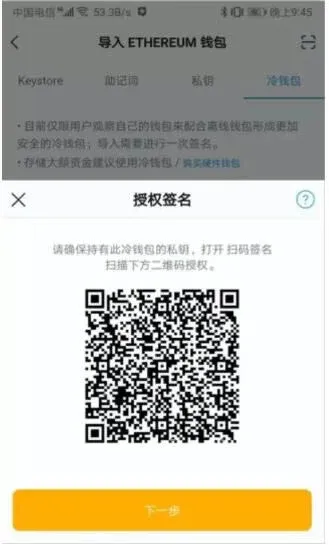
Tap the scan box again, scan the QR code generated by the offline device, and the system will automatically import the signature. Finally, press Send Transaction to broadcast the transfer:
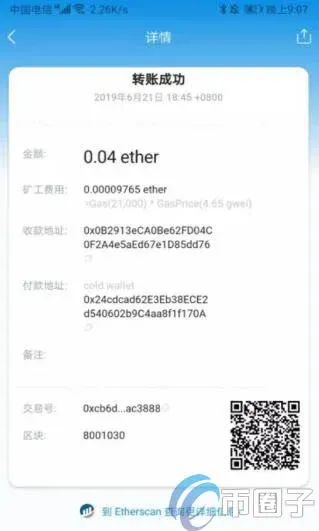
- A few moments later you can check Me → Message Center where a notification such as ETH: 0.04 Transfer Successful will appear. Tapping it opens a detailed success page (if the transaction fails to be mined, the amount will be returned to the cold wallet and you can retry):
Tip: Every step above involves scanning QR codes. Because the cold wallet operates in an offline environment, its security is higher, but the workflow is necessarily more cumbersome. If your security needs are not that stringent, you may opt for a hot wallet instead.
Best practices for maximizing the security of digital assets
Tiered wallet management
Classify the assets you hold into different risk tiers, and restrict each tier to only the operations appropriate for its security level. For example:
- Cold wallet – Reserved for long‑term storage of native coins. Typically a hardware wallet kept in a safe deposit box, used only rarely.
- Large hot wallet – Used for frequent on‑chain interactions involving sizable amounts or high‑value assets. A hardware wallet is still recommended, and any contract approvals should be revoked after each interaction.
- Small wallet – Holds modest‑value tokens and can be a regular software wallet, convenient for testing small amounts in new projects.
- Test wallet – Generated in bulk from a mnemonic phrase, primarily for airdrops, test‑net activities, etc. The mnemonic can be stored on a computer because the wallet holds no real value.
Choosing wallet software
Prefer wallet applications that have high brand recognition and a large user base. When managing large sums, avoid experimenting with brand‑new or untested wallets.
Safeguarding the mnemonic phrase
- Write the mnemonic on paper or a dedicated metal backup plate, create two copies, and store them in different secure locations.
- For especially critical wallets you may consider “missing‑word” or shuffled‑order techniques, so that the phrase can only be reconstructed from memory; this adds a layer of protection but is not advisable for those with poor memory.
- The mnemonic is only needed when creating or importing a wallet. Any request to input the phrase on a website or third‑party app is almost certainly a phishing attempt.
- When you must type the phrase, do it manually; avoid copy‑and‑paste to prevent clipboard leakage. The same applies to raw private keys.
- Keep the physical copy of the mnemonic in a fire‑proof, waterproof container and protect it from theft or loss.
On‑chain security
No on‑chain operation is absolutely risk‑free; every transaction carries some degree of exposure. By employing a tiered‑wallet strategy, even if one wallet is compromised the overall loss can be limited.
Exchange security
- Do not keep large balances on exchanges. Allocate assets wisely, and especially during bear markets reduce the amount stored on centralized platforms.
- Choose large, reputable exchanges; keep only a minimal amount on secondary or “tier‑2” platforms.
- Enable Google Authenticator (or another TOTP app) for two‑factor authentication. For added safety, consider using two separate phones—one logged into the exchange and another for the authenticator—so that a single device compromise does not give an attacker both factors.
- After evaluating your personal risk tolerance, decide the maximum exposure you are comfortable with on any single exchange.
Note on taxation: Cryptocurrency gains may be taxable in your jurisdiction. Always consult a qualified tax professional to understand your local reporting obligations, whether you are using USD, SEPA, SWIFT, or any other fiat gateway.
The above constitutes a complete guide to creating an imToken cold wallet, authorizing transfers, and managing asset security. For more detailed walkthroughs and updates on imToken cold‑wallet configurations, follow Bitaigen (比特根) and its related articles.
💡 Register on Binance with referral code B2345 for the maximum trading fee discount. See Binance complete guide.



