 Bitaigen Research
 In today’s internet environment, antivirus software can only reduce risk and cannot provide absolute security.
Regularly backing up wallet extension files, adding the extension to the antivirus trust list, and promptly restoring from quarantine and manually decrypting the private key after a false positive can effectively prevent asset loss.
Recently, users have reported that after using common antivirus software (such as AVG, Bitdefender, Kaspersky, Malwarebytes, etc.), some browser extensions—especially crypto‑wallet extensions—are falsely flagged as malicious programs, causing their JavaScript files to be quarantined or deleted, which in turn leads to wallet corruption and unusability.
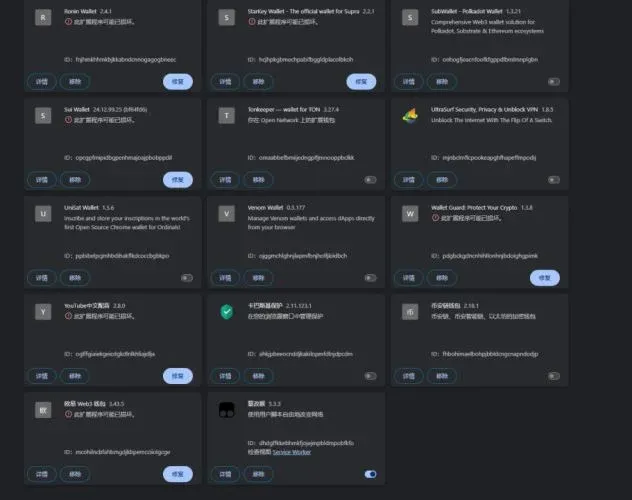
For Web3 users, this false‑positive risk is especially severe because wallet extensions typically store private keys. Mishandling the situation can result in permanent loss of wallet data and assets that are extremely difficult to recover. Therefore, mastering the correct recovery steps is crucial.
In this article we outline the common scenarios in which browser crypto wallets become corrupted due to antivirus false positives, and we provide a full‑process guide—from recovery to prevention—to help users quickly mitigate loss and safeguard private keys. After reading, you will be equipped with practical, actionable techniques.
How to handle it?
If you discover that an antivirus false positive has damaged a browser extension, follow the steps below in order:
1. Restore files from quarantine; do not uninstall the extension directly
- First, open the antivirus’s “Quarantine” or “History” section and look for the falsely flagged files.
- If the files are still in quarantine, click “Restore” and add the file or extension to the trust list to prevent future false positives.
- If the files have already been deleted, try using the operating system’s built‑in backup feature or a third‑party data‑recovery tool.
- Key tip: Do not uninstall the extension, even if its UI appears broken; local files that contain private‑key information may still be present and recoverable.
2. Back up and locate the local extension data
Extension data is stored on the local disk and can be located by the extension ID (using MetaMask as an example, the ID is `nkbihfbeogaeaoehlefnkodbefgpgknn`):
| Operating System | Example Local Path |
|---|---|
| Windows | `C:\Users\{username}\AppData\Local\Google\Chrome\User Data\Default\Local Extension Settings\nkbihfbeogaeaoehlefnkodbefgpgknn` |
| macOS | `~/Library/Application Support/Google/Chrome/Default/Local Extension Settings/nkbihfbeogaeaoehlefnkodbefgpgknn` |
Definition: `Default` refers to the default user profile; if you use multiple profiles the directory may be `Profile 1`, `Profile 2`, etc. Adjust according to your actual setup.
It is recommended to copy the entire directory of the target extension as soon as possible and store it as a backup for later restoration.
3. Rough recovery: directly overwrite the local extension folder
- On another computer or in a fresh browser profile, copy the previously backed‑up extension directory into the corresponding local path.
- Restart the browser; the extension should reload and function normally.
4. Advanced recovery: manually decrypt the private‑key data
When the extension still refuses to open or data appears missing, you can try the following (using MetaMask as an example):
- Search your local machine for the MetaMask extension ID and navigate to the `Local Extension Settings` folder.
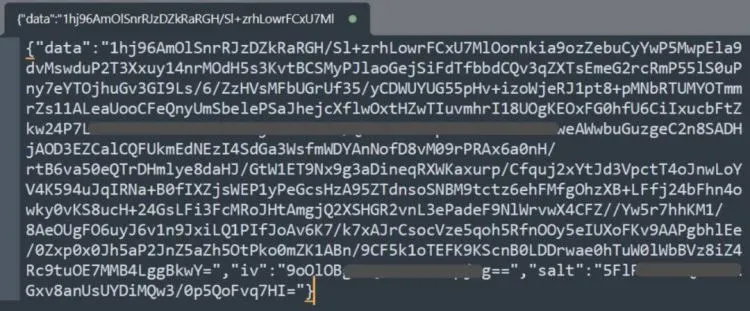
- Inside that folder, the `ldb/log` file contains the encrypted private key. Use the MetaMask official Vault decryption tool (<https://metamask.github.io/vault-decryptor/>) to decrypt it.
- Decryption procedure:
- Open the Vault decryption tool.
- Copy‑paste the encrypted content from the `log` file into the tool.
- Enter the password you originally set for the extension to perform decryption.
- Once the private key is revealed, import it into a freshly installed MetaMask instance.
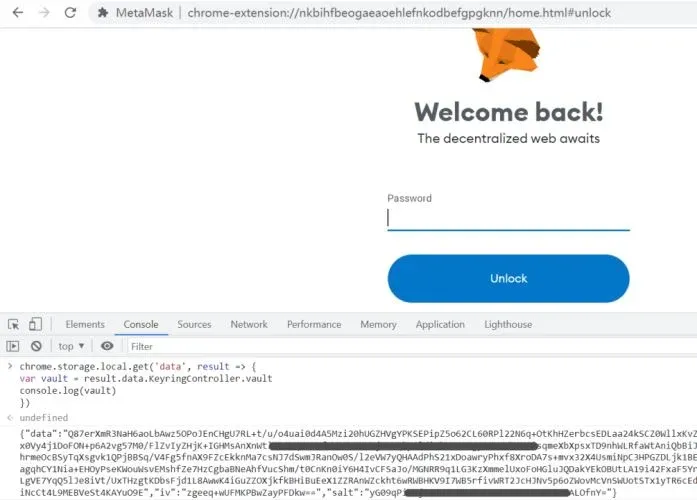
If the extension still loads some pages (e.g., `chrome-extension://nkbihfbeogaeaoehlefnkodbefgpgknn/home.html`), you can execute the following code in the browser console to read the encrypted vault data directly:
```javascript
chrome.storage.local.get('data', result => {
var vault = result.data.KeyringController.vault;
console.log(vault);
});
```
Copy the printed `vault` string into the MetaMask Vault decryption tool to complete the decryption.
5. Write a custom recovery utility
If the methods above fail, users can develop their own script to extract and decrypt data from the local database (LevelDB / IndexedDB). Below is an overview of the approach:
- Locate and extract encrypted data: read the browser’s LevelDB or IndexedDB files.
- Analyze data structure: identify fields that store encrypted private keys or seed phrases.
- Key derivation: use the wallet password supplied by the user and run a KDF (e.g., PBKDF2, Scrypt) to generate the decryption key.
- Dual‑layer decryption: first decrypt an intermediate key, then decrypt the actual private key/seed phrase.
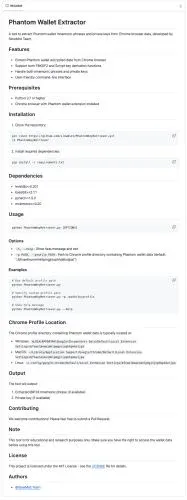
PhantomKeyRetriever (open‑source on GitHub <https://github.com/slowmist/PhantomKeyRetriever>) is an example script that implements the above workflow. Its core steps are:
- Read Chrome’s LevelDB and copy relevant data to a temporary directory.
- Scan the database to locate Phantom wallet’s encrypted key and seed information.
- Prompt the user for the Phantom password; the script uses PBKDF2/Scrypt to derive the decryption key.
- Apply NaCl’s `SecretBox` for the second‑level decryption, finally outputting a BIP‑39‑compliant seed phrase or a Base58‑encoded private key.
Note: Other Chromium‑based browsers such as Edge and Firefox use essentially the same extension‑storage mechanism, so the methods described above are applicable there as well.
How to prevent it?
To reduce the risk of asset loss caused by false positives, consider the following protective measures:
- Regular backups: export important extension files and private‑key data to offline media or an encrypted cloud storage solution.
- Trust rules: manually add frequently used crypto wallets (e.g., MetaMask, Phantom) to your antivirus whitelist to avoid future false detections.
- Official sources only: always obtain wallet extensions through the official website or the official browser extension store; avoid modified or third‑party distributed versions.
Summary
Antivirus software is the first line of defense for system security, but it is not infallible. When a browser crypto wallet is corrupted due to a false positive, users should stay calm, start by restoring files from quarantine, back up local data, and then proceed with manual decryption or custom recovery scripts as needed. Mastering these recovery and prevention techniques enables you to protect your digital assets effectively in a constantly evolving security landscape.
This guide provides a complete walkthrough for the question “Browser crypto wallet suddenly corrupted—how to avoid asset‑loss risk?” For more related content, follow Bitaigen (比特根) and its other articles.
Related Reading
- Digital RMB Soft vs Hard Wallets: Tech & Regulatory Guide
- Secure Blockchain Games: Multi‑Signature Wallets & ZK Proofs
- Find Token Contract Addresses via Explorers & Wallets
💡 Register on Binance with referral code B2345 for the maximum trading fee discount. See Binance complete guide.