
 Bitaigen Research
 MetaMask (the “Fox” wallet) is now bound to the BTCC exchange. On the BTCC login page, click the MetaMask icon, authorize the connection, and complete phone‑number or email verification to finish the binding. Once bound, you can use MetaMask for fast login, deposits, and token purchases.
In this article we walk you through the BTCC‑MetaMask binding process, helping newcomers quickly log in, fund, and buy crypto. With step‑by‑step screenshots you’ll learn MetaMask’s core functions and advantages, and master the key points for safely using the “Fox” wallet on an exchange. Keep reading to get started.
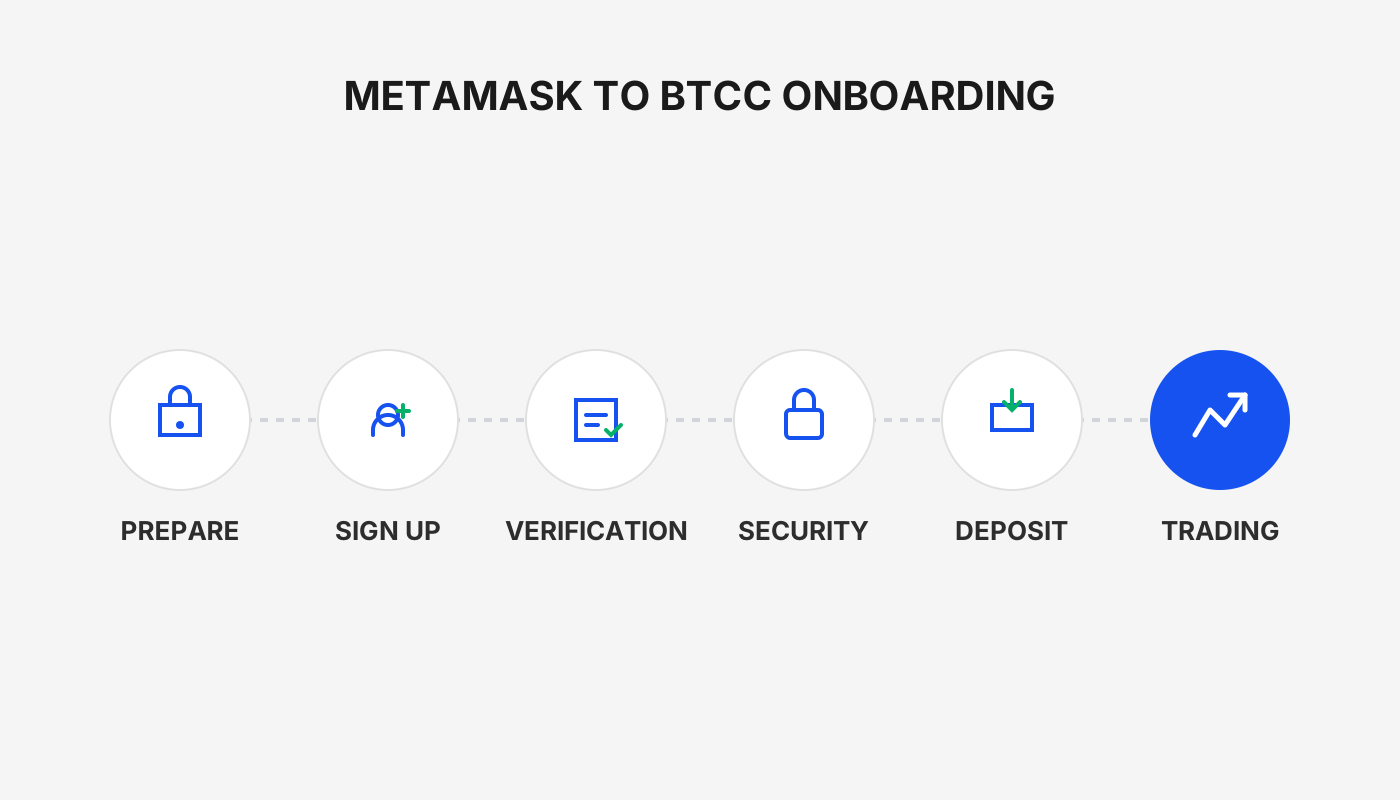
What is the MetaMask wallet?
MetaMask (the “Fox” wallet) has over 30 million users and is currently one of the most popular Ethereum‑ecosystem wallets. It is free and available as a browser extension (Chrome, Firefox, Brave, Edge) or as a mobile app for iOS and Android.
1. Core functions of MetaMask
- Buy, receive, send, swap Ether (ETH) and ERC‑20, ERC‑721 and other tokens
- Connect to dApps: access Ethereum decentralized applications directly in the browser
- Cross‑chain support: switch to Binance Smart Chain, Polygon, Arbitrum and other networks
- Games & NFTs: support blockchain‑based games and NFT‑marketplace transactions
2. Main advantages of MetaMask
| Advantage | Description |
|---|---|
| Simple setup | Download the extension or app, follow the prompts to create or import a wallet, and restore it later with a 12‑word seed phrase |
| Multi‑chain compatibility | Supports Ethereum mainnet, BSC, Polygon and multiple testnets simultaneously |
| High security | Private keys are stored locally; the decentralized architecture prevents a single point of failure |
| Staking & airdrops | Stake tokens and claim airdrop rewards directly from the wallet |
| Broad token support | Handles ETH, USDT, USDC, CAKE, BabyDoge and many other mainstream tokens |
| dApp hub | One‑click connection to thousands of decentralized applications, enhancing the Web3 experience |
3. Limitations of MetaMask
- No direct fiat on‑ramp: MetaMask does not provide a built‑in fiat withdrawal channel; you must use a third‑party service to convert to fiat.
- Limited customer support: There is no 24/7 live chat; beginners often need to rely on documentation and community forums.
- No Bitcoin support: Only tokens on Ethereum and compatible chains can be managed; BTC cannot be held directly.
How to use the MetaMask wallet
1. Logging in and creating a wallet
- Download the MetaMask browser extension or mobile app.
- Open it; the welcome screen lets you choose Create a wallet or Import wallet.
- When creating a wallet, set an 8‑digit password and record the 12‑word seed phrase (the recovery phrase). Store the phrase offline.
- To import, enter an existing seed phrase and the wallet will be restored.
Tip: The seed phrase is the sole recovery credential; losing it means permanently losing access to the wallet’s assets.
2. Depositing crypto assets
- On the MetaMask main screen, click the account icon in the top‑right corner and copy the 42‑character address that starts with 0x.
- Go to another exchange (e.g., Coinbase) or wallet, select Send, paste the address, and specify the amount to transfer.
- Confirm the details and submit; once the transaction is confirmed on‑chain, the assets appear in MetaMask.
Common tokens: ETH, ERC‑20, ERC‑721, and BEP‑20 tokens on BSC can all be held directly.
3. The three‑step MetaMask transaction flow
- Buy: On the wallet’s home page click Buy and use providers such as Wyre or Transak to pay with a credit card, Apple Pay, or other fiat methods in USD (or via SEPA/SWIFT where available). US residents should use Binance.US for fiat on‑ramps.
- Send: Click Send, enter the recipient address and amount, and optionally adjust the gas fee to speed up the transaction.
- Swap: Click Swap, select the source and target tokens, set a slippage tolerance, and confirm. MetaMask will query aggregated DEXs for the best price and execute the exchange.
Tax reminder: Crypto gains may be taxable in your local jurisdiction; consult a tax professional for guidance.
How to bind and use MetaMask on BTCC?
BTCC now offers a MetaMask binding feature. After binding, you can enjoy instant login, deposits, and token purchases. Follow the steps below:
step 1: On the BTCC login page click the MetaMask wallet icon entry
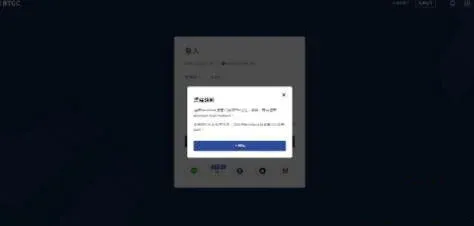
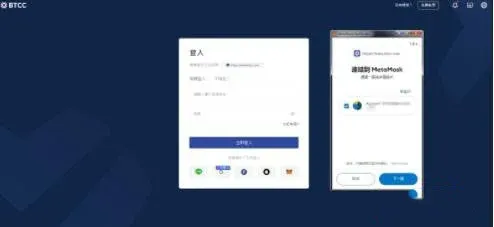
step 2: After the MetaMask pop‑up appears, log in to the wallet and select the account (wallet address) you wish to bind, then approve the signature request
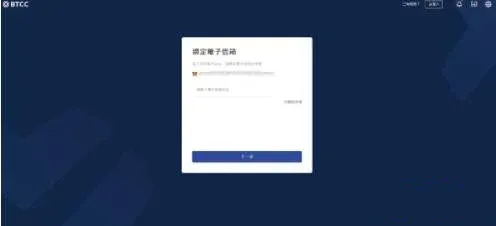
step 3: Verify your BTCC account information (phone number or email). Each BTCC account can bind only one unique MetaMask address; if you have already registered, you will need to enter your account password for a second‑factor verification
step 4: MetaMask shows another signature request to complete the security check
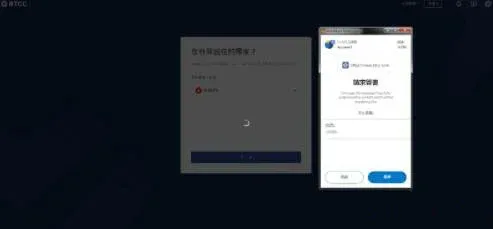
step 5: After a successful bind, the system logs you in automatically
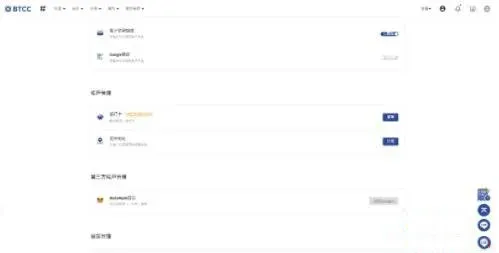
BTCC MetaMask deposit guide
Once bound, you can deposit funds on BTCC. At present only ETH deposits are supported; you can later use the “instant swap” feature to convert to other coins.
step 1: On the BTCC page select Deposit, click Connect MetaMask wallet, and the interface will redirect to MetaMask
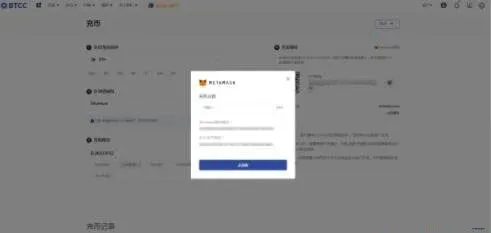
step 2: In MetaMask confirm the transfer details and submit. After the transaction is processed, return to BTCC and you will see the deposited ETH in your account
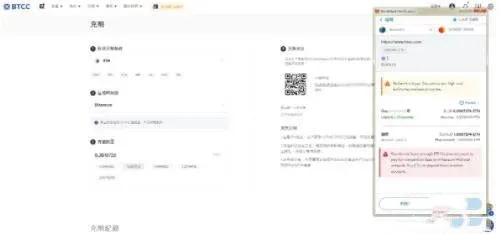
Friendly reminder: After the deposit, you can use BTCC’s instant‑swap function to exchange ETH for BTC, ADA, USDT and many other major crypto assets.
If you encounter any issues during the process, it is recommended to contact BTCC’s online customer service via the official website or mobile app.
That concludes the BTCC tutorial: the full workflow for binding and using the MetaMask wallet on the BTCC exchange. For more related content, follow other articles on Bitaigen.
Related Reading
- BTCC vs Pionex: Which Crypto Exchange Is Better?
- Connect MetaMask to BNB Smart Chain, Polygon & EVM Networks
- How to Connect Monad to MetaMask: Fast Guide & RPC Setup
💡 Register on Binance with referral code B2345 for the maximum trading fee discount. See Binance complete guide.



